
How to Create AI Product Advertisement Videos with the Miraflow API

Written by
Jay Kim
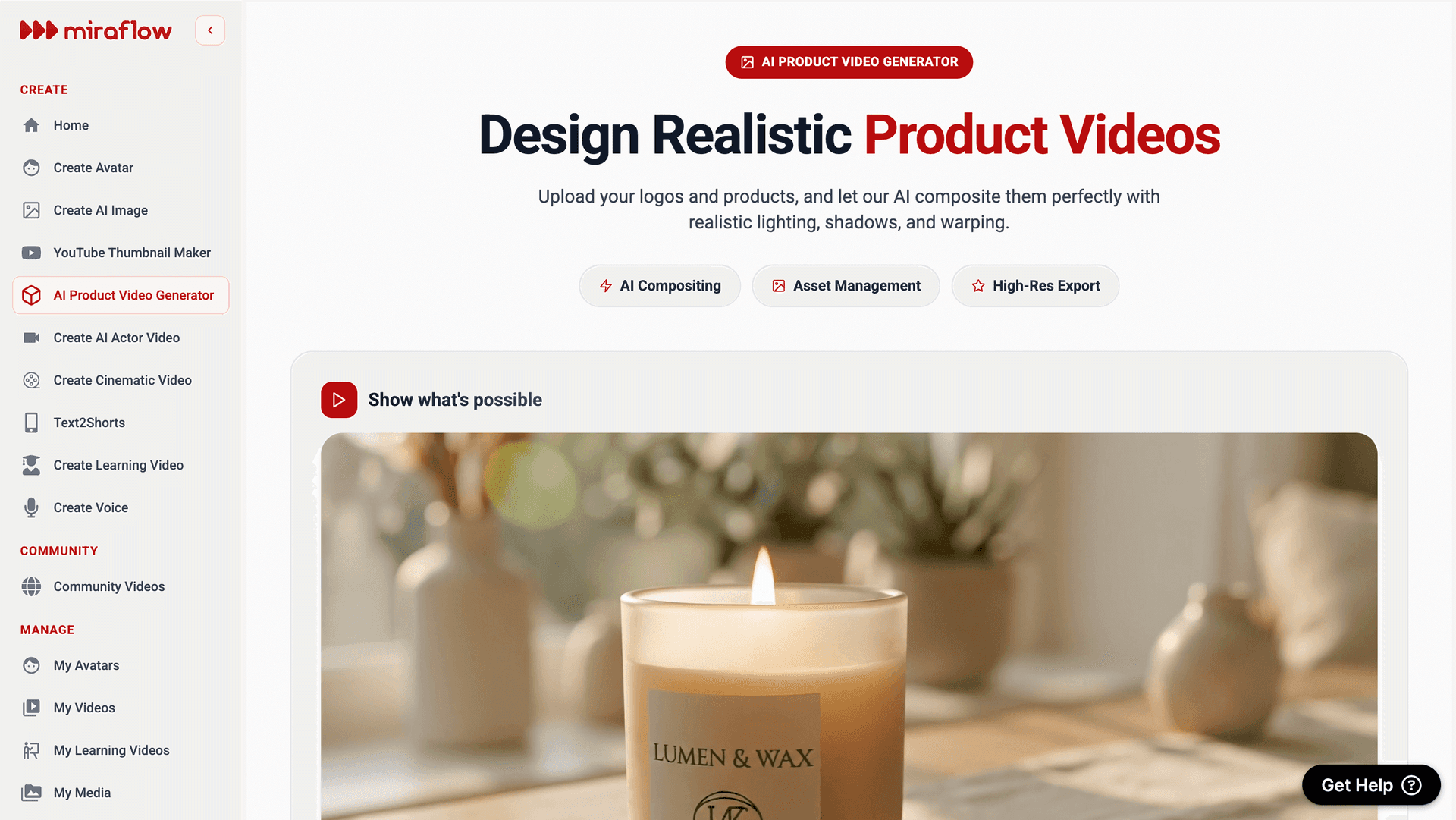
Learn how to programmatically create stunning product advertisement videos using the Miraflow API. This step-by-step tutorial covers uploading assets, generating AI-powered mockups, and creating cinematic 8-second videos with code examples you can use today.
How to Create Product Advertisement Videos with the Miraflow API
Transform your product images into stunning advertisement videos programmatically using the Miraflow AI Product Video Generator API. This tutorial walks you through the complete workflow, from uploading your assets to downloading your finished video.
What You'll Learn
In this guide, you'll learn how to:
- Upload product and logo images via the API
- Generate AI-powered product mockups
- Create 8-second cinematic advertisement videos
Whether you're building an e-commerce integration, automating your marketing pipeline, or creating videos at scale, this API gives you full programmatic control over Miraflow's AI video generation capabilities.
Prerequisites
Before you begin, you'll need:
- A Miraflow account at miraflow.ai
- An API key (found in your account settings)
- Product and logo images ready to upload
- Basic familiarity with REST APIs and command-line tools
API Overview
Authentication
All API requests require authentication using the `x-api-key` header:
bashcurl -H "x-api-key: YOUR_API_KEY" https://miraflow.ai/api/...
The Workflow
The AI Product Video Generator follows a three-stage pipeline:
│ Upload Assets (Product/Logo) │ ──▶ │ Generate Mockup (AI Compositing) │ ──▶ │ Create Video │
Each stage is asynchronous—you submit a job, receive a job ID, and poll for completion.
Step 1: Upload Your Product Image
First, upload your product image using the asset edit endpoint. This processes your image and prepares it for mockup generation.
bashcurl -X POST "https://miraflow.ai/api/mockup/asset/edit" \
  -H "x-api-key: YOUR_API_KEY" \
  -F "image=@product.png" \
  -F "prompt=Keep this product image as is, preserve all details" \
  -F "type=product"
Response:
json{
  "result": "success",
  "jobId": "cm42ab3ou0008aggajj0jy5e2"
}
Save the jobId, you'll need it to check the status and retrieve the processed asset.
Poll for Completion
Asset processing typically takes 10-30 seconds. Poll the status endpoint until complete:
bashcurl -X GET "https://miraflow.ai/api/mockup/cm42ab3ou0008aggajj0jy5e2/status" \
  -H "x-api-key: YOUR_API_KEY"
Response (in progress):
json{
  "result": "success",
  "status": "started",
  "progress": 45
}
Response (completed):
json{
  "result": "success",
  "status": "completed",
  "mediaId": "cm42ab3ou0008aggajj0jy5e3",
  "imageUrl": "/api/media/cm42ab3ou0008aggajj0jy5e3/view"
}
When the status is `completed`, save the `mediaId`—this is your product asset ID.
Step 2: Upload Your Logo
Repeat the same process for your logo:
bashcurl -X POST "https://miraflow.ai/api/mockup/asset/edit" \
  -H "x-api-key: YOUR_API_KEY" \
  -F "image=@logo.png" \
  -F "prompt=Keep this logo as is, preserve all details" \
  -F "type=logo"
Poll for completion and save the logo's `mediaId`.
Step 3: Generate a Product Mockup
Now combine your product and logo into a mockup. The AI will intelligently composite your logo onto the product based on your instructions.
bashcurl -X POST "https://miraflow.ai/api/mockup/generate" \
  -H "x-api-key: YOUR_API_KEY" \
  -H "Content-Type: application/json" \
  -d '{
    "productMediaId": "YOUR_PRODUCT_MEDIA_ID",
    "logoMediaIds": ["YOUR_LOGO_MEDIA_ID"],
    "instruction": "Place the logo prominently on the front of the product. Keep the premium aesthetic and ensure the logo is clearly visible."
  }'
Tips for the instruction field:
- Be specific about logo placement ("center", "top-left", "on the label")
- Mention the product type for context ("on the t-shirt", "on the bottle")
- Describe the desired aesthetic ("premium", "minimal", "bold")
Response:
json{
  "result": "success",
  "jobId": "cm42cd5pq0012xyzabc123def",
  "imageUrl": "/api/media/cm42cd5pq0012xyzabc123ghi/view",
  "mediaId": "cm42cd5pq0012xyzabc123ghi"
}
Poll the status endpoint until the mockup is complete.
Step 4: Generate an Advertisement Video
Transform your mockup into an 8-second cinematic advertisement video. Choose from 8 professional animation styles:
| Style | Description |
|---|---|
| luxury_macro | Luxury macro studio film with detailed close-ups |
| neo_noir_night | Neo-noir night street atmosphere |
| warm_lifestyle_sunset | Golden-hour lifestyle cinematic feel |
| futuristic_clean_studio | Ultra-clean futuristic studio look |
| cyberpunk_showcase | Cyberpunk display pedestal aestheti |
| film_35mm_editorial | Classic 35mm film editorial style |
| high_fashion_runway | High-fashion spotlight stage |
| nature_premium | Premium nature setting |
| custom | Use your own custom prompt |
bashcurl -X POST "https://miraflow.ai/api/mockup/video" \
  -H "x-api-key: YOUR_API_KEY" \
  -H "Content-Type: application/json" \
  -d '{
    "mockupId": "cm42cd5pq0012xyzabc123def",
    "animationStyle": "luxury_macro",
    "aspectRatio": "9:16"
  }'
Response:
json{
  "result": "success",
  "jobId": "cm42ef7rs0015videojob456"
}
Video generation takes 2-5 minutes. Poll the status endpoint with longer intervals (10-15 seconds):
bashcurl -X GET "https://miraflow.ai/api/mockup/cm42ef7rs0015videojob456/status" \
  -H "x-api-key: YOUR_API_KEY"
Response (completed):
json{
  "result": "success",
  "status": "completed",
  "videoUrl": "https://miraflow-media.s3.amazonaws.com/cinematic-abc123.mp4"
}
Step 5: Download Your Video
Once complete, you can download the video directly from the `videoUrl` in the response, or list all your generated videos:
bashcurl -X GET "https://miraflow.ai/api/mockup/videos" \
  -H "x-api-key: YOUR_API_KEY"
Response:
json{
  "result": "success",
  "videos": [
    {
      "id": "cm42ef7rs0015videojob456",
      "name": "Product Ad - luxury macro",
      "status": "completed",
      "videoUrl": "https://miraflow-media.s3.amazonaws.com/cinematic-abc123.mp4",
      "mockupImageUrl": "/api/media/cm42cd5pq0012xyzabc123ghi/view",
      "aspectRatio": "9:16",
      "createdAt": "2025-02-06T10:30:00.000Z"
    }
  ]
}
API Reference
| Endpoint | Method | Description |
|---|---|---|
| `/api/mockup/asset/edit` | POST | Upload and process an image asset |
| `/api/mockup/asset/generate` | POST | Generate an asset from a text prompt |
| `/api/mockup/assets' | GET | List all saved assets |
| `/api/mockup/generate` | POST | Create a mockup from product + logos |
| `/api/mockups` | GET | List all saved mockups |
| `/api/mockup/video` | POST | Generate a video from a mockup |
| `/api/mockup/videos` | GET | List all generated videos |
| `/api/mockup/{id}/status` | GET | Check job status |
For complete API documentation with request/response schemas, visit miraflow.ai/api-docs
Next Steps
- Explore the full API documentation for advanced options
- Try the web interface to preview styles
Start creating stunning product videos today with the Miraflow API!