How to Use Nano Banana Image Inpainting on Miraflow AI

Written by
Jay Kim
Learn how to use Nano Banana image inpainting on Miraflow AI, plus Miraflow Inpaint, to edit specific parts of an image with simple prompts, masks, and model selection (no complex tools or editing skills required!).
Sometimes you don’t want to generate an image from scratch.
You already have a photo, you just want to change one specific part of it.
That’s exactly what AI Image Inpainting on Miraflow AI is designed for.
Miraflow AI’s inpainting feature is powered by both Nano Banana and Miraflow Inpaint, the same image model used for high-quality AI image generation and transformations. People often search for “Nano Banana inpainting,” so we’ll use that term in this guide but the main idea is simple: pick the model you want, mask the part you want to change, and describe the edit in plain language. This means inpainting benefits from the same strengths Nano Banana is known for: strong context understanding, clean blending, and photorealistic results.
This guide explains how Nano Banana–powered image inpainting works on Miraflow AI and how to use it step by step.
What Is AI Image Inpainting?
Image inpainting allows you to regenerate only a selected area of an image instead of recreating the entire frame.
When you mask part of an image and enter a prompt, Nano Banana:
- Understands the surrounding visual context
- Generates new content only inside the masked region
- Blends the result naturally with the original image
Because Nano Banana is trained to handle detailed textures, lighting, and composition, inpainting results feel cohesive rather than pasted on.
This makes the feature especially useful for precise edits where consistency matters.
How Image Inpainting Works on Miraflow AI
Miraflow Inpaint keeps the workflow simple. You just mask + prompt — then either Nano Banana or Miraflow Inpaint handles the heavy lifting behind the scenes.

Step-by-Step: Nano Banana Image Inpainting
- Upload your image
Choose the image you want to edit. This image becomes the base for Nano Banana’s inpainting process. - Mask the area you want to change
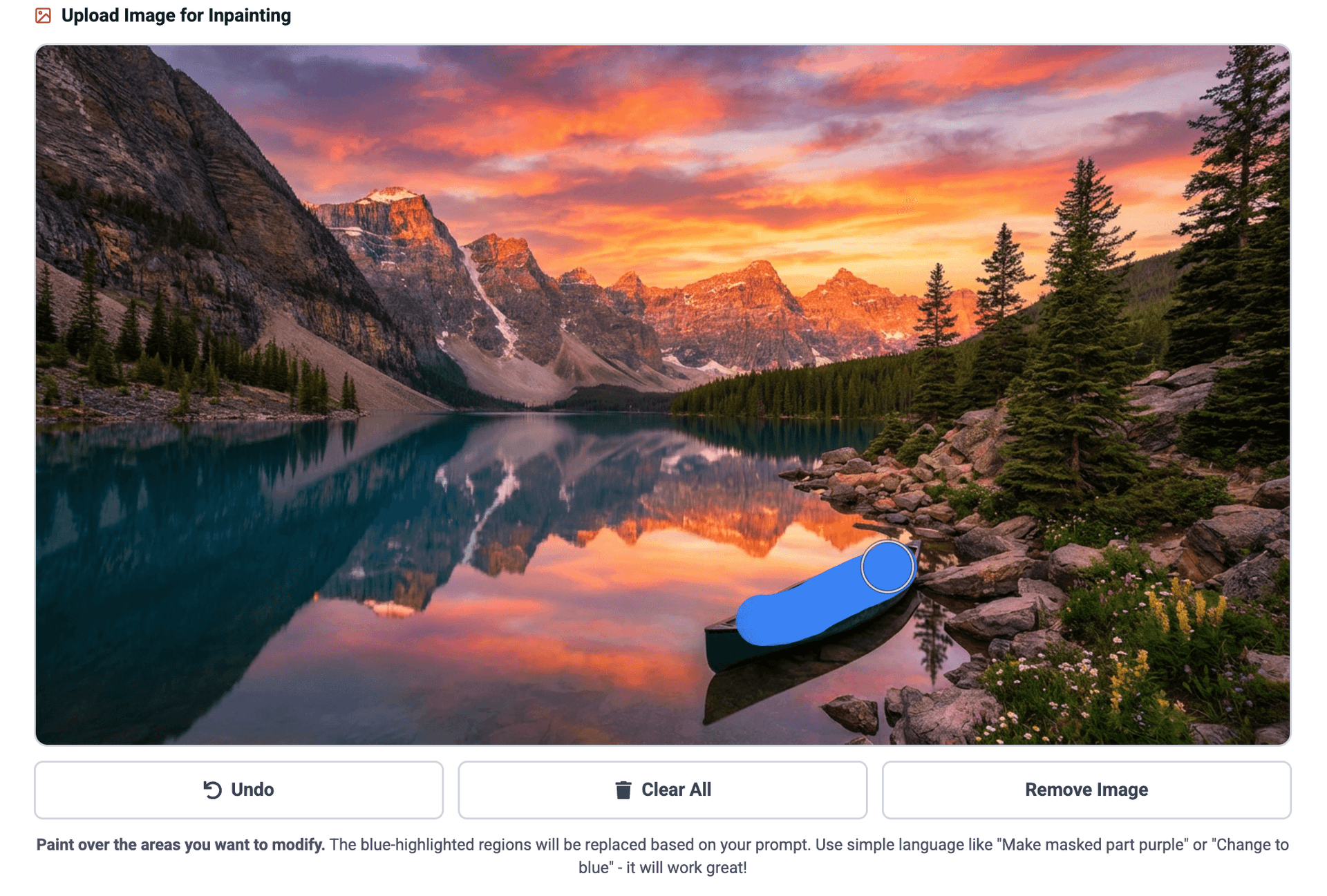
Click and drag over the part of the image you want to edit.
Only the masked region will be regenerated—everything outside the mask remains unchanged.
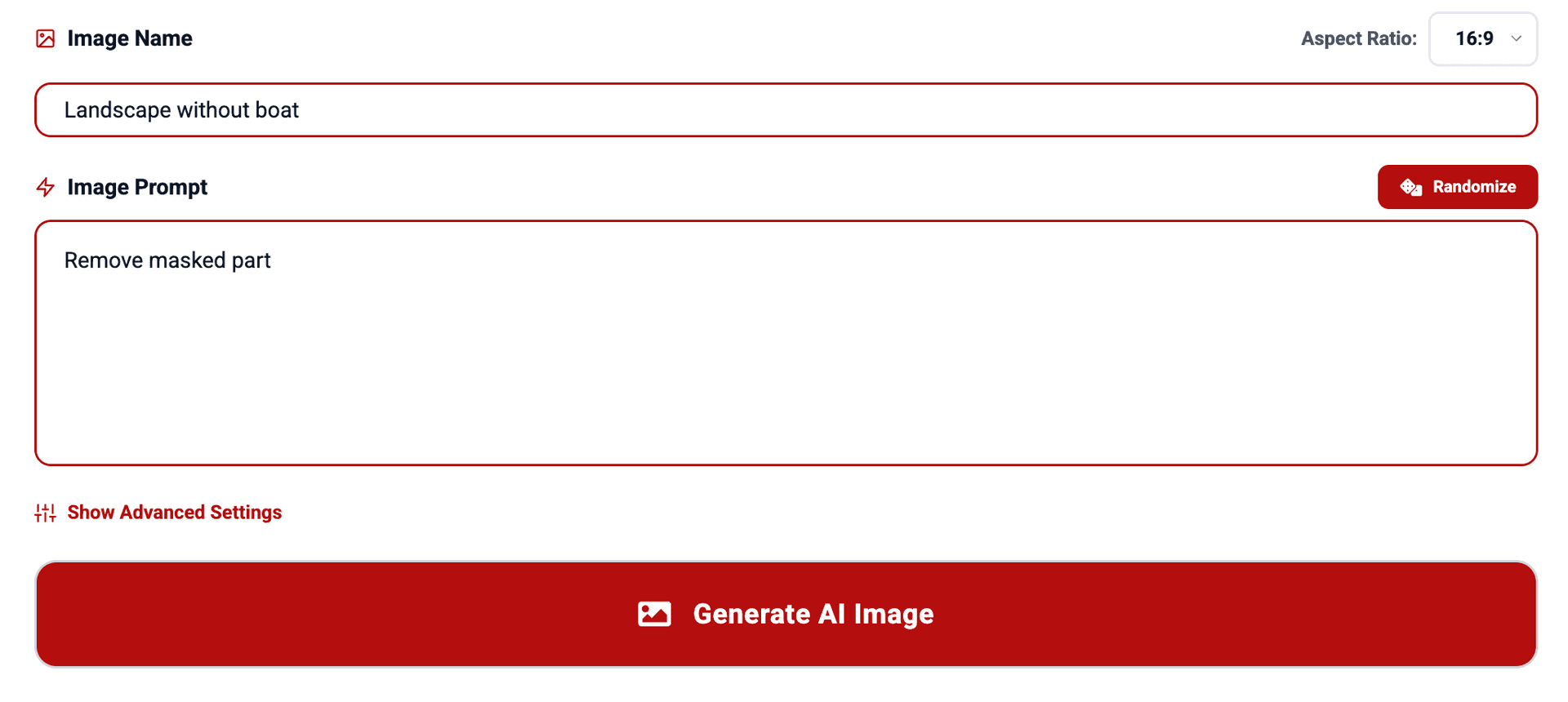
- Enter an image name
Naming your image helps you organize different edits and variations, especially when testing multiple prompts. - Enter your prompt
Describe what should appear inside the masked area, or what should be edited inside the masked area.
If you’re unsure how to phrase your prompt, click the Randomize button to see example prompts optimized for Nano Banana.
- Click “Generate AI Image”
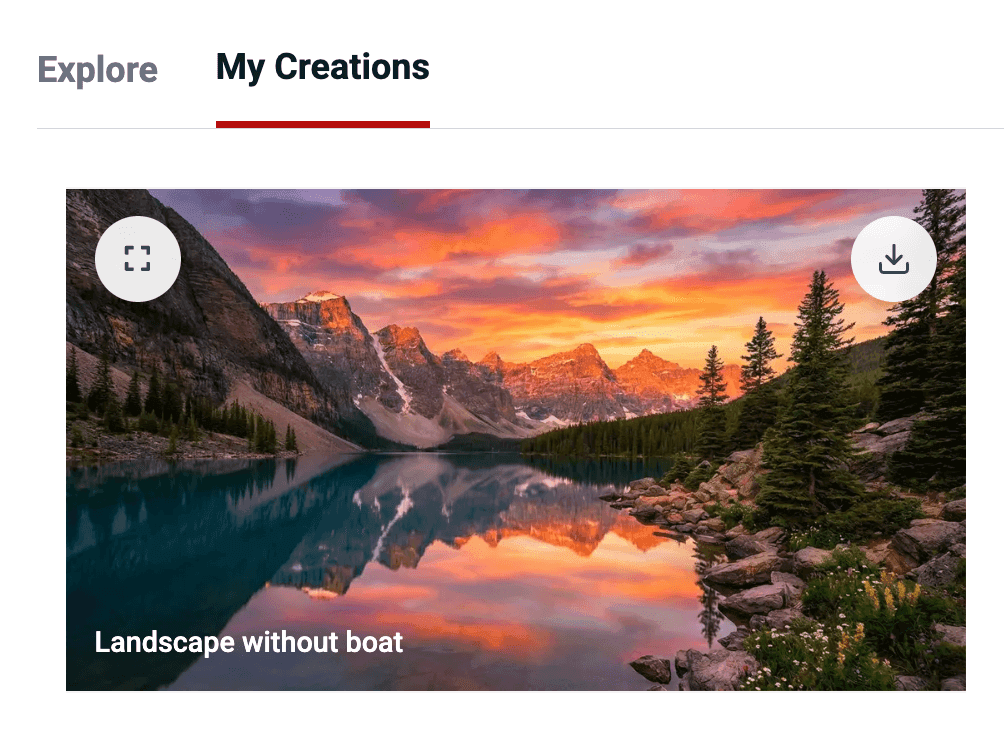
Nano Banana regenerates only the masked area, using your prompt and the surrounding image context to maintain realistic blending. - Check the result in “My Creations”
Once generation is complete, you can preview the image or download the final output from the My Creations tab.
Example 1: Changing Clothing Color
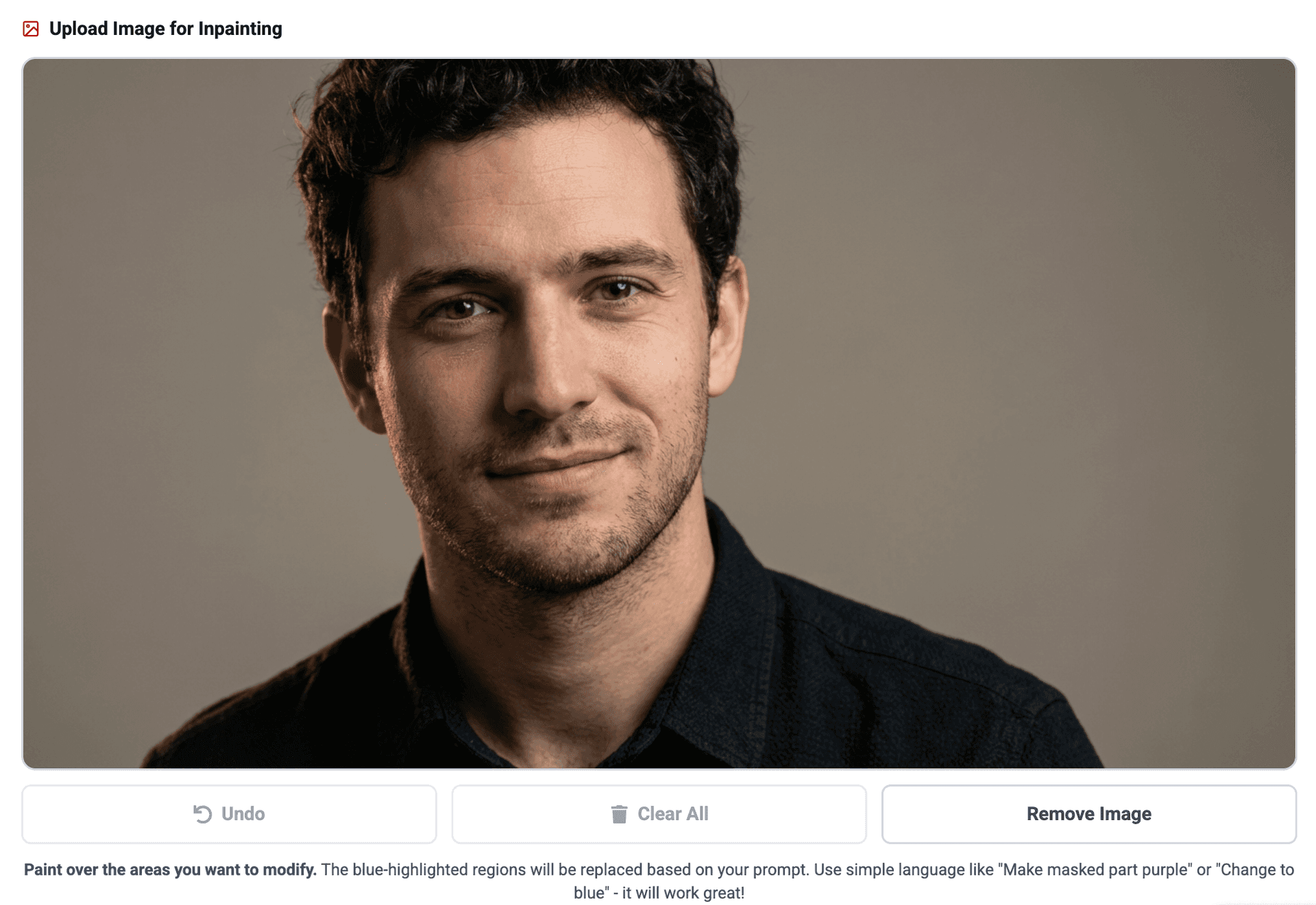
Original image:
A photo of a man wearing a shirt.
Inpainting action:
Mask only the shirt area.
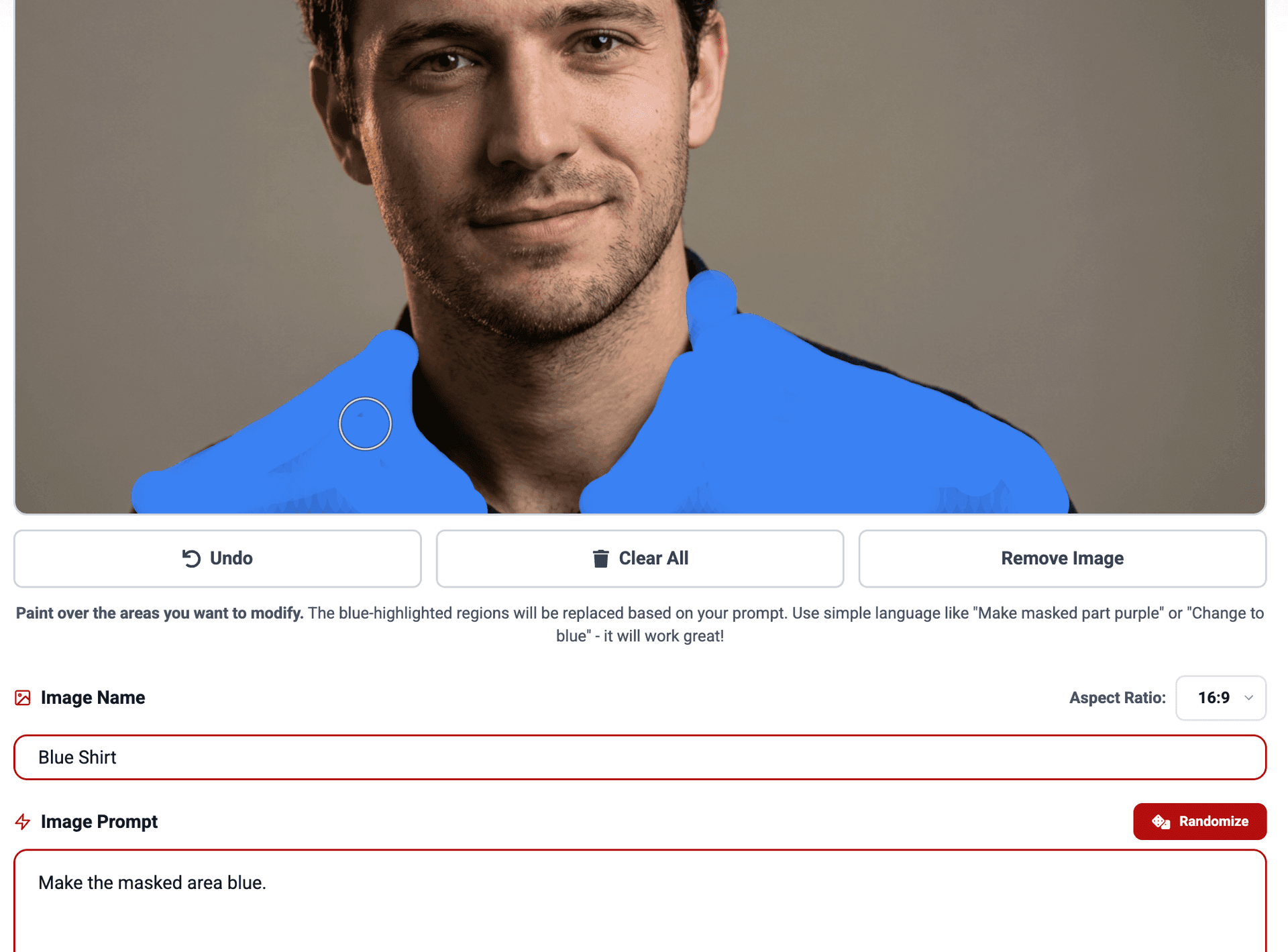
Prompt used:
Make the masked area blue.
Result:
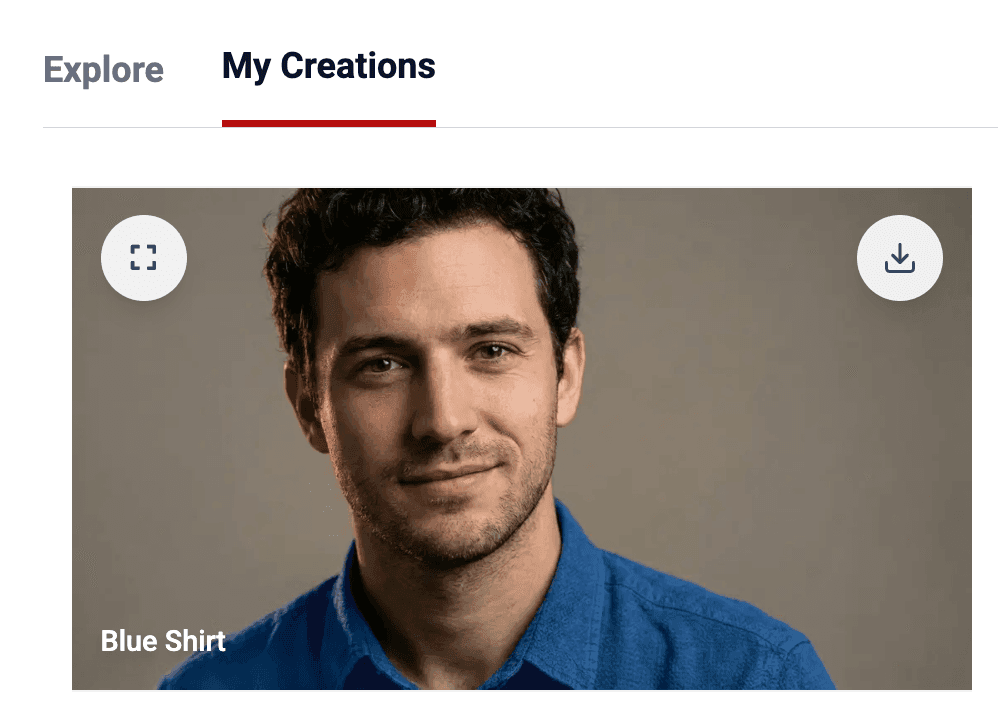
Miraflow AI's 'Image Inpaint' feature recolors the shirt while keeping the original lighting, fabric texture, skin tones, and background. Everything outside the mask stays untouched.
This is ideal for:
- Outfit color variations
- Fashion previews
- Consistent visual branding
Example 2: Replacing Food Using Inpainting
Original image:
A plated steak dish.
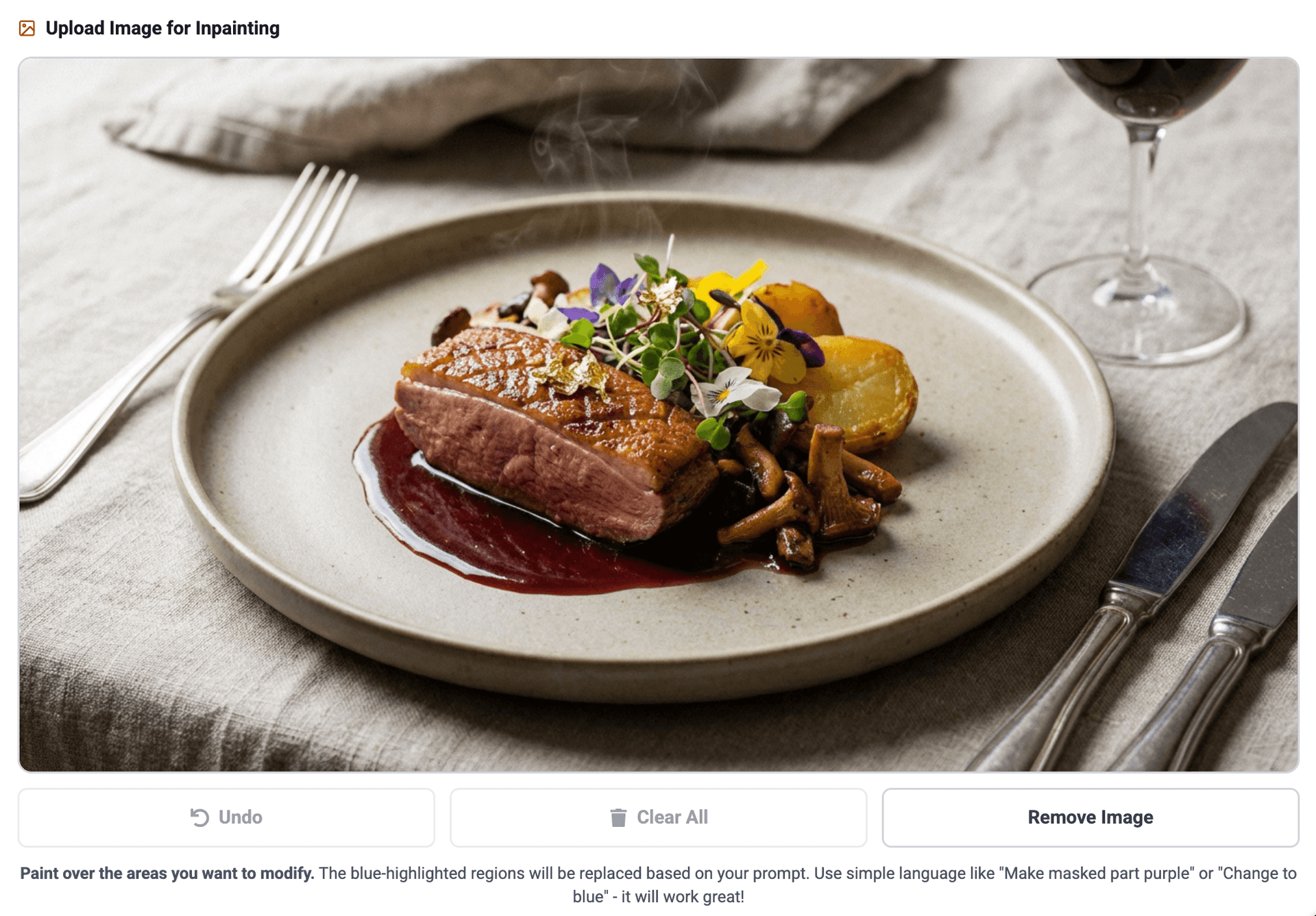
Inpainting action:
Mask only the steak.
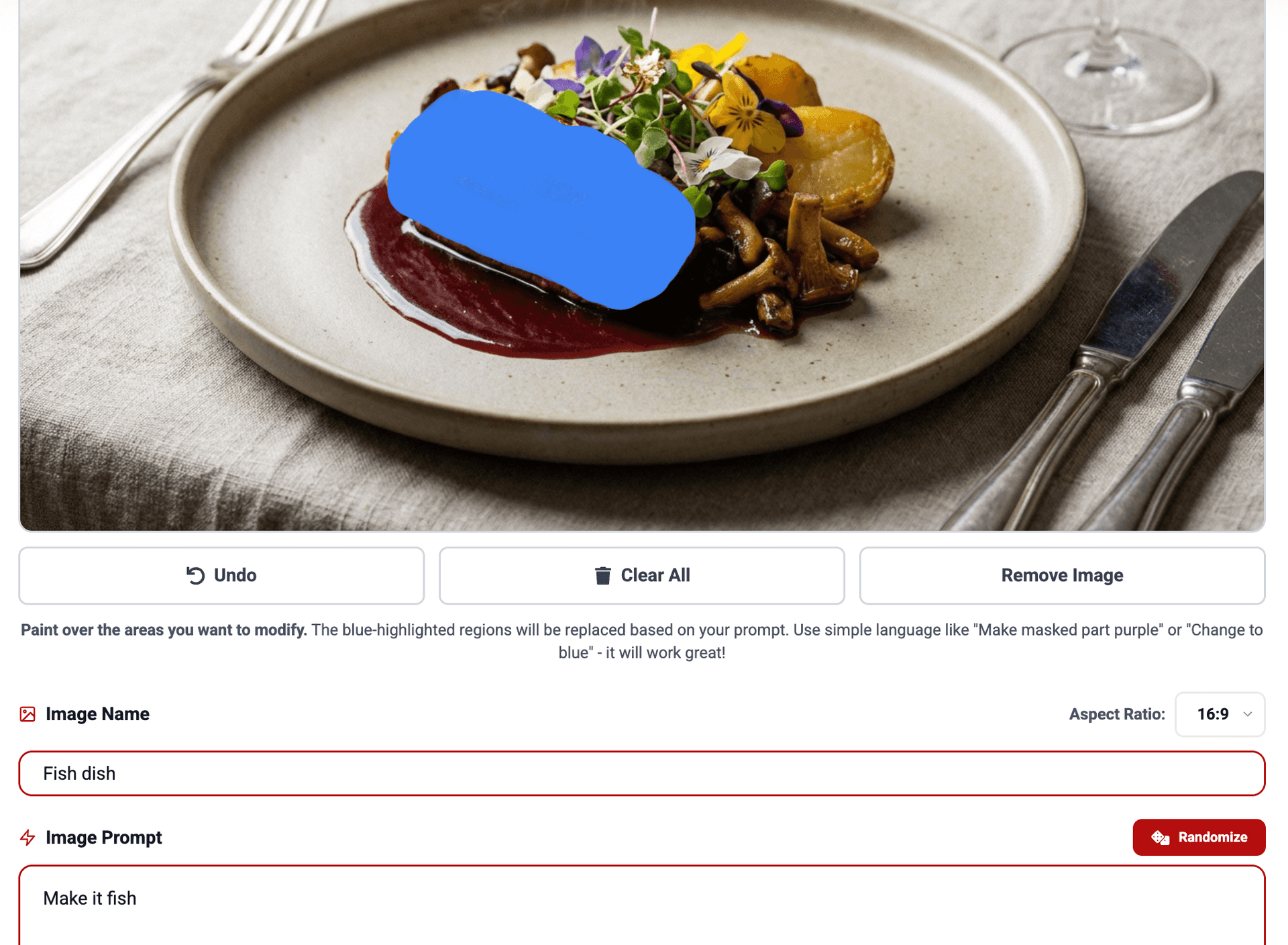
Prompt used:
Make it fish.
Result:
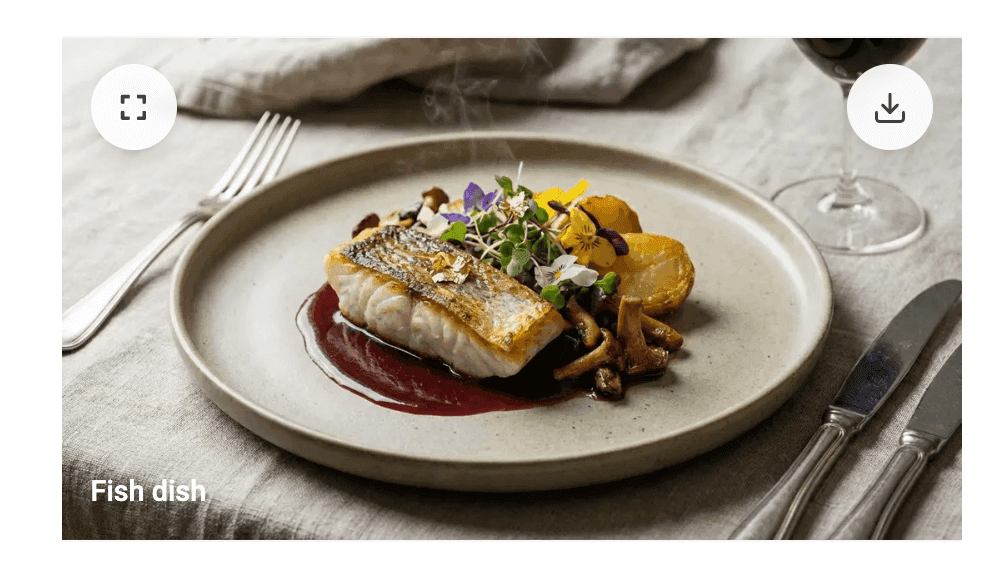
Miraflow AI's 'Image Inpaint' feature replaces the steak with a fish dish that matches the plate, other ingredients, lighting, and composition of the original image, without affecting the rest of the scene.
This type of edit works well for:
- Menu concepts
- Creative food content
- Rapid visual experimentation
Why Some Image Models Are Better at Inpainting
Not all AI image models can fill in missing parts of a picture equally well. Models designed specifically for inpainting work better than general image generators.
Understanding the Surrounding Image
Good inpainting models look at the pixels around the area you want to fill in. They study what's already there - the colors, patterns, and shapes - and use that information to create something that matches. It's like completing a puzzle by looking at the neighboring pieces.
Keeping Details Sharp
When AI fills in part of an image, it needs to maintain tiny details like crisp edges, fabric textures, or skin pores. Specialized inpainting models have built-in ways to copy these fine details from the original image, so the filled area doesn't look blurry or artificial compared to the rest.
Matching Light and Perspective
A good inpainting model automatically figures out where the light is coming from and how objects should look from the camera's angle. If you're filling in part of a wall, the model knows to match the shadows, highlights, and viewing angle of the surrounding wall—not just the color.
Looking Natural, Not Pasted
The biggest difference is that specialized inpainting models create seamless blends. The filled area doesn't look like something was copied and pasted in. Instead, it looks like it was always part of the original photo—complete with matching grain, slight imperfections, and natural transitions at the edges.
Tips for Better Nano Banana Inpainting Results
- Mask only what you need to change
Smaller masks usually produce cleaner results. - Keep prompts simple and direct
Clear instructions work best for inpainting. - Use 'Randomize' button for prompt inspiration
Example prompts are tuned for Nano Banana’s strengths. - Iterate when needed
Slight wording changes can improve blending and realism.
Edit Images with Nano Banana Inpainting on Miraflow AI
Stop wrestling with complicated editing software. With Nano Banana on Miraflow AI, you can make precise changes to your images in seconds.
Get started now:
Head over to Miraflow AI, upload an image, and see how easy it is to edit exactly what you want while keeping everything else perfect.
Try it out and see the difference for yourself.