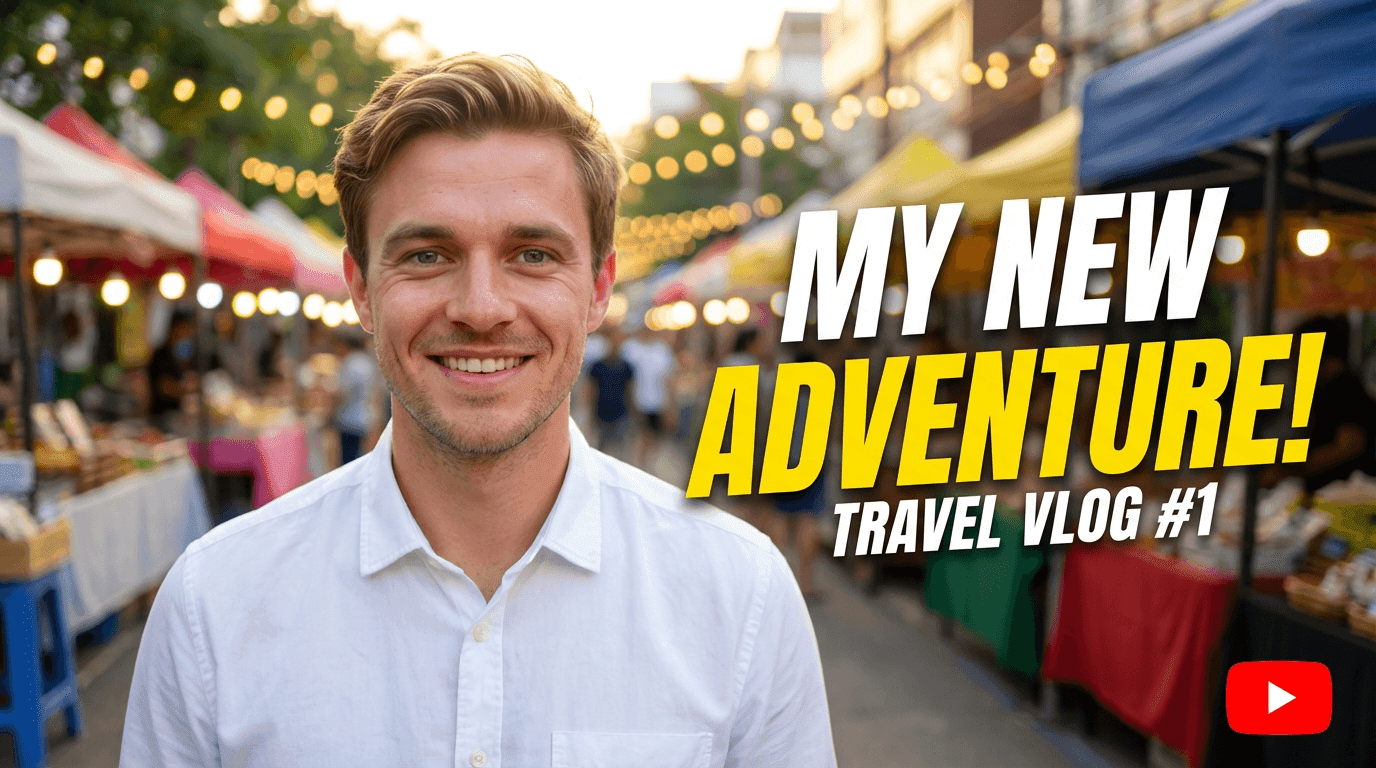
Nano Banana for YouTube in 2026: Visual Ideas for Intros, End Screens and Channel Art

Written by
Jay Kim

Learn how to use Nano Banana for YouTube in 2026 to design on brand intros, end screens, channel art and even reference images for cinematic AI videos directly in Miraflow.
If you are serious about YouTube in 2026, Nano Banana should not just be 'for fun prompts'.
You can treat it as your visual engine for:
- YouTube intros
- End screens
- Channel banners and avatars
- Even reference images for cinematic AI videos
And you can do all of that directly in Miraflow AI: generate Nano Banana images in your browser, then plug them into cinematic video generation and thumbnail workflows without leaving the site.
In this guide we will walk through:
- Why consistent visuals matter so much on YouTube in 2026
- How to use Nano Banana inside Miraflow AI for intros, end screens and channel art
- How to turn Nano Banana images into reference images for AI video clips
- Copy-paste prompt ideas for YouTube creators in different niches
- Where this fits into your overall Miraflow AI workflow (scripts → video → music → visuals → thumbnails)
Why visual consistency matters more in 2026
YouTube keeps reminding creators that titles, thumbnails and branding help viewers recognize you instantly in a crowded feed. Strong channels build:
- A consistent colour palette
- Recurring characters or mascots
- Familiar intro and outro visuals
- Matching thumbnails and banners
In 2026, most serious creators are competing with highly polished visuals. The advantage Nano Banana gives you is:
- You can design that whole visual system with prompts, not Photoshop
- You can keep your style consistent across thumbnails, intros, end screens and channel art
- You can generate matching B-roll and cinematic clips using your own images as reference, directly in Miraflow AI
Let’s start with static visuals, then move into motion.
Using Nano Banana for YouTube intros in Miraflow
Your intro should tell people, visually, 'this is your world'.
With Nano Banana in Miraflow’s AI Image Generator (https://miraflow.ai/create-ai-image), you can:
- Enter a prompt describing your channel vibe
- Generate a clean, on-brand image
- Use that image as:
- A still intro card
- Background for a logo animation
- Reference art for AI video intros (more on that later)
Step-by-step: design an intro image with Nano Banana
- Open Miraflow AI Image Generator
- Choose AI Image Generator
- Write a style prompt that matches your niche
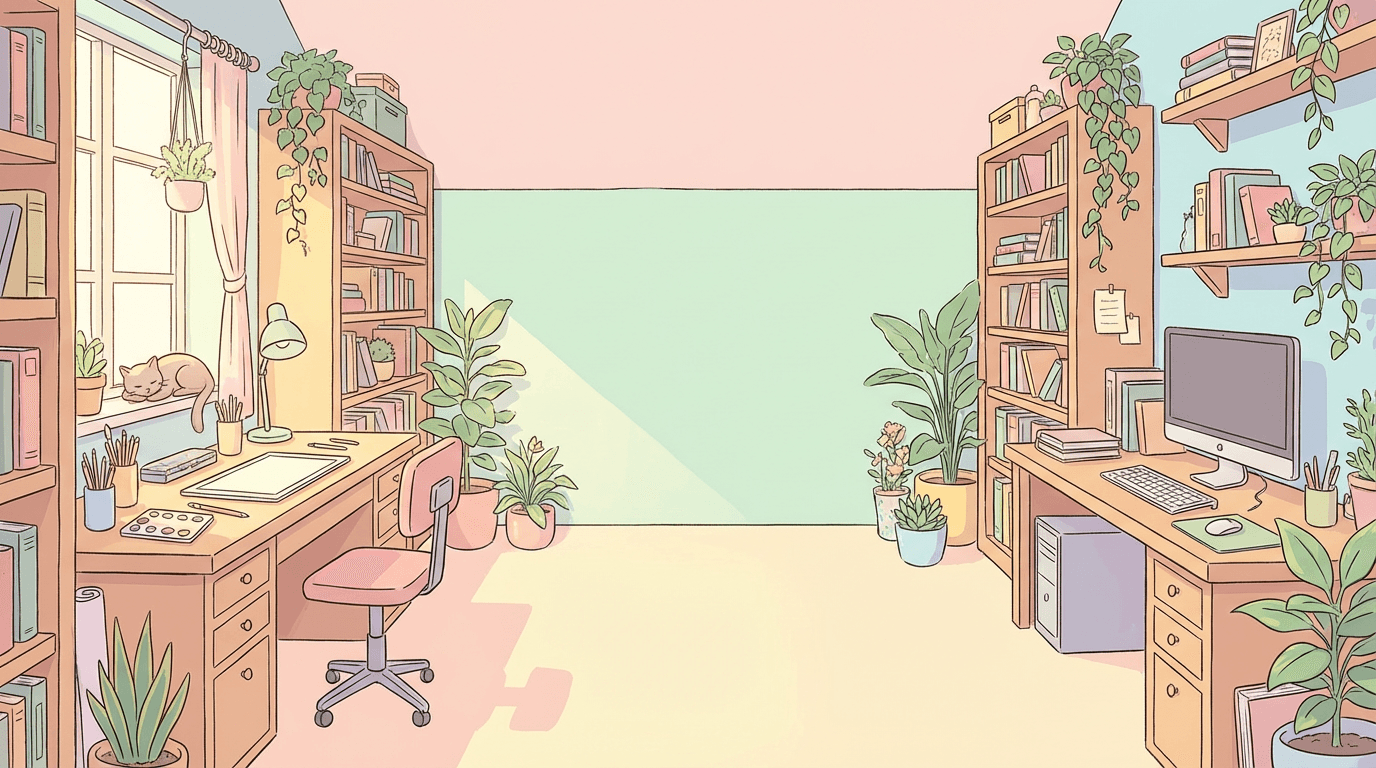
- For a productivity channel:
aesthetic illustration of a cozy desk with laptop, notebook and coffee, warm morning light, pastel teal and cream colour palette, tidy and minimal, designed as a YouTube intro background, no text, no logos
- For a productivity channel:
- For a tech / AI channel:
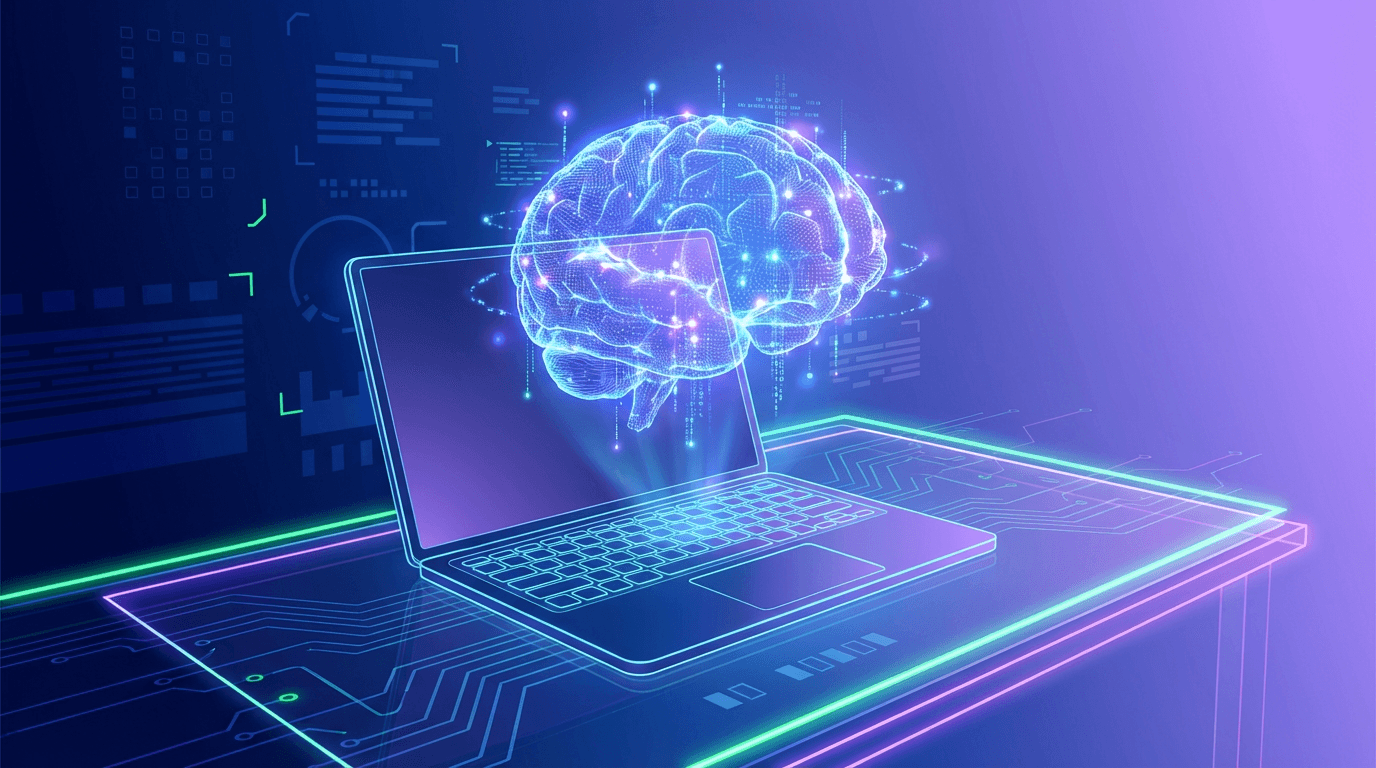
futuristic illustration of a laptop on a neon desk with glowing AI brain hologram above it, blue and purple accents, dark to light gradient background, clean and modern, designed as a YouTube intro background, no text, no logos
- For a tech / AI channel:
- Generate and refine
- Regenerate until you like the composition and colours
- Download
- Use it as a still intro or bring it into your editor to add simple text like your channel name
Once you like the base look, save the prompt and reuse it with tiny variations (different objects, colours) so all your intros feel related.
Using Nano Banana for end screens that actually get clicks
End screens are where you tell viewers, “do not leave YouTube yet, watch this next”.
With Miraflow AI, you can create:
- Clean backgrounds with space for 2–4 video boxes
- Visual cues that match your thumbnail style
- A consistent “last 20 seconds” experience across videos
Step-by-step: end screen background with Nano Banana
- In Miraflow AI Image Generator, choose 16:9 aspect ratio
- Prompt example for a creator / education channel:
minimal illustration of a bright YouTube end screen background, simple gradient from light blue to white, subtle abstract shapes on the sides, empty clean area in the centre and right side for video boxes, modern and friendly, no text, no logos - For a study / lofi channel:
soft illustration of a cozy desk at night with window and city lights blurred outside, dark but warm colours, big empty area on the right side for video boxes, calm and aesthetic, no text, no logos - Generate until you get:
- Clear empty areas where you can place end screen elements
- No distracting details in those areas
- In your editor or YouTube’s end screen editor, drop your video suggestions on top
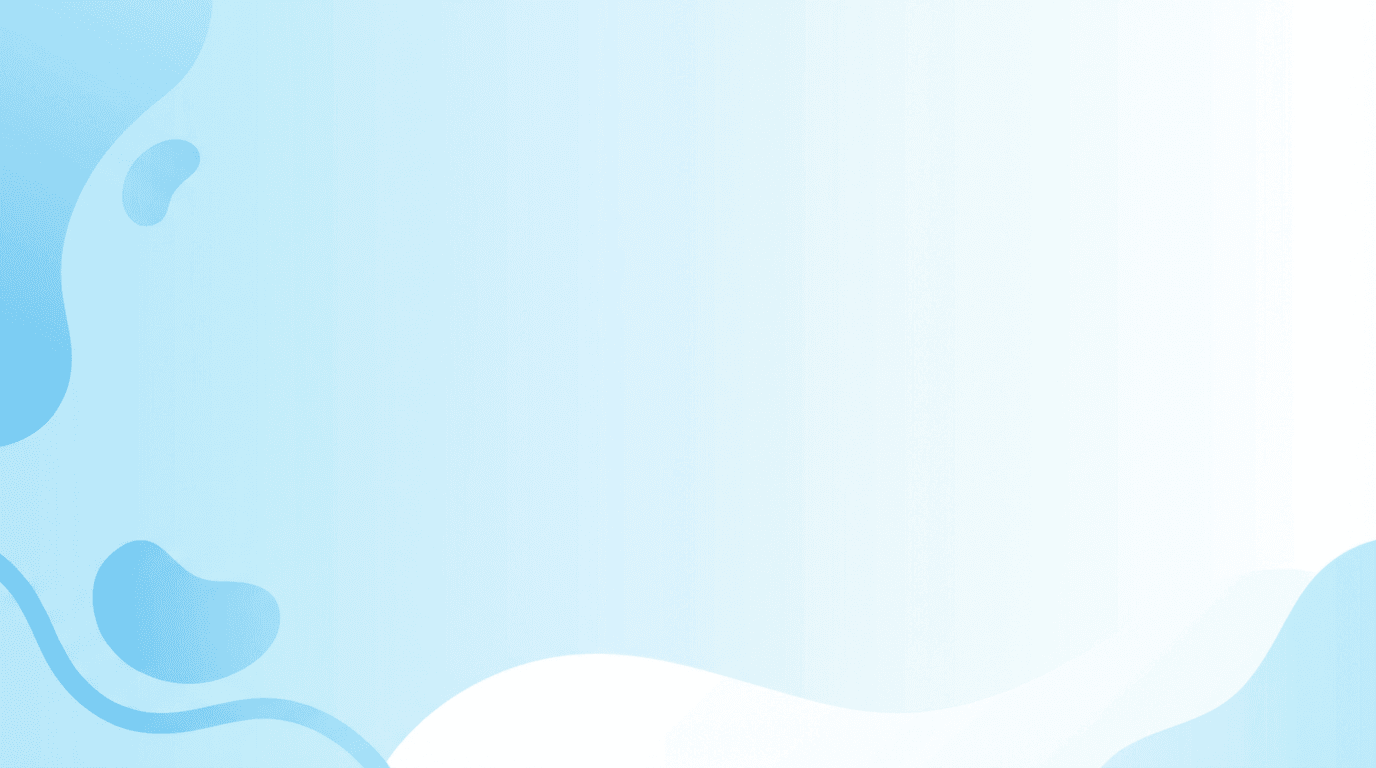
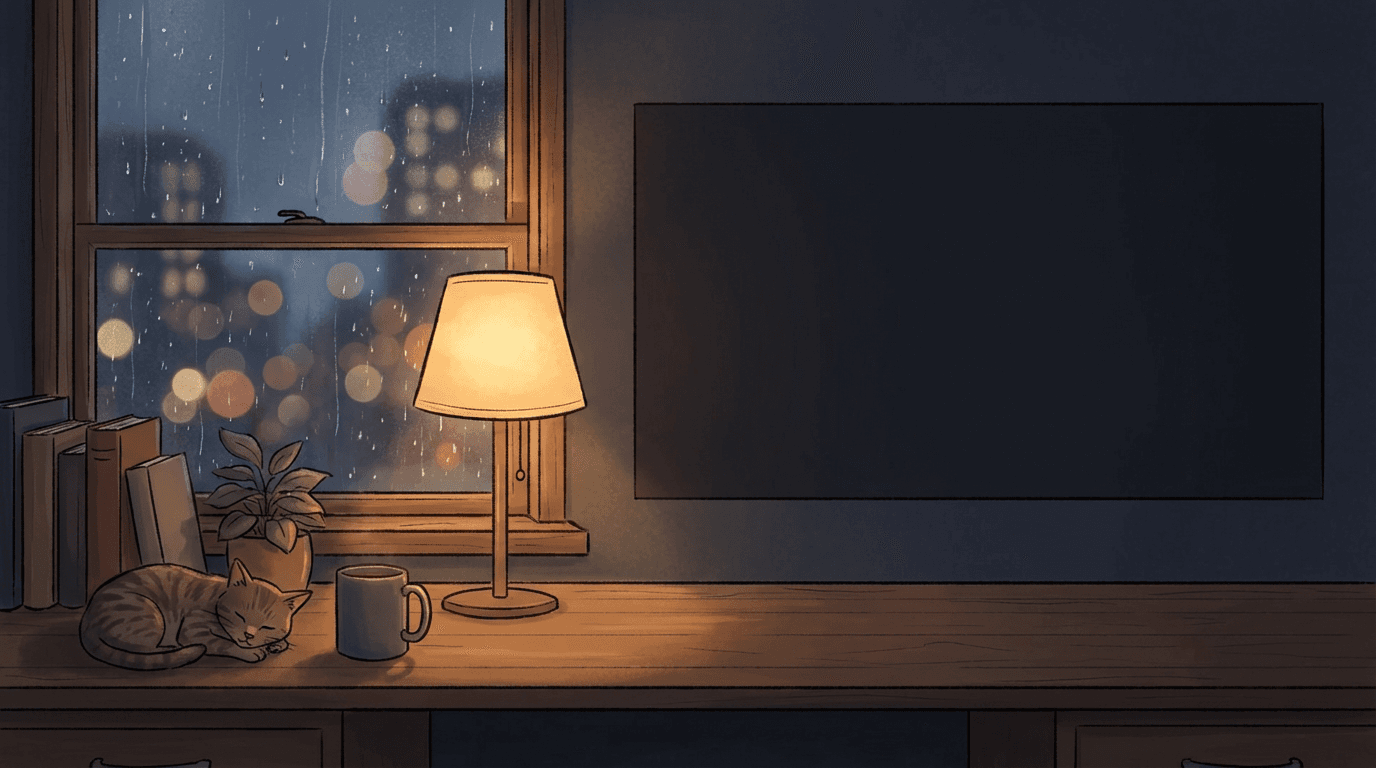
Because the image is generated by Nano Banana, you can create variations (day vs night, different seasons, different desk objects) while keeping the same overall look.
Using Nano Banana for channel banners and avatars
Your channel page is your YouTube homepage. Nano Banana lets you:
- Create a banner that matches your thumbnails and intros
- Create a channel avatar or mascot that appears in thumbnails, overlays, and intros
Channel banner ideas
Banners should:
- Communicate your niche visually
- Use your brand colours
- Avoid tiny details that get cropped on mobile
Prompt examples in Miraflow AI:
- Productivity / study channel
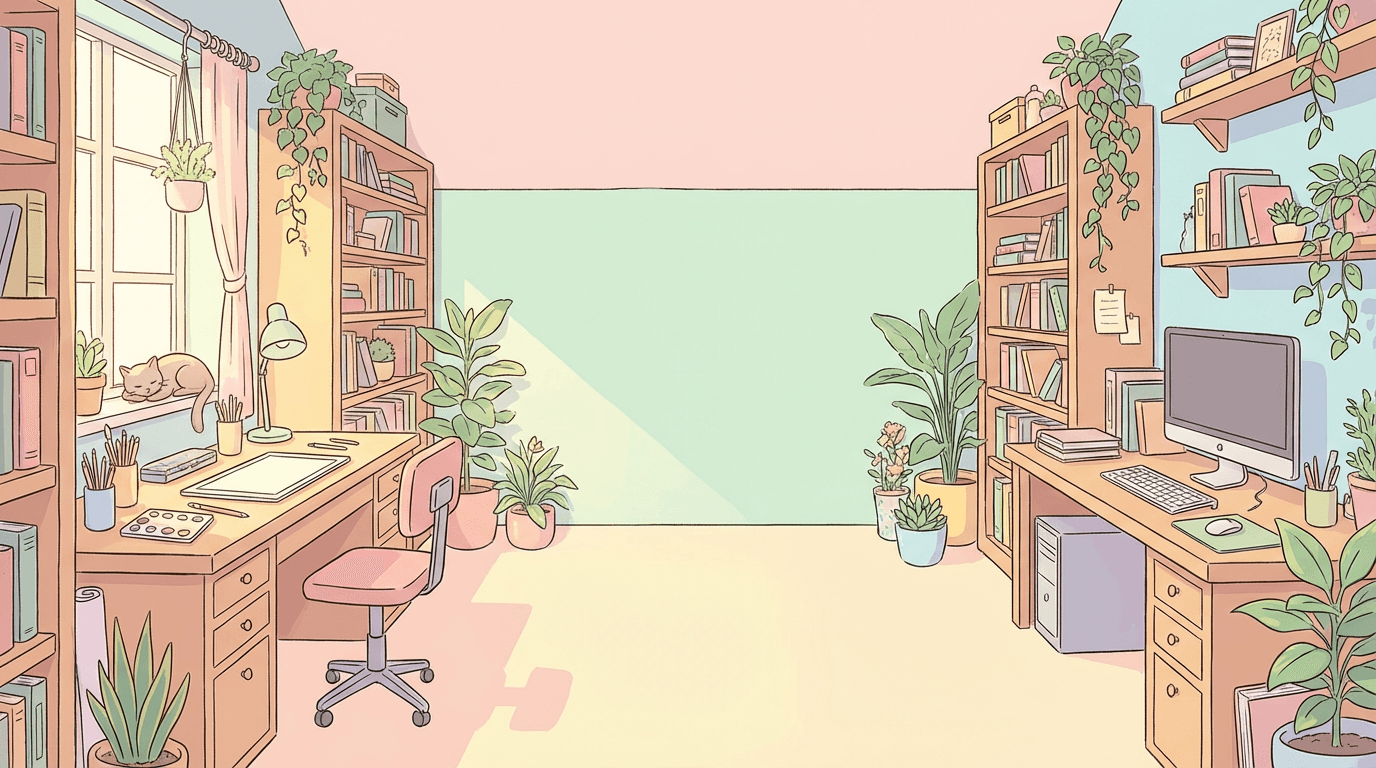
wide panoramic illustration of a cozy workspace with multiple desks, bookshelves and plants, warm sunlight, pastel colours, designed as a YouTube channel banner, clean centre area with fewer details, no text, no logos
- Finance / money channel
panoramic illustration of a modern city skyline with subtle golden coins and upward arrows integrated into the buildings, bright sky, teal and gold accents, designed as a YouTube channel banner, minimal centre space, no text, no logos
Download the result and upload it as your channel art.
Channel avatar / mascot ideas
You can either:
- Use a simplified portrait of yourself in a clear style
- Or create a mascot character that represents your brand
Prompt examples:
- Portrait-style avatar
clean vector style portrait of a young creator wearing headphones at a desk, friendly smile, simple flat shading, circular composition, pastel colours, designed as a YouTube profile avatar, no background text, no logos

- Mascot character
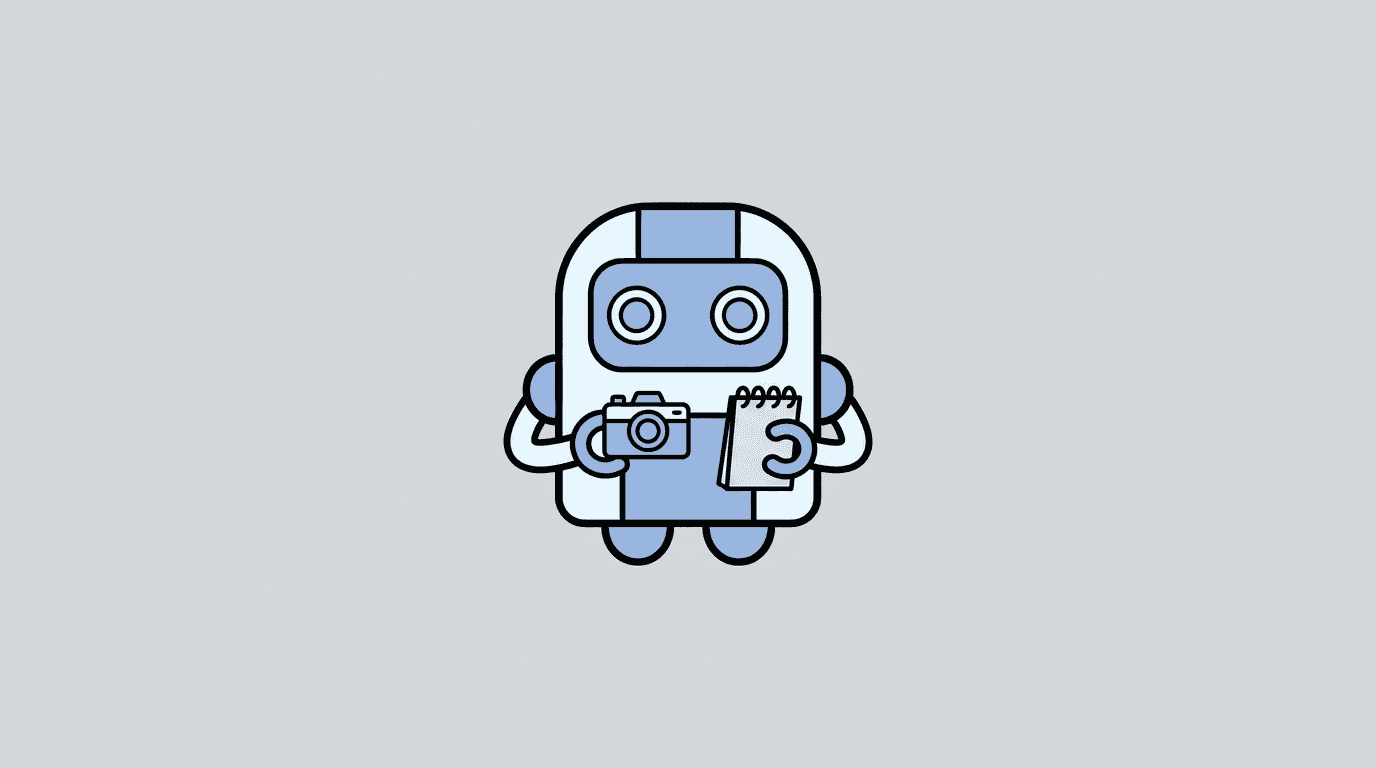
cute minimal mascot character shaped like a small robot holding a camera and a notebook, simple flat colours, thick outline, centred composition, designed as a YouTube channel icon, plain background, no text, no logos
You can then reuse this avatar in:
- Thumbnails (as a small sticker in the corner)
- Intros (animated or static)
- End screens
Turning Nano Banana images into reference images for cinematic AI videos
Here is where it gets fun.
You can take a Nano Banana image you love and use it as a reference for cinematic AI video generation in Miraflow’s Cinematic video features.
Workflow idea:
- Generate a Nano Banana image (intro background, mascot in a scene, aesthetic desk, etc) in Miraflow AI
- Use that image as a reference when generating cinematic AI clips
- Create short intro or B-roll videos that match your static branding
Example: from Nano Banana desk image to AI intro clip
- In Miraflow AI Image Generator:
Prompt:aesthetic illustration of a cozy desk with laptop, notebook and coffee, warm morning light, pastel teal and cream colour palette, tidy and minimal, no text, no logos - When you are happy with the desk image, save or download it
- Go to Veo3 / cinematic video feature in Miraflow AI
- Upload the desk image as a reference image
- In the video prompt, describe a subtle motion:
camera slowly dolly in towards the cozy desk, soft sunlight moving slightly, steam rising from the coffee, peaceful and cinematic, same colours and composition as the reference image - Generate the video
Now you have:
- A Nano Banana still for your channel art and thumbnails
- A matching cinematic intro clip with the same style for your YouTube videos
Use similar workflows for:
- Tech intros (glowing holograms around your laptop)
- Finance intros (graphs and coins moving slightly)
- Study intros (pencil tapping, page flipping, subtle light changes)
Visual ideas by section: intros, end screens, and channel art
Let’s put it all together so you have concrete ideas to test.
1. Intros (0–5 seconds)
Goals:
- Instantly show your vibe
- Set expectations before your face or main scene appears
- Feel recognisable across videos
Nano Banana prompt ideas (paste into Miraflow AI Image Generator):
Productivity / “study with me” channel
cozy anime style illustration of a person studying at a wooden desk with laptop and notebook, warm desk lamp light, bookshelves in the background, window showing a calm night city, soft colours, designed as a YouTube intro frame, no text, no logos
Tech / AI tools channel
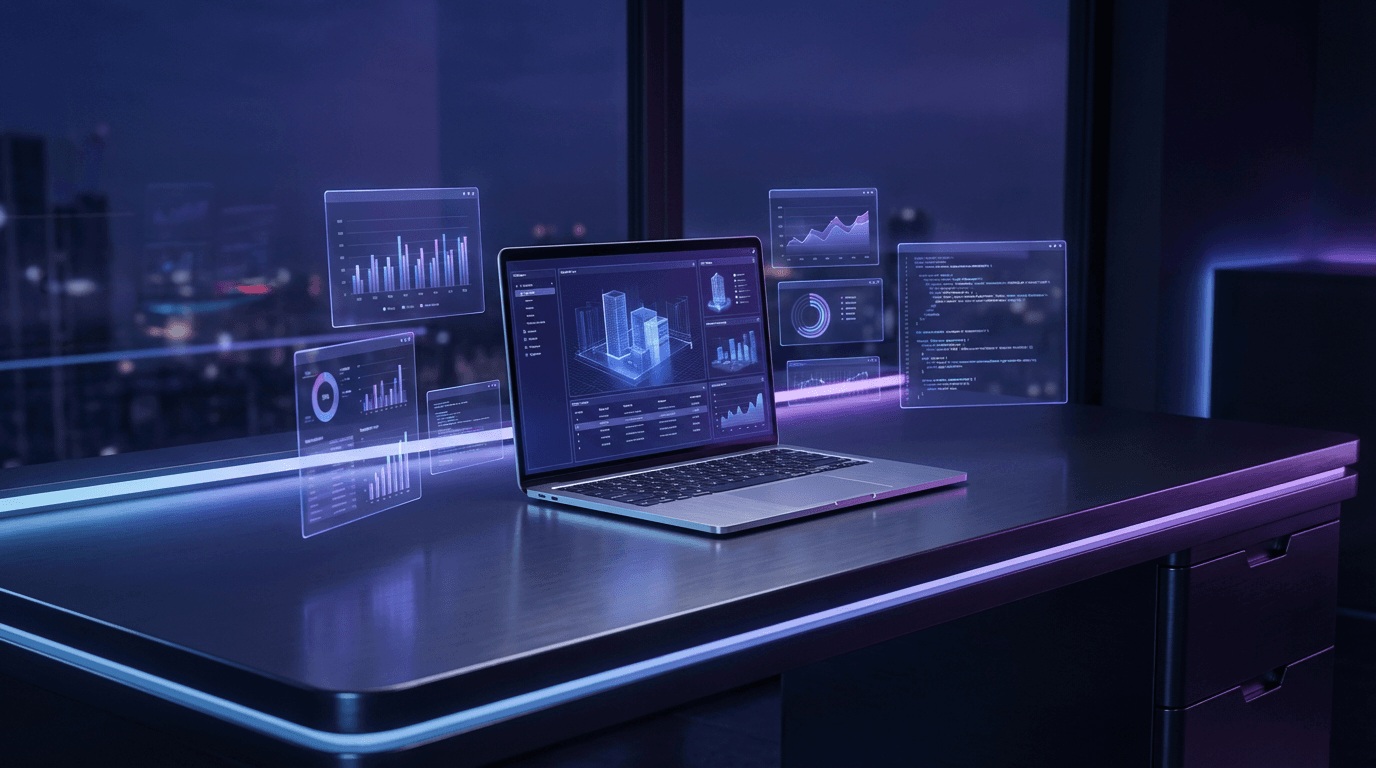
futuristic semi realistic scene of a laptop on a sleek desk with floating holographic windows around it, blue and purple neon accents, dark background with soft lights, designed as an intro frame for a tech YouTube channel, no text, no logos
Finance / money channel
stylised illustration of a desk with a laptop showing a simple rising graph, a cup of coffee, and a few gold coins on the table, bright daylight, clean and minimal, designed as a YouTube intro frame, no text, no logos
Once you have the image, you can:
- Use it as a still intro
- Or use it as reference to create a Veo-style cinematic intro clip in Miraflow AI
2. End screens
Goals:
- Keep viewers inside your channel
- Make it obvious which video to click next
- Avoid distracting backgrounds under the end screen elements
Prompt ideas:
General creator / education
simple gradient background for a YouTube end screen, soft blue and white gradient, subtle geometric shapes in the corners, large empty area on the right side for video cards, minimal and modern, no text, no logos
Study / focus
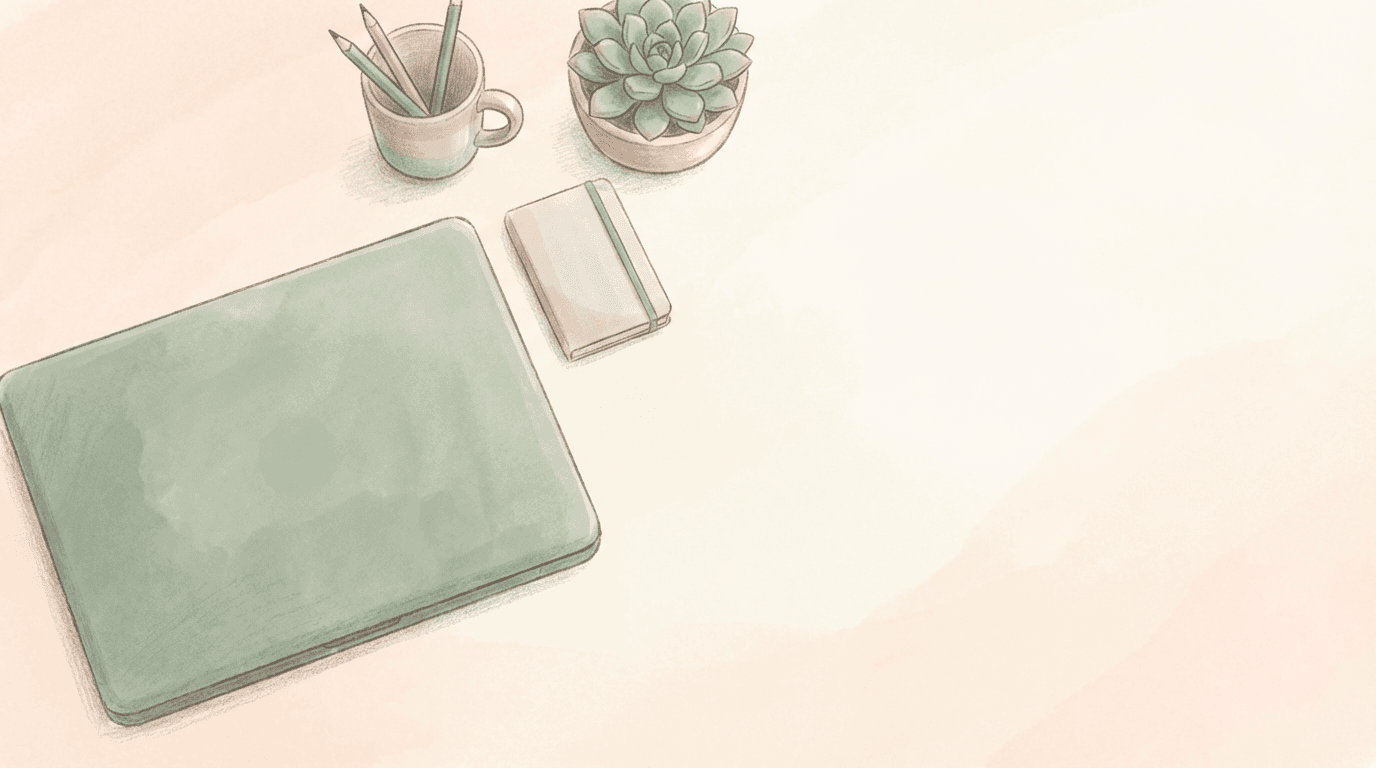
calm illustration of a tidy desk from above, with subtle stationery and a closed laptop, muted pastel colours, most of the right side empty and light for placing video boxes, designed as a YouTube end screen background, no text, no logos
Gaming / entertainment
stylised digital art of a glowing game controller on a dark blue background with soft light rays, abstract shapes on left and right edges, clean empty centre space for YouTube end screen video boxes, modern and energetic, no text, no logos
3. Channel art
Goals:
- Communicate niche at a glance
- Use your brand colours
- Look good on desktop and mobile
Prompt ideas:
AI / tech education
wide panoramic scene of a futuristic city with glowing data streams in the sky, subtle circuit patterns, blue and purple colours, designed as a YouTube channel banner, simple area in the middle with fewer details, no text, no logos
Lifestyle / vlog
panoramic illustration of different city locations (cafe, park, street) in one continuous scene at golden hour, warm light, small characters walking, designed as a YouTube channel banner, soft details, no text, no logos
Study / academic
wide illustration of a cozy library with rows of bookshelves, ladders, plants and soft lamps, warm colours, designed as a YouTube banner, clean strip in the centre with less detail, no text, no logos
Where this fits into your Miraflow AI workflow
The core idea: Miraflow AI becomes your one-tab YouTube studio.
A typical workflow in 2026 can look like:
- Plan and script
- Use Text2Shorts for YouTube Shorts or short-form hooks
- Draft intros and key talking points for long form videos
- Generate visuals
- Use Nano Banana in Miraflow’s AI Image Generator for intros, end screens, thumbnails, banners and avatars
- Save your best prompts as your “visual identity”
- Generate cinematic clips
- Use your Nano Banana images as reference in cinematic video generation to create smooth intro and B-roll clips that match your brand
- Add sound
- Use Miraflow’s AI Music Generator for background tracks that match your vibe (study, tech, vlog)
- Thumbnails
- Use the YouTube Thumbnail Maker in Miraflow AI to design thumbnails that match your Nano Banana style and channel branding
This way:
- Your intro, end screen, channel art, thumbnails and even B-roll all feel like they come from the same universe
- You do not need separate design tools or stock sites
- When a viewer sees your thumbnail or intro in 2026, they know it is you immediately