How to Generate YouTube Thumbnails with AI: Step-by-Step

Written by
Jay Kim
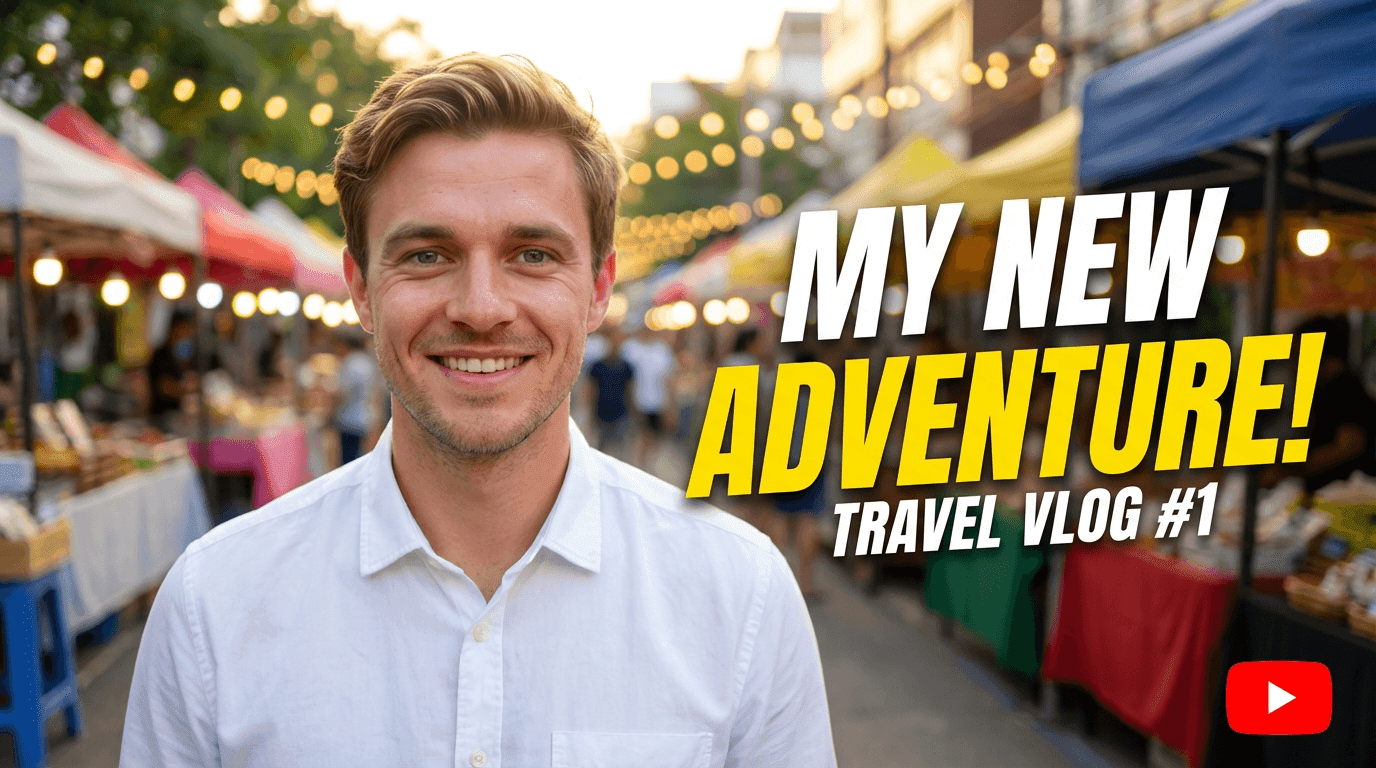
Learn how to generate YouTube thumbnails with AI using Miraflow’s YouTube Thumbnail Maker. This step-by-step guide covers prompts, text, aspect ratios, templates, and image compositing for both videos and Shorts.
A strong YouTube thumbnail can be the difference between someone scrolling past your video or actually clicking it. Even if your content is great, a blurry frame or messy design can kill your click-through rate.
That’s why Miraflow AI has a dedicated YouTube Thumbnail Maker, so you can generate clean, eye-catching thumbnails for both YouTube videos (16:9) and Shorts (9:16) in just a few steps.
In this guide, we’ll walk through exactly how to use it:
from choosing between Text to Thumbnail and Image Compositing, to writing effective prompts, adding text, and using templates when you’re out of ideas.
Quick Overview: How the YouTube Thumbnail Maker Works
Here’s the whole process in one glance:
- Choose a mode:
- Text to Thumbnail – generate a thumbnail from pure text prompt
- Image Compositing – upload an image and add a prompt to blend it into the final design
- Select aspect ratio:
- 16:9 Video for regular YouTube videos
- 9:16 Shorts for vertical content
- Write your prompt in the Thumbnail Prompt section
- (Optional) Add text in the Thumbnail Text section (this becomes bold, prominent text in the design)
- (Optional) Open Show Advanced Settings and add a negative prompt
- Click Generate Thumbnail and download your result from My Thumbnails
Now let’s go step-by-step.
Step 1: Choose Between “Text to Thumbnail” and “Image Compositing”
At the top of the YouTube Thumbnail Maker page, you’ll see two tabs:
- Text to Thumbnail
- Image Compositing
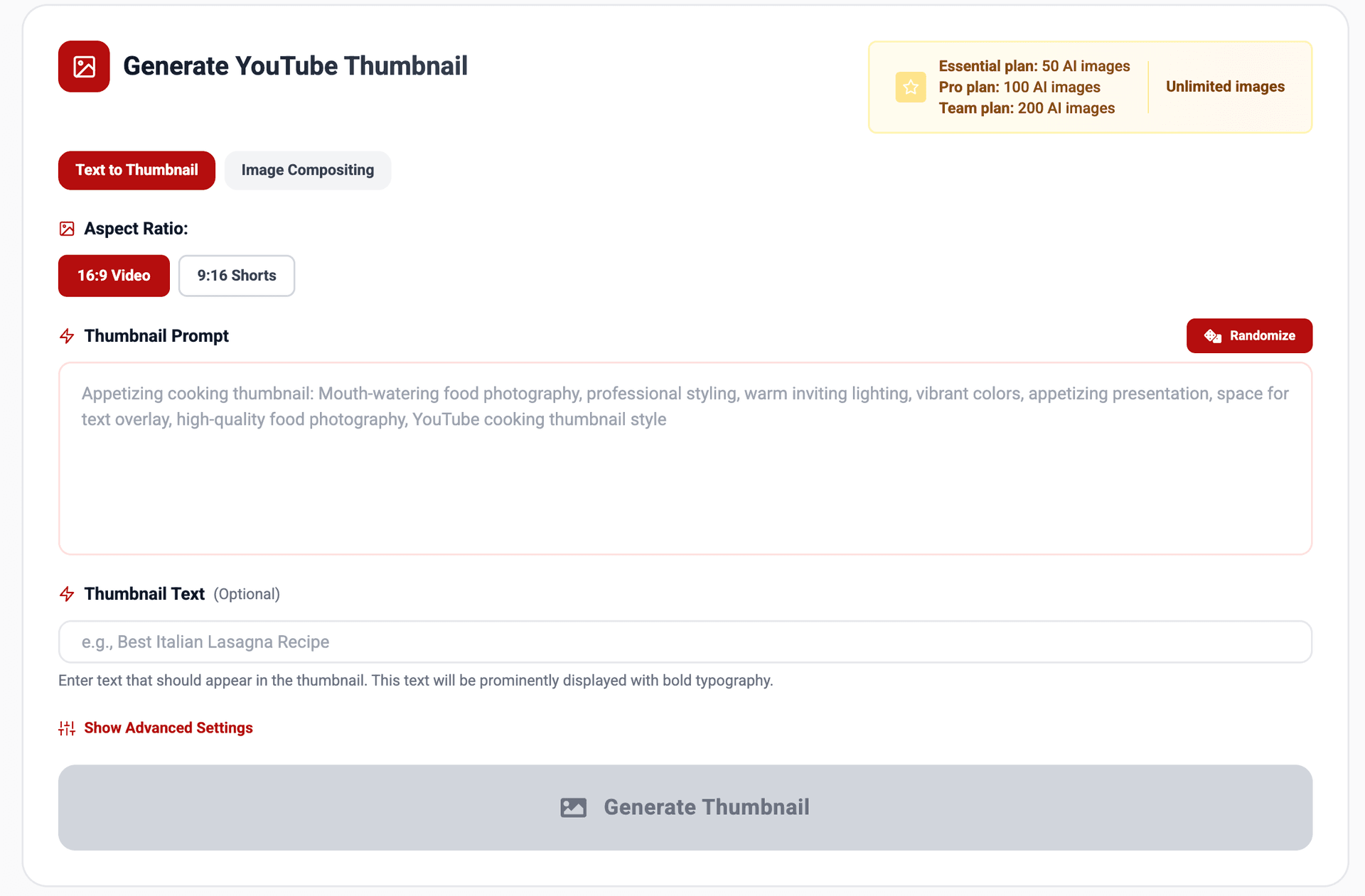
Text to Thumbnail
Use this when you:
- Don’t have any specific image yet
- Just want to describe the thumbnail in words and let the AI design everything
You simply write what you want (style, subject, mood, composition), and the tool generates the entire thumbnail from that prompt.
Image Compositing
Use this when you:
- Want your face or a specific product to appear in the thumbnail
- Already have a photo you like, but want to transform the background, lighting, and overall vibe
In Image Compositing, you:
- Upload an image
- Enter a prompt that describes the final thumbnail
- The tool blends your uploaded image into the generated design
For example:
“Generate a YouTube thumbnail and put me in the image. Make it eye-catching with vibrant colors and dramatic composition.”
This is perfect for:
- Talking-head videos where you want your face featured
- Product shots that need a more dramatic, clickable context
- Before/after or reaction-style thumbnails
Step 2: Select the Right Aspect Ratio (16:9 vs 9:16)
Next, choose the aspect ratio:
- 16:9 Video – standard YouTube thumbnail size for regular videos
- 9:16 Shorts – vertical format that works for Shorts thumbnails and short-form platforms
When to use 16:9
- Regular YouTube videos
- Long-form uploads
- Any video on your main channel feed
When to use 9:16
- YouTube Shorts
- Vertical-first feeds (Shorts, Instagram Reels, TikTok style exports)
- Stories or vertical promo posts
Choosing the correct ratio from the start ensures your thumbnail looks clean and doesn’t get awkwardly cropped.
Step 3: Write a Thumbnail Prompt
Now we get to the core of the tool: the Thumbnail Prompt.
This is where you describe the visual style, subject, and mood of your thumbnail. The more clearly you describe what the viewer should feel and what should stand out, the better.
You can write prompts like:
Product unboxing thumbnail
“Product unboxing thumbnail: Exciting product unboxing moment, clean background, professional lighting, vibrant packaging colors, eye-catching composition, space for text overlay, high-quality product photography, YouTube unboxing thumbnail style”
Beauty makeup thumbnail
“Beauty makeup thumbnail: Glamorous beauty shot with professional makeup, dramatic lighting, vibrant colors, eye-catching composition, space for text overlay, high-quality beauty photography, YouTube beauty thumbnail style”
These prompts work well because they include:
- Subject – “product unboxing moment,” “beauty shot with professional makeup”
- Lighting – “professional lighting,” “dramatic lighting”
- Color – “vibrant packaging colors,” “vibrant colors”
- Composition – “eye-catching composition,” “space for text overlay”
- Context – “YouTube unboxing thumbnail style,” “YouTube beauty thumbnail style”
Use the Randomize Button for Inspiration
If you’re not sure what to type:
- Click Randomize next to the prompt area
- You’ll see example prompts that already follow a good format
- You can:
- Use them as-is
- Slightly edit for your video topic
- Mix them with your own ideas
This is a great way to learn what kind of structure works for thumbnail prompts.
Step 4: Add Text with “Thumbnail Text”
Below the prompt, you’ll see Thumbnail Text.
This is the actual text that will appear in the thumbnail image, rendered with bold typography and prominent placement.
Use this for short, punchy phrases like:
- “STOP Doing This”
- “You’re Editing Wrong”
- “AI Thumbnail Trick”
- “$0 to $10K/Month”
Tips:
- Stick to 3–5 words
- Avoid full sentences
- Make it something that adds context or curiosity, not just repeats your title
The AI will design around this text, so you don’t need to manually place fonts or worry about graphic design rules.
Step 5 (Optional): Use Advanced Settings and Negative Prompt
If you click Show Advanced Settings, you can refine the output even more.
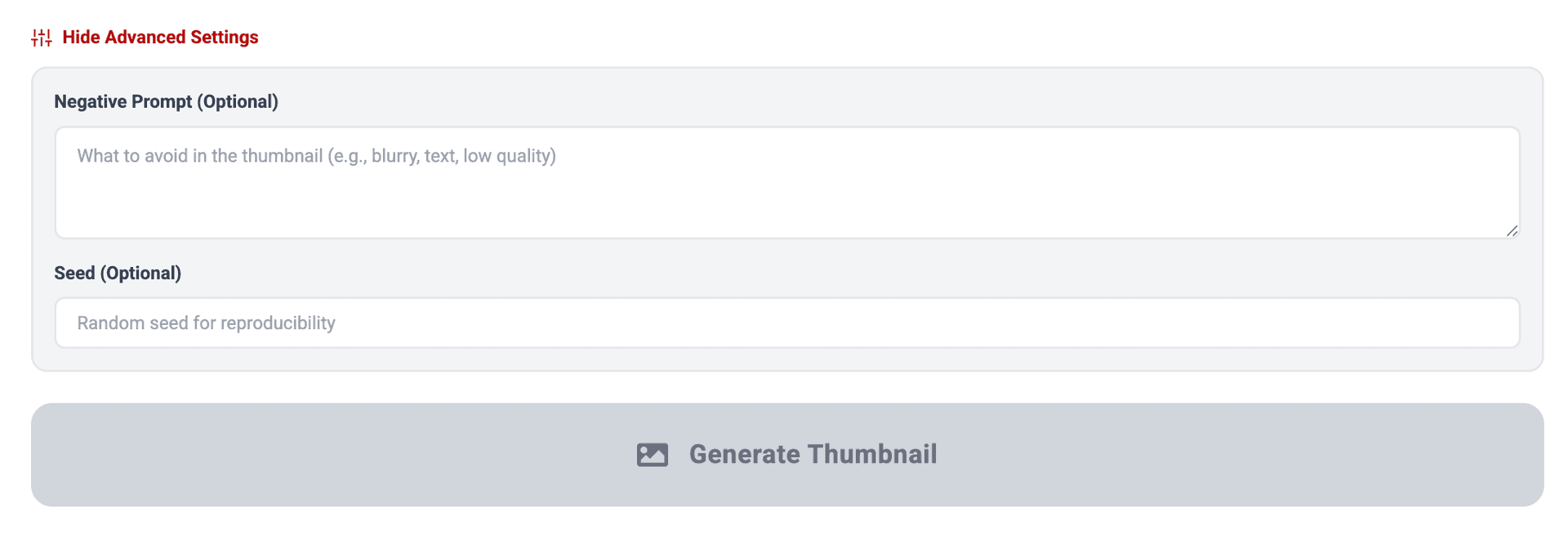
The most important field here is the Negative Prompt.
This tells the model what to avoid in the thumbnail. For example:
- “blurry, low quality, messy text, ugly fonts”
- “too much text, cluttered layout, low contrast”
- “distorted faces, weird hands, extra fingers”
Negative prompts are useful when:
- You’re seeing small artifacts or visual noise
- The thumbnails keep adding too much text
- The style is too chaotic and you want something cleaner
You don’t have to use this, most users are fine without it, but it gives you extra control when you want higher consistency.
Step 6: Generate and Download from “My Thumbnails”
When everything looks ready:
- Click Generate Thumbnail
- Watch the progress bar under the button
- Your output will appear in the My Thumbnails section below
From My Thumbnails, you can:
- Preview the result
- Compare multiple versions
- Download the image and upload it directly to YouTube
Results usually appear within about a minute, so it’s easy to:
- Generate several variations for the same video
- Pick your favorite
- Save the rest as backups or A/B test options later
Using Templates When You Don’t Know What to Make
If you’re not sure where to start, or you just want to see what’s possible, then check the Templates section.
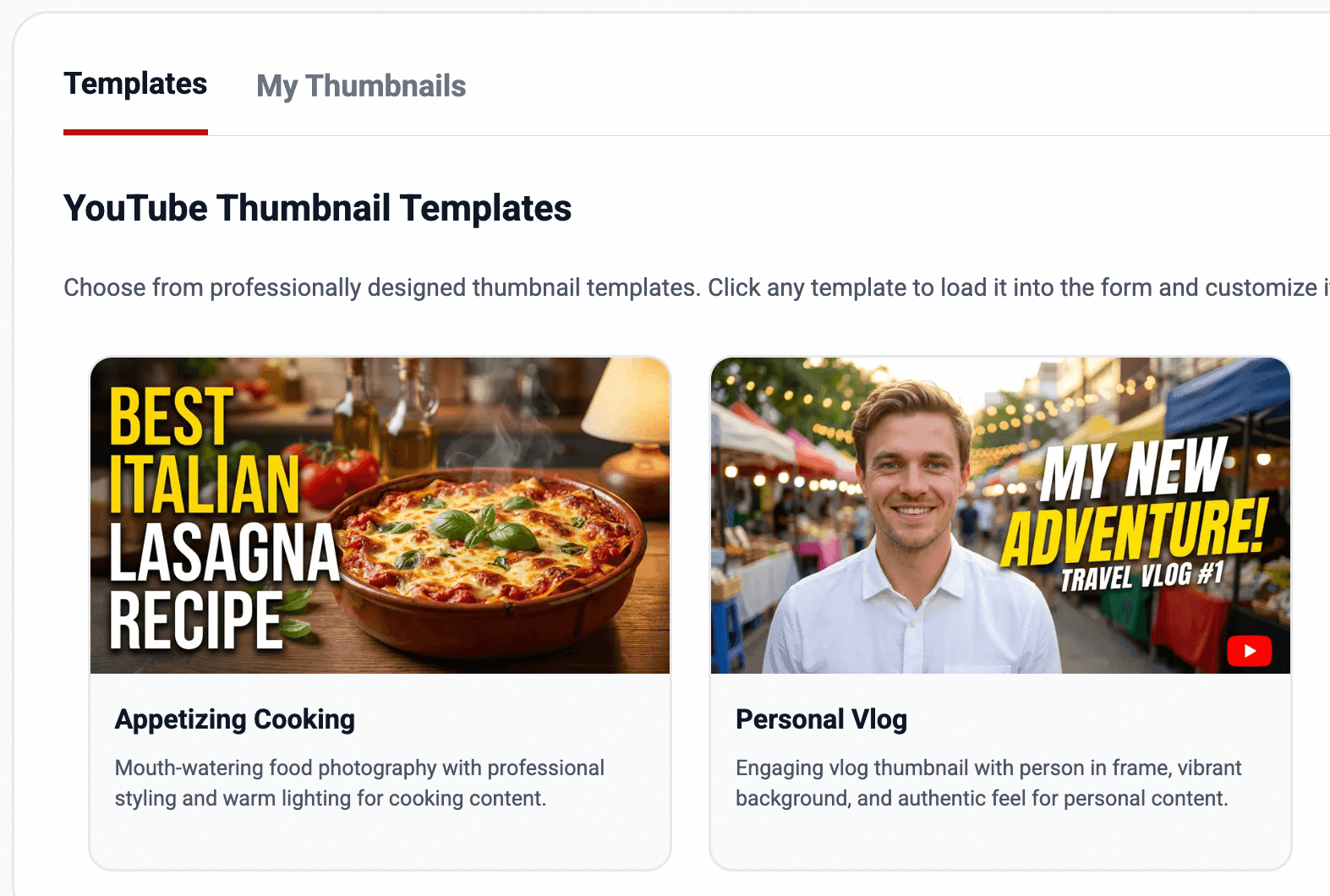
There you’ll find pre-built thumbnail styles that already work well for common YouTube categories, like:
- Cooking Recipe
- Personal Vlog
- Tutorial step-by-step guide
- Reaction or commentary style
When you click a template:
- The Thumbnail Prompt is automatically filled in
- You can:
- Slightly edit the wording
- Change the topic
- Upload your own image (for Image Compositing mode)
- Or just use it as-is for fast generation
Templates are perfect for:
- Batch-creating thumbnails
- Staying visually consistent across a series
- Learning good prompt patterns by example
Example Workflows
Here are two simple thumbnail workflows using the tool.
A. Pure Prompt Thumbnail for a YouTube Video (16:9)
- Select Text to Thumbnail
- Choose 16:9 Video
- In Thumbnail Prompt, write something like:
“YouTube tutorial thumbnail: person at a computer, clean minimal workspace, bright lighting, high contrast, space for text on left, modern YouTube tutorial style, simple background, tech channel aesthetic”
- In Thumbnail Text, enter:
“Edit Faster”
- (Optional) In Negative Prompt, add:
“blurry, ugly fonts, too much text”
- Click Generate Thumbnail, then download from My Thumbnails
B. Thumbnail Where You Appear in the Image (Image Compositing)
- Select Image Compositing
- Upload a photo of yourself (clear, well-lit face works best)
- Choose 16:9 Video or 9:16 Shorts depending on your content
- In Thumbnail Prompt, write something like:
“Generate a YouTube thumbnail and put me in the image. Make it eye-catching with vibrant colors, dramatic lighting, clean background, and strong composition that draws attention to my face.”
- In Thumbnail Text, enter:
“AI Shorts System”
- (Optional) Add a negative prompt to avoid clutter:
“blurry, messy background, tiny text, low quality”
- Click Generate Thumbnail, then download your favorite version from My Thumbnails
Conclusion
Designing good YouTube thumbnails doesn’t have to mean opening a heavy design tool every time, micromanaging layers, or worrying about fonts.
With Miraflow’s YouTube Thumbnail Maker, you can:
- Start from pure text (Text to Thumbnail)
- Or blend your own photos into pro-looking designs (Image Compositing)
- Choose the right ratio for videos (16:9) or Shorts (9:16)
- Control the visual style with Thumbnail Prompt, Thumbnail Text, and Negative Prompt
- Use Templates when you want to move fast or explore new styles
Once you get used to the prompt structure, you can generate multiple thumbnail options for every video in just a few minutes, and focus more on making great content instead of wrestling with graphic design.