YouTube's New Gemini Omni Chat Editing Assistant for Shorts (2026)

Written by
Aerin Kim
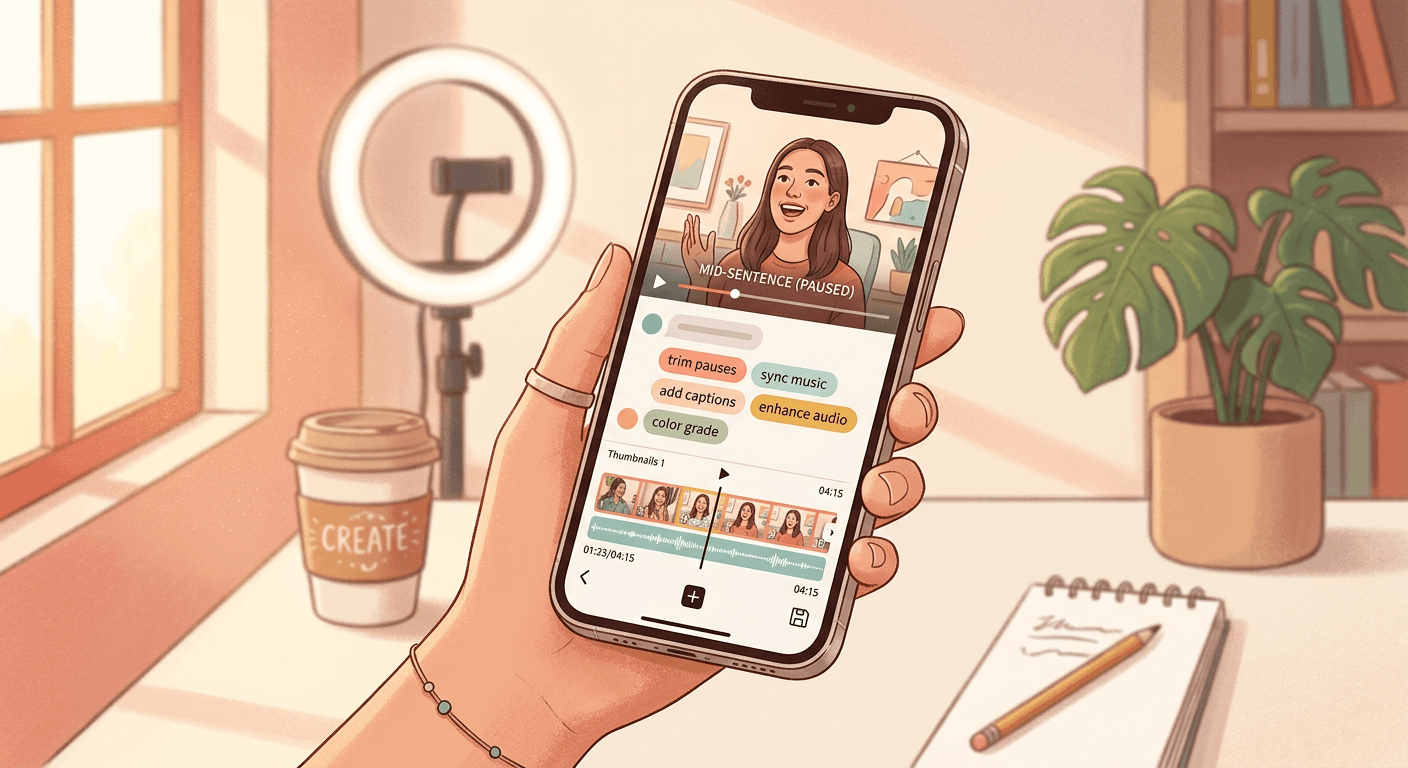
YouTube's new Gemini Omni chat assistant lets creators edit Shorts by typing instructions instead of a timeline. Here is how it actually works and who it fits best.
If you make YouTube Shorts, the most tedious part of the job has never been the idea. It is the fifteen minutes after you stop recording, when you are scrubbing back and forth through a raw clip trying to find where to cut, whether the pacing drags in the middle, and which ten seconds of trending audio actually lines up with your best moment. YouTube spent its "Made on YouTube 2026" event on September 23, 2026 announcing a fix for exactly that problem: a chat-based editing assistant, built on Gemini Omni, now living directly inside the Shorts creation flow and the standalone YouTube Create app. You describe the edit you want in plain language, and the assistant makes it, then keeps making more changes as you keep talking to it.
This post goes deep on that one feature specifically: what it actually lets you do, how the conversation flow works step by step, how it behaves differently for a creator posting one Short a day versus a channel batch-producing ten or more a week, where it currently falls short, and how it fits alongside a tool like Miraflow's Text2Shorts, which builds a Short from a script instead of refining one you already shot. If you already have footage and just want it cut well, YouTube's new assistant is worth learning properly. If you are starting from a blank page with no footage at all, that is a different problem, and it is the one Text2Shorts was built to solve.
What YouTube actually announced on September 23, 2026
Made on YouTube is YouTube's annual creator-focused event, and the 2026 edition leaned harder into generative AI editing than any previous year. According to YouTube's own recap post, the headline creator tool was a new conversational editing assistant "across Shorts and the YouTube Create app that guides you through every edit." The company describes it as a tool that "handles the tedious parts so you can focus on the fun parts of storytelling," with the promise that a creator can start from a suggested prompt or type their own request, then keep refining the cut by continuing the conversation.
This was not entirely out of nowhere. Gemini Omni's underlying intelligence quietly arrived inside Shorts and YouTube Create earlier in 2026 in a more limited form, mostly as a way to generate short AI video clips from text prompts. Miraflow covered that earlier prompt-driven version in detail in 20 Gemini Omni Flash Prompts for YouTube Shorts, which is worth reading if your goal is generating brand-new AI video clips from a single text prompt. What launched at Made on YouTube 2026 is a distinct evolution of that same underlying model: instead of a one-shot prompt that generates a clip, it is now a full back-and-forth chat interface layered on top of footage you already have, whether that footage came from your camera roll, a livestream clip, or Gemini Omni's own generation.
By YouTube's account, adoption of the underlying Gemini Omni integration was already substantial before this chat interface even shipped. The company stated that in August 2026 alone, hundreds of thousands of channels were using Gemini-powered editing tools inside Shorts and YouTube Create every single day, and pointed to YouTube's own GenAI trend research showing that 72 percent of US creators between the ages of 14 and 44 already use AI somewhere in their creation or editing process. That context matters for how you should read this launch: it is not YouTube testing a novelty feature on a handful of beta users, it is YouTube formalizing and expanding a workflow a large share of its creator base was already reaching for.
Meet the chat-based Gemini Omni editing assistant
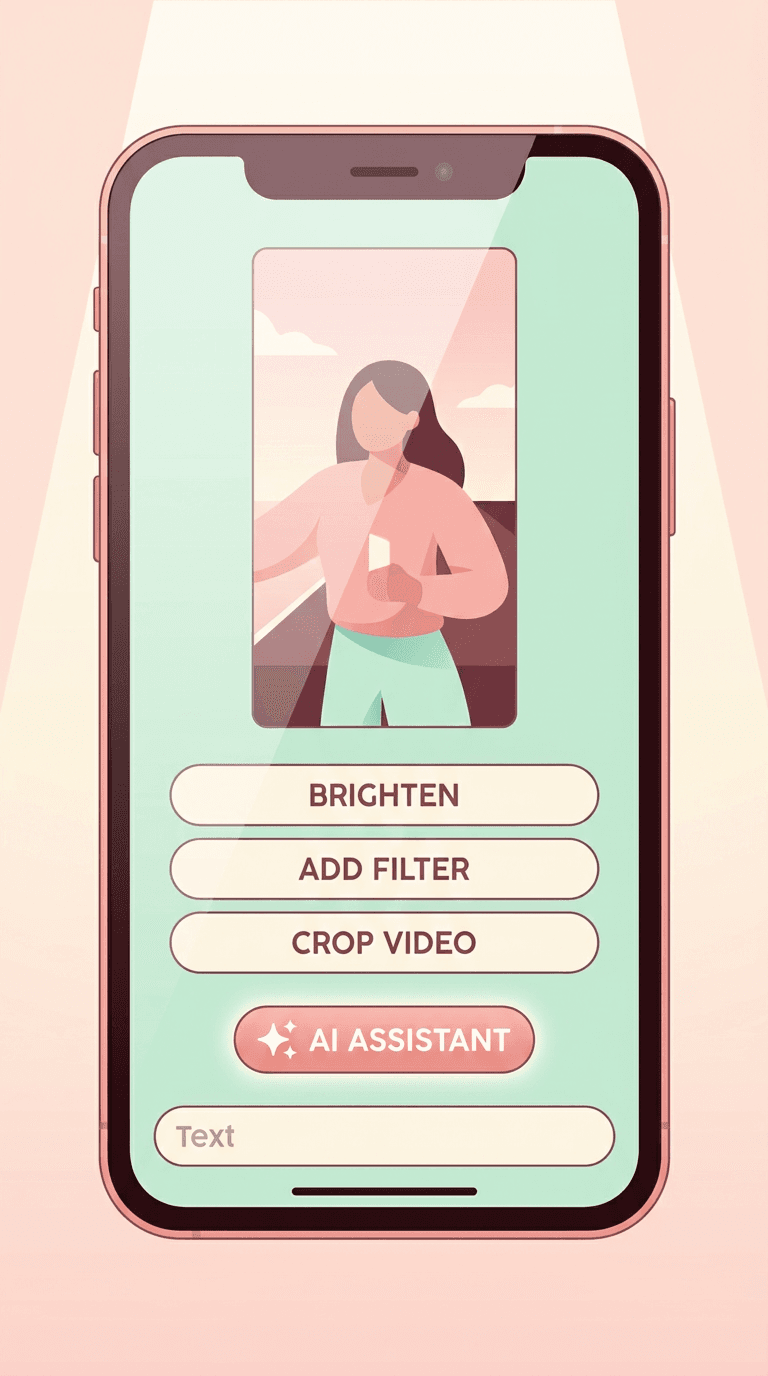
The core idea is simple to describe and genuinely useful in practice: instead of hunting through a traditional timeline editor for the right tool, you open a chat panel next to your clip and tell it, in your own words, what you want changed. YouTube's own materials give a concrete picture of what that looks like on first open. The Shorts editor now surfaces a "Help me edit" entry point, and rather than handing you a blank text box, it offers a short set of ready-made starting prompts so you are not staring at an empty chat wondering what phrasing works. The examples YouTube and multiple outlets covering the launch described include prompts like "trim to highlight best moments," "edit for a fast-paced and upbeat mood," and "add trending music and sync it to the beat." You can tap one of those to get a first draft immediately, or ignore the suggestions and type your own instruction from scratch.
What separates this from a simple one-off AI filter is that it is genuinely conversational. Google's broader description of Gemini Omni's editing behavior emphasizes that edits retain context from earlier prompts, so a second or third instruction builds on what the assistant already changed rather than starting over from your original raw footage each time. In the specific context of Shorts, YouTube describes the assistant being able to reorder frames for better pacing, trim pauses and dead air automatically, and sync music to the beat of the cut, all through continued back-and-forth rather than a single static generation. That continuity is the entire point. A traditional AI "auto-edit" button gives you one result and if you do not like part of it, you are back to manual editing. This assistant is built so that saying "make the middle section faster" or "swap in a different trending song and try again" is just the next message in the same conversation, keeping everything else about the edit intact.
Crucially, YouTube has also been explicit that this is not meant to replace the manual timeline entirely. Coverage of the announcement consistently describes creators being able to bounce out of the chat and into the regular timeline editor to make a hand adjustment, then jump back into the conversation to keep refining with the assistant. That two-way handoff is arguably the more important design decision than the chat interface itself, because it means the assistant is positioned as a collaborator sitting on top of the existing editor rather than a separate, walled-off AI mode you either commit to fully or avoid entirely.
How the chat-editing flow actually works, step by step
It helps to walk through the mechanics the way a creator would actually experience them, because the value and the limitations both live in the details.
Step 1: You bring the raw material
The assistant works on footage you already have, whether that is a clip you just filmed on your phone, footage pulled from a longer video, or a livestream highlight. This is an important distinction to hold onto throughout this post: the chat assistant is an editing layer on top of existing footage, not a script-to-finished-video generator. If you have not filmed anything yet and are starting purely from an idea or a script, this tool has nothing to work with until you give it a clip, which is exactly the gap a tool like Miraflow's Text2Shorts is designed to fill instead, more on that comparison below.
Step 2: You open "Help me edit" and pick a starting point
Once your clip is loaded into the Shorts editor or YouTube Create, the "Help me edit" entry point opens the chat panel with a handful of suggested prompts alongside a free-text box. Picking a suggested prompt like "edit for a fast-paced and upbeat mood" gives the assistant a legible signal about tone and pacing even before you type anything of your own, which matters because vague requests tend to produce vague, generic-feeling edits from any AI editing tool, not just this one.
Step 3: The assistant produces a first draft, and you keep talking
The first response is a full draft cut, not just a suggestion list. From there the real value of the chat format kicks in. You can ask for narrower, specific changes in plain language: shorten a section that drags, cut a stumble or a long pause near the start, try a different piece of trending music, tighten the pacing in the second half, or reorder two clips so the stronger hook comes first. Because the assistant is designed to retain context between messages, each new instruction is applied on top of the current draft rather than resetting your progress, which is the behavior that makes this feel more like directing an editor than repeatedly re-rolling a slot machine.
Step 4: You can drop into the manual timeline at any point
If the assistant gets 90 percent of the way there and you want to nudge one cut by a few frames yourself, you are not stuck describing that adjustment in words. You can exit the chat, make the manual tweak on the timeline the same way you always could in Shorts or YouTube Create, and then return to the conversation to keep going with AI assistance. This matters most for creators who have strong, specific opinions about timing, since verbally describing "cut exactly 4 frames earlier on the second clip" is a worse experience than just dragging the edit point yourself.
Step 5: You finish, preview, and publish through the normal flow
Once you are happy with the cut, publishing still goes through the same Shorts or YouTube Create flow you already know, including titles, descriptions, and thumbnails. The chat assistant changes how you get to a finished cut, not what happens once you have one.
Solo creator, one Short a day, versus a channel batch-producing ten or more
The value of a tool like this changes a lot depending on your actual production volume, and it is worth being specific about both ends of that spectrum instead of treating "creators" as one group with identical needs.
The solo creator posting one Short a day
If you are one person filming, editing, and posting a single Short most days, a chat-based assistant is close to an ideal fit for your constraints. Your bottleneck has never really been ideas or filming, it has been the twenty to forty minutes of manual timeline work standing between a raw clip and a publishable cut, done alone, usually late at night or squeezed between other obligations. Being able to say "trim the dead air and sync trending audio to the punchline" and get a usable first draft in under a minute genuinely changes your daily time budget. For this creator, the biggest practical win is that the assistant lives inside the same app you are already publishing from. There is no export, no separate tool, no account switching. You film on your phone, open Shorts or YouTube Create, chat your way to a cut, and publish, all in one continuous session.
The tradeoff for a solo creator is usually about voice and consistency. A single-person channel often has a very specific pacing style, joke rhythm, or visual tic that makes their content recognizably theirs. Because the assistant is generating and re-generating cuts based on natural language description, you have to get reasonably good at describing your own style precisely, or you will end up with technically competent edits that feel slightly generic. This is a real skill to build over the first few weeks of using it, not a one-time setup step.
The channel batch-producing ten or more Shorts a week
For a small team or a solo creator running a high-volume channel, the picture looks different. A chat interface is fundamentally a one-clip-at-a-time conversation. There is real value in the speed per clip, but there is no described batch mode where you queue up ten raw clips and apply the same instruction set to all of them automatically. If your workflow is genuinely high volume, cutting each Short through ten separate live conversations adds up, even if each individual conversation is fast. This is where teams typically end up building a hybrid process: using the chat assistant for their most important, hook-dependent Shorts where the extra minute of back-and-forth clearly pays off in retention, while relying on a more templated or automated pipeline for the rest of the volume.
This is also exactly the situation where a tool built around batch generation earns its place in the stack. If a channel is regularly turning one long-form video into several Shorts, running that source video through Miraflow's AI Clipping first to identify and rank the strongest moments, complete with auto-generated captions, is a far faster starting point than manually scrubbing a 40-minute video looking for clip-worthy sections yourself. From there, the individual clips can go into YouTube's chat assistant for a final polish pass if a specific one needs extra attention, or straight to publishing if the auto-clip and captions already do the job.
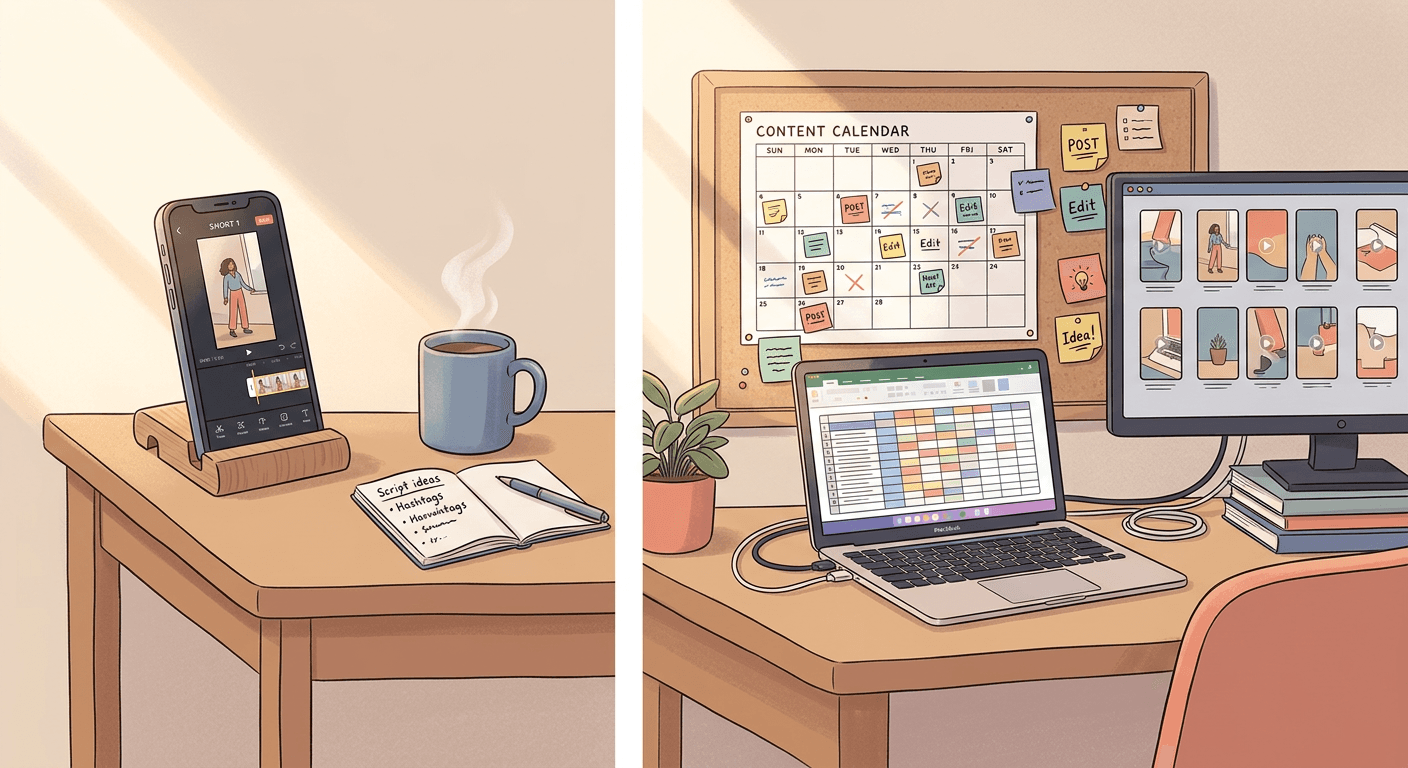
Chat-editing existing footage versus generating a Short end to end
This is the comparison worth understanding clearly, because it is easy to conflate "AI-powered Shorts editing" as one single category when it actually splits into two genuinely different jobs.
What the Gemini Omni chat assistant is built for
YouTube's assistant is an editing tool. It takes footage that already exists and helps you cut, pace, and score it faster using natural language instead of manual timeline manipulation. Its entire value proposition assumes you already have something filmed, whether that is a talking-head clip, a product demo, a moment pulled from a longer video, or footage generated separately through Gemini Omni's own text-to-video capability. It is genuinely strong at the specific job of refining footage that already exists: trimming, reordering, pacing, and music sync, all through conversation, with the ability to drop into manual editing whenever the chat interface is not precise enough.
What Text2Shorts is built for
Text2Shorts solves a different, earlier problem: you have an idea or a topic, but no footage, no script, no voiceover, and no visuals yet. The workflow starts from a topic, automatically generates a script you can edit or regenerate, generates scene visuals based on that script which you can also adjust, lets you choose a voice and speaking speed, and produces a finished vertical video ready for YouTube Shorts, Instagram Reels, or TikTok. There is no raw footage step at all, because the entire video, script, visuals, and voice, is generated from the idea forward in one continuous pipeline inside Miraflow.
Put simply, one tool starts with footage and ends with a polished cut. The other starts with an idea and ends with a complete video, footage included. Neither replaces the other, because they are solving for different starting points in your production process, and understanding which starting point you actually have on a given day is the fastest way to pick the right tool instead of forcing one workflow to do a job it was not built for.
When creators genuinely need both in the same pipeline
In practice, a lot of channels end up using both, just at different stages of their week. A creator might generate three or four faceless explainer Shorts entirely through Text2Shorts on a slower day, then film a genuine talking-head reaction clip later in the week and run that specific clip through YouTube's chat assistant because it already has real footage worth editing rather than generating. The two tools are not competing for the same use case so much as covering opposite ends of the same production calendar. If your channel leans heavily faceless or explainer-style, you will likely lean on Text2Shorts far more often than the chat editor, simply because you rarely have raw footage to begin with. If your channel is built around your own face and voice on camera, the chat assistant will do more of the daily heavy lifting, with Text2Shorts stepping in on days you want a video without filming anything at all.
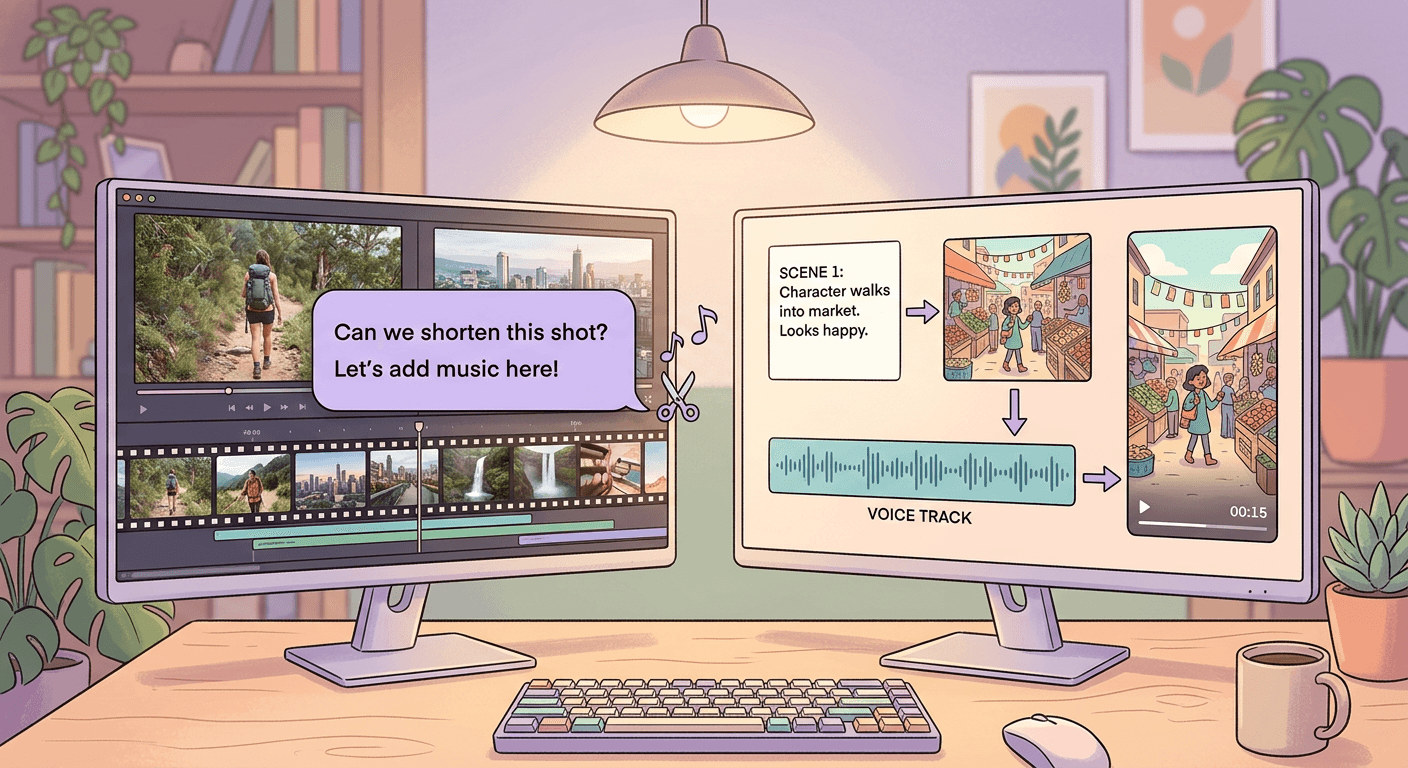
Turning a long video into Shorts first, then polishing with chat
There is a third scenario worth calling out specifically, because it is one of the most common real workflows on YouTube right now: creators who already publish long-form videos and want to repurpose them into Shorts, rather than filming anything new specifically for vertical. This is a slightly different problem from either of the two above, because the source material exists, but it is the wrong shape and length, and finding the actually shareable ten to forty seconds inside a 20-minute video by hand is genuinely tedious.
Miraflow's AI Clipping is built specifically for this handoff. You paste a YouTube URL or upload the long video directly, and it transcribes and analyzes the entire thing, identifies the moments most likely to perform well as standalone Shorts, and scores each one so you can see which clips are the strongest candidates before you commit to publishing anything. Along the way it auto-crops to vertical with smart face-tracking, applies animated karaoke-style captions, and supports more than 50 languages with automatic detection, so what comes out the other end is close to publish-ready, not just a rough timestamp range you still have to cut yourself.
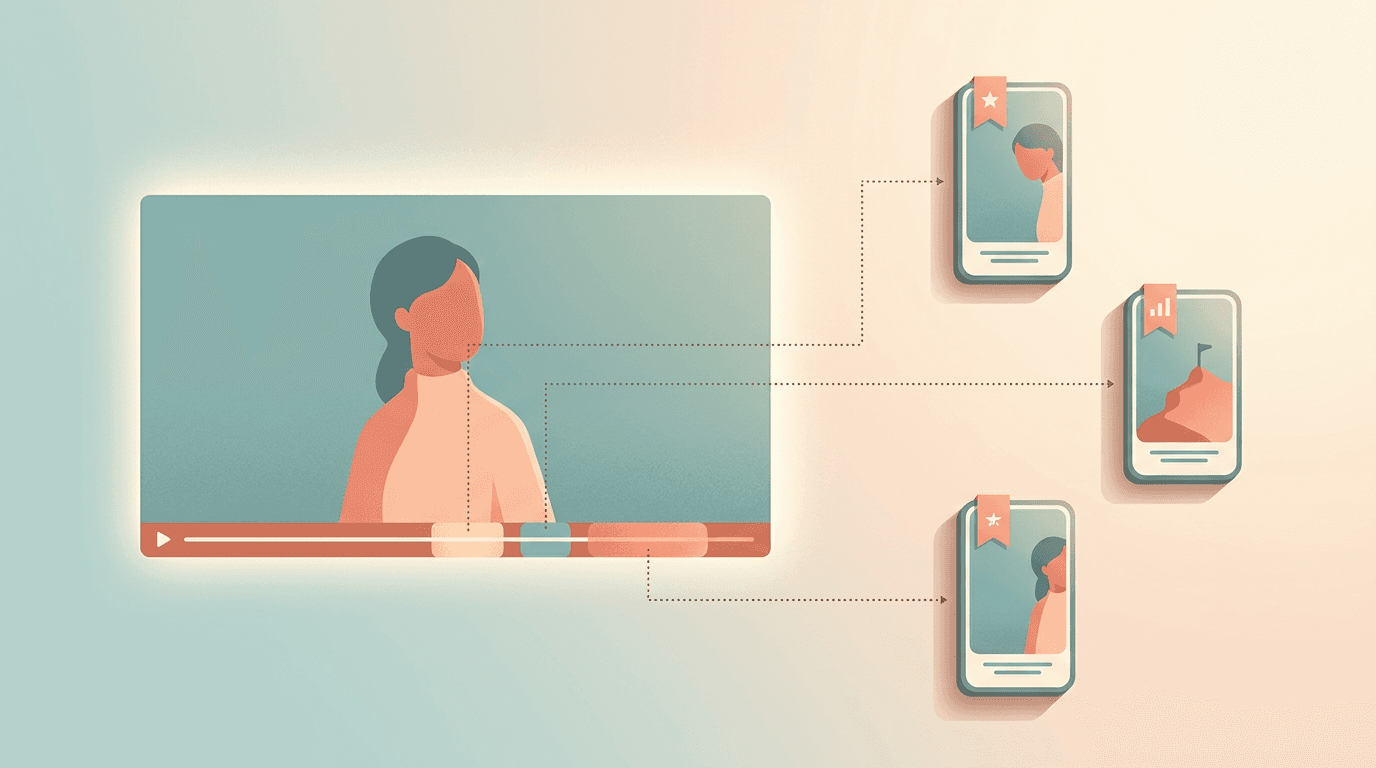
Once you have those auto-generated clips, that is exactly the point where YouTube's chat assistant becomes useful again as a finishing tool rather than a starting one. If AI Clipping surfaces a strong 35-second moment but the pacing in the middle still drags slightly, or you want to swap in different trending audio for that specific clip before publishing, that is a natural next step inside Shorts or YouTube Create. Used this way, the two tools stack cleanly: one tool solves "where is the good moment inside this long video," and the other solves "make this specific short clip feel tighter before it goes live."
Rollout, availability, and current limitations
It is worth being direct about what is and is not confirmed at this stage, since a feature announced at a creator event does not always mean instant global availability the same day.
Where it lives. The chat assistant is specifically built into the Shorts creation flow inside the YouTube app and into the standalone YouTube Create app, which YouTube has been positioning as its dedicated mobile-first Shorts creation tool separate from the main YouTube app and separate from desktop YouTube Studio. This is a Shorts-focused, vertical-video tool. Nothing in YouTube's announcement describes this chat interface extending into long-form video editing inside desktop Studio.
Cost. The underlying Gemini Omni Flash model powering this integration has been described as rolling out to creators inside Shorts and YouTube Create at no additional cost, separate from the paid Gemini Omni access available to Google AI Plus, Pro, and Ultra subscribers for broader generative video work outside YouTube. In other words, the free version inside YouTube's own apps is a scoped-down, editing-focused implementation, not the same unrestricted access you get through a paid Google AI subscription elsewhere.
Scale of adoption already. By YouTube's own account, hundreds of thousands of channels were already using Gemini-powered editing features inside Shorts and YouTube Create daily as of August 2026, even before this specific chat interface was the headline feature. That suggests the rollout was already broad heading into the September announcement rather than a brand-new limited beta starting from zero.
What is not yet described. Neither YouTube's own announcement nor the outlets covering it in depth describe a batch mode for applying one instruction across multiple clips at once, a way to save a custom editing style as a reusable preset, or any confirmed timeline for bringing the same chat interface into long-form Studio editing. Treat those as things to watch for in future updates rather than capabilities you can rely on today. If your workflow genuinely depends on batch processing many clips with identical instructions, that gap is exactly why a tool built around bulk output from a single source, like AI Clipping generating several ranked clips from one long video in a single pass, remains the faster option for that specific job right now.
What this actually means for editing speed and creative control
The honest way to think about this feature is as a speed multiplier on the mechanical parts of editing, not a replacement for creative judgment. Trimming pauses, reordering for pacing, and syncing music to a beat are all real skills, but they are also the parts of editing that are most describable in words and least dependent on taste. That is precisely why a chat interface works well for them. Deciding which ten seconds of a longer clip is actually your strongest hook, what tone matches your channel's identity, and when a slower, more deliberate pace actually serves the story better than a fast cut, those are judgment calls the assistant can execute once you describe them, but it cannot make that judgment call for you from nothing.
The practical effect for most creators will be a shift in where their time actually goes. Instead of spending the bulk of an editing session on mechanical trimming and reordering, more of that session shifts toward deciding what to ask for and reviewing whether the result matches your intent, which is a meaningfully different and arguably more creative use of the same twenty minutes. Creators who are precise and specific about what they ask for tend to get noticeably better results than creators who type a vague one-line request and accept the first draft, which mirrors what has already been true of every prompt-based AI tool that came before this one, from image generation to Text2Shorts's own script generation step.
There is also a real speed argument that compounds over time. If a chat-assisted edit reliably saves even ten minutes per Short compared to fully manual editing, that is close to an hour saved every week for a daily poster, without touching how many ideas they can pursue or how much they film. That saved time is exactly the kind of margin that lets a solo creator experiment with an extra Short a week, try a riskier format, or simply not burn out on the editing grind that has historically been the least enjoyable part of running a Shorts channel.
Common mistakes creators are already making with chat-based editing
Typing vague, one-word instructions and expecting a specific result. "Make it better" or "fix pacing" gives the assistant almost nothing to work with, and you will get a generic result that technically responds to the request without actually solving your real complaint. Be specific: name the section, name the problem, name what you want instead. "The middle ten seconds after the demo drags, cut it down and speed up the pacing there" will consistently outperform "make it faster."
Treating the first draft as final. The entire point of the conversational format is that the first response is a starting point, not a finished product. Creators who accept the very first AI draft without a single follow-up instruction are leaving most of the tool's value on the table. Push it at least once or twice with a specific refinement before publishing.
Forgetting you can just edit manually for small, precise fixes. If a cut is off by a handful of frames or a specific word needs to land exactly on a beat, trying to describe that level of precision in a sentence is often slower and less accurate than just making the adjustment on the timeline yourself and then returning to the chat for the next bigger change. Use the tool for what language is good at describing, and use the manual timeline for what your eyes and ears are better at judging.
Using it as a substitute for having no footage at all. This assistant edits what you give it. If you show up with nothing filmed and try to describe an entire video into existence through the Shorts chat box, you will hit a wall, because that is not the job it was built for. That is the exact gap a full script-to-video tool like Text2Shorts is meant to fill instead, generating the script, visuals, and voice from a topic before there is any footage to edit in the first place.
Ignoring the thumbnail and title after obsessing over the cut. A perfectly paced Short still needs a reason for someone to tap it in the first place, and creators can sink all their attention into the chat-edited cut while treating the cover frame as an afterthought. YouTube's own event announcement paired this editing assistant with a wave of AI thumbnail tools inside Studio for exactly this reason, and the same logic applies to Shorts covers. If your Shorts consistently get strong retention once someone taps in but weak impressions, the cut was never the problem.
Assuming every clip needs the full back-and-forth treatment. Not every Short is worth five rounds of chat refinement. For lower-stakes, high-volume content, a single pass with one of the suggested starting prompts and a quick manual glance is often the right amount of effort, saving the deeper iterative conversation for the Shorts you actually expect to be your best performers that week.
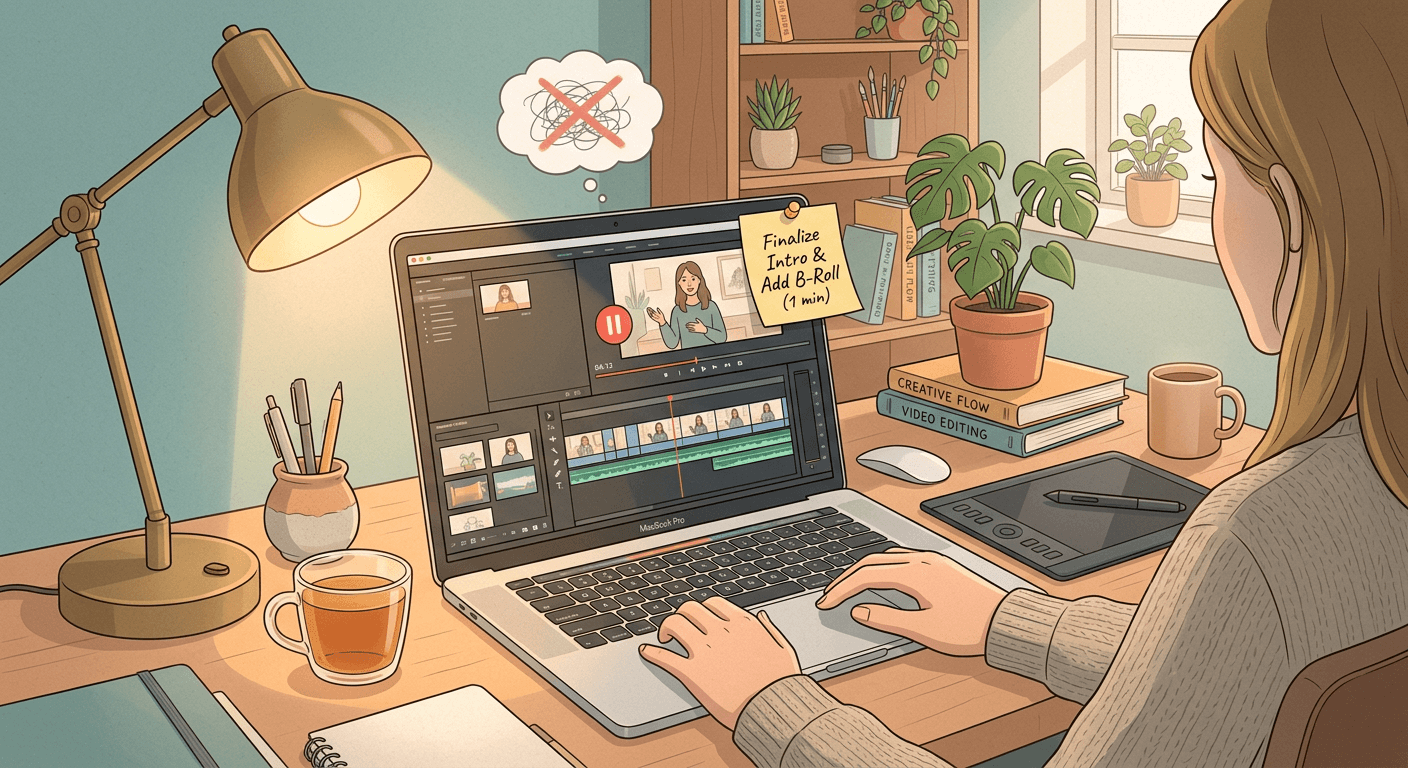
Bringing YouTube's native editor and Miraflow together in one workflow
None of this means you need to choose one platform's tools over the other. The most efficient version of a modern Shorts workflow treats YouTube's chat-based editing assistant and Miraflow's generation tools as complementary stages rather than competing products, because they are solving different problems in the same pipeline.
A practical weekly workflow looks something like this. Start the week by deciding, per idea, whether you actually have footage or need to generate a video from scratch. For ideas with no footage, faceless explainers, list-style content, trending topic reactions without a camera, build the full video inside Text2Shorts: enter the topic, let it generate and then edit the script, adjust the auto-generated scene visuals if needed, pick a voice and pacing, and export a finished vertical video ready to publish. For ideas built around a long-form video you already published or are about to, run that source video through AI Clipping to surface the strongest ranked moments with captions already applied, rather than scrubbing the full video by hand. For anything filmed specifically for Shorts, a talking-head take, a live reaction, a demo, take it straight into YouTube's own chat assistant inside Shorts or YouTube Create, since that is genuinely the fastest and most native place to refine real footage you just shot.
Once a cut is finished through any of those three paths, cover art is still a separate decision worth its own attention. Miraflow's YouTube Thumbnail Maker lets you generate a thumbnail from a prompt, optionally add your own face or an uploaded image, layer in thumbnail text, and even pull in an existing YouTube video by link to edit its current thumbnail directly, with negative prompt controls for finer adjustments. Pairing a chat-refined Shorts cut with a genuinely tested thumbnail, rather than whatever frame the editor grabbed automatically, closes the loop between a well-edited video and one that actually gets clicked.
For channels that also want a fuller creator-assistant layer on top of all this, worth a separate read is Miraflow's breakdown of YouTube's Ask Studio assistant, which covers the Studio-side conversational tool for comments, analytics, and video ideas that YouTube also expanded at this same event. That is a genuinely different tool solving a genuinely different problem than the Shorts chat editor covered here, worth understanding on its own terms rather than assuming it is the same feature under a different name.
The rest of Made on YouTube 2026, briefly
The Shorts chat assistant was far from the only announcement at the event, and it is worth knowing the shape of everything else YouTube shipped that same day, even though each of these deserves its own deeper coverage rather than a full breakdown here.
Ask Studio's mobile expansion and AI draft feedback. YouTube expanded its Ask Studio conversational assistant, previously desktop-only, to iOS and Android, and paired it with a new feature that gives creators AI-generated feedback on pacing, structure, and storytelling for unpublished draft videos before they go live. Miraflow has already covered Ask Studio in full depth in a separate dedicated post.
Dynamic thumbnails. Studio can now generate and A/B test multiple thumbnail variants automatically matched to a channel's existing visual style, and can proactively flag or refresh underperforming thumbnails on older catalog videos.
A new Studio research feed. A dedicated destination inside Studio surfaces trending content and past-performance insights meant to help creators spot patterns and generate new video ideas grounded in what has actually worked for their channel.
Live showdowns. A new format letting creators merge their livestreams together for head-to-head competitions between two channels' audiences in real time.
Real-time auto dubbing for live streams. Automatic live translation and dubbing, starting with a limited language pairing, aimed at helping livestreams reach non-native-language audiences without a manual dubbing setup.
Expanded affiliate program. YouTube's Shopping affiliate program is expanding to reach 35 countries by the end of 2026, alongside additional brand and partner support for creators monetizing through product links.
Each of those is a meaningfully different feature solving a different part of the creator workflow, and several already have or will get their own dedicated deep dive on this blog. This post has intentionally gone deep on one feature specifically, the Gemini Omni chat-based Shorts editing assistant, because it is the one most creators will actually open and use every single day.
Frequently Asked Questions
Is the Gemini Omni chat editing assistant free to use? Yes, based on YouTube's rollout description, the assistant is built directly into the free Shorts creation flow and the free YouTube Create app, separate from any paid Google AI subscription tier. You do not need a Google AI Plus, Pro, or Ultra plan to use the editing assistant inside YouTube's own apps.
Does it work on long-form videos inside desktop YouTube Studio? No. Everything described about this feature is scoped specifically to Shorts and the YouTube Create app, both vertical, short-form tools. There is no confirmed version of this same chat interface for long-form editing inside desktop Studio as of this launch.
Can I use it if I have not filmed anything yet? Not in the way most creators mean when they ask that. The assistant edits and refines footage you already have loaded into the editor. If you are starting from a blank page with no clip at all, you either need to film something first or use a full script-to-video tool like Text2Shorts, which generates the script, visuals, and voice from a topic before there is any footage to edit.
How is this different from the earlier Gemini Omni Flash video generation feature? The earlier integration was primarily about generating short AI video clips directly from a text prompt. This newer chat assistant is an editing layer that sits on top of footage, whether that footage came from your camera or from Gemini Omni's own generation, and its main job is trimming, reordering, pacing, and music sync through ongoing conversation rather than one-shot generation.
Can I still edit manually if the AI suggestion is not quite right? Yes. YouTube's design explicitly supports jumping between the chat assistant and the regular manual timeline at any point in the process, so you are never locked into an AI-only workflow for a clip.
Does the assistant support batch editing multiple clips at once with the same instruction? Nothing in YouTube's announcement or in coverage of the launch describes a batch mode. It is a one-clip, one-conversation tool at this stage, which matters most for high-volume channels weighing it against a tool built for bulk output from a single source.
What happens to the audio and captions when the assistant reorders or trims a clip? YouTube's description covers automatic music syncing to the beat as part of the chat assistant's capabilities. For channels that need auto-generated captions applied at the same time footage is cut down from a longer source, Miraflow's AI Clipping applies animated captions automatically as part of generating the clips in the first place.
Is this the same as Ask Studio? No, they are separate tools solving separate problems. The Shorts chat assistant is specifically for editing a video clip. Ask Studio is a broader conversational assistant for questions about analytics, comments, video ideas, and channel troubleshooting inside Studio. Miraflow has a full explainer on Ask Studio here.
Conclusion
YouTube's chat-based Gemini Omni editing assistant is a genuinely useful answer to the most tedious part of making a Short: turning raw footage into a well-paced, well-scored cut without fighting a traditional timeline editor to get there. For a solo creator posting daily, it can meaningfully shrink the time between filming and publishing. For a higher-volume channel, it is one strong tool among several, best paired with something built for bulk output rather than relied on as the entire pipeline.
The bigger shift worth internalizing is that Shorts production is splitting into two distinct jobs that call for different tools. Refining footage you already have is now genuinely fast inside YouTube's own apps. Generating a complete video when you have no footage at all, or turning an existing long-form video into several ranked, caption-ready Shorts, is a different job, and it is the one Miraflow's Text2Shorts and AI Clipping are built to handle. Knowing which problem you actually have on a given day, and reaching for the right tool instead of forcing one to do the other's job, is the real skill this new wave of AI editing tools rewards.