Canva vs Miraflow: Best AI YouTube Thumbnail Maker in 2026

Written by
Jay Kim
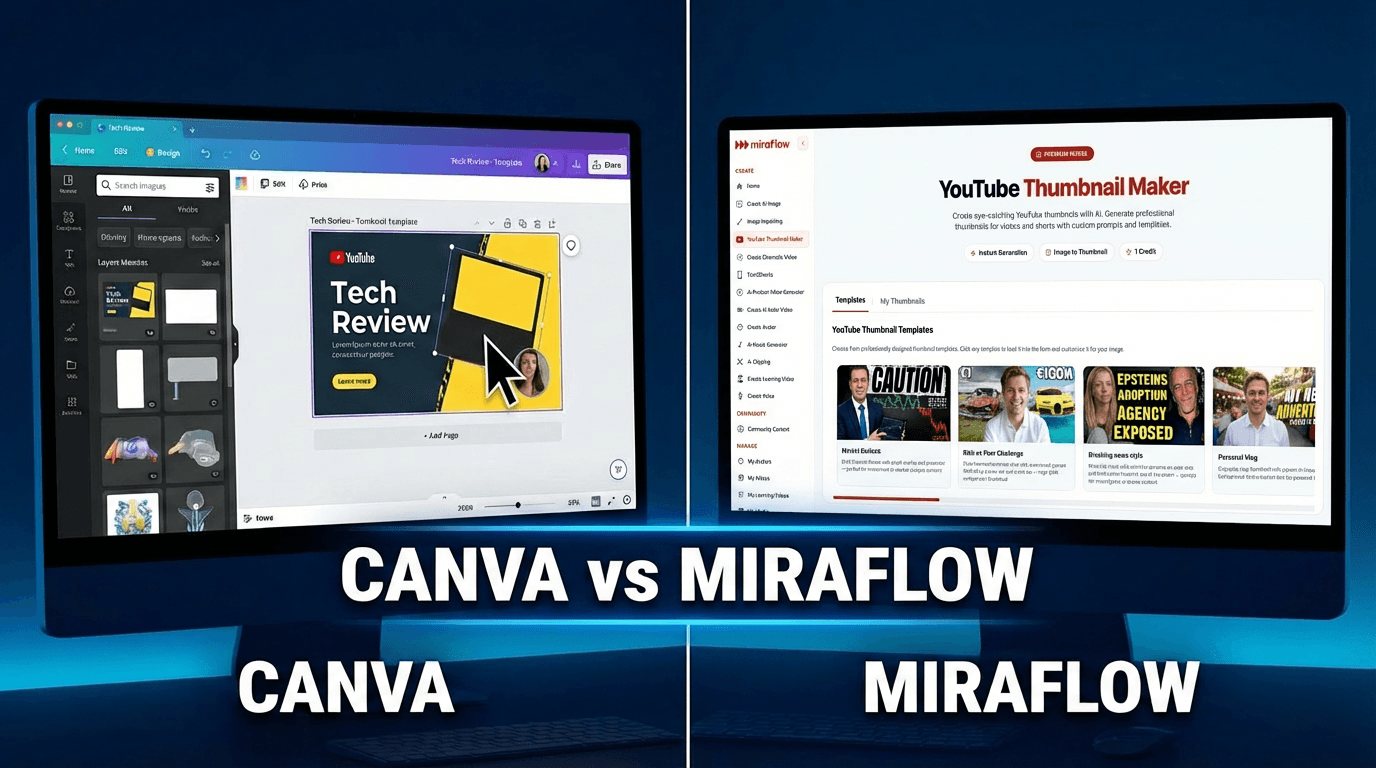
Canva or Miraflow — which makes better YouTube thumbnails in 2026? We compare speed, AI features, pricing, and CTR results to help you pick the right thumbnail maker for your channel.
Your thumbnail is the most important click decision on YouTube. It does not matter how good your video is if nobody clicks on it, and the thumbnail is almost always what determines whether they do. In the crowded world of YouTube, your thumbnail is your first and often only chance to grab a viewer's attention — a great video with a bad thumbnail gets ignored, while a compelling one can turn a casual browser into a loyal subscriber.[5]
For years, Canva has been the default tool creators reach for. The Canva vs AI thumbnail maker debate has become the defining question for YouTube creators in 2026 — for years, Canva was the undisputed go-to tool for anyone who needed a thumbnail without learning Photoshop, and it was fast enough, free enough, and good enough.[1] But a new wave of AI-first tools has changed what "good enough" means, and Miraflow is leading that shift.
This guide breaks down everything — features, speed, AI capabilities, pricing, and workflow — so you can decide which tool actually fits the way you create content in 2026.
What Is Canva and How Does It Handle Thumbnails?
Canva is a browser-based, general-purpose design platform. It is widely used by YouTubers for creating thumbnails, channel branding, and simple visual assets, and rather than being a full graphic design replacement, Canva focuses on speed, ease of use, and accessibility — for creators who don't want to learn complex design software, it offers a straightforward way to produce clean, consistent visuals without a steep learning curve.[5]
The thumbnail workflow in Canva is template-first. You browse thumbnail templates by niche (gaming, beauty, tech, vlogs), pick one, swap in your photo and text, and export — for creators who want control over every design element without learning Photoshop, Canva strikes the right balance.[8]
Canva has added AI features over time. It includes AI-powered tools that assist with thumbnail creation, layout suggestions, background removal, and text styling, but rather than fully generating designs automatically, Canva's AI features are meant to speed up common design decisions while keeping creators in control — for YouTubers, this usually means starting from a thumbnail template, using AI-assisted text placement or background cleanup, and making quick adjustments.[5]
Here is what that looks like in practice: you open Canva, select a YouTube Thumbnail template, browse through options, drag in your image, adjust fonts and colors, reposition elements, and export. That process takes 10–30 minutes per thumbnail, or longer if you heavily customize.[4]
The main limitations are well-documented. Canva is a general-purpose design tool, not a thumbnail-specific one — its AI image generation quality is a step below dedicated AI generators, and the free plan restricts access to the best templates and AI features.[8] Templates can also feel generic if not heavily customized.[5]
What Is Miraflow and Why Is It Different?
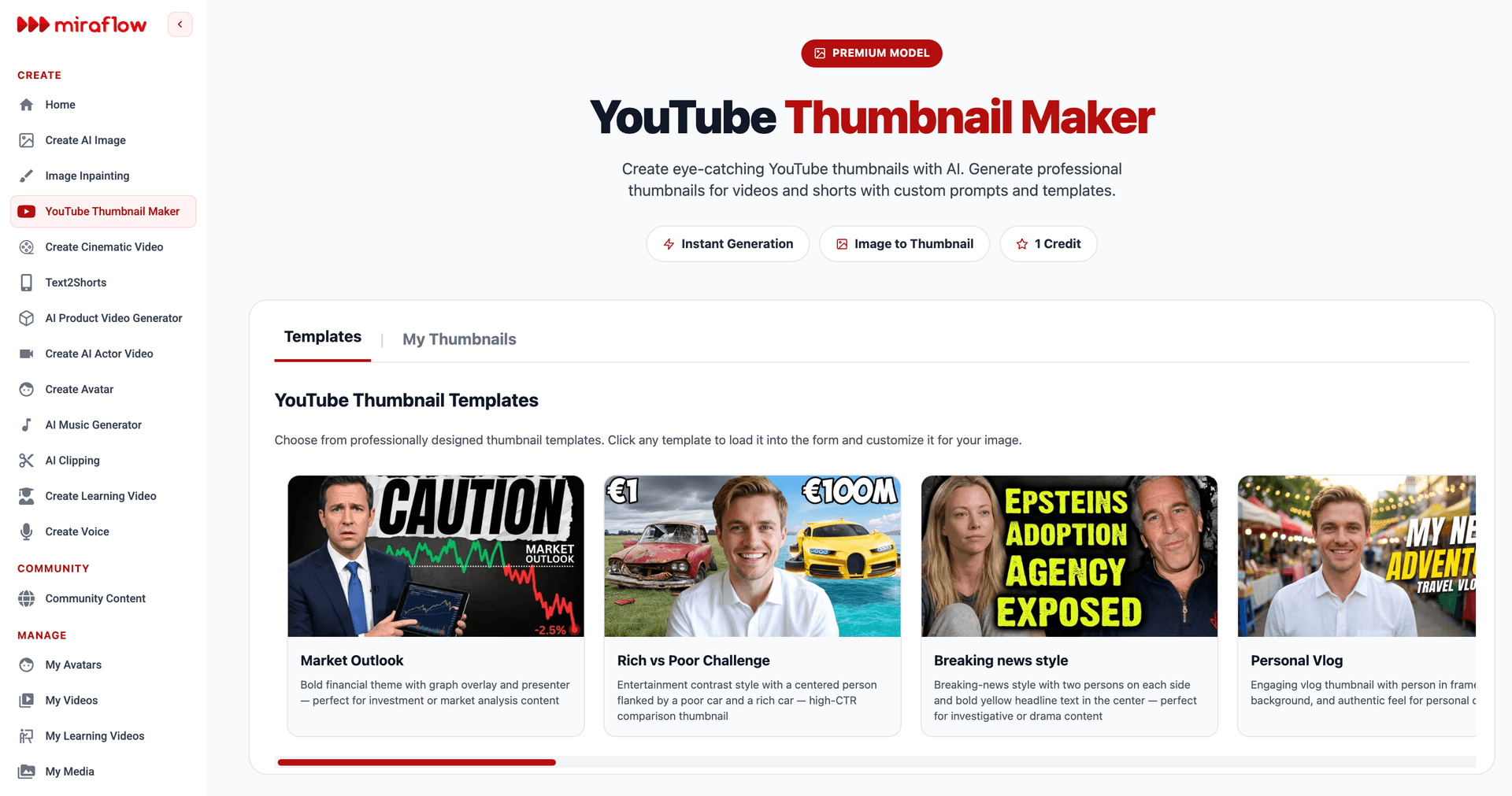
Miraflow is an AI-first creative platform that includes a dedicated YouTube Thumbnail Maker built specifically for creators who want high-quality thumbnails without the manual design process. Instead of handing you a blank canvas and a library of templates, Miraflow generates complete, ready-to-use thumbnails from a text prompt in seconds.
The difference in philosophy is significant. AI thumbnail makers represent a fundamentally different philosophy — instead of giving you a blank canvas and asking you to be the designer, they analyze your content and generate optimized thumbnails for you.[1]
With Miraflow, you describe what you want your thumbnail to look like, add your overlay text, and the AI builds the entire image. There is no template browsing, no dragging elements around, no trying to make a pre-made layout fit your specific video. The output is a unique, AI-generated thumbnail designed around your prompt.
Head-to-Head: Canva vs Miraflow for YouTube Thumbnails
Speed
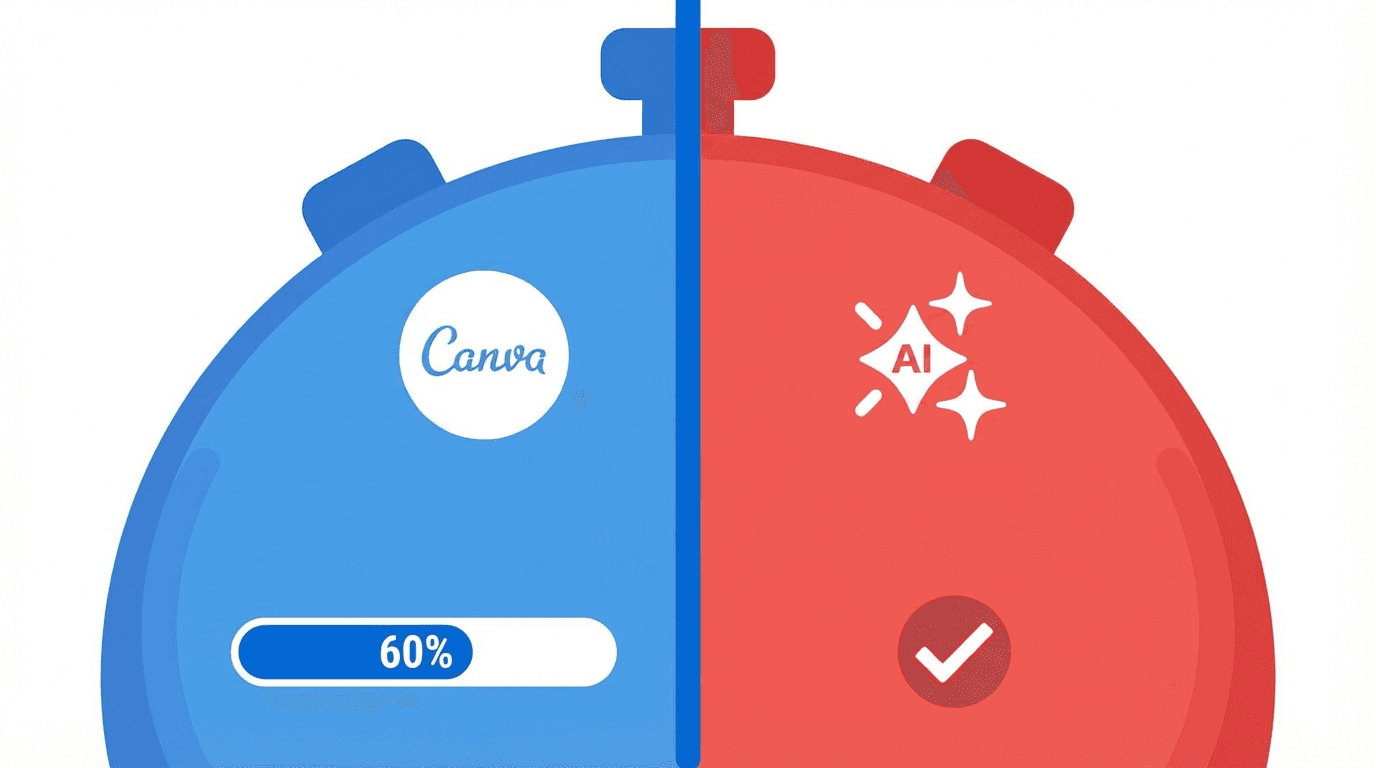
This is where the gap is most dramatic. The most obvious advantage of AI thumbnail makers is speed — where Canva requires 20 to 45 minutes of active design work, dedicated AI thumbnail tools generate multiple variations in seconds.[1]
With Miraflow, you write a prompt, add your overlay text, and hit Generate. The entire process from opening the tool to having a finished thumbnail takes under a minute. Canva, even with its AI features, still requires you to choose a template, customize every element manually, and iterate until it looks right.
For creators who publish multiple times per week, this difference compounds quickly. When you calculate the time cost annually — about 72 hours per year on thumbnails with Canva versus 12 hours with an AI tool — that is 60 hours saved, more than seven full working days. For daily or near-daily posters, the numbers become staggering.[1]
AI Capabilities
Canva's AI features are assistive. Canva has AI features like Magic Design and an AI Image Generator, but you're still in the driver's seat.[4] You still build the thumbnail yourself — the AI just helps with background removal, layout suggestions, and generating individual image elements.
Miraflow's AI is generative end-to-end. You describe the scene, the mood, the subject, and the composition in your prompt, and the AI creates the entire thumbnail as a cohesive image. You can also upload a reference image — your face, a product, or an object — and the AI incorporates it into the generated design. There is even an option to paste your YouTube video link directly, and Miraflow will pull the existing thumbnail for you to edit and improve with AI.
This is a fundamentally different level of AI integration. Canva uses AI as a feature inside a manual tool. Miraflow uses AI as the tool itself.
YouTube-Specific Features
Canva is a general design platform. It is a general-purpose design tool, not a thumbnail-specific one.[8] It can make YouTube thumbnails, but it can also make Instagram posts, business cards, presentations, and flyers. That versatility is useful, but it means the YouTube thumbnail experience is not deeply optimized.
Miraflow's thumbnail maker is built specifically for YouTube. It offers a dedicated aspect ratio toggle — 16:9 for standard YouTube video thumbnails and 9:16 for YouTube Shorts. The Thumbnail Text field renders bold overlay text directly onto the generated image, so you do not need a separate text editing step. And the negative prompt option (for example: "blurry, low quality, cluttered background, distorted face, messy text") gives you fine-grained control over what the AI avoids, which is something template-based tools simply cannot offer.
Text on Thumbnails
Tools like Canva have robust text overlay capabilities, but when it comes to AI-generated images specifically, text rendering accuracy can be inconsistent — for reliable text on thumbnails, using a design tool's manual text features is often recommended over relying on AI generation alone.[8]
Miraflow addresses this with a dedicated Thumbnail Text field that is separate from the image generation prompt. You type your short overlay phrase, and Miraflow renders it as bold, readable text on the final image. This keeps the text clean and intentional rather than hoping the AI gets the letters right inside a generated scene.
Design Quality and Uniqueness
Canva's template library is massive, but every template follows the same grid, font hierarchy, and color palette — when you need a high-contrast, eye-catching thumbnail that stands out in a sea of similar designs, those constraints become a liability.[6] The design quality depends on your design sense and choice of templates, and many results can look cookie-cutter if you stick to popular designs.[4]
Since Miraflow generates each thumbnail from a unique prompt, no two thumbnails are the same. Your thumbnail will not look like thousands of other creators who picked the same Canva template. This uniqueness matters when viewers are scanning a YouTube feed filled with similar-looking thumbnails.
A/B Testing Readiness
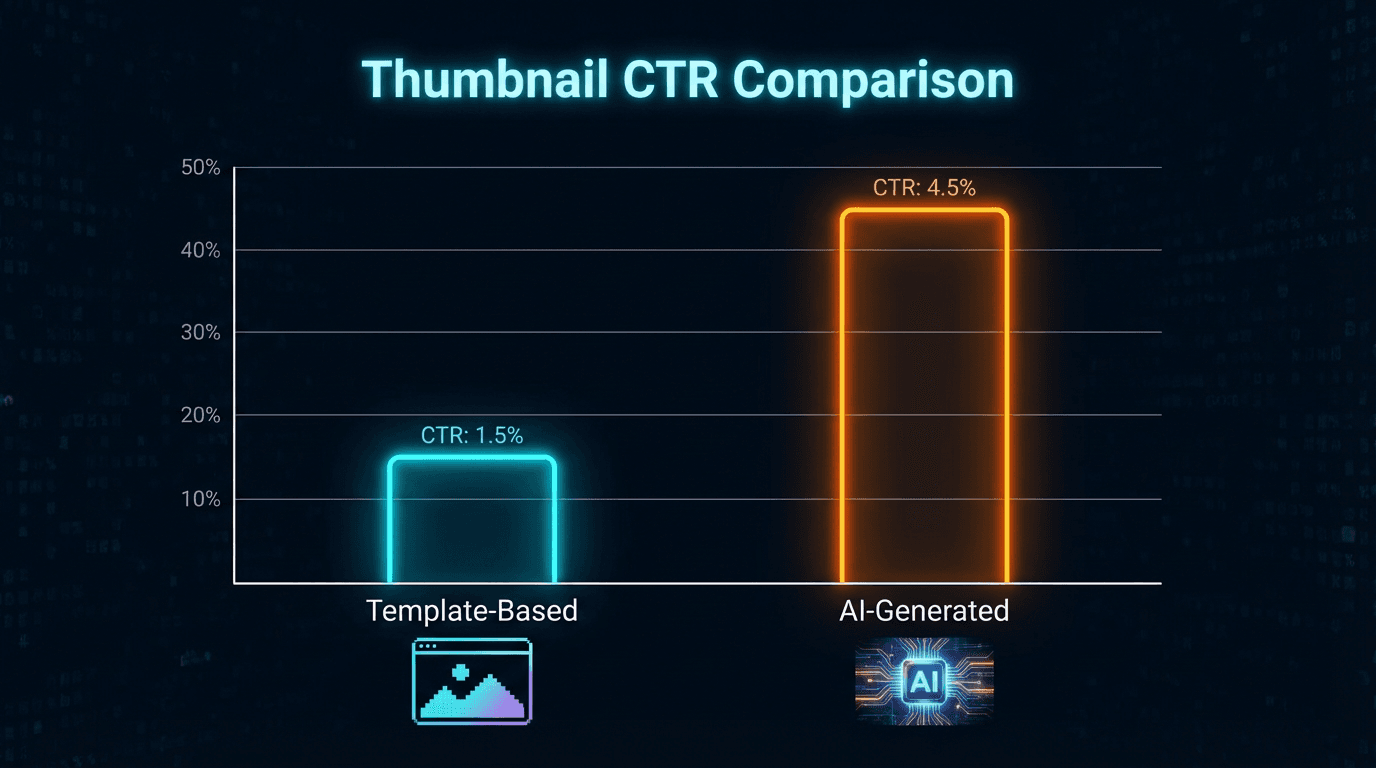
Tools like TubeBuddy and VidIQ let you run A/B tests on thumbnails, but generating dozens of variants manually in Canva is time-consuming — each variant requires a new canvas, layer adjustments, and export.[6]
Miraflow makes this effortless. Generate 2–3 variations of the same prompt, compare them at thumbnail size, and upload the winner. The pro tip: check your variations on your phone at small size. The one that pops immediately at thumbnail scale is always the right pick.
How to Make a YouTube Thumbnail with Miraflow (Step-by-Step)
Here is the complete workflow from start to finish:
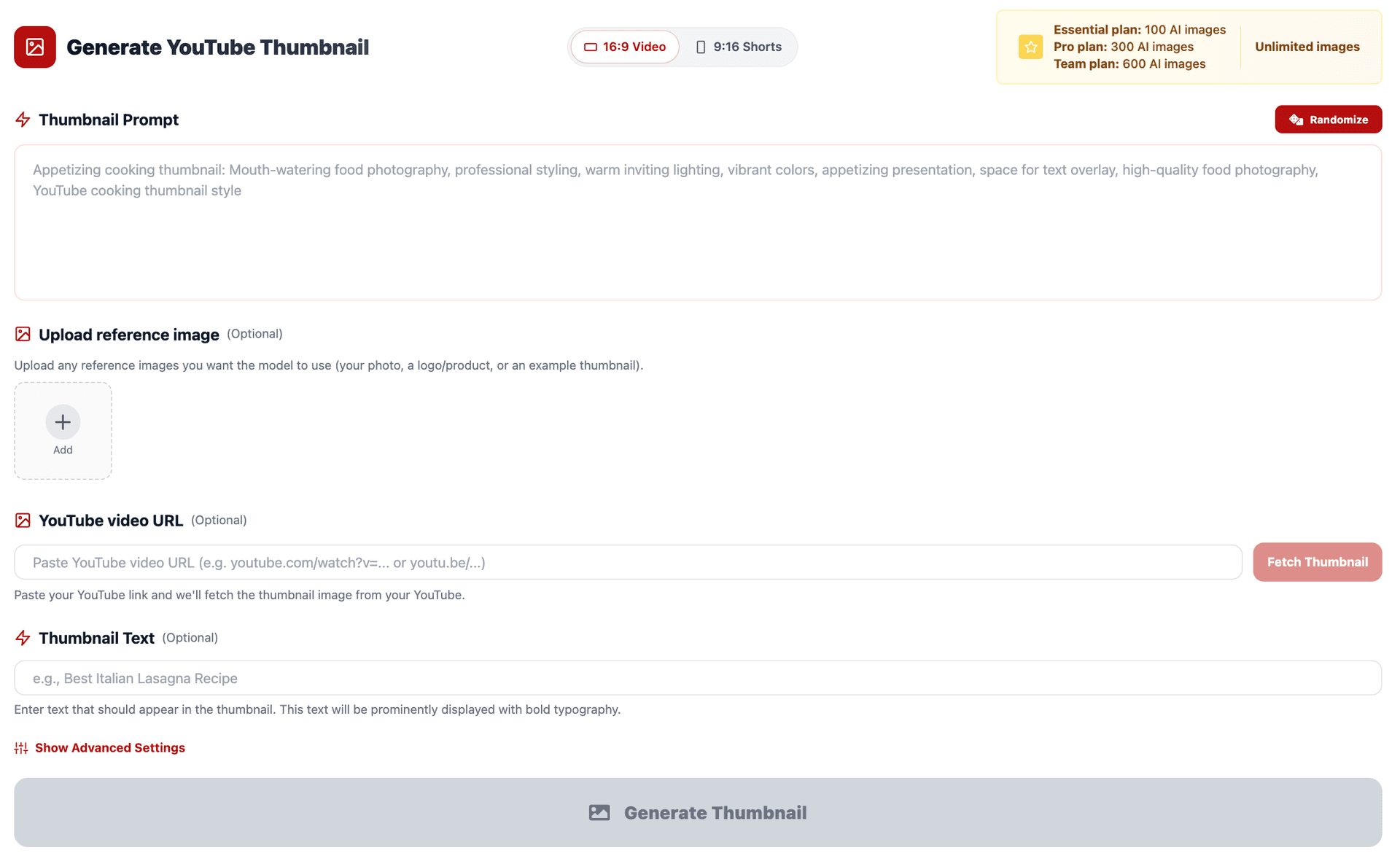
Step 1: Open the YouTube Thumbnail Maker. Go to the YouTube Thumbnail Maker on Miraflow AI. The tool is purpose-built for this task, so there is no digging through a general design dashboard.
Step 2: Set your aspect ratio. Choose 16:9 Video for standard YouTube thumbnails or 9:16 Shorts for vertical YouTube Shorts content. The aspect ratio is set before generation so the AI composes the image correctly from the start.
Step 3: Write your thumbnail prompt. Paste or type your prompt into the Thumbnail Prompt field. Be specific about the scene, subject, mood, and style you want. For example: "A shocked person looking at a laptop screen showing a huge number, dramatic lighting, bold colors, cinematic feel."
Step 4: Add your overlay text. Type a short phrase into the Thumbnail Text field. This renders as bold overlay text on your finished thumbnail. Keep it to 3–6 words maximum for readability at small sizes.
Step 5 (Optional): Use advanced settings. Open Show Advanced Settings and add a Negative Prompt to tell the AI what to avoid. A solid default is: "blurry, low quality, cluttered background, distorted face, messy text." This prevents the most common AI image issues.
Step 6 (Optional): Upload a reference image. You can upload your face, a product shot, or any object you want the AI to incorporate into the thumbnail. This is essential for creators who want their face on every thumbnail for brand consistency.
Step 7 (Optional): Paste your YouTube link. Simply type or paste your YouTube video URL, and the current thumbnail of that video will be uploaded automatically. From there, you can edit and improve it with AI — perfect for refreshing old thumbnails on underperforming videos.
Step 8: Generate and compare. Hit Generate Thumbnail, then check your results in My Thumbnails. Generate 2–3 variations, compare them at thumbnail size on your phone, and download the winner.
Step 9: Upload to YouTube. Download your chosen thumbnail and upload it directly to YouTube Studio. The entire process takes under two minutes.
Pricing: Canva vs Miraflow
This is where the comparison gets interesting for budget-conscious creators.
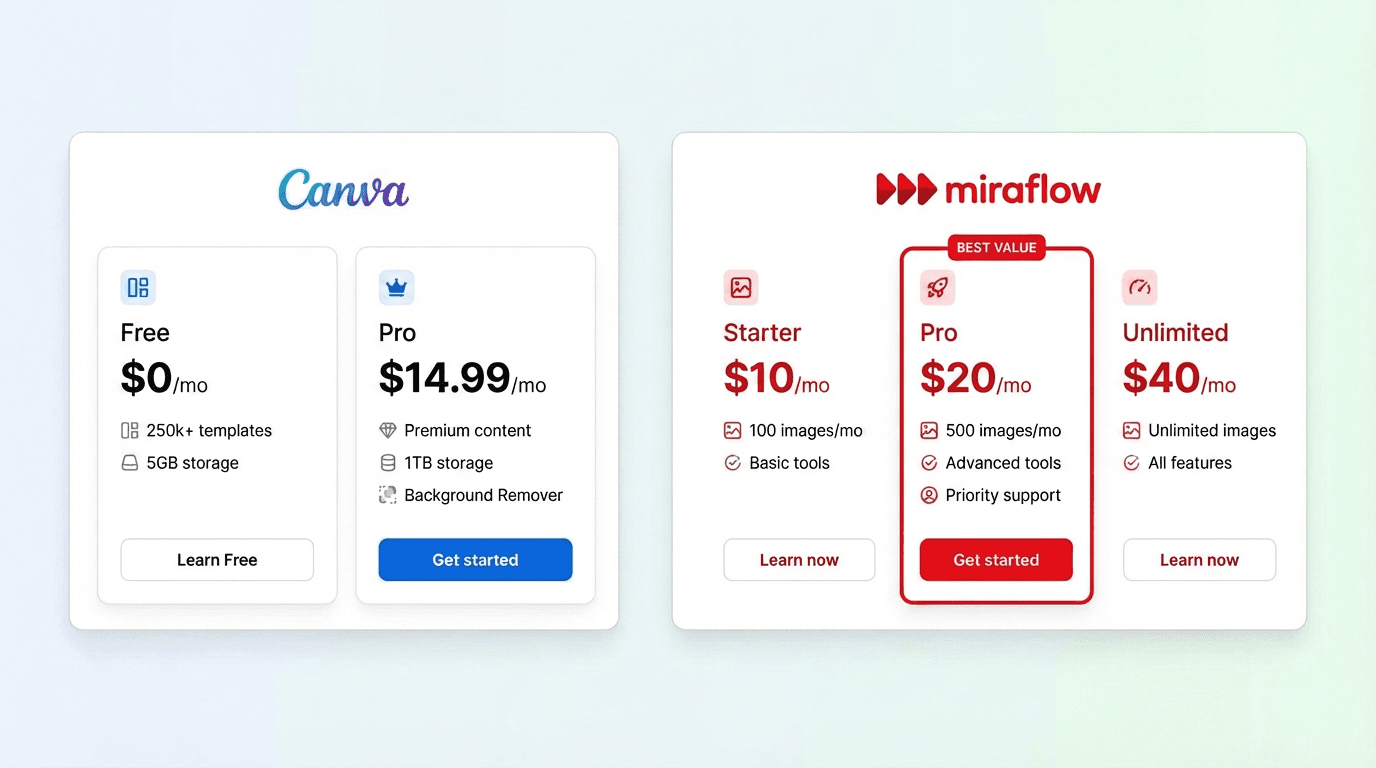
Canva offers a free plan with limited features and limited AI credits. Canva offers a robust free plan, and Canva Pro starts at $14.99/month for one person, unlocking premium templates, a background remover, Brand Kits, and more.[5] However, the AI thumbnail maker is free to use, but free users have a limited number of credits to generate images — you need to upgrade to Canva Pro to unlock more.[2]
Miraflow pricing is structured around AI image generation volume:
- Essential Plan — $10/month: 100 AI images. Perfect for creators publishing 1–2 videos per week who generate 2–3 thumbnail variations per video.
- Pro Plan — $20/month: 300 AI images. Built for active creators publishing 3–5 times per week or those who want to test more variations.
- Team Plan — $40/month: 600 AI images. Designed for agencies, multi-channel operators, or teams managing several creators.
At $10/month, Miraflow's entry-level plan is cheaper than Canva Pro ($14.99/month) and gives you 100 AI-generated thumbnails — not template customizations, but fully AI-generated unique images. For a creator publishing weekly, that is more than enough to generate multiple variations for every video while staying well under budget.
The value proposition is clear: Canva Pro gives you access to a general design platform where you still do the work. Miraflow gives you 100 finished, AI-generated thumbnails where the AI does the heavy lifting.
When Should You Use Canva Instead?
Canva still makes sense in certain situations. Canva is better if you want complete manual control and a free option — it is best for creators with time to design, a clear brand look, and a DIY mindset.[4]
If you are a designer who enjoys the creative process of building thumbnails from scratch, Canva gives you the manual control to do that. If you need a single tool for thumbnails, social media posts, presentations, and marketing materials, Canva's all-in-one ecosystem is hard to beat. And if your budget is strictly zero, Canva's free plan works for basic thumbnails.
But if your goal is to create high-quality YouTube thumbnails as fast as possible, with AI doing the creative heavy lifting so you can focus on making videos, Miraflow is the better choice.
When Should You Use Miraflow Instead?
Miraflow is the better fit if any of these apply to you:
You publish frequently and cannot afford to spend 30 minutes per thumbnail. You want every thumbnail to be unique rather than based on a shared template. You want to upload your face or a reference image and let AI build the thumbnail around it. You want to refresh old thumbnails on underperforming videos quickly by pasting the YouTube link and regenerating. You want to generate multiple variations for A/B testing without redesigning each one manually. You care about speed and results more than pixel-level manual control.
For most YouTube creators in 2026 — especially solo creators, small teams, and growing channels — the AI-first approach saves enough time and produces strong enough results that it has become the smarter default.
The Verdict: Which One Should You Pick?
Which approach actually makes sense for your channel depends on how often you post, how much you value your time, and whether you care more about pixel-level creative control or performance.[1]
If you want full manual control and a free general design tool, Canva is solid. If you want fast, unique, AI-generated YouTube thumbnails that are purpose-built for clicks, Miraflow is the better tool for the job — and at $10/month for the Essential plan, it costs less than Canva Pro while delivering a fundamentally faster workflow.
The bottom line: Canva is a design tool that can make thumbnails. Miraflow is a thumbnail tool powered by AI. For YouTube creators, that distinction makes all the difference.
Ready to try it? Head to the YouTube Thumbnail Maker on Miraflow AI and generate your first thumbnail in under 60 seconds.
Learn more:
- Canva vs AI Thumbnail Makers: Which Should YouTubers Use in 2026? — Insane Thumbnails
- Free AI Thumbnail Maker: Create a thumbnail with AI | Canva
- Free YouTube Thumbnail Maker - Design a Thumbnail in Canva
- Canva vs Pikzels (2026): Best Thumbnail Maker for Solo YouTubers
- 10 Best AI YouTube Thumbnail Generators In 2026 | Juma (Team-GPT)
- 12 Best Thumbnail Maker for YouTube Tools (2026 Review)
- Canva Review: Is It the Best AI Thumbnail Tool for YouTubers? | Tube AI Tools
- Best AI Thumbnail Maker: 7 Tools That Actually Boost Your YouTube CTR in 2026 | Medium
- Canva vs AI Design Tools: When Templates Aren't Enough for YouTube Growth Agencies
- How to Make Custom YouTube Thumbnails with Canva (2026)
- How to Create Amazing YouTube Thumbnails With AI and Canva
- 15 Best AI Thumbnail Makers in 2026 (Free & Paid)
- Canva Thumbnail Maker - AI Alternative to Canva for YouTube Thumbnails
- Top YouTube Thumbnail Makers in 2025: Free, AI & Pro Tools | NearStream Official
- Best AI Thumbnail Generator 2026: StreamYard vs Adobe Express vs Canva
- Best Thumbnail Maker Apps & Software (2026)
- Canva Thumbnail Maker Alternative: AI Thumbnail Generator | Mootion