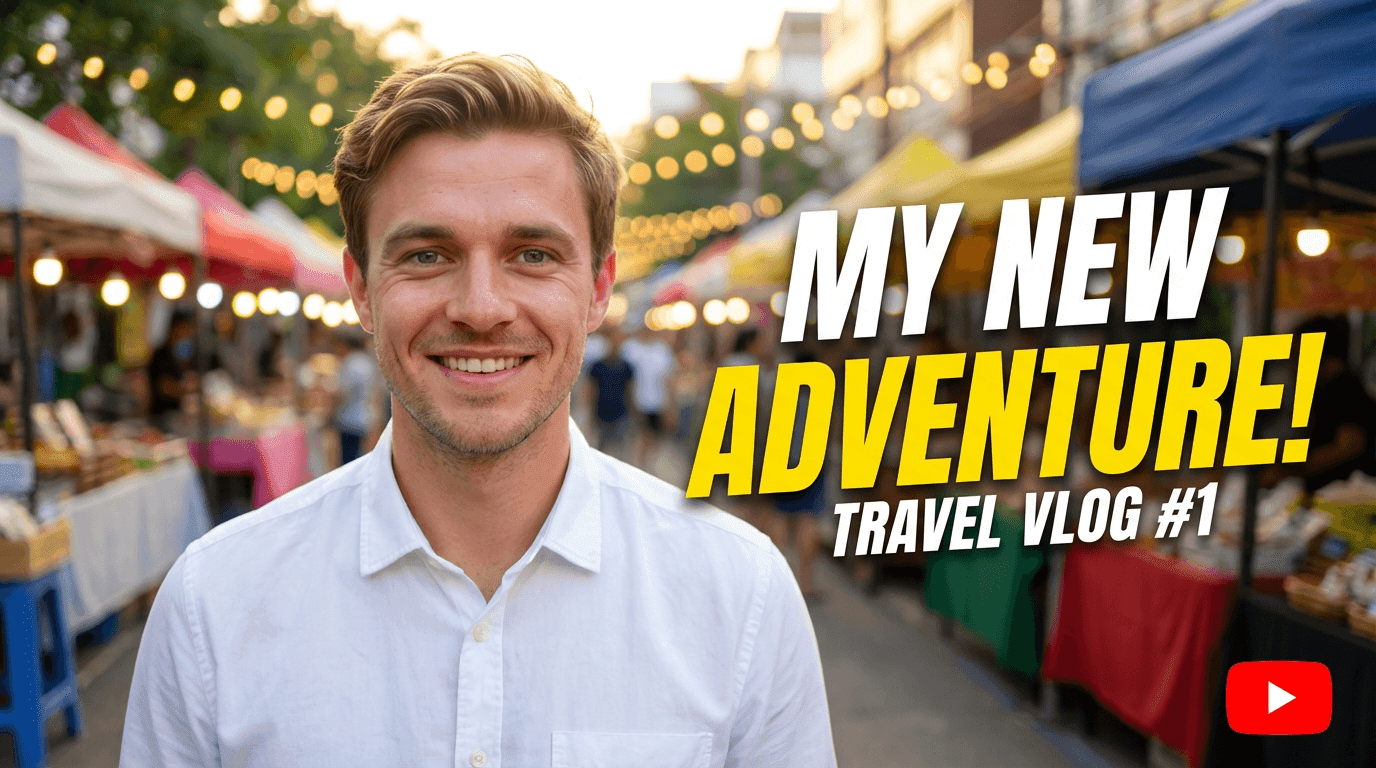
10 AI Prompts for Viral YouTube Thumbnails (Copy & Paste)

Written by
Jay Kim
Get 10 copy-and-paste AI prompts for YouTube thumbnails that work for tutorials, reviews, Shorts, and more. Designed for Miraflow’s YouTube Thumbnail Maker and ready to use.
You can have the best video in the world and still get no clicks if your thumbnail doesn’t do its job.
Most creators know thumbnails matter, but starting from a blank canvas every time is painful. That’s where AI prompts for YouTube thumbnails come in: instead of manually designing every detail, you describe the thumbnail you want, and an AI thumbnail maker builds it for you.
This post gives you 10 copy-and-paste AI prompts for YouTube thumbnails that you can use directly in Miraflow’s YouTube Thumbnail Maker, for both 16:9 videos and 9:16 Shorts.
TL;DR – How to Use These AI Thumbnail Prompts
- Use these prompts in Thumbnail Prompt inside YouTube Thumbnail Maker on Miraflow.
- Choose Text to Thumbnail when you don’t have an image, or Image Compositing if you want to upload your face or product.
- Put the short, punchy words (like “Edit Faster” or “Don’t Do This”) into Thumbnail Text so they render as bold text in the design.
- Pick the right aspect ratio:
- 16:9 Video for regular YouTube videos
- 9:16 Shorts for YouTube Shorts / Reels style thumbnails
- Customize colors, mood, or niche words, but keep the structure of the prompts. It’s what makes them work reliably.
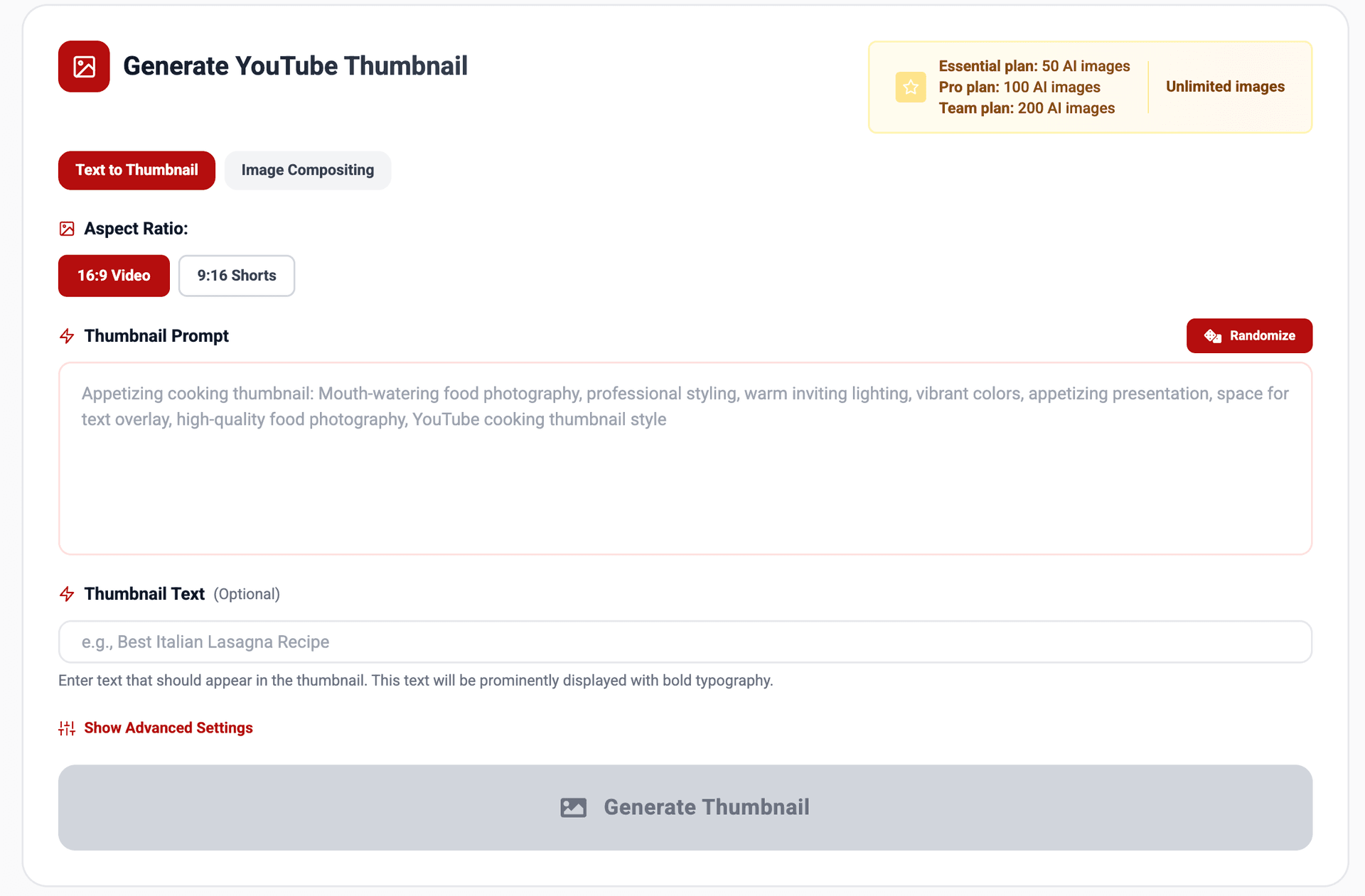
If you’re completely new to Miraflow’s YouTube Thumbnail Maker and want a full walkthrough of every button and setting, check this step-by-step guide first: How to Generate YouTube Thumbnails with AI: Step-by-Step
How These AI Prompts Fit Into Miraflow’s Thumbnail Maker
On Miraflow’s YouTube Thumbnail Maker, you have two main modes:
- Text to Thumbnail
Perfect when you want to generate a thumbnail entirely from a text description. Just paste the prompt in Thumbnail Prompt, add short words in Thumbnail Text, and generate. - Image Compositing
Ideal when you want your face or a specific product in the thumbnail. Upload your image, then use the same style of prompts to tell the AI how to design around it.
For each of the 10 ideas below, you can:
- Use them as-is in Text to Thumbnail
- Or slightly tweak them for Image Compositing by adding phrases like
“Use the uploaded person as the main character in the thumbnail.”
You can also:
- Click Randomize button in the UI if you want more inspiration or extra variations.
- Use Show Advanced Settings → Negative Prompt to avoid things like “blurry, low quality, messy text”.
1. High-Contrast Tutorial Thumbnail (“Do This, Not That”)
Best for: how-to videos, editing tips, productivity hacks.
AI Prompt (Thumbnail Prompt):
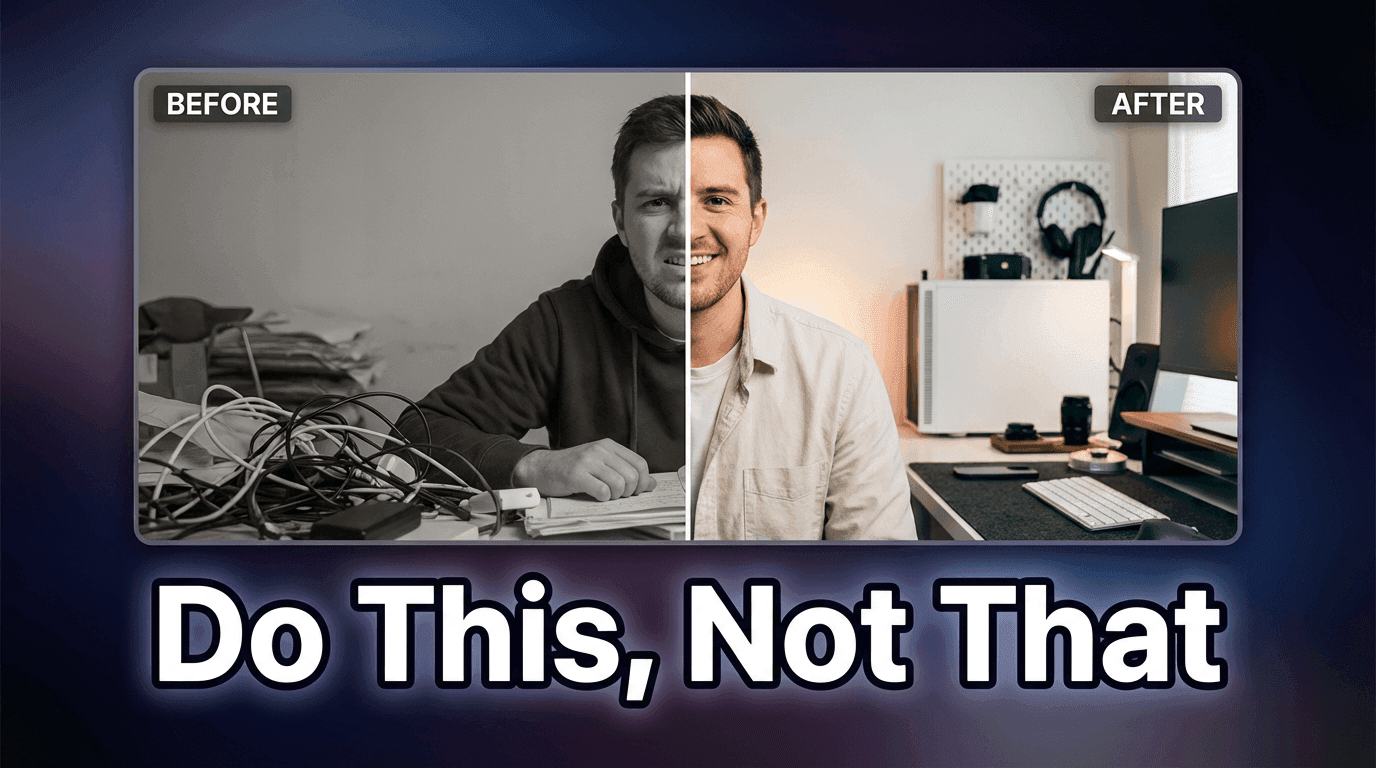
YouTube tutorial thumbnail: split-screen before vs after layout. On the left, a dull, messy version with low contrast and slightly desaturated colors. On the right, a bright, clean, polished version with vivid colors and sharp details. Clear lighting on the right side, subtle vignette to focus attention. Simple background, space for bold text on the top or bottom. Modern YouTube tutorial style, professional but minimal.
Thumbnail Text ideas:
- “Do This, Not That”
- “Fix This Setting”
- “Edit Faster”
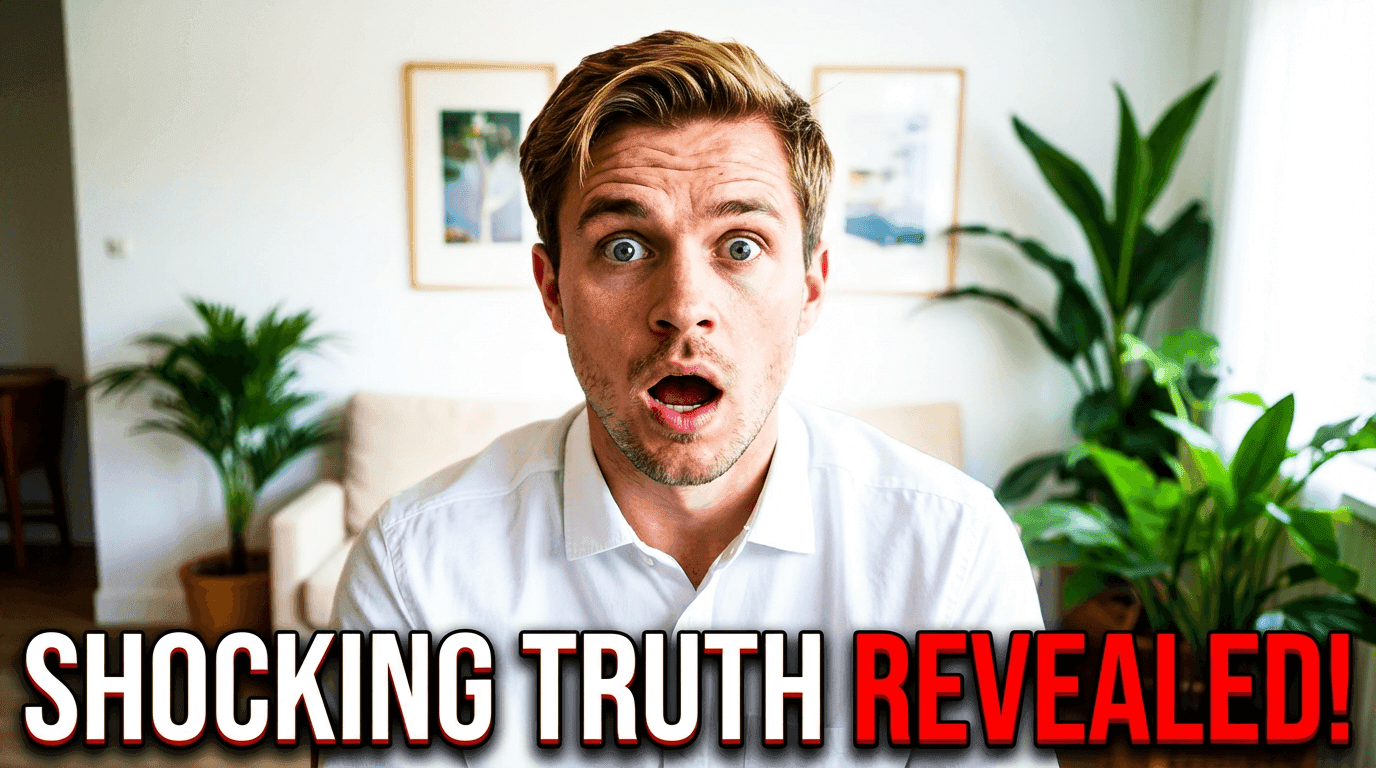
2. Reaction / Shock Face Thumbnail
Best for: commentary, “I tried X”, reaction, drama-style content.
AI Prompt (Thumbnail Prompt – Text to Thumbnail):
YouTube reaction thumbnail: close-up of a surprised face with wide eyes and open mouth, lit by bright, colorful lighting. Background shows a blurred screen or abstract shapes suggesting something shocking or unexpected, with red and yellow accent colors. High contrast, strong facial expression, depth of field blur behind the subject, space on one side for bold text. Modern YouTube commentary style, clean edges and sharp details.
If using Image Compositing:
Add:
“Use the uploaded person as the main face in the thumbnail with the same shocked expression and bright lighting.”
Thumbnail Text ideas:
- “I Was Wrong”
- “This Changed Everything”
- “You Won’t Believe This”
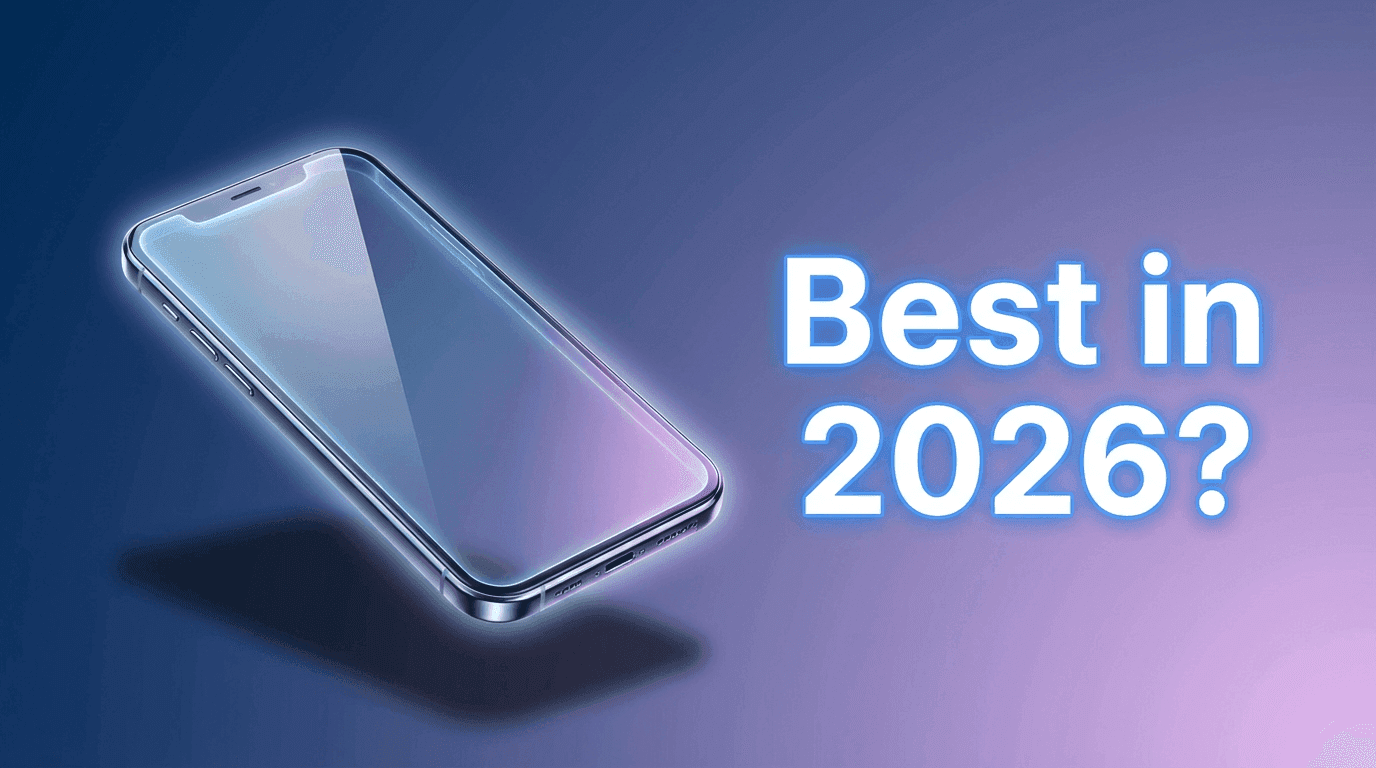
3. Product Review / Tech Gadget Thumbnail
Best for: tech reviews, unboxings, affiliate content.
AI Prompt (Thumbnail Prompt):
YouTube tech review thumbnail: a single gadget centered in the frame, placed on a clean gradient background. Soft studio lighting, glossy reflections on the product, subtle glow around the edges to make it pop. Add a subtle shadow under the product for depth. Plenty of negative space on the left or right for bold text. Modern tech YouTube style, sharp, high-resolution, minimal clutter.
If you upload your own product photo:
Add:
“Use the uploaded product image as the main gadget in the center, preserving its colors and shape.”
Thumbnail Text ideas:
- “Worth It?”
- “Watch This First”
- “Best in 2026?”
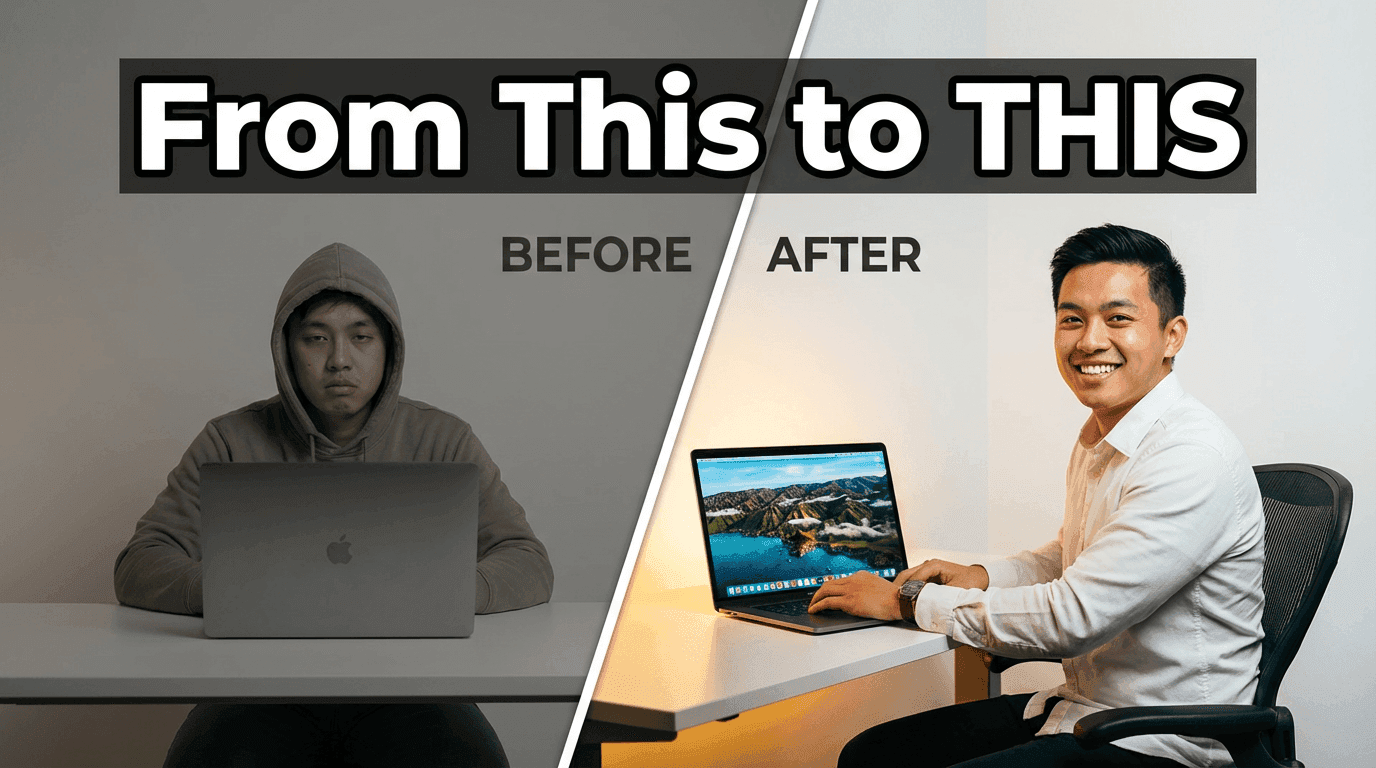
4. Before / After Transformation Thumbnail
Best for: editing, design, fitness, makeover, or app transformations.
AI Prompt (Thumbnail Prompt):
YouTube transformation thumbnail: side-by-side before and after panels. On the left, a dull, unimpressive version with low saturation and flatter lighting. On the right, a vibrant, impressive result with rich colors and strong lighting. Use a diagonal or vertical divider between the two. Clean, minimal background that doesn’t distract. Space at the top for bold text. High contrast, sharp details, modern tutorial style.
Thumbnail Text ideas:
- “Before / After”
- “From This to THIS”
- “Glow Up”
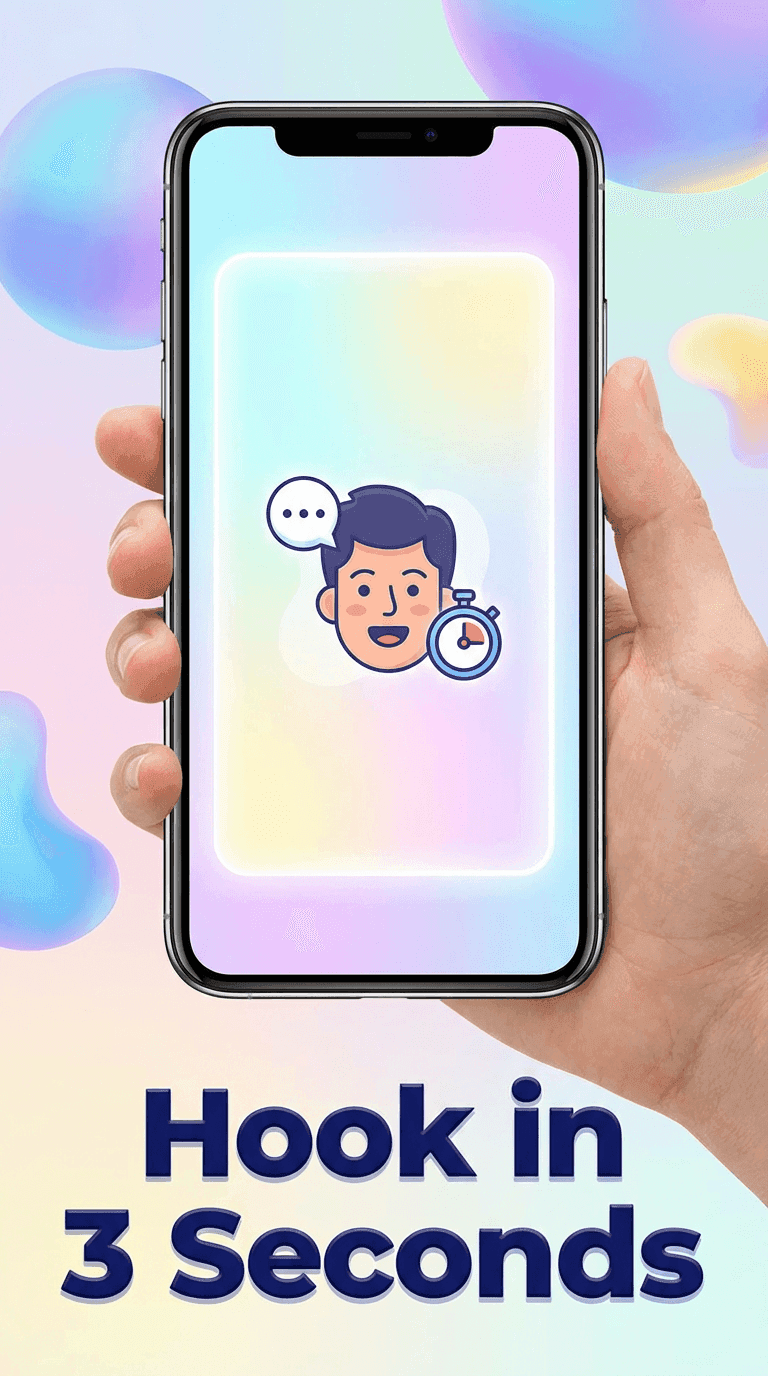
5. YouTube Shorts / Vertical Content Thumbnail (9:16)
Best for: Shorts channels and vertical-first creators.
AI Prompt (Thumbnail Prompt):
YouTube Shorts thumbnail in vertical 9:16 style: a smartphone held vertically with a short-form vertical video frame glowing on the screen. Bright, light background with soft gradients and abstract shapes. Focus on the phone and the vertical video frame. High contrast, modern, minimal, slightly playful. Space near the top or bottom for bold text. Clean edges, sharp details, mobile-first aesthetic.
Thumbnail Text ideas:
- “Shorts Strategy”
- “Post This Daily”
- “Hook in 3 Seconds”
In Miraflow, remember to set Aspect Ratio → 9:16 Shorts before generating this one.
6. List / “Top 5” Thumbnail
Best for: listicles, recommendations, best-of content.
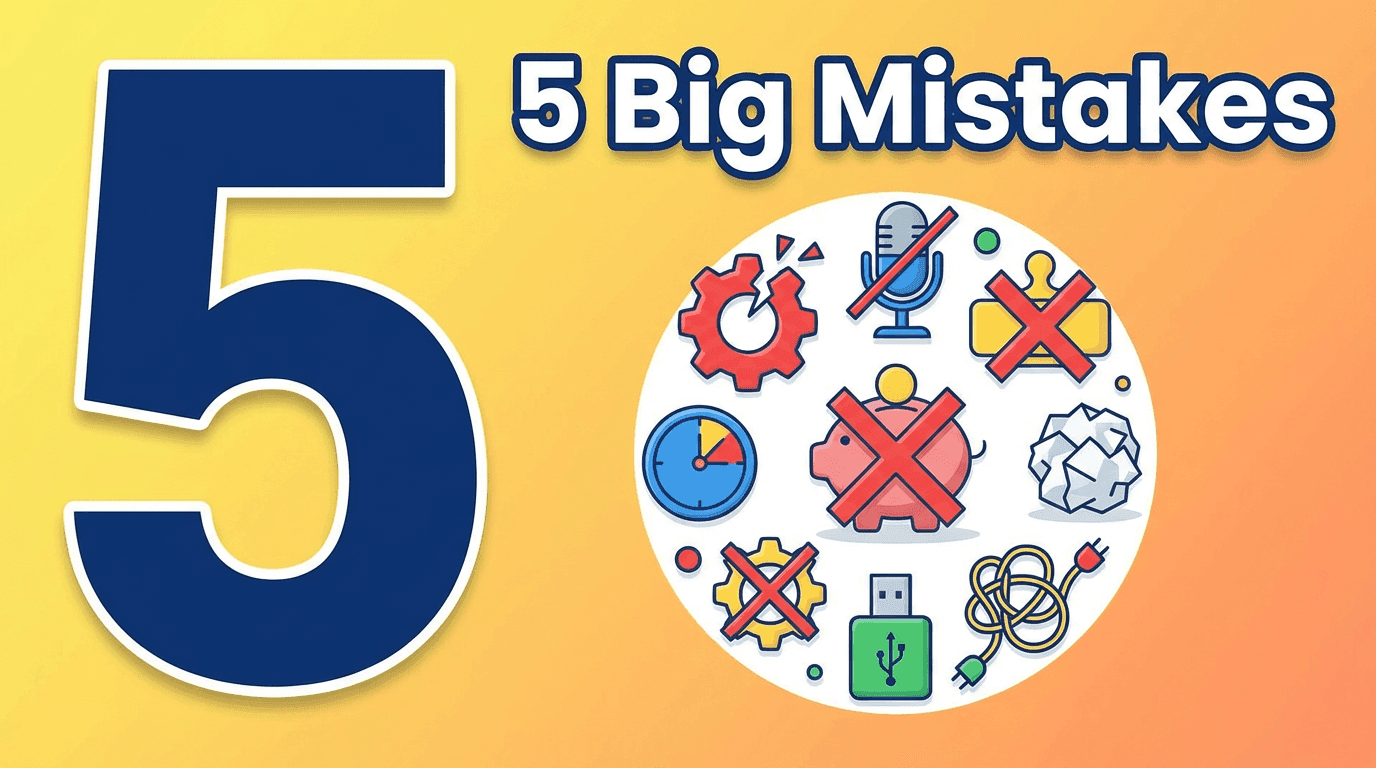
AI Prompt (Thumbnail Prompt):
YouTube list thumbnail: a bold, large number 5 on one side of the frame, and a clean collage of small icons or objects representing each item on the other side. Bright background with a soft gradient, high contrast colors, simple shapes, minimal clutter. Subtle drop shadow behind the number and icons to add depth. Space for short bold text above or below. Modern, clean, click-friendly style.
Thumbnail Text ideas:
- “Top 5 Tools”
- “5 Big Mistakes”
- “5 Must-Do Steps”
7. Beauty / Makeup / Lifestyle Thumbnail
Best for: beauty channels, lifestyle vlogs, fashion, skincare.
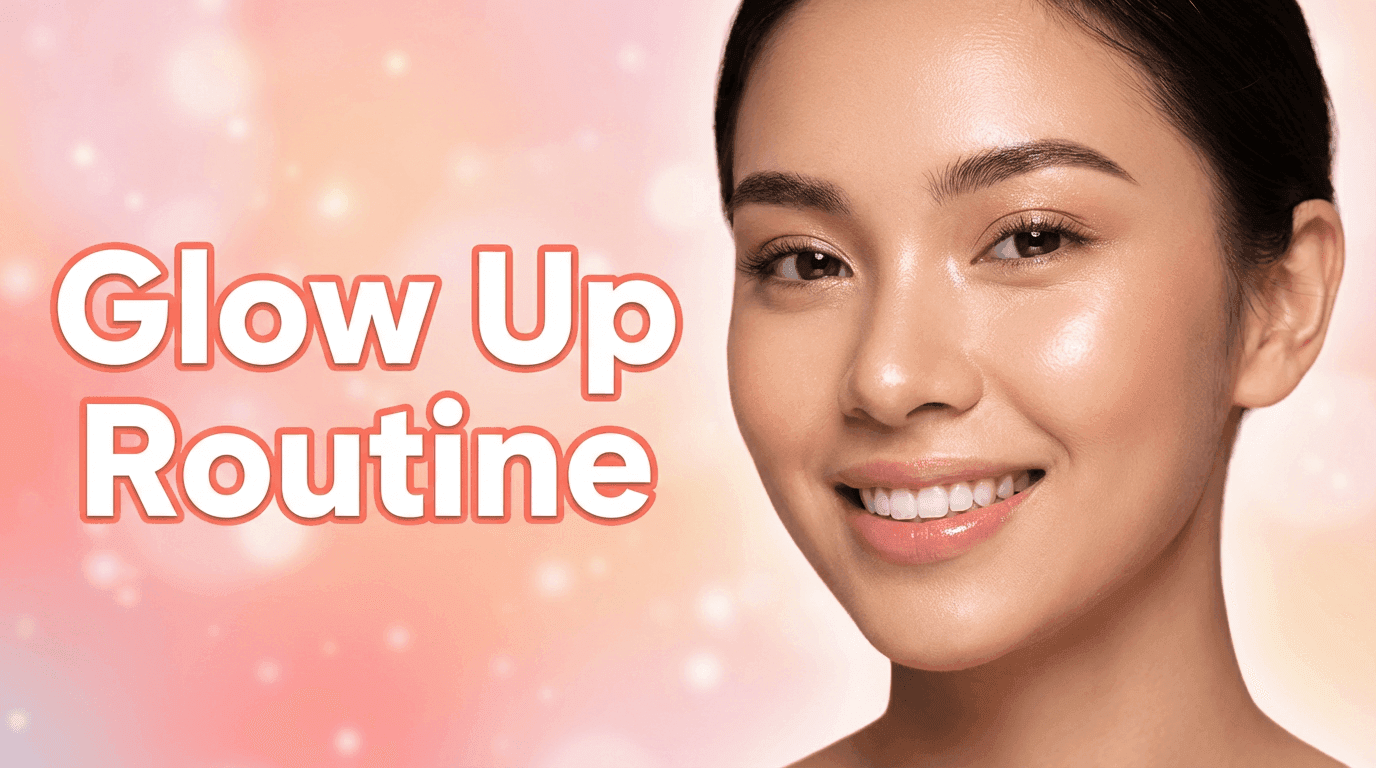
AI Prompt (Thumbnail Prompt):
YouTube beauty thumbnail: close-up portrait with flawless makeup, soft diffused lighting, and glowy skin. Pastel background with light gradients, subtle bokeh or sparkles. Color palette: warm and vibrant but soft, focusing on pinks, corals, or neutrals. Clean composition with the face slightly off-center to leave room for bold text on one side. High-quality beauty photography look, editorial but friendly.
If you upload your own portrait:
Add:
“Use the uploaded person as the main beauty subject, preserving their facial features while enhancing lighting and background.”
Thumbnail Text ideas:
- “Glow Up Routine”
- “Makeup in 10 Min”
- “Simple Everyday Look”
8. “Red X / Green Check” Decision Thumbnail
Best for: “do this, not that”, yes/no, or comparison content.
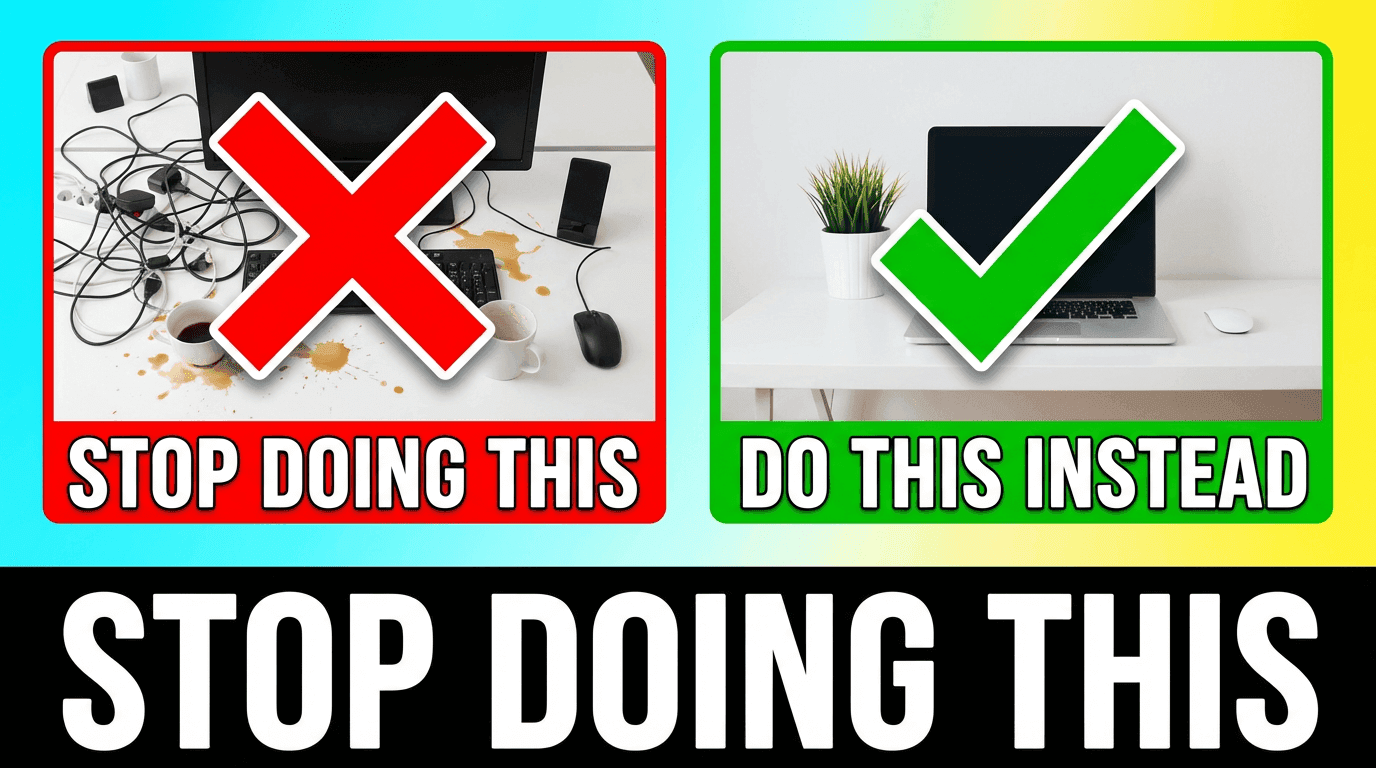
AI Prompt (Thumbnail Prompt):
YouTube decision thumbnail: split-screen layout with two panels. On the left, an object or scene with a large red X icon over it. On the right, a better version with a green check mark. Bright, simple background behind both panels. Clear, high-contrast symbols, sharp lines, minimal clutter. Space at the top or bottom for bold text. Friendly, educational style, easy to understand at a glance.
Thumbnail Text ideas:
- “Stop Doing This”
- “Do This Instead”
- “Wrong vs Right”
9. Creator / Personal Brand Authority Thumbnail
Best for: strategy videos, educational content, thought leadership.
AI Prompt (Thumbnail Prompt):
YouTube authority thumbnail: medium shot of a confident creator standing or sitting slightly off-center, looking at the camera with a calm, assured expression. Clean studio or abstract background with subtle gradient, muted but professional colors. Soft key light on the face, gentle shadow for depth. Space on one side for bold text, minimal clutter. Feels like an expert giving advice, modern creator-educator style.
If using Image Compositing:
Add:
“Use the uploaded person as the main creator in the thumbnail, with confident expression and professional lighting.”

Thumbnail Text ideas:
- “My 3 Rules”
- “What I’d Do in 2026”
- “My Honest Advice”
10. Big Bold “Value” Thumbnail (Money / Results)
Best for: business, growth, analytics, monetization content.
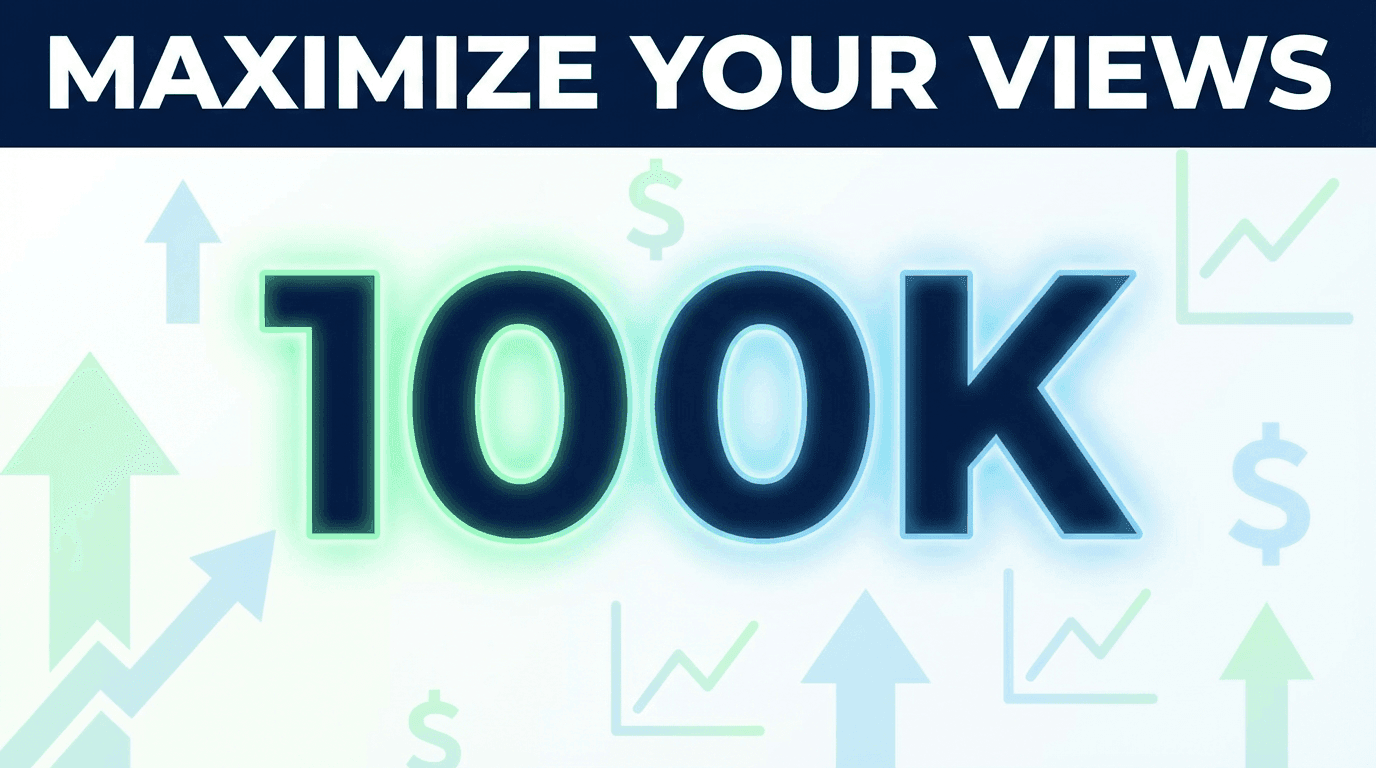
AI Prompt (Thumbnail Prompt):
YouTube results thumbnail: a large, bold number (like 10K or 100K) in the center, with subtle icons suggesting money, analytics, or growth, such as upward arrows and chart lines in the background. Bright, high-contrast colors like green, blue, and white. Clean, modern, minimal clutter. Slight glow around the main number to draw attention. Space for a short bold phrase near the top or bottom. Professional but eye-catching style.
Thumbnail Text ideas:
- “$0 to $10K”
- “100K Views Plan”
- “From 0 to 1K Subs”
How to Adapt These Prompts for Your Channel
You don’t have to use these prompts word-for-word forever. Think of them as proven structures:
- Subject – what’s visually in the thumbnail
- Lighting & color – bright, high-contrast, dramatic, pastel, etc.
- Composition – centered, split-screen, side-by-side, space for text
- Context – “YouTube tutorial style”, “tech review style”, “beauty thumbnail style”
To customize for your niche:
- Swap product for your actual type: “camera”, “microphone”, “app UI”, “fitness result”
- Change the color palette to match your brand
- Adjust mood: cinematic, playful, serious, minimal
As long as you keep those core elements, the AI will understand the structure and give you thumbnails that look YouTube-native.
Using These Prompts Inside Miraflow’s YouTube Thumbnail Maker
Quick recap of how to plug these into Miraflow:
- Go to YouTube Thumbnail Maker on Miraflow.
- Pick Text to Thumbnail if you’re starting from scratch, or Image Compositing if you’re uploading your own face/product.
- Set the Aspect Ratio:
- 16:9 Video for normal YouTube videos
- 9:16 Shorts for short-form content
- Paste one of the prompts above into Thumbnail Prompt.
- Add your short phrase (“Thumbnail Text”) like:
- “Edit Faster”
- “Top 5 Tools”
- “Stop Doing This”
- (Optional) Open Show Advanced Settings and add a Negative Prompt like:
- “blurry, low quality, messy text, distorted faces, cluttered background”
- Click Generate Thumbnail and check the result in My Thumbnails. Download your favorite and upload it to YouTube.
Once you’ve used these a few times, you’ll start to develop your own prompt style. The fastest way to improve is to:
- Generate 2–3 variations
- Compare them at small size (like on a phone)
- Keep what pops immediately and discard what looks noisy or confusing
If you want a more detailed walkthrough of the interface itself, Text to Thumbnail vs Image Compositing, Thumbnail Text, advanced settings, and download flow, check this full tutorial:
👉 How to Generate YouTube Thumbnails with AI: Step-by-Step
Conclusion
You don’t need to reinvent YouTube thumbnail design from scratch every time you upload.
With a handful of AI prompts for YouTube thumbnails that you know work, you can:
- Generate thumbnails faster
- Keep your visual style consistent
- Spend more time on content instead of endlessly tweaking layers
Use the 10 prompts above as your starting library, plug them into Miraflow’s YouTube Thumbnail Maker, and customize them for your niche. Over time, you’ll build your own “thumbnail prompt kit” that fits your brand—and makes your videos much harder to scroll past.