How to Reorder Your Instagram Grid in 2026 (And Actually Use It to Grow)

Written by
Aerin Kim

Instagram finally lets you drag posts into any order on your grid without deleting or reposting. Here is exactly how Reorder Grid works and how to actually use it to grow.
For as long as Instagram has existed, your profile grid has been a fossil record. Whatever order you posted in is the order it stays in, forever, unless you deleted something and reposted it and lost every like, comment, and share it had already earned. That meant a creator's best work sat buried three years deep in their grid while a mediocre post from last Tuesday held the coveted top-left slot, the exact spot a new visitor sees first before deciding whether to hit follow.
That is finally not true anymore. Instagram rolled out a genuine, long-requested Reorder Grid feature, and it changes something creators and brands have been asking for since roughly the app's early years: the ability to rearrange your existing posts into any order you want, without touching their likes, comments, or reach, and without reposting a single piece of content. Adam Mosseri, the head of Instagram, announced the global rollout with a caption that doubled as a small acknowledgment of how long this took: "Finally."
This post covers exactly how Reorder Grid works, why Instagram built it now, and four real strategies for actually using it to make your profile convert more visitors into followers, not just for a one-time aesthetic refresh you do once and forget. Along the way, since a genuinely curated grid usually surfaces the gaps in your visual library faster than anything else, we will also cover where a tool like Miraflow's AI Image Generator fits into filling those gaps quickly once you can actually see your whole grid as a designed layout instead of a chronological accident.
What Reorder Grid Actually Does
Reorder Grid lets you change the visual position of your existing posts, Reels, carousels, and photos, on your profile grid without deleting, reposting, or archiving anything. The post keeps its original likes, comments, share count, and its place in your followers' actual chronological feed history. All that changes is where it sits when someone visits your profile and looks at the grid.
Instagram's own framing of the feature, in a statement accompanying the rollout, gets at exactly why this matters: "Your grid is often the first thing people see. Now you can curate it to reflect who you are right now, whether you're setting the tone for your creative work, putting your top products on display, or just making your profile feel more you." That sentence is worth sitting with, because it names the actual problem Reorder Grid solves. A profile grid was never really a content archive to most visitors, it was a first impression, and until now that first impression was entirely decided by whatever you happened to post most recently, not by what best represented your account.
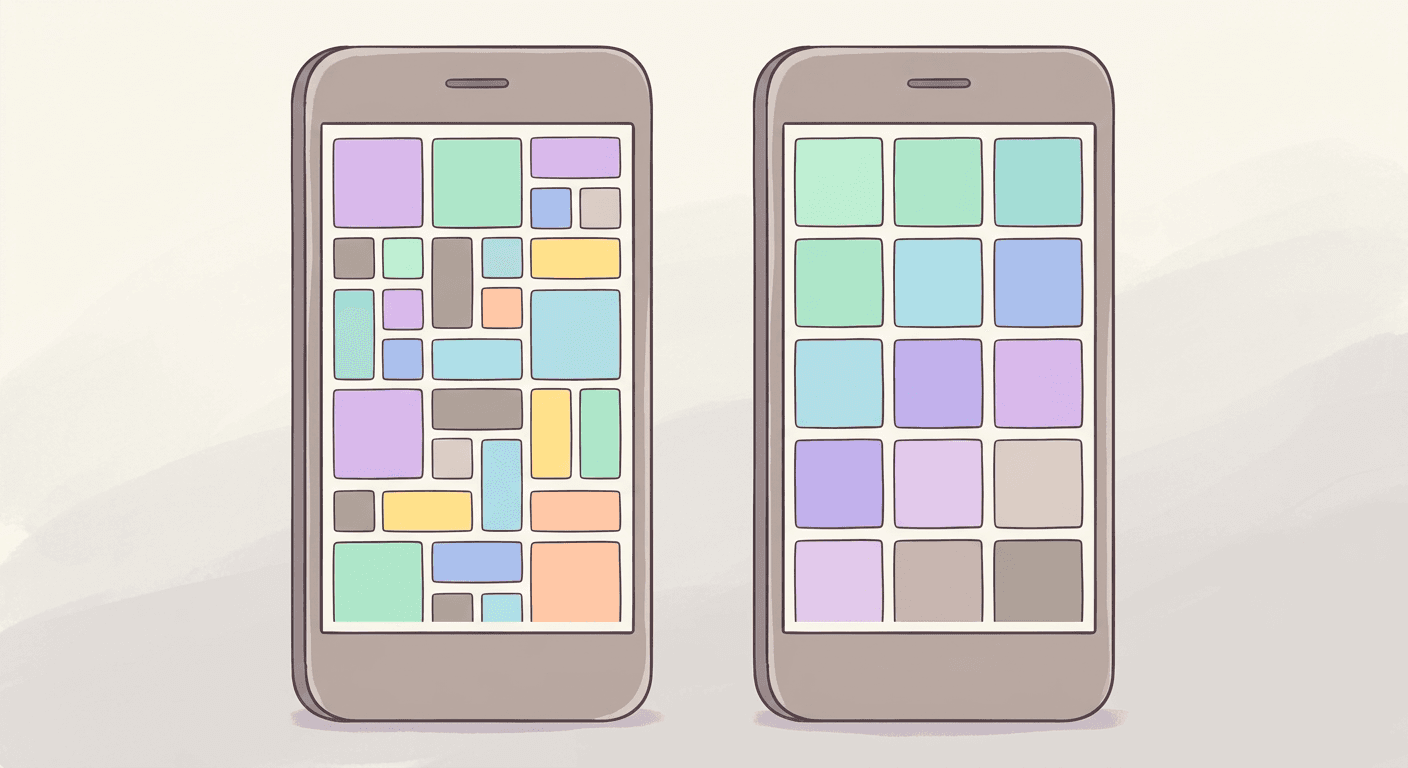
Access it by opening your own profile, tapping and holding any post, and selecting Reorder Grid from the menu that appears, or by tapping Edit Profile and finding the option there depending on your app version. From that view, long-press and drag any post to a new position, and the change saves automatically and becomes visible to anyone who visits your profile going forward. As of this rollout, the feature is mobile-only, so if you manage a brand account primarily through desktop tools or a social media dashboard, you will need to switch to the Instagram app itself to actually use it.
Why Instagram Finally Built This, and Why Now
It is worth understanding the timeline here, because it explains a lot about why creators have such strong feelings about this specific feature landing in 2026 rather than years earlier. Mosseri first signaled that grid curation was coming as far back as January, and confirmed it again months later before the actual global rollout finally shipped in June 2026. That is a multi-year gap between "this is coming" and "this actually works," and it tracks with a much longer history of creators requesting exactly this capability, going back to a wave of third-party apps and manual workarounds people built specifically to fake grid curation before Instagram ever offered it natively.
Those workarounds are worth naming because they show how real the demand was. For years, the only way to get a deliberately curated grid was to plan your actual posting order months in advance and hope nothing forced a change, or to use third-party scheduling tools that let you preview a mock grid layout before posting, which only worked if you never deviated from the plan afterward. Neither approach let you fix a grid retroactively. If your best-performing post from two years ago was buried on page four of your grid, it stayed buried, permanently, unless you were willing to sacrifice its engagement history by reposting it.
The cultural pressure behind this request has grown alongside how Instagram itself has changed. A profile grid in 2026 does a lot more work than it used to. It is a portfolio for a photographer or illustrator, a product catalog for a small ecommerce brand, a résumé for a creator being scouted for a brand deal, and often the first thing a potential collaborator, sponsor, or follower actually evaluates before they check anything else about an account. Every one of those use cases benefits from control over first impressions in a way that a purely chronological grid never allowed.

How to Use Reorder Grid, Step by Step
The mechanics are simple enough that most people figure it out in under a minute, but a few details are easy to miss on a first attempt.
- Open the Instagram app and go to your own profile. This only works on your own account, you cannot reorder anyone else's grid.
- Tap and hold any post in your grid, or tap Edit Profile depending on your current app version, and look for Reorder Grid in the menu that appears.
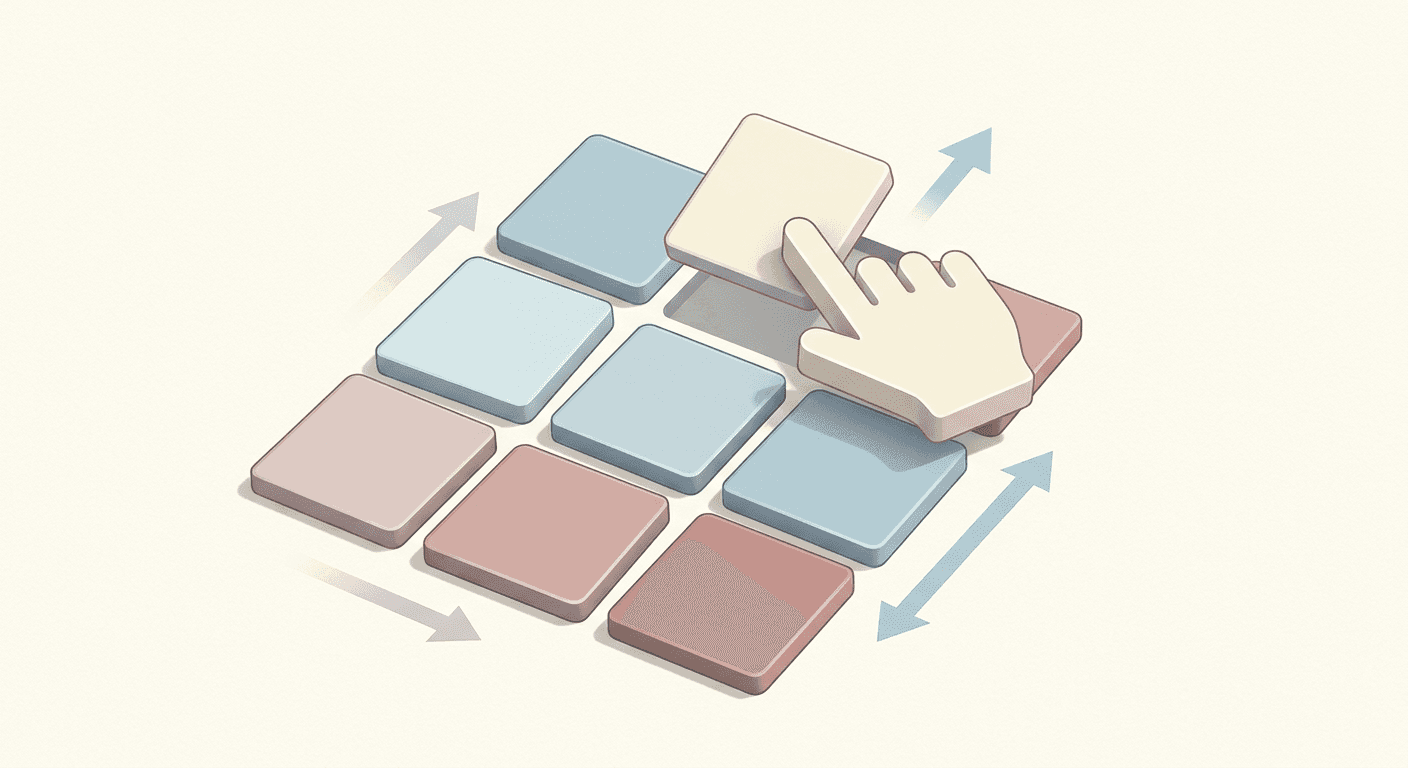
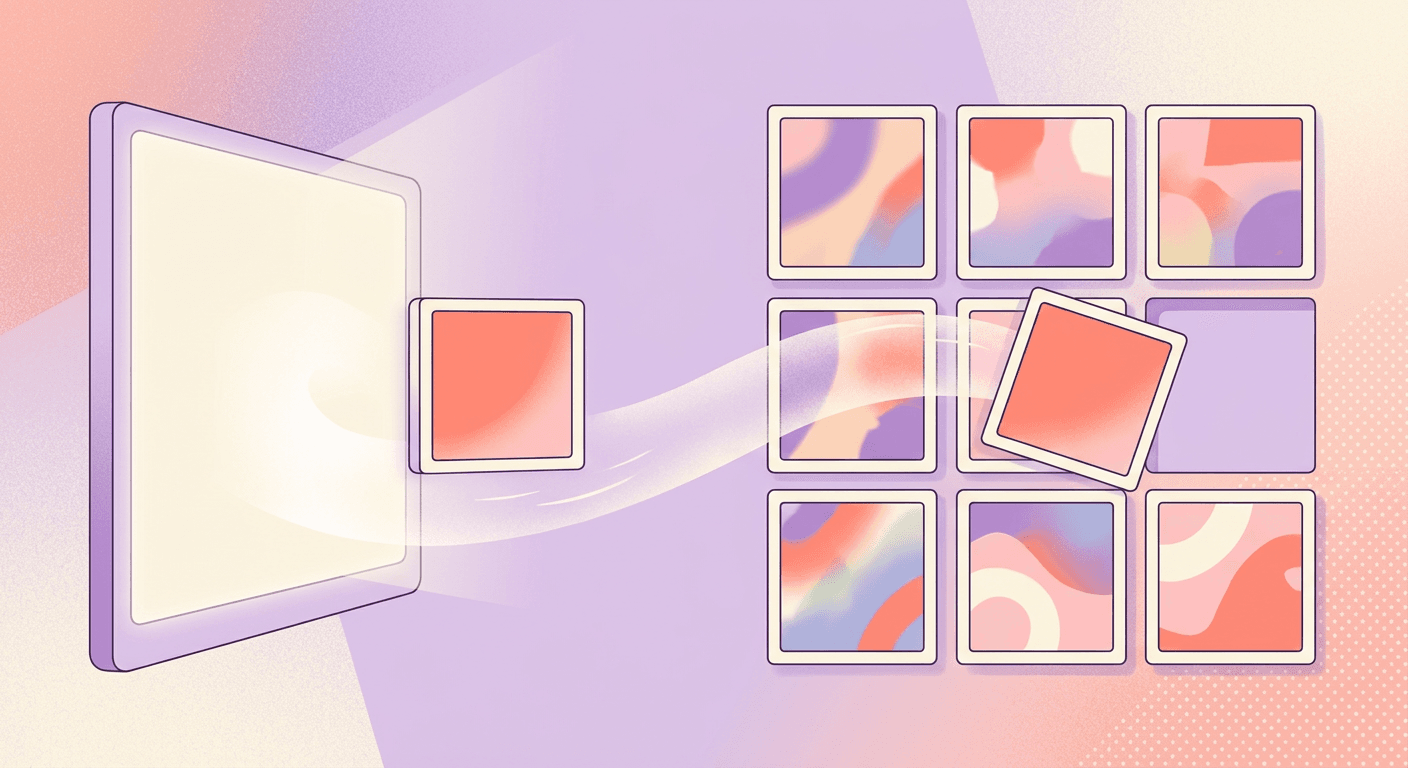
- Once in reorder mode, long-press any post and drag it to a new position. Other posts shift automatically to accommodate the move, the same way rearranging apps on a phone home screen works.
- Repeat for as many posts as you want to move. There is no limit on how many positions you can change in one session.
- Exit reorder mode when you are done. Changes save automatically and are visible to any visitor immediately, no separate publish or confirm step required.
A few practical notes worth knowing before you start. The feature is currently mobile-only, so plan to do this from your phone rather than a desktop browser or a third-party scheduling dashboard. It does not currently support batch reordering by dragging a whole row at once, each post moves individually, so a full grid overhaul on a large, long-running account can take a genuine chunk of focused time rather than a thirty-second fix. And because this changes only the grid display position, not the actual chronological post date used elsewhere in the app, your Activity tab and any post-specific analytics tied to publish date remain unaffected by a reorder.
Strategy 1: Lead With Your Best-Performing Work, Not Your Newest
The single highest-leverage move available with this feature is also the simplest: put your best-performing, most-representative content in the top three rows, the section any new visitor sees before they scroll or decide whether to follow.
Think of your top row specifically as a headline. It is the first thing anyone evaluating your account registers, whether that is a potential follower who found you through a Reel, a brand considering a partnership, or someone checking your profile after seeing a comment you left elsewhere. A post that earned unusually high saves is a particularly strong signal to lead with, since a high save rate tends to indicate content that resonated with people who were not already following you, which is exactly the audience your top row needs to convince.
This does not mean your top row has to be your literal highest-like-count post. A creator account is often better served leading with the post that most clearly communicates what the account is actually about, a strong example of your core content format or niche, even if a viral off-topic post technically earned more engagement. The goal of the top row is accurate representation plus quality, not just raw numbers.
Audit your entire post history at least once with this lens specifically. Most accounts running for more than a year have buried strong work simply because it happened to post during a slower period or got outpaced by something more recent. Reorder Grid is the first tool that actually lets you fix that mismatch without losing the post's engagement history.
Strategy 2: Build Visual Rhythm With Color and Format Alternation
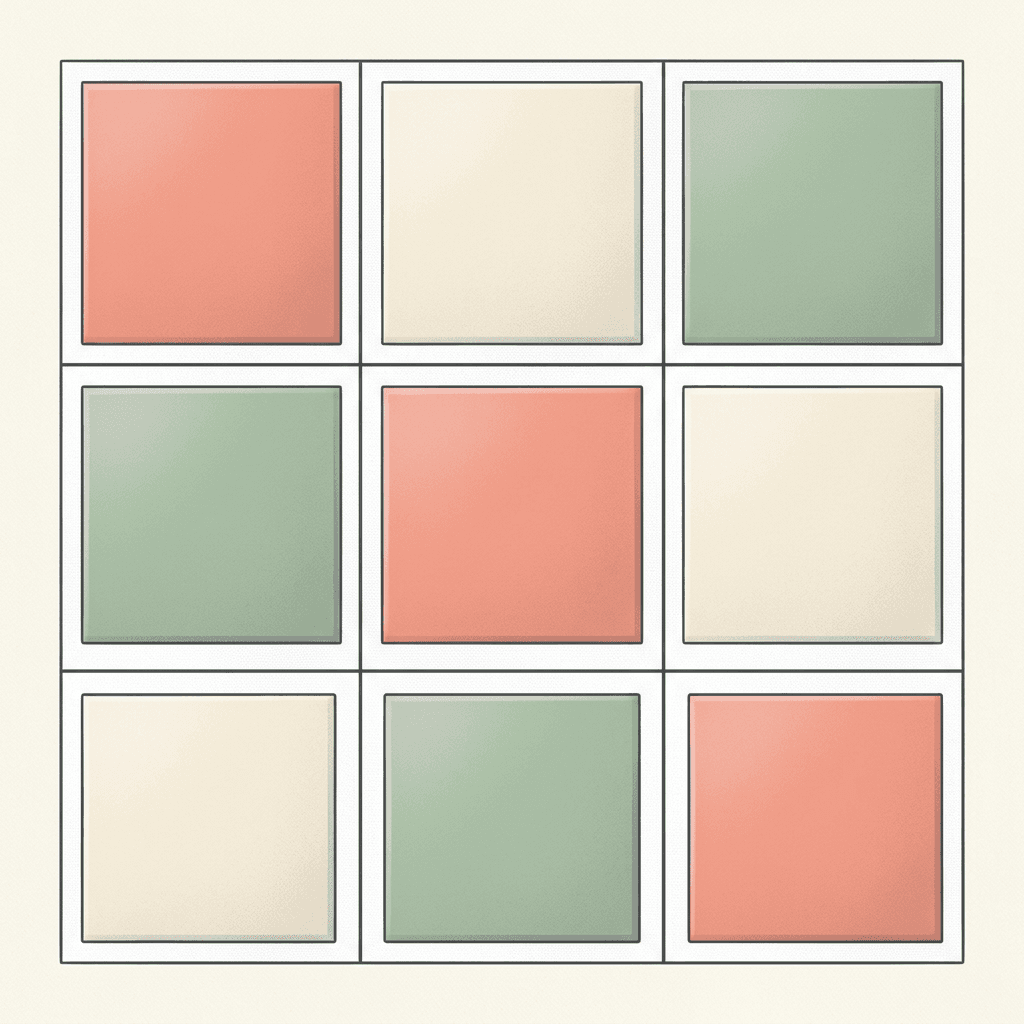
Once your top row is locked in, the next layer of grid strategy is about how posts sit next to each other, not just which posts you choose. A grid where every third post shares a similar color palette, or where static photos and Reels alternate in a deliberate pattern, reads as considered and professional in a way a random chronological mix rarely does, even when the individual posts are equally strong.
A practical way to approach this: identify two or three primary colors that actually represent your brand or aesthetic, then use Reorder Grid to arrange posts so those colors appear in a repeating or flowing pattern across rows rather than clustering randomly. This is a genuinely different exercise from picking your best individual posts, since a technically strong post in a jarring, off-palette color can disrupt an otherwise cohesive grid more than a slightly weaker post that fits the visual flow.
Format alternation works the same way. If your grid is currently a long, undifferentiated run of similar-looking Reels covers, deliberately spacing in a few strong static photos or carousel covers breaks up the monotony and gives a scrolling visitor more visual variety to hold their attention. This matters more than it might sound, since a visitor deciding whether to follow is often scrolling quickly, and a grid that reads as visually flat at a glance gives them less reason to slow down and actually look closer.
If you find gaps in this process, specific colors or formats you need but do not currently have a strong post for, that is exactly the moment to generate new visuals rather than settling for whatever exists in your camera roll. Miraflow's AI Image Generator supports text-to-image generation and image editing directly in the browser, which makes it realistic to fill a specific gap in an afternoon, a particular color palette, a particular composition style, rather than waiting on a new photoshoot or accepting a grid with an obvious hole in it.
Strategy 3: Treat Product and Brand Grids as a Live Catalog
For an ecommerce or product-focused account, Reorder Grid solves a problem that has quietly cost sales for years: seasonal or discontinued products staying pinned to the top of a grid simply because they were posted most recently, while a current bestseller or an active promotion sits buried several rows down.
The strategic move here is treating your grid the way a retail store treats its front window display, actively curated to reflect what you want a browsing customer to see right now, not a passive timeline of everything you have ever posted. That means reviewing and updating your top rows on a real cadence, tied to your actual product calendar, a new launch moves to the top, a sold-out or seasonal item moves down, an evergreen bestseller earns a permanent, prominent slot regardless of when it was originally posted.
This is also where visual consistency across your catalog imagery matters most, since a product grid with wildly inconsistent lighting, backgrounds, or framing reads as less trustworthy than one with a cohesive, professional look, even if the products themselves are identical in quality. If your existing product photography has gaps or inconsistent styling across different launches, Miraflow's AI Image Generator can generate new product shots or adjust existing ones through image-to-image editing and inpainting, letting you bring an older product photo's background or lighting in line with your current catalog style without a full reshoot. For brands also running paid campaigns, the same generator is useful for building Google Ads display banner creative that matches the same visual language as your newly reordered grid, so a customer clicking from an ad into your profile sees a consistent brand rather than a jarring mismatch.

Strategy 4: Use Seasonal and Campaign Refreshes Instead of Constant Reordering
One genuinely important piece of guidance here, echoed by people who have already been using the feature since its rollout: you do not need to reorder your grid constantly, and doing so can actually work against you. A grid that changes dramatically every few days reads as chaotic rather than curated, and it removes the sense of a stable, recognizable identity that makes a profile memorable to a returning visitor.
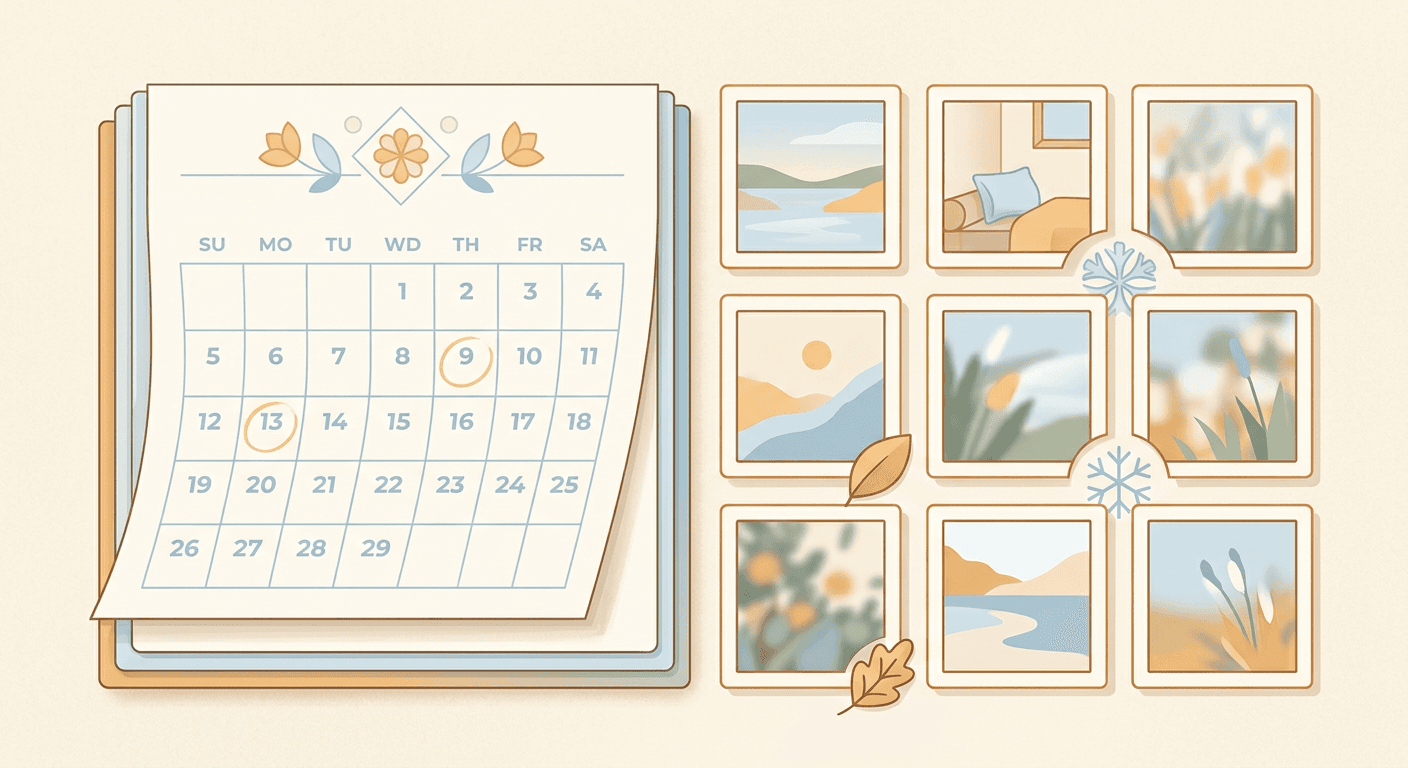
The better cadence is treating Reorder Grid as a tool for deliberate, occasional refreshes tied to real moments, a seasonal shift, a major product launch, a rebrand, a portfolio update ahead of a specific opportunity like a brand pitch or a collaboration application. Planning two to four dedicated grid audits a year, rather than constant tinkering, gets you most of the strategic benefit without the chaos of a profile that never looks the same twice.
This is also a good moment to think about what a seasonal refresh actually requires visually. If your plan is a fall-themed top row for October or a holiday-themed layout for December, and your existing post history does not have enough strong seasonal content to fill those top rows convincingly, generating a small batch of new seasonal visuals ahead of time with Miraflow's AI Image Generator is faster and more reliable than trying to reorder your way around a genuine content gap. Posting a few new pieces specifically designed to anchor a seasonal grid refresh, then using Reorder Grid to position them exactly where you want, combines both tools the way they are actually meant to work together.
Common Mistakes to Avoid
A handful of mistakes show up repeatedly as creators and brands start experimenting with this feature for the first time.
The first mistake is treating a reorder as a one-time project rather than an ongoing part of profile management. A grid you carefully curate once and never revisit will drift back out of date within a few months as new content gets posted chronologically underneath your curated top rows, quietly pushing your careful arrangement further down without you noticing until a visitor points it out.
The second mistake is over-optimizing for aesthetic consistency at the expense of actually representing your content honestly. A grid that looks beautifully cohesive but buries the content type that actually drives your best engagement, tutorials, behind-the-scenes posts, whatever it genuinely is, sets a new visitor up for a mismatched expectation once they start scrolling your actual feed or watching your Reels.
The third mistake is forgetting that this feature is currently mobile-only and planning a reorder session around a desktop workflow that will not actually work. If your team manages Instagram primarily through a scheduling dashboard, build a specific mobile-app step into your process rather than assuming the feature will show up wherever you normally manage the account.
The fourth mistake is reordering without first identifying genuine gaps in your visual library. Dragging posts into a new arrangement only works with the material you already have, and if your strongest content clusters around one narrow topic or color palette, no amount of rearranging fixes that. This is precisely the moment to generate a handful of new, deliberately varied visuals rather than forcing an imperfect fit.

The fifth mistake is ignoring how a reorder interacts with pinned or highlighted content elsewhere on your profile, like your Story Highlights or a linked shop tab. A grid refresh that contradicts what your Highlights or product tags are emphasizing creates a disjointed first impression rather than a cohesive one, so it is worth reviewing your whole profile together rather than treating the grid as an isolated project.
Filling Grid Gaps Fast With Miraflow
Once you can actually see your profile grid as a designed layout instead of a chronological accident, the gaps become obvious in a way they never were before. A missing seasonal moment, an inconsistent product shot, a color palette hole in your top three rows, all of these are easy to spot once you are looking at your grid holistically rather than post by post as you originally published them.
Miraflow's AI Image Generator is built for closing exactly these gaps quickly, directly in the browser, without waiting on a photoshoot or a designer. Text-to-image generation covers a genuinely new visual you need from scratch, while image-to-image editing and inpainting let you adjust an existing photo, changing a background, a color grade, or a single element, so it fits the visual language of the rest of your grid without redoing the whole shot. For creators building out a matching short-form video presence alongside a refreshed grid, Text2Shorts turns a script into a voiced vertical video in one pipeline, and Instagram Reels covers built with the same tool keep your Reels visually consistent with the rest of a newly curated grid.
If your broader Instagram strategy also touches paid growth or algorithm mechanics, Miraflow's coverage of the Instagram Reels algorithm and Instagram's carousel and photo bonus program are useful companion reads, since a strong grid and strong distribution work best together rather than as separate, unrelated projects.
Frequently Asked Questions
Does reordering my grid affect the likes, comments, or reach my posts already earned? No. Reorder Grid changes only where a post visually sits on your profile grid. Its likes, comments, share count, and its position in followers' chronological feed history all stay exactly as they were. This is the core difference between reordering and the old workaround of deleting and reposting content, which did reset engagement.
Is Reorder Grid available on desktop? Not currently. As of this rollout, the feature is mobile-only through the Instagram app. If you manage your account primarily through a desktop dashboard or scheduling tool, you will need to switch to your phone to actually reorder posts.
Can I reorder someone else's grid, or only my own? Only your own profile. There is no way to reorder another account's grid, and no third party has access to make this change on your behalf without your account credentials.
How often should I actually reorder my grid? Most creators who have used the feature since its rollout recommend treating it as an occasional, deliberate refresh, tied to a season, a launch, or a portfolio update, rather than something to tinker with constantly. Two to four planned audits a year captures most of the strategic benefit without making your profile feel unstable to returning visitors.
Does reordering change the actual publish date shown elsewhere in the app? No. Reorder Grid changes only the grid display position. The original publish date, your Activity history, and any analytics tied to the actual posting date remain unchanged.
What should go in my top three rows specifically? Your best-performing or most-representative content, ideally posts with strong saves since high saves tend to indicate content that resonates with people who were not already following you. Treat the top row as a headline that needs to accurately and quickly communicate what your account is actually about, not just your highest raw like count.
I do not have enough strong content to fill a cohesive top row. What should I do? This is a genuine signal to generate a small batch of new, deliberately varied visuals rather than forcing an imperfect fit from your existing post history. A tool like Miraflow's AI Image Generator can fill a specific color, format, or seasonal gap quickly, giving you real material to reorder around instead of settling for whatever already exists in your camera roll.
Conclusion
Reorder Grid closes a gap Instagram has had since its earliest days, the total inability to fix a profile's first impression without sacrificing the engagement history attached to it. Used well, it turns your grid from a passive chronological record into an actual curated portfolio, one that leads with your strongest work, flows with intentional color and format rhythm, and gets refreshed deliberately around real moments instead of drifting wherever your posting schedule happened to take it. Start with an honest audit of your top three rows, identify where your visual library actually has gaps rather than just gaps in your imagination, and use Miraflow's AI Image Generator to fill those gaps directly in the browser when your existing content cannot cover them on its own. You can find more strategy breakdowns like this one on the Miraflow AI blog, and every tool mentioned here lives at Miraflow.