YouTube's Live Practice Mode Explained: Rehearse Your Vertical Livestream in 2026

Written by
Aerin Kim
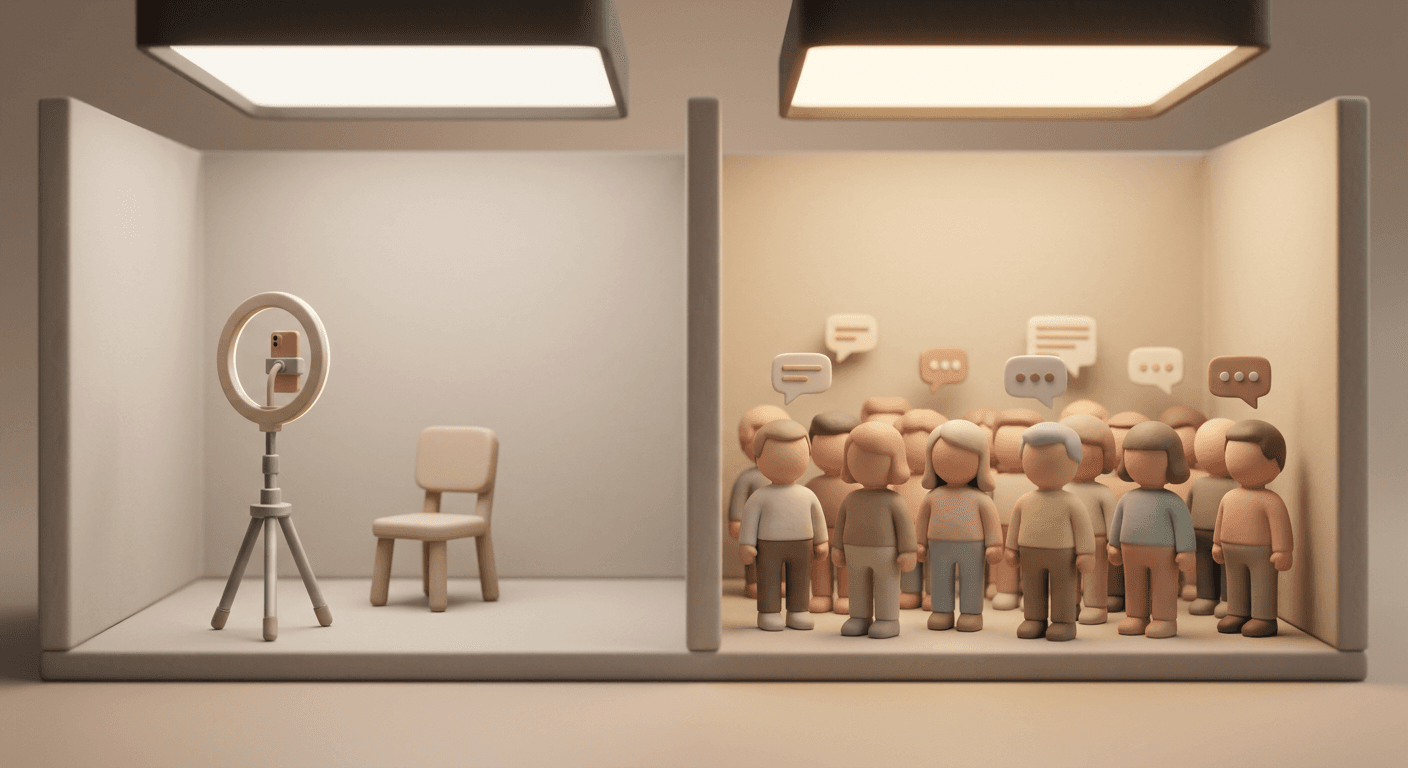
YouTube's Live Practice Mode lets creators rehearse a full vertical livestream, chat, polls, stickers, green screen, with no real audience, then go live with one tap.
TL;DR
YouTube is rolling out Live Practice Mode to every creator on the mobile app. It gives you a private rehearsal space, no real viewers, no real chat, to run through your entire vertical livestream setup before you actually go live: camera framing, green screen effects, polls, stickers, and the chat window itself. Once everything looks right, you tap once and the same session goes live to your actual audience, no restarting, no reconfiguring.
It is not a first-of-its-kind invention. Instagram has had a comparable rehearsal feature since 2021, and TikTok and LinkedIn already offer something similar. What matters here is that YouTube is finally closing that gap at the exact moment it is pushing vertical, mobile-first live streaming as a serious format rather than a Stories-style afterthought, and vertical live streams currently carry real limitations (fewer ad formats, no 4K, no clickable chat links) that make a clean first impression matter even more.
This post walks through what Practice Mode actually is, exactly how to use it, what to rehearse depending on the kind of stream you run, the mistakes creators make even with a rehearsal tool available, and what to do with the footage once the real broadcast wraps. That last part is where Miraflow's AI Clipping tool comes in: paste the finished livestream's YouTube URL in and it turns the raw recording into ranked, captioned vertical clips without you scrubbing back through an hour of footage by hand.
What YouTube's Live Practice Mode Actually Is
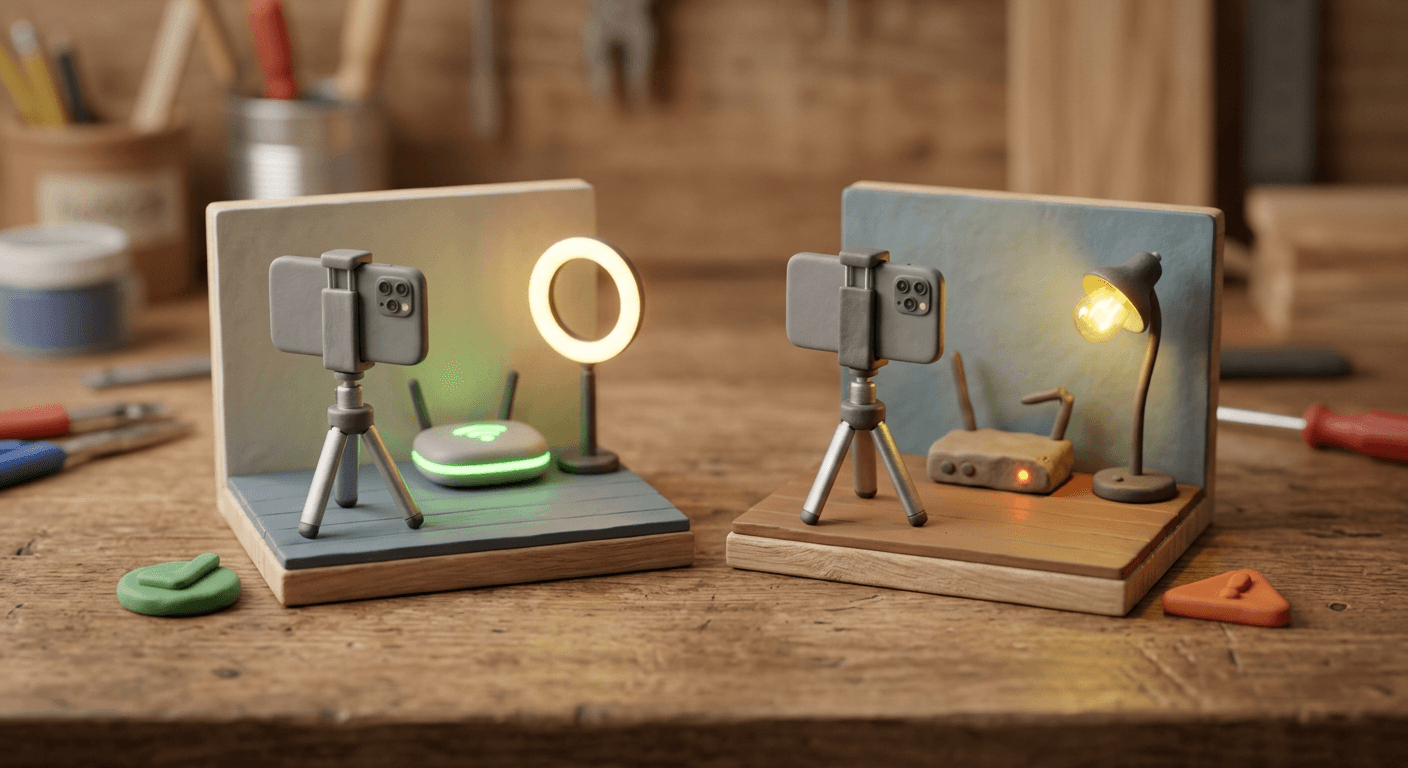
Live Practice Mode is a private recording environment built directly into the "Go Live" flow of the YouTube mobile app. It exists specifically for vertical live streaming, the short-form-style, full-screen, phone-shot broadcast format that YouTube has been pushing hard as a genuine alternative to horizontal live, not a stripped-down version of it. When you open Practice Mode, YouTube gives you a session that mirrors exactly what your real live screen would look like: the same camera preview, the same overlay controls, the same live chat panel, the same sticker tray and poll button. The difference is that nothing you do in that session reaches anyone. No viewers, no subscribers, no strangers scrolling the Shorts feed can see it. It is a closed loop that exists purely so you can find and fix problems before they become public.
That distinction matters more than it sounds. A lot of creators who are curious about vertical live have avoided it entirely, not because they cannot operate a camera, but because livestreaming rewards confidence and smooth pacing, and there was previously no low-stakes way to build that confidence on YouTube specifically. You could record a normal video and re-take it as many times as you wanted. A livestream, until now, only had one take. Practice Mode gives vertical live the same "as many takes as you need" safety net that pre-recorded video already had, which is precisely why YouTube Creator Liaison Rene Ritchie described it, in an announcement on the Creator Insider channel, this way:
"Practice mode lets creators who are interested in vertical live, but maybe not 100% confident about handling everything from chat to polls, stickers to green screens... try things out on mobile, experiment and get comfortable in a zero-pressure environment."
Every element Ritchie names in that quote is something a first-time vertical streamer genuinely struggles to juggle at once: reading a scrolling chat while also talking to camera, remembering to launch a poll at the right moment, switching a green screen background without freezing on stream, all while trying to look natural doing it. Practice Mode is built to let a creator rehearse that exact combination of tasks, not just the video feed in isolation.
The other piece worth understanding mechanically is the one-tap transition. Once you are satisfied with how a practice session looks and feels, you tap Go Live from inside that same session, and the broadcast begins immediately using the setup you already have configured: your camera angle, your overlays, your scene selections, your chat and moderation settings. You are not exporting anything or starting a second, separate live setup from scratch. That single detail is what turns Practice Mode from a nice-to-have demo feature into something creators will actually use before every stream that matters, because rehearsing loses most of its value if getting to the real broadcast means redoing all the setup work you just rehearsed.
How Practice Mode Works, Step by Step
Here is the actual mechanical flow, based on how the feature currently behaves inside the YouTube app:
- Open the YouTube app and tap Create, the plus-shaped button YouTube uses for uploads, Shorts, and live broadcasts.
- Tap Go Live. This is the same entry point you would use for a real broadcast, which is exactly why Practice Mode is useful: it is testing the actual flow, not a simulated one.
- Select Practice Mode, which appears below the Next button in the live setup screen, before you commit to a real broadcast. This is the fork in the road: choosing Practice Mode here routes you into the private rehearsal session instead of a public livestream.
- Set up your stream exactly as you would for real. Choose your camera (front or back), position your phone, add or test a green screen background, and lay out any overlays, subscriber goals, or alerts you plan to use.
- Run through the controls deliberately, not passively. Post a poll and watch how it actually renders inside the vertical frame. Drop a test sticker and see whether it covers your face or a graphic you care about. Switch backgrounds mid-session to see how the transition looks and how long it takes. Type a chat message from another device if you have one, so you can see how incoming chat actually displays and scrolls during your specific camera setup.
- Adjust anything that looked wrong, framing, lighting, overlay placement, before moving on. Because nothing here is public, you can redo this as many times as you want.
- Tap Go Live from inside the same session once you are satisfied. The broadcast starts immediately with the setup you just tested, carried over rather than rebuilt.
The most important thing to understand about this flow is what it is not testing. Practice Mode verifies that your controls, layout, and on-screen elements behave the way you expect. It does not verify your internet connection, your phone's battery life over a two-hour stream, or how your setup performs in a room with different lighting or noise than wherever you happened to rehearse. Treating a successful practice session as proof the whole broadcast will go smoothly is the single most common misunderstanding creators have about this feature, and it shows up again further down in the mistakes section.
Here is a copy-paste version of that same walkthrough to keep open on a second screen the first few times you rehearse:
Vertical Live Practice Mode checklist (run through this before every real broadcast):
1. Camera framing: sit or stand in your actual broadcast spot, confirm head and shoulders are positioned correctly in the vertical frame.
2. Audio: speak at normal volume through your actual microphone (phone mic or external lav), confirm levels sound clean.
3. Green screen or background: switch through every background or effect you plan to use, confirm no flicker or edge artifacts.
4. Chat: have a second device post a test message, confirm you can read and respond to it without losing your framing.
5. Polls: launch a real poll, confirm it displays correctly and doesn't cover anything important on screen.
6. Stickers: drop a test sticker, confirm placement doesn't block your face or a key overlay.
7. Overlays: confirm subscriber goals, alerts, or graphics are positioned where you want them and not overlapping chat or polls.
8. Moderation: confirm your blocked-word list and moderator assignments are active, not just configured.
9. The transition itself: physically tap Go Live from inside the session at least once during rehearsal so it isn't the first time you've done it.
10. Title and thumbnail: confirm your stream title isn't still a placeholder before you tap Go Live for real.
Why YouTube Built This Now: Catching Up, Not Inventing Something New
It is worth being honest about where this feature sits competitively, because pretending YouTube invented rehearsal-before-broadcast would undersell what actually makes this update timely. Instagram shipped a comparable practice mode for Live back in 2021. TikTok and LinkedIn both already offer something similar for their own live formats. YouTube is arriving several years after the fact here, not first.
What makes the timing genuinely interesting is not the feature in isolation, it is what YouTube is building around it. Practice Mode first surfaced alongside a much larger wave of live-streaming updates announced at YouTube's Made on YouTube 2025 event: the ability to broadcast in horizontal and vertical formats simultaneously from one stream with a single shared chat, a "React Live" mode for reacting to other creators' vertical streams on mobile, an automated highlight system that pulls compelling moments out of a live broadcast to turn into Shorts once the stream ends, and new ad formats aimed specifically at making live streaming pay better. Practice Mode has continued rolling out through 2026, with coverage confirming in August 2026 that it is now reaching all creators on mobile, not just a limited test group. Seen in that context, this is not a standalone gimmick. It is YouTube filling in one of the last missing pieces of a genuine push to make vertical, mobile-shot live streaming a first-class format instead of a Shorts-adjacent side feature, the same push behind updates like YouTube's redesigned Shorts feed and the platform's continued investment in helping smaller creators get discovered.
There is a more concrete reason rehearsal matters more for vertical live specifically than it would for a normal horizontal broadcast, and it comes down to what vertical live streams currently can and cannot do compared to horizontal ones. According to YouTube's own Help Center comparison, the vertical live feed is still missing several capabilities that horizontal streams have long had:
| Feature | Horizontal live | Vertical live |
|---|---|---|
| Live mid-roll and pre-roll ads | Available | Not available |
| 4K bitrate streaming | Available | Not available |
| Clickable links in chat and description | Available | Not available |
| Premieres | Available | Not available |
| Live redirect | Available | Not available |
| Memberships and gifted memberships | Available | Available |
| Discoverable in the Shorts feed | Not applicable | Available |
| Scrollable feed of other live streams | Not applicable | Available |
Two things stand out in that comparison. First, vertical live currently has no live mid-roll or pre-roll ads, which means a vertical-only streamer is largely earning through memberships, gifted memberships, and Super Chat rather than ad interruptions during the stream itself, so a smooth, well-run broadcast that keeps people watching longer matters directly to what you take home. Second, vertical live cannot use clickable links in chat or in the channel description the way horizontal can, which matters if you are running any kind of sponsored stream or trying to drive traffic somewhere specific mid-broadcast, since you cannot lean on a pinned clickable link the way a horizontal stream could.
The other half of the "why now" story is discovery. Vertical live streams surface in the Shorts feed, which means your audience is not limited to people who already subscribed and know what to expect from you. A stranger can swipe into your live stream mid-scroll with zero context. That is a real opportunity, but it also raises the stakes on a rocky first thirty seconds, an awkward camera angle, a green screen glitch, or dead air while you fumble with a poll, in a way that a stream reaching only your existing subscribers never quite does. Rehearsing the mechanics before broadcasting to people who have never seen your channel before is a genuinely different value proposition than rehearsing before broadcasting to your regulars, and it is probably the real reason YouTube prioritized this now rather than years ago when vertical live barely existed as a format.
What to Actually Rehearse, and Why It Is Different for Every Creator Type
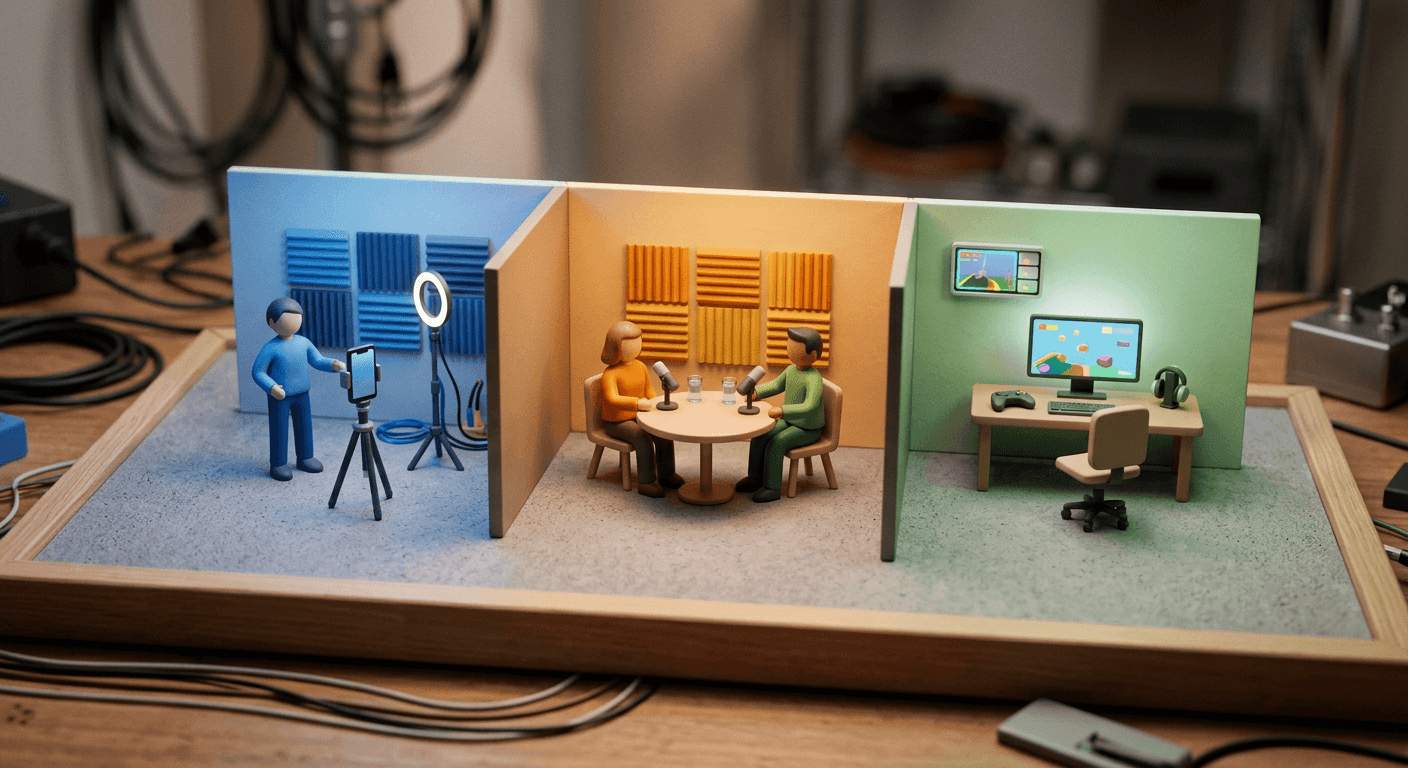
A generic "test your setup" checklist undersells how differently this plays out depending on what kind of stream you actually run. Here is what is worth rehearsing specifically for three common formats.
Solo talking-head streamer
If you are the only person on camera, the biggest variable is framing and pacing, not technology. Vertical framing is unforgiving: a phone held slightly too close crops your forehead awkwardly, and a tripod set slightly too low makes you look like you are being interviewed from below. Use Practice Mode to actually sit or stand in the spot you plan to broadcast from and check where your head and shoulders land in the vertical frame, not just glance at the preview for a second before moving on.
Audio deserves the same treatment. A phone's built-in microphone behaves very differently depending on how far you are from it and what is behind you, and a rehearsal is the only real way to hear that before an audience does. If you are using an external lav or a clip-on mic, actually test it inside the practice session rather than assuming it is working because it worked once before.
The other genuinely underrated thing to rehearse solo is reading chat out loud while continuing to talk. It sounds trivial until you try it live for the first time: glancing down to read a message, responding to it, and returning your eyes to the lens without an awkward pause takes real repetition. A few practice sessions specifically built around "read this fake message and respond naturally" pays off more than most creators expect.
Co-hosted or interview-style stream
Two people sharing a vertical frame is a genuinely harder rehearsal problem than solo streaming. You need to actually test whether both of you fit comfortably in the frame together, or whether the format needs to cut between single shots instead, since vertical's narrow width makes a wide two-shot feel cramped in a way horizontal never does. Audio balance between two microphones is worth a dedicated pass in Practice Mode too, since one person consistently sounding louder or more distant than the other is one of the fastest ways to make a co-hosted stream feel unpolished.
Chat moderation is where co-hosted streams specifically benefit from rehearsal that a solo stream does not need. With two people talking, nobody is naturally watching chat unless you decide in advance whose job that is, and Practice Mode is exactly where you should assign and test that role, not figure it out live. If your co-host setup also involves tagging another creator's channel the way YouTube's Collaborators feature allows for shared credit and revenue split, confirm during rehearsal that both of you are actually comfortable with who is doing what on screen, since that is a much worse conversation to have for the first time in front of real viewers.
Gaming or product-demo stream
Screen-share and game-capture content behaves differently in a vertical crop than creators often expect, since most games and product demos were not designed with a 9:16 frame in mind. Use Practice Mode specifically to confirm that critical HUD elements, health bars, timers, key game state, are not getting cropped out of the vertical frame, and that any overlay you have layered on top (a subscriber goal, an alert box) is not sitting directly on top of content viewers actually need to see.
For a product demo specifically, rehearse the physical act of holding an item up to camera in a vertical frame. Lighting glare off a glossy product, a hand blocking the label, or the item simply being too close or too far from the lens are all things that read fine in your head but look wrong the moment you actually try it, and Practice Mode is the cheapest place to discover that. If you are narrating gameplay or a demo while also trying to run a poll or react to chat, rehearse that specific combination rather than each piece in isolation, since doing two things at once live is where most first-time stumbles actually happen.
Common Mistakes Creators Make Even After Practice Mode Exists
Having a rehearsal tool available does not automatically mean creators use it well. A few patterns show up consistently.
Over-rehearsing until the stream loses its spontaneity. Practice Mode is genuinely useful for mechanics, where things are, how long a transition takes, how a poll actually looks on screen, but it is a mistake to script out what you are going to say word for word and rehearse that too. Livestreaming's entire appeal to viewers is that it feels unscripted and real. A creator who rehearses their actual talking points repeatedly often comes across as stiff or over-prepared on the real broadcast, which defeats the purpose. Rehearse the setup, not the performance.
Treating chat moderation as a minor detail instead of something worth testing. Creators consistently spend far more rehearsal time on lighting and camera angle than on how they will actually handle chat, blocked-word lists, assigning a moderator, deciding in advance how to handle an obviously bad-faith comment, because it feels like an administrative afterthought rather than part of the "real" content. Then the first troll comment of an actual broadcast derails the stream because there was never a test run for handling it. Chat moderation setup takes minutes to configure and test inside Practice Mode and is one of the highest-value things creators skip.
Rehearsing on a different device or network than the one you will actually broadcast from. This is the most consequential mistake specifically because it is invisible until the real broadcast starts. A creator who rehearses at home on strong wifi, then broadcasts later that day from a venue on cellular data, has not actually tested the constraint most likely to cause a real problem. Practice Mode tests your controls and layout, not your connection quality, so if a broadcast is happening somewhere other than your usual setup, the closest thing to a real test is rehearsing from that same location under the same network conditions, not just rehearsing the content flow from somewhere convenient.
If your real broadcast location or network is ever different from wherever you normally rehearse, run through this shorter check first:
Same-conditions test (do this if your real broadcast location or network differs from wherever you rehearse):
1. Rehearse from the exact physical location you'll broadcast from, not just a convenient spot at home.
2. Use the exact network you'll actually go live on (same wifi network or same cellular connection), not whichever is strongest nearby.
3. Use the exact phone and mounting setup you'll use for the real broadcast, not a backup device.
4. Run the practice session for at least 5 full minutes to catch a connection drop or overheating issue that only shows up after the first minute.
5. If anything about your real broadcast conditions changes (new venue, different time of day, different network), rehearse again under those specific new conditions rather than trusting an earlier practice session done somewhere else.
Never actually rehearsing the tap-to-go-live moment itself. Some creators run a great practice session and then still fumble the actual transition, forgetting the stream title is still a placeholder, forgetting to unmute after adjusting something during rehearsal, or simply hesitating at the final tap because they never practiced that specific action. Include tapping Go Live itself as part of what you rehearse, not just everything leading up to it.
Skipping disclosure and sponsorship setup for a branded stream. If a livestream involves paid promotion or a brand partnership, that carries the same disclosure obligations as any other branded video, something YouTube's auto-label system for branded content is specifically built to help creators handle correctly. Rehearsing camera angles while forgetting to confirm disclosure settings beforehand is an easy gap to leave, since it has nothing to do with how the stream looks and everything to do with compliance most creators only think about after the fact.
After the Stream Ends: Turning a Rehearsed Livestream Into Shorts
Miraflow does not run livestreams, and Practice Mode is not something it touches directly. But the workflow it fits into is a genuinely natural one. A creator who rehearsed properly, ran a smooth vertical broadcast, and kept viewers around for a real conversation or a real gaming session now has raw footage sitting in their channel that took real effort to produce and is very likely worth more than one piece of content.
Once your livestream ends and the VOD is saved to your channel, paste that video's YouTube URL into Miraflow's AI Clipping tool. It analyzes the entire recording, identifies the moments most likely to work as standalone clips, and ranks each one with a viral score so you know which parts to prioritize instead of guessing. From there it auto-generates several vertical clips with a smart face-tracking crop that follows whoever is talking, burns in auto captions, and lets you set how many clips you want, a minimum and maximum clip duration, and the caption language, with auto-detection as the default if you are not sure. What used to mean manually scrubbing back through an hour or more of stream footage looking for the moments worth cutting turns into a few minutes of setup.
It is worth being direct about how this compares to YouTube's own native highlight tool, the AI-powered highlight extraction that also launched as part of YouTube's live-streaming updates and automatically suggests clip-worthy moments from a finished broadcast. That native feature is a genuinely convenient first pass built right into the platform. Where a dedicated tool like Miraflow's AI Clipping earns its place alongside it is in the control it hands back to you: choosing exactly how many clips you want out of a session, setting your own minimum and maximum duration instead of accepting a fixed length, and picking the caption language rather than relying on a single default, and it works the same way whether the source footage came from a YouTube livestream, a podcast recording, or any other long-form video you already have sitting around, the same workflow covered in this guide to turning a podcast into viral shorts.
Not every stream produces raw footage that repurposes cleanly into a clip, though. If your best moments from a broadcast were more about the talking points than a specific visual beat, a rambling but genuinely insightful answer, a strong take with mediocre lighting, Miraflow's Text2Shorts tool is the better fit. Instead of clipping the raw recording, you feed it the topic or the core idea from your stream, choose a visual style, and it generates a script, matching scene visuals, and a voiceover, producing a polished, purpose-built Short rather than repackaging footage that was never framed with a Short in mind. Between the two, a creator running regular vertical livestreams ends up with two genuinely different post-production paths depending on what the actual best moment from a given session looked like: raw clipping for footage that already looks good, and a produced Short for an idea that deserves better visuals than what the livestream camera happened to capture.
Once you have shorts out of a stream, the usual next steps still apply: check how thumbnails perform on Shorts now that custom thumbnails exist, keep an eye on how YouTube's updated view-counting rules affect what actually counts as a view across the clip and the original stream, and track performance in YouTube Studio's redesigned Insights tab to see which clipped moment actually pulled the most watch time back to your channel. If you are weighing AI Clipping against other clipping tools on the market before committing to one, this comparison of AI clipping tools is worth reading alongside this post.
Frequently Asked Questions
Is Live Practice Mode available on desktop, or only mobile? It is mobile-only right now, which lines up with the fact that vertical live streaming itself is a mobile-first format on YouTube. If you primarily stream from a desktop encoder for horizontal broadcasts, this specific feature does not currently apply to that workflow.
Does a practice session get saved anywhere, or published to my channel? No. It functions as a private rehearsal loop. Nothing from a practice session reaches your channel, your uploads, or search, which is exactly what makes it useful for testing freely without any risk of an awkward take becoming public by accident.
Can I use Practice Mode for a horizontal livestream, or is it vertical-only? The current rollout is specifically built around vertical live streaming, which makes sense given that vertical is the newer, less familiar format for most creators and the one YouTube is actively trying to grow. If you already run horizontal broadcasts regularly, you are less likely to need a rehearsal step for a format you have used for years.
If I go live from inside Practice Mode, do I keep all my settings, or do I have to redo them? You keep everything. Camera setup, overlays, scene selections, and chat settings all carry over into the real broadcast when you tap Go Live from inside the same session. You are not exporting a rehearsal and starting a fresh live setup from scratch.
Will Practice Mode catch problems with my internet connection or a weak signal? No, and this is worth being clear about. Practice Mode tests your controls, layout, and on-screen behavior. It does not simulate network conditions, so a smooth practice session at home does not guarantee a smooth broadcast from a venue on cellular data. If your real broadcast location or connection differs from where you rehearsed, that gap is still untested.
Do I need a minimum subscriber count to use Practice Mode? Practice Mode lives inside the same Go Live flow as a real broadcast, so the general eligibility requirements YouTube already applies to mobile live streaming still apply before you can access either option. If you are not yet eligible to go live on mobile at all, rehearsing is not the blocker to solve first.
How is this actually different from just recording myself and watching it back afterward? A self-recorded test video cannot show you how live chat scrolls during your specific setup, how a poll actually renders in your vertical frame, or how a sticker interaction looks in real time, because none of those systems are active in a standalone recording. Practice Mode runs the real live infrastructure privately, which a plain recording cannot replicate.
What should I actually do with the recording once I finish a real broadcast? Treat the VOD as raw material rather than a finished product sitting in your uploads. Running it through Miraflow's AI Clipping tool to pull out the strongest moments as captioned vertical clips, or using Text2Shorts to turn a strong talking point into a fully produced Short, is the fastest way to get more mileage out of a stream you already put the work into rehearsing and running well.
Conclusion
Live Practice Mode is not a groundbreaking new idea. Instagram had something similar in 2021, and TikTok and LinkedIn already offer it too. What makes it worth paying attention to right now is the timing: YouTube is closing this gap at the exact moment it is pushing vertical, mobile-first live streaming into a genuinely serious format, one that currently comes with real tradeoffs, fewer ad formats, no 4K, no clickable chat links, that make a clean, well-run first impression matter more than it would on a familiar horizontal broadcast to your existing subscribers.
Used well, Practice Mode is a rehearsal for mechanics, not for content. Test your framing, your audio, your chat moderation, your overlays, and the actual tap-to-go-live moment, from the same device and network conditions you will actually broadcast from, and save your genuine reactions and talking points for the real thing. Do that consistently and the awkward first vertical livestream most creators dread turns into a non-event.
And once that broadcast wraps and you have a finished VOD sitting in your channel, do not let it just sit there. Head to Miraflow and run the recording through AI Clipping to turn it into ranked, captioned vertical Shorts in minutes, or build a polished Short from your best talking point with Text2Shorts. A stream you actually rehearsed properly deserves a second life beyond the hour or two it was live for.