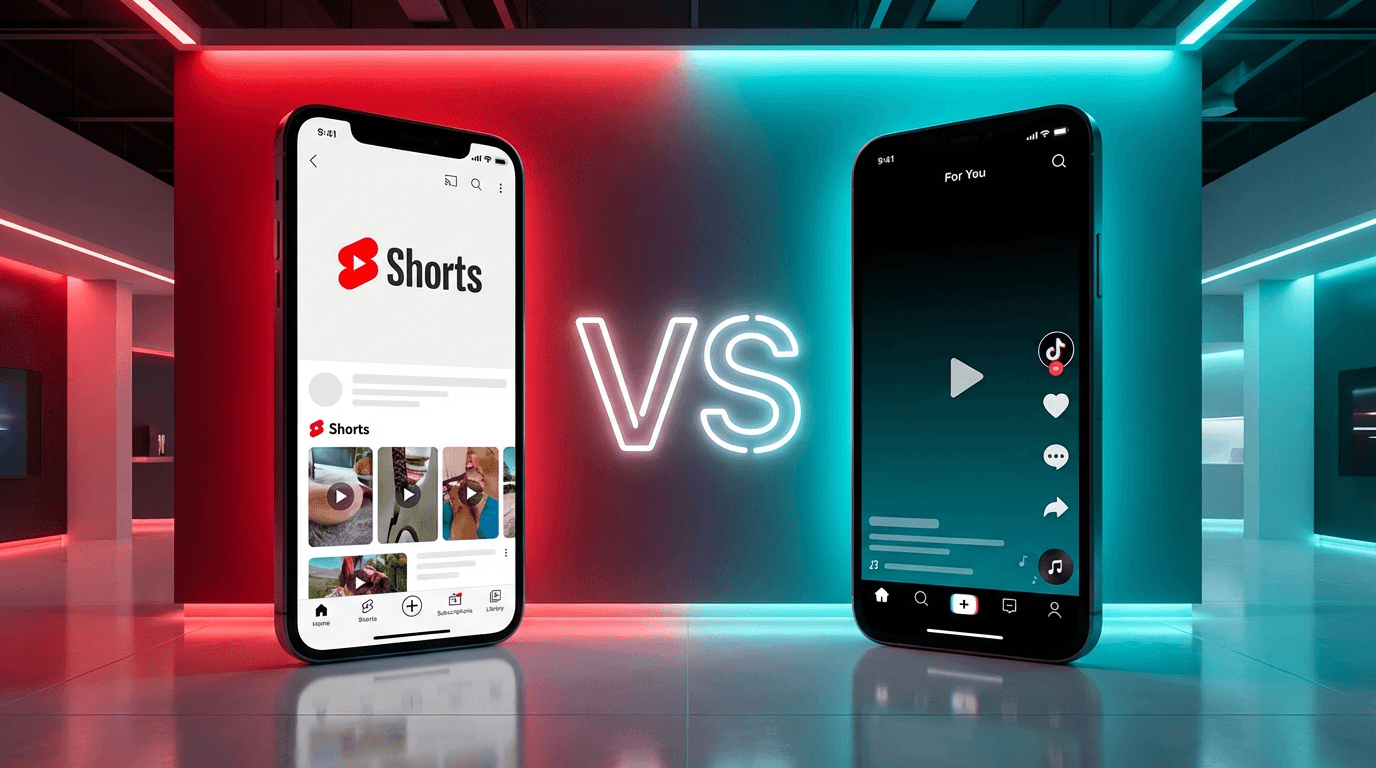
TikTok AI Alive Explained: 20 Living Photo AI Video Prompts for Any Platform (Copy & Paste)

Written by
Aerin Kim

TikTok's AI Alive turns a photo into a moving Story, but only inside TikTok. Here are 20 living photo AI video prompts, grouped by motion type, you can use on any platform.
TL;DR
TikTok's AI Alive feature takes a single still photo and turns it into a short, atmospheric video clip, drifting clouds, a subtle blink, a slow cinematic push-in, right inside the Story Camera. It launched in May 2025 and has since spawned a much bigger "living photo" trend across social platforms, with creators trying to recreate the same effect on YouTube Shorts, Instagram Reels, and even outside of TikTok's Stories tab entirely.
The catch is that AI Alive only works inside TikTok's Story Camera, on a single photo, with almost no control over what kind of motion you get. If you want that "photo waking up" look anywhere else, or with actual creative control over the motion style, you need a real image-to-video workflow instead of a fixed in-app filter.
Below are 20 ready-to-use living photo AI video prompts, grouped by the type of motion they create: atmosphere and weather, subtle human gesture, cinematic camera movement, environmental parallax, and fabric or hair motion. They're written for Miraflow's cinematic AI video generator, which runs on Veo3 and Veo3.1, paired with Miraflow's AI Image Generator for the starting still, so you can turn any photo into a living photo for any platform, not just a 24-hour TikTok Story.
What TikTok's AI Alive Feature Actually Does (and Why Everyone's Talking About It Again)
TikTok introduced AI Alive on May 13, 2025, as what its own newsroom post called its "first-of-its-kind creative feature that transforms static photos into dynamic, immersive videos directly within TikTok Stories." It sits inside the Story Camera, the tool you get to by tapping the blue plus icon on your Inbox or Profile page, not the main camera you use for a normal TikTok post. You pick a single photo from your Story Album, tap the AI Alive icon in the right-hand toolbar, optionally type a short prompt describing what you want to happen, and TikTok generates a short animated clip from that one image.
What actually happens to the photo is the interesting part. TikTok's own description says the feature uses "intelligent editing tools" to add "movement, atmospheric and creative effects" to a still image. In practice that means things like a sunset photo gaining slowly drifting clouds and a gradual color shift in the sky, a selfie gaining a soft blink or a small head turn, or a group photo gaining subtle ambient motion in the background while everyone's faces stay mostly still. It is genuinely closer to a short cinematic clip than the looping "living photo" style Apple popularized with Live Photos on iPhone, because the motion is generated rather than captured.
TikTok built in real safety and transparency measures around this, and they're worth knowing before you write your own version of the effect. Every AI Alive story gets an on-screen AI-generated label, and TikTok embeds C2PA metadata into the file, a technical watermark that identifies the content as AI-generated even after it's downloaded and reposted somewhere else. There are also multiple review passes: TikTok's systems check the uploaded photo and the text prompt before generating anything, and a final safety check runs again when you actually post the Story. That's a sensible model for any creator building their own living photo content too, label it, and don't try to pass an obviously synthetic clip off as a real recording.
By 2026, "living photo" has become its own broader trend name, well beyond just TikTok's specific feature. Other AI tools have shipped their own templates built around the same basic idea, turning a static photo into a short animated clip with drifting light, subtle movement, or a cinematic camera push. The underlying appeal is simple: a photo is something you already have, but a video is something you have to plan and shoot. Living photo tools promise the second thing from the first thing, with almost no extra effort.
Why Creators Want the Same Effect Outside TikTok's Story Camera
Here's the problem creators keep running into. AI Alive is genuinely fun to play with, but it's boxed in on almost every axis that matters for actually building content.
It only lives inside TikTok Stories, not the main TikTok feed. A Story disappears after 24 hours unless you manually save and repost it as a real video, and even then you're limited to whatever TikTok's Story Camera exports. If your channel strategy depends on YouTube Shorts or Instagram Reels as much as TikTok itself, and most multi-platform creators' strategies do by 2026, a Stories-only feature simply doesn't reach those audiences at all.
You also don't get to choose your motion. The in-app prompt box is a short hint, not a real creative brief, and TikTok's algorithm decides what "atmospheric and creative effects" actually means for your specific photo. Sometimes that's a beautiful slow zoom. Sometimes it's a warped hand or a face that subtly drifts out of proportion, an issue several outlets covering the launch flagged directly, since animating a static image is a genuinely hard generation problem and TikTok's own tool isn't immune to the same distortion issues every image-to-video model deals with. You get one roll of the dice per photo, with no way to specify "keep the background still" or "only animate the sky."
There's also no length or narration control. AI Alive produces a short silent-ish clip meant to sit inside a Story. It's not built to become a 30-second YouTube Short with a voiceover, background music, and captions, the actual format most creators are trying to publish consistently, the way Text2Shorts is built to output.
So the real workaround creators have landed on, and the one this post walks through, is treating "living photo" as a technique rather than a single locked feature. You generate or select your still image, animate it with a proper image-to-video model where you control the motion prompt directly, and export it in whatever aspect ratio and length your actual platform needs. That's the same trend, minus the walls TikTok built around it.
How the Living Photo Effect Actually Works Under the Hood
It helps to understand what's actually happening when a photo "comes alive," because that understanding is exactly what lets you write better prompts than a generic in-app filter can guess for you.
Image-to-video models don't create a new scene from scratch the way a text-to-video prompt does. They start from your actual pixels and predict how those pixels would plausibly move over the next few seconds, while trying to preserve the identity of whatever's in the frame: a face stays the same face, a building keeps its architecture, a product keeps its shape and label. What the model is really doing is filling in motion the same way a human imagination does when you stare at a photo and picture it moving. Clouds drift because clouds always drift. Hair sways because it's around a head near an implied breeze. A camera can appear to push toward a subject because that's a familiar cinematic move the model has seen thousands of times in its training data.
This is why the wording in your prompt matters so much more than people expect. A vague instruction like "animate this photo" gives the model very little to work with, so it defaults to generic, sometimes odd motion, occasionally the exact warped-limb problem people complained about with AI Alive. A specific instruction that names what should move, what should stay perfectly still, and what kind of motion (atmospheric, gestural, camera-based) you want gives the model a much narrower, much more controllable task. That's the entire logic behind the 20 prompts further down this post: each one explicitly separates what moves from what doesn't.
Miraflow's cinematic video generator runs this kind of animation on Veo3 and Veo3.1, the same family of models behind a lot of the more polished AI video you've probably scrolled past recently. If you want a deeper look at how to phrase motion, camera, and lighting instructions for these models specifically, this guide to writing effective Veo3 and Veo3.1 prompts covers the underlying prompt structure in more depth, and this walkthrough on using Veo3 and Veo3.1 for free is a good starting point if you haven't generated video on Miraflow before.
The other half of the equation is your starting photo. A living photo animation can only be as good as the still it's built from. Low resolution, heavy compression, or a badly lit source image gives the model less real detail to preserve, which is often where the "why does my animated photo look melted" problem actually starts, not the animation step itself. If you don't already have a strong starting photo, Miraflow's AI Image Generator can produce one from a text prompt, and if you want that generated still to look convincingly like a real, unedited photograph rather than an obviously synthetic image before you animate it, this guide on making AI images look like real photos walks through the exact lighting and lens language that helps.
The Full Workflow: From Still Photo to Living Photo on Any Platform
Here's the actual step-by-step version of what "recreate AI Alive outside of TikTok" looks like in practice.
Step 1: Start with the right still image. This can be a real photo you already have, a portrait, a product shot, a landscape, a group photo from an event, or a fresh image generated with Miraflow's AI Image Generator. If you're generating from scratch, prompt for the exact composition and lighting you want the final video to have, since the animation step will preserve, not fix, whatever's already in the frame. Sharper detail and clean lighting in the source photo carries straight through to the motion.
Step 2: Animate it with a targeted motion prompt. Upload the still into Miraflow's cinematic AI video generator and use one of the 20 prompts below, or a customized version of one, instead of a generic "bring this to life" instruction. Because you're writing the actual motion brief instead of relying on an in-app guess, you get to decide whether it's the sky that moves, the subject's expression, the camera itself, or the background around a still foreground.
Step 3: Export in the aspect ratio your platform actually needs. A TikTok Story defaults to a vertical 9:16 frame you can't resize. Your own workflow doesn't have that limitation, generate the clip at whatever ratio fits a YouTube Short, an Instagram Reel, a TikTok feed post, or even a widescreen cinematic cut for a channel trailer or website hero video.
Step 4 (optional): Turn it into a complete short. A single animated photo is a striking few seconds of footage, but most platforms reward a complete piece of content with narration, music, pacing, and a hook, not a silent clip on its own. Text2Shorts can take your living photo clip as a scene, add a script, voiceover, and music around it, and output a finished vertical short ready for YouTube Shorts, Reels, or TikTok.
Step 5 (bonus, if you're repurposing long-form video): If your "photo" is actually a frame worth pulling from existing footage rather than a standalone image, Miraflow's AI Clipping tool can scan a long video, find the strongest moments automatically, and hand you vertical clips with captions already applied, a different starting point that still ends at the same living, shareable short-form video.
| TikTok AI Alive | AI Image-to-Video Workflow | |
|---|---|---|
| Where it works | TikTok Story Camera only | Any platform: YouTube Shorts, Reels, TikTok, or standalone |
| Motion control | Fixed effects, short optional text hint | Full custom prompt describing exact motion |
| Starting image | Must already be in your Story Album | Any photo, or generate one to spec first |
| Output format | Vertical Story, expires in 24 hours unless saved | Any aspect ratio and length you choose |
| Adding narration or music | Not supported in-app | Supported by combining with Text2Shorts |
| Best for | Quick, casual Story posts | Repeatable content across a full channel or brand |
The difference isn't subtle once you compare the two side by side. AI Alive is a genuinely clever party trick locked to one photo, one platform, and one 24-hour Story. A real image-to-video workflow gives you the same "photo waking up" magic with a motion style you actually chose, in whatever length and shape your real content calendar needs.
Each prompt below is written to do two things at once: describe exactly what should move and explicitly protect whatever should stay still. That second part is what separates a controlled, professional-looking living photo from the warped, unpredictable results people sometimes get from a one-tap filter. Swap in your own subject, setting, or color details as needed, the structure underneath is what matters most.
1) Atmosphere and weather motion prompts
These are the closest match to what TikTok's AI Alive shows off in its own demo material: skies, light, and air moving while the actual subject holds still. They work well for landscape and travel content, background plates, and any photo where the environment is doing the emotional work.
1. Golden Hour Skyline
A wide skyline or sunset photo is one of the easiest living photo subjects, because the sky is naturally full of slow, believable motion to draw on.
Animate this photo into a 6 second cinematic clip. Keep the buildings, horizon line, and every solid object completely still and sharp. Only the sky should move: drifting clouds pass slowly from left to right, the color of the sky shifts gradually from deep orange to soft violet as if minutes are passing, and a few distant lights begin to flicker on in the windows. Add gentle atmospheric haze that drifts near the horizon. No camera movement, no zoom, subtle and realistic motion only, seamless loop from first frame to last frame.
Best for: travel and skyline photos, YouTube Short intros, background B-roll behind a voiceover.
2. Steaming Product Still Life
This one turns a simple product photo, a mug, a candle, a bowl of food, into a small cinematic moment without touching the product itself.
Animate this product photo into a 5 second video. Keep the product, table surface, and background completely static and in focus. Add a thin wisp of steam rising slowly and curling from the cup, catching soft light as it drifts upward and fades near the top of the frame. Include a very light shimmer of dust particles floating in a warm light beam in the background. No camera motion, no object movement, cinematic soft lighting, subtle realistic physics.
Best for: coffee shops, candle and home goods brands, food creators, product ad openers.
3. Foggy Forest Path
A calm, moody nature shot that leans on fog and filtered light rather than anything dramatic, useful when you want atmosphere without much motion at all.
Turn this forest or nature photo into a slow, moody 6 second clip. Keep every tree trunk, rock, and the ground completely still. Animate a thin layer of fog rolling gently through the lower half of the frame, drifting between the trees at a slow, natural pace. Add faint rays of light breaking through the canopy that flicker subtly as unseen leaves move overhead. No camera pan, no zoom, calm and atmospheric, seamless loop.
Best for: outdoor and nature channels, ambient background loops, meditative or slow-content creators.
4. Rainy Window Cityscape
A cozy, reflective mood shot built entirely from a window, some rain, and city lights doing the work in the background.
Animate this photo of a city view through a window into a 6 second ambient clip. Keep the window frame, furniture, and interior completely still. Add realistic raindrops sliding down the glass at different speeds, slightly blurring the city lights behind them, with the distant lights of the buildings gently flickering. Do not move the camera. Cool blue tone, soft reflections, calm rainy-day mood, loopable.
Best for: aesthetic vlogs, city and lifestyle content, moody transition shots between scenes.
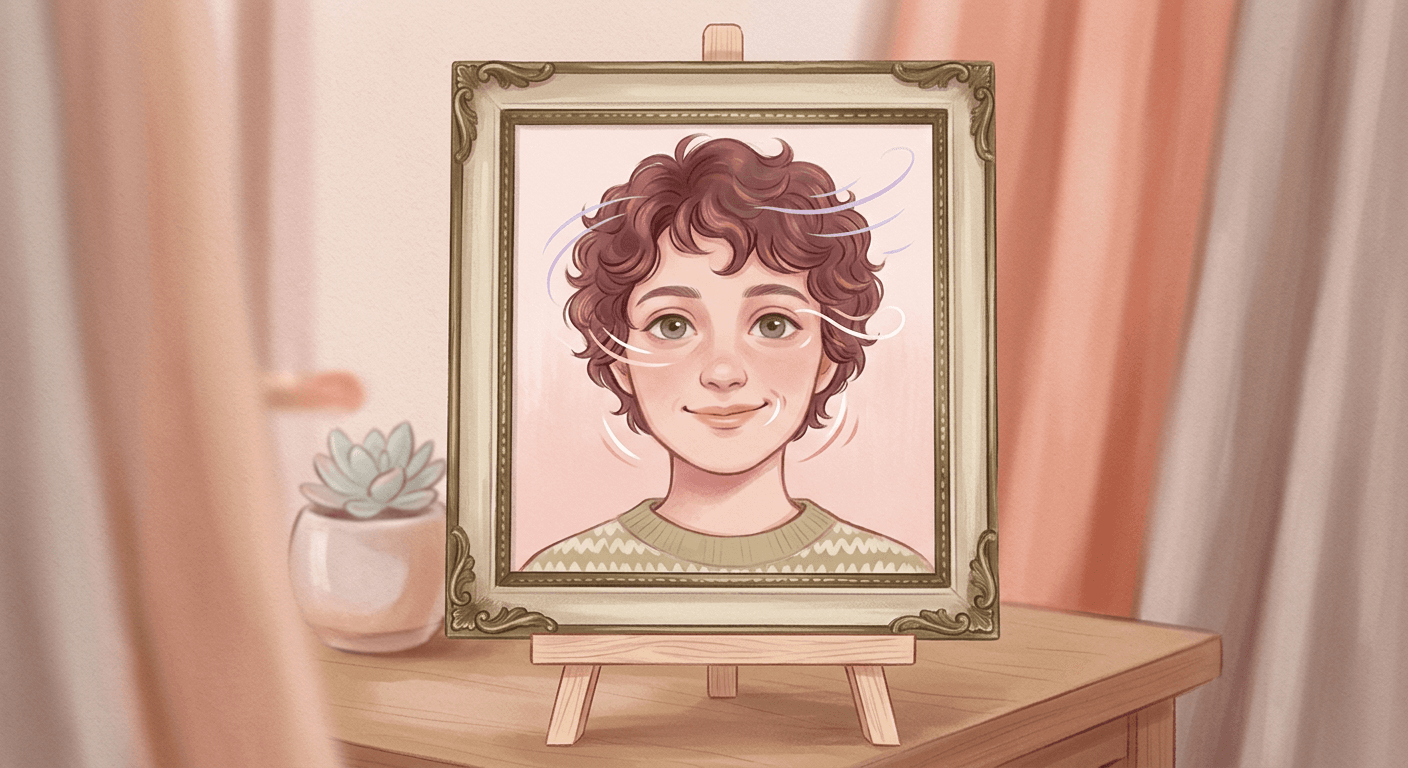
2) Subtle human gesture and expression prompts
This is the category that's closest to what actually makes people say a selfie "came alive," and it's also the highest-risk category for distortion, since faces are the part viewers scrutinize most. Keep the motion small and specific rather than dramatic.
5. Portrait Soft Blink and Smile
A close, simple portrait animation meant to feel like a candid moment rather than an obvious effect.
Animate this portrait into a 4 second video. Keep the framing, background, and lighting exactly as shown. Add one natural, slow blink, a soft subtle smile that grows gradually at the corners of the mouth, and a very small, natural head tilt of only a few degrees. Hair should move slightly as if in a faint breeze. Preserve the person's exact facial features, skin texture, and proportions with no distortion. No camera movement, realistic human motion only.
Best for: profile photos turned into video, personal brand intros, dating and portfolio-style content.
6. Two Friends Laughing Together
Built for duo or best-friend photos where the whole point is a genuine, shared reaction.
Turn this photo of two people into a short 5 second clip. Keep the background and framing still. Animate both people with a natural, slightly delayed laugh: shoulders move gently, heads tilt back a few degrees, and their expressions shift from a closed smile to an open laugh. Keep both faces fully recognizable and undistorted. Add subtle hair movement from a light breeze. No unnatural warping of hands or limbs, no camera motion.
Best for: friendship content, event recap videos, memory-style TikTok and Reels posts.
7. Profile Turn With Windblown Hair
A slightly more cinematic option, useful when a straight-on portrait feels too static for the mood you're going for.
Animate this profile photo into a 5 second clip. Keep the background static. Have the person turn their head slowly, no more than 15 to 20 degrees, from a side profile toward the camera, with a calm, neutral to soft expression. Hair moves naturally with the turn as if caught in a light wind. Clothing shifts subtly at the shoulders. No distortion of facial features, no camera movement, smooth and realistic.
Best for: fashion and beauty creators, editorial-style profile content, channel trailers.
8. Candid Coffee Sip Moment
A small, everyday action rather than a facial expression alone, which tends to read as more natural on a loop.
Turn this candid photo into a 5 second lifestyle clip. Keep the background, table, and framing still. Animate the person lifting the cup slightly toward their mouth, a small natural sip, then a subtle exhale and soft smile afterward. Steam rises gently from the cup throughout. Hands move naturally with correct anatomy, no extra or warped fingers. No camera motion, warm and candid lighting, seamless natural pacing.
Best for: lifestyle vlogs, morning routine content, cafe and coffee brand pages.
3) Cinematic push-in and camera movement prompts
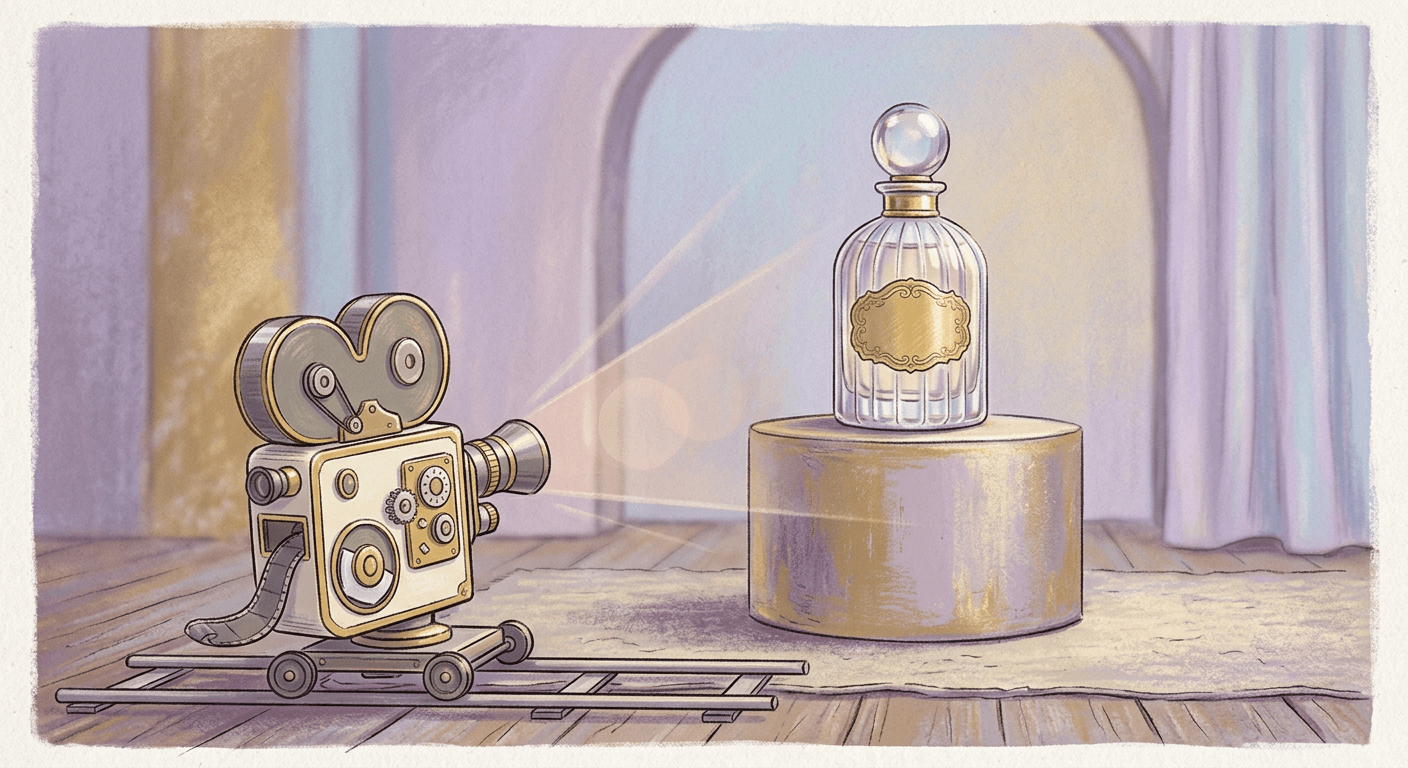
Instead of animating the subject, these prompts animate the implied camera, the exact move a director would use to add tension or focus to a completely static scene. This is often the most reliable category, since nothing in the actual subject has to move at all.
9. Perfume Bottle Hero Push-In
A commercial-style product move that works for almost any small hero product, not just perfume.
Animate this product photo into a 5 second cinematic clip. Keep the product completely still, in focus, and undistorted throughout. Add a slow, smooth camera push-in that moves closer to the product over the full duration, like a high-end commercial. Add a subtle light flare that drifts across the glass or surface as the camera moves, with soft reflections shifting realistically. No product movement, no warping, cinematic depth of field that increases slightly during the push-in.
Best for: beauty and fragrance brands, e-commerce hero videos, ad openers.
10. Interior Architecture Reveal
A slow, professional camera move that suits real estate, interior design, and hospitality photos particularly well.
Turn this interior photo into a 6 second cinematic clip. Keep every piece of furniture and architectural detail completely still and structurally correct. Add a slow, steady camera push forward into the room, as if walking gently toward the far wall or window. Light through the windows shifts subtly, and dust particles float faintly in any visible light beams. No object movement, no distortion of walls or furniture, smooth and professional real estate style motion.
Best for: real estate listings, interior design portfolios, hotel and Airbnb content.
11. Pet Portrait Gentle Push-In
A softer, warmer version of the same camera move, sized for a close portrait rather than a wide product shot.
Animate this pet photo into a 4 second clip. Keep the background still. Add a slow, gentle camera push-in toward the animal's face, combined with one natural blink and a small, realistic ear or whisker twitch. Fur should move very subtly as if in a light breeze. Preserve the animal's exact proportions and features with no distortion. No sudden movement, calm and warm, cinematic and shallow depth of field.
Best for: pet accounts, adoption and shelter content, personal pet tribute videos.
12. Mountain Vista Pull-Back Reveal
The opposite move, pulling back instead of pushing in, which works well as a closing shot rather than an opener.
Turn this landscape photo into a 6 second cinematic clip. Keep the mountains, terrain, and any foreground object completely still and sharp. Add a slow camera pull-back that reveals slightly more of the surrounding landscape by the end of the clip, paired with drifting clouds and shifting light across the peaks. No object movement, no camera shake, smooth and steady motion, cinematic color grading, seamless start to end.
Best for: travel channel outros, hiking and outdoor content, landscape photography portfolios.
4) Environmental parallax and background life prompts
These prompts keep your main subject completely frozen while everything around them moves, a layered depth effect that reads as much more sophisticated than a single flat animation. It's especially useful for photos where the subject already looks great and doesn't need to change at all.
13. Busy Cafe Street Scene
Keeps a foreground subject or seated figure perfectly still while the world behind them keeps moving, a classic "frozen in time" composition.
Animate this street or cafe photo into a 6 second clip. Keep the main subject in the foreground completely still and in sharp focus. In the background, animate pedestrians walking naturally at a realistic pace, cars passing softly out of focus, and string lights or signage flickering gently. Create a subtle sense of depth with the background moving slightly faster than the midground. No warping of faces in the background, no camera motion, natural everyday energy.
Best for: street style and fashion content, cafe and city lifestyle photos, mysterious or cinematic intros.
14. Group Photo With Background Celebration
Built specifically so every face in a group photo stays recognizable and undistorted while the atmosphere around the group comes alive.
Turn this group photo into a 5 second clip. Keep every person in the group still, undistorted, and fully recognizable. Animate the background only: string lights twinkle, confetti or light particles drift slowly through the air, and any blurred background figures move naturally at a slow pace. Add a very subtle warm light flicker across the scene. No movement in the main group, no camera motion, joyful and warm atmosphere.
Best for: wedding and event recaps, birthday and celebration content, brand event highlights.
15. Layered Forest Depth
A three-layer motion structure, foreground still, midground swaying, background drifting, that creates real depth from a flat photo.
Animate this forest or park photo into a 6 second clip with layered depth motion. Keep the nearest trees and any foreground object still. In the middle layer, leaves and branches sway gently as if in a light wind. In the background layer, add one or two birds flying slowly across the frame and a soft shift in light through the canopy. No camera movement, natural layered parallax, calm and immersive.
Best for: nature and hiking content, calming background loops, wildlife-adjacent pages.
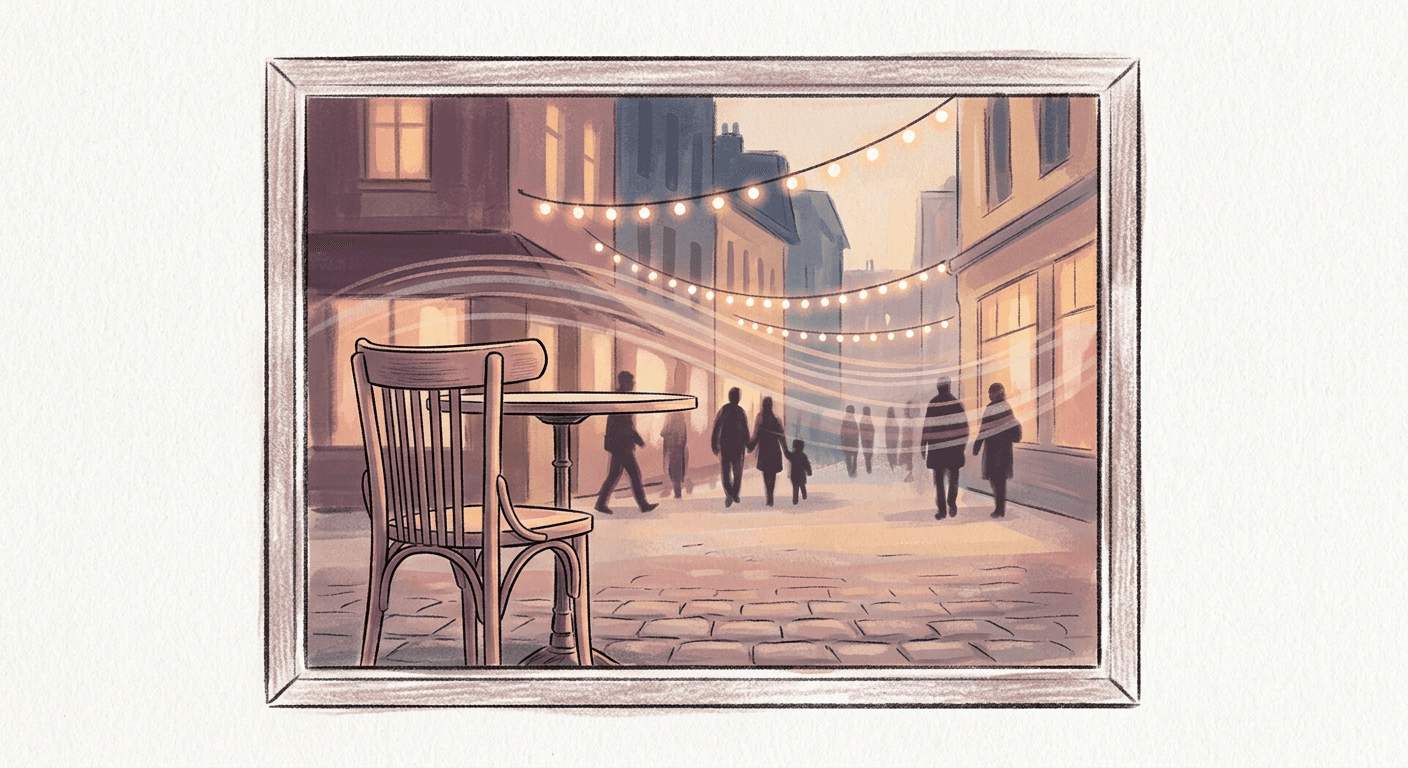
16. Night Market String Lights
A warm, lively night scene where the background carries all the energy while a foreground subject or stall stays anchored.
Turn this night market or festival photo into a 6 second ambient clip. Keep any foreground subject or stall completely still. Animate the string lights overhead so they sway very slightly and flicker warmly, with distant background figures moving slowly and naturally out of focus. Add a faint shimmer of light reflecting off any nearby surfaces. No camera motion, warm golden tones, lively but calm background energy.
Best for: travel and food market content, night market vlogs, festive seasonal posts.
5) Fabric, hair, and material movement prompts
The last category focuses on the small physical details, cloth, curtains, water, grass, that make a still photo feel like it was caught mid-moment rather than staged. These tend to loop especially well since the motion is naturally repetitive.
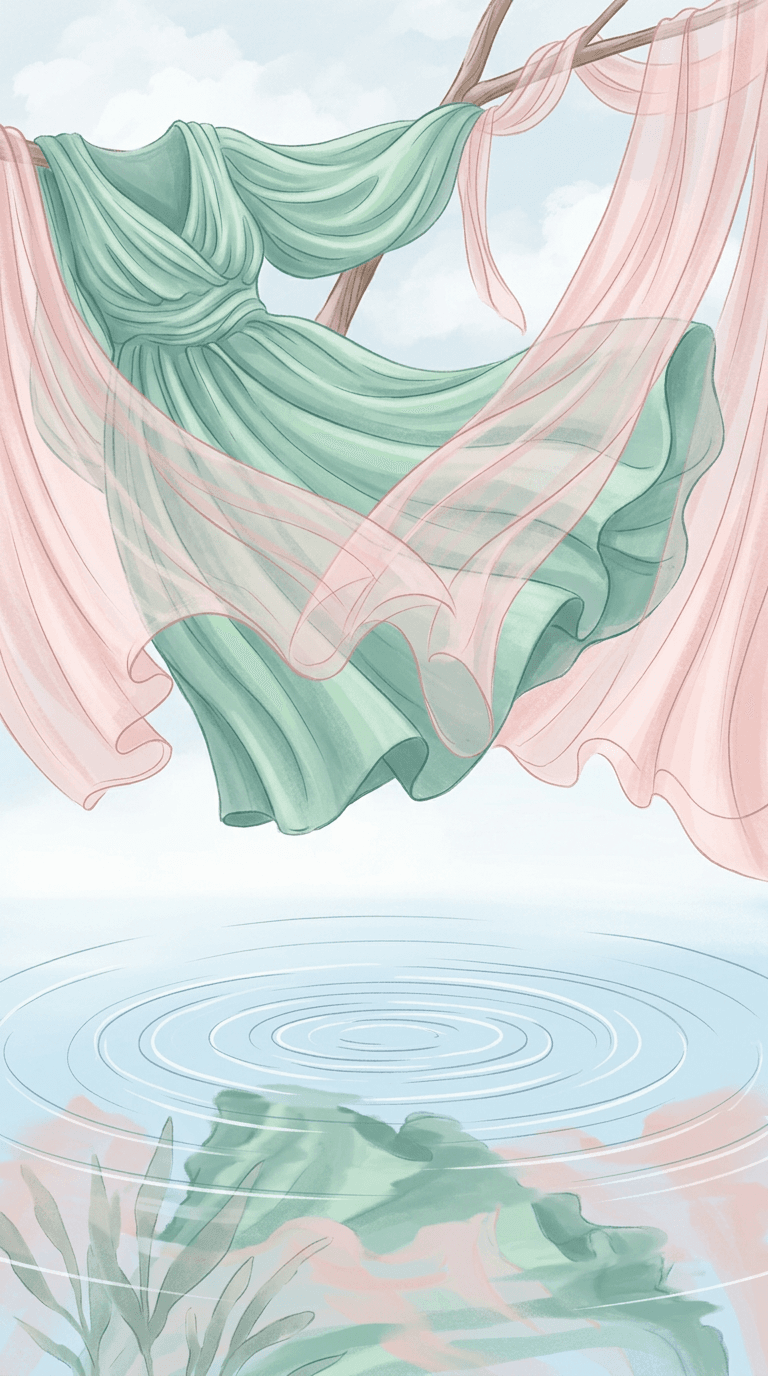
17. Flowing Dress in Motion
A fashion-forward option where the outfit itself becomes the main character of the animation, not the pose or expression.
Animate this fashion photo into a 5 second clip. Keep the person's pose, face, and the background still. Animate only the fabric of the outfit so it flows and ripples gently as if caught in a soft breeze, with natural fabric physics and no warping of the body underneath. Hair moves subtly in the same direction as the fabric. No camera movement, elegant and slow motion, soft studio lighting maintained throughout.
Best for: fashion and outfit content, editorial lookbooks, brand campaign teasers.
18. Curtains in a Sunlit Room
A quiet, domestic scene that works well as a calming background clip or a transition shot between sections of a longer video.
Turn this interior photo into a 5 second ambient clip. Keep the furniture and room layout completely still. Animate the curtains so they sway gently as if a window is slightly open, with sunlight shifting softly across the floor as the fabric moves. Add a few dust particles drifting through the light beam. No camera motion, calm domestic mood, soft natural light throughout.
Best for: home and interior content, cozy aesthetic pages, ambient background loops.
19. Rippling Water Reflection
A meditative option built entirely around water, useful for lakes, pools, and any reflective surface you already have a photo of.
Animate this photo of water into a 6 second clip. Keep the shoreline, any structures, and the horizon completely still. Add gentle, realistic ripples across the water's surface that subtly distort the reflection of the sky or surrounding scenery, moving at a slow, natural pace. Include a soft glimmer of light catching the moving water. No camera movement, calm and meditative, seamless loop from start to end.
Best for: travel content, wellness and calm-content creators, sunset and golden hour posts.
20. Wind Through a Wheat Field
A wide, natural motion that carries across the whole frame at once, good for a strong closing shot or a full-screen intro.
Turn this field or grass landscape photo into a 6 second clip. Keep the horizon, sky, and any distant structures still. Animate the grass or wheat so it ripples in visible waves as wind moves across the field, with the motion flowing naturally from one side of the frame to the other. Add very subtle cloud movement in the sky to match the wind direction. No camera motion, warm natural light, calm cinematic pacing.
Best for: rural and agricultural content, countryside travel videos, nostalgic or slow-living channels.
How to Customize These Prompts for Your Own Photos
Treat every prompt above as a starting structure, not a fixed script. A few reliable ways to adapt them:
Swap the subject description, keep the structure. The part of each prompt that says what should move and what should stay still is doing most of the work. You can drop in your own product, location, or subject description and keep that underlying logic intact.
Dial motion intensity up or down with one word. "Subtle," "gentle," and "very slight" produce noticeably calmer results than "dramatic," "strong," or "sweeping." If your first result feels too intense or too flat, that single word is usually the fastest fix, not a full prompt rewrite.
Match the clip length to your platform, not the other way around. A 4 to 6 second animated clip works well as a standalone loop or a Story-style post. If you're feeding it into Text2Shorts as one scene among several, a shorter 3 to 4 second clip usually cuts together more cleanly than a longer one.
Write for a loop when you want one. If you plan to post the clip as a looping background or a repeating Story, add a line asking for the motion to end close to where it started, gentle drifting clouds, a slow ripple, a soft sway, loop far more convincingly than a camera push or a full head turn.
Combine two categories deliberately, don't stack five. A landscape with both drifting clouds and a slow camera push-in can look genuinely cinematic. A photo with five different motions competing at once usually looks chaotic instead. Pick one dominant motion and one supporting motion at most.
Aim for a real aspect ratio from the start. If the final destination is a vertical Short or Reel, generate at a 9:16 style composition instead of animating a horizontal photo and cropping afterward, cropping after the fact often cuts off exactly the motion you just asked for.
Common Mistakes Creators Make With Living Photo Prompts
Not telling the model what to keep still. This is the single biggest gap between a controlled result and a warped one. If your prompt only describes what should move, the model has to guess about everything else, and faces, hands, and text are exactly the details that suffer most from that guesswork.
Starting from a low-quality or heavily compressed photo. A blurry, low-resolution, or badly cropped source image gives the model less real detail to preserve through the animation, and that missing detail tends to show up as smearing or soft distortion in the finished clip, not as a fixable problem after the fact.
Asking for too much motion at once. Prompts that try to animate the sky, the subject, the camera, and the background all in one instruction usually produce a muddled, unnatural result. One or two clearly described motions almost always outperforms a long list of effects crammed into a single prompt.
Ignoring the platform's actual aspect ratio and length limits. A gorgeous 16:9 cinematic clip does nothing for you if your audience only sees a cropped, awkward middle section on a vertical feed. Decide the destination platform before you generate, not after.
Expecting a single perfect result on the first try. Even a well-written motion prompt is still a generation, not a guarantee. Treat the first output as a draft, regenerate with small wording adjustments if a hand looks off or the motion feels too aggressive, the same way you'd reshoot a take that didn't land.
Forgetting to label AI-animated content when it matters. TikTok labels every AI Alive story automatically and embeds C2PA metadata for a reason. If you're posting a living photo of a real person, a real event, or anything that could be mistaken for unedited footage, a simple on-screen note or caption saying it's AI-animated keeps the content honest without taking away from how good it looks.
Turning Your Living Photo Into a Complete Short With Miraflow
A single animated photo is a strong hook, but it's rarely the whole piece of content on its own. Once you've generated a living photo clip you're happy with inside Miraflow's cinematic AI video generator, the natural next step is building it into something a viewer watches all the way through.
Text2Shorts is built for exactly that handoff. Enter a topic or script idea, choose a visual style, and Miraflow generates the supporting script, scene visuals, voiceover, and pacing around your existing footage, so your living photo clip can open a short instead of being the entire short. You can edit the generated script, regenerate individual scene visuals, and choose the voice and pacing before the final video renders, then find it in My Videos alongside everything else you've made.
If you'd rather start from an existing photo you already love instead of generating one from scratch, upload it directly and skip straight to the animation step. And if the photo needs a small fix first, a different background, a color change, an object removed, Miraflow's image editing and inpainting tools let you mask and replace just that one region before you animate anything, so the living photo starts from exactly the still you want.
Frequently Asked Questions
What is TikTok's AI Alive feature exactly?
AI Alive is an image-to-video tool built into TikTok's Story Camera. You select one photo, tap the AI Alive icon, and TikTok generates a short animated clip from it, adding effects like drifting clouds, shifting light, or subtle gestures. It launched on May 13, 2025, and only works within TikTok Stories, not as a standalone tool and not on regular TikTok video posts.
Can I use AI Alive outside of TikTok Stories?
Not directly. TikTok's version is locked to its Story Camera, and Stories expire after 24 hours unless you manually save and repost the clip elsewhere. To get the same living photo effect for YouTube Shorts, Instagram Reels, or a regular TikTok video, you need a separate image-to-video tool, like animating a photo with Miraflow's cinematic AI video generator, where you also get to write your own motion prompt instead of relying on an automatic effect.
Why does my animated photo look distorted or warped?
Distortion, especially around faces, hands, and fine detail, usually comes from either a low-quality starting photo or a prompt that doesn't specify what should stay still. Image-to-video models have to predict motion for the entire frame, and an unclear instruction leaves more of that prediction to chance. Writing an explicit "keep this still, only animate that" instruction, the way the 20 prompts above do, meaningfully reduces this.
How long can a living photo video actually be?
Most living photo clips work best between 4 and 6 seconds, long enough to show real motion without overstaying a single still image's welcome. If you need a longer finished video, the better approach is stitching several short animated clips together, or using one as an opening scene inside a longer piece built with Text2Shorts, rather than trying to stretch one photo's motion out for 20 or 30 seconds.
Do I need video editing experience to make one of these?
No. The whole workflow described in this post runs directly in the browser: generate or upload a photo, describe the motion you want in plain language, and the AI video model handles the actual animation. No timeline editing, keyframing, or motion graphics software required.
Will viewers know a living photo clip was made with AI?
They can, and in most cases they should be able to tell if you want to keep audience trust intact. TikTok automatically labels AI Alive stories and embeds C2PA metadata identifying them as AI-generated. If you're posting your own living photo content, especially of real people or real events, a simple caption or on-screen label noting it's AI-animated is good practice, not just a platform requirement.
What's the difference between a cinemagraph and a living photo AI video?
A traditional cinemagraph is usually a real photograph or video where one small element, like a single flag or a cup of steam, is manually isolated and looped while everything else stays a frozen still, often built by hand in editing software. A living photo AI video is generated rather than manually composited: you describe the motion in a prompt, and the model predicts and renders that movement across the whole frame, which is faster to produce but gives you slightly less pixel-level control than a manually built cinemagraph.
Can I turn a living photo clip into a full YouTube Short or Reel with music and narration?
Yes. Once you have an animated clip, you can bring it into Text2Shorts as a scene, then add a script, voiceover, background music, and pacing around it to build a complete short instead of posting the animated clip on its own.
What kind of starting photo works best for animation?
A sharp, well-lit, reasonably high-resolution photo with a clear subject and simple, uncluttered background tends to animate the most reliably. Busy backgrounds, extreme close-ups on hands, or heavily edited and low-resolution images tend to produce messier results, since there's either too little real detail for the model to preserve or too much competing detail for it to move convincingly.
Is this the same as Sora or Runway's image-to-video tools?
They're solving the same basic problem, turning a still image into motion, but the specific models, prompt formats, and output quality differ between tools. Miraflow's cinematic AI video generator runs on Veo3 and Veo3.1, which tend to handle photorealistic motion and camera movement particularly well, and the prompt-writing principles in this post, describing exactly what moves and what stays still, apply across most image-to-video models, not just one.
Conclusion
TikTok's AI Alive feature is a genuinely clever piece of product design: point it at a photo, get a short, atmospheric clip back, no editing skill required. But the feature itself was never really the whole story. What actually took off in 2026 is the underlying idea, that a single still photo can become a short, believable moving clip, and that idea works just as well outside TikTok's Story Camera as it does inside it.
The 20 prompts in this post cover the same ground AI Alive's demo material shows off, drifting skies, subtle human gestures, cinematic camera moves, layered background motion, and moving fabric or water, but written with the explicit control a locked in-app filter can't give you. Naming exactly what should move and what should stay untouched is the single biggest lever for getting a clean, professional-looking result instead of a warped one, on any image-to-video tool, not just Miraflow's.
Start with one strong still photo, whether that's something you already shot or something built with Miraflow's AI Image Generator, animate it inside Miraflow's cinematic AI video generator using one of the prompts above, and when you're ready to turn that single clip into a complete piece of content, Text2Shorts can build the rest of the short around it. The living photo trend isn't going anywhere in 2026, and now it doesn't have to stay locked inside one app's Stories tab.