How to Use Veo3 / Veo3.1 for Free

Written by
Jay Kim

Want to use Veo3 or Veo3.1 without paying? This tutorial shows you how to generate cinematic AI videos for free, customize prompts, and get the best results using Miraflow’s AI Video Generator.
If you want to make AI-generated videos, using Veo3 / Veo3.1 through Miraflow’s AI Video Generator is one of the quickest — and completely free — ways to get started.
Below is a simple six-step guide to generating Veo3 / Veo3.1 clips at no cost.
Step 1: Go to ‘Create Cinematic Video’
Navigate to the Create Cinematic Video section.
You can take a look at the example video, and just underneath, the tool will be waiting for you.
Step 2: Input your prompt
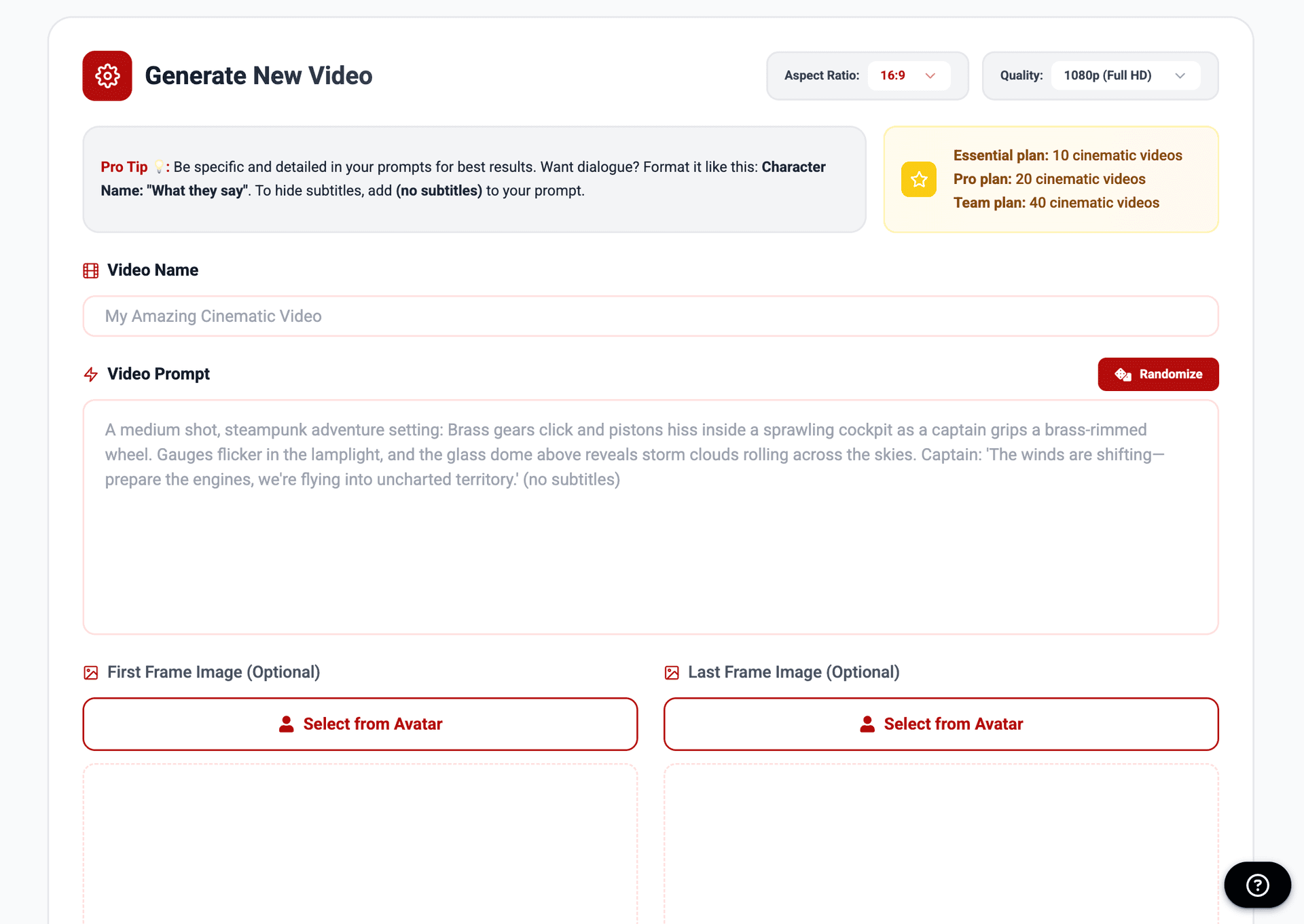
Type your video name and video prompt into the prompt box, then hit the Generate Cinematic Video button — that’s it. Your video will start generating shortly.
You can choose between a 16:9 or 9:16 aspect ratio, and set the video quality to either 1080p or 720p.
If you need inspiration or want to see an example prompt, just click Randomize — a video prompt will be filled in automatically.
💡 Tips for Veo3 / Veo3.1 Prompts
Writing a great prompt is just as important as using Veo3 itself. If you want to learn how to craft prompts that get cinematic, high-quality results, check out our detailed guide here: How to Write Effective Prompts for Veo3, Veo3.1, and Sora2. It includes real examples, templates, and tips to help your AI videos look amazing.
Veo3 / Veo3.1 respond best to clear, structured prompts that define the scene, camera behavior, and visual style. These models are strong at cinematic realism, so guiding them with precise visual cues helps avoid randomness and improves shot quality.
To get the best results, include the elements below:
1. Subject & Setting
Describe who or what appears in the scene and where the scene is happening.
Veo3.1 especially benefits from specific physical details + environment context.
Examples:
- “a woman in her 20s wearing a white knit sweater, in a softly lit apartment living room”
- “a mechanic working under neon lights in an industrial garage”
2. Action / Movement
State what the subject is doing.
Veo3.1 handles motion well — walking, turning, interacting, cooking, working, etc.
3. Camera Composition & Motion
Veo3 / Veo3.1 give you much more control when you specify camera behavior:
- close-up / medium shot / wide shot
- angle (eye-level, low angle, overhead)
- motion: slow dolly-in, steady pan, locked tripod, orbiting shot, handheld (if desired)
If you don’t specify, the model may create unexpected or unstable camera movements.
4. Style, Mood & Visual Tone
These models respond very well to cinematic descriptors:
- Styles: cinematic, documentary, photorealistic, moody, warm film look
- Mood: calm, emotional, dramatic, uplifting
- Aesthetic cues: “soft film grain,” “natural colors,” “high dynamic range look”
5. Lighting Details
Lighting dramatically changes Veo3.1 output quality. Useful descriptors:
- soft daylight, warm indoor lamps, golden hour, neon-lit streets
- soft key light, rim light, low contrast, high-key lighting
- volumetric light, atmospheric fog
6. Technical or Creative Constraints
To avoid unwanted artifacts, add constraints:
- “no shaky handheld movement”
- “keep subject centered”
- “minimal background clutter”
- “no text overlay”
- “smooth, continuous motion”
These help Veo3.1 maintain stability and realism.
7. Aspect Ratio / Format (optional)
Mention this if needed:
- 16:9 for cinematic
- 9:16 for mobile Reels/TikTok
- 1080p or 720p
8. Character Consistency (for multiple clips)
If you're making a sequence of videos, repeat the exact same description of the character, clothing, and lighting. Veo3.1 is strong at consistency only when details are duplicated across prompts.
Step 3 (optional): Set your first or last frame
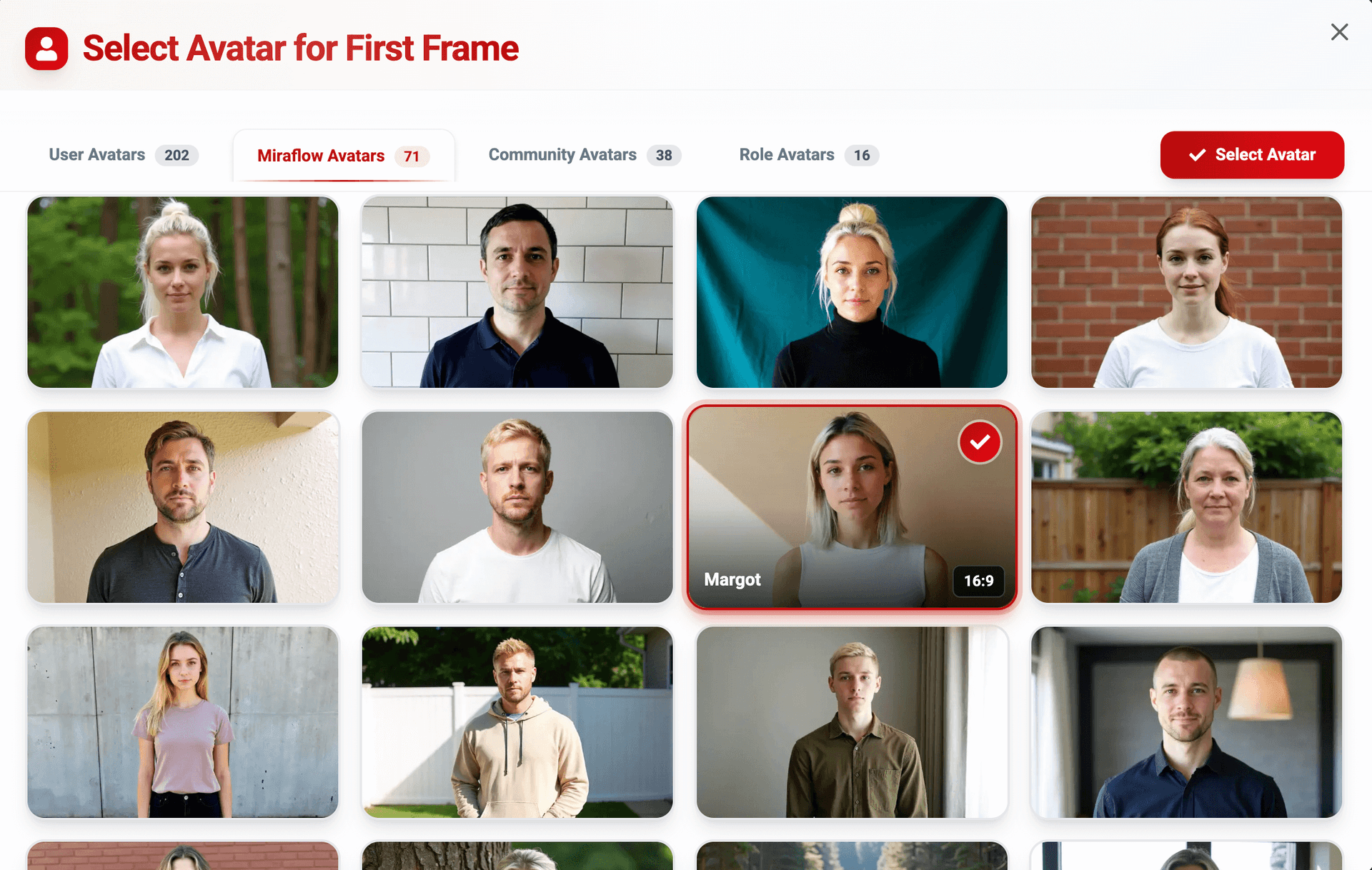
You can choose a custom image to define the opening or ending scene of your video. Upload any image you like, or pick one of the built-in avatars by clicking “Select from Avatars.”
There are over 100+ avatars available, and whichever one you choose will be used as the first or last frame of your cinematic video.
Step 4: Sign in
Log in with your email or Google account to continue.
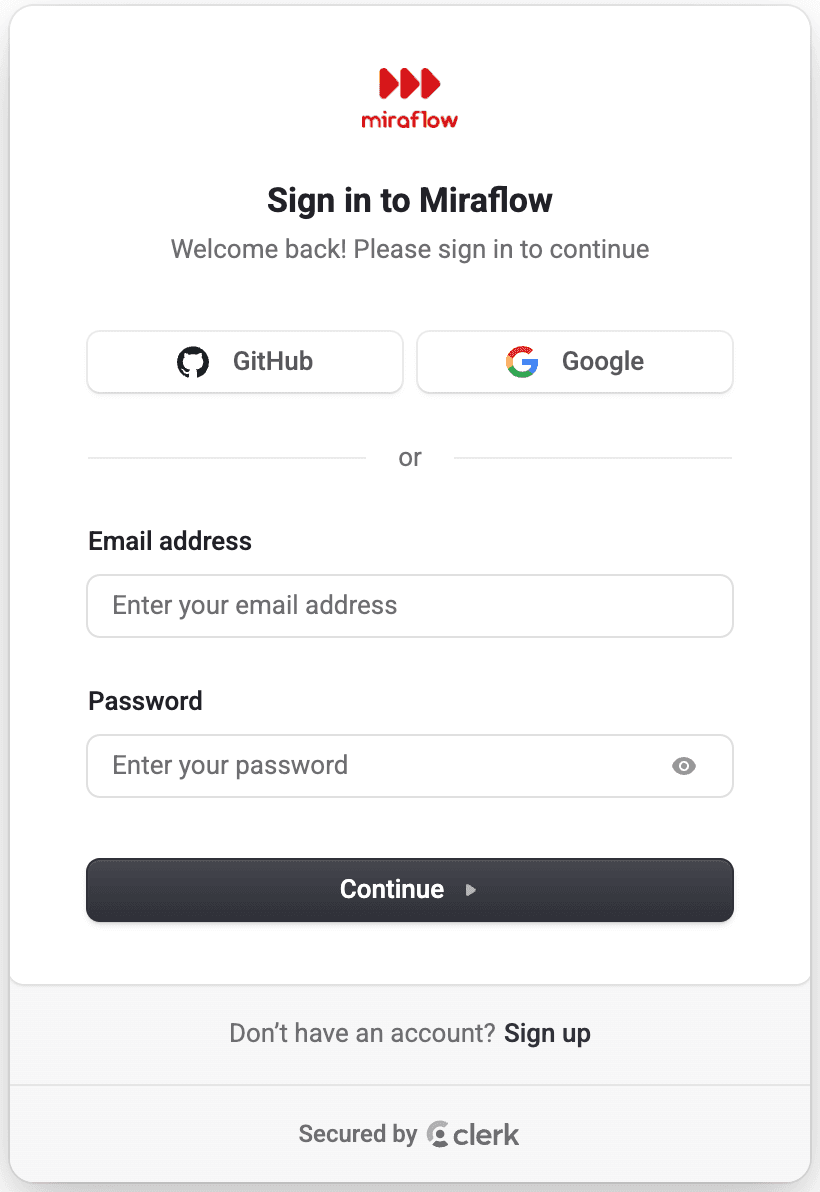
Once you’re signed in, you’ll have full access to free credits, video generation, and AI avatar generation.
Step 5: Review your video and share
After your cinematic video starts generating, you’ll see your first clip appear automatically in My Videos section.
You can revisit this tab anytime to review or download your generated videos.
If you want to share your creation, simply click the Share button.
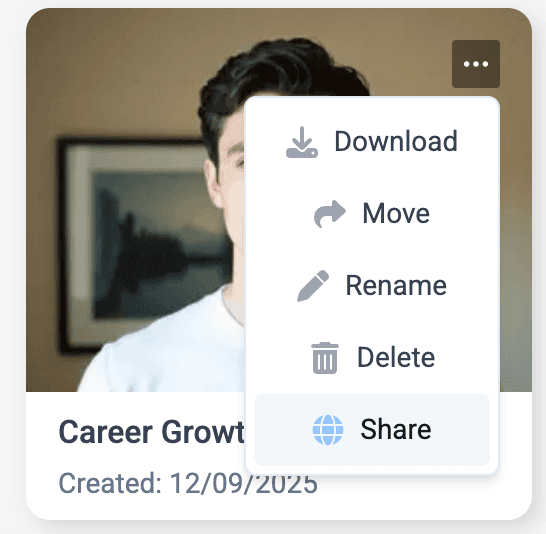
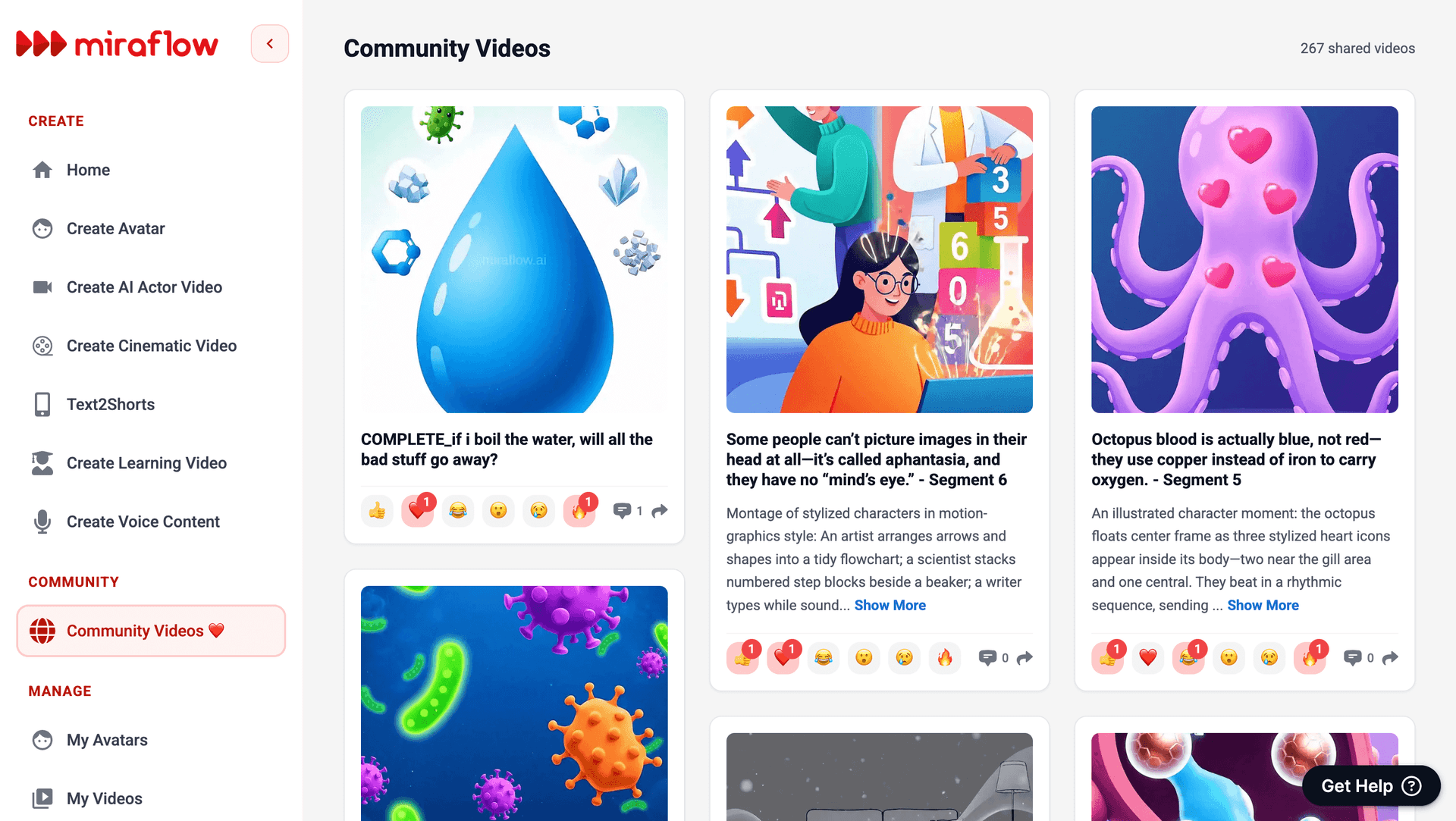
Your clip will be posted in Community Videos, where you can also explore what others have made. Feel free to comment, like, and share any videos you enjoy.
Step 6: Create viral Reels/Shorts with Veo3 / Veo3.1
If you want longer content—perfect for Instagram Reels or YouTube Shorts—you can use Text2Shorts to generate multiple Veo3 / Veo3.1 clips and automatically stitch them into a 30- to 60-second video.
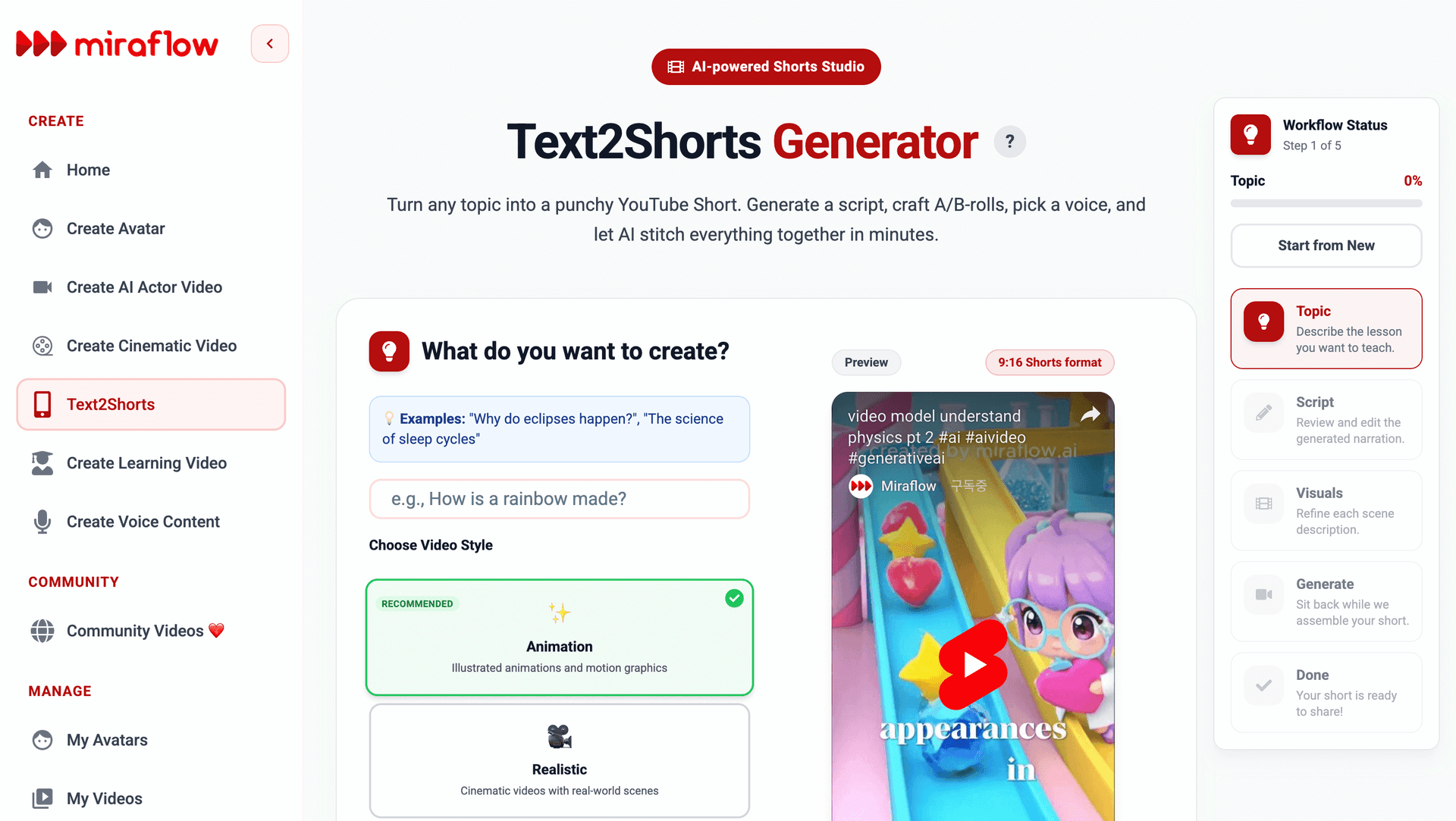
This lets you create polished, viral-ready short-form content directly from your prompts.