20 ChatGPT Images 2.5 Prompts to Try Its New Sketch, Templates, and Comments Tools (2026)

Written by
Aerin Kim
OpenAI's ChatGPT Images 2.5 launched September 8 with Sketch, Templates, Comments, and stronger reference fidelity. Here are 20 prompts built specifically to exercise its new tools.
On September 8, 2026, OpenAI shipped ChatGPT Images 2.5, the first major update to ChatGPT's image generation since Images 2.0, and it is not just a quiet model refresh. Alongside a sharper, faster image model, OpenAI shipped four new workflow tools directly inside ChatGPT: Sketch, which turns a rough drawing into a real layout reference for generation, Templates, which start you from a proven format like a poster or a product photo instead of a blank prompt box, Comments on images, which let you point at one specific region of a result and describe a local fix instead of regenerating the whole picture, and Prompt sharing, which lets you hand someone the exact prompt behind a result you made (OpenAI's official announcement).
It has been about a week since launch, and creators are still actively sharing what these tools can do, which makes this a good moment to actually test them with real prompts rather than a generic feature tour. This post is 20 prompts built specifically to exercise Sketch, Templates, Comments, and the model's stronger reference-image fidelity, grouped into four sections so you can jump straight to whichever workflow you are trying to solve this week. Every prompt below is written to copy and run directly, and you can run all of them just as easily inside Miraflow's AI Image Generator, which supports the same kind of structured, multi-step prompting, image-to-image editing, and masked region edits that these techniques call for.
What Actually Changed in ChatGPT Images 2.5
Before the prompts, it is worth understanding exactly what shipped, since several of the changes solve problems that used to force creators into a separate editing tool entirely.
The core model got sharper, faster, and more consistent
OpenAI's own release describes four specific improvements to the underlying model: sharper detail, more natural lighting and richer textures, stronger reference-image fidelity, and more reliable multi-turn instruction-following for edits, on top of image-generation latency reduced by up to 50 percent compared with Images 2.0. That last point matters more than it sounds. A prompt pack like this one lives or dies on how many iterations you can actually afford to run, and a model that returns a result in roughly half the time means you can test two or three variations of a prompt in the time it used to take to test one.
Reference-image fidelity is the change most likely to affect your actual workflow if you generate product shots, brand assets, or portraits with any regularity. Earlier versions of ChatGPT's image tool had a well-known failure mode where an edit to an uploaded reference photo would quietly drift, a product's proportions would shift slightly, a face would come back looking like a stranger who vaguely resembled the original, a logo's exact color would shift half a shade. Images 2.5 is specifically built to keep the actual subject in an uploaded reference photo intact across edits, which is the foundation the entire fourth prompt group below is built around.
Multi-turn instruction-following is the second quiet but meaningful change. If you have ever asked ChatGPT to "now make the background darker" after an earlier edit and watched it also change the subject's pose or color for no reason, that is the exact failure mode OpenAI says this release specifically targets. More reliable multi-turn behavior is also what makes the Comments feature below actually usable in practice, since a comment-driven edit is, by definition, a second or third turn on an existing image.
Four new tools shipped alongside the model
Sketch lets you draw a rough layout or shape, boxes for where a subject should sit, a rough outline of a pose, a simple floor plan, and use that drawing as a visual reference for the generation instead of describing spatial layout in words alone. Composition is one of the hardest things to nail down purely through text, "place it in the lower third" and "center it slightly left of the middle" mean different things to different models, so a literal drawn reference removes a lot of that ambiguity.
Templates give you a starting point tuned for a specific, common format, posters, merchandise mockups, and product photos, instead of a blank prompt box. This matters most for anyone who generates the same kind of asset repeatedly. A template does not lock you into a fixed style, it gives the model a head start on the parts of a format that do not change often, like where the empty text zone on a poster usually goes, so your prompt only has to describe what is actually different this time.
Comments on images are functionally the closest thing to inpainting or masking that ChatGPT's own interface has offered natively. Instead of writing an entirely new prompt and hoping the model regenerates only the part you wanted changed, you point to a specific region of a generated image and describe a local edit to just that area. This is the single biggest change for anyone who has ever gotten a 95 percent perfect result undone by one wrong detail.
Prompt sharing lets you share the exact prompt behind an image with someone else, which sounds minor until you consider how much of this entire genre of blog post exists because creators keep asking each other "what did you actually type to get that." It also means a prompt pack like this one can be tested and iterated on collaboratively rather than staying a personal note.
Two models for developers, one product name for everyone else
The consumer-facing product across ChatGPT is simply called ChatGPT Images 2.5. Developers building on the API get two distinct models instead of one: GPT-Image-2.5 Flare, tuned for speed, and GPT-Image-2.5 Sunburst, tuned for tighter control over the output. Both are priced the same on OpenAI's published rate card, at $8 per million image input tokens and $30 per million image output tokens.
| API model | Optimized for | Input price (per 1M image tokens) | Output price (per 1M image tokens) |
|---|---|---|---|
| GPT-Image-2.5 Flare | Speed | $8 | $30 |
| GPT-Image-2.5 Sunburst | Tighter control | $8 | $30 |
If you are building a product on top of image generation rather than just generating images for your own content, that speed-versus-control split is worth knowing about even if you never touch the API directly, since it explains why some third-party tools built on top of this model feel snappier while others feel more deliberate about getting a precise result.
Where it is actually available right now
ChatGPT Images 2.5 is rolling out across every ChatGPT tier, ChatGPT Work, and Codex, on desktop, mobile, and web, rather than being gated behind a specific paid plan. That broad rollout is a meaningful part of why it is still being actively searched and shared a week after launch. A feature locked behind an enterprise tier tends to generate press coverage and go quiet. A feature that shows up in the same app millions of people already have open tends to keep generating new posts, new comparisons, and new prompt experiments for weeks.
This also lands in the middle of an unusually active season for image models generally. Competing labs have shipped their own major updates in recent months too, and our breakdown of Grok Imagine Image 2.0's new editing tools covers a similar moment for a different model if you want to see how another lab approached region editing and multi-reference compositing around the same time. The specific tools differ, but the underlying trend across the field is the same: less time spent describing an edit in a single dense paragraph, more time spent pointing at exactly what should change.
The practical impact of this update also looks different depending on where you are starting from. If you are new to AI image generation, Sketch and Templates matter most, since they remove the two hardest parts of prompting from scratch, describing exact layout in words and knowing what a "good" commercial format even looks like. If you already generate images regularly for a channel, a store, or a brand, Comments and reference-image fidelity matter more, since they are the difference between fixing one detail in thirty seconds and losing twenty minutes to a full regeneration that also changed three things you liked. Both groups get real value out of this release, just from different halves of it, which is part of why the prompt groups below are organized by tool rather than by skill level.
An honest read on what did not change
It is worth being direct about the boundaries of this release too, since a prompt pack that only lists wins is less useful than one that also tells you where to keep your expectations realistic. OpenAI's announcement frames Images 2.5 as an improvement to detail, lighting, texture, fidelity, instruction-following, and speed, not as a claim that every generation will now be flawless on the first try. Complex scenes with many named subjects still benefit from breaking the request into smaller, sequential edits rather than one enormous prompt. Text rendering inside an image, small captions, packaging copy, signage, still deserves a proofread before you publish anything, the same discipline that mattered before this release and every release before it. Treat the improvements here as raising the ceiling on what a single generation can get right, not as removing the need for the iteration habits later in this post.
1. Sketch Composition Prompts
Sketch is the tool most likely to change how you think about prompting in the first place, because it takes the hardest part of a text prompt, exact spatial layout, and lets you just draw it instead. Every prompt in this section assumes you have already drawn a rough sketch inside ChatGPT and are using it as the layout reference, the same way you would describe an uploaded reference photo to any image-to-image tool.
Prompt 1: Product hero shot from a sketched layout
Using the rough sketch you drew as the layout reference, generate a clean product hero shot of a matte ceramic pour-over coffee dripper centered in the frame exactly where the sketch places it, resting on a warm oak counter with a folded linen towel beside it, soft morning window light coming from the left casting a long soft shadow to the right, shallow depth of field with the background softly blurred, photorealistic commercial product photography.
Prompt 2: Editorial interior scene from a sketched composition
Using the rough sketch you drew as the composition guide, generate an editorial photo of a single potted fiddle-leaf fig positioned in the lower third exactly as sketched, next to a tall arched window with sheer curtains, late afternoon golden light streaming across the wood floor, warm neutral color grade, photorealistic interior photography style.
Prompt 3: Poster layout from a sketched headline and subject zone
Using the rough sketch you drew showing a large headline zone at the top and a product silhouette at the bottom, generate a minimalist poster composition matching the same zones: an empty soft gradient space at the top ready for text, and a single vintage film camera rendered in sharp detail resting on a plain pedestal at the bottom, soft studio lighting from above, clean commercial poster photography style.
Prompt 4: Room layout from a sketched floor plan
Using the rough sketch you drew mapping out the room's furniture placement, generate a photorealistic living room render matching that same layout, a mid-century sofa positioned where sketched, a round wooden coffee table in front of it, a floor lamp in the back corner, warm evening lamp light mixed with cool blue light through the window, realistic interior design photography style.
Prompt 5: Flat lay from a sketched item arrangement
Using the rough sketch you drew showing where each item should sit on the table, generate a top-down flat lay photo matching that exact arrangement: a notebook in the upper left, a fountain pen resting diagonally across it, a small potted succulent in the upper right, and a ceramic mug in the lower right, soft even overhead natural light, photorealistic flat lay product photography style.
A sketch does not need to be good to work. The point is not artistic quality, it is establishing where things go, so a handful of labeled boxes and rough shapes is often more useful than an attempt at a detailed drawing that eats time you could spend iterating on the actual prompt wording instead.
2. Template Prompts
Templates solve a different problem than Sketch. Instead of nailing down layout, they give the model a head start on the parts of a common commercial format that rarely change, the empty text zone on a poster, the standard flat presentation of a mockup, the seamless backdrop expected in a product photo, so your own prompt only has to describe what makes this particular asset different.
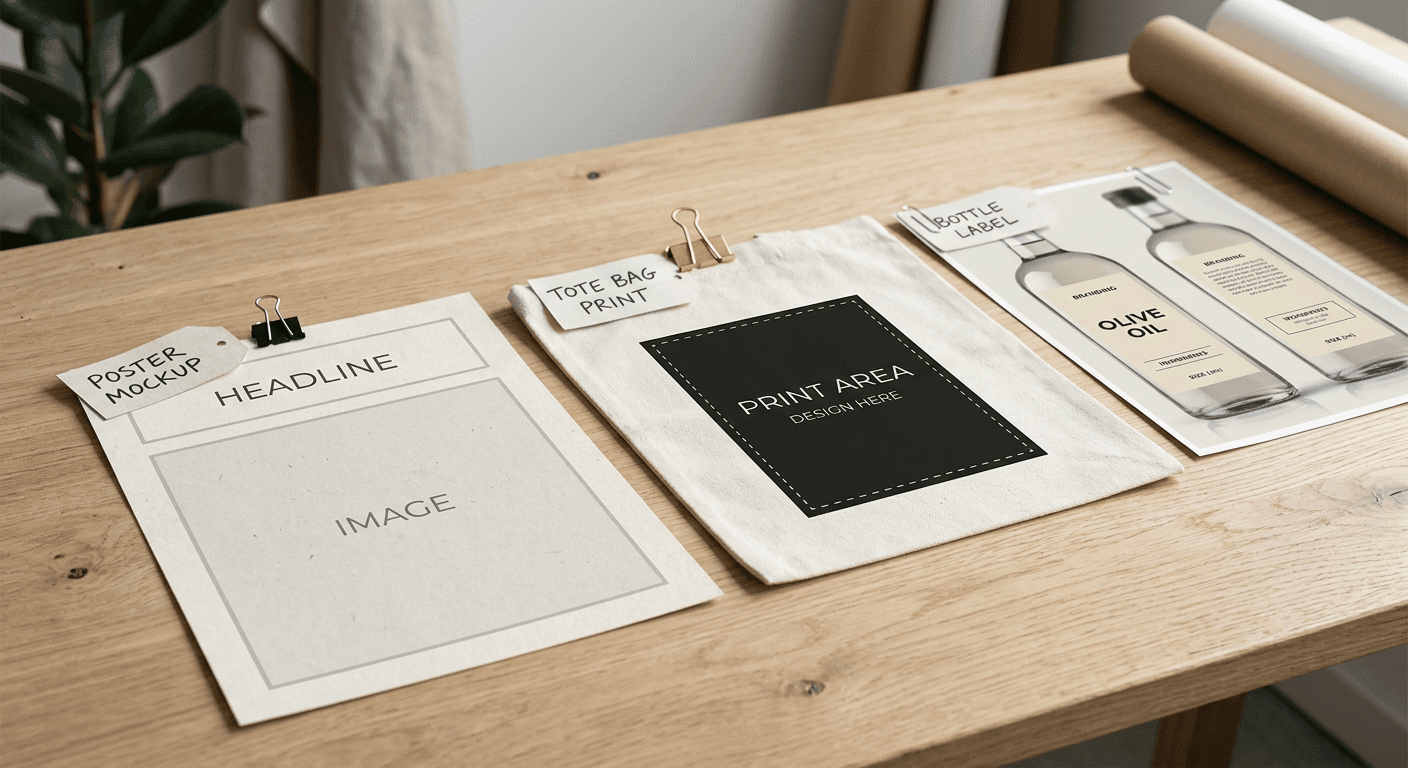
Prompt 6: Event poster template
Using the poster template format, generate a concert poster background with a large empty gradient headline zone at the top in deep purple to black, a silhouetted vintage electric guitar centered below it resting against a plain wooden stool, a single warm spotlight falling from directly above, clean commercial poster photography style.
Prompt 7: T-shirt merch mockup template
Using the merchandise mockup template, generate a photo of a plain heavyweight cotton crewneck t-shirt laid flat on a wooden table with a clearly defined empty chest-print area, soft diffused studio light from directly above, natural fabric wrinkles and visible stitching, commercial apparel mockup photography style.
Prompt 8: Product bottle template
Using the product photo template, generate a studio product shot of a matte glass skincare bottle centered on a seamless light gray backdrop, a soft gradient shadow beneath it, even front-and-side studio lighting with a subtle rim light along the bottle's edge, commercial e-commerce product photography style.
Prompt 9: Tote bag merch mockup template
Using the merchandise mockup template, generate a photo of a natural canvas tote bag hanging from a wooden hook against a plain cream wall, a clearly defined empty print area centered on the front panel, soft side window light, commercial merchandise mockup photography style.
Prompt 10: Cinematic poster template
Using the poster template format, generate a cinematic-style poster background with a dramatic empty title zone across the lower third in deep teal and orange gradient tones, a single vintage film reel resting on a dark wooden table in the upper portion, moody directional side lighting, commercial poster photography style.
If the final asset needs finished, legible headline text rather than just a reserved empty zone, a purpose-built text tool tends to give you more control over exact wording, kerning, and placement than asking an image model to render long sentences. The YouTube Thumbnail Maker in Miraflow AI is built specifically for adding clean, tested text on top of a generated background like the ones these template prompts produce, and our Ideogram 4.0 prompt guide for text-heavy designs goes deeper on structuring prompts when the text itself is the main event rather than a reserved empty space.
3. Comments-Style Local Edit Prompts
This is the group built to test the biggest practical upgrade in this release. Comments let you point at a specific region of an image you already generated and describe an edit to just that area, which is functionally the same job as inpainting or masking in a dedicated photo editor, just built directly into the chat. Every prompt below assumes you have circled or pointed at a region on an existing generated image and are describing the local change you want.
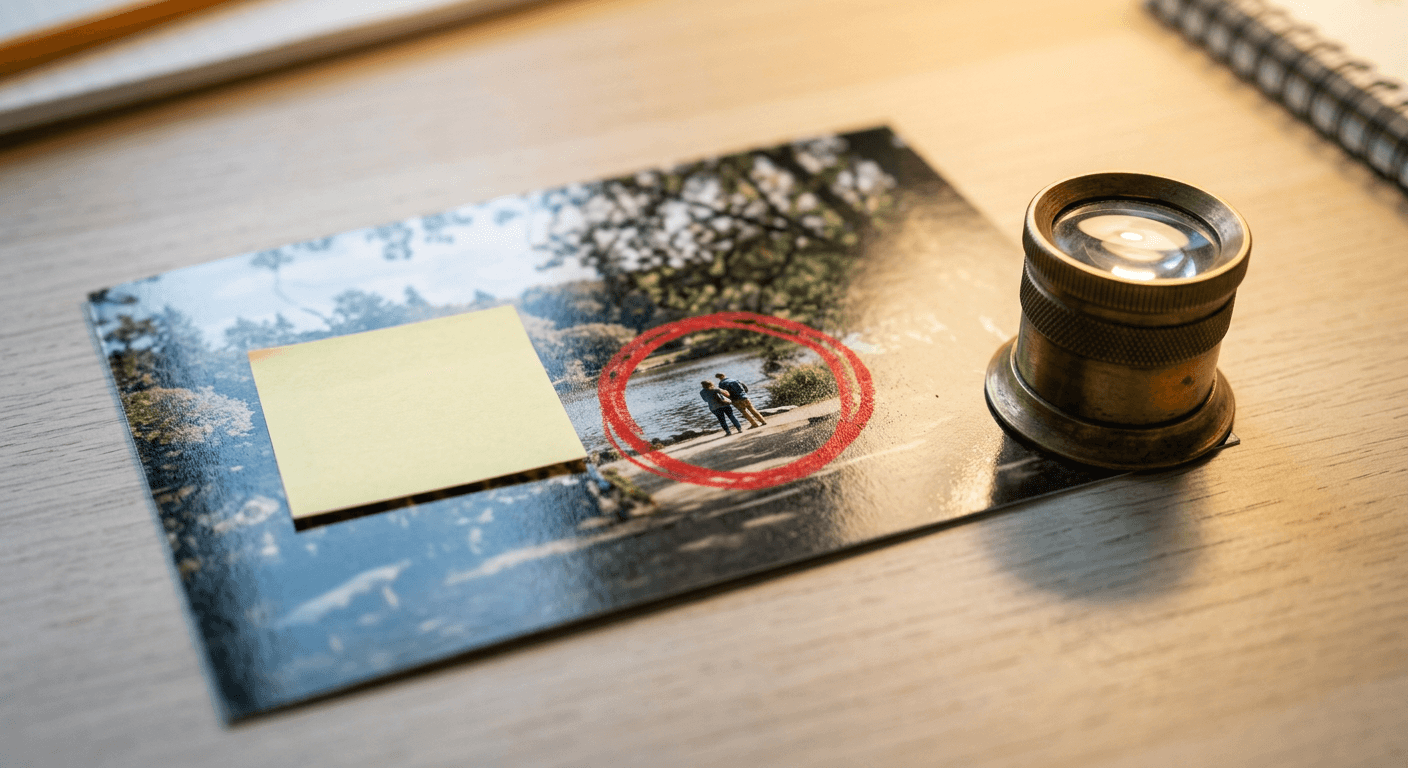
Prompt 11: Change one object's color in a circled region
Here is the image I generated earlier. In the circled area only, the ceramic mug on the left side of the table, change its color from white to deep matte forest green, keep its shape, the shadow beneath it, the table, and every other object in the frame exactly the same.
Prompt 12: Recolor clothing in a circled region
Here is the image I generated earlier. In the circled area only, the jacket the subject is wearing, change the color from black to rust orange, keep the fabric texture, the fit, the pose, the lighting, and the rest of the scene exactly as it is.
Prompt 13: Remove clutter from a circled region
Here is the image I generated earlier. In the circled area only, the cluttered stack of papers on the right side of the desk, remove them completely and fill the space with matching desk surface texture, keep the laptop, the lamp, and the rest of the desk exactly unchanged.
Prompt 14: Relight one corner of a scene
Here is the image I generated earlier. In the circled area only, the shadowed back corner of the room, brighten it with a soft warm light as if a lamp were placed just out of frame there, keep the rest of the room's lighting, the furniture, and the color grade exactly as it is.
Prompt 15: Add texture detail to a circled region
Here is the image I generated earlier. In the circled area only, the plain wall behind the shelf, add a subtle visible plaster texture with faint natural imperfections, keep the shelf, the objects on it, the lighting, and the rest of the wall exactly unchanged.
The habit worth building here is treating a near-perfect result as a starting point instead of a failure. Before this release, a 95 percent correct generation with one wrong object often meant either accepting the flaw or writing an entirely new prompt and hoping the rest of the image survived the regeneration intact. A local, comment-driven fix keeps everything you already got right and only touches the one thing that did not work. It is the same underlying discipline behind masked region editing in Miraflow's AI Image Generator, and our Nano Banana Pro multi-person thumbnail prompts post walks through a similar region-by-region approach for a more complex multi-subject image.
4. Reference-Fidelity Prompts
This group tests the model's stronger reference-image fidelity directly, its improved ability to keep the actual subject in an uploaded reference photo intact across an edit rather than letting it quietly drift. Every prompt assumes you have uploaded one or more reference photos and are describing what should stay identical versus what should change.
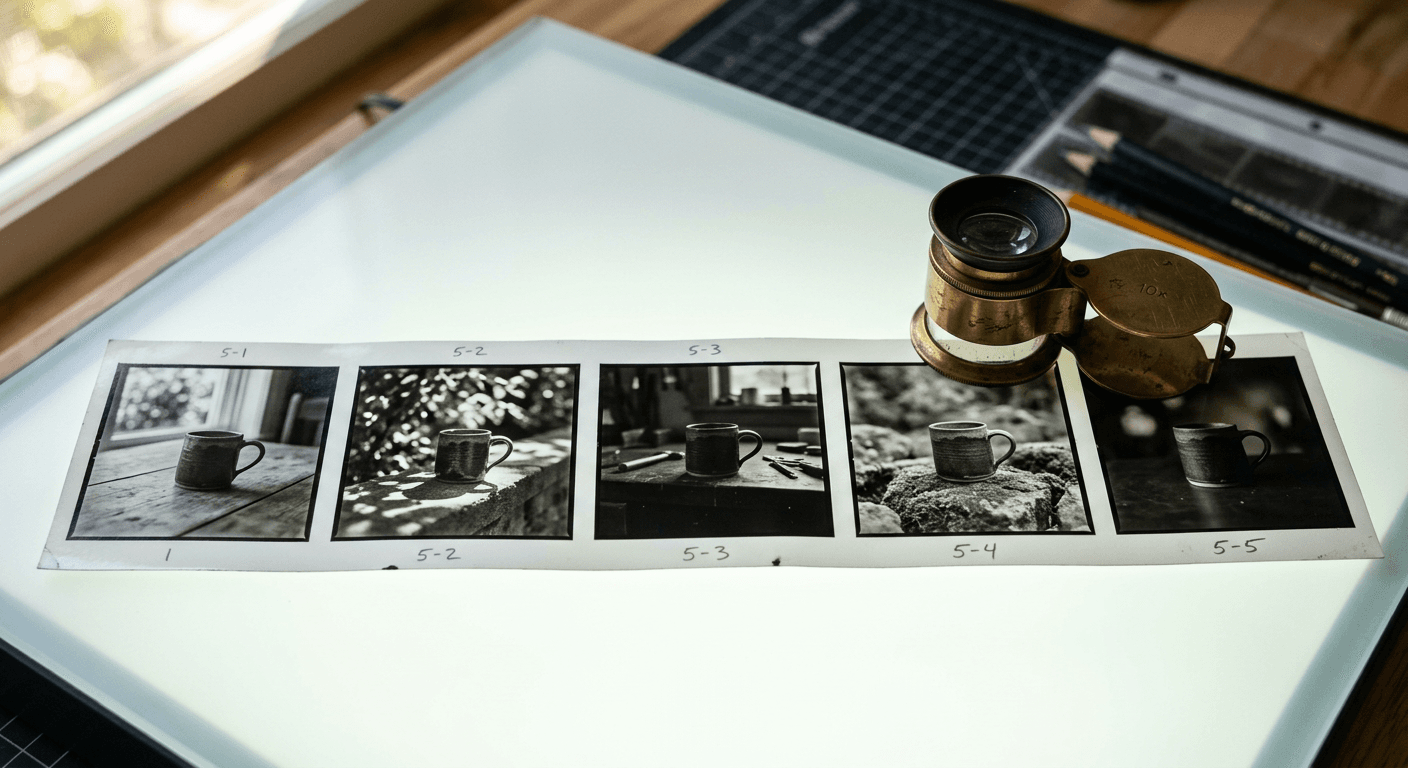
Prompt 16: Same product from a new angle
Using the provided product photo as the reference, generate the same ceramic pour-over dripper shown from a three-quarter angle instead of straight-on, keep its exact glaze color, shape, and surface texture identical to the reference photo, place it on the same oak counter with the same soft morning window light from the left.
Prompt 17: Same figurine in a new setting
Using the provided photo of the hand-painted wooden figurine as the reference, generate the same figurine placed in a different setting, resting on a mossy tree stump in a softly lit forest scene, keep its paint colors, proportions, and carved facial details identical to the reference, adjust only the lighting to match dappled forest sunlight.
Prompt 18: Same person, new outfit
Using the provided portrait as the reference, keep the person's facial features, bone structure, skin tone, and expression exactly identical to the reference photo, change only the outfit to a tailored charcoal blazer over a white shirt, keep the studio backdrop, pose, and lighting the same as the reference.
Prompt 19: Same brand palette across a product set
Using the provided product photo and the provided brand color palette photo as references, generate three variations of the same product packaging design that all use the exact palette colors shown, keep the product's shape and proportions identical across all three, vary only the label layout between each.
Prompt 20: Same pet, new environment
Using the provided photo of the golden retriever as the reference, keep its exact fur color, markings, and face identical to the reference photo, generate it sitting in a sunlit autumn park with fallen leaves scattered around it instead of its original indoor setting, natural outdoor daylight.
Fidelity prompts work best when you separate the "keep identical" instruction from the "change this" instruction as clearly as possible, rather than folding both into one dense sentence. Every prompt above does this on purpose, naming exactly what should stay locked before describing what should move. If you want to build an entire consistent thumbnail set around one recognizable subject rather than a single image, our proof-of-human AI thumbnail prompts post covers a closely related problem, keeping a real subject looking convincingly real and consistent across a whole batch of generations.
How to Customize These Prompts for Your Own Work
Treat every prompt above as a starting structure, not a fixed script. A few adjustments consistently produce better results than typing a brand new prompt from scratch.
Be specific about what should not change, not just what should. This matters most in the Comments and Reference-Fidelity groups, but it helps everywhere. A prompt that only describes the new element gives the model more room to also drift on details you actually wanted preserved. Naming the exact thing that must stay locked, a mug's shape, a face's bone structure, a product's proportions, does real work.
Match your sketch's level of detail to what actually matters. For layout-driven prompts, a sketch only needs to communicate placement and rough proportion. Spending extra time adding shading or fine detail to the sketch itself rarely improves the result, since the sketch's job is defining where things go, not what they look like. Save the detail for the text prompt.
Describe each reference photo's role explicitly when using more than one. If a prompt draws on a product photo and a separate brand palette photo, say which photo controls which part of the result, rather than assuming the model will guess correctly from upload order. This same discipline carries over from other image models with multi-reference inputs, and our Grok Imagine multi-reference prompts cover the same principle in more depth if you want a second worked example.
Chain local edits instead of restarting. Once a base image is close, keep using Comments-style local edits to refine it rather than regenerating from the full prompt again. Each successful local edit is a version of the image you already like, and restarting from the text prompt throws that progress away.
Reuse a working template's structure across a whole batch. If a template prompt gets you a poster layout you like, keep the same structural language and only swap the specific subject and color details for the next asset in the same campaign, rather than rewriting the format description every time.
Split a complex scene into a base generation plus follow-up local edits. A single prompt trying to nail a detailed multi-object scene in one pass is fighting the same odds it always has, even with a sharper model behind it. Get the overall composition and lighting right first with a simpler prompt, then use Comments-style local edits to add or correct the smaller details one at a time. Each step stays easy to verify, and a mistake in one region never forces you to throw away the parts that already worked.
Common Mistakes Creators Make With These New Tools
Describing a change instead of pointing at it. The entire point of Comments is targeting a specific region without re-describing the whole scene around it. A prompt that tries to describe both the region and its surrounding context defeats the purpose and risks the same drift a full regeneration would have caused.
Skipping the sketch's labels. A rough drawing with no indication of what each shape represents forces the model to guess intent from shape alone. A quick word or two next to each element, even something as simple as "sofa" or "headline," removes ambiguity a pencil outline alone cannot.
Treating a template as a finished asset. Templates are a starting structure, not a substitute for describing your actual subject. A prompt that only says "use the poster template" without naming what should fill it in will produce a generic result that still needs real prompt detail layered on top.
Assuming reference fidelity means zero variation is possible. Reference-fidelity prompts work best with a clear split between what must stay locked and what is allowed to change. A prompt that says "keep everything the same" while also asking for a different setting, pose, and lighting all at once gives the model conflicting instructions to reconcile.
Uploading a low-quality or oddly cropped reference photo. Reference-image fidelity can only preserve detail that is actually visible in the source. A blurry, heavily shadowed, or tightly cropped reference photo gives the model less real information to lock onto, and it will fill in the gaps with something generic rather than accurate.
Rewriting the whole prompt after one bad result. A single miss, especially in a multi-turn edit chain, is often one wrong word or an ambiguous instruction rather than a fundamentally wrong prompt. Adjusting the specific clause that likely caused the issue tends to get you there faster than starting over.
Not proofreading text inside the final image. Faster generation and sharper detail do not remove the need to check small in-image text, a price on a menu template, a name on a badge, a line on packaging, before you ship it anywhere public. A rendering model can still drop or misplace a character occasionally, and it is a much cheaper mistake to catch before publishing than after.
Where to Actually Generate and Finish These
Once you have a prompt structure that works, the AI Image Generator in Miraflow AI supports text-to-image generation, image-to-image editing, and masked region edits in the same workspace, so you can iterate on a sketch-driven composition or a reference-fidelity edit without switching between separate tools. If the finished asset needs on-brand headline text, the YouTube Thumbnail Maker can take a generated background from the template prompts above and add clean, legible text and branding on top. And if a still image from any of these prompts ends up being the hero shot for a short promotional clip, Miraflow's Cinematic AI Video Generator can turn that same still into a moving scene without starting the visual concept over from nothing. You can browse more prompt packs and model breakdowns like this one on the Miraflow AI blog, and every tool named here lives at miraflow.ai.
Frequently Asked Questions
Do I need a ChatGPT subscription to use these prompts?
The prompt structures themselves describe a technique, not a specific app. ChatGPT Images 2.5 is rolling out across every ChatGPT tier, so most users already have access to it, but you can also adapt the same layout, local-edit, and reference-fidelity wording inside the AI Image Generator in Miraflow AI if you would rather work in a browser-based tool built around the same kind of structured, multi-step prompting.
What is the actual difference between Comments and Sketch?
They solve opposite problems. Sketch happens before generation, it gives the model a layout reference for a new image. Comments happen after generation, they let you point at a region of an existing image and describe a fix to just that area. Sketch is about composition, Comments is about correction.
Does reference-image fidelity mean the output will be identical to my upload?
No, and it should not be. Fidelity here means the specific subject you uploaded, its proportions, color, and defining features, stays recognizably intact while the setting, angle, or context around it changes. If you want a completely unchanged image, you do not need to generate anything at all.
Are GPT-Image-2.5 Flare and Sunburst available to regular ChatGPT users, or only developers?
Flare and Sunburst are the two API models available to developers building their own products on top of OpenAI's image generation. The consumer product inside ChatGPT itself, which is what these 20 prompts are written for, is simply called ChatGPT Images 2.5 and does not require choosing between the two.
How is this different from Grok Imagine's region editing or Nano Banana Pro's editing tools?
Every major image model has been converging on the same idea recently, giving creators more precise, localized control instead of forcing a full regeneration for a small fix. The specific implementation differs by model. Our Grok Imagine Image 2.0 prompt pack covers a similar region-editing feature from a different lab, and our Nano Banana Pro vs Seedream 5.0 Pro comparison looks at how two other current models compare on complex, reasoning-heavy edits.
Can I use a sketch that was not drawn by me, like a rough wireframe from a client?
Yes. The Sketch tool only reads spatial layout and rough shape from the drawing, not who drew it, so a client wireframe, a rough export from a design tool, or your own pencil sketch all work the same way as a layout reference.
Will Comments-style local edits work well on a very small region, like a single small object?
Generally yes, and more reliable multi-turn instruction-following is specifically one of the improvements in this release that makes small, precise edits hold up better than they used to. It still helps to describe the target region clearly rather than assuming a small circle alone communicates enough context.
What happens if I only describe what should change and forget to say what should stay the same?
The model will do its best to infer intent, but leaving preservation implicit gives it more room to also adjust details you actually wanted kept. This is the single most common reason a Comments edit or a reference-fidelity prompt comes back with more changed than expected, so it is worth building the habit of stating both halves of the instruction every time.
Conclusion
ChatGPT Images 2.5 is less about one headline feature and more about a set of workflow tools that used to require a separate editor now living inside the same chat where you generate the image in the first place. Sketch removes the ambiguity of describing layout in words alone, Templates give common commercial formats a real head start, Comments bring targeted local editing directly into the conversation, and stronger reference-image fidelity means an uploaded photo actually survives an edit instead of quietly drifting into something else. The 20 prompts above are built to exercise every one of those changes rather than just showing off the model in the abstract.
Pick the section that matches what you are actually building this week, run a prompt exactly as written first so you can see the baseline behavior, then start adjusting the specific clauses that matter most for your own subject. You can generate every prompt in this pack directly inside Miraflow's AI Image Generator, and once you have a result worth keeping, the rest of Miraflow's toolset is right there to help you turn it into a finished thumbnail, a branded asset, or a full video scene.