20 Grok Imagine Image 2.0 Prompts to Try Its New Editing Tools (2026)

Written by
Aerin Kim
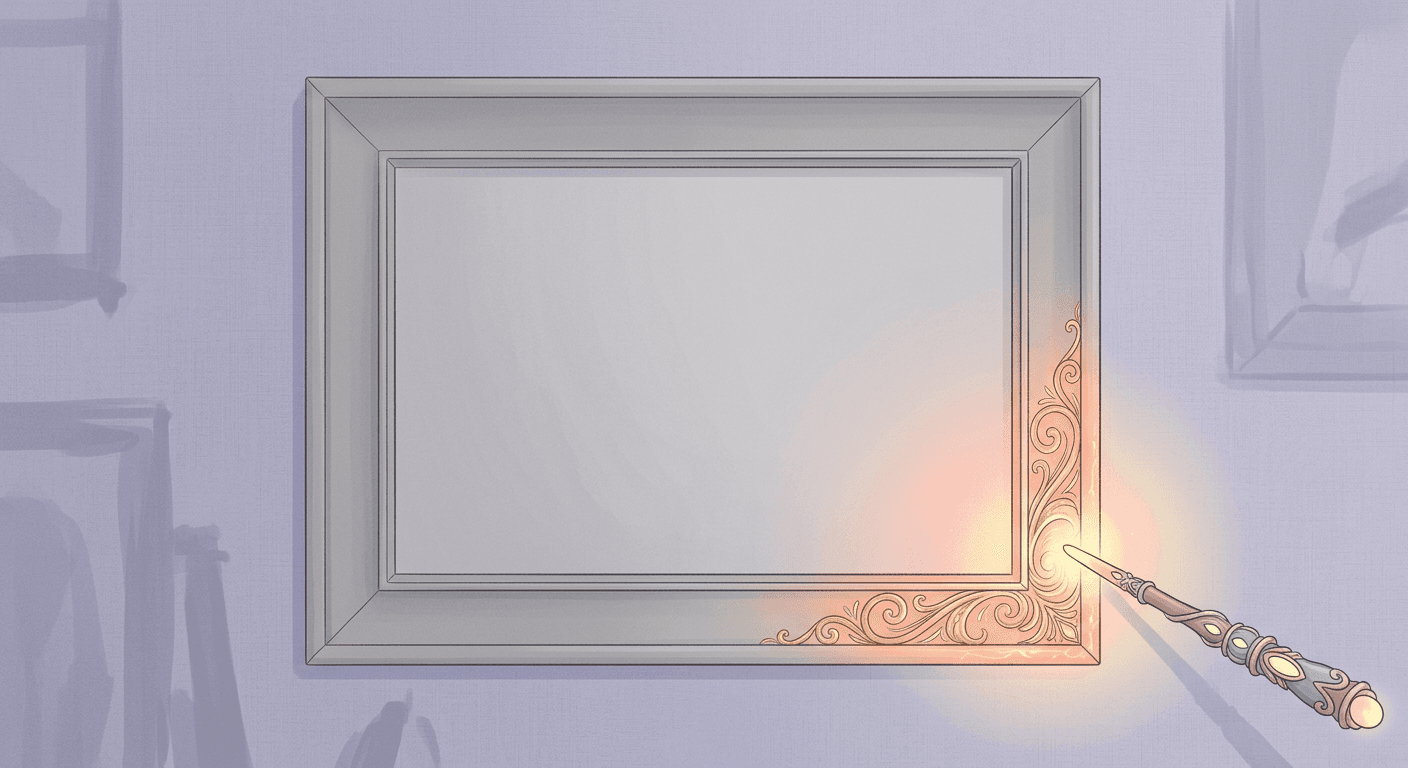
xAI shipped Grok Imagine Image 2.0 on August 7 with region editing, multi-reference compositing and sharper text rendering. Here are 20 prompts built specifically for its new tools.
On August 7, xAI shipped Grok Imagine Image 2.0 as the new Quality Mode inside Grok's Imagine tool, and it did not launch quietly. xAI reports the model now ranks second in the world in both text-to-image generation and image editing on the major public arenas, behind only OpenAI's gpt-image-2 [1]. The bigger story for creators is not the ranking, it is the specific new toolset that shipped alongside it: a magic wand for region-level editing, segmentation for precise selections, one-click background removal with transparency, and multi-image reference inputs that accept up to five source images in a single generation.
This post is 20 prompts built specifically to exercise those new tools, grouped by the workflow they actually solve, so you are not just generating another static image but actually testing what changed. You can run all of these directly inside the AI image generator in Miraflow AI, which supports the kind of detailed, structured prompting these techniques need.
What Actually Shipped in Image 2.0
Before the prompts, it helps to know exactly what changed, since several of these tools solve problems that used to require a separate photo editor entirely. The magic wand tool changes only the specific region a user points at, instead of regenerating the whole image and hoping the rest stays consistent. Segmentation selects precise areas for targeted edits, and background removal exports any subject with a clean transparent background in one step [1]. Multi-reference editing accepts up to five input images in a single generation, which removes the manual compositing step that used to mean stitching multiple sources together by hand in a separate app.
| Model | Text-to-image arena rank (Aug 7, 2026) | Image editing arena rank |
|---|---|---|
| GPT Image 2 (OpenAI) | 1st | 1st |
| Grok Imagine Image 2.0 (xAI) | 2nd | 2nd |
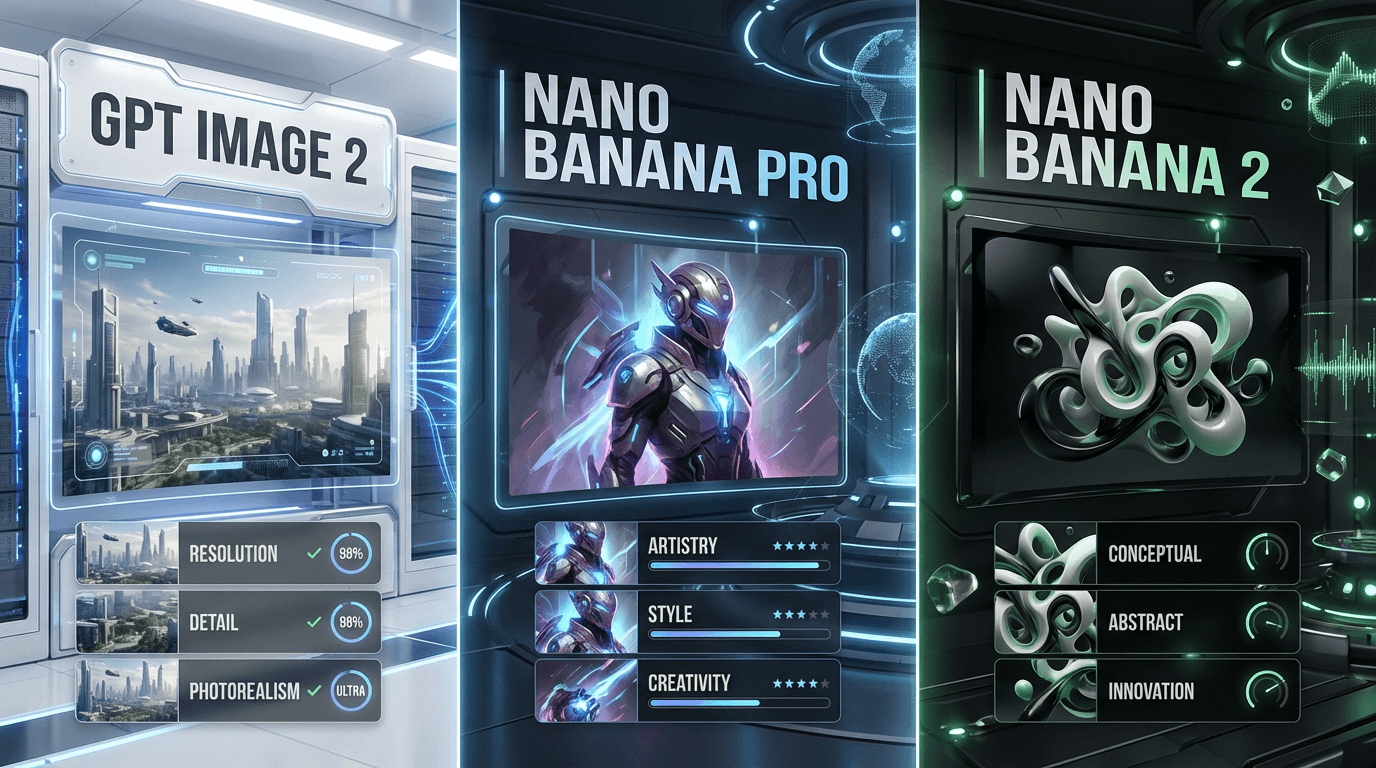
If you want a broader look at how the current generation of image models stacks up beyond just these two, our full comparison of GPT Image 2, Nano Banana Pro and Nano Banana 2 breaks down the rest of the field.
1) Region Editing Prompts (The Magic Wand)
Region editing is the single biggest workflow change in this release. Instead of regenerating an entire scene to change one detail, you can now target exactly the area that needs to change and leave everything else untouched.
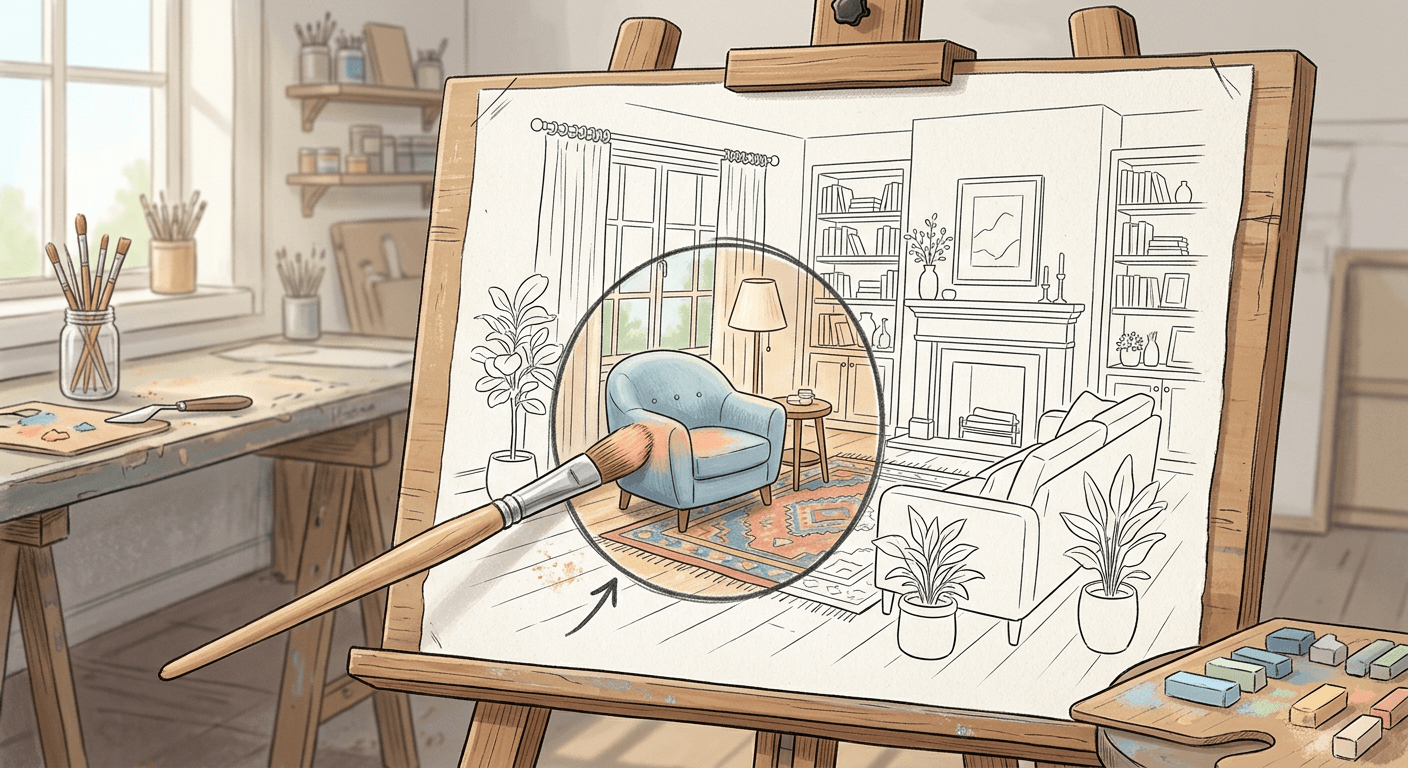
Prompt 1: Change one object's color
product photo of a living room with a gray sofa, a wooden coffee table and a large window, use region editing to change only the sofa color to deep terracotta, keep the walls, table, lighting and rest of the room exactly the same, photorealistic interior photography style.
Prompt 2: Remove one object cleanly
photo of a clean kitchen counter with a coffee maker, a fruit bowl and a cutting board, use region editing to remove only the cutting board from the counter and fill the space naturally with matching countertop texture, keep everything else in the frame unchanged, photorealistic style.
Prompt 3: Swap clothing on a portrait
portrait of a person standing in a studio wearing a plain gray hoodie, use region editing to change only the hoodie to a navy blue denim jacket, keep the pose, face, background and lighting identical, photorealistic fashion photography style.
This is the same core idea behind Nano Banana image inpainting on Miraflow AI, masking and fixing one specific region instead of starting the whole image over, now available as a built-in tool inside Grok Imagine's own interface.
2) Segmentation and Background Removal Prompts
Segmentation and background removal solve a different problem than region editing. Instead of changing what is in the image, these tools isolate a subject cleanly so it can be dropped into a different context or exported for a mockup.
Prompt 4: Replace only the background
product photo of a pair of headphones on a plain white backdrop, use segmentation to select only the background and replace it with a softly blurred outdoor park scene, keep the headphones, their shadow and lighting exactly as they are, commercial product photography style.
Prompt 5: Transparent product export
photo of a potted succulent plant on a wooden table, remove the background completely and export with a transparent background, keep the plant, pot and natural shadow beneath it fully intact and sharply detailed, product catalog photography style.
Prompt 6: Transparent asset for a mockup
photo of a plain ceramic mug photographed at a three-quarter angle, remove the background and export with transparency so the mug can be placed onto a logo mockup template, keep the mug's highlights and reflections realistic, studio lighting, commercial photography style.
3) Multi-Reference Compositing Prompts
This is the tool most likely to change how you actually work, since it removes an entire manual step. Instead of generating one image, then editing in a second source, then compositing in a third app, you feed up to five reference images directly into a single generation.
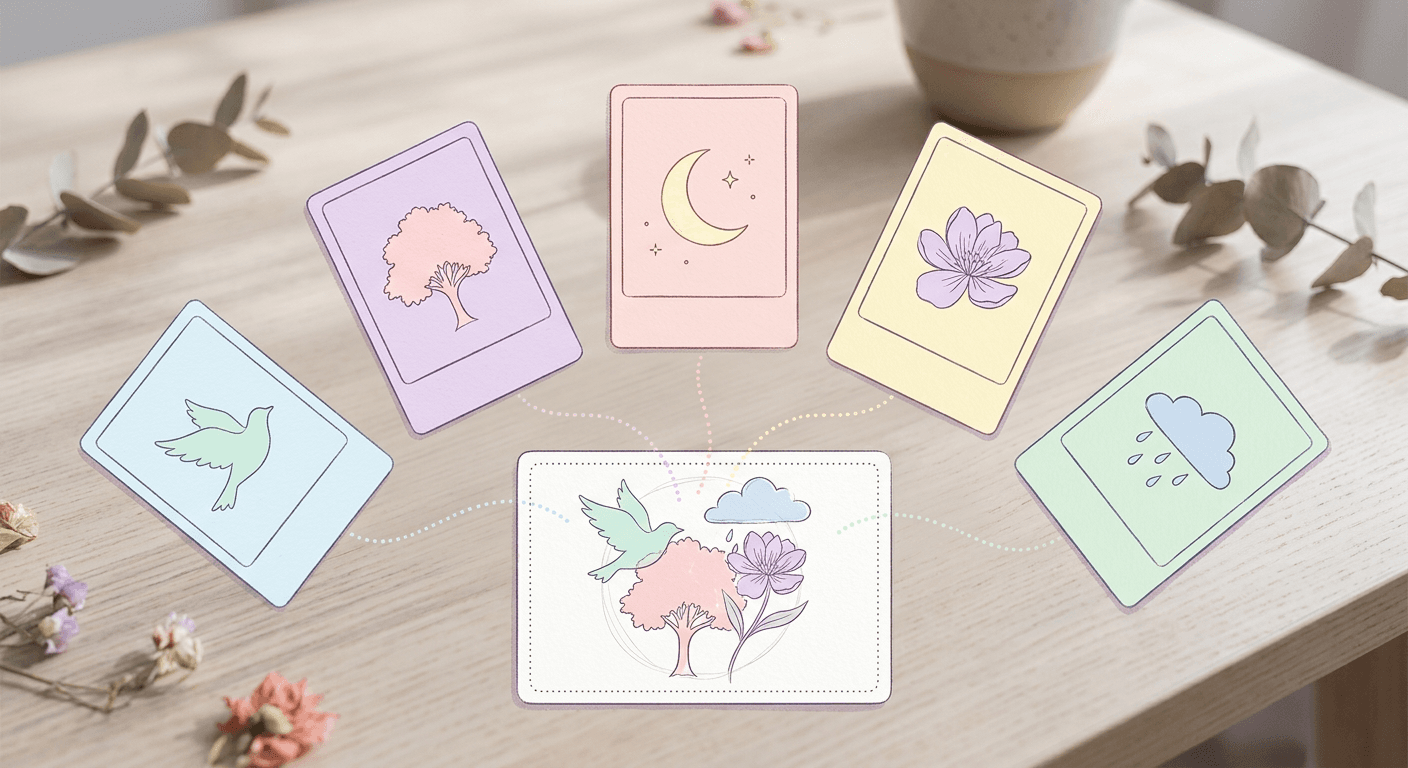
Prompt 7: Product plus scene plus lighting
using the provided product photo, the provided room photo and the provided lighting reference photo as inputs, generate a single composite image placing the product naturally on the table in the room, matching the lighting direction and color temperature from the lighting reference, photorealistic lifestyle product photography style.
Prompt 8: Person plus scene
using the provided headshot photo and the provided outdoor scene photo as inputs, generate a single composite image placing the person from the headshot naturally into the outdoor scene, matching the scene's lighting, shadow direction and color grade, photorealistic style.
Prompt 9: Brand consistency across assets
using the provided logo image, the provided brand color palette image and the provided product photo as inputs, generate a single composite image applying the brand colors to the product packaging shown in the product photo while keeping the logo placement clean and legible, commercial packaging photography style.
Prompt 10: Outfit combination from separate references
using the provided jacket photo, the provided shoes photo and the provided model pose photo as inputs, generate a single composite image dressing the model in the jacket and shoes shown, matching the lighting and angle of the pose photo, photorealistic fashion photography style.
For more on structuring prompts with multiple explicit inputs like this, our Nano Banana JSON prompting guide covers the same discipline of describing each element precisely rather than blending everything into one vague sentence.
4) Typography and Text-Heavy Design Prompts
xAI specifically called out sharper text rendering as part of this release, which opens up prompts that would have looked garbled or misspelled on most earlier image models.
Prompt 11: Headline poster
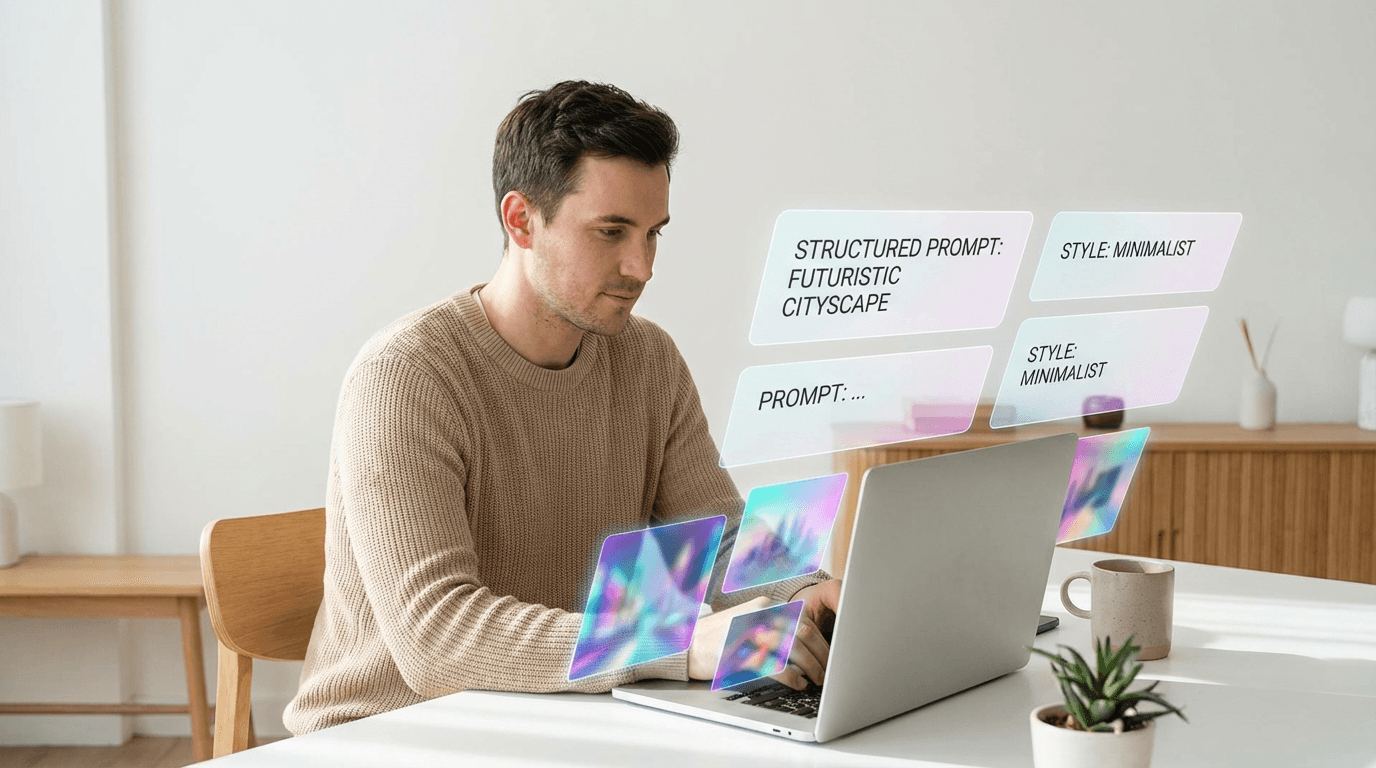
bold minimalist poster design with large clean sans-serif headline text at the top reading NEW ARRIVALS, a simple product silhouette centered below it, soft gradient background, sharp crisp letter edges with no distortion, commercial poster design style.
Prompt 12: Curved badge text
circular badge design with curved text around the outer edge reading LIMITED EDITION, a small icon centered inside the badge, clean vector-style linework, crisp evenly spaced lettering that follows the curve precisely, flat commercial badge design style.
Prompt 13: Menu card with aligned pricing
restaurant menu card layout with a clear header reading TODAY'S SPECIALS, three short item lines beneath it with prices aligned to the right, elegant serif font, crisp legible text with consistent spacing, clean editorial menu design style.
Even with better native text rendering, a dedicated tool built specifically for one job still tends to give more control over layout and branding. The YouTube Thumbnail Maker in Miraflow AI is purpose-built for adding clean, on-brand text to a generated image once you have the base visual you want.
5) Pre-Configured Template Prompts
Grok Imagine Image 2.0 ships with templates tuned for a handful of common commercial use cases: product shots, headshots, e-commerce and marketing materials.
Prompt 14: Studio product shot
using the pre-configured product shot template, generate a clean studio product photo of a skincare bottle centered on a soft gradient backdrop, even front lighting, subtle reflection beneath the bottle, commercial e-commerce photography style.
Prompt 15: Professional headshot
using the pre-configured headshot template, generate a professional corporate headshot with soft even studio lighting, plain neutral gray backdrop, shoulders-up framing, photorealistic professional headshot style.
Prompt 16: E-commerce flat lay
using the pre-configured e-commerce template, generate a top-down flat lay of a skincare routine set including a bottle, a jar and a small box, arranged neatly on a light marble surface, soft even natural light, clean commercial flat lay photography style.
Prompt 17: Marketing banner
using the pre-configured marketing template, generate a wide horizontal banner image with a product centered on the right side and clean empty space on the left reserved for headline text, soft colorful gradient background, commercial banner design style.
6) Smart-Resize Prompts Across Aspect Ratios
Smart-resize works across nine aspect ratios, which matters if the same visual needs to work as a square post, a vertical Short and a wide banner without looking stretched or awkwardly cropped in any of them.
Prompt 18: Square to vertical Short
take this square product photo and smart-resize it to a vertical 9:16 frame, extending the background naturally above and below the product without distorting the product itself, keep lighting and shadow consistent across the extended area, commercial photography style.
Prompt 19: Portrait to wide banner
take this portrait photo and smart-resize it to a wide 16:9 banner, extending the background naturally on both sides while keeping the subject centered and undistorted, keep lighting consistent across the extended area, commercial photography style.
Prompt 20: Landscape to square thumbnail
take this landscape photo and smart-resize it to a square 1:1 frame for a social thumbnail, cropping and extending the background as needed to keep the main subject fully visible and centered, commercial photography style.
If you are repurposing the same visual across YouTube Shorts, Instagram and a long-form thumbnail, Text2Shorts in Miraflow AI handles the vertical short-form version of this pipeline directly, generating a script, scene visuals and voiceover from a single topic.
How to Customize These Prompts for Your Own Edits
Name the region you want changed as specifically as possible, since a vague instruction like "fix the background" gives the magic wand tool less to work with than "replace only the background behind the subject." For multi-reference prompts, describe each source image's role explicitly, which reference sets the product, which sets the scene, which sets the lighting, rather than assuming the model will infer the intent from the order the images were uploaded. For a deeper library of prompt structuring habits that carry over from other image models, see the ultimate Nano Banana prompt guide and 50 Nano Banana prompts that look like real photos.
Common Mistakes Creators Make With Region Editing and Multi-Reference Tools
- Asking for a full re-generation when a region edit would have preserved everything else in the frame, which introduces small unwanted changes elsewhere in the image.
- Uploading reference images without describing what role each one plays, which forces the model to guess instead of composite deliberately.
- Forgetting to specify the target aspect ratio before generating, then discovering the smart-resize result needed more room to extend the background than expected.
- Treating background removal as a one-step fix for a poorly lit subject. A clean transparent export still needs a well-lit, well-separated original subject to look convincing.
- Skipping a final proofread on text-heavy generations. Rendering has improved significantly, but a quick check for a dropped or misaligned character before publishing still matters.
Where to Actually Generate and Finish These
Once you have a direction that works, the AI image generator in Miraflow AI supports text-to-image, image-to-image, editing and inpainting in the same workspace, so you can iterate on a region edit or a multi-reference composite without switching tools. If the final asset is a YouTube thumbnail, the YouTube Thumbnail Maker can take that generated image and add clean, tested text and branding on top. You can browse more prompt guides like this on the Miraflow AI blog, and every tool named here lives at miraflow.ai.
That demo shows a fast image generation and editing loop in practice, useful context for what a region edit or multi-reference composite should feel like when it goes well.
Frequently Asked Questions
Do I need the Grok app to use these prompts? These prompt structures describe the technique, not a specific app. You can adapt the same region-editing and multi-reference wording to generate comparable results inside the AI image generator in Miraflow AI.
What is the difference between region editing and background removal? Region editing changes a specific area of an image while leaving the rest untouched. Background removal isolates the entire subject from its background and exports it with transparency, which is a different job entirely.
How many reference images can multi-reference editing use? Up to five images in a single generation, according to xAI's own release details.
Is Grok Imagine Image 2.0 better than Nano Banana Pro? They rank closely on public arenas but excel at different things. Multi-reference compositing and region editing are Image 2.0's standout new tools, while Nano Banana Pro is known for complex composition and reasoning-heavy edits, which our Nano Banana Pro vs Seedream 5.0 Pro comparison covers in more depth.
Do these prompts work for e-commerce product photos specifically? Yes. Several prompts in this pack, especially the template and multi-reference sections, are built directly around product photography, mockups and catalog-style shots.
What is the fastest way to try region editing myself? Start with a simple, single-object change like Prompt 1 above, a color swap on one item, before attempting a more complex multi-reference composite, so you can see exactly how targeted the edit is before combining techniques.
Conclusion
Grok Imagine Image 2.0 is less about a single headline feature and more about a set of editing tools that used to require separate software now living inside one generation step. Region editing, segmentation, background removal and five-image multi-reference compositing each solve a real, specific workflow problem, and the 20 prompts above are built to exercise every one of them rather than just showing off the model in the abstract. Pick the section that matches what you are actually building this week, test it against your own reference images, and adapt the wording from there.