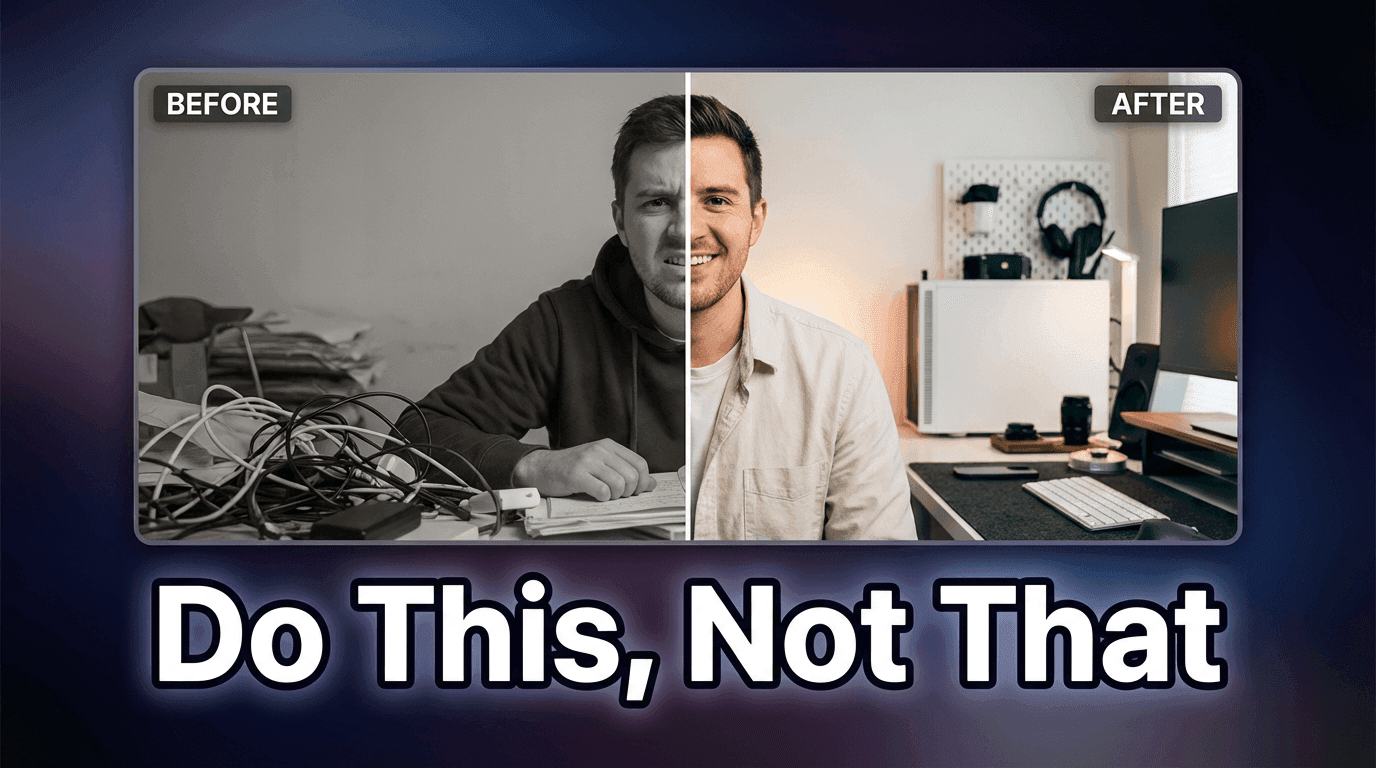
How to Generate Blog Thumbnails with AI for Free

Written by
Jay Kim

Learn how to generate blog thumbnails with AI for free using Miraflow’s YouTube Thumbnail Maker. This guide shows you how to write prompts, choose the right settings, and create clean, click-worthy featured images in minutes.
Every blog post needs a thumbnail.
It’s the image that shows up:
- On your blog listing page
- In “related posts” sections
- In social previews (X, LinkedIn, Facebook, etc.)
- Inside chat apps when someone drops your link
A clean, on-topic thumbnail can boost clicks even if your headline stays exactly the same. The problem is that most people don’t want to open Figma or Photoshop every time they publish.
The good news is you don’t have to.
With Miraflow’s YouTube Thumbnail Maker, you can generate blog thumbnails with AI for free, directly in your browser, no design skills, no complex tools needed.
Even though it’s called YouTube Thumbnail Maker, it’s also perfect for:
- Blog featured images
- Article hero thumbnails
- Social preview images for your posts
This guide shows you:
- Why thumbnails matter for CTR
- How to use YouTube Thumbnail Maker to create blog thumbnails for free
- Copy-paste AI prompts you can reuse
- Best practices to keep your thumbnails clean and on-brand
Why Your Blog Thumbnails Matter
Thumbnails aren’t just decoration.
A good blog thumbnail:
- Improves click-through rate in lists, category pages, and related-post sections
- Makes your brand instantly recognizable across articles
- Helps your content look more professional when shared on social
- Gives readers a quick visual hint about the topic
A bad or messy thumbnail:
- Looks noisy when shrunk to mobile size
- Competes with the page instead of supporting it
- Makes your article feel generic, even if the writing is great
You don’t need complex artwork. Most of the time, a simple, clean concept is enough:
- “Analytics + arrow” for a growth article
- “Laptop + UI cards” for a product or UX post
- “Phone + vertical videos” for Shorts/vertical video content
AI is perfect for this type of visual: conceptual, minimal, and fast to produce.
Why Use “YouTube Thumbnail Maker” for Blog Thumbnails?
You’ll find the tool here:
Miraflow AI → YouTube Thumbnail Maker
It’s named for YouTube, but under the hood it’s just a powerful AI thumbnail generator that:
- Lets you create 16:9 and 9:16 thumbnails
- Works great for:
- Blog headers
- Social previews
- YouTube videos and Shorts
For blog thumbnails, you’ll mainly use:
- Text to Thumbnail – AI generates everything from your prompt
- Aspect ratio 16:9
- Short, bold Thumbnail Text (optional) if you want text inside the image
You don’t have to treat this as YouTube only feature. Think of it as your blog thumbnail generator.
Overview: How to Generate Blog Thumbnails for Free
Here’s the basic flow using YouTube Thumbnail Maker:
- Open YouTube Thumbnail Maker
- Select Text to Thumbnail (for blog thumbnails)
- Choose 16:9 Video as the aspect ratio (best for most blog layouts)
- Write a Thumbnail Prompt describing your hero image
- (Optional) Add short Thumbnail Text if you want words inside the image
- (Optional) Use Show Advanced Settings to add a negative prompt (e.g. “blurry, messy, dark theme”)
- Click Generate Thumbnail and download your image from My Thumbnails
Let’s walk through each step in more detail.
Step 1: Open the YouTube Thumbnail Maker
Go to:
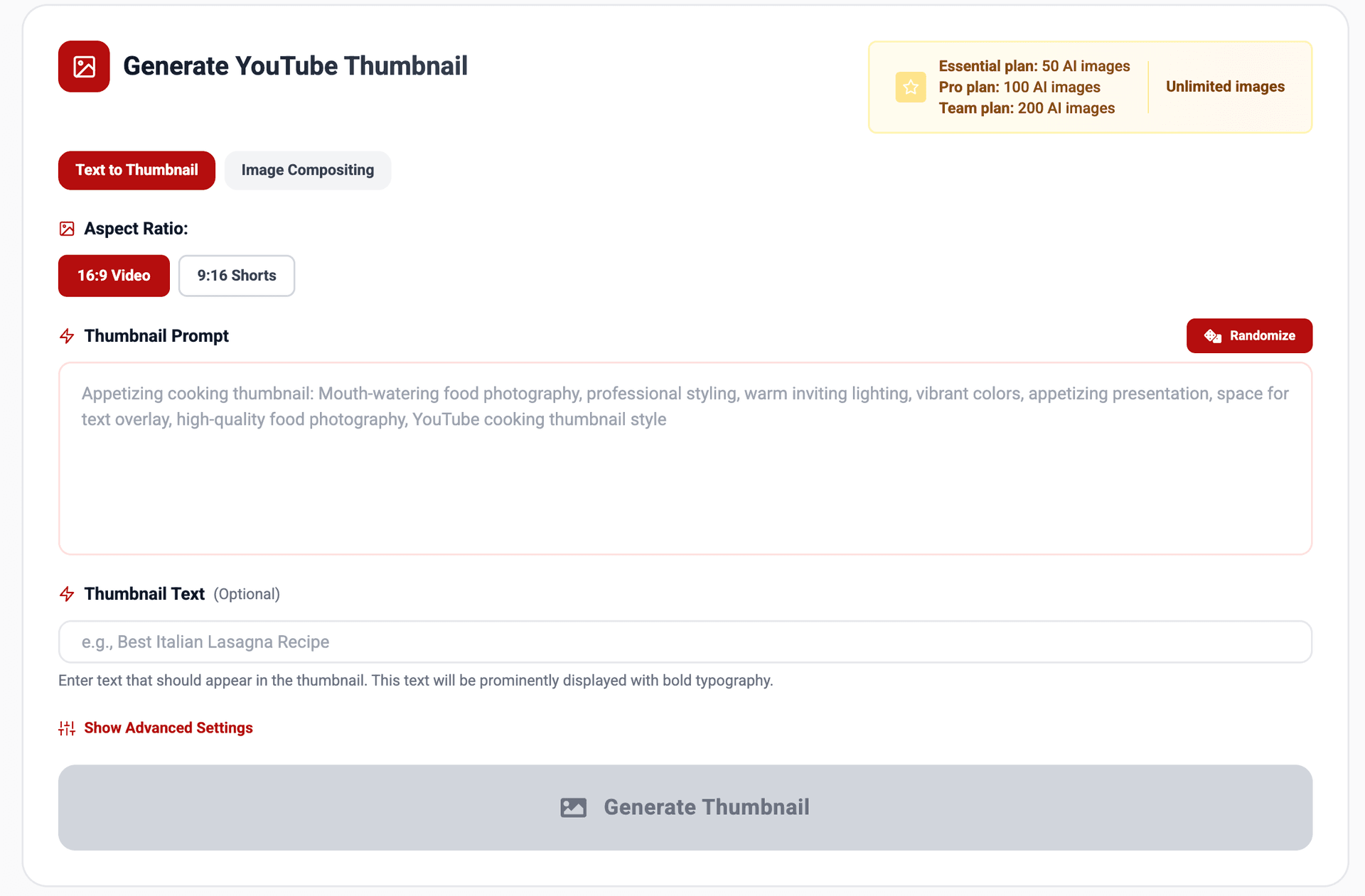
You’ll see two tabs:
- Text to Thumbnail
- Image Compositing
For blog thumbnails, the easiest and most flexible option is:
Text to Thumbnail
This lets the AI design the entire image based on your text prompt, which is ideal for clean, conceptual blog visuals.
You can use Image Compositing later if you want to include your face or product.
Step 2: Choose the Aspect Ratio for Blog Use
Next, pick the Aspect Ratio:
You’ll see:
- 16:9 Video
- 9:16 Shorts
For most blogs, 16:9 is perfect:
- Fits common hero image dimensions
- Looks good in social link previews
- Works well for email and embeds
So, for blog thumbnails:
Select 16:9 Video
Step 3: Write a Clean Thumbnail Prompt for a Blog Post
In the Thumbnail Prompt box, describe what you want the image to look like.
Good blog-style prompts usually include:
- Topic / concept – AI thumbnails, YouTube Shorts trending, analytics & growth, etc.
- Main subject – laptop, phone, chart, UI cards, etc.
- Visual style – flat illustration, modern SaaS, minimal, bright, pastel
- Background – white or light with soft gradients
- Constraints – no text, no logos, minimal and clean
Think of it like a short art direction note for a designer.
Example prompts for blog thumbnails
You can paste these straight into Thumbnail Prompt.
1. Tutorial / How-To Blog
Clean flat illustration for a blog tutorial thumbnail, showing an open laptop on a desk with simple UI cards floating above the screen to suggest a step-by-step guide. White background with soft pastel gradients, modern SaaS-style, rounded shapes, soft shadows, no text or logos, minimal and bright.

2. AI / Tools / Automation Blog
Modern SaaS-style illustration for a blog post about AI tools, with a central app window, sliders and sparkles above it to suggest automation and intelligence. White background, soft blue and purple accents, flat design, soft shadows, no text or logos, clean and minimal.

3. YouTube / Shorts Strategy Blog
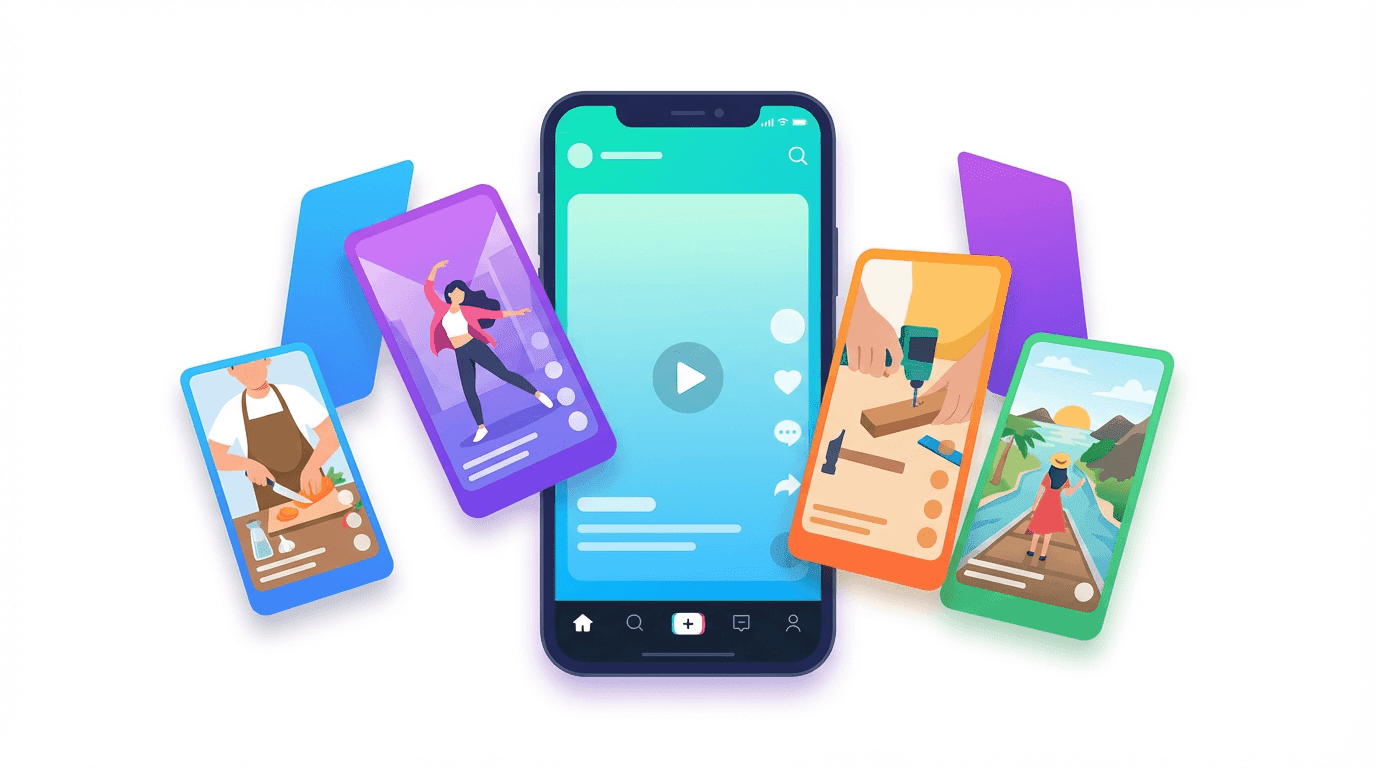
Blog thumbnail illustration about YouTube Shorts and content strategy, showing a vertical smartphone with several floating vertical video cards around it. White background, bright accent colors, modern flat style, soft shadows, no text or logos, simple and eye-catching.
4. Analytics / Growth Blog
Clean analytics-style illustration for a blog post about metrics and growth, with a simple upward trending line graph and a few bar charts on a white card. White background, pastel accent colors, flat dashboard style, soft shadows, no text or logos, minimal composition.

5. Product Update / Feature Launch Blog
Modern product announcement illustration for a blog post about a new feature, showing a software window with one highlighted glowing section to indicate “new”, plus a small sparkle icon. White background, soft gradients, flat UI-style shapes, soft shadows, no text or logos, minimal and bright.

6. This exact post – AI Blog Thumbnails
Flat illustration for a blog post about generating blog thumbnails with AI, showing a computer screen with a grid of rounded image cards representing different thumbnails, and a small magic sparkle above the screen. White background, pastel purple and blue accents, modern SaaS-style, soft shadows, no text or logos.

You can tweak specific parts (colors, objects, mood) but keep the structure: subject + style + background + constraints.
Step 4: Add Thumbnail Text (Optional, but Powerful)
Below the prompt, you’ll see Thumbnail Text.
For YouTube videos, this text usually becomes big, bold words inside the thumbnail.
For blog thumbnails, you have two options:
- Leave it empty – if you want pure visuals with no text
- Add 2–4 strong words – if your blog layout looks better with text in the image
If you decide to use text, keep it very short:
- AI Blog Thumbnails
- Shorts in 2026
- Growth Guide
- Content Strategy
Your full SEO headline lives in HTML; the thumbnail text is just a quick visual hook.
If you don’t want any text in the image, simply leave Thumbnail Text blank.
Step 5: Refine with Advanced Settings (Negative Prompts)
Click Show Advanced Settings.
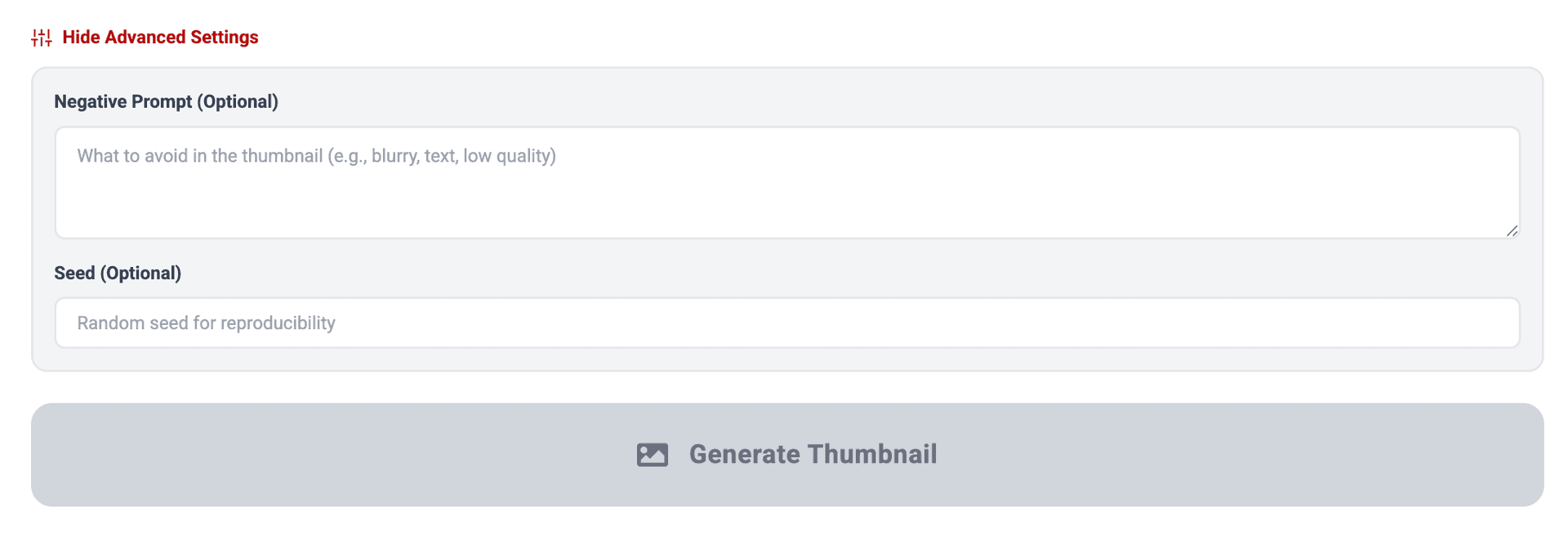
The most useful advanced option for blog thumbnails is the Negative Prompt.
Use this to tell the AI what to avoid:
blurry, low quality, messy background, tiny text, dark theme, horror style, distorted faces, logos, watermarks
This helps when:
- The background feels noisy or cluttered
- The style comes out darker than your brand
- The AI keeps adding unwanted pseudo-text
You can leave any other advanced options as default unless you need more control.
Step 6: Generate and Download from My Thumbnails
Now click Generate Thumbnail.
You’ll see:
- A progress indicator
- Your outputs appear in the My Thumbnails section
From My Thumbnails, you can:
- Preview each generated thumbnail
- Download the ones you like
- Regenerate with slightly different prompts if you want more variations
Because Miraflow lets you do this for free within your usage limits, you can comfortably:
- Try a few different ideas for each post
- Compare them at small sizes (like on mobile)
- Pick the cleanest, most readable option
Using YouTube Thumbnail Maker as a Blog Visual System
Even though it’s called YouTube Thumbnail Maker, you can treat it as your blog visual system:
- Use it for:
- Blog hero images
- Thumbnails in your blog index
- Social preview images for X/LinkedIn posts linking to your blog
- Keep a small library of your favorite prompts in a doc:
- One for tutorials
- One for product updates
- One for analytics/growth
- One for AI/creator tools
Over time, your blog will develop a consistent visual identity, without you opening a traditional design tool.
When to Use Image Compositing for Blog Thumbnails
So far we’ve focused on Text to Thumbnail, which is ideal for conceptual visuals.
If you want to:
- Put your face in the blog thumbnail
- Show a specific product screenshot or hero image in a more stylized way
you can switch to:
Image Compositing tab in the YouTube Thumbnail Maker
Flow:
- Upload an image (your headshot, product, or UI mock)
- Write a Thumbnail Prompt like:
“Use the uploaded person as the main subject on the right, add a clean abstract background with gradients and UI cards on the left, bright lighting, modern SaaS style, no logos, no extra text.”
- (Optional) Add Thumbnail Text
- Generate and download
This is great for:
- Founder/author-centric blogs
- “From the founder” posts
- Case studies where you want a real screenshot + AI background
Connect Blog Thumbnails with Your Other Miraflow Content
You don’t have to stop at blog thumbnails.
With Miraflow, you can:
- Use YouTube Thumbnail Maker for:
- Blog thumbnails
- YouTube video thumbnails
- Shorts thumbnails
- Use Text2Shorts to:
- Turn a blog post topic into a vertical-video script
- Auto-generate shorts that highlight the main idea of your article
- Use Veo3 / Veo3.1 inside Miraflow to:
- Generate cinematic AI clips for video versions of your blog content
This makes each blog post a content hub:
- Article + thumbnail
- Video + thumbnail
- Short + cover frame
All designed with AI, all visually consistent.
Conclusion
Creating blog thumbnails doesn’t have to mean:
- Scrolling through stock photo sites
- Manually designing layouts for every post
- Getting stuck in a design rabbit hole every time you hit publish
With Miraflow’s YouTube Thumbnail Maker, you can:
- Generate blog thumbnails with AI for free
- Use clear prompts to get clean, minimal visuals
- Add optional text that matches the YouTube style—but works perfectly for blogs
- Reuse and refine a handful of prompts that match your brand
Even though the tool says “YouTube Thumbnail”, treat it as your blog thumbnail generator.
Once you have 2–3 prompt styles that you like, generating a new thumbnail becomes a quick, repeatable step—not a blocker between you and publishing your next post.