Instagram's Add to Grid Feature: How to Show Tagged Posts (2026)

Written by
Aerin Kim
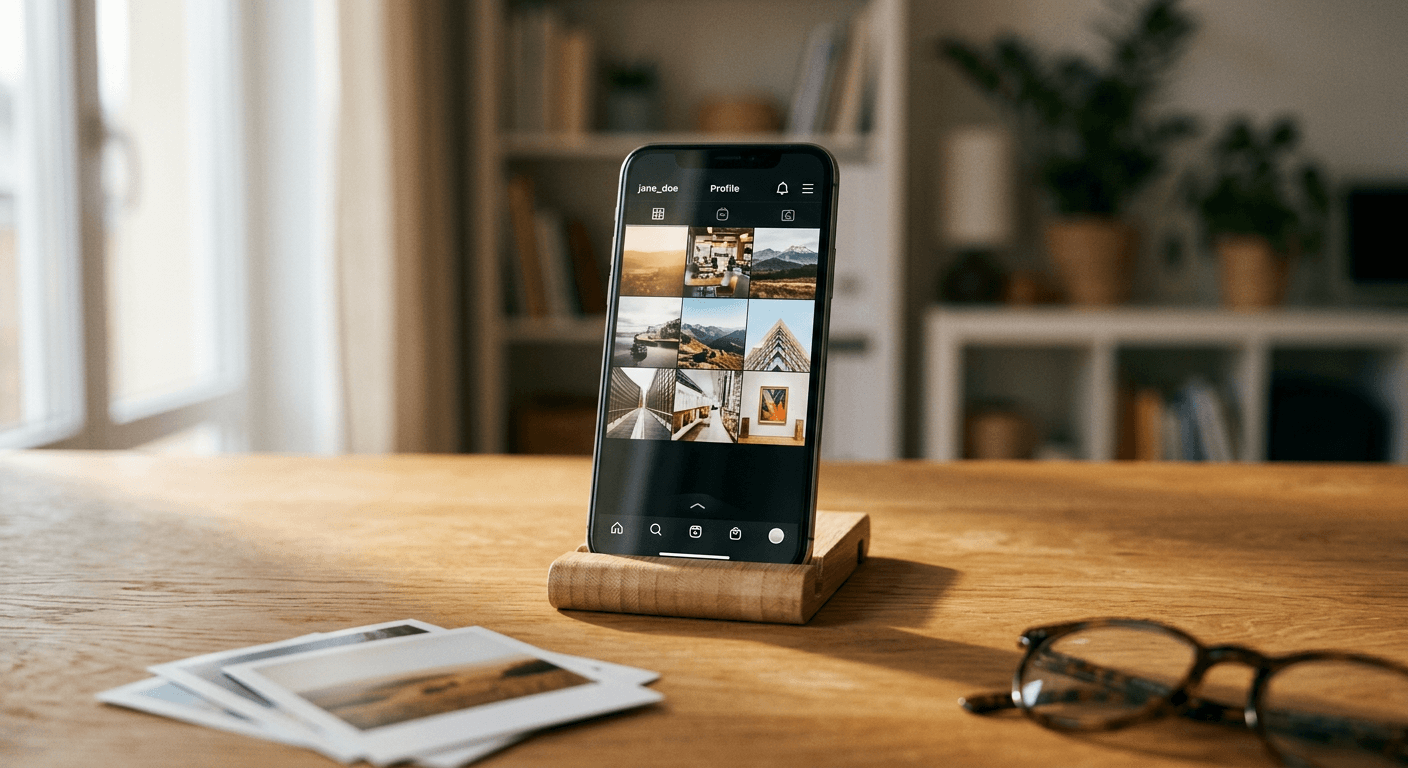
Instagram's new Add to Grid feature lets you display posts you're tagged in on your own profile without reposting. Here's how it works, its privacy quirks, and smart ways to use it.
Instagram's new Add to Grid feature, which began rolling out globally on September 10, 2026, lets you place posts you are tagged in directly onto your own profile grid, without downloading anything, without reposting, and without asking the original poster to do anything on their end. Instagram head Adam Mosseri announced the rollout personally, and the feature has already been covered by TechCrunch and Social Media Today, with the same mechanics confirmed independently by Metricool's feature roundup, TechTimes, and Republic World. If a friend posts a group photo from a trip and tags you in it, that exact photo can now live on your grid too, marked with a small tag icon so anyone browsing your profile knows it was not something you originally posted yourself.
This guide walks through everything worth knowing before you start tapping Add to grid on every tagged post you can find: all three ways to actually do it, the privacy quirks that can make the same tagged post visible to one follower and invisible to another, and how to think about whether a tagged photo is actually good enough to belong on your grid at all. That last question matters more than it sounds, since you have zero control over the lighting, cropping, or background of a photo someone else took, and Miraflow's AI Image Generator is a genuinely useful tool for touching up a tagged photo, or building a matching companion post, before you decide it earns a permanent spot on your profile.
What Add to Grid Actually Does, and Why Instagram Built It
For as long as Instagram has existed, your profile grid has only ever shown what you personally posted. Every photo a friend, a collaborator, or an event photographer took of you and tagged you in went into a separate, easy-to-forget corner of the app called your Tagged tab, a tab most visitors to your profile never think to click. That created a strange gap: a huge share of the best photos of you, group shots at a wedding, a candid at a concert, a collaboration a brand partner posted, existed on Instagram but effectively nowhere on your own profile unless you went through the friction of saving the image and posting it again yourself, which meant losing the original post's likes and comments and, more importantly, meant the content technically became a duplicate rather than a genuine reflection of a moment you were part of.
Add to Grid closes that gap directly. When you open a post you are tagged in, whether you tap into it from a notification, a friend's profile, or your own Tagged tab, you now see a new option, labeled Add to grid, sitting alongside the usual actions like sharing or reporting. Selecting it places that exact post onto your own profile grid, at whatever position new content lands in, without creating a duplicate post and without touching the original post's engagement history at all. The original photo keeps its own likes, comments, and place on the original poster's grid exactly as before. What changes is that it now also appears on your grid, visually marked with a small tag icon in the top-right corner of its thumbnail specifically so a visitor scrolling your profile can tell at a glance which tiles are your own posts and which are posts you were tagged in.
That last detail, the tag icon, is worth pausing on, because it is the part that makes this feature trustworthy rather than confusing. Without a visible marker, a grid mixing your own posts with tagged posts from other accounts would blur an important distinction: whether the caption, the photo quality, and the moment itself came from you or from someone else. Instagram's own framing of features like this has consistently leaned on the idea that a profile grid should represent who you are and what you were part of, not just what you personally uploaded, and the tag icon is what lets Add to Grid do that honestly instead of quietly rewriting the record of who posted what.
It is worth being precise about how this differs from a feature Instagram shipped earlier in 2026, Reorder Grid, since the two get confused constantly and solve genuinely different problems. Reorder Grid lets you rearrange the posts you already made, dragging your own existing content into a new visual order without touching engagement history. Add to Grid does not rearrange anything you already posted, it brings in content that was never yours to begin with, content someone else posted and tagged you in, and adds it to the grid as a new kind of tile alongside your own. A creator who has spent time curating their top three rows with Reorder Grid now has a second lever to pull, deciding whether a strong tagged photo from a collaborator deserves one of those same prime positions, which is exactly the strategic question the sections further down this guide are built to help you answer.
Why build this now, specifically in September 2026, rather than years earlier alongside Reorder Grid or the Tagged tab itself. The honest answer sits in a broader pattern across Instagram's recent feature releases: the app has been steadily giving users more control over how their profile represents them without requiring a new post for every change, the same underlying philosophy behind Reorder Grid, behind the AI-generated content label rules that govern how synthetic media gets disclosed on a profile, and behind the Series feature that lets creators group Reels into a structured show without changing how each individual episode was originally posted. Add to Grid fits that same pattern: a way to reshape what your profile communicates about you using content that already exists, rather than forcing you to create something new just to fix how your grid represents a moment you were genuinely part of.
A concrete scenario shows why this actually mattered to real users well before Instagram built a fix for it. Picture someone who attended a friend's wedding as a guest, appears in a dozen genuinely great group photos the wedding photographer or other guests posted and tagged them in, but posted almost nothing themselves that day because they were busy being a guest rather than a content creator. Before Add to Grid, that entire visual record of a meaningful day existed on Instagram, scattered across other people's grids, but nowhere on the actual guest's own profile except buried in a Tagged tab nobody visits. After Add to Grid, that guest can pull the two or three strongest photos onto their own grid directly, preserving the moment on their own profile without pretending they took or posted the photos themselves, since the tag icon makes the real authorship obvious.

One boundary worth flagging early, since it shapes everything in the rest of this guide: Add to Grid only works with tags you have already accepted under Instagram's existing tag review settings. If your account has tag approval turned on, meaning someone tagging you requires your confirmation before the tag shows up on your profile at all, that same approval step still applies before a post is even eligible to appear in your Tagged tab, let alone before you could add it to your grid. Add to Grid is not a way around tag privacy controls that already existed, it is a new thing you can do with tags you have already let through.
How to Add a Tagged Post to Your Grid: All Three Methods, Step by Step
Instagram built three separate entry points for adding a tagged post to your grid, which makes sense once you consider how differently people actually encounter the fact that they were tagged in something. Some people notice immediately because a notification lands the moment it happens. Others only notice days later while scrolling a friend's post. And some people go looking deliberately, opening their own Tagged tab specifically to see what has accumulated there. Instagram covered all three paths rather than forcing everyone through one.
| Method | Where you start | Best for |
|---|---|---|
| From the tag notification or DM | The alert Instagram sends the moment someone tags you | Deciding in the moment, right when a tag first lands |
| From the post's three-dot menu | Any tagged post you come across while browsing | A post you find later, through a feed or a shared link |
| Press and hold in your Tagged tab | Your own profile's Tagged tab | A deliberate, retroactive audit of older tags |
Method 1: Straight from the tag notification or DM. The moment someone tags you in a post, Instagram sends you a notification, and often a message in your DMs summarizing it. Opening that notification or DM now surfaces an Add to grid option right there, without needing to navigate anywhere else in the app first. This is the fastest path by far, since it catches the decision at the exact moment you are already looking at the photo and forming an opinion about whether you like it, before the notification scrolls away and you forget about it entirely. The tradeoff is that you are making a fairly permanent-feeling decision quickly, with less time to consider how the photo actually fits your grid's overall look, which is worth keeping in mind if you tend to act on notifications reflexively.

Method 2: The three-dot menu on the tagged post itself. If you come across a post you are tagged in through your normal feed browsing, a friend's profile, or a shared link, tapping the three-dot menu in the corner of that post now includes Add to grid alongside the more familiar options like Share, Copy Link, and Report. This is the most common path for a tagged post you notice a while after the fact rather than in the moment, and it works regardless of how you actually navigated to the post, whether you scrolled to it organically or someone sent it to you directly.
Method 3: Press and hold inside your own Tagged tab. Open your own profile, tap the Tagged tab, the grid icon showing everything you have been tagged in over time, find the specific post you want, and press and hold on its thumbnail. A context menu appears with Add to grid as one of the options. This method matters most for a deliberate, retroactive cleanup: going back through months or years of accumulated tags in one sitting, deciding which of them deserve a spot on your actual profile now that you finally can, rather than only acting on tags as they arrive going forward. Anyone with a Tagged tab full of genuinely good photos they never had a way to surface before should expect this to be the slower but most rewarding of the three methods, since it is the one built for a real audit rather than a quick in-the-moment decision.

A detail worth knowing across all three methods: adding a tagged post to your grid appears to be reversible the same way it was added. The same three-dot menu on a post already sitting on your grid as a tagged tile should offer a Remove from grid option, letting you take it back off without affecting the original post at all, since nothing about the original ever actually moved, your grid is only referencing it. If you add a photo and later decide it does not belong, undoing that decision does not require deleting anything or asking anyone else to do anything on their end.
An edge case worth flagging here specifically because it trips people up: none of these three methods let you add a post someone else is tagged in on your behalf, or add a post to someone else's grid. Every method starts from a post where you personally are one of the tagged accounts, and the action only ever affects your own profile. If you want to help a friend clean up their own Tagged tab, you would need to point them at this same guide rather than doing it for them.
The Privacy and Visibility Mechanics: Why the Same Grid Tile Can Vanish for Some of Your Followers
This is the part of Add to Grid that catches people off guard, and it is worth understanding in real depth before you build any strategy around the feature, because it genuinely is not intuitive on first encounter. A tagged post you add to your grid can be completely invisible to some of your own followers, while remaining perfectly visible to others, depending on the privacy settings of two separate accounts at once: your own, and the account that originally posted the photo.
Here is the underlying mechanism. Adding a tagged post to your grid does not copy the photo or create an independent version of it that lives entirely under your control. It places a reference to the original post on your profile, and that reference can only actually display for a given viewer if that viewer would already be allowed to see the original post if they encountered it on the original poster's own profile. Your own account's privacy setting controls who can see your grid at all, exactly as it always has. But once someone clears that first gate, whether the specific tagged tile they are looking at actually renders depends on a second, independent check against the original poster's own privacy setting and that viewer's relationship to that original account.
A worked example makes this concrete. Say you run a public Instagram account, so anyone can view your grid regardless of whether they follow you. A close friend of yours, whose account is set to private, posts a photo from a weekend trip and tags you in it. You add that post to your grid using any of the three methods above. Now picture two different people visiting your profile the same afternoon. The first visitor already follows your private friend's account, so when they look at your grid, that tagged tile displays completely normally, the same photo, fully visible, sitting among your other posts. The second visitor does not follow your friend's private account at all, has never even seen it, and when they scroll past that exact same position on your grid, the tile either fails to load the actual image or is not shown as accessible content, because Instagram will not surface a private account's post to someone who has no standing relationship with that account, regardless of the fact that your own profile is fully public and this visitor can see every other tile on your grid without any issue.
That gap can be genuinely disorienting if you do not know it exists. You might add a tagged post to your grid, check it yourself, see it rendering fine, and reasonably assume every visitor sees the same thing you do. But if you are checking it while logged in as yourself, you likely already follow the original poster, which means you are seeing the version of your grid that already cleared the second privacy gate. A follower of yours who does not follow the original poster is having a materially different experience of your own profile, one specific tile just quietly not there for them, with no error message explaining why, since from their side it may not even be obvious a tile is missing at all rather than simply not part of your grid.
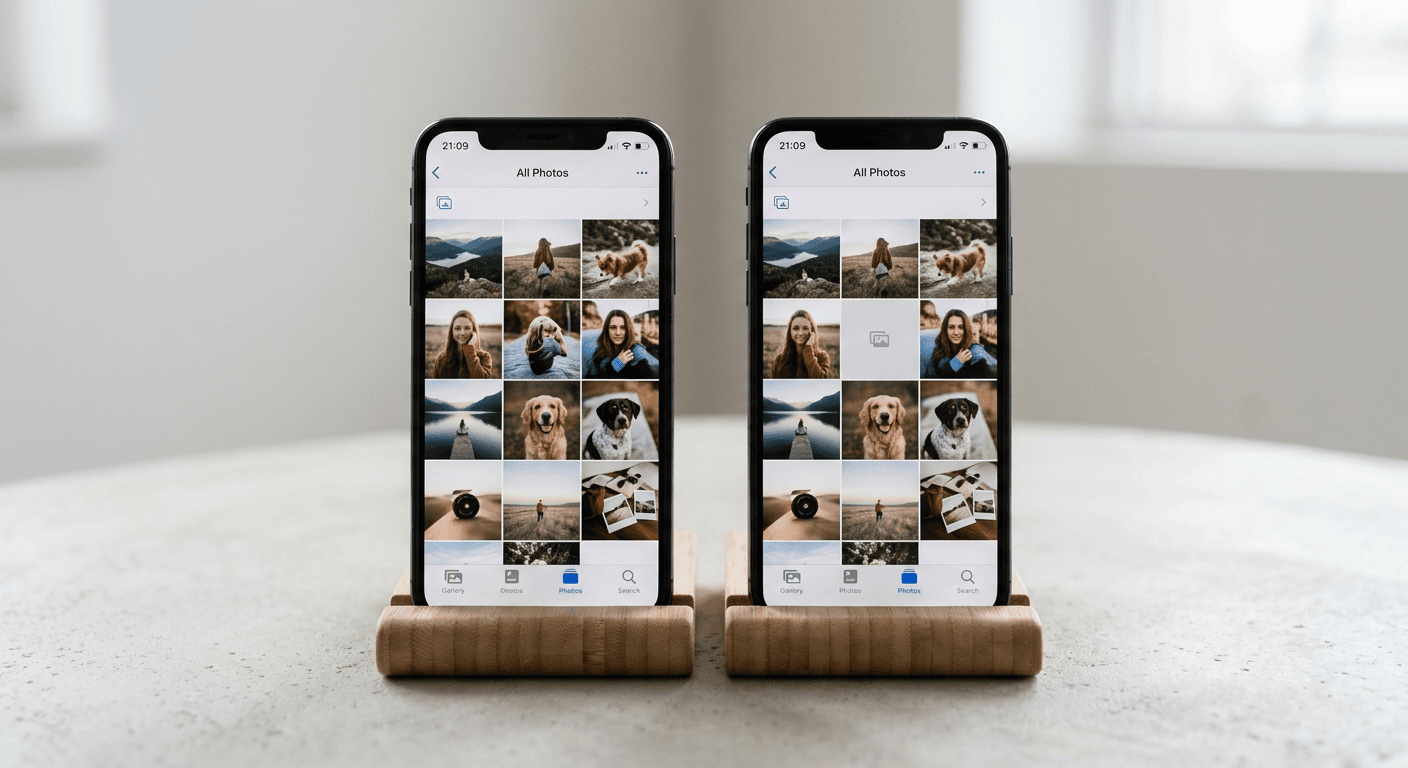
The reverse scenario is worth naming too, since it is the more common real-world case for most accounts. If your own account is private, only your approved followers can see your grid at all, full stop, the same baseline rule that has always applied to private accounts. Add to Grid does not create a new way around that first gate. But even among your approved followers, the second gate still applies independently: a follower of yours who does not follow the original poster of a tagged photo you added, and that original poster's account also happens to be private, still will not see that specific tile, even though they can see every other post on your private grid just fine as your approved follower.
The genuinely useful edge case to plan around: this means a tagged post is a poor choice for anything you actually need every visitor to see, a pinned announcement, key information about an upcoming event, anything functionally important rather than purely aesthetic. Since visibility of any individual tagged tile depends on a viewer relationship you do not control and often cannot even predict, treat Add to Grid purely as a curation and storytelling tool, not a distribution channel you can rely on reaching your full audience. If a message genuinely needs to reach everyone who follows you, post it yourself rather than leaning on a tagged post that a meaningful share of your own followers may never actually see.
One more mechanical detail worth knowing: if the original poster later deletes their post entirely, or switches their account from public to private after you have already added the tagged post to your grid, the tile on your grid is affected the same way, since your grid is referencing a live post rather than holding an independent copy. A tagged post that displayed reliably for months can start disappearing for a wider share of your audience the moment the original account's privacy setting changes, entirely outside your control and often without any notification to you that it happened.
Content Strategy: When Add to Grid Genuinely Helps Your Grid, and When It Just Adds Clutter
Once you understand the mechanics, the real question becomes strategic rather than technical: should you actually be adding tagged posts to your grid at all, and if so, which ones. The honest answer is that this depends heavily on what kind of account you run and what your grid is currently trying to communicate, the same underlying question Reorder Grid strategy already asks about your own original posts, just applied now to content you did not create.
When it genuinely helps
Add to Grid earns its place clearly for a few recurring situations. Event and collaboration coverage is the strongest case: if you attended a conference, a wedding, a group trip, or a shoot where other people were the ones actually holding the camera, and those photos are genuinely strong, adding a handful to your grid fills a real gap that your own original posting never could, since you were not the one behind the lens in those moments. A creator who does mostly solo content, talking-head videos, product shots, personal photography, can use a small number of well-chosen tagged posts to show they exist in a real social context rather than presenting an entirely solitary-feeling profile, which often reads as more trustworthy and human to a new visitor deciding whether to follow.
Brand and collaboration content is the second strong case, covered in more depth in its own section below. Community and group-identity accounts, a local running club, a small creative collective, a fan community, benefit from Add to Grid in a slightly different way: showing tagged member photos on the main account's grid signals an active, participatory community rather than a one-way broadcast feed, which is exactly the impression a community-focused account usually wants to create.
When it clutters instead
The same feature can work against a grid just as easily. The clearest failure mode is a tagged photo that clashes visually with everything around it, a group shot with harsh phone-flash lighting sitting next to a carefully color-graded product photo, or a candid taken by someone with a completely different editing style than the one you have built your whole aesthetic around. Reorder Grid's color and format rhythm strategy exists precisely because a single jarring, off-palette tile can disrupt an otherwise cohesive grid more than a slightly weaker but visually consistent post would, and a tagged photo is a tile you did not create and cannot re-shoot, which makes this risk higher than with your own original content.
A second failure mode is sheer volume. A creator who gets tagged frequently, someone whose friends post often and tag them in nearly everything, can end up with a grid that reads as a random scrapbook rather than a curated profile if every tag gets added without any filtering. The fix here is treating Add to Grid the same disciplined way the mistakes section further down recommends treating Reorder Grid itself: a deliberate, occasional review of your Tagged tab looking for genuinely strong candidates, not a reflex to add every notification the moment it arrives.
Brand deals and influencer collaborations
This is where Add to Grid intersects with real commercial stakes, not just personal aesthetics. When a brand runs a sponsored campaign and posts official creative tagging a group of partnered creators, each of those creators previously had two real options: repost the brand's content themselves, which duplicates the post and starts a fresh engagement count from zero, or do nothing and let the collaboration live only on the brand's own account. Add to Grid introduces a genuinely useful third option, letting a creator surface that campaign content directly on their own grid without creating a duplicate post competing for the same feed real estate, while the tag icon still makes clear the content originated with the brand's official post rather than the creator's own camera.
That said, the same visual-cohesion risk applies here at commercial scale. A brand's polished campaign photography might use a completely different color grade, framing style, or overall visual language than a creator's usual grid, and adding it wholesale can genuinely hurt a carefully built aesthetic rather than help it, exactly the tension worth thinking through before agreeing to a collaboration term that assumes the creator will add the tagged content to their grid as part of the deal. A creator negotiating a brand partnership in late 2026 should treat "will you add our tagged post to your grid" as its own real deliverable worth discussing explicitly, the same way "will you post to your grid versus only your Story" already gets negotiated, rather than assuming it happens automatically just because a tag went out.
Before You Tap "Add to Grid": Make Sure the Original Photo Actually Deserves the Spot
Here is the part of this whole feature that creators consistently underrate: you have zero creative control over the original photo. Someone else chose the framing, the lighting, and whatever filter or lack of filter they applied, and unlike your own posts, you cannot simply retake the shot if it is slightly off. A genuinely meaningful moment, a group photo from a trip you will remember for years, can still be technically mediocre, poorly lit, awkwardly cropped, or shot with a distracting background that a friend's phone camera just was not built to avoid.
This is exactly the situation Miraflow's AI Image Generator is useful for, specifically its image-to-image editing and inpainting capabilities. If a tagged photo is otherwise great but suffers from one fixable problem, dim lighting that makes the whole shot feel flat, an awkward crop that cuts off part of a meaningful detail, a distracting object or person in the background pulling focus from the moment itself, you can save a copy of the photo and run it through Miraflow's editor to see whether a touch-up actually rescues it before you make any decision about your grid.
The important nuance here is what a touch-up actually changes about your options. Add to Grid works with the live original post, referencing it directly rather than holding an independent copy, which is exactly what preserves the original poster's engagement history and keeps the whole feature lightweight. If you edit a downloaded copy of a tagged photo, you are no longer looking at a candidate for Add to Grid at all, you are looking at a candidate for a brand-new post of your own, one that starts its own fresh engagement count and sits on your grid as your own original content rather than a tagged reference. That is a completely legitimate choice when the original tagged photo captures a real moment worth commemorating but is genuinely too rough to add as-is, credit the original photographer or poster in your caption, and post the touched-up version as your own, rather than trying to force an unsalvageable original directly onto your grid through Add to Grid.

There is a second, related use case worth knowing about: what to do when a tagged photo is genuinely fine on its own terms but simply does not match your grid's established look, the color-rhythm clash described in the strategy section above. Rather than skipping the tagged post entirely or accepting the visual disruption, some creators generate a companion piece specifically designed to bridge the two, a new post in your own established palette and framing style, sitting adjacent to the tagged tile on your grid, so the transition between "your content" and "content you were tagged in" reads as an intentional design choice rather than a jarring accident. Miraflow's general AI image tools, the same AI Image Generator used for touch-ups, along with the YouTube Thumbnail Maker for anyone who also needs a matching graphic treatment for a linked video, work well for exactly this kind of companion-post creation, since both let you specify a color palette and composition style quickly rather than starting from a blank page.
The genuine edge case worth naming here: not every mediocre tagged photo is worth this effort. If a tagged post is only mildly interesting and mediocre in quality, the honest answer is often to simply not add it, rather than spending real editing time rescuing something that was never going to be a strong grid tile even at its best. Save the touch-up-and-add workflow for photos capturing a moment you genuinely want represented on your profile long-term, not every tag that happens to arrive on a given day.
Common Mistakes to Avoid With Add to Grid
A handful of mistakes show up repeatedly as people start experimenting with this feature for the first time, and most of them are avoidable once you know to watch for them.
The first mistake is adding tagged posts indiscriminately, treating Add to Grid as a way to inflate your grid's content volume rather than as a curation tool. A grid that mixes your own carefully considered posts with every tag that has ever landed in your notifications quickly loses the sense of intentional identity that a strong profile grid depends on. Apply the same standard you would to your own original content before adding anything: does this specific photo genuinely represent something worth keeping visible on your profile, not just something that happened to exist.
The second mistake is assuming every follower sees your grid identically once a tagged post is added. As the privacy section above covers in detail, a tagged tile's visibility depends on both your own privacy setting and the original poster's, plus each individual viewer's relationship to that original account. Never rely on a tagged post to reach your entire audience reliably, and never assume that because a post displays correctly when you check your own profile, it displays the same way for everyone who visits it.
The third mistake is forgetting that a tagged post you added can silently disappear later if the original poster deletes their post or changes their account's privacy setting, since your grid only ever held a live reference to it rather than an independent copy. Build a habit of periodically reviewing your grid, the same occasional-audit cadence recommended for Reorder Grid maintenance, specifically checking whether any tagged tiles have quietly gone missing or stopped rendering correctly, rather than assuming a tile you added months ago is still doing what you originally intended.
The fourth mistake, and a genuinely common point of confusion, is conflating Add to Grid with Reorder Grid entirely, assuming they are the same feature or that using one somehow requires or affects the other. They do not interact directly. Reorder Grid only ever repositions content you already posted yourself. Add to Grid only ever brings in content someone else posted and tagged you in. You can use either one independently, or both together, curating your original posts' order with one feature while selectively adding tagged content with the other, but treating them as interchangeable leads to real confusion about what each one actually does to your profile.
The fifth mistake is skipping the credit. A tagged post you add still visually originated with someone else's camera and someone else's post, and while the tag icon does communicate that automatically at a glance, it is still good practice to acknowledge the original photographer or poster in your own caption or Story when you add something meaningful, particularly for a brand collaboration or a professional photography credit, rather than letting the tag icon alone carry the entire weight of attribution.
The sixth mistake is adding a technically fine but visually rough tagged photo without ever considering whether a quick touch-up would meaningfully improve it first. As the previous section covers, a distracting background, flat lighting, or an awkward crop are often fixable problems, not permanent flaws, and skipping that consideration entirely means settling for a weaker grid than you could have had with a few extra minutes of editing.
Building a Grid Worth Being Tagged Into: Miraflow's Role in the Full Picture
Add to Grid ultimately raises the bar on your whole profile in a subtle way: once tagged content can sit directly next to your own posts, your grid's overall cohesion depends on more than just what you personally create, it depends on how well you curate and, when needed, touch up everything that ends up there. Miraflow's AI Image Generator covers both sides of that job. Text-to-image and image-to-image generation let you fill a genuine gap in your own original content, a color, a composition, a seasonal moment you do not already have a strong photo for, while inpainting and targeted editing let you rescue a tagged photo's lighting, cropping, or background problem before you commit to adding it to your grid at all.
The same underlying workflow extends naturally to the rest of your Instagram presence beyond the grid itself. If a collaboration or tagged moment is strong enough to justify a companion Reel rather than just a static grid tile, Miraflow's Reels teleprompter feature makes it easier to record a quick reaction or behind-the-scenes clip about the moment without fumbling for words on camera, and if that Reel needs a different soundtrack than whatever was originally attached, Instagram's Replace Audio feature covers swapping it without losing the post's existing engagement. For creators building a recurring format around collaborations and tagged content specifically, Instagram's First Draft auto-editing tool and the episodic Series feature are both worth a look as ways to structure that content beyond a single grid tile.

If your account also earns from Instagram's creator monetization programs, it is worth checking whether tagged content you add to your grid interacts with anything covered in Miraflow's breakdown of the photo and carousel bonus program, since payout eligibility rules for programs like that one are worth confirming directly against Instagram's current terms rather than assuming a tagged post behaves identically to an original one for every purpose. And for any account navigating disclosure requirements around AI-assisted or AI-generated visuals used in touch-ups or companion posts, Miraflow's guide to Instagram's AI-generated content label is a useful companion read before publishing anything edited or generated alongside a tagged post. You can browse more feature breakdowns like this one on the Miraflow AI blog, and every tool mentioned in this guide lives at Miraflow.
Frequently Asked Questions
Does adding a tagged post to my grid affect the original post's likes or comments? No. Add to Grid places a live reference to the original post on your profile rather than creating a copy or a new post. The original post keeps its own likes, comments, and place on the original poster's grid exactly as it was before you added it, and nothing about your action changes its engagement history.
Can everyone who follows me see a tagged post I add to my grid? Not necessarily. Whether a specific tagged tile displays for a given visitor depends on both your account's privacy setting and the original poster's, plus that visitor's relationship to the original account. A follower who does not follow the original poster of a private account's post may not see that tile at all, even though they can see the rest of your grid normally.
What happens if the original poster deletes the post I added, or makes their account private? The tile on your grid reflects that change, since Add to Grid references the live original post rather than storing an independent copy. If the original post is deleted, or the original account's privacy setting changes in a way that restricts a given viewer, the tile can stop displaying for some or all of your audience without any separate notification to you.
Is Add to Grid the same feature as Reorder Grid? No, and confusing the two is one of the most common mistakes covered above. Reorder Grid repositions posts you already made yourself. Add to Grid brings in posts someone else made and tagged you in. They work independently and can be used together, but neither one requires or automatically affects the other.
Can I remove a tagged post from my grid after adding it? Yes. The same three-dot menu that offers Add to grid on a tagged post you have not yet added should offer a Remove from grid option once it is on your profile, letting you take it back off without affecting the original post in any way.
Should I edit a tagged photo before adding it to my grid? If the photo has a fixable issue, flat lighting, an awkward crop, a distracting background, and you genuinely want the moment represented on your profile, editing a downloaded copy with a tool like Miraflow's AI Image Generator and posting it as your own original content, with credit to the original poster, is often a better outcome than adding an unsalvageable original as-is through Add to Grid. Reserve that extra effort for moments genuinely worth keeping long-term rather than every tag that happens to arrive.
Conclusion
Add to Grid finally gives Instagram profiles a way to reflect a real part of most people's actual lives, the photos other people take of them, without forcing a repost or leaving that content buried in a Tagged tab nobody visits. Used well, it works the same way Reorder Grid already does for your own posts, as a curation decision rather than a reflex, adding the collaborations, group moments, and brand partnerships that genuinely belong on your profile while leaving out anything that clutters the look you have already built. Understand the privacy mechanics before you lean on the feature for anything that needs to reach your whole audience reliably, and remember that you cannot control the original photo's quality, only whether you add it, edit a copy, or leave it in your Tagged tab. When a tagged moment deserves better lighting, a tighter crop, or a cleaner background before it earns a spot on your grid, Miraflow's AI Image Generator is built for exactly that kind of quick rescue, directly in the browser, and Miraflow covers the rest of your content pipeline, from images through video, thumbnails, and music, in one place, for whatever your newly expanded grid needs next.