25 AI Santa Caught on Camera Prompts for Photos and Videos (Copy & Paste 2026)

Written by
Aerin Kim
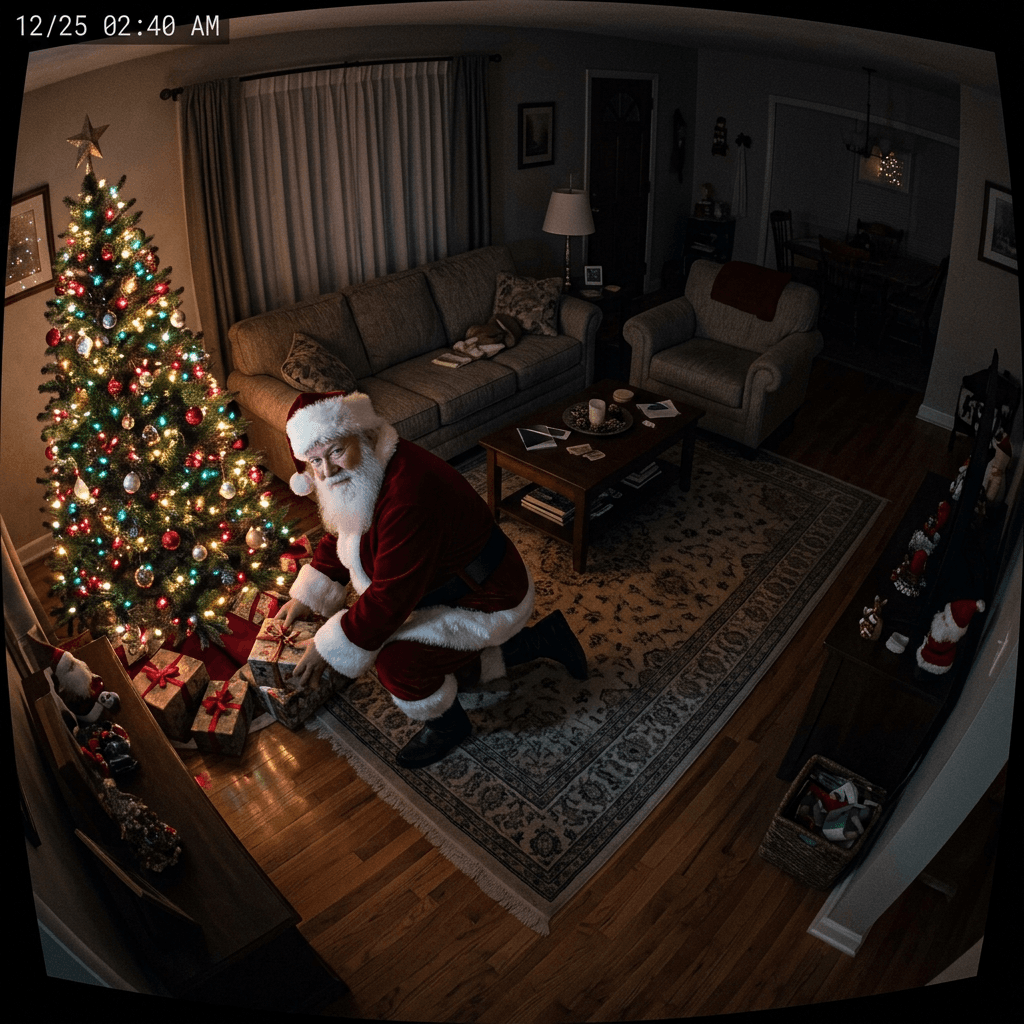
Copy and paste 25 AI Santa caught on camera prompts that add Santa to a photo of your own living room as believable doorbell, night-vision, baby monitor and phone snapshot images, plus short clips.
You took a photo of your living room, dropped a Santa onto it, and the result looks like a sticker floating over someone else's house. Maybe the lighting is wrong, maybe the scale is off, or maybe Santa has a glossy movie-poster face that no doorbell camera would ever record. This guide gives you 25 copy-and-paste AI Santa caught on camera prompts for 2026 that start from a photo of your own home and produce believable doorbell, security camera, baby monitor and phone snapshot images, plus three short video clips for Christmas morning.
TL;DR: Upload a photo of your own room to the Miraflow AI Image Generator, use image-to-image or inpainting to add Santa only where you want him, and describe the camera type (fisheye doorbell, infrared night vision, grainy baby monitor, or sloppy phone snapshot) so the lighting and quality match. Then animate your favorite frame in Miraflow's cinematic video generator for a 5 to 8 second clip, and score the reveal with a short jingle from the AI music generator.
Santa cam content is a seasonal favorite for parents every November and December, and a growing number of photo apps and AI video tools now advertise a ready-made Santa cam or catch-Santa-in-your-house effect, usually built around exactly these camera looks: doorbell fisheye, night vision and a corner security angle. Those one-tap effects are fun, but they use a generic room. The advantage of the prompts below is that the room is yours, so your kids recognize the couch, the tree and the cookie plate.
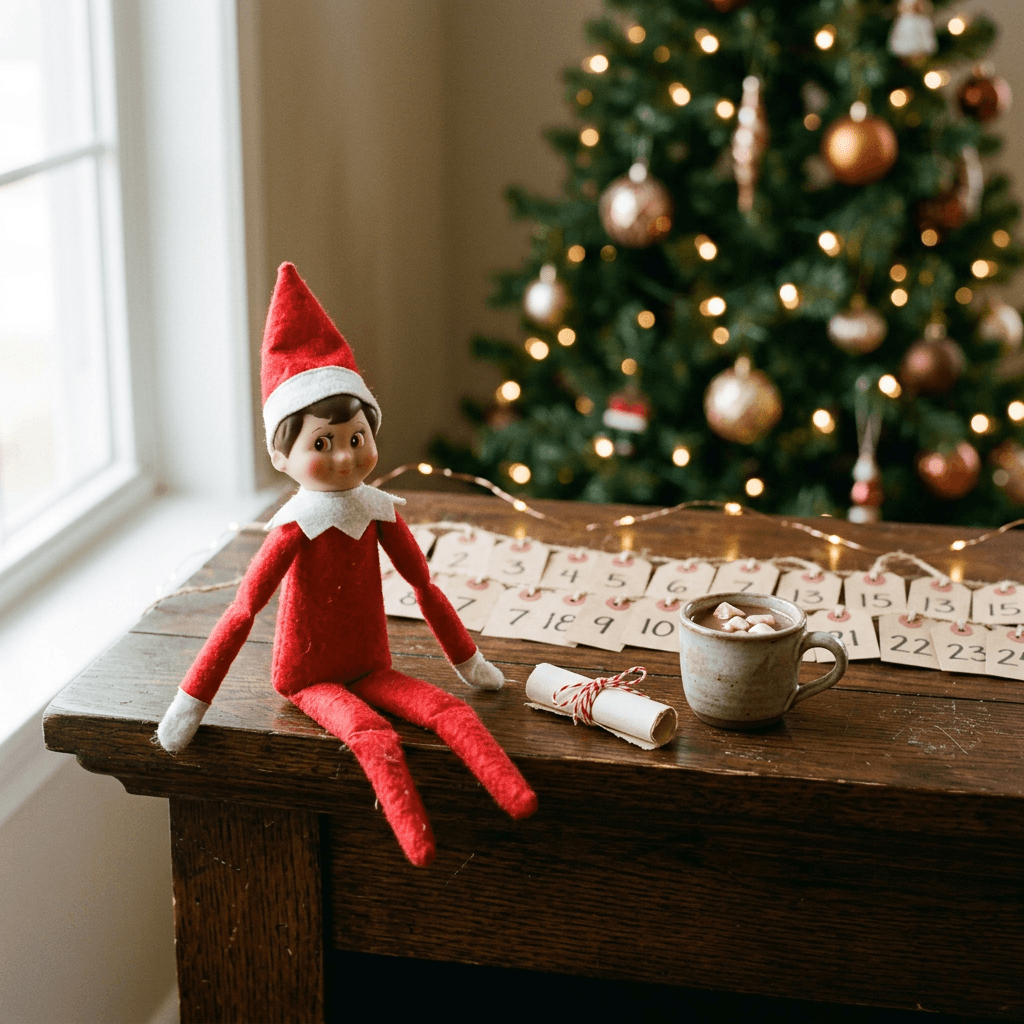
The prompts are grouped into six categories: doorbell shots, night-vision security camera shots, phone snapshots, outdoor and sleigh shots, cookie and present evidence, and short video clips. After the prompts you will find a section on making the result believable, how to customize each prompt for your home, common mistakes, and a gentle note on doing this kindly. If you also want Santa's helpers in your house, see our AI Elf on the Shelf ideas, and for family portraits and cards see the Christmas photoshoot prompts and Christmas card prompts.
How the Santa Cam Technique Works (Your Room, Santa Added)
The reason most AI Santa photos look fake is that they are generated from scratch, so the room, the light and the camera are invented along with Santa. A believable Santa cam image works the other way around. You start with a real photo of your real room, then change only the Santa part. In an image-to-image workflow you upload the room and describe the whole frame, so the model keeps your layout and adds a figure. With inpainting you go one step further and paint a mask over the exact spot where Santa should appear, such as the patch of rug beside the tree, and only that region is regenerated. Everything outside the mask stays pixel-for-pixel yours.
Both options live in the Miraflow AI Image Generator. A practical order is to try the full image-to-image prompt first, and if the room shifts or the tree ornaments change, switch to inpainting with a mask around Santa's footprint plus a little margin for his shadow. Take your base photo in the lighting you want the final image to have: lights off and only the tree glowing for a night shot, porch light on for a doorbell shot, and the camera held at the height a real device would be mounted.
Every prompt in this post follows the same four-part pattern. First comes a lock sentence that tells the model to keep your room as it is. Second comes Santa himself, with a pose, a costume and a real, friendly face. Third comes the camera signature (fisheye, infrared, grain, timestamp). Last comes a closing clause that rules out the usual failure modes. Replace the bracketed text with your own photo and you are ready to go.
What Makes a Santa Cam Photo Believable
Believability is mostly about matching the limits of the imaginary camera. A real doorbell does not produce crisp 4K portraits, and a real night-vision camera does not record the red of Santa's coat. If your image is better than a camera could be, kids and adults alike sense that something is off, even if they cannot say why. For more on this general idea, our guide to making AI images look like real photos covers the underlying prompt tricks, and the same instincts apply here.
Pick one camera and commit to it. A doorbell frame has strong fisheye distortion, slightly blown highlights near the porch light, soft compression and a timestamp overlay in a corner. An infrared security camera is monochrome gray-green, with bloom around bright objects, fine grain and shiny surfaces that glow. A baby monitor is lower resolution still, with heavy grain and soft edges. A phone snapshot is sharper but tilted, with noise in the shadows and motion blur on anything that moved. Mixing these signatures in a single image is the quickest way to lose the illusion.
Match the light sources that already exist in your room. Santa should be lit by the tree, the porch bulb, the fridge light or the nightlight that is visible in your photo, not by an invisible studio softbox. If the only light is the tree, his coat should pick up warm color on the side facing it and fall into shadow on the other. Mention the real source in the prompt, and ask for a shadow on the floor or wall that falls in the same direction as your other objects' shadows.
Get scale and contact right. Santa should be roughly 170 to 185 centimeters tall next to your door frame, so reference something in the room, such as the height of the mantel, the stair rail or the parked car. His boots need contact shadows on the floor, and a sack or a plate should visibly rest on a surface rather than hover.
Add motion blur and imperfection. Real cameras catch people mid-movement. A blurred hand, a half-turned head or a foot lifted off the ground sells a captured moment far better than a perfect pose. Ask for it directly: slight motion blur on the sleeve, face partly turned, framing slightly off.
Keep Santa's face generic and friendly. Describe a warm, weathered face with a white beard and rosy cheeks, not a specific actor or a celebrity. Real features with natural skin texture look better than a smooth cartoon, and a generic friendly face is less likely to drift between images. Because most camera types hide detail, shots from behind, in profile or at a distance are often the most believable.
Use short, plain overlay text only. A timestamp such as 12/25 02:14 AM is easy for AI to render, and a small CAM 2 label is fine. Avoid fake app interfaces, brand names or long captions, which usually come out garbled and look suspicious. If a timestamp comes out wrong, fix it with a masked edit or add it in any image editor.
Keep the AI hints out. Skip glossy skin, perfectly symmetrical beards and movie-grade lighting. Ask for visible fabric texture on the coat, slightly uneven fur trim and natural skin pores, and let the camera's noise and compression do the rest.
1) Doorbell Camera Shots
A doorbell camera is the most recognizable home camera and the easiest to fake well, because the wide fisheye frame, the timestamp and the harsh porch light all hide AI softness. Use a photo of your own front door at doorbell height so kids recognize the steps and the mat.
1. Santa on the Front Porch at Midnight
The cleanest starting point, because a doorbell camera has one fixed wide view and viewers expect it to look soft, slightly fisheyed and a little overexposed near the porch light. Upload a photo of your actual front door, taken at the same height as your doorbell, so the steps, mat and railing are yours.
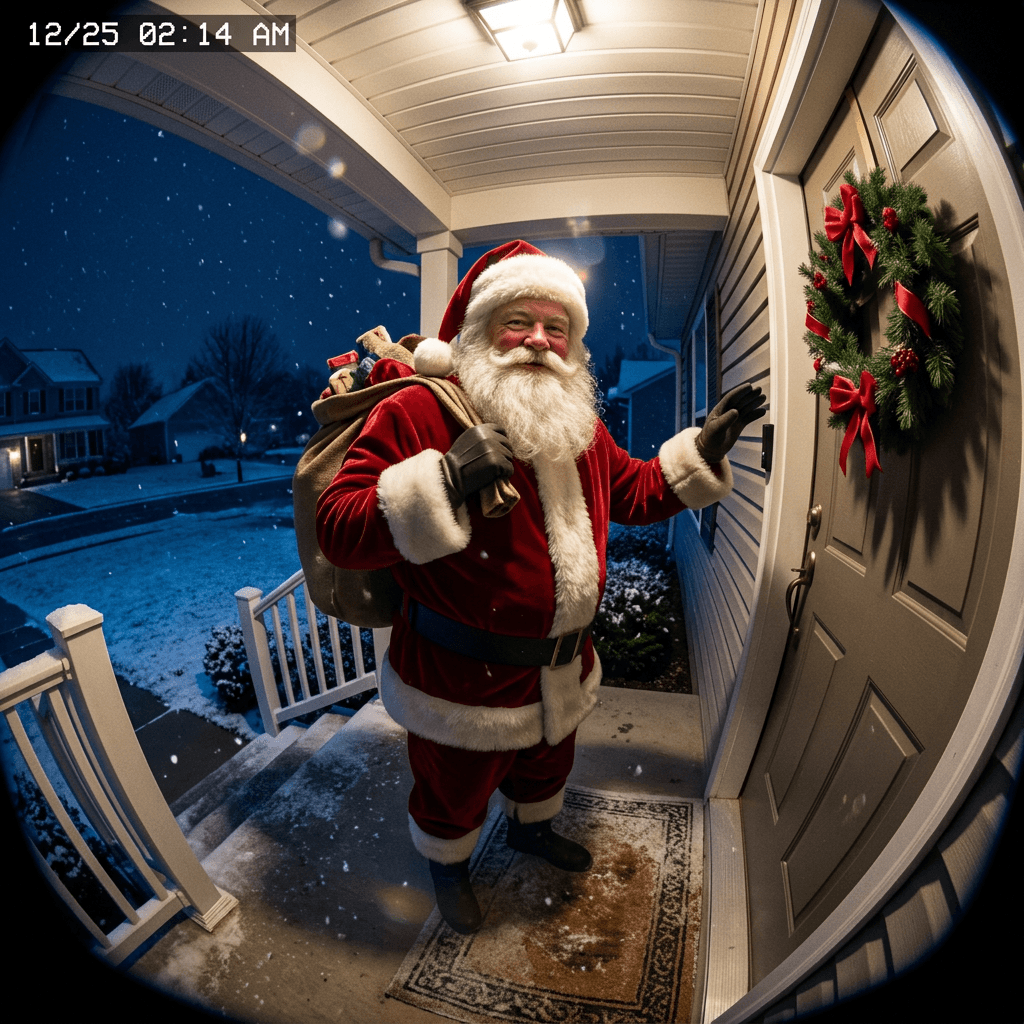
Use [your front porch photo taken at doorbell height] as the base image and keep the door, steps, doormat, railing and porch light exactly as they are. Add a tall, plump, friendly Santa Claus in a red coat with white fur trim, black belt and boots, a real face with a full white beard and rosy cheeks, standing on the doormat with a large sack over one shoulder and one gloved hand raised toward the doorbell. Render it as a doorbell camera frame with a strong fisheye wide-angle look, barrel distortion at the edges, slightly blown highlights around the warm porch light, soft compression artifacts, and a small white timestamp overlay in the top left reading 12/25 02:14 AM. Light Santa only from the porch light above and the cold blue ambient night, with a soft shadow on the door that matches the steps. Santa fills about a third of the frame height, lower resolution video-still sharpness, no extra people, no brand logos, no distorted hands, no garbled text, no watermark.
2. Santa Walking Up the Driveway With a Sack
A second doorbell angle that shows Santa approaching, which gives your story a sequence: arrival first, then the living room later. Motion blur on the feet is what sells it.
Use [your front yard and driveway photo from the doorbell position] as the base image and keep the lawn, driveway, parked cars, mailbox and house number exactly as they are. Add Santa Claus in a red coat and fur-trimmed hat walking up the driveway toward the camera at night, a bulging sack over his shoulder, mid-stride with slight motion blur on his boots and a friendly, weathered face with a white beard visible in the porch light. Render it as a doorbell camera still with fisheye distortion, a timestamp overlay in the top left reading 12/25 01:47 AM, cool blue night tones with a warm pool of light near the door, light snow flakes caught as small bright streaks, and his shadow stretching toward the camera on the pavement. Keep his scale consistent with the parked car beside him, soft video-still detail, no extra people, no logos, no warped limbs, no garbled text, no watermark.
3. Santa Looking Straight Into the Doorbell Lens
The funniest and most shareable doorbell frame, because Santa seems to know he is being filmed. Keep his expression warm and amused so younger kids find it delightful instead of unsettling.
Use [your front porch photo taken at doorbell height] as the base image and keep the door, mat, wreath and porch light exactly as they are. Add Santa Claus leaning in very close to the camera so his face fills the center of the frame, a finger raised to his lips in a playful shush, twinkling eyes, rosy cheeks and a thick white mustache, with the red hat brim slightly cropped at the top. Render it as a doorbell camera frame with extreme fisheye distortion that enlarges his nose and shoulders, a timestamp overlay reading 12/25 02:31 AM in the top left, harsh warm porch light from above, slight lens smudge haze near the edges, and cold blue background. Natural skin texture with visible pores, soft video-still sharpness, no extra people, no distorted teeth, no logos, no garbled text, no watermark.
4. Reindeer Glimpse at the Edge of the Doorbell Frame
A small detail that makes the story feel bigger without needing a sleigh. Partially visible reindeer at the frame edge read as a surprise a real camera might catch by accident.
Use [your front yard photo from the doorbell position] as the base image and keep the lawn, walkway, bushes and fence exactly as they are. Add the rear half of two reindeer with brown fur and large antlers standing on the lawn at the far right edge of the frame, half cut off by the camera view, with their breath visible as faint vapor, and a trail of boot prints crossing the snowy walkway toward the door. Render it as a doorbell camera still with fisheye distortion, a timestamp overlay reading 12/25 02:09 AM, cold blue night tones, soft light from the porch, and slight motion blur on one antler as if the animal just turned its head. Fur texture visible but soft, correct animal proportions, no text other than the timestamp, no logos, no watermark.
5. Footprints and a Dropped Candy Cane at the Door
Quiet proof without Santa in frame at all. Some families prefer this version because the kids get to discover the evidence themselves.
Use [your front porch photo taken at doorbell height] as the base image and keep the door, mat and steps exactly as they are. Add a trail of large boot prints in thin fresh snow leading up the steps to the door, a single red and white candy cane lying on the mat, and a small scatter of glitter that catches the porch light. Render it as a doorbell camera still taken a few minutes after Santa left, with fisheye distortion, a timestamp overlay reading 12/25 02:22 AM, cool blue shadows, warm porch light, and gentle video compression noise. Snow texture and boot tread should look believable and match the scale of the steps, no people in frame, no logos, no garbled text, no watermark.
2) Night-Vision Security Camera Shots
Infrared footage removes color entirely, which means fewer things can go wrong. Mount your imaginary camera high in a corner, remember that bright objects bloom and shiny things glow, and keep the room itself untouched.
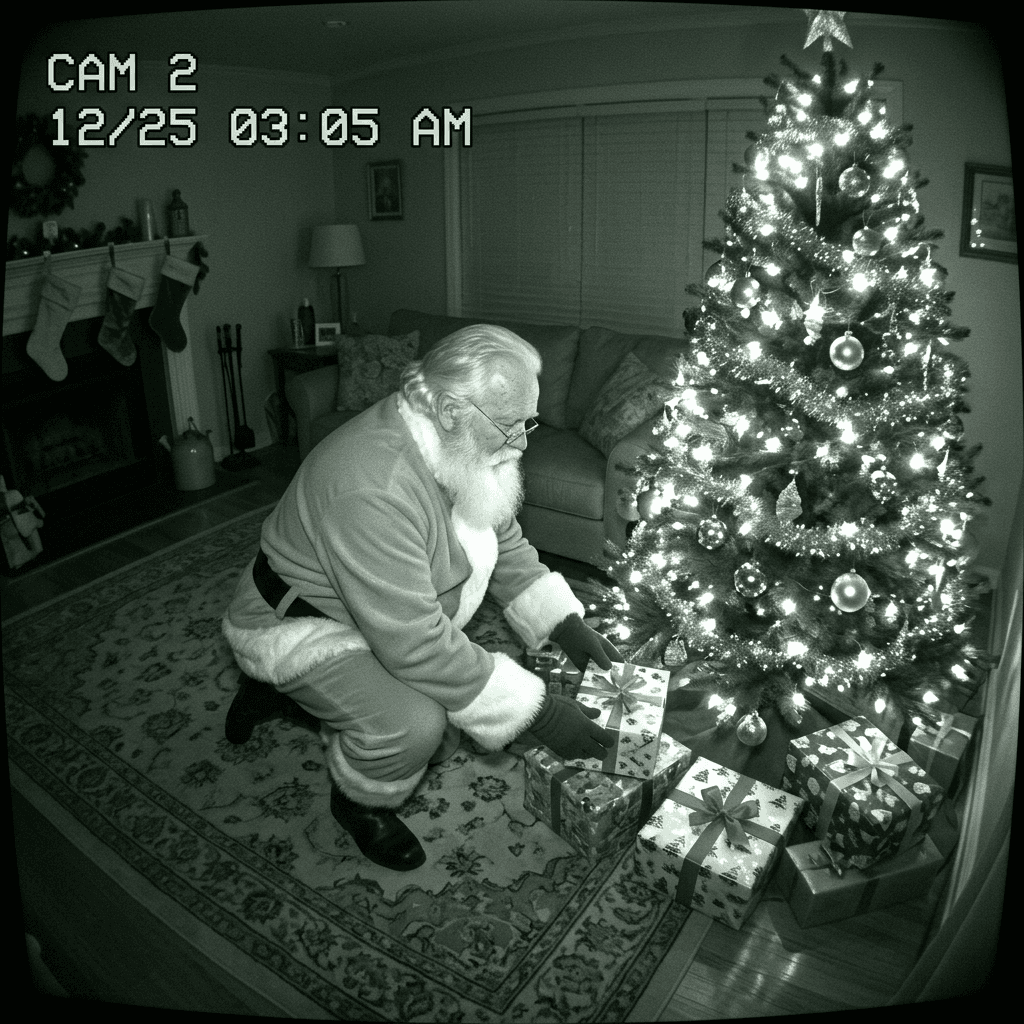
6. Santa by the Tree on a Night-Vision Security Camera
Night-vision footage is the most forgiving look for beginners because the monochrome infrared style hides small color and texture mismatches. Upload a wide photo of your living room taken from a high corner, the way a real camera would be mounted.
Use [your living room photo taken from a high corner] as the base image and keep the sofa, rug, tree, ornaments and walls exactly as they are. Add Santa Claus crouching beside the Christmas tree arranging wrapped presents, seen from slightly above and behind, in a bulky red coat and hat that appear as light gray in the image, with a visible white beard in profile. Render it as a night-vision security camera frame in monochrome green-gray infrared, with the tree lights glowing as bright white blooms, a slight wide-angle lens, fine sensor grain, scan-line softness, bright hot spots on shiny ornaments, and a timestamp overlay in the top left reading 12/25 03:05 AM with a small CAM 2 label. Cast Santa's shadow on the rug consistent with the infrared source near the lens, soft focus at the edges, no color, no extra people, no real brand interface, no garbled text, no watermark.
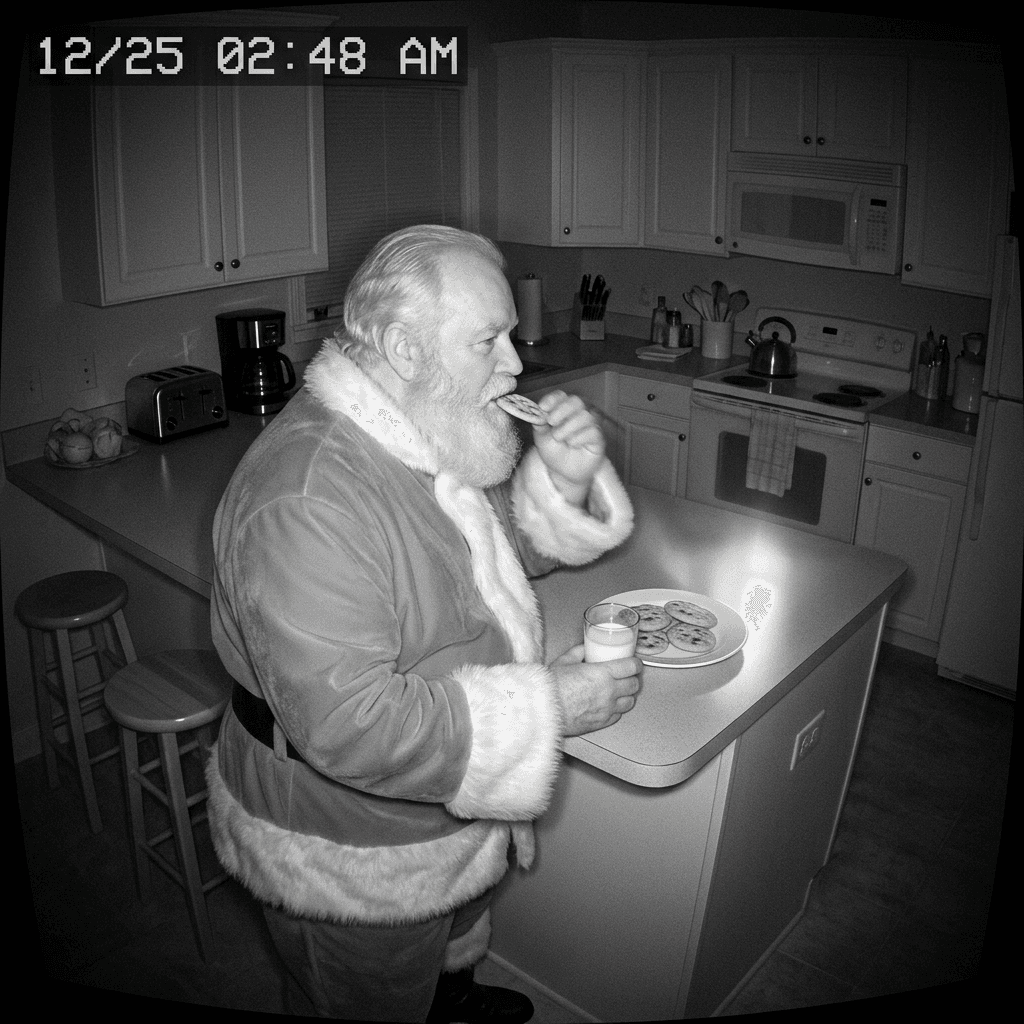
7. Santa Eating Cookies at the Kitchen Counter in Infrared
The cookie moment is what kids ask about most, so a kitchen angle pays off. Use the kitchen camera view or a high corner photo of your counter and put the plate where you really leave it.
Use [your kitchen photo taken from a high corner] as the base image and keep the counters, cabinets, stools and appliances exactly as they are. Add Santa Claus standing at the counter in profile, one hand holding a cookie halfway to his mouth, the other holding a small glass of milk, a plate of cookies in front of him, his belly and white beard clearly visible, and his red coat rendering as mid-gray. Render it as a night-vision security camera frame in monochrome infrared with grain, a bright hotspot on the plate and glass, slight barrel distortion, a timestamp overlay reading 12/25 02:48 AM, and a faint motion blur on the raised hand. Keep scale consistent with the counter height and stools, with a believable soft shadow on the cabinets, no color, no extra people, no real brand interface, no garbled text, no watermark.
8. Santa Tiptoeing Down the Hallway
A short, simple composition that works well as the first frame of a video later. The long hallway gives natural perspective, so scale errors are easy to avoid.
Use [your hallway photo taken from the end of the hall] as the base image and keep the doors, floor, framed pictures and walls exactly as they are. Add Santa Claus tiptoeing toward the camera down the hallway in mid-step, one finger to his lips, with his sack held carefully against his chest and his face partly lit by the infrared glow, with a mischievous expression. Render it as a night-vision security camera frame in monochrome gray-green with fine grain, slight fisheye, a timestamp overlay reading 12/25 03:21 AM, a faint motion trail on his boots, and a soft bright spot reflecting on the floor. Keep his height consistent with the door frames, no color, no extra people, no logos, no garbled text, no watermark.
9. Santa Coming Out of the Fireplace
Only use this if you have a fireplace or a wide hearth, since the chimney story needs a believable opening. The soot and glow are what make it feel caught rather than staged.
Use [your fireplace and living room photo] as the base image and keep the hearth, mantel, stockings, tools and surrounding furniture exactly as they are. Add Santa Claus stepping out of the fireplace with one boot on the hearth, a little soot on his red coat and a sack behind him, brushing his glove against his sleeve and looking surprised at the camera. Render it as a night-vision security camera frame in monochrome infrared, with the stockings and mantel clearly visible, an orange-white glow turned to bright gray from the fireplace, grain, slight wide-angle distortion, and a timestamp overlay reading 12/25 02:56 AM. Soot dust floating in the air as soft specks, believable scale against the mantel, no color, no extra people, no real brand interface, no garbled text, no watermark.
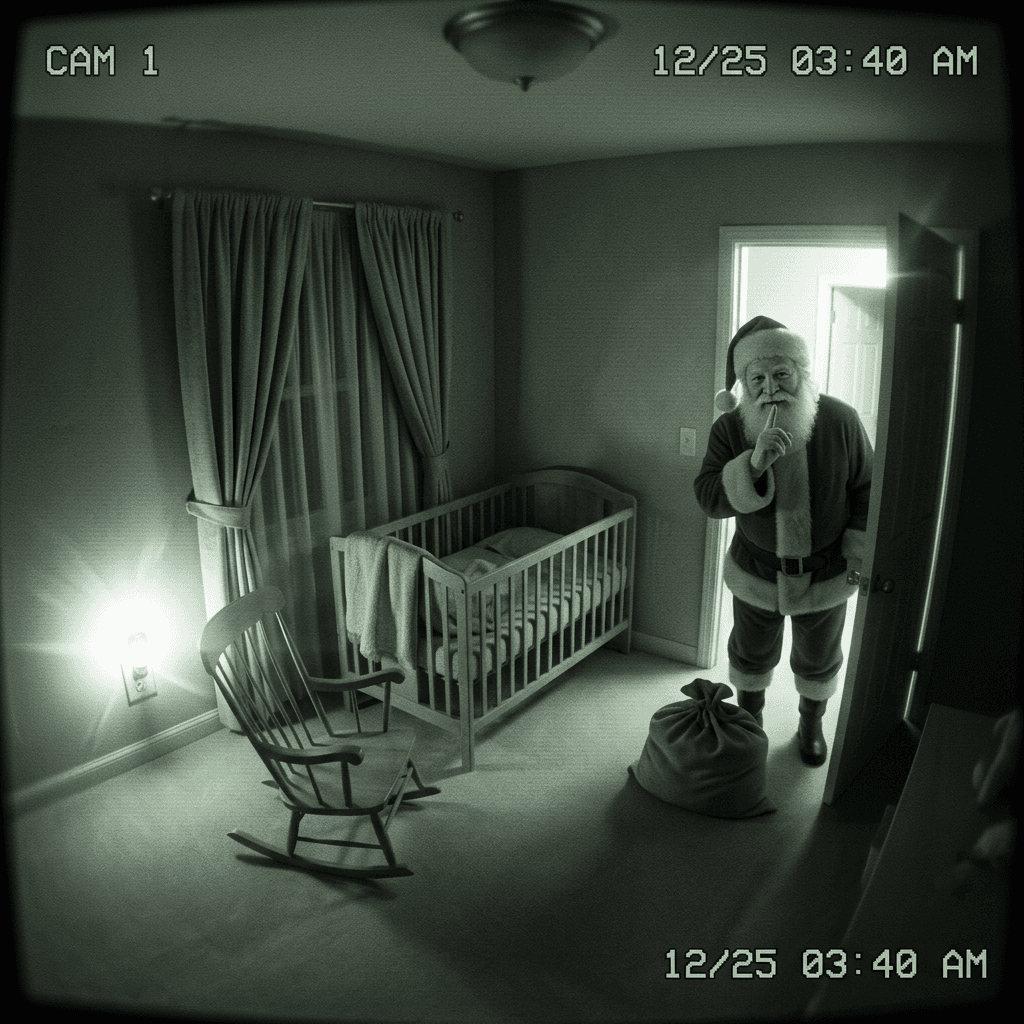
10. Baby Monitor View of Santa in the Nursery Doorway
Baby monitor footage is low resolution and grainy, which is perfect for AI images because fine detail simply is not expected. If you have a young child, this one lands gently, since Santa stays in the doorway and is smiling.
Use [your nursery or bedroom photo taken from a high corner near the ceiling] as the base image and keep the crib, rocking chair, curtains, nightlight and walls exactly as they are. Add Santa Claus standing quietly in the open doorway at the far side of the room, a soft smile, one gloved finger to his lips, his sack resting at his feet and the hallway light behind him. Render it as a baby monitor camera frame in soft green-gray night vision with heavy grain, low resolution, a slightly blurred wide-angle look, a small timestamp in the corner reading 12/25 03:40 AM, a faint temperature icon placeholder without any brand name, and a bright halo around the nightlight. Santa's warm face should be visible but soft, with consistent scale against the doorway, no color, no extra people, no scary shadows, no garbled text, no watermark.
3) Phone Snapshot and Candid Shots
These look like someone woke up, grabbed a phone and took one quick shot. Tilted framing, noise and a little blur are features here, not flaws.
11. Half-Asleep Phone Snapshot of Santa in the Kitchen
This is the look of someone who woke up for water, saw a figure and grabbed their phone. Imperfect framing and motion blur are the whole point.
Use [your kitchen photo taken at night with the lights off] as the base image and keep the counters, fridge, window and cabinets exactly as they are. Add Santa Claus standing at the open fridge in a red coat, his face half turned toward the camera with a startled grin, lit only by the cold fridge light and a faint glow from the window. Render it as a quick handheld phone snapshot taken in the dark, slightly tilted, soft focus with visible noise in the shadows, a little motion blur on his sleeve, a bit of lens flare from the fridge light, and the tilted framing of someone who barely woke up. Warm fridge light on his beard and coat with a matching shadow on the floor, natural skin texture, no extra people, no phone interface, no logos, no garbled text, no watermark.
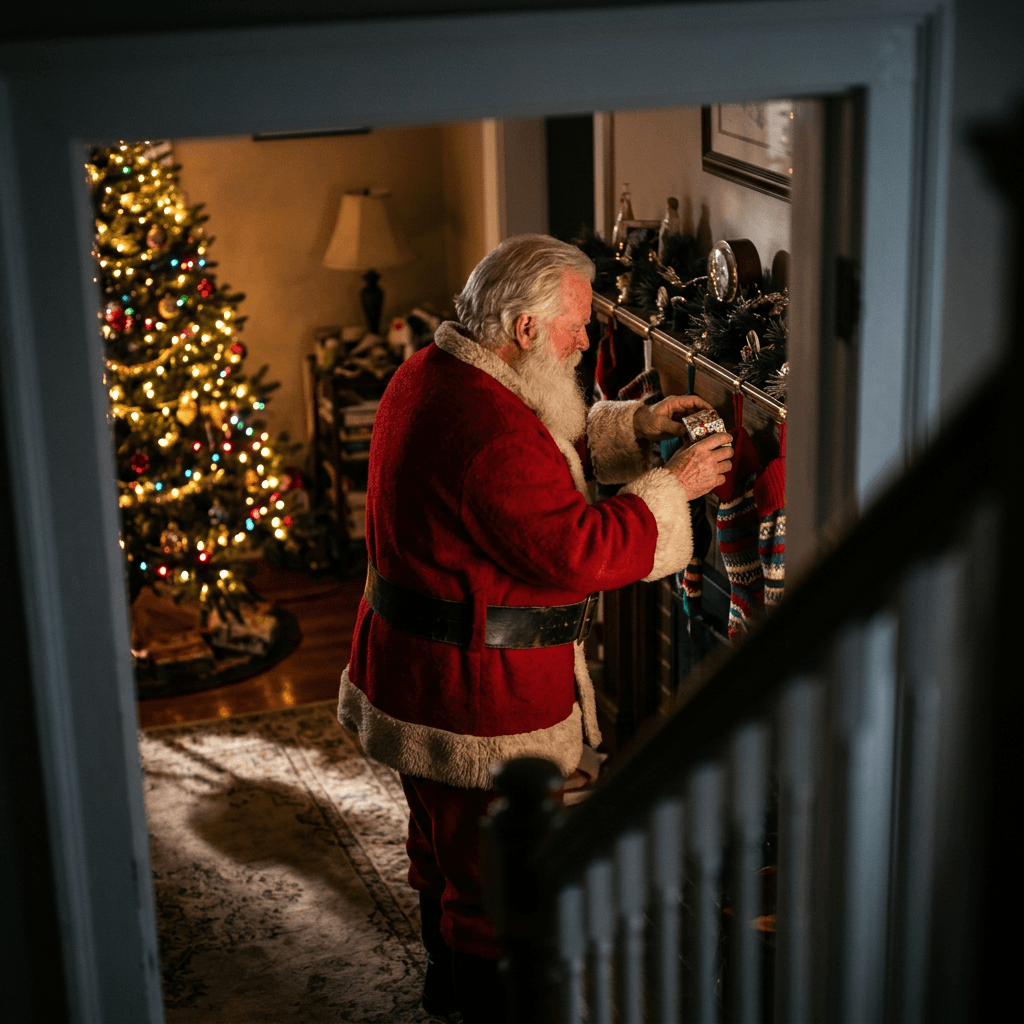
12. Santa From Behind Filling the Stockings
Showing Santa from behind avoids any face issues and also feels like a natural candid, taken from the stairs or a doorway. It is the safest prompt for getting a very believable result.
Use [your living room photo taken from the staircase or doorway] as the base image and keep the mantel, stockings, tree, couch and rug exactly as they are. Add Santa Claus seen from behind, a broad red coat with a black belt and white fur trim, standing at the mantel placing small gifts into the stockings, with only a hint of white beard and cheek visible as he turns slightly. Render it as a casual handheld phone photo taken from a distance with slightly tilted framing, mild noise, a little blur in the foreground banister, warm tree light as the main source and a dim lamp in the background. Cast a soft shadow on the rug matching the tree light direction, believable scale against the mantel, no extra people, no logos, no garbled text, no watermark.
13. Santa Reflected in the Window Glass
A reflection photo gives a delightfully accidental feel, as if the parent was photographing the tree and Santa happened to show up in the glass.
Use [your living room photo of the tree beside a dark window] as the base image and keep the tree, window, curtains and furniture exactly as they are. Add a faint reflection of Santa Claus in the dark window glass, standing behind the photographer's position, a red coat and white beard visible as a translucent reflection overlaid on the night garden outside. Render it as a phone photo with slightly soft focus, the tree lights reflected as glowing dots in the window, a small amount of flash glare in one corner, and natural image noise. The reflection should be transparent and slightly dim, matching the window's curvature, with no extra people, no logos, no garbled text, no watermark.
14. Santa Glancing Back From the Top of the Stairs
The staircase shot works for homes with a landing or railing. Santa gets caught in the middle of a creak, which feels playful.
Use [your staircase and entry photo taken from the upstairs landing] as the base image and keep the stairs, railing, front door and wall art exactly as they are. Add Santa Claus halfway down the stairs, one hand on the banister, looking back up at the camera with a surprised smile, a red coat and white beard, and a small sack in his other hand. Render it as a quick phone snapshot taken in dim light from above, slightly tilted, with soft focus, motion blur on the hand, grain in the shadows, warm light from a lamp downstairs and cool light from a window. Scale him correctly against the stair height, with a believable shadow on the steps, no extra people, no logos, no garbled text, no watermark.
15. The Family Dog Staring at Santa
Pets make the story feel real, because everyone knows the dog would absolutely notice. Use a photo of your own dog on the rug and keep the dog untouched.
Use [your living room photo with your dog lying near the tree] as the base image and keep the dog, rug, sofa and tree exactly as they are, with no changes to the dog's fur, color or markings. Add Santa Claus kneeling a few feet away, offering a small treat from his gloved hand, while the dog watches calmly with its head tilted and ears forward. Render it as a casual phone snapshot taken from the couch in warm low light, with the tree lights as the main source, soft focus, a little grain and slight tilt. Santa's red coat should catch the warm light with matching shadows on the rug, correct scale against the dog, no extra people, no logos, no garbled text, no watermark.
If a phone snapshot looks too clean, add a line asking for a slightly dirty lens, a cropped edge or a finger partly in the corner of the frame. For more camera-style texture, our Y2K camcorder prompts show how timestamps and tape artifacts can be prompted.
4) Outdoor, Roof and Sleigh Shots
For exterior shots, Santa and the sleigh should stay small and a little soft, as they would on a real outdoor camera at night. The smaller the subject, the more convincing the scene.
16. Santa on the Roof Caught by the Backyard Camera
A backyard or driveway camera angle gives you the roof, the chimney and the sky at once. Upload a night photo of your house exterior with the roofline visible.
Use [your house exterior photo taken at night from the backyard or driveway] as the base image and keep the roof, chimney, windows, trees and yard exactly as they are. Add Santa Claus standing on the roof beside the chimney with a sack over his shoulder, a small sleigh and two reindeer visible at the roof edge with antlers against the sky, and a few snowflakes falling. Render it as a wide-angle outdoor security camera frame with slightly noisy night sensor grain, a cool blue tone, warm window glow below, a timestamp overlay in the top left reading 12/25 03:12 AM and a small CAM 3 label. Santa and the reindeer should be small in the frame, realistically scaled to the chimney, with soft edges from low resolution, no extra people, no real brand interface, no garbled text, no watermark.
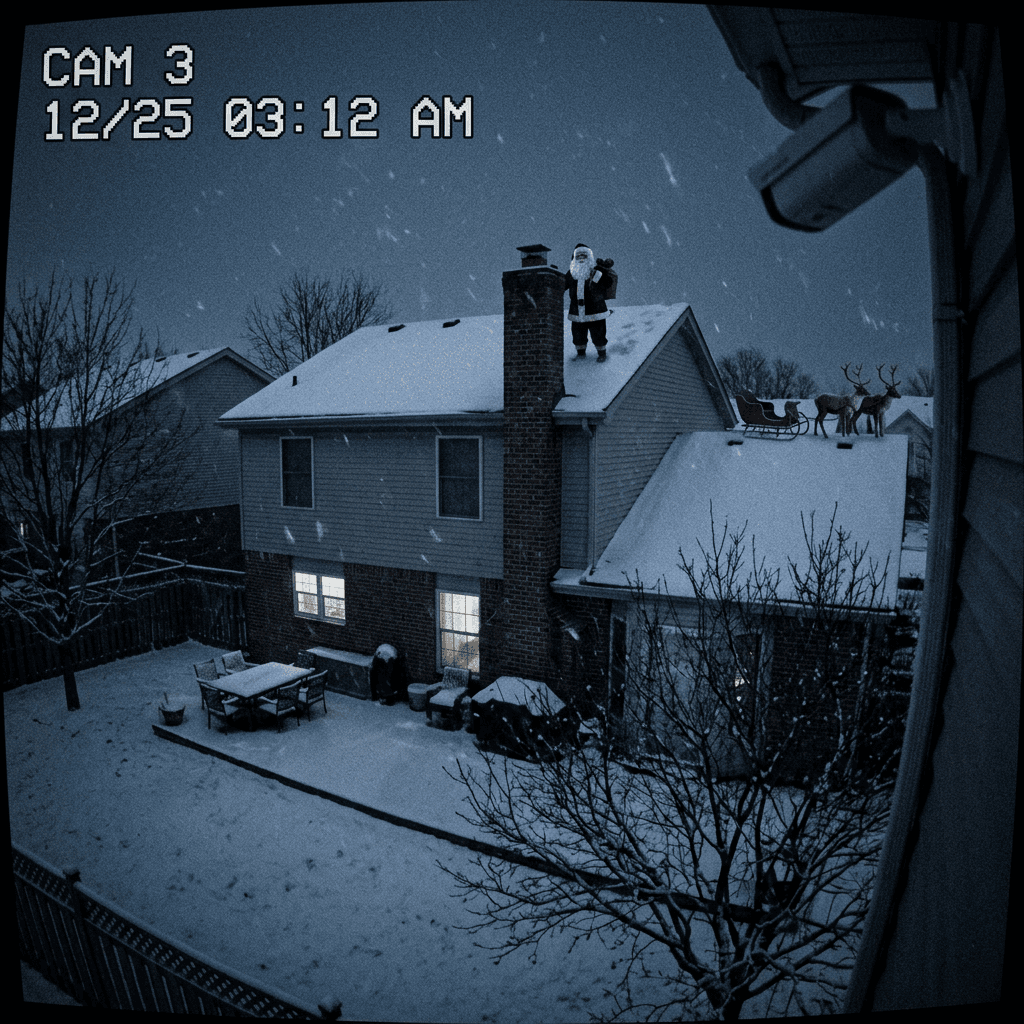
17. A Sleigh Streaking Across the Sky Over the House
Phone photos of the sky are always a little smeared, so a streaking sleigh silhouette is easy to make believable. Take the base photo from your driveway with the house in the foreground.
Use [your house exterior photo taken at night from the driveway looking up] as the base image and keep the house, roofline, trees and street exactly as they are. Add a small sleigh pulled by reindeer streaking across the dark sky above the house, visible as a tiny warm-lit silhouette with a faint glittering trail, with stars and a few thin clouds behind it. Render it as a handheld phone photo taken at night with slight camera shake, soft focus on the sky, visible noise, a faint lens flare from a streetlight and a little tilt in the horizon. The sleigh must be small and distant, with correct perspective and no sharp detail, no extra people, no logos, no garbled text, no watermark.
18. Santa Climbing Down a Ladder at the Side of the House
A funny, slightly more detailed variation for the family that wants Santa to use the ladder from the garage. It reads best on a side-yard camera.
Use [your side yard photo taken at night from a motion light camera position] as the base image and keep the fence, gutter, windows and ground exactly as they are. Add Santa Claus climbing down a wooden ladder leaning against the house, red coat and boots, glancing sideways toward the camera with a surprised look, a sack hanging from his arm. Render it as an outdoor motion-light security camera frame with a harsh white light from above, hard shadows on the wall, bright overexposed snow, a timestamp overlay reading 12/25 03:27 AM, a slight wide-angle look and compression artifacts. Correct scale against the ladder and window, no extra people, no logos, no garbled text, no watermark.
19. Reindeer Grazing on the Lawn From the Porch Camera
A quieter outdoor shot that works as the last frame of a series. The lawn view is wide, so the reindeer can be small and still convincing.
Use [your front lawn photo taken at night from the porch] as the base image and keep the lawn, trees, mailbox, street and house corner exactly as they are. Add three reindeer standing on the lawn near the mailbox, one with its head down sniffing the grass, antlers visible against the street light, and a sleigh parked in the driveway behind them with a faint warm glow. Render it as a wide security camera frame with cool blue night tones, grain, a timestamp overlay reading 12/25 02:37 AM, mild fisheye, and a dusting of light snow. Animal proportions must be realistic against the mailbox and car, soft detail from low resolution, no extra people, no logos, no garbled text, no watermark.
For snowy exteriors and cozy winter lighting, the winter aesthetic photo prompts have more ideas for describing snow, cold light and warm windows.
5) Cookie and Present Evidence Shots
Evidence photos need no person at all and are the easiest way to be convincing. Pair them with a camera shot for a full story on Christmas morning.
20. Half-Eaten Cookie Plate Evidence Photo
A close-up evidence photo is the easiest of all, because it needs no person. Photograph your real plate and glass, then ask for the crumbs and the note.
Use [your photo of the cookie plate and milk glass on the coffee table] as the base image and keep the table, plate, glass and background exactly as they are. Edit the plate so that two cookies are gone, one has a single bite taken out of it, and crumbs are scattered across the plate, and edit the glass so the milk is nearly empty with a faint white ring and a small handwritten thank-you note in red ink reading Thanks, Santa leaning against it. Light it with the warm glow of the tree from the left and a dim lamp behind, shot like a casual phone close-up from about 40 centimeters with shallow depth of field, a little warm color cast and natural handheld softness. Crumbs and milk should look physically real, with correct reflections on the glass, no people, no logos, no other text, no watermark.
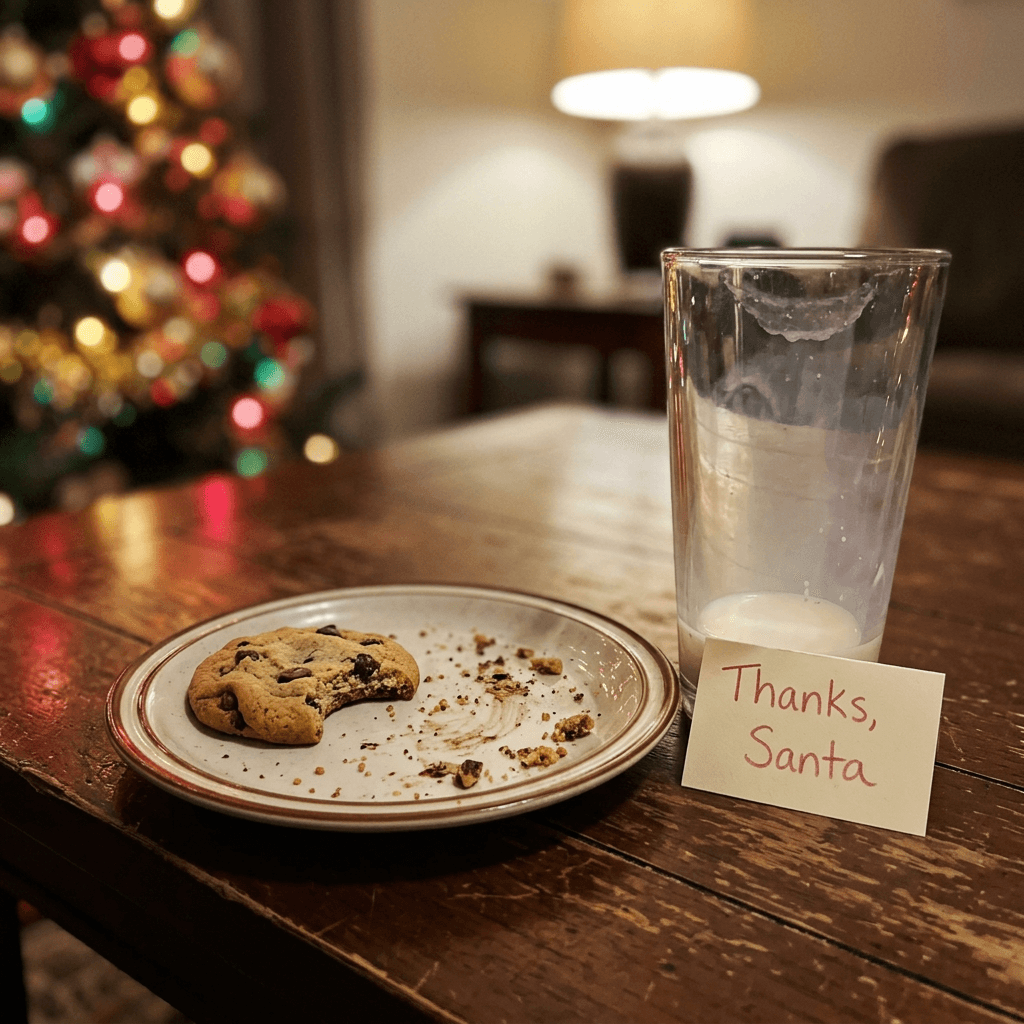
21. Presents Appearing Under the Tree, Before and After
A two-image pair works beautifully: the empty tree at bedtime, then the same angle with presents. Because only the presents change, the room matches perfectly.
Use [your living room photo of the tree at bedtime] as the base image and keep the camera angle, tree, ornaments, sofa and lighting exactly as they are. Add a generous pile of wrapped gifts under the tree in red, green, gold and kraft paper with twine bows, some tall boxes at the back and small ones at the front, plus one large gift leaning against the sofa. Light the new gifts with the same warm tree glow so their shadows match the existing ones, show real paper texture and slight ribbon creases, and frame it like a casual phone photo taken first thing in the morning with natural color. Gifts must sit on the floor with correct contact shadows and scale, no people, no brand logos on the paper, no garbled text, no watermark.
22. Sooty Boot Prints Across the Living Room Rug
Evidence prompts like this give kids something to investigate, and they pair well with the fireplace or porch shots. Keep the print small and subtle on your own rug.
Use [your living room photo showing the rug and hearth] as the base image and keep the rug, hearth, furniture and walls exactly as they are. Add a trail of large black sooty boot prints crossing the rug from the fireplace toward the tree, each print slightly fainter than the last, with a little scattered soot near the hearth. Light the scene with soft morning window light from the left and warm tree light, photographed from standing height with a casual phone feel, natural color and mild softness. The prints should follow the rug texture and fold slightly at the pile, with correct perspective along the floor, no people, no logos, no garbled text, no watermark.
6) Video Clip Prompts (5 to 8 Seconds)
These prompts assume you already have a still from the sections above. Starting from your own approved frame keeps the room and Santa consistent, and 5 to 8 seconds is long enough for a satisfying moment without the face drifting.
23. Doorbell Clip: Santa Arrives With the Sack (6 Seconds)
Start from your doorbell still from prompt 1 and animate it with image-to-video. Short clips hold the face together better than long ones.
Animate [your doorbell camera still of Santa on the porch] as a six second fixed-camera doorbell recording. The camera does not move. Santa walks up the steps from the right, pauses on the doormat, shifts the sack on his shoulder, looks at the doorbell and gives a small wave before leaning toward the door. Keep the fisheye distortion, the timestamp overlay counting from 12/25 02:14:03 AM, the warm porch light, soft video compression and cold blue night. Add light snowfall, a faint breath of vapor, and natural footstep motion with no sliding, with Santa's face staying the same friendly face throughout. No cuts, no zoom, no extra people, no garbled text, no logos.
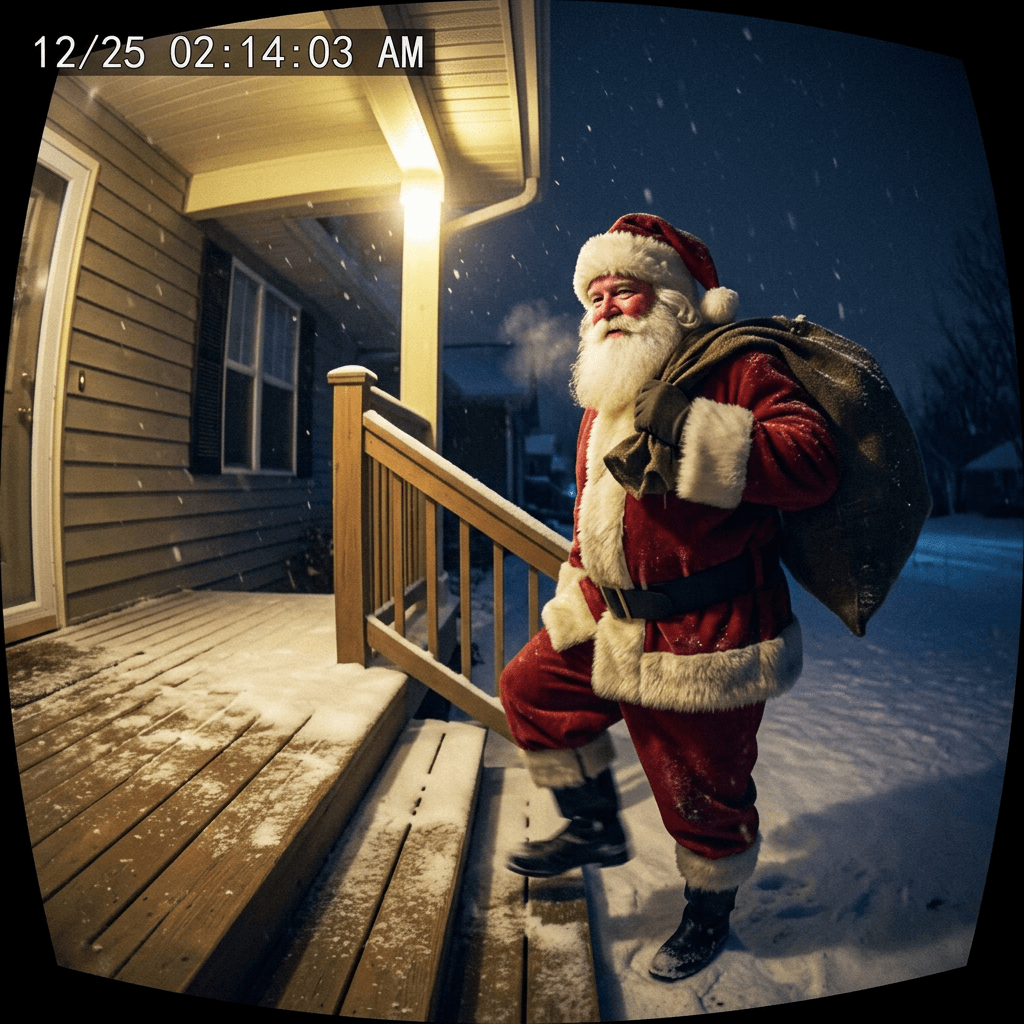
24. Night-Vision Living Room Clip: Santa Eats a Cookie (8 Seconds)
A calm static security camera works well for video, since there is almost no camera motion for the model to invent. Use the still from prompt 6 or 7 as the starting frame.
Animate [your night-vision still of Santa in the living room] as an eight second static security camera recording in monochrome infrared. The camera stays locked. Santa takes a cookie from the plate on the coffee table, bites it, nods with a satisfied smile, brushes crumbs off his beard and then glances toward the camera and winks. The tree lights flicker softly, the timestamp advances from 12/25 03:05:10 AM, and the footage keeps fine grain, scan-line softness and bright hot spots on the ornaments. Movement should be slow and natural, with his face unchanged and no morphing of the room. No color, no zoom, no extra people, no real brand interface, no garbled text.
25. Backyard Clip: Sleigh Lifts Off From the Roof (6 Seconds)
The finale clip. Keep it short and mostly distant so the animation reads as a quick glimpse caught by a motion-triggered camera.
Animate [your backyard security camera still of Santa on the roof] as a six second motion-triggered outdoor camera clip. The camera is locked off. Santa steps into the sleigh beside the chimney, the reindeer shake their antlers, and the sleigh lifts off the roof and rises quickly into the dark sky, leaving a faint glittering trail as snow swirls. Keep the cool blue night tone, sensor grain, the timestamp advancing from 12/25 03:12:20 AM, and compression artifacts. The sleigh should get smaller with correct perspective as it rises, the house and trees stay unchanged, no extra people, no zoom, no garbled text, no logos.
For the finished reveal, drop your clips into a vertical edit with Text2Shorts, add a short narrated line like "We caught something last night," and share it privately with family.
How to Customize These Prompts for Your Own Home
Start with the base photo, because it decides most of the outcome. Take it in the same light as the final image, keep the camera steady, and avoid clutter in the exact spot where Santa will stand. If you plan to use inpainting, take a photo with a clear patch of floor so the mask has room to work with.
Next, swap the bracketed placeholder for what you actually have. A front door photo taken at doorbell height replaces the porch references, a corner shot of your kitchen replaces the counter, and your own mantel replaces the stockings. If you do not have a fireplace, use the tree, the sofa or the stairs instead. For apartment dwellers, a hallway camera, a balcony door and a window view are all believable, and Santa can arrive through the front door instead of a chimney.
Adjust the time and date overlay to match your story. The timestamps in the prompts are placeholders, so change them to the hour your family sleeps deepest, and keep the sequence logical across images: arrival at 01:47, presents at 02:14, cookies at 02:48, departure at 03:12. A consistent timeline across five or six images feels much more real than a single lucky shot.
Then choose your level of realism. Younger children respond well to a clearly friendly Santa seen from a distance, while older kids enjoy a game of spotting the details. Keep the closing failure-mode clause in every prompt, since it quietly prevents extra people, garbled text and warped hands, which are the most common problems.
If something looks wrong, change one thing at a time. A drifting room is a signal to move from image-to-image to a masked edit. A glossy Santa is a signal to add skin texture, grain and a more distant framing. A floating Santa is a signal to add contact shadows. Our Christmas photoshoot prompts use the same one-change-at-a-time approach for portraits.
Common Mistakes With Santa Caught on Camera Photos
Generating the whole room instead of editing yours. An invented living room looks nothing like your home, and kids notice at once. Always upload a photo and use the lock sentence.
Making the image too sharp for the camera. A crisp portrait labeled as a doorbell frame looks wrong. Ask for fisheye distortion, compression and noise, and let the quality drop.
Using color in a night-vision shot. Infrared cameras are monochrome. A red coat in a green-gray frame is a giveaway, so describe it as light gray.
Ignoring the real light sources. A Santa lit from the front when the only light is behind him looks pasted in. Name the source in your prompt.
Wrong scale. A Santa who is too tall for the door frame or too small for the sleigh breaks the story. Reference a landmark in the room.
Overlong text. Notes and captions longer than three or four words usually come out garbled. Keep text short, or add it afterward in an editor.
Creating a scary Santa. Close-ups with harsh shadows can look more like an intruder than a friend, especially on a baby monitor. Keep the expression warm and avoid dark silhouettes in bedrooms.
Posting a sequence that contradicts itself. If the timestamp says 03:12 on the roof and 02:48 in the kitchen with the sleigh already gone, a sharp-eyed kid will find it. Plan the timeline first.
Skipping the video test. A still can look perfect while the animated version morphs the face. Always generate a short test clip before you plan a reveal around it.
Doing This Kindly: Playful Now, Honest Later
A Santa cam photo is a small piece of magic, and a few light habits keep it that way for everyone. Keep the tone playful and gentle rather than startling: a friendly Santa, a smile, a wave. Avoid frames that put a stranger in a child's bedroom, and think twice about showing a baby-monitor Santa to a child who is already nervous at night.
It helps to decide in advance how and when you will tell older kids. Many families treat it as a game that grows up with the child, and a child who is ready to ask how it was made often enjoys learning the process and making one with you. Having an answer ready, such as showing them the original room photo, keeps trust intact.
Finally, treat these images as a family keepsake. Your own living room and your kids' reactions are personal, so share the pictures with relatives privately instead of posting them publicly, and keep photos of children out of public feeds.
Make Your Santa Cam Photos and Clips on Miraflow
The whole workflow fits in one browser tab. Use the Miraflow AI Image Generator to upload your room and run the image-to-image prompts, or paint a mask for inpainting when you want to change only Santa's spot. Then bring your favorite frame to the cinematic video generator for a 5 to 8 second doorbell or night-vision clip, and assemble several clips into a vertical reveal with Text2Shorts. A short instrumental from the AI music generator, such as soft sleigh bells and a gentle celesta, makes the reveal feel finished.
If you plan to share a version of the clip with a title card for relatives or a family channel, the YouTube Thumbnail Maker can make a quick cover with a freeze frame and a short line of text. You can explore everything from the Miraflow home page.
Frequently Asked Questions
How do I make an AI photo of Santa in my own house?
Upload a photo of your room to an image-to-image tool, add a lock sentence to keep the room unchanged, and describe Santa, the pose and the camera type. For tighter control, paint a mask where Santa should appear and use inpainting so only that region changes. The prompts above are written this way.
What is the best camera style for a beginner?
Night-vision security camera frames are the most forgiving, followed by doorbell fisheye frames. Both hide fine detail and color, so small imperfections disappear. Phone snapshots need more care with lighting and scale.
How do I make the Santa image look like a doorbell camera?
Ask for a strong fisheye wide-angle view, barrel distortion at the edges, slightly blown highlights near the porch light, soft compression and a small timestamp in the top left corner. Use a base photo taken at doorbell height.
Can I turn the photo into a video?
Yes. Use your approved still as the first frame in an image-to-video tool, keep the camera locked, and ask for one simple action over 5 to 8 seconds. Short clips keep Santa's face and your room consistent, and a quick test run saves a lot of frustration. You can do this with the cinematic video generator.
Why does Santa look fake or glossy?
Usually the prompt asks for a polished portrait while the camera type implies low quality. Add natural skin texture, uneven fur trim, grain and compression, and move Santa farther from the camera. Our guide to realistic AI photos explains the general approach.
Should I use a real photo of my child in the scene?
You do not need to. The prompts work with an empty room, a stocking, a cookie plate or a pet, and your child can be the one discovering the evidence on Christmas morning. If you do include children in any image, keep the result private.
How do I keep Santa looking the same across several images?
Reuse the same Santa description word for word in every prompt, including the coat details, the beard and the glove color, and keep the friendly expression. Generating from behind or in profile also reduces face drift.
Is it okay to show this to kids?
Most families enjoy it as a playful holiday tradition. Keep the images gentle, avoid scary framing, and decide ahead of time how you will talk about it when your kids get older.
Conclusion
A great Santa caught on camera image starts with your own room and respects the limits of the camera that supposedly recorded it. Upload a real photo, lock the room, describe a friendly Santa with a real face, pick one camera signature, match the light sources and finish with a clause that blocks the usual failures. With these 25 prompts you can build a full timeline for Christmas Eve: the doorbell arrival, the night-vision tree visit, the cookie evidence and the sleigh leaving the roof.
Start with prompt 1 in Miraflow's AI Image Generator using a photo of your own front door, then add one night-vision frame and one evidence photo, and animate your favorite shot into a short clip. Keep it warm, keep it playful, and enjoy the look on their faces on Christmas morning.