YouTube Thumbnail Size 2026: The Only Guide You Need

Written by
Jay Kim
Everything you need to know about YouTube thumbnail sizes in 2026. Standard dimensions, Shorts specs, file requirements, safe zones, and how to generate thumbnails at the right size with AI.
You've just finished editing your video. You've written the title. You've polished the description. You click upload — and then YouTube asks for a thumbnail.
What size is a YouTube thumbnail again? Is it 1280×720? Does Shorts use a different size? What's the file size limit?
Every creator has gone through this. It's one of those things you look up every few months and still can't remember from scratch.
This guide gives you every YouTube thumbnail size you need to know in 2026 — for both regular videos and Shorts — plus file requirements, safe zones, common mistakes, and how to generate correctly-sized thumbnails in one click using Miraflow's YouTube Thumbnail Maker.
TL;DR – YouTube Thumbnail Sizes at a Glance
If you just need the numbers, here they are:
- Standard YouTube Video Thumbnail: 1280 × 720 px, 16:9 aspect ratio
- YouTube Shorts Thumbnail: 1080 × 1920 px, 9:16 aspect ratio
- Minimum width (video): 640 px
- Maximum file size: 2 MB
- Accepted formats: JPG, PNG, GIF, WebP
- Safe zone: Keep text and faces out of the bottom 15–20% and away from the outer edges
If you want to skip the manual setup entirely, Miraflow's YouTube Thumbnail Maker lets you select 16:9 Video or 9:16 Shorts before generating — so the output comes out at the right dimensions automatically.
Standard YouTube Thumbnail Size
The standard YouTube thumbnail size for regular videos is 1280 × 720 pixels.
This uses a 16:9 aspect ratio, which matches YouTube's default widescreen video player. YouTube recommends 1280×720 because it looks sharp across every device — from a 4K desktop monitor to a small phone screen. If you go below the minimum width of 640 px, YouTube will display your thumbnail blurry or pixelated in search results and on channel pages.
Here's the full spec:
- Recommended resolution: 1280 × 720 px
- Minimum width: 640 px
- Aspect ratio: 16:9
- Accepted file formats: JPG, PNG, GIF, WebP
- Maximum file size: 2 MB
- Color space: RGB (sRGB recommended)
Quick tip: If you're exporting from a design tool, export at 72 DPI or higher. Anything lower can look soft once YouTube recompresses the image on its servers.
YouTube Shorts Thumbnail Size
Shorts use a completely different canvas — and this is where most creators trip up.
YouTube Shorts thumbnails are 1080 × 1920 pixels, a 9:16 vertical aspect ratio. That's the same orientation as a smartphone screen held upright — the exact opposite of a standard YouTube thumbnail.
Shorts thumbnails appear in the Shorts feed on mobile, in YouTube search results, and in the Shorts shelf on your channel page. Because the display is vertical, all your composition decisions need to shift too: faces and text should be centered vertically, and you have much more height to work with than width.
- Recommended resolution: 1080 × 1920 px
- Aspect ratio: 9:16
- Accepted file formats: JPG, PNG, GIF, WebP
- Maximum file size: 2 MB
When generating Shorts thumbnails in Miraflow's YouTube Thumbnail Maker, set Aspect Ratio → 9:16 Shorts before generating. The AI will then compose the entire layout — subject position, text placement, background — to fit the vertical format correctly from the start.
File Format and Size Requirements
YouTube accepts four file formats for thumbnails: JPG, PNG, GIF, and WebP.
In practice, most creators use JPG or PNG. Here's how they compare:
JPG is best for photo-heavy thumbnails. It gives you a smaller file size, which makes it easy to stay under the 2 MB cap. There's slight compression at high zoom, but it's invisible at the sizes YouTube actually displays thumbnails.
PNG is best for thumbnails with sharp text, logos, or transparent layers. It stays pixel-perfect, but the files are larger. If your PNG exceeds 2 MB, YouTube will reject the upload.
WebP is a newer format that gives you the best of both worlds — small file size with sharp quality. It's supported by YouTube but less common in most design tools.
GIF is technically accepted, but YouTube doesn't animate GIFs in thumbnails. There's no benefit to using it over JPG or PNG.
If your file is over 2 MB, the fastest fix is to export as JPG at 85–90% quality. It keeps the image visually sharp while dropping the file size significantly.
The Safe Zone: Where to Put Your Text and Faces
Getting the dimensions right is only half the job. Where you place your headline text and main subject matters just as much.
YouTube overlays several interface elements directly on top of your thumbnail in different contexts — the video title, the duration timestamp in the corner, and the progress bar along the bottom. If your most important text or face lands in these areas, it gets covered or clipped.
Here's what to watch for:
Bottom-right corner: YouTube places the video duration here. Keep any text or key visuals out of the bottom 15–20% of the frame.
Left and right edges: In grid views and on smaller screens, thumbnails can get cropped slightly on the sides. Keep faces and text at least 50–80 px from the left and right edges for standard 16:9 thumbnails.
Top-left corner: On some channel pages, YouTube displays a quality badge or indicator here. It's subtle, but keeping that corner clean avoids any overlap.
For Shorts (9:16): The top and bottom areas get more attention than the sides. Keep your main subject and text in the center vertical third of the frame for maximum visibility across the Shorts feed, search, and channel shelf.
A simple test: pull up your thumbnail on your phone at thumbnail size and squint at it. If you can still read the text and recognize the face, the safe zone is working. If anything feels cramped or cut off, pull it toward the center.
Why Getting the Size Right Actually Matters for CTR
A lot of creators treat thumbnail sizing as a technicality. It's not. The size and resolution you upload directly affects how YouTube compresses and displays your image — and that affects whether someone clicks.
When you upload a thumbnail at the wrong size or aspect ratio, YouTube has to stretch or crop it to fit the display slot. Stretching makes text blurry. Cropping cuts off faces. Both destroy the visual impact that was supposed to make someone stop scrolling.
Here's the reality of how your thumbnail gets displayed: in YouTube search results, it appears at roughly 320×180 px. In the suggested videos sidebar, it shrinks to around 168×94 px. On a TV, it can scale all the way up to full HD. Your thumbnail has to look good at every one of these sizes simultaneously.
The way to make that work is straightforward: start at 1280×720 (or 1080×1920 for Shorts), keep your key elements large and high-contrast, and avoid filling the frame with small details that disappear when the image scales down.
Common Thumbnail Size Mistakes (and What to Do Instead)

Mistake 1: Using a 16:9 thumbnail for a Short
Uploading a standard widescreen thumbnail to a Short will result in YouTube cropping or letterboxing the image in the Shorts feed. The composition breaks, and whatever you designed to be eye-catching gets hidden.
What to do instead: Create a dedicated 9:16 thumbnail for every Short. In Miraflow's YouTube Thumbnail Maker, switch to 9:16 Shorts mode before generating — the layout, subject placement, and text position will all be built for vertical automatically.
Mistake 2: Exporting at too low a resolution
Uploading a thumbnail smaller than 640 px wide — or exporting at a low DPI — results in a blurry image that YouTube cannot sharpen on its end. It looks unprofessional in search results and on your channel page.
What to do instead: Always export at 1280×720 or above for standard videos. If you're using an AI generator, confirm the output resolution before downloading.
Mistake 3: Going over the 2 MB file size limit
YouTube will reject any thumbnail over 2 MB with no warning other than an upload error. This usually happens with large PNG files that have complex gradients, many text layers, or high-resolution artwork.
What to do instead: Export as JPG at 85–90% quality. Or use WebP if your tool supports it. Both will keep your file well under 2 MB with no visible quality loss at YouTube's display sizes.
Mistake 4: Putting text too close to the edges
Text near the outer edges gets clipped on mobile, in grid views, and on TV screens. It may look fine on your desktop while designing, but in the actual contexts where most viewers encounter your thumbnail, that headline is unreadable.
What to do instead: Treat the outer 5–8% of the frame as a no-go zone for any important element. Keep your headline in the center 80–90% of the canvas, both horizontally and vertically.
Mistake 5: Reusing a video thumbnail on a repurposed Short
If you repurpose a regular video as a Short, you can't just reuse the 16:9 thumbnail. The aspect ratio is completely different, and the original thumbnail will appear stretched, cropped, or weirdly letterboxed in the Shorts feed.
What to do instead: Generate a dedicated 9:16 thumbnail for each Short. With an AI tool it takes under a minute, and it makes your Shorts shelf look intentional and polished instead of broken.
How to Create YouTube Thumbnails at the Right Size with AI
If you don't want to manually configure canvas dimensions, check pixel specs, and export at the right resolution every time you upload, Miraflow's YouTube Thumbnail Maker handles all of it automatically.
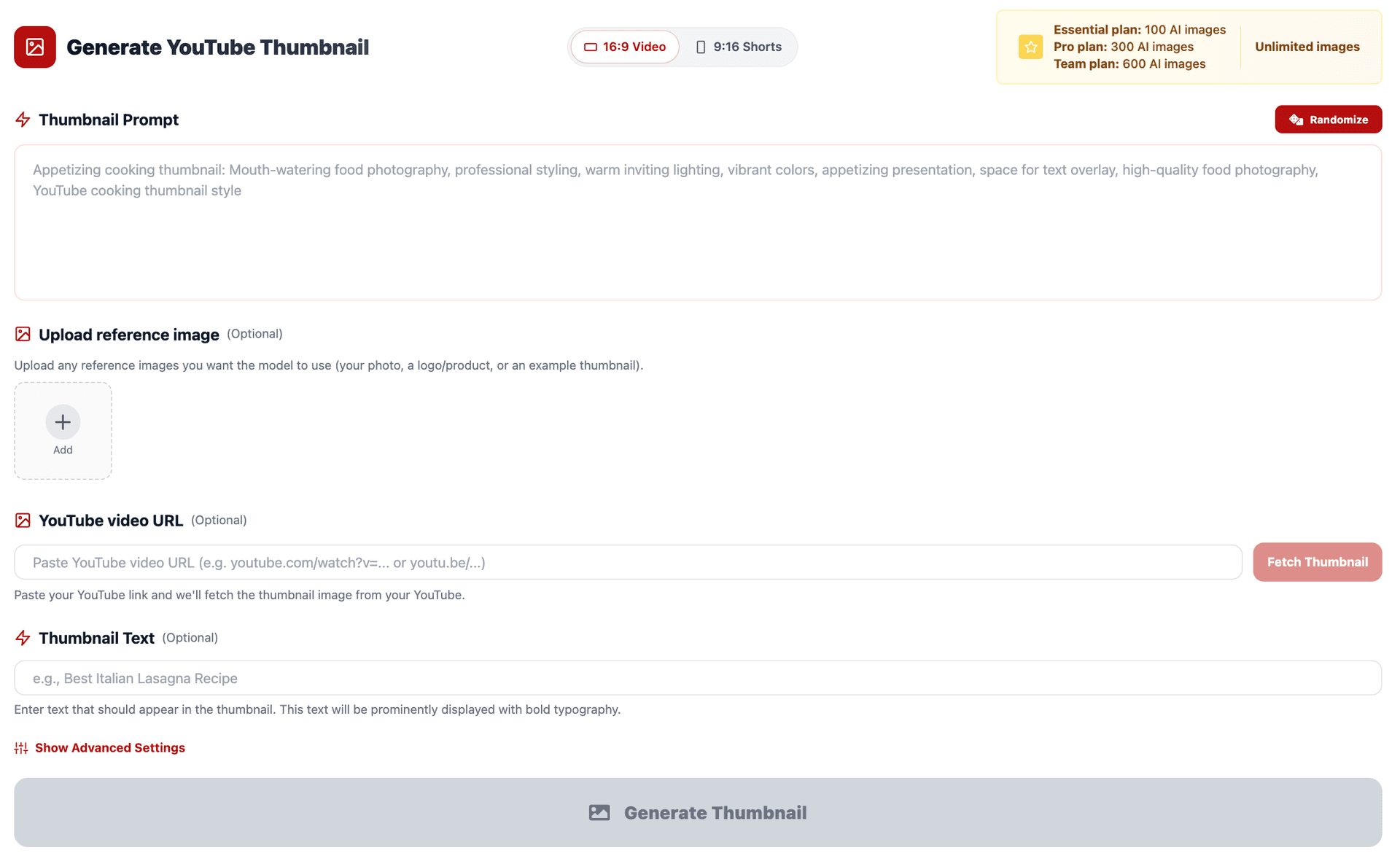
Here's how to use it:
- Go to YouTube Thumbnail Maker on Miraflow.
- Select your Aspect Ratio at the top of the form:
- 16:9 Video for standard YouTube videos
- 9:16 Shorts for YouTube Shorts
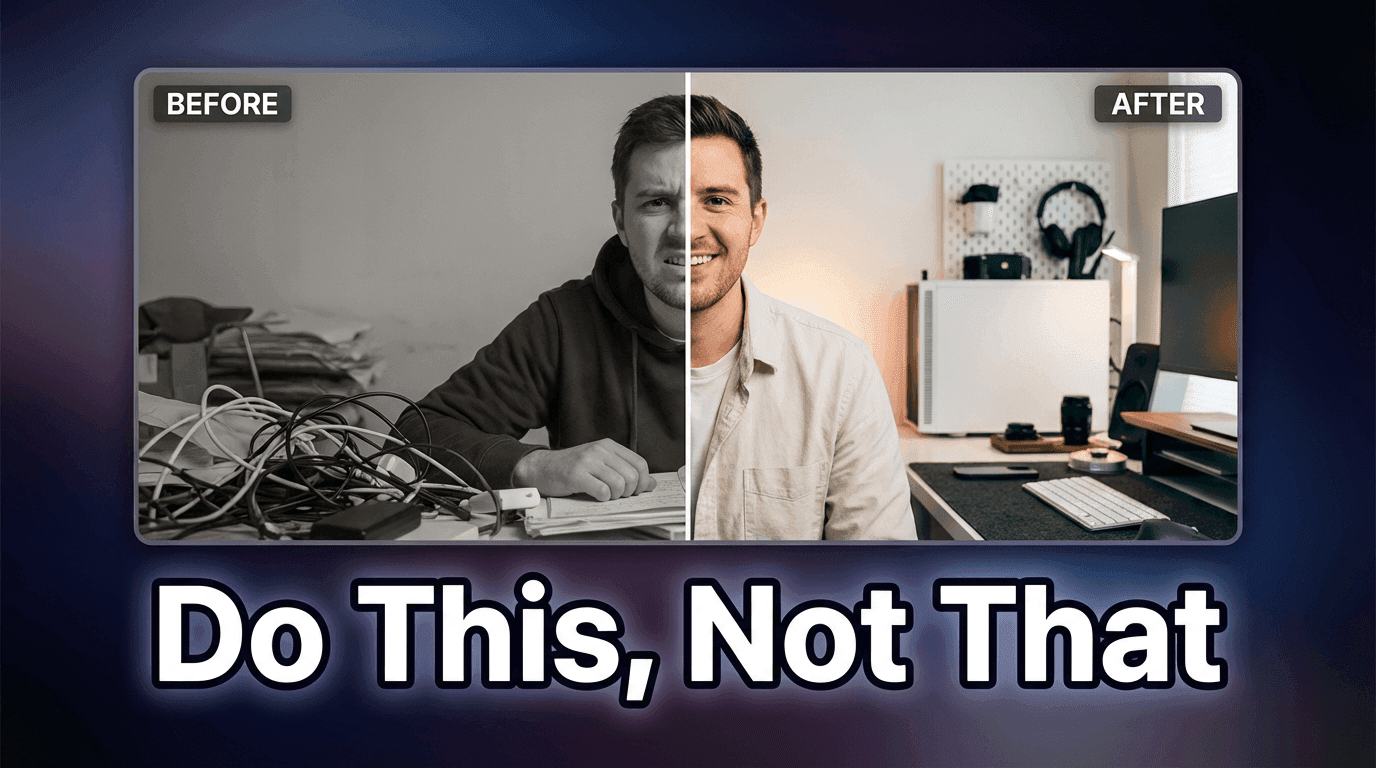
- Type your thumbnail description into Thumbnail Prompt. For example: "YouTube tutorial thumbnail: split-screen before vs after layout. On the left, a dull messy version with low contrast. On the right, a bright clean polished version with vivid colors. Space for bold text at the top. Modern YouTube tutorial style."
- Add your short headline phrase in Thumbnail Text — this renders as bold text directly in the design. Keep it to 3–5 words: "Edit Faster", "Stop Doing This", "Worth It?".
- (Optional) Upload a reference image under Upload reference image if you want your face or a specific product to appear in the thumbnail.
- (Optional) Click Show Advanced Settings and add a Negative Prompt like: "blurry, low quality, messy text, distorted faces, cluttered background"
- Click Generate Thumbnail. The output is sized and formatted correctly for YouTube — download it directly and upload to your video.
All your generated thumbnails are saved under My Thumbnails so you can compare variations and come back to previous versions.
Quick tip: Generate 2–3 variations of the same thumbnail and compare them at phone screen size. The one that's still readable and visually clear at the smallest size is almost always the strongest one.
YouTube Thumbnail Size Quick-Reference Chart
Bookmark this table for the next time you need a fast answer:
| Content Type | Dimensions | Aspect Ratio | Max File Size | Best Format |
|---|---|---|---|---|
| Standard YouTube Video | 1280 × 720 px | 16:9 | 2 MB | JPG or PNG |
| YouTube Shorts | 1080 × 1920 px | 9:16 | 2 MB | JPG or PNG |
| Minimum size (video) | 640 px wide | 16:9 | — | — |
Conclusion
YouTube thumbnail sizing isn't complicated — but getting it wrong costs you clicks every single upload.
Use 1280 × 720 px for standard videos, 1080 × 1920 px for Shorts, keep your files under 2 MB, and make sure your text and faces stay out of the edges and bottom of the frame. If you're repurposing content, always create a dedicated thumbnail for each format instead of reusing one across both.
If you want to skip the manual canvas setup, Miraflow's YouTube Thumbnail Maker handles sizing automatically. Pick 16:9 or 9:16, describe your thumbnail, add your headline text, and generate. The output comes out at the right dimensions, ready to upload — no resizing, no rejected files, no blurry exports.
One less thing to get wrong every time you upload.