20 AI Prompts for LinkedIn Post Images That Drive Engagement (Copy & Paste)

Written by
Jay Kim
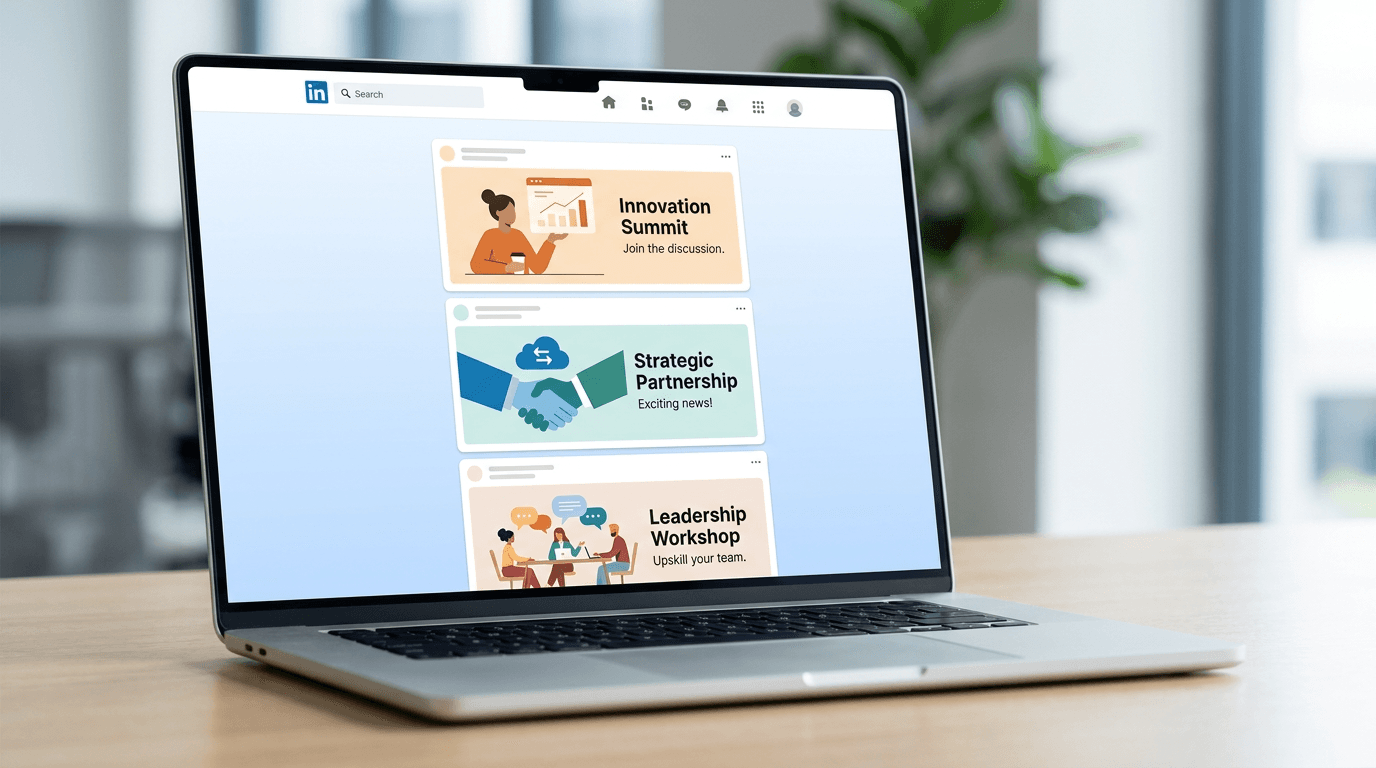
20 ready-to-use AI prompts for generating professional LinkedIn post images. Copy, paste, and create scroll-stopping visuals that drive engagement for every content type.
You just spent 45 minutes crafting a thoughtful LinkedIn post about a lesson you learned scaling your business, but the image you paired it with is a generic stock photo of two people shaking hands in front of a glass building. The post gets 12 likes and zero comments. Meanwhile, someone in your niche posts a similar insight with a custom-designed visual that instantly communicates the core idea, and it pulls in hundreds of reactions and a thread of meaningful comments. The difference is almost never the text. It is the image.
LinkedIn's algorithm prioritizes visual content, with posts containing images generating 2x higher engagement rates than text-only updates.[2] And recent data makes the opportunity even clearer: posts featuring original, brand-specific images now receive 127% more comments than text-only posts, a significant jump from the 98% figure recorded in 2024.[6] Yet most professionals still grab the first stock photo that vaguely matches their topic and call it done.
AI image generation changes this completely. With the right prompt, you can create a custom, on-brand image for every LinkedIn post in seconds, one that communicates your idea visually before anyone reads a single word of your caption. This guide gives you 20 copy-and-paste prompts designed specifically for LinkedIn's professional audience, along with the technical specs, design principles, and engagement strategies you need to make every post image stop the scroll and start conversations.
Why Custom LinkedIn Post Images Matter More Than You Think
LinkedIn is not Instagram. The audience is not scrolling to be entertained. They are scanning their feed between meetings, during commutes, and in the gaps of their workday looking for insights that help them do their jobs better. Although users are on LinkedIn for a different reason from Instagram or TikTok, people still scan, scroll, and consume information in the same way.[9]
This means your post image has roughly one second to communicate enough value to make someone stop scrolling and read your caption. Posts with images get 2x the engagement of text-only posts. Articles with cover images get 94% more views.[1] But not all images perform equally. Image posts average 2.3% engagement, but this varies dramatically by image type. Screenshots of conversations, behind-the-scenes photos, and data visualizations perform best.[5]
The takeaway is clear: generic stock photography actively hurts your performance, while original, purposeful visuals amplify it. Avoid stock photos of handshakes, whiteboards, and diverse teams pointing at laptops. They signal "generic content" and get scrolled past.[1] AI-generated images let you create original visuals that communicate your specific message without the time investment of manual design or the cost of a photographer.
Looking ahead, AI-generated visual content could become a game-changer in optimizing engagement.[6] And with mobile access rising to 76% of all platform sessions[6], your images need to be optimized for small screens where visual clarity matters even more.
For creators who are also building a presence on short-form video platforms, the AI prompts for TikTok cover images guide covers similar principles for vertical cover design.
LinkedIn Post Image Specs You Need to Know in 2026
Before generating any images, understanding LinkedIn's technical requirements prevents the blurry, cropped, or awkwardly formatted posts that undermine your professional credibility. Getting LinkedIn image sizes wrong costs you visibility. A blurry profile photo, a cropped banner, or a pixelated post image signals unprofessionalism before anyone reads your content.[2]
For LinkedIn posts in 2026, the recommended image sizes are 1200 x 627 pixels for landscape format and 1080 x 1080 pixels for square format. Following these dimensions helps your posts stand out and maximizes visibility and engagement.[5] For portrait-format images that take up more vertical feed space on mobile, 1080 x 1350 pixels with a 4:5 aspect ratio[9] is the recommended size.
LinkedIn supports multiple aspect ratios, but the three you should focus on are the 1.91:1 landscape (1200 x 627 pixels) for link previews and standard posts, the 1:1 square (1080 x 1080 pixels) for maximum compatibility across devices, and the 4:5 portrait (1080 x 1350 pixels) for maximum feed real estate on mobile. Uploading a 16:9 landscape image when a 4:5 portrait would take up 3x more feed space is leaving engagement on the table.[1]
For file format, use JPEG for photographs to keep file sizes small. Use PNG for graphics with text or when you need transparency. Both formats are well-supported.[5] LinkedIn recommends keeping image file sizes under approximately 5MB to ensure fast loading times and optimal display quality. Additionally, maintaining a minimum width of 400 pixels preserves clarity across different devices.[5]
Export images in sRGB color space, the web standard.[2] When generating AI images, always specify the target resolution in your prompt and export settings to avoid any quality loss from upscaling or compression.
The AI Image Generator on Miraflow supports square and landscape aspect ratios directly, so your generated images are already formatted correctly for LinkedIn without additional cropping or resizing.
What Makes a High-Engagement LinkedIn Post Image
Understanding the visual characteristics that drive engagement on LinkedIn specifically, rather than social media in general, is critical for writing effective AI prompts. LinkedIn's professional audience responds to a different set of visual cues than audiences on Instagram or TikTok.
Minimalist designs with clear typography outperform busy, crowded visuals. Use plenty of whitespace. Limit your color palette to 2-3 colors. Let the content breathe.[1] This is the opposite of what works on entertainment-focused platforms where bold, saturated, and visually complex images grab attention. On LinkedIn, restraint signals professionalism and authority.
LinkedIn's audience loves numbers. Images that highlight statistics, charts, or data points consistently outperform generic visuals. Even a simple bold number on a clean background can stop the scroll.[1] This is why data visualization and infographic-style images are among the top-performing visual types on the platform.
There's a sweet spot between "polished Fortune 500 brand" and "scrappy startup." Most LinkedIn engagement happens in this middle ground. Clean design that still feels human and approachable.[1] Your AI-generated images should aim for this tone: professional enough to build trust, but warm and human enough to invite conversation.
Brand consistency matters enormously on LinkedIn. Create a visual system for your LinkedIn content. Same fonts, same color palette, same layout structure across posts. When people see your image in their feed, they should recognize it before reading your name.[1] When generating AI images, you should use the same color palette, lighting style, and compositional approach across all your posts to build visual brand recognition over time.
A post with your face gets much more attention than a Canva graphic that goes with your post. Generic, corporate-speak content — even when paired with professional graphics — now performs poorly because it lacks these human signals.[10] This insight shapes several of the prompts in this guide, which incorporate human elements like hands, workspaces, and authentic professional settings rather than purely abstract graphics.
Understanding LinkedIn's 2026 Algorithm and Visual Content
Before diving into the prompts, understanding how LinkedIn's algorithm treats visual content in 2026 will help you select the right prompt for each post and optimize your overall content mix.
The LinkedIn algorithm uses ranking signals to evaluate content: Relevance, Expertise, and Engagement. Together, they decide if your post reaches just a few people, or many more.[2] Your post image directly influences two of these three signals. A relevant, on-topic image signals to the algorithm that your content matches the professional interests of your target audience, and a compelling image drives the engagement signals that trigger broader distribution.
Dwell time measures how long users spend reading or viewing your content before scrolling. This metric became a primary quality signal in 2026 as LinkedIn prioritizes engagement depth over engagement breadth.[1] An image that makes someone pause, even for a few extra seconds, sends a positive dwell time signal to the algorithm before they even start reading your caption.
Saves drive 5x more reach than likes. A save now carries 5x the algorithmic weight of a like and 2x the weight of a comment.[5] Images that contain valuable, reference-worthy information, such as frameworks, data visualizations, or process diagrams, are more likely to be saved. Several prompts in this guide are designed to generate images that encourage saves by presenting visual information worth keeping.
One important nuance: single-image posts underperform text-only content by 30% in the 2026 algorithm, reversing 2024-2025 patterns.[1] This does not mean images do not matter. It means that a generic, thoughtless image hurts more than it helps. Strategic, purposeful images that add information or emotion to your post still outperform text alone. The prompts in this guide are designed to generate images that add genuine visual value, not decorative filler.
Posts with multiple images achieve 6.60% average engagement, making them the second-best format after carousels. These posts sustain dwell time better than single images while requiring less user interaction than carousels.[4] When possible, consider generating two or three related images from the prompts below for a multi-image post rather than using a single image.
20 AI Prompts for LinkedIn Post Images (Copy & Paste)
Each prompt below is designed to generate professional, LinkedIn-appropriate images that communicate specific types of business concepts. You can paste these directly into the AI Image Generator on Miraflow, set the appropriate aspect ratio, and generate immediately. Every prompt produces clean, original visuals that avoid the stock-photo aesthetic LinkedIn's audience ignores.
Thought Leadership and Insight Posts
1. Bold data point highlight
Best for: Posts sharing a surprising statistic, research finding, or market insight.
Prompt:
clean minimalist business graphic with a large empty space in the center for text overlay, soft gradient background transitioning from deep navy blue to warm slate gray, subtle geometric grid pattern with thin gold accent lines, professional and modern aesthetic, clean negative space with balanced composition, corporate design style suitable for LinkedIn
2. Contrarian take or hot take visual
Best for: Posts challenging conventional wisdom or sharing an unpopular professional opinion.

Prompt:
dramatic split composition with one half in cool blue tones showing a smooth orderly corporate environment and the other half in warm amber tones showing a creative dynamic workspace, a visible dividing line with subtle light glow, conceptual business photography, clean professional aesthetic with plenty of breathing room, centered composition
3. Lesson learned from experience
Best for: Posts reflecting on career lessons, mistakes, or pivotal moments.
Prompt:
close-up of a weathered leather notebook open on a clean wooden desk with a quality pen resting on the pages, warm natural side lighting from a window creating soft shadows, one small potted plant in soft focus in the corner, warm amber and brown tones with a clean minimal background, professional lifestyle photography feel, centered composition with generous whitespace
Business Growth and Strategy Content
4. Growth trajectory metaphor
Best for: Posts about scaling, revenue milestones, or upward business momentum.
Prompt:

minimalist 3D render of a clean ascending staircase made of translucent glass blocks with soft warm light glowing from within each step, dark charcoal background with subtle gradient, each step slightly brighter than the last suggesting progression, modern corporate aesthetic with plenty of negative space, warm gold and cool gray color palette
5. Strategic crossroads or decision-making
Best for: Posts about pivots, tough choices, or strategic decisions.
Prompt:
aerial view of a clean modern road forking into two distinct paths through a minimalist landscape, one path leading toward mountains and the other toward a coastal horizon, soft morning light with warm golden tones, clean geometric composition shot from directly above, muted earth tones with professional clarity, conceptual business photography
6. Building and foundation metaphor
Best for: Posts about systems, processes, infrastructure, or laying groundwork.

Prompt:
close-up of carefully stacked wooden building blocks arranged in a precise architectural structure on a clean white surface, warm studio lighting with soft directional shadows, shallow depth of field blurring the background, warm natural wood tones against a bright minimal backdrop, professional product photography style
Team and Leadership Content
7. Collaboration and teamwork visual
Best for: Posts about team wins, hiring, or company culture.

Prompt:
overhead flat-lay of a clean modern conference table with several notebooks pens and coffee cups arranged around the edges suggesting a productive meeting just finished, warm natural light from above, muted earth tones with one accent color from a small plant, clean and minimal professional workspace photography
8. Mentorship and guidance concept
Best for: Posts about coaching, leadership advice, or supporting others' growth.
Prompt:
two coffee cups side by side on a clean marble surface one slightly larger than the other, warm steam rising from both cups, soft natural morning light creating gentle shadows, warm brown and cream tones with a subtle green from a blurred plant in background, intimate professional lifestyle photography
9. Remote work and modern workplace
Best for: Posts about distributed teams, remote work culture, or flexible work policies.
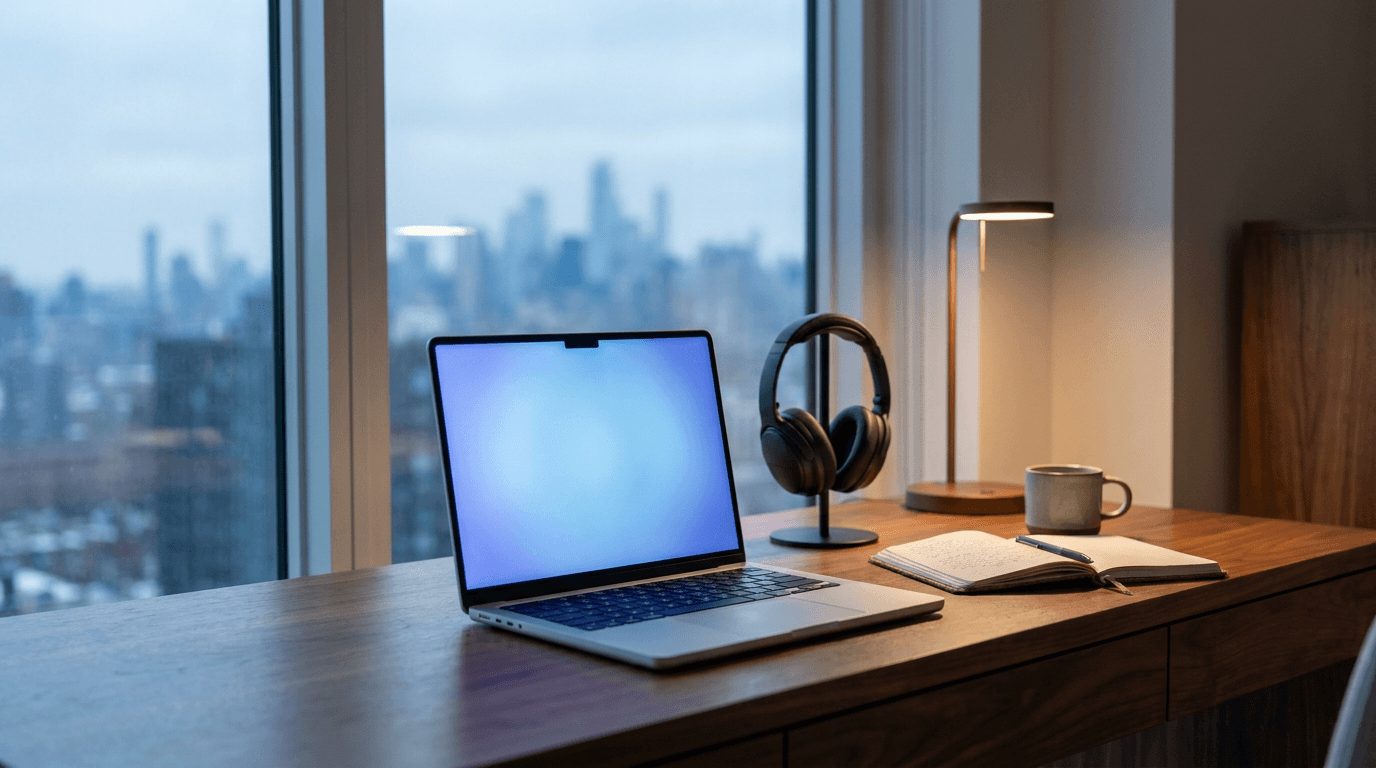
Prompt:
clean modern home office desk setup with a laptop displaying a soft blue glow on screen, quality headphones and a notebook beside it, large window with soft natural light and blurred city skyline in background, warm and cool tones balanced between the warm wood desk and cool technology, professional workspace photography with shallow depth of field
For creators managing both LinkedIn and YouTube presence, the AI prompts for YouTube thumbnails guide covers similar visual principles for video content.
Personal Branding and Career Content
10. Professional journey and career milestones
Best for: Posts about promotions, career transitions, work anniversaries, or professional growth stories.
Prompt:
a clean winding path made of smooth stepping stones through a serene minimalist zen garden, soft morning mist hovering low, each stone slightly different but following a clear upward direction, warm golden light filtering through from the right side, muted green and warm stone tones, peaceful yet purposeful composition, professional conceptual photography
11. Personal brand authority shot
Best for: Posts establishing expertise, sharing credentials, or announcing speaking engagements.
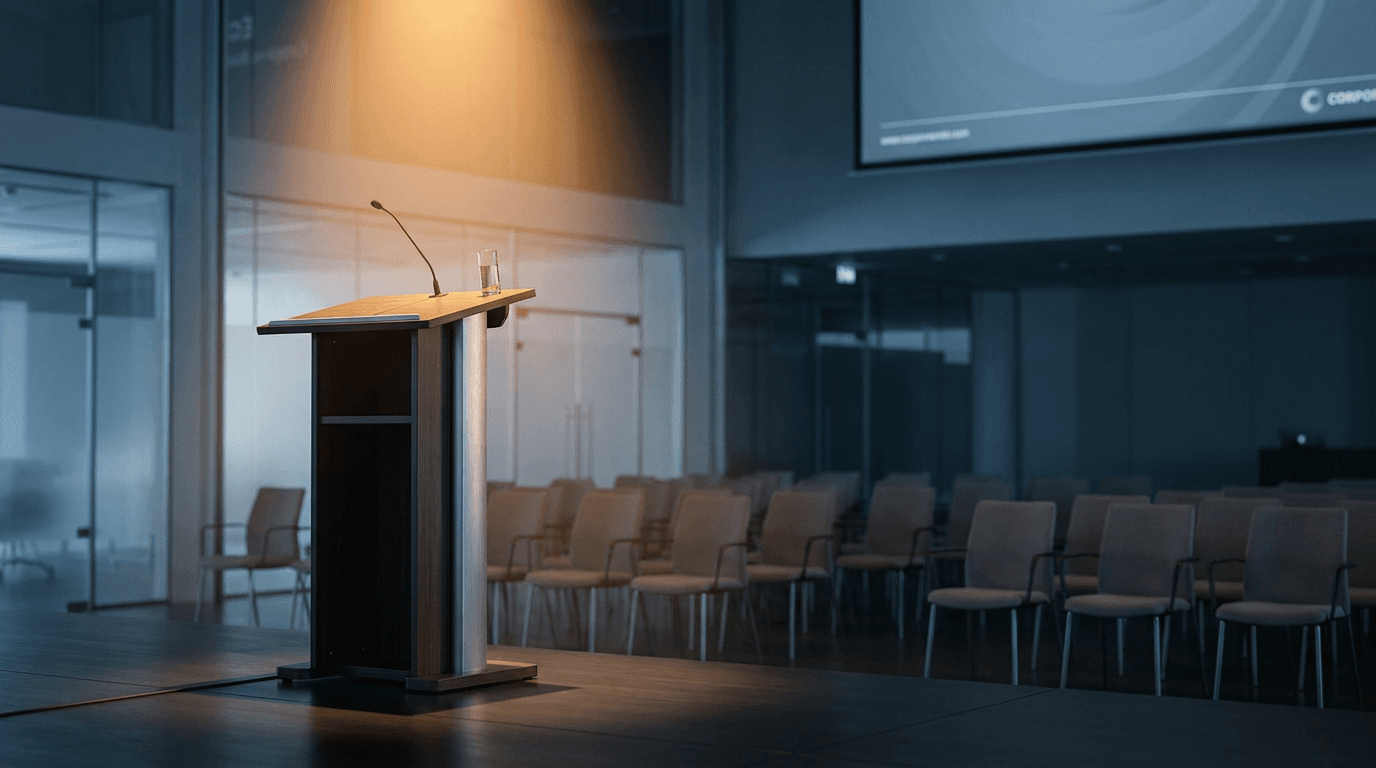
Prompt:
professional podium or lectern in a modern conference room with dramatic warm spotlight illumination from above, empty chairs in soft focus in the background suggesting an audience, clean stage with minimal setup, warm amber spotlight against cool blue-gray ambient lighting, corporate event photography style
12. Authenticity and vulnerability post
Best for: Posts sharing honest reflections, failures, or personal challenges in business.
Prompt:
a single small candle flame glowing warmly in a dark moody room, soft warm light illuminating a small area around the candle on a clean dark wooden surface, deep shadows with rich contrast, warm amber glow against deep navy darkness, intimate and contemplative mood, fine art still life photography
Industry Insights and Education Content
13. Framework or process visualization background
Best for: Posts explaining a method, framework, or step-by-step process.
Prompt:
clean abstract geometric composition with soft interconnected circles or nodes arranged in a flowing network pattern on a light warm gray background, subtle connecting lines between the nodes with soft gradient fills in muted blue and gold tones, modern infographic aesthetic with generous whitespace, suitable as a background for text overlay, professional and clean
14. Industry trend or market shift
Best for: Posts analyzing trends, market changes, or emerging opportunities.

Prompt:
abstract cityscape with modern glass buildings reflecting a dramatic sunrise with warm orange and pink clouds, shot from a low angle looking upward, clean geometric architecture lines creating leading lines toward the bright sky, warm and cool tones balanced between the warm sky and cool blue glass, professional architectural photography with futuristic feel
15. Problem-solving or challenge visual
Best for: Posts about overcoming obstacles, solving client problems, or navigating difficult situations.
Prompt:
close-up of hands carefully assembling the final piece of an elegant wooden puzzle on a clean desk surface, warm studio lighting highlighting the precision of the fit, shallow depth of field with the final piece in sharp focus, warm natural wood tones against a clean neutral background, professional detail photography
16. AI and technology insight
Best for: Posts about AI adoption, digital transformation, or technology trends.

Prompt:
abstract visualization of soft glowing neural network connections in cool blue and warm purple tones floating in a dark space, clean geometric nodes connected by thin luminous lines, subtle depth with some connections in foreground and others fading into background, modern futuristic aesthetic with plenty of negative space, 3D render style
The technology theme prompts work well alongside content created with the Text2Shorts generator on Miraflow, which can turn LinkedIn-style insights into short-form video content for cross-platform distribution.
Sales and Marketing Content
17. Customer success or case study
Best for: Posts sharing client wins, testimonials, or case study results.
Prompt:
clean modern office desk with a laptop showing a bright upward-trending dashboard with green highlights on screen, a celebratory small gold trophy or award beside the laptop, warm professional lighting with soft window light, clean and organized desk suggesting success and achievement, warm gold and cool gray tones, professional workspace photography
18. Product launch or announcement
Best for: Posts announcing new features, services, partnerships, or company milestones.

Prompt:
elegant gift box being opened with soft warm golden light spilling from inside, clean dark background with subtle spotlight effect, rich contrast between the dark surroundings and warm interior glow, hands gently lifting the lid suggesting a reveal, professional product photography with cinematic lighting
19. Content marketing and brand building
Best for: Posts about content strategy, brand development, or marketing insights.
Prompt:
overhead view of a carefully curated mood board with color swatches fabric samples printed materials and a quality pen arranged on a clean white surface, warm natural lighting creating soft shadows, organized creative workspace aesthetic, muted earth tones with one bold accent color, professional flat-lay photography
Motivation and Inspiration Content
20. Monday motivation or week-start energy
Best for: Posts sharing motivational insights, weekly reflections, or goal-setting content.
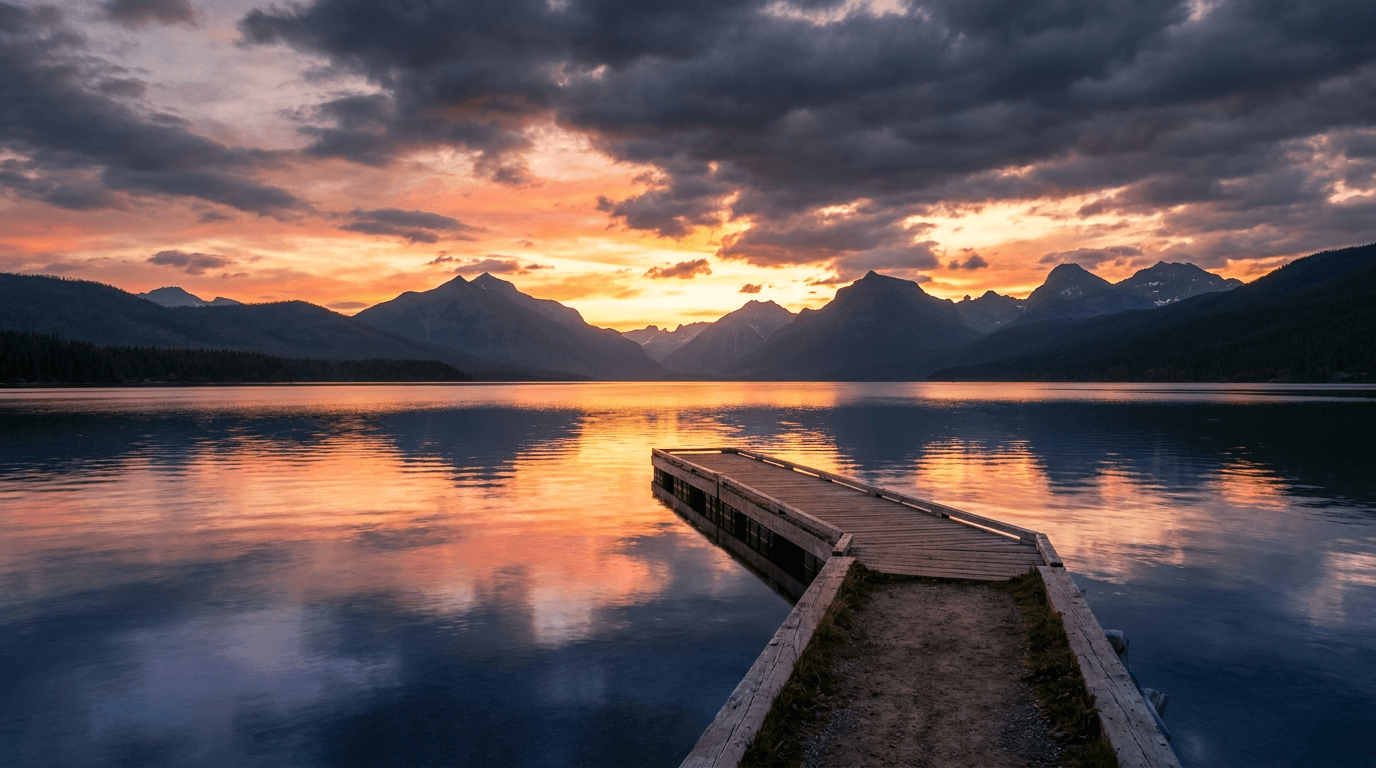
Prompt:
dramatic sunrise breaking through clouds over a calm mountain lake with a perfect reflection, warm golden and pink tones in the sky transitioning to cool blue in the water, a single small dock or path leading into the frame suggesting forward movement, clean natural landscape photography with professional color grading
How to Customize These Prompts for Your Brand
The prompts above are designed as flexible starting points. The most important customization you can make is aligning them with your specific brand identity so that every image you generate is immediately recognizable as yours in the LinkedIn feed.
Lock in your brand color palette. Replace the color descriptors in any prompt with your specific brand colors. If your brand uses navy and coral, change "warm amber and cool gray" to "deep navy and soft coral" across all your prompts. Consistency in color across every post image builds the visual recognition that makes people stop scrolling when they see your content.
Choose your signature lighting style. Decide whether your brand aesthetic leans toward warm, inviting tones (amber, golden hour, soft window light) or cool, authoritative tones (blue-gray, clean studio light, dramatic contrast). Then apply that lighting descriptor consistently to every prompt. This subtle consistency is what separates branded content from random visuals.
Match the mood to your professional persona. A startup founder sharing scrappy growth stories should lean toward prompts with warmer, more intimate settings (leather notebooks, coffee cups, candid workspaces). A corporate strategist sharing industry analysis should lean toward cleaner, more geometric and abstract prompts. Your image style should feel like a visual extension of your writing voice.
Use reference images for personal touches. The AI Image Generator on Miraflow lets you upload reference images alongside text prompts. This means you can upload an image of your actual workspace, a photo from a real event, or your brand style guide and have the AI generate new visuals that maintain visual consistency with your existing content.
Adding Text to Your AI-Generated LinkedIn Images
The prompts in this guide deliberately generate text-free images because AI-generated text in images frequently contains errors, distortions, or inconsistent typography that would look unprofessional on LinkedIn. Instead, treat the generated image as a background or hero visual and add text overlays in a separate step.
Adding text to images can help convey your message quickly, but less is often more. Too much text can overwhelm the visual and make it look cluttered.[10] On LinkedIn specifically, your caption does the heavy lifting for delivering your message. The image should communicate the topic and emotion at a glance, not try to replace the written post.
If you do add text, keep it to a single headline of 5 to 8 words maximum. Use a bold, clean sans-serif font that remains readable at mobile sizes. Position it in the center of the image with ample padding around it. And always check how the image looks on a phone screen before posting, since approximately 70% of LinkedIn users access the platform via mobile devices.[6]
If you're adding text to your images, ensure it's readable and balanced with the visual elements. Overcrowding an image with text can detract from its impact. Use clear, concise language and a font size that's easy to read on all devices.[3]
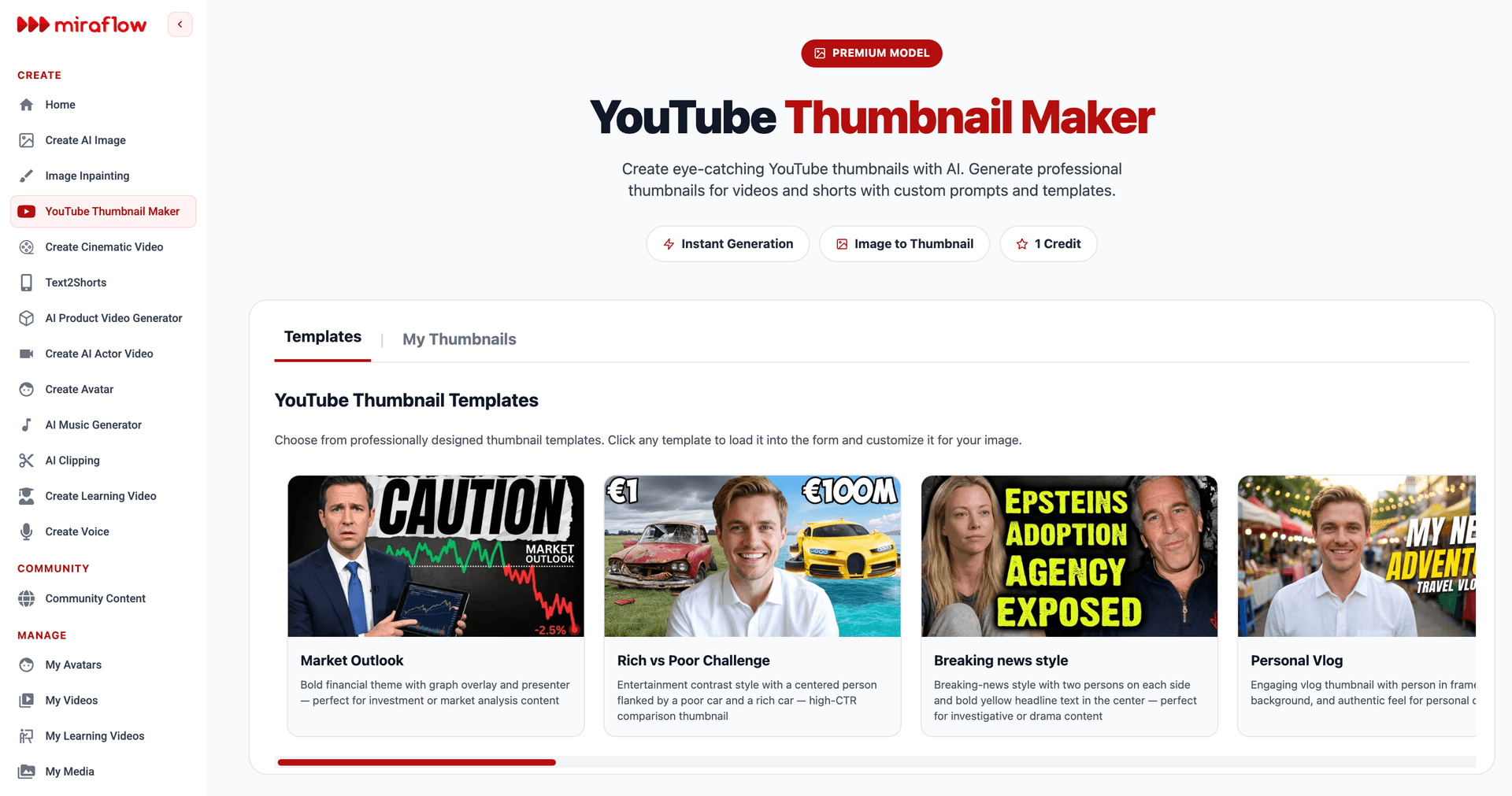
For images where you want text integrated into the generation process itself, the YouTube Thumbnail Maker on Miraflow supports entering headline text as part of the AI generation, and the resulting images can be resized for LinkedIn use.
Building a Consistent LinkedIn Visual Brand with AI
A consistent visual brand on LinkedIn does more than look polished. It builds pattern recognition, which means people in your target audience begin to associate your visual style with your specific expertise. Over time, this association creates a scroll-stopping effect where people pause on your content before they even register your name, simply because the visual pattern is familiar and trusted.
Companies that integrate strong visual branding into their LinkedIn presence will stand out in an increasingly competitive feed.[6] Here are three approaches to building that consistency with AI-generated images.
The signature background approach. Select two or three prompts from this guide that match your brand and use them as recurring templates. For example, a SaaS founder might alternate between the bold data point highlight (prompt 1), the framework visualization background (prompt 13), and the growth trajectory metaphor (prompt 4). By rotating through the same three visual styles, your profile feed develops a recognizable pattern.
The color-coded content category approach. Use the same prompt structure but shift the dominant color based on your content pillar. Posts about leadership might always use warm amber tones, posts about strategy might use cool blue tones, and posts about culture might use warm green tones. Your audience can identify the content category at a glance from the color alone.
The single-style commitment approach. Choose one prompt style and use subtle variations of it for every single post. This is the most powerful approach for brand recognition because the consistency is absolute. A consultant who always uses the clean desk with notebook style (prompt 3) with minor variations in the objects creates an instantly recognizable visual signature.
Whichever approach you choose, commit to it for at least 60 to 90 days before evaluating or changing. Brand recognition requires repetition, and switching styles too frequently prevents the pattern from forming in your audience's memory.
Optimizing for LinkedIn's Multi-Image Format
Since posts with multiple images achieve 6.60% average engagement[4], generating two or three related images from the prompts above can significantly boost your post performance compared to using a single image.
Here is how to create effective multi-image posts using AI prompts. Start with one prompt from this guide as your primary image. Then create two variations by changing specific details while keeping the overall style, lighting, and color palette identical. For example, if your primary image uses the growth trajectory staircase prompt (prompt 4), you might generate a second image with the staircase from a different angle and a third with a different material or color while maintaining the same composition and mood.
Another effective strategy is to use multi-image posts to tell a visual story. Generate a "before" image with cooler, more constrained tones and an "after" image with warmer, more expansive tones. The visual contrast between images encourages people to swipe through, increasing dwell time and engagement signals. The AI prompts for before-after YouTube thumbnails pack includes similar visual comparison techniques that translate well to LinkedIn multi-image posts.
For maximum engagement, consider creating full carousel posts by generating 8 to 12 slides. Carousels generate 278% more engagement than videos, 303% more than image posts, and 596% more than text-only posts. Users spend 15-20 seconds on carousels versus 8-10 seconds for single-image or text posts.[9] Generate consistent slide backgrounds using a single prompt style, then add text and data in a design tool to create a full educational carousel.
Using Portrait Format for Maximum Mobile Feed Space
With mobile access rising to 76% of all platform sessions[6], optimizing your images for mobile viewing is no longer optional. The most impactful change you can make is switching from landscape (1200 x 627) to portrait (1080 x 1350) format for your single-image posts.
A portrait 4:5 image takes up approximately three times more vertical space in the mobile feed than a landscape 1.91:1 image. This means your post dominates the screen when someone scrolling on their phone encounters it, making it significantly harder to scroll past without registering.
Several prompts in this guide include a 1080x1350 option (prompt 10, for example). To adapt any landscape prompt for portrait format, simply change the dimensions from "1200x627" to "1080x1350" and adjust the composition descriptor from "wide horizontal composition" to "tall vertical composition with subject centered in the middle." Keep all other elements the same.
If you're designing with a mobile-first mindset, a vertical 4:5 ratio (1080x1350 pixels) is a fantastic choice. It takes up more screen real estate on phones and can really grab attention. Just know that it will get cropped slightly on the desktop view.[8] Preview the image both in portrait and with a square center crop to make sure the most important visual elements remain visible across all devices.
Avoiding Common LinkedIn Image Mistakes
Even with AI-generated images, certain mistakes can reduce your post's effectiveness or damage your professional credibility. Here are the most common ones to avoid.
Using generic stock-photo aesthetics. The biggest advantage of AI-generated images is that they are original. But if your prompts produce images that look like stock photos (sterile conference rooms, overly diverse teams posed around a whiteboard, perfectly manicured hands typing on a laptop), you lose that advantage entirely. Every prompt in this guide is written to produce images with a specific mood and purpose, not generic business imagery.
Ignoring mobile cropping. With more than half of LinkedIn users accessing the platform on mobile devices, it's crucial to preview your images on a phone or tablet before posting. Even if your image looks perfect on a desktop, it might appear cropped or difficult to read on smaller screens.[10] After generating an image, view it on your phone before posting.
Overcomplicating the visual. LinkedIn's audience responds best to clean, focused images. If your AI-generated image has too many competing elements, colors, or details, it will feel chaotic in the feed. The prompts in this guide deliberately include instructions for whitespace, minimal color palettes, and clear focal points.
Breaking visual consistency. Using inconsistent dimensions in multi-image posts[2] is a common error that makes your content look careless. When posting multiple images, generate all of them at the same dimensions and from the same prompt family to maintain visual coherence.
Forgetting alt text. LinkedIn supports image alt text. Use it. It's good for accessibility and helps LinkedIn's algorithm understand your content.[1] Always add descriptive, keyword-rich Alt Text to your images and document carousels. This is a major SEO signal that 90% of creators completely ignore, giving you an immediate competitive edge in platform search results.[7] After uploading your AI-generated image, write a concise, descriptive alt text that includes relevant keywords for your topic.
Batch Generating LinkedIn Images for a Consistent Posting Schedule
Companies that post 4 times per week see a 2x lift in engagement compared to Pages that post less than once a week.[2] Maintaining that posting frequency requires a system for generating images efficiently, not scrambling for a visual five minutes before posting.
Here is a batch workflow that keeps your LinkedIn content visually consistent and on schedule.
Step 1: Map your content calendar. Plan your LinkedIn posts for the next two weeks. Identify the content pillar for each post: thought leadership, business growth, team culture, industry insights, or personal branding.
Step 2: Select your prompt templates. Choose three or four prompts from this guide that align with your content pillars and brand aesthetic. These become your recurring visual templates.
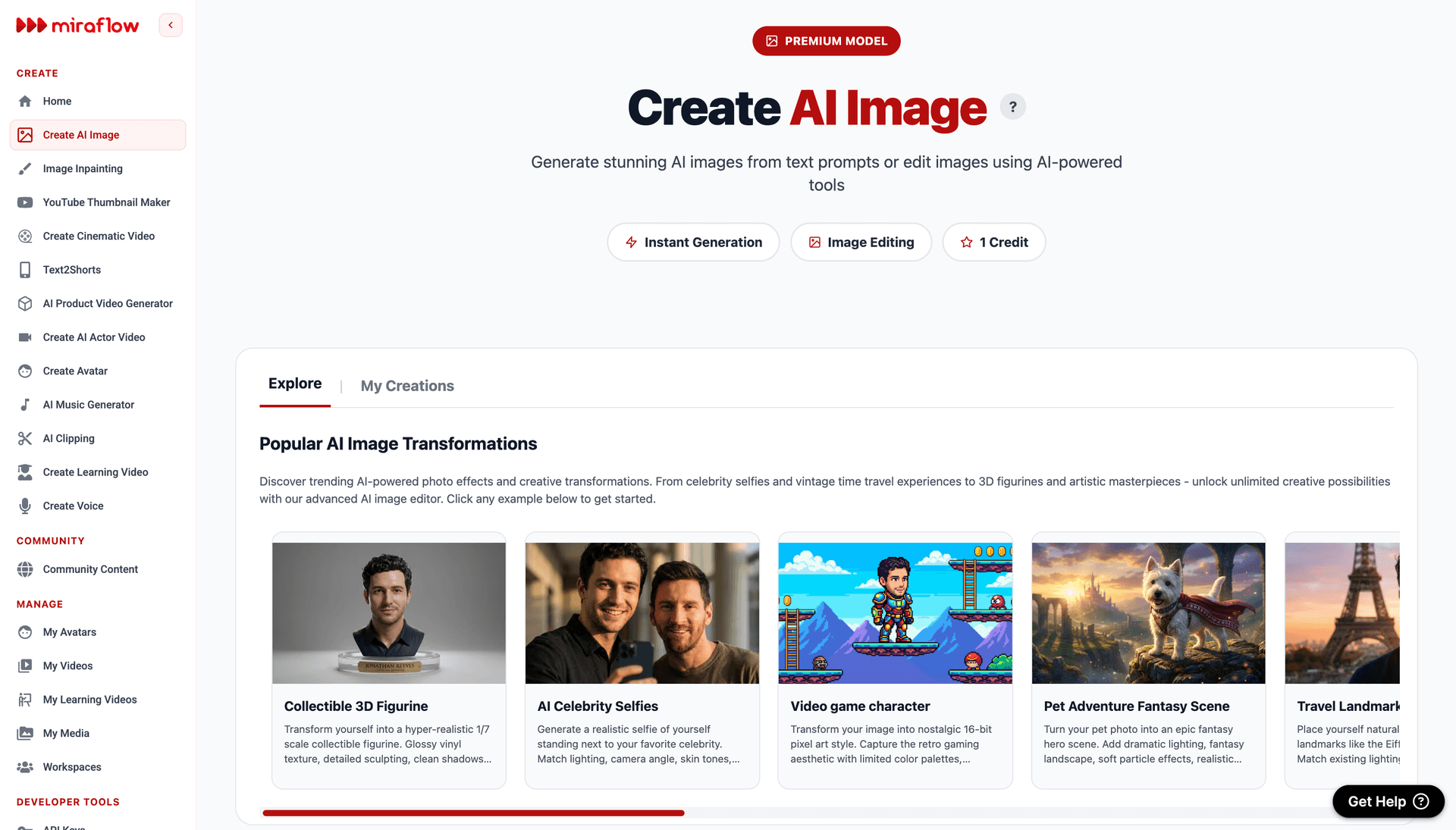
Step 3: Generate all images in a single session. Open the AI Image Generator on Miraflow, set the aspect ratio for your preferred format (1:1 for square or 4:5 for portrait), and generate all images back to back. Customize each prompt with small variations like different accent colors or object arrangements while keeping the overall style consistent.
Step 4: Add text overlays if needed. Batch-add any headlines or data callouts using a consistent font and style across all images.
Step 5: Store in your media library. Save all finished images in the My Media section on Miraflow so they are organized and ready to attach when you write and schedule each post.
This approach turns image creation from a per-post chore into a focused 30-minute session every two weeks. The time savings compound quickly, and the visual consistency of your feed improves dramatically when all images are generated with the same creative direction.
Cross-Platform Repurposing of LinkedIn Post Images
One of the most efficient aspects of generating AI images for LinkedIn is that the same visuals can often be repurposed across other professional platforms with minimal adjustment.
A square 1080 x 1080 image generated for LinkedIn works perfectly as an Instagram feed post. A landscape 1200 x 627 image can serve as a blog featured image, a newsletter header, or a Twitter/X post image. The professional aesthetic that works on LinkedIn translates naturally to any context where your audience expects credibility and authority.
For creators who also produce video content, the imagery generated from these prompts can serve as thumbnail backgrounds or visual elements within videos. The AI Clipping tool on Miraflow can automatically generate clips from long-form content, and pairing those clips with matching AI-generated thumbnails from the prompts in this guide creates a cohesive visual brand across both written and video content.
For short-form video platforms, the YouTube Shorts best practices 2026 guide covers how to optimize visual content for vertical video, and many of the design principles from this LinkedIn guide transfer directly. If you are generating original video content from text, the Cinematic Video Generator on Miraflow lets you create visually rich clips from text prompts that can be shared alongside your LinkedIn posts for a multimedia content approach.
Adding AI Music to Video Content for LinkedIn
LinkedIn's video content is growing rapidly, with video views on LinkedIn growing 36% year-over-year, and video content creation growing 2x faster than other formats.[9] If you are creating video content for LinkedIn alongside your image posts, pairing your visuals with professional background music elevates the production quality significantly.
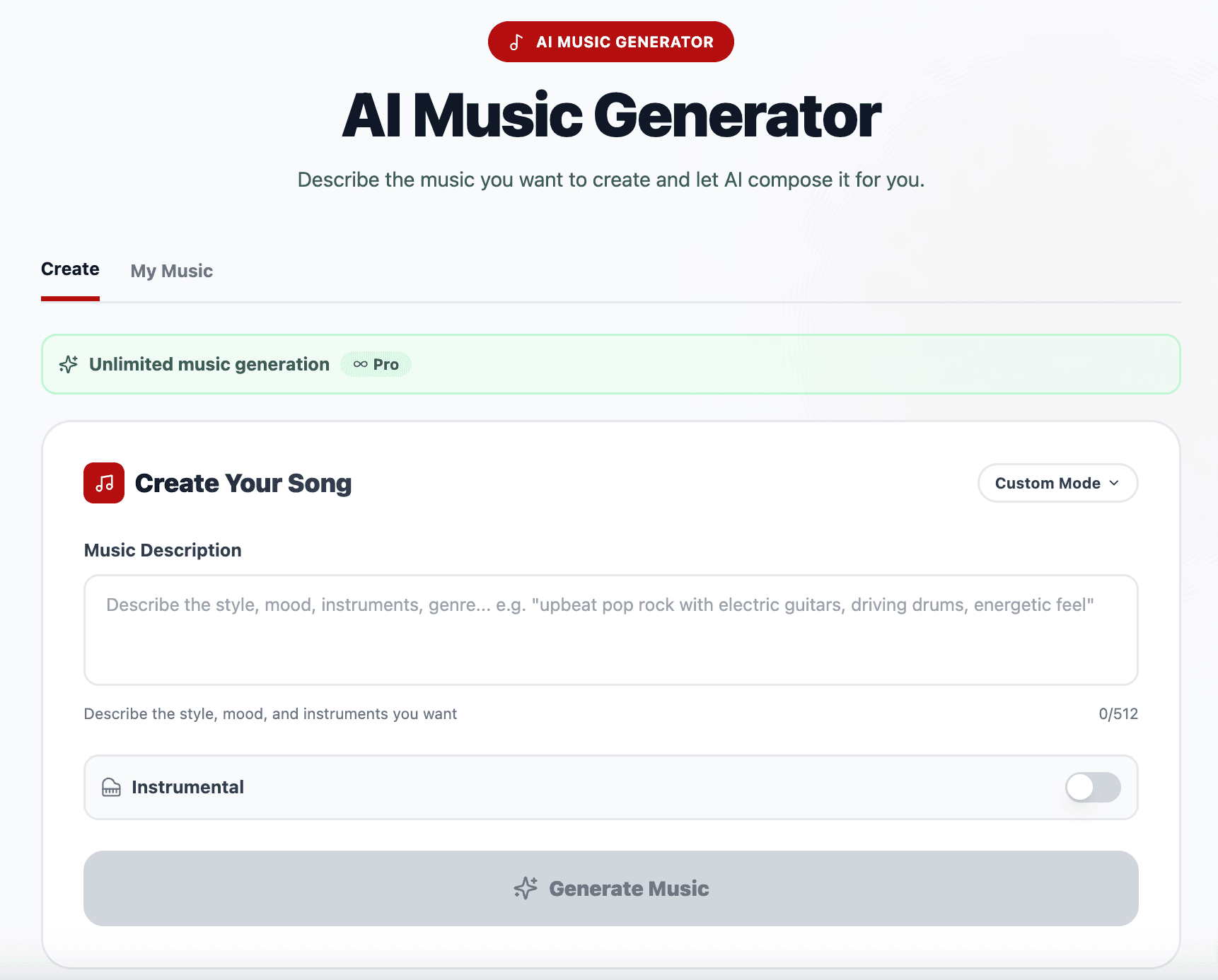
The AI Music Generator on Miraflow lets you generate copyright-free tracks by describing the mood and style you want. For LinkedIn content, think clean corporate background music, upbeat but not overwhelming, professional but not sterile. Describe a mood like "modern corporate ambient, clean piano with subtle electronic elements, professional and forward-looking" and generate a track that sets the right tone for your brand.
The AI music for YouTube guide covers track generation techniques that work equally well for LinkedIn video content.
Measuring the Impact of Your LinkedIn Post Images
After implementing AI-generated images across your LinkedIn posts, you need to track whether they are actually improving your performance. Here are the metrics that matter.
Engagement rate per post. In 2026, LinkedIn's engagement rate stands at an average of 5.20%, registering an 8% YoY increase.[1] Compare your image posts' engagement rates against this benchmark and against your own historical text-only post performance. If your AI-generated image posts consistently beat both benchmarks, your visual strategy is working.
Dwell time signals. While LinkedIn does not surface dwell time directly in creator analytics, you can infer it from the ratio of impressions to engagement. A post with high impressions but low engagement suggests people scrolled past quickly. A post with moderate impressions but high engagement suggests people stopped and interacted, which is the behavior pattern custom images are designed to create.
Comment quality and depth. Multi-sentence comments are the highest value engagement signal. Thoughtful comments that demonstrate the post sparked real thinking[10] are what the algorithm rewards most. Track whether your image posts generate more substantive comments than your text-only posts. If the images are effectively communicating your topic before people read the caption, they are more likely to arrive at the comment section with a formed opinion ready to share.
Profile visits from post. A strong image that builds brand recognition should increase the number of people who click through to your profile after seeing your post. Track profile visits in LinkedIn analytics and look for an upward trend after implementing consistent visual branding.
Save rate. Since saves carry 5x the algorithmic weight of likes, track which image styles get saved most frequently. Images with frameworks, data visualizations, or process metaphors tend to be saved at higher rates because they serve as reference material.
Track these metrics for at least four weeks after switching to AI-generated images. LinkedIn post performance varies naturally, and you need a meaningful sample to identify real trends versus normal fluctuation.
Advanced Prompt Techniques for LinkedIn-Specific Images
As you refine your approach, these advanced techniques will help you generate even more targeted and effective LinkedIn post images.
Specify the professional context explicitly. Adding phrases like "corporate office environment," "modern coworking space," or "professional studio setting" helps the AI understand the professional context and avoids generating images that feel too casual for LinkedIn.
Use compositional language for text overlay zones. If you plan to add text, include "generous negative space in the upper third for text overlay" or "clean empty area in the center of the composition." This reserves space for your headline without competing with the image's visual elements.
Reference specific visual styles. Phrases like "editorial business photography," "modern corporate design," "minimal Scandinavian aesthetic," or "clean startup branding" give the AI a clear style reference that produces polished, LinkedIn-appropriate results.
Include device context when relevant. For tech or SaaS content, adding "displayed on a modern laptop screen" or "shown on a smartphone screen" grounds abstract concepts in physical, relatable contexts.
Layer atmospheric descriptors for mood. Instead of just saying "professional lighting," try "warm morning light filtering through floor-to-ceiling windows, soft and motivational atmosphere." The more specific your mood descriptors, the more the image will evoke the emotional response you want from your LinkedIn audience.
For creators who also need product photography, the 15 AI prompts for product photos guide goes deeper into lighting and composition prompt techniques that transfer directly to LinkedIn image generation. And for e-commerce businesses posting on LinkedIn, the 20 AI prompts for e-commerce product images guide covers product-focused visual strategies.
Conclusion
Your LinkedIn post images are the first thing people process when your content appears in their feed. Before they read your headline, before they click "see more" on your caption, they have already made a split-second judgment based on the visual. A generic stock photo tells the algorithm and your audience that you did not invest effort in this post. A custom, on-brand AI-generated image signals professionalism, intentionality, and authority.
The 20 prompts in this guide cover every major LinkedIn content category: thought leadership, business growth, team and culture, personal branding, industry insights, sales and marketing, and motivation. Each prompt is formatted for LinkedIn's recommended dimensions, designed with the platform's professional aesthetic in mind, and structured to produce images that add genuine visual value to your posts.
LinkedIn image specifications directly impact your professional brand visibility, engagement rates, and credibility.[2] With AI-generated images, you can maintain the visual consistency of a brand with a full design team while investing only minutes per image.
The fastest way to start is to pick three prompts that match your content pillars, generate a batch of images using the AI Image Generator on Miraflow, and pair them with your next week of LinkedIn posts. Within a month, you should see measurable improvements in engagement rate, comment quality, and profile visits as your audience begins to recognize and respond to your visual brand.
Stop letting generic stock photos dilute the impact of your best professional insights. Start generating images that match the quality of your thinking. Head to Miraflow and create your first set of LinkedIn post images today.
Frequently Asked Questions
What is the best image size for LinkedIn posts in 2026?
The recommended image sizes are 1200 x 627 pixels for landscape format and 1080 x 1080 pixels for square format.[5] For portrait images that take up more feed space on mobile, use 1080 x 1350 pixels (4:5 aspect ratio). Square and portrait formats generally perform better because they occupy more screen real estate on mobile devices, where the majority of LinkedIn browsing occurs.
Do images really increase LinkedIn engagement?
Yes. Posts containing images generate 2x higher engagement rates than text-only updates.[2] However, the type of image matters significantly. Image posts average 2.3% engagement, but this varies dramatically by image type. Screenshots of conversations, behind-the-scenes photos, and data visualizations perform best.[5] Custom AI-generated images that communicate your post's idea visually outperform generic stock photos.
Should I use single images or multi-image posts on LinkedIn?
Multi-image posts significantly outperform single images. Posts with multiple images achieve 6.60% average engagement, making them the second-best format after carousels.[4] When possible, generate two or three related images from the same prompt family for a multi-image post rather than relying on a single image.
What file format should I use for LinkedIn post images?
Use JPEG for photographs to keep file sizes small. Use PNG for graphics with text or when you need transparency.[5] Keep file sizes under 5MB for optimal loading times. Export in sRGB color space for accurate color display across devices.
How often should I post on LinkedIn with images?
Companies that post 4 times per week see a 2x lift in engagement compared to Pages that post less than once a week.[2] For personal profiles, posting two to four times per week with consistent, high-quality images is the sweet spot for building momentum without overwhelming your audience.
Can I use the same AI-generated image on LinkedIn and other platforms?
Yes. A square 1080 x 1080 image works on LinkedIn, Instagram, Facebook, and Twitter/X. A landscape 1200 x 627 image works as a blog featured image, newsletter header, or link preview across most platforms. The professional aesthetic that performs well on LinkedIn transfers naturally to any context where credibility matters.
How do I avoid my AI-generated images looking like stock photos?
Include specific details in your prompts rather than generic descriptors. Instead of "professional office setting," specify the exact materials, lighting direction, color temperature, and mood. The prompts in this guide are written with this specificity built in. Also avoid cliché business imagery like handshakes, suit-and-tie settings, and overly staged team photos.
Should I add text to my LinkedIn post images?
Use text sparingly. Adding text to images can help convey your message quickly, but less is often more. Too much text can overwhelm the visual and make it look cluttered.[10] If you add text, limit it to 5-8 words, use a bold sans-serif font, and ensure it is readable on a mobile phone screen.