Free AI Music Generator for YouTube Shorts & Reels in 2026 (Step-by-Step)

Written by
Jay Kim
Generate free AI music for YouTube Shorts and Instagram Reels in 2026. Learn Simple and Custom modes in Miraflow AI, with prompts, settings, and a complete workflow.
If you post YouTube Shorts or Instagram Reels, your biggest headache is usually music.
You do not want a copyright claim, you do not want to spend hours in stock libraries, and you definitely do not want your Short to sound like every other trending sound on the platform.
In 2026, a free AI music generator gives you another option: describe the vibe you want, click generate, and get a custom track that fits your Short or Reel. In this guide, we will walk through a step-by-step workflow using Miraflow AI Music Generator, so you can:
- Create background music for Shorts and Reels
- Keep it safe for monetization
- Move from idea to finished short-form video in one browser tab
We will cover:
- Why AI music matters so much for Shorts and Reels in 2026
- What ‘free AI music generator’ means inside Miraflow AI
- Simple mode vs custom mode, step by step
- Copy-paste prompts you can drop into the Music Description field
- A complete workflow from blank screen to ready-to-upload Short
Why AI music matters for Shorts and Reels in 2026
Short-form content is sound driven.
When a viewer swipes into your Short or Reel, three things decide whether they stay:
- The first frame
- The first line of dialogue or on-screen text
- The first second of music or sound design
Reusing the same trending songs as everyone else has a few problems:
- Your video feels generic in the feed
- Viewers may think they have already watched something similar
- You are still dependent on platform licensing and future policy changes
On the other hand, purely random background tracks can hurt performance:
- Wrong tempo for your cuts
- Mood does not match the story
- Music fights with your voice instead of supporting it
AI music solves both sides. You get tracks that:
- Match the exact mood and tempo you describe
- Are generated just for you, not reused from a generic library
- Come from a tool that clearly allows use on YouTube and other platforms, as long as you respect its license and avoid copying existing songs.
When you generate music in Miraflow AI, you are not guessing whether a random track is safe. You are creating it yourself inside the same platform that already powers your AI videos, thumbnails, and shorts.
What ‘free AI music generator’ means in Miraflow AI
On Miraflow’s plans, AI Music Generation works in a simple way:
- Free users can generate tracks using credits, typically one credit per song
- On paid plans, AI music generation is unlimited, so you are not charged extra per track
There are no separate licensing fees for your generated music. Once a song is created inside the AI Music Generator, you can:
- Use it in YouTube Shorts
- Use it in Instagram Reels and TikTok
- Add it to study or café playlists, as long as you follow the general copyright guidance from Miraflow’s no-copyright music article
So when we say ‘free AI music generator’ in this guide, we are talking about:
- Using Miraflow AI Music Generator at https://miraflow.ai/create-music
- Generating music within your free credits, or unlimited on paid plans
- No separate royalty payments for using your tracks in Shorts and Reels
Quick start: Simple mode for free background tracks
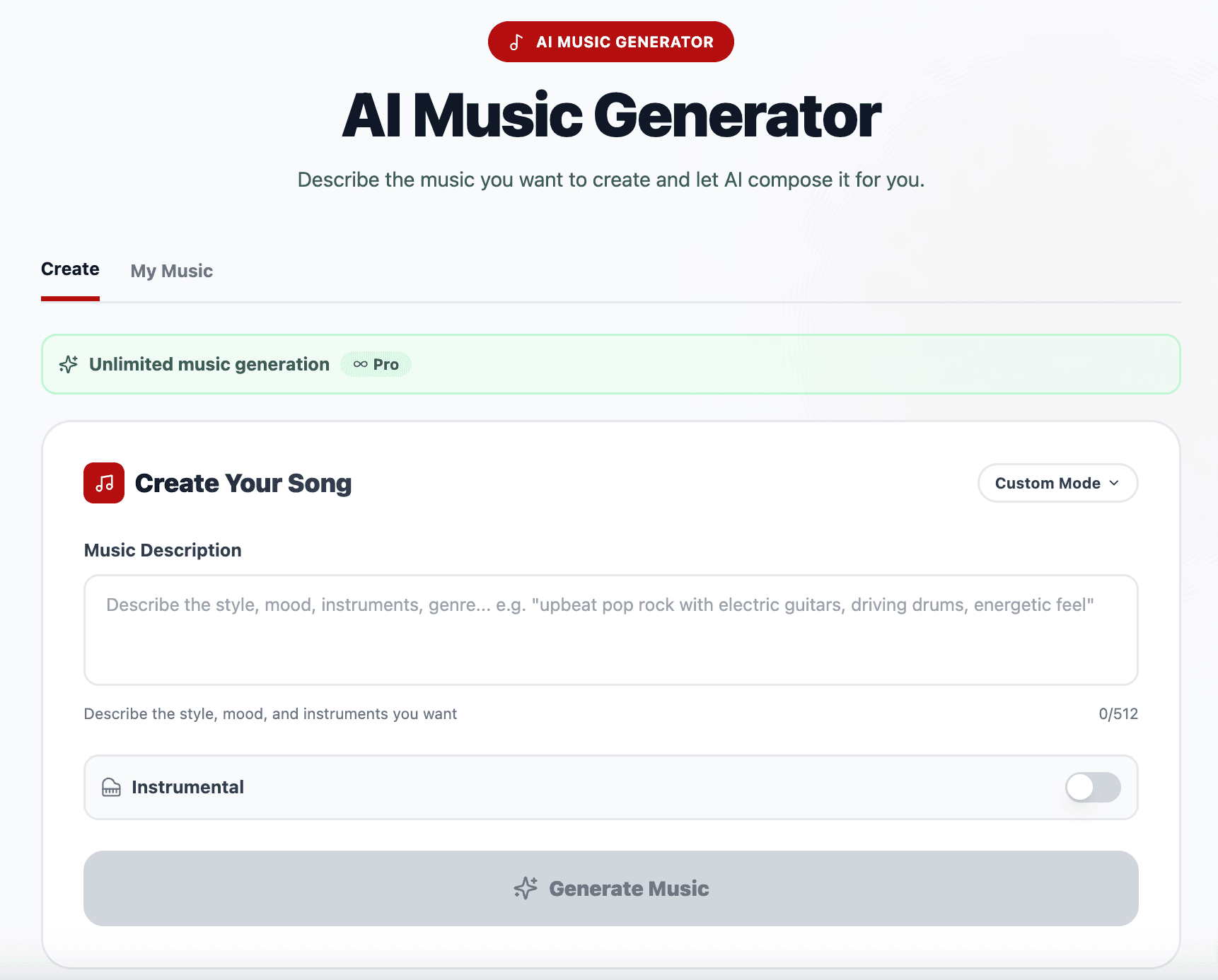
If you just want solid, copyright-safe background music for Shorts and Reels, start with Simple mode. It takes one prompt and one toggle.
Step 1: Open Miraflow AI Music Generator
- Go to
miraflow.ai/create-music - Log in or create a free account
Step 2: Switch to Simple mode
Inside AI Music Generator:
- Make sure you are on ‘Simple’ mode
- You will see the ‘Music Description’ field and an ‘Instrumental’ toggle
Step 3: Write a clear Music Description
This is where most of the quality comes from.
Instead of typing something vague like ‘lofi beat’, describe:
- Genre and mood
- Instruments
- Tempo feel
- Use case
For example:
- Warm lofi beat for YouTube Shorts, soft drums, mellow piano and subtle bass, relaxed but not sleepy, medium tempo, background only, no vocals, loopable
- Energetic pop for Reels transitions, punchy drums, bright synths, light guitar, high energy, fast tempo, very clean mix, background music for fashion clips
Paste your description into the ‘Music Description’ field.
Step 4: Decide if you want instrumental only
- Turn the ‘Instrumental’ toggle on if you want pure background music
- Turn it off if you plan to use random lyrics
For most Shorts and Reels, instrumental is best, so your voice or on-screen text stays clear.
Step 5: Click ‘Generate music’
- Hit the ‘Generate music’ button
- The track usually generates in under a minute, although it can take longer when servers are busy
While you wait, you can plan your Short, outline your hook, or prepare your B-roll.
Step 6: Listen, download, and save
Once the song is ready:
- Click play to preview the track
- If you like it, click download to save it
- The song also appears in your ‘My Music’ tab, so you can re-download or reuse it later
If it is close but not perfect, adjust a few words in your Music Description and generate again.

Custom mode: full control for Shorts, Reels, and hooks
Simple mode is great for fast, safe background tracks.
Custom mode is where you get fine control over structure, tempo, and even lyrics.
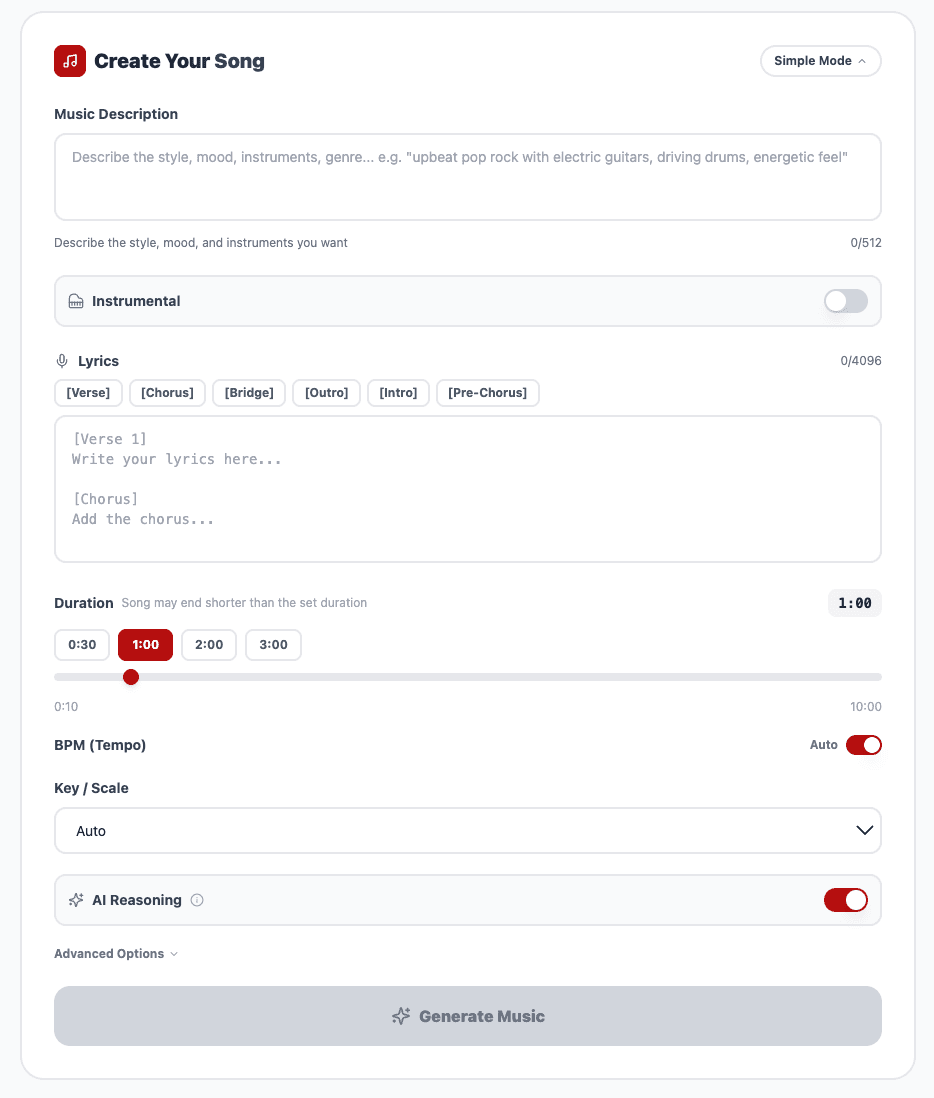
Everything from Simple mode is still there in Custom mode:
- ‘Music Description’
- ‘Instrumental’ toggle
- Generate button
On top of that, you can set:
- Lyrics (with sections like [Intro], [Verse], [Chorus], [Bridge], [Pre-Chorus], [Outro])
- Duration of the song
- BPM (tempo)
- Key or scale (for example C major, A minor, or auto)
- AI reasoning toggle, which lets the model enhance and refine your prompt internally
- Seed in Advanced options, to lock in a vibe you like and generate similar results
When to use Custom mode
Use Custom mode when you:
- Want a specific tempo to match your edit cuts
- Need a recognisable hook for a recurring series
- Want to experiment with short, lyric-based songs for Shorts or Reels
- Plan to repurpose the track for playlists or long-form videos later
Step-by-step in Custom mode
- Switch to Custom mode
- In AI Music Generator, choose ‘Custom Mode’
- Keep or rewrite your Music Description
- Example:
- High energy electronic track for gym Reels, crisp drums, deep bass, bright lead, driving rhythm, inspiring mood, short form video use
- Add lyrics (optional)
Use sections to guide the structure, for example:
[Intro]
Late night edit, chasing my dream
[Verse]
Swipe after swipe, but I am still here
One more Short, one more idea
[Chorus]
Turn the sound up, feel the beat rise
Every little step puts fire in my eyes - Set duration for your use case
Good starting points: - 15 to 30 seconds if you plan to use almost the whole track for a Short
- 30 to 60 seconds if you want a longer song and will cut the best part into the Short
- Set BPM (tempo)
Match the content type: - 70–95 BPM for calm study, aesthetic or talking-head Shorts
- 100–120 BPM for tutorials, product demos, and daily vlogs
- 120–140 BPM for gym, sports, and transformation Reels
- Select key or scale
- Leave it on ‘auto’ if you do not care about music theory
- Choose a specific key if you want to match other tracks or vocals (for example C major for a bright, neutral feel)
- Toggle AI reasoning
- Turn AI reasoning on if you want Miraflow AI to interpret and enhance your prompt for you
- Turn it off if you want more literal control over the text you wrote
- Optionally set a seed
- In Advanced options, set a seed value when you get a song you like
- Reuse or slightly tweak the seed to generate variations with a similar vibe
- Generate, listen, iterate
- Click ‘Generate music’
- Listen to the result, then decide whether to download, tweak lyrics, or adjust tempo and regenerate
Custom mode lets you design a recognisable sound for your channel, instead of every Short sounding like a different random stock track.
Step-by-step workflow: from idea to ready Short in one browser
Here is a simple, repeatable workflow you can use for YouTube Shorts or Reels, all inside Miraflow AI.
Step 1: Decide the idea and hook
Write one sentence:
- ‘Three AI tools that automate my editing workflow’
- ‘What 30 days of daily Shorts actually did for my channel’
- ‘Room transformation from messy to Pinterest aesthetic in 15 seconds’
This will guide both your script and your music.
Step 2: Generate your music first
Go to miraflow.ai/create-music and:
- Start with Simple mode if you want quick background music
- Use Custom mode if you want a specific tempo and structure
Generate one to three tracks, then:
- Pick the one that matches your idea best
- Mark the time segment you will use as your main loop or drop
Step 3: Turn the idea into a video
Depending on your content type:
- Use Text2Shorts to generate scripted Shorts from a topic
- One topic in, Miraflow AI writes the script, builds visuals and composes your short video automatically
- Use Cinematic video clips for aesthetic or B-roll driven content
- Use the AI Product Video Generator for product-led Reels or Shorts
Combine your chosen visual workflow with the track you just generated.
For more detailed workflows, you can later link to:
- From Prompt to Reel: Creating 1-Minute AI Shorts with Text2Shorts
- 10 AI Shorts Formats That Actually Go Viral in 2026
Step 4: Design the thumbnail or cover
Even Shorts and Reels benefit from a strong cover frame.
Use Miraflow’s YouTube Thumbnail Maker to:
- Select 9:16 for Shorts and Reels
- Upload a still from your video or your face
- Enter a thumbnail prompt like:
- Cinematic vertical thumbnail of a creator at desk editing video, glowing phone screen, soft background blur, warm colors, dramatic lighting, no text
You can also reuse this for blog thumbnails or playlist covers later.
Step 5: Export and upload
When everything feels right:
- Download your Short and AI music
- Upload to YouTube Shorts or Reels
- Add a short line in your description about the music source (for your own documentation)
If you want deeper copyright guidance, you can point readers to your existing article ‘How to Generate No-Copyright Music for YouTube in 2026 (With AI)’.
Copy-paste AI music prompts for Shorts and Reels in 2026
Use these directly in the ‘Music Description’ field in Simple or Custom mode. Adjust words like tempo, genre, or instruments to match your style.
1. Tutorial Short background (talking-head)
Music prompt:
Soft lofi beat for YouTube Shorts tutorials, gentle drums, warm Rhodes piano, subtle bass, no vocals, medium tempo, clean mix, stays in the background while someone talks, loopable and non distracting.
2. Aesthetic study Reel
Music prompt:
Cozy lofi track for aesthetic study Reels, vinyl crackle, soft jazz chords, relaxed hip hop drums, mellow bass, slow to medium tempo, nostalgic and comforting, perfect for late night desk B roll.
3. Tech product demo Short
Music prompt:
Modern electronic background for tech product demo Shorts, tight drums, plucky synth arpeggios, light sub bass, optimistic and futuristic mood, medium fast tempo, no vocals, clear and polished sound that fits gadget close ups.
4. Transformation Reel (before and after)
Music prompt:
High energy pop track for before and after Reels, punchy kick and snare, bright synth chords, catchy pluck melody, build up into a small drop, fast tempo, uplifting and powerful, supports dramatic transitions.
5. Motivation quote Short
Music prompt:
Cinematic motivational background for quote Shorts, emotional piano, warm strings, light percussion, slow to medium tempo, inspiring and hopeful, rises gently but never overwhelms voiceover, ideal for text on screen.
6. Gym and fitness Reel
Music prompt:
Aggressive electronic track for gym Reels, heavy drums, thick bass, sharp synth lead, fast tempo, intense and energetic, no vocals, perfect for slow motion lifting and hit training clips.
7. Cozy café POV Short
Music prompt:
Acoustic chill track for café POV Shorts, soft acoustic guitar, light brush drums, subtle upright bass, relaxed tempo, warm and intimate mood, feels like a quiet morning coffee scene.
8. Coding or deep work Reels
Music prompt:
Minimal electronic focus music for coding Reels, soft pluck pattern, smooth pads, gentle pulse bass, medium tempo, steady and repetitive, designed for flow state, no surprises or big drops.
9. Travel Short with drone shots
Music prompt:
Epic yet chill track for travel Shorts, atmospheric pads, steady drums, airy guitar or synth, medium tempo, feeling of open landscapes and freedom, builds slightly towards a small chorus section.
10. Fashion or outfit change Reels
Music prompt:
Trendy pop beat for outfit change Reels, crisp hi hats, bouncy kick and snare, catchy bass groove, playful synth accents, fast tempo, stylish and confident mood, great for quick cut transitions.
Use these as starting points, then:
- Change ‘Shorts’ to ‘Reels’ or ‘TikTok’ inside the text
- Swap genre words like ‘lofi’, ‘pop’, ‘electronic’ for your niche
- Adjust tempo terms (slow, medium, fast) before you switch to Custom mode BPM control
For even more examples, your existing article ‘20 AI Music Prompts for YouTube, Reels, and TikTok (Copy and Paste)’ can sit as a related link from this section.
FAQ: AI music for Shorts and Reels in 2026
Can I monetize Shorts that use AI music from Miraflow AI?
In general, yes, as long as:
- You generated the track yourself in Miraflow AI
- You are not intentionally copying melodies, lyrics, or samples from existing songs
YouTube’s current guidance allows AI generated music when you have the rights and do not infringe others copyrights.
Will Content ID claim my AI generated music?
There is always a chance that a track’s pattern is similar to something in YouTube’s database, but when you:
- Generate music in Miraflow AI
- Keep your original files and timestamps
- Avoid prompting the AI with specific song titles or artists
you are in a safer position than pulling random tracks from unknown libraries. If a claim appears, you have a clear record of where your music came from.
How long should my music be for Shorts and Reels?
Shorts and Reels are usually under 60 seconds, but you do not need to generate a track that is exactly the same length.
Good practice:
- Generate 30 to 60 seconds of music
- Use the best 10 to 25 seconds as your main loop or highlight section
- Make your cuts and transitions land on beat for a more satisfying watch
Do I need different tracks for YouTube Shorts and Reels?
Not necessarily. In 2026, what matters more is:
- Does the music match the vibe and pacing of your video
- Does it feel consistent with your channel or page
You can absolutely reuse the same AI generated track across YouTube Shorts, Reels, and TikTok, as long as the licensing allows it. Miraflow’s AI music is designed for cross platform content creation.
Conclusion and next steps
In 2026, you do not need music theory or an expensive DAW to have strong sound on your Shorts and Reels.
With Miraflow AI Music Generator you can:
- Describe the exact vibe you want
- Generate safe, reusable tracks in under a minute
- Fine tune tempo, key, and even lyrics in Custom mode
Your next steps:
- Open
miraflow.ai/create-musicand generate one track today in Simple mode - Save the Music Description prompt if you like the result
- Try Custom mode for one of your recurring series and lock in a signature sound
- Pair your track with a Text2Shorts video and an AI thumbnail