Claude Code Desktop Redesign: Complete Guide to Parallel Sessions, Routines, and the New Workspace

Written by
Jay Kim
Anthropic redesigned the Claude Code desktop app on April 14, 2026, adding a multi-session sidebar, drag-and-drop workspace layout, integrated terminal and file editor, Git worktree isolation, three view modes, side chat, and cloud-based Routines. Complete guide covering every feature, workflow patterns, Ultraplan, token consumption realities, and how it compares to Cursor, Copilot, and Codex.
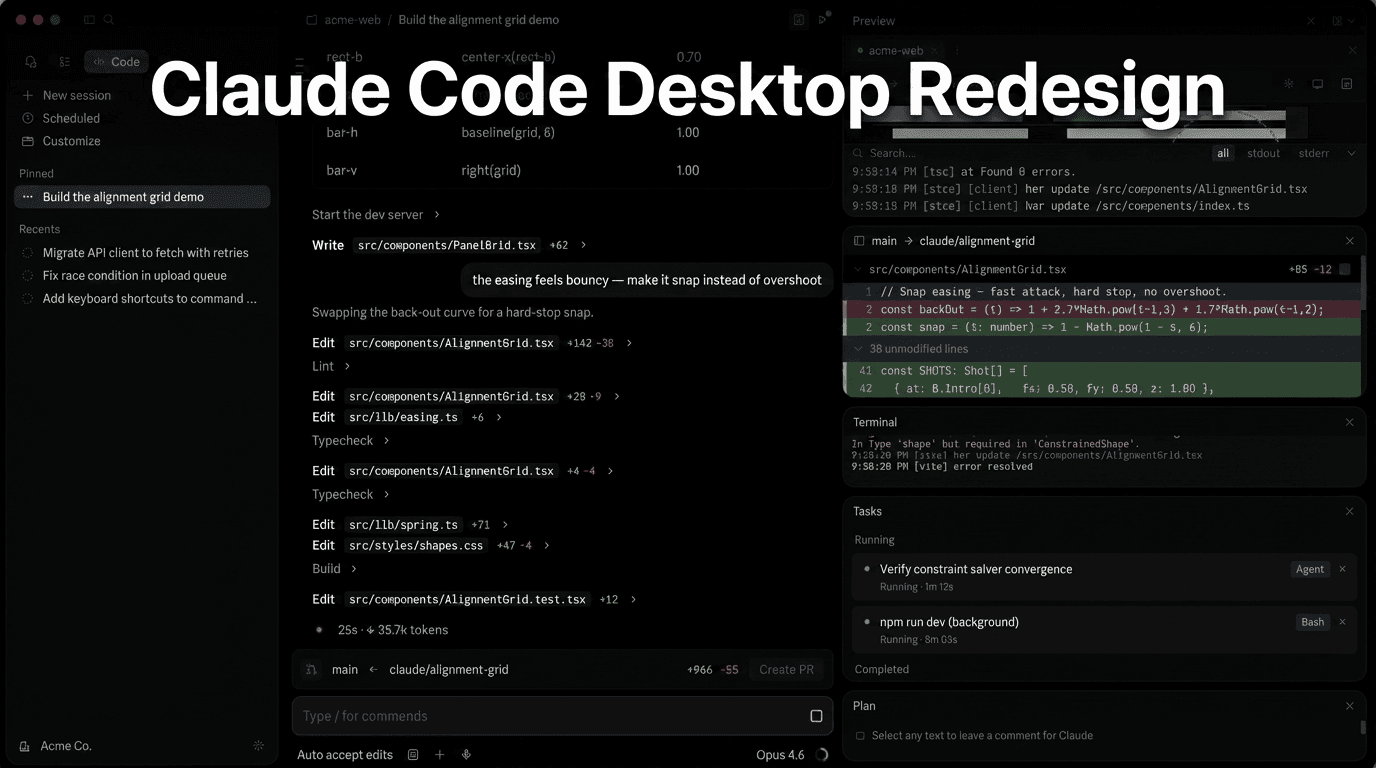
On April 14, 2026, Anthropic shipped the most significant interface update Claude Code has received since its original CLI launch. The redesign of the Claude Code desktop app was built to help you run more Claude Code tasks at once.[3] It includes a new sidebar for managing multiple sessions, a drag-and-drop layout for arranging your workspace, an integrated terminal and file editor, plus performance and quality-of-life improvements.[3]
This is not a cosmetic refresh. The redesign is not a visual restyling — it is a reorganization of the unit of work: previously it was the single session, now it is the workspace containing N parallel sessions.[7] The update transforms Claude Code from a conversational coding assistant into something closer to an orchestration dashboard where the developer manages multiple AI agents working across different repositories simultaneously.
This post covers every major feature in the redesign, how Routines work as a cloud automation layer, the Ultraplan planning interface, how Git worktree isolation keeps parallel sessions safe, practical workflow patterns, the token consumption implications, and where the redesign falls short. Whether you are a solo developer running Claude Code on a single project or a tech lead coordinating work across multiple repositories, this guide covers everything you need to know to use the redesigned desktop app effectively.
The Problem the Redesign Solves
For many developers, the shape of agentic work has changed. You are not typing one prompt and waiting. You are kicking off a refactor in one repo, a bug fix in another, and a test-writing pass in a third, checking on each as results come in, steering when something drifts, and reviewing diffs before you ship.[3]
Before this update, working with multiple Claude Code sessions meant managing separate terminal windows, each running its own session, with no unified view of what was happening across them. One developer described running four Claude Code sessions across four separate terminal windows for most of 2026 — one for backend work on a client SaaS, one for a Next.js frontend rebuild, one for a scraper feeding content research, and one for whatever experiment caught their eye that week.[2] Four windows. Four sets of tabs. Four sets of cd commands. And a constant background hum of "wait, which terminal was the deploy script in again?"[2]
The desktop app before this redesign was functional but fragmented. You had the chat interface in one place, your editor open separately, your terminal in another window. Context-switching between them was the friction nobody talked about but everybody felt.[4]
The new app is built for how agentic coding actually feels now: many things in flight, and you in the orchestrator seat.[3] That framing — the developer as orchestrator rather than implementer — is the philosophical shift that drives every design decision in the update.
For developers building AI-powered workflows across content, code, and creative projects, the redesign reflects a broader trend: AI tools are moving from single-task assistants to multi-agent orchestration platforms. The same shift is happening across AI image generation, video creation, and music production, where workflows increasingly involve multiple AI processes running in parallel rather than sequential single-task interactions.
The Multi-Session Sidebar: Mission Control for Agentic Work
The sidebar is the centerpiece of the redesign and the feature that changes daily workflow most dramatically. The new sidebar puts every active and recent session in one place. Kick off work across multiple repos and move between them as results arrive.[3]
The redesigned desktop application reflects this change through its central "Mission Control" feature: the new sidebar. This interface element allows a developer to manage every active and recent session in a single view, filtering by status, project, or environment. It effectively turns the developer's desktop into a command center where they can steer agents as they drift or review diffs before shipping.[3]
Starting a new session is straightforward. Click + New session in the sidebar, or press Cmd+N on macOS or Ctrl+N on Windows, to work on multiple tasks in parallel. Press Ctrl+Tab and Ctrl+Shift+Tab to cycle through sessions in the sidebar.[1]
Use the controls at the top of the sidebar to filter sessions by status, project, or environment, and to group sessions by project.[1] This filtering system is what makes the sidebar useful at scale — without it, power users running dozens of sessions would quickly drown in an unorganized list.
One quality-of-life detail that matters more than it sounds: sessions auto-archive when the associated PR gets merged or closed.[7] This keeps the sidebar clean without manual housekeeping. To have sessions archive themselves when their pull request merges or closes, turn on Auto-archive after PR merge or close in Settings → Claude Code.[1]
The sidebar also includes an activity dashboard that provides usage statistics. The welcome screen shows a personal statistical summary styled after GitHub contribution graphs: total sessions, messages exchanged, total tokens consumed, active days, current streak, longest streak, peak hour and favorite model.[7]
Git Worktree Isolation: How Parallel Sessions Stay Safe
Running multiple Claude sessions on the same repository without isolation is a recipe for conflicts. If session A is modifying src/auth.ts while session B is also working in that file, the results are unpredictable at best and destructive at worst. The redesigned desktop app solves this with automatic Git worktree isolation.
For Git repositories, each session gets its own isolated copy of your project using Git worktrees, so changes in one session do not affect other sessions until you commit them. Worktrees are stored in <project-root>/.claude/worktrees/ by default.[1]
This means that when you start a new session in the desktop app, Claude automatically creates a separate working directory with its own branch. The redesign uses Git worktree isolation so each session operates independently. One session cannot pollute the state of another. The result is dedicated workspaces inside a single application window.[8]
The worktree system handles the full lifecycle. You can change the worktree location to a custom directory in Settings → Claude Code under "Worktree location." You can also set a branch prefix that gets prepended to every worktree branch name, which is useful for keeping Claude-created branches organized.[1]
For cleanup, to remove a worktree when you are done, hover over the session in the sidebar and click the archive icon.[1] The system also handles edge cases: to include gitignored files like .env in new worktrees, create a .worktreeinclude file in your project root.[1]
The worktree pattern was already popular among CLI power users who managed it manually. Anthropic introduced built-in git worktree support for Claude Code — now agents can run in parallel without interfering with one another. Each agent gets its own worktree and can work independently. The Claude Code Desktop app has had built-in support for worktrees for a while, and now they have brought it to CLI too.[5]
For content creators who work across multiple projects simultaneously — managing YouTube thumbnail generation for one channel while building a text-to-Shorts pipeline for another — the worktree isolation pattern is analogous to having completely separate workspaces that do not interfere with each other. The principle of isolated parallel execution applies across creative and technical workflows.
The Integrated Workspace: Terminal, Editor, Preview, and Diff Viewer
The redesign brings tools that developers previously accessed in separate applications directly into the Claude Code interface. Anthropic has dropped more of the developer workflow into the app itself. There is now an integrated terminal for running tests and builds, an in-app file editor for spot edits, a rebuilt diff viewer aimed at large changesets, and an expanded preview pane that handles HTML files and PDFs alongside local app servers.[2]
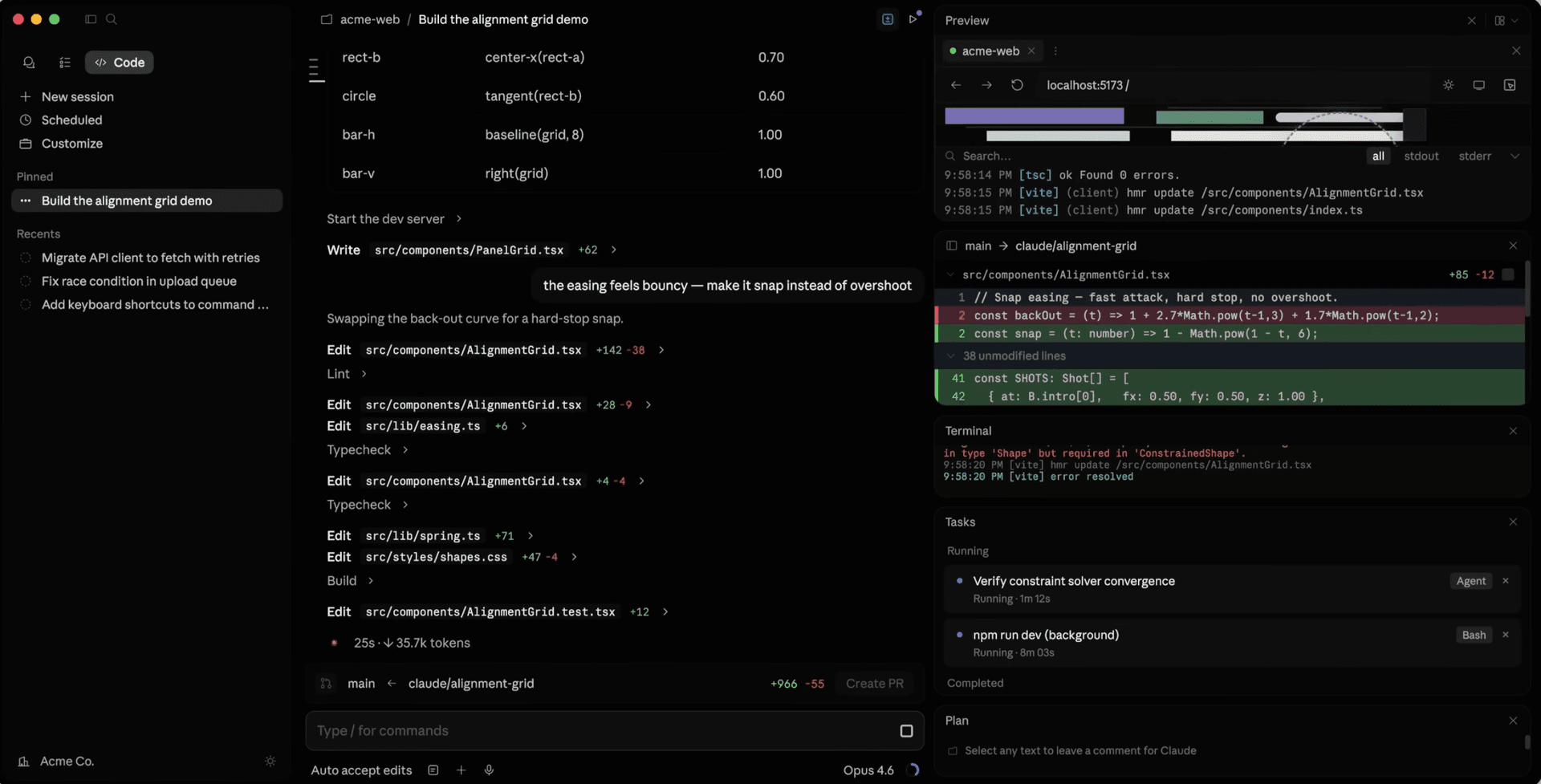
Each of these panes deserves a closer look.
The integrated terminal shares the same environment as the session it belongs to. The integrated terminal lets you run commands alongside your session without switching to another app. Open it from the Views menu or press Ctrl+on macOS or Windows. The terminal opens in your session's working directory and shares the same environment as Claude, so commands likenpm testorgit status` see the same files Claude is editing.[1]
The file editor enables direct spot edits without leaving the app. Click a file path in the chat or diff viewer to open it in the file pane. HTML, PDF, and image paths open in the preview pane instead. Make spot edits and click Save to write them back. If the file changed on disk since you opened it, the pane warns you and lets you override or discard.[1]
The preview pane supports live verification of changes. Claude can start a dev server and open an embedded browser to verify its changes. This works for frontend web apps as well as backend servers: Claude can test API endpoints, view server logs, and iterate on issues it finds. In most cases, Claude starts the server automatically after editing project files. You can also ask Claude to preview at any time.[1]
Every pane is drag-and-drop. Arrange the terminal, preview, diff viewer, and chat in whatever grid matches how you work.[3] This layout flexibility means developers can customize the workspace for different types of tasks — a frontend developer might want the preview pane prominently displayed, while a backend developer might prioritize the terminal and diff viewer.
The workspace arrangement represents a direct response to how developers actually use Claude Code. The desktop app's inclusion of an in-app file editor and a faster diff viewer — rebuilt for performance on large changesets — makes it a superior environment for the "Review and Ship" phase of development. It allows a lead developer to review an agent's work, make spot edits, and approve a PR without ever leaving the application.[3]
Side Chat: Questions Without Derailing the Agent
One of the most elegant additions in the redesign is side chat. A new side chat shortcut (Command + ;) lets users branch a question off a running task without feeding extra context back into the main thread.[2]
This solves a real friction point that anyone who has worked with agentic coding tools has experienced. The feature most worth noting is side chat. Press ⌘ + ; (or Ctrl + ;) to open a branched conversation. Side chats pull context from the main session thread, but nothing you say in side chat gets added back to the main thread.[6]
The practical use case is straightforward: Claude is halfway through a large refactor, and you want to ask a question about the approach it is taking, or you need to understand a particular function before you approve the change. Previously, asking that question in the main thread would inject context that could steer the agent in an unintended direction. Side chat lets you have that conversation without disrupting the main task.
Side chats solve a real problem that developers hit constantly with agentic tools. You want to ask a clarifying question without restarting the agent's working memory. This is the right design.[4]
Three View Modes: Controlling Information Density
The redesign introduces three levels of verbosity for the session transcript. Three view modes — Verbose, Normal, and Summary — let you dial the interface from full transparency into Claude's tool calls to just the results. New keyboard shortcuts cover session switching, spawning, and navigation; press ⌘ + / (or Ctrl + /) to see the full list.[3]
Switch modes from the Transcript view dropdown next to the send button, or press Ctrl+O on macOS or Windows to cycle through them. Use Verbose when debugging why Claude took a particular action. Use Summary when you are running multiple sessions and want to scan results quickly.[1]
The view modes work particularly well with the parallel session workflow. When you have four sessions running simultaneously, you do not need to see every tool call in every session. Setting idle sessions to Summary and switching to Verbose only when something looks wrong is a practical pattern that keeps the cognitive load manageable.
Verbose shows everything visible, every tool call, every argument — the classic CLI output. Normal is balanced, showing the essentials without noise. Summary shows only final results, perfect for fire-and-forget sessions. Switching is instant — you do not have to restart the session.[7]
PR Monitoring, Auto-Fix, and Auto-Merge
The desktop app includes a CI integration layer that monitors pull requests after you create them. After you open a pull request, a CI status bar appears in the session. Claude Code uses the GitHub CLI to poll check results and surface failures. Auto-fix: when enabled, Claude automatically attempts to fix failing CI checks by reading the failure output and iterating. Auto-merge: when enabled, Claude merges the PR once all checks pass. The merge method is squash.[1]
This creates a closed loop from code generation to merge without leaving the app. Use the Auto-fix and Auto-merge toggles in the CI status bar to enable either option. Claude Code also sends a desktop notification when CI finishes.[1]
The auto-fix capability is particularly useful for catching test failures and linting issues that Claude's initial pass missed. Rather than manually reviewing the CI failure, copying the error, and pasting it back into the session, the auto-fix loop handles this automatically.
Claude Code Routines: Cloud Automation That Runs While You Sleep
Shipped alongside the desktop redesign, Routines represent a fundamentally different category of Claude Code capability. A routine is a saved Claude Code configuration: a prompt, one or more repositories, and a set of connectors, packaged once and run automatically. Routines execute on Anthropic-managed cloud infrastructure, so they keep working when your laptop is closed.[2]

Each routine can have one or more triggers attached to it: Scheduled — run on a recurring cadence like hourly, nightly, or weekly; API — trigger on demand by sending an HTTP POST to a per-routine endpoint with a bearer token; GitHub — run automatically in response to repository events such as pull requests or releases. A single routine can combine triggers.[2]
This combination capability is a key design detail. For example, a PR review routine can run nightly, trigger from a deploy script, and also react to every new PR.[2] The same routine, three different entry points.
Routines are available across all paid tiers, with daily run caps that scale by plan. Routines draw down subscription usage limits in the same way as interactive sessions. In addition, routines have daily limits: Pro users can run up to 5 routines per day, Max users can run up to 15 routines per day, and Team and Enterprise users can run up to 25 routines per day.[3]
Setting Up Your First Routine
Create a routine from the web, the Desktop app, or the CLI. All three surfaces write to the same cloud account, so a routine you create in the CLI shows up at claude.ai/code/routines immediately.[2]
The setup requires configuring four components: a prompt describing what the routine should do, one or more repositories it needs access to, an environment with the right dependencies and credentials, and the trigger or triggers that initiate it.
The prompt is the most important part. Routines run autonomously — no permission prompts during the run, no approval dialogs. Claude will do what the prompt says, using whatever tools are available.[4]
The best practice for routine prompts is to be explicit about what success looks like. Do not say "review the PR." Say "review the PR for security issues, missing tests, and style violations, then leave inline comments and a summary comment." Scope the work. Do not say "clean up the codebase." Say "find any TODO comments added in the last 7 days in the src/ directory and open PRs to address them."[4]
Practical Routine Examples
The official documentation and community usage patterns reveal several high-value routine configurations.
For backlog maintenance: A schedule trigger runs every weeknight against your issue tracker via a connector. The routine reads issues opened since the last run, applies labels, assigns owners based on the area of code referenced, and posts a summary to Slack so the team starts the day with a groomed queue.[2]
For documentation drift: A schedule trigger runs weekly. The routine scans merged PRs since the last run, flags documentation that references changed APIs, and opens update PRs against the docs repository for an editor to review.[2]
For library porting: A GitHub trigger runs on pull_request.closed filtered to merged PRs in one SDK repository. The routine ports the change to a parallel SDK in another language and opens a matching PR, keeping the two libraries in step without a human re-implementing each change.[2]
Routines vs. GitHub Actions
The comparison between Routines and GitHub Actions is one of the most common questions, and it is often framed incorrectly. GitHub Actions is better for deterministic CI/CD: builds, tests, linting, deployments. Routines complement Actions by doing interpretive work: review summaries, risk analysis, docs suggestions, backlog triage. They run alongside your Actions pipeline, not instead of it.[4]
The key distinction is that Actions execute deterministic scripts while Routines run an AI agent that can reason about what it encounters. What makes this different from a traditional automation script is that the agent can reason about what it encounters. It is not just moving data between fields — it can read an email, determine intent, classify urgency, draft a reply, and decide whether to send it or queue it for review.[8]
For content creators managing automated publishing workflows — whether that involves AI-generated blog thumbnails, YouTube Shorts pipelines, or scheduled social media content — the Routines model illustrates where automation is heading. The shift from "run this exact script" to "achieve this outcome using your judgment" is the same transition happening across every AI-powered creative tool.
Ultraplan: Cloud-Based Planning for Complex Tasks
Alongside the desktop redesign and Routines, Anthropic has also been rolling out Ultraplan, a cloud-based planning interface that moves the planning phase of coding tasks from the terminal to a richer browser environment.
Ultraplan hands a planning task from your local CLI to a Claude Code on the web session running in plan mode. Claude drafts the plan in the cloud while you keep working in your terminal.[1]
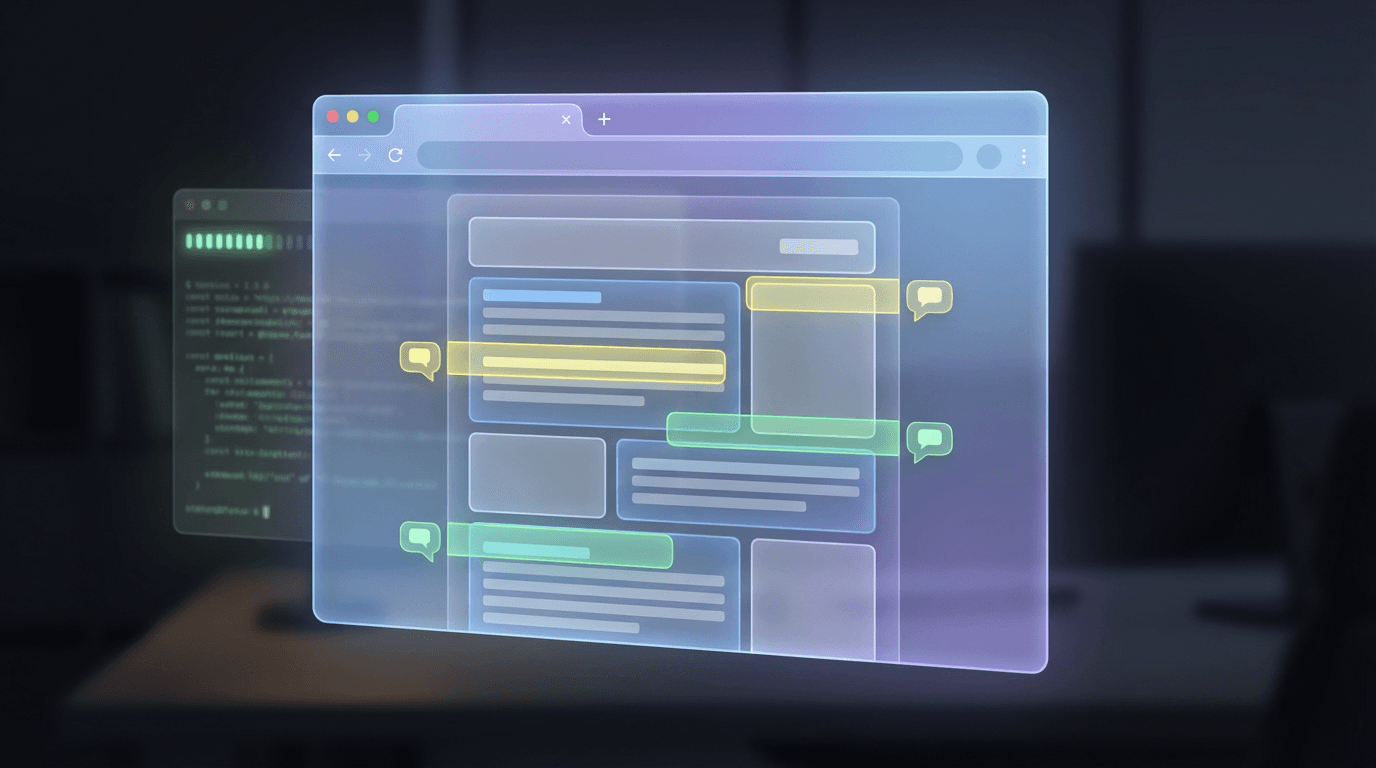
When the plan is ready, you open it in your browser to comment on specific sections, ask for revisions, and choose where to execute it. This is useful when you want a richer review surface than the terminal offers: targeted feedback on individual sections of the plan instead of replying to the whole thing, hands-off drafting since the plan is generated remotely so your terminal stays free for other work, and flexible execution where you approve the plan to run on the web and open a pull request or send it back to your terminal.[1]
The browser review interface supports inline comments, emoji reactions for flagging sections, and a structured outline sidebar. The review experience is notably more useful than scanning output in a terminal. Developers can highlight specific passages and leave inline comments, use emoji reactions to flag sections they approve or want revised, and navigate a structured outline sidebar to jump between parts of the plan. Claude addresses the comments, revises the plan, and presents an updated draft. The cycle continues until the plan looks right.[7]
Once approved, Ultraplan offers two execution paths. Select "Approve Claude's plan and start coding in your browser" to have Claude implement it in the same Claude Code on the web session. Your terminal shows a confirmation, the status indicator clears, and the work continues in the cloud. When the implementation finishes, review the diff and create a pull request from the web interface.[1] Alternatively, select "Approve plan and teleport back to terminal" in your browser to implement the plan locally with full access to your environment. This option appears when the session was launched from your CLI and the terminal is still polling.[1]
Ultraplan is invoked in three ways: The most explicit approach is typing /ultraplan followed by your prompt. You can also include the word "ultraplan" anywhere in a normal prompt and Claude detects the keyword and opens the same confirmation dialog. This is useful when you want to describe the task conversationally rather than as a command.[4]
How the Redesign Compares to Cursor, Copilot, and Codex
The redesign positions Claude Code Desktop in a distinct category from its competitors. Neither GitHub Copilot nor OpenAI's Codex ships a native desktop interface with Git worktree isolation per session. Copilot Workspace operates at the issue level, not the session level. Codex is cloud-first but does not have the sidebar session management.[4]
This represents a philosophical move away from "conversation" toward "orchestration".[3] While Cursor and Copilot are designed around the IDE paradigm — the developer writes code with AI assistance — Claude Code Desktop is designed around the orchestration paradigm, where the developer directs multiple AI agents and reviews their output.
If your workflow is "AI does the work and I review it," Claude Code Desktop is now the best option. Four parallel sessions on real tasks is a fundamentally different pattern than Cursor can match.[8]
However, there are important caveats. If you are switching from Cursor, do not expect IDE replacement — expect agent dashboard. Most Cursor users who tried the new desktop report keeping both — Cursor for coding, Claude Code Desktop for directing.[8] There are no native code editor features like LSP, go-to-definition, or multi-cursor. Keep your main editor open.[8]
OpenAI's Codex app does not let you move the panes around (the terminal is always at the bottom of the window, for example), but its diff view still has a few advantages over Claude Code's. It can also take over most of the Codex window and features several more options, including the ability to switch between unified diff and split views. Claude Code only offers a unified view.[9]
Platform Availability and Access Requirements
The redesigned desktop app is available now for all Claude Code users on Pro, Max, Team, and Enterprise plans, and via the Claude API.[3]
At launch, the redesigned Claude Code desktop app supports macOS and Windows only. Anthropic has stated Linux support is coming in the following weeks. The terminal CLI continues to work on Linux as it always has.[2]
Accessing the redesigned interface requires navigating the Claude desktop app's view system. In practice, accessing the redesigned Claude Code desktop app requires a bit of digital hunting. It is not a separate new application — instead, it is but one of three main views in the official Claude desktop app, accessible only by hovering over the "Chat" icon in the top-left corner to reveal the specific coding interfaces.[3]
The Code tab within the Claude Desktop app lets you use Claude Code through a graphical interface instead of the terminal. After installing, launch Claude, sign in, and click the Code tab.[1]
Before starting a session, you configure four things. Environment: choose where Claude runs — select Local for your machine, Remote for Anthropic-hosted cloud sessions, or an SSH connection for a remote machine you manage. Project folder: select the folder or repository Claude works in. For remote sessions, you can add multiple repositories. Model: pick a model from the dropdown next to the send button.[1]
The Token Consumption Reality
The most important practical concern with parallel sessions is token consumption. Running four sessions simultaneously means burning through tokens roughly four times faster than running a single session. If you are on Pro ($20/month) and use Claude Code daily, the new desktop is better, but plan for 2-3x token burn if you use multi-session heavily. Test the workflow on a low-stakes repo first. If you blow through your quota in week one, Max 5x at $100 is probably worth it.[8]
The rate limiting will get worse, not better. Those on the Max plan have quantified that they are getting $5000 worth of monthly usage for the $200 price tag.[10] This gap between the value delivered and the subscription cost is the core tension that Anthropic will need to resolve as parallel session usage increases aggregate token consumption.
The token reality is why the view mode feature matters practically. Running sessions in Summary mode reduces the amount of information you process, but it does not reduce the tokens consumed by the session itself. What it does reduce is the cognitive overhead of monitoring multiple sessions, which makes it more practical to run more sessions without becoming overwhelmed by the output.
For creators building content with AI tools, the token consumption pattern in Claude Code mirrors a broader principle across all AI platforms: parallel processing multiplies output but also multiplies cost. Understanding where to invest compute budget — whether that is Claude Code tokens for development or AI image generation credits for visual content — is a core skill for any AI-native workflow.
Known Limitations and Rough Edges
The redesign shipped as a 1.0 release, and several limitations are worth knowing about before you restructure your workflow around it.
Native multi-window is not available — right now everything lives in one window with panes. Those wanting two monitors with two different Claude Code windows must wait. State sync between desktop and web is read-mostly — cloud sessions from Claude Code Routines appear in desktop but you cannot yet drive a routine deeply from desktop.[7]
Despite the promise of "many things in flight," attempting to run tests across multiple disparate project folders proved difficult, as the current iteration tends to lock the user into a single project focus at a time.[3]
No live pair programming view — you can see what each session is doing, but cannot "pair" on the same session with a teammate. No mobile companion for active sessions. Layout does not always persist across updates.[8]
Early users report that the app is a bit unstable but usable. Claude will tell you things are done, but it did not commit. Buttons that do nothing, pages not properly connected.[10]
The diff viewer, while rebuilt for performance, has less functionality than some competitors. Codex's diff view features several more options, including the ability to switch between unified diff and split views. Claude Code only offers a unified view.[9]
Workflow Patterns for the Redesigned Desktop
Based on the first week of community usage and the official best practices documentation, several workflow patterns have emerged as particularly effective.
The Writer/Reviewer Pattern
Beyond parallelizing work, multiple sessions enable quality-focused workflows. A fresh context improves code review since Claude will not be biased toward code it just wrote. For example, use a Writer/Reviewer pattern: have one session write the code and another review it. You can do something similar with tests: have one Claude write tests, then another write code to pass them.[1]
The Orchestrator Pattern
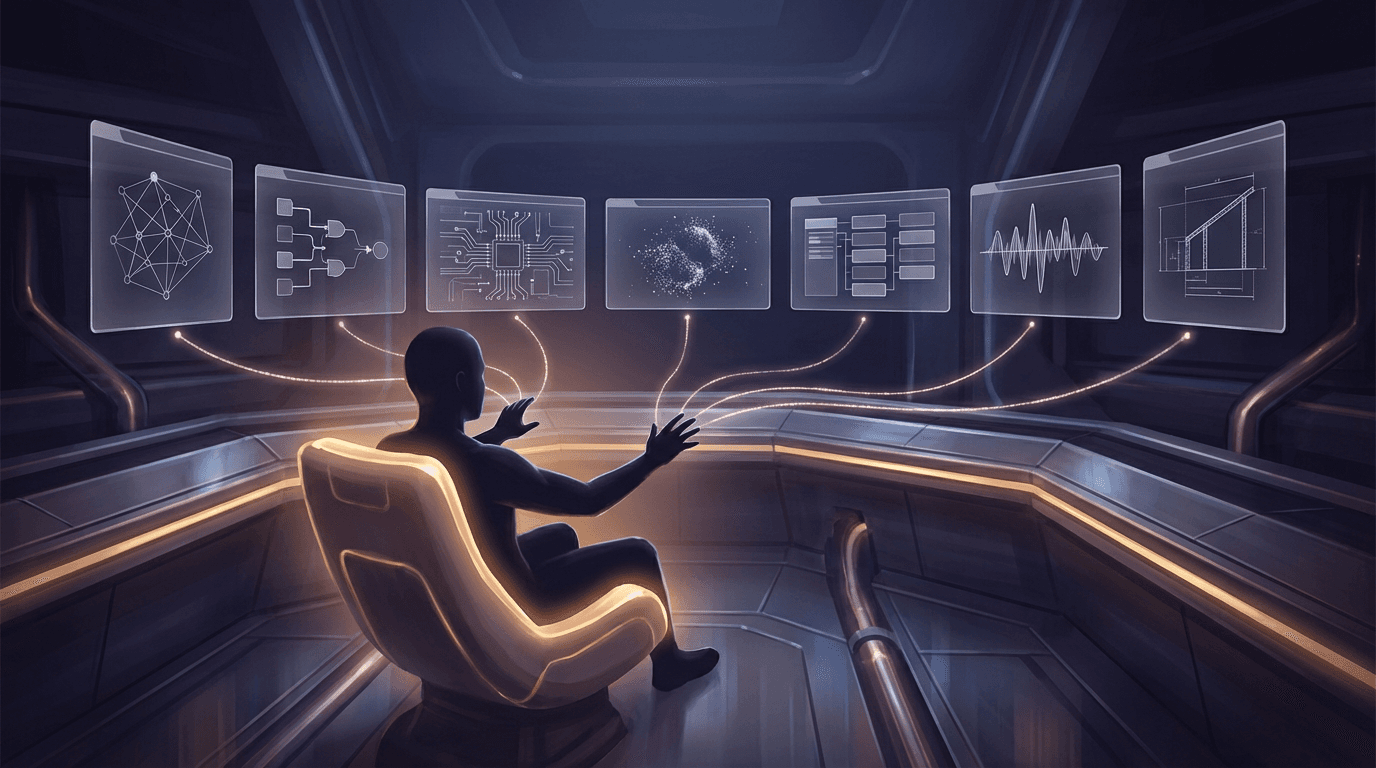
Running four Claudes simultaneously changes the workflow more than the other five features combined. You kick off a refactor in session 1, then start a bug fix in session 2 while the first one is thinking. By the time the bug fix is ready for review, session 1 has finished and you are already moving to session 3. This is the difference between a junior dev (one task, finish it, next task) and a tech lead (four things in flight, picking up whichever is unblocked). Claude Code Desktop now lets you operate like the tech lead.[8]
The Exploration + Implementation Pattern
Test the updated desktop application with your current projects. Arrange one session for codebase exploration, a second for implementation, and a third for terminal output and previews. The drag-and-drop system lets that arrangement adapt as project needs shift.[8]
The Desktop + Routines Pattern
Combine Desktop redesign with Routines (launched same day). Routines run the unattended, recurring work. Desktop orchestrates the interactive work. Together they cover 80% of what your team does manually today.[8]
For creators who want to apply similar parallel workflow thinking to content production, the principle translates directly: use tools like Miraflow's AI image generator for visual assets in parallel with AI music creation for audio, and text-to-Shorts conversion for video content. The orchestration mindset — managing multiple AI processes simultaneously rather than running them sequentially — produces dramatically more output per hour.
SSH Support and Remote Sessions
The redesign extends remote work capabilities significantly. You can still run sessions locally or in the cloud. SSH support now extends to Mac alongside Linux, so you can point sessions at remote machines from either platform.[3]
Desktop app SSH support now covers macOS alongside Linux. It means you can connect to a remote server and launch Claude Code with the same graphical interface as the local client. For those who work with agents running overnight on always-on machines, integrated SSH eliminates custom scripting.[7]
The environment selector in the session setup now offers three options: Local for your machine, Remote for Anthropic-hosted cloud sessions, or an SSH connection for a remote machine you manage.[1]
Plugin Parity and Extensibility
The desktop app now has parity with CLI plugins. If your org manages Claude Code plugins centrally, or you have installed your own locally, they work in the desktop app exactly the way they do in your terminal.[3]
This is important for teams that have built custom tooling around Claude Code's CLI plugin system. The desktop app no longer requires maintaining separate configurations or workarounds for plugins that only worked in the terminal. The Customize section of the sidebar opens directly the configuration of hooks and skills committed in the repo.[7]
What This Means for the Future of AI-Assisted Development
These are not incremental polish updates. Together, they shift Claude Code from "AI pair programmer" to something closer to "AI operations platform."[4]
The redesign, combined with Routines and Ultraplan, paints a clear picture of where Anthropic sees the future of developer tools. The direction is toward developers managing fleets of AI agents rather than collaborating with a single assistant. The sidebar, the worktree isolation, the cloud automation triggers, the planning interface — each piece reduces the overhead of running multiple agents simultaneously.
The new desktop is still a necessary step: without a UI that recognizes parallelism, nothing else exists. But it is the foundation, not the finish line. The real next step will be when the sidebar lets you assign different roles, models and contexts to each session, and when a "manager" session can command the others. Until that arrives, we are the orchestrators — Claude is still just the ensemble of instrumentalists.[7]
The broader implication extends beyond coding. The orchestration model that Claude Code Desktop introduces — managing multiple AI agents through a unified dashboard, with cloud automation handling routine tasks — is the template for how AI tools across every creative and technical domain will evolve. Whether you are generating AI images, creating YouTube content, or producing AI-generated music, the shift from single-task interaction to multi-agent orchestration is the defining trend of 2026.
Frequently Asked Questions
How do I access Claude Code in the redesigned desktop app?
The Code tab within the Claude Desktop app lets you use Claude Code through a graphical interface instead of the terminal. After installing, launch Claude, sign in, and click the Code tab.[1] The Code tab is one of three main views in the Claude desktop app, alongside Chat and Cowork.
What plans include access to the redesigned desktop?
The redesigned desktop app is available now for all Claude Code users on Pro, Max, Team, and Enterprise plans, and via the Claude API.[3] Free tier users do not have access to Claude Code features.
Does the desktop app replace the CLI?
No. The CLI continues to work exactly as before. The desktop app is a graphical surface built on top of the same Claude Code engine. Many developers report using both — the desktop for interactive orchestration and the CLI for scriptable automation and CI/CD integration.
Is Linux supported?
At launch, the redesigned Claude Code desktop app supports macOS and Windows only. Anthropic has stated Linux support is coming in the following weeks. The terminal CLI continues to work on Linux as it always has.[2]
How many parallel sessions can I run?
There is no hard limit on the number of sessions you can have active in the sidebar. The practical limits are your plan's token budget and the compute resources of your local machine (for local sessions) or your cloud allocation (for remote sessions). Community reports suggest four to six concurrent sessions is the practical sweet spot before cognitive overhead and token consumption become problematic.
Do Routines count against my regular usage limits?
Routines draw down subscription usage limits in the same way as interactive sessions. In addition, routines have daily limits: Pro users can run up to 5 routines per day, Max users can run up to 15 routines per day, and Team and Enterprise users can run up to 25 routines per day. You can run extra routines beyond these limits with extra usage.[3]
Can I use the desktop app with my own API key instead of a subscription?
Yes. The redesign is available to Pro, Max, Team, Enterprise subscribers, plus API users.[8] API users authenticate with their own key and pay per token rather than through a subscription plan.
What happens if two sessions create conflicting changes?
For Git repositories, each session gets its own isolated copy of your project using Git worktrees, so changes in one session do not affect other sessions until you commit them.[1] Conflicts are handled at merge time through standard Git merge workflows, the same way you would handle conflicts between any two branches.
Is Ultraplan the same as the planning mode in the CLI?
No. The core mental model is that Ultraplan is a plan review surface upgrade, plus parallelization.[3] Local plan mode generates plans within your terminal session. Ultraplan offloads planning to a cloud environment and provides a browser-based review interface with inline comments and targeted feedback. They serve different workflow preferences and can be used together.
Conclusion
The Claude Code desktop redesign is the most significant interface update Anthropic has shipped for its coding tool. The multi-session sidebar transforms the app from a single-conversation interface into an orchestration dashboard. Git worktree isolation makes parallel sessions safe by default. The integrated terminal, file editor, diff viewer, and preview pane eliminate most context-switching between applications. Side chat and view modes reduce the cognitive overhead of managing multiple active agents. Routines extend Claude Code's reach into unattended cloud automation. Ultraplan provides a richer surface for complex planning tasks.
The limitations are real — no native multi-window support, no Linux desktop yet, a unified-only diff view, occasional instability, and the inherent token consumption challenge of running parallel sessions. But for developers whose workflow has already shifted toward AI orchestration rather than manual implementation, the redesigned desktop app is the first interface that properly supports how they actually work.
If you are currently managing multiple terminal windows with separate Claude Code sessions, the upgrade path is straightforward: download the latest Claude desktop app, open the Code tab, and start a second session. Within an hour, you will understand why Anthropic made parallel sessions the centerpiece of the redesign.
And if the orchestration mindset extends beyond your codebase into your content creation workflow, explore the full suite of AI tools on Miraflow AI — including AI image generation, YouTube thumbnail creation, text-to-Shorts conversion, cinematic video production, and AI music creation. The same parallel, multi-agent approach that makes Claude Code Desktop powerful applies to every creative workflow where AI tools can run simultaneously rather than sequentially.
References
- Redesigning Claude Code on desktop for parallel agents — Anthropic Blog
- Introducing routines in Claude Code — Anthropic Blog
- Use Claude Code Desktop — Official Documentation
- Automate work with routines — Claude Code Docs
- Plan in the cloud with Ultraplan — Claude Code Docs
- Best Practices for Claude Code — Claude Code Docs
- Anthropic Rebuilds Claude Code Desktop App Around Parallel Sessions — MacRumors
- Claude Code Desktop Redesign — The New Stack
- We tested Anthropic's redesigned Claude Code desktop app and Routines — VentureBeat
- Claude Code Desktop Redesign: Multi-Sessions + Routines — Build Fast with AI
- Claude Code Desktop Redesign: Hands-On First Take — Mejba Ahmed
- Claude Code Desktop Redesign: Parallel Sessions in a Single Window — Pasquale Pillitteri
- Claude Code Desktop Redesign: Hands-On Review — FindSkill.ai
- Claude Code Routines Setup: Schedule, API, GitHub Triggers — FindSkill.ai
- Claude Code's Ultraplan Bridges the Gap Between Planning and Execution — DevOps.com
- Claude Code Desktop Redesign Adds Multiple Sessions Side by Side — Adam Holter
- Claude Code Worktrees: Parallel Sessions Without Conflicts — ClaudeFast
- Claude Code Desktop Redesign 2026: Parallel Sessions Review — DevToolPicks
- Claude Code Routines: AI Automation Replacing No-Code Tools — ClaudeFast
- Anthropic Redesigns Claude App on Desktop for Parallel Agents — Thurrott