How to Build a Consistent Thumbnail Style for Your Channel Using AI

Written by
Jay Kim
Learn how to build a consistent YouTube thumbnail style using AI. This guide shows you how to lock in colors, layout, and templates so every video looks on-brand and clickable.
If your thumbnails all look different, your channel feels forgettable. A consistent thumbnail style, which has same colors, framing, and feel makes people recognize you instantly, click more often, and trust your content faster. In 2026 you can build that look once and reuse it with AI templates instead of manually designing each image.
This guide shows you exactly how to do that using AI (like Miraflow’s YouTube Thumbnail Maker), and how to keep your style consistent across YouTube videos, Shorts, and even blog thumbnails.
Quick Answers (If You’re Skimming)
What size should YouTube thumbnails be?
For classic video thumbnails, YouTube recommends 1280×720 pixels at a 16:9 aspect ratio.
For vertical Shorts thumbnails, a common standard is 1080×1920 pixels (9:16).
What is a “consistent thumbnail style”?
Using the same colors, fonts, framing, and overall layout across your videos so viewers recognize your content in a split second.
How do I create thumbnail templates with AI?
You define a prompt template (colors, style, subject, layout), set aspect ratio, add 'Thumbnail Text' and optional negative prompts, then reuse and slightly tweak that same setup for every new video inside tools like Miraflow’s YouTube Thumbnail Maker.
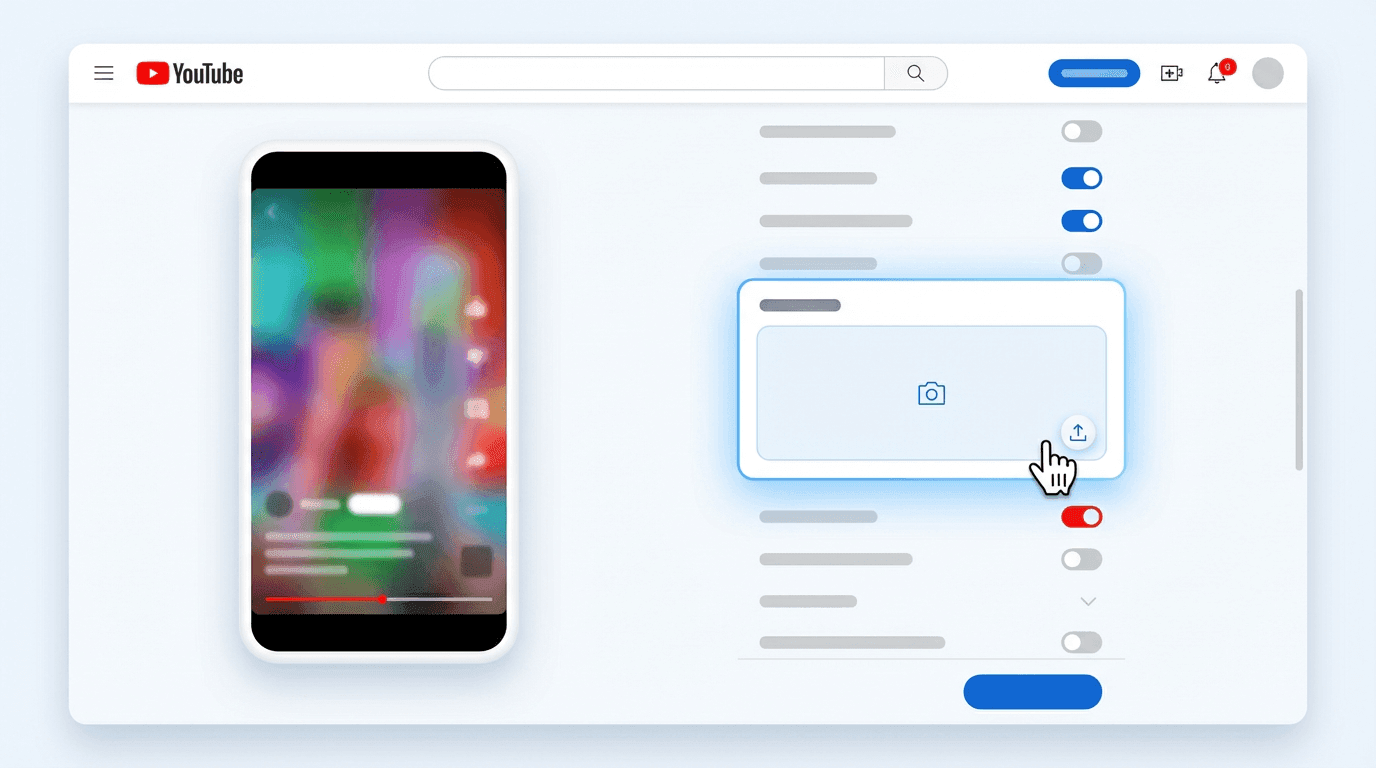
How do I change a YouTube Shorts thumbnail in 2026?
Open YouTube Studio → Content → select your Short → Details → Thumbnail → Upload thumbnail → Save.
Recommended if you want to go deeper right after this section:
- How to Generate YouTube Thumbnails with AI: Step-by-Step – detailed Miraflow thumbnail workflow.
- 10 AI Prompts for Viral YouTube Thumbnails (Copy & Paste) and 10 Viral AI YouTube Thumbnail Styles for More Views in 2026 – ready-made prompts you can plug into Miraflow’s YouTube Thumbnail Maker.
Why Thumbnail Consistency Matters in 2026
In search results, suggested feeds, and channel pages, your thumbnails are your billboard. A consistent style:
- Makes your videos instantly recognizable in crowded feeds
- Increases click-through rate (CTR) because viewers know 'oh, that’s this creator'
- Helps YouTube’s A/B testing features and thumbnail experiments work better, because you’re iterating on a system, not random images
Think of big channels you recognize at a glance: you know their colors, their layout, and roughly where the face or object will be. That’s what you want, just built with AI so it’s sustainable.
The Building Blocks of a Thumbnail System

Before touching AI, define your basic thumbnail rules:
- Aspect ratio & size
- Standard YouTube video: 16:9, 1280×720+.
- YouTube Shorts cover / vertical content: aim for 9:16, 1080×1920.
- Subject framing
- Will you show a face, a product, or more abstract visuals?
- Decide:
- How big faces should appear (e.g., head & shoulders, large in frame)
- Where the main object usually sits (left, right, center)
- Color palette
- Pick 2–3 main colors you’ll reuse (e.g., yellow + black + white, or cyan + dark blue).
- Use one background style: solid, gradient, or subtle pattern.
- Typography
- 1 main font for big words (bold, readable)
- Optional 1 secondary font for small supporting words
- Always keep text short (2–4 words) and high contrast.
- Composition pattern
- Example system:
- Left: face / object
- Right: big text
- Top edge: small arrow / icon
- Or:
- Center: subject
- Background: blurred scene or flat color
- Text: large across the bottom
Once this is defined, AI becomes much easier, you’re telling it to follow your rules, not inventing a new style every time.
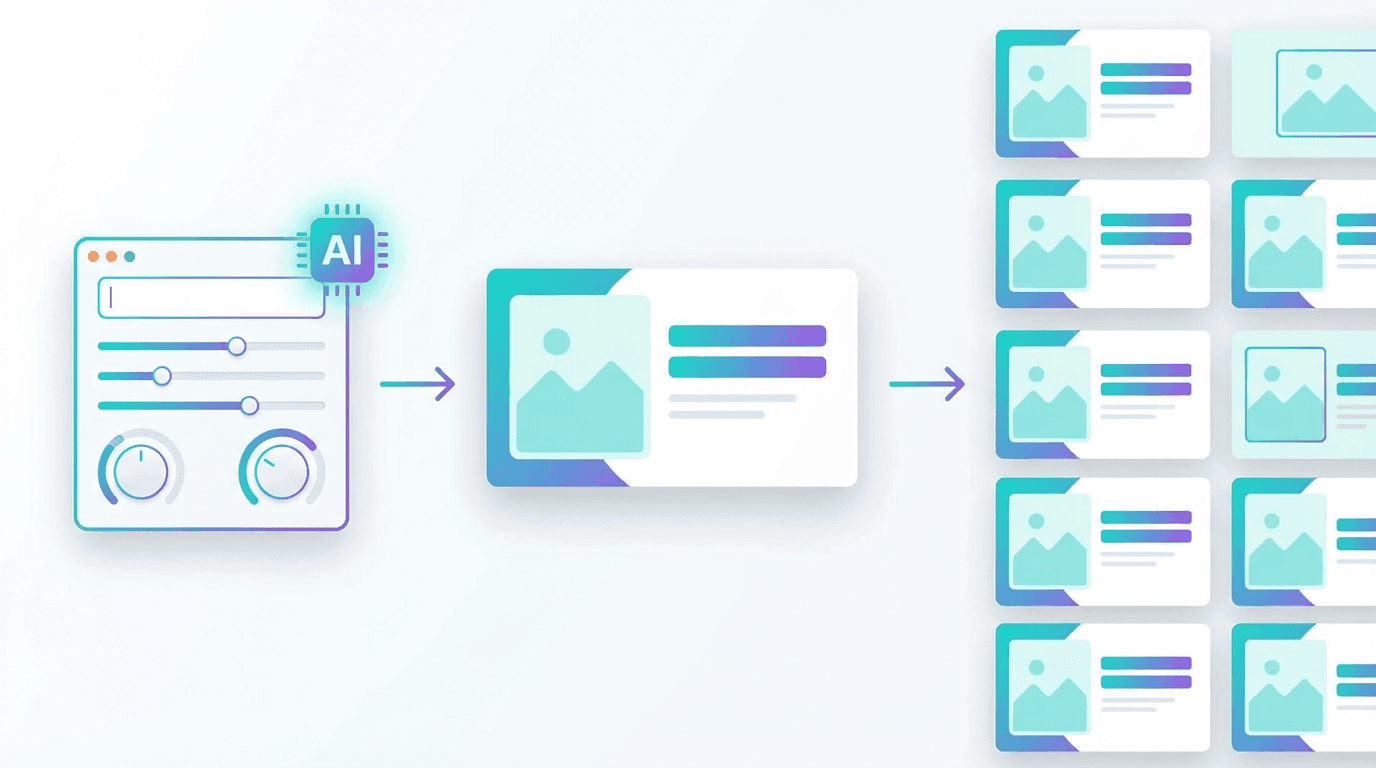
How to Build Reusable AI Thumbnail Templates with Miraflow
Let’s turn that system into repeatable AI templates inside Miraflow’s YouTube Thumbnail Maker.
1. Set aspect ratio based on where the thumbnail will appear
- 16:9 Video → for standard YouTube videos & blog thumbnails
- 9:16 Shorts → for vertical content / Shorts covers, or Reels/TikTok cross-use
Decide one default for YouTube videos (usually 16:9) and stick to it.
2. Turn your visual rules into a prompt template
In the Thumbnail Prompt field, describe your style system, not just the topic. For example:
Bright YouTube thumbnail showing a close-up of a creator pointing at a large vertical phone screen on the right. Clean white background with a bold yellow accent shape behind the phone. High contrast, cinematic lighting, minimal clutter, space on the right side for big text. Consistent channel style, modern and techy.
Then you can swap only the subject part each time:
- creator pointing at YouTube analytics graph
- creator holding a camera and looking surprised
- laptop on a desk with Shorts feed on screen
If you don’t know where to start, click Randomize button to see AI example prompts, then reshape them into your channel style.
3. Use 'Thumbnail Text' for consistent typography
In Thumbnail Text:
- Enter the short main phrase you want:
- BEST PRACTICES
- THUMBNAIL SYSTEM
- 0 TO 1K SUBS
- Miraflow will place this text prominently with bold typography.
Keep your rules:
- Max 3–4 words
- Use similar wording structure each time (“HOW TO…”, “STOP DOING…”, “DO THIS…”)
- Make sure the phrase matches the main visual so it’s predictable to viewers
4. Use Advanced Settings to avoid chaos
Click Show Advanced Settings and use:
- Negative prompt – things you never want:
- no clutter, no tiny text, no low quality, no busy background
- Seed (optional) – to keep a similar look across thumbnails if you like the vibe from one result.
This helps keep each new thumbnail close to your established style instead of randomly changing aesthetics.
5. Generate, review, and save templates
Click Generate Thumbnail, then:
- Review the result in My Thumbnails
- Download the ones that match your style
- When you like a specific look, save the exact prompt + negative prompt somewhere (Notion, Moltbook, etc.) as your Official Channel Template #1
Over time you might build:
- Template A: talking-head education videos
- Template B: Shorts tutorials
- Template C: product/tool reviews
All generated with the same style rules, just reused via prompt.

How to Change a YouTube Shorts Thumbnail in 2026
This is a common 'how-to' search, so here’s the practical answer.
As of 2026, you can change a YouTube Shorts thumbnail through YouTube Studio on desktop, similar to normal videos.
Step-by-step (desktop, via YouTube Studio)
- Go to studio.youtube.com and log in.
- Click Content in the left sidebar.
- Find your Shorts video in the list.
- Click the Details / pencil icon for that Short.
- Scroll down to the Thumbnail section.
- Click Upload thumbnail (or Change if one already exists).
- Select the image file you exported from Miraflow (ideally 1080×1920, 9:16).
- Click Save in the top right.
On mobile, the safest approach is still:
- Upload your Short from the YouTube app, then
- Adjust title/description/thumb later from YouTube Studio if supported on your device.
If the mobile app UI changes (which it often does), the desktop YouTube Studio workflow above is usually the most reliable and up to date.
Using Nano Banana for Consistent Thumbnail Imagery
Miraflow AI integrates Nano Banana Pro for AI image generation, which is perfect for keeping your thumbnail imagery consistent even if you don’t like taking photos.
Use Nano Banana to generate:
- Recurring host characters (stylized versions of you)
- Consistent 3D product styles (mockups, objects)
- Backgrounds in the same color palette and lighting style
For example, you might create a thumbnail base like:
Hyper-clean YouTube thumbnail background, white with a bold diagonal blue stripe, subtle gradients, soft lighting, space on the right for big text, modern tech channel aesthetic.
Then reuse that base in prompts where you:
- Add a character
- Add a laptop / phone / graph
- Swap color accents while keeping the composition similar
You can then bring those Nano Banana images into YouTube Thumbnail Maker → Upload image, add text, and keep the style locked.
For deeper inspiration, reference your own Nano Banana-focused posts like:
- The Ultimate Nano Banana Prompt Guide: Viral Prompts That Actually Work
- How to Use Nano Banana for Free on Miraflow AI
Connecting Thumbnails to Your Overall Channel Branding
Consistency doesn’t stop at thumbnails. To really lock in your brand:
- Use the same colors and fonts in:
- Channel banner
- End screens
- Lower-third text in videos
- Make sure your avatar/profile image matches the vibe of your thumbnails
- Keep your title style aligned:
- If thumbnails are punchy & bold, titles should be direct and benefit-driven, not vague
Thumbnails, titles, and content should all feel like they belong to the same universe. That helps:
- Viewers trust your videos faster
- YouTube understand your niche and surface you to the right people
Putting It All Together: Your AI Thumbnail System
Here’s a simple workflow you can repeat for every new video:
- Define your rules
- Colors, fonts, framing, subject size, and layout.
- Create 1–3 AI prompt templates in Miraflow’s YouTube Thumbnail Maker
- One per main content type (tutorial, reaction, product, etc.).
- Generate your thumbnail
- Use Text to Thumbnail or Image Compositing
- Refine with negative prompts and simple text
- Export & upload via YouTube Studio
- 1280×720 (16:9) for classic video
- 1080×1920 (9:16) for Shorts cover image
- Analyze performance
- Watch CTR changes in YouTube Studio
- Use YouTube’s built-in title/thumbnail testing where available
- Iterate the template, not your entire style
- Adjust colors, facial expressions, or background patterns
- Keep the core structure so your channel stays recognizable
If you already have scattered thumbnails, you don’t need to fix everything overnight. Start with your next 5–10 uploads, lock in your AI templates, and slowly redesign old thumbnails as you go.
Over time, your channel will look like it all belongs together, and viewers will start recognizing your videos before they even read the title.