Google Ads AI Max Text Customization Asset Previews: How to Review AI-Generated Headlines (2026)

Written by
Aerin Kim
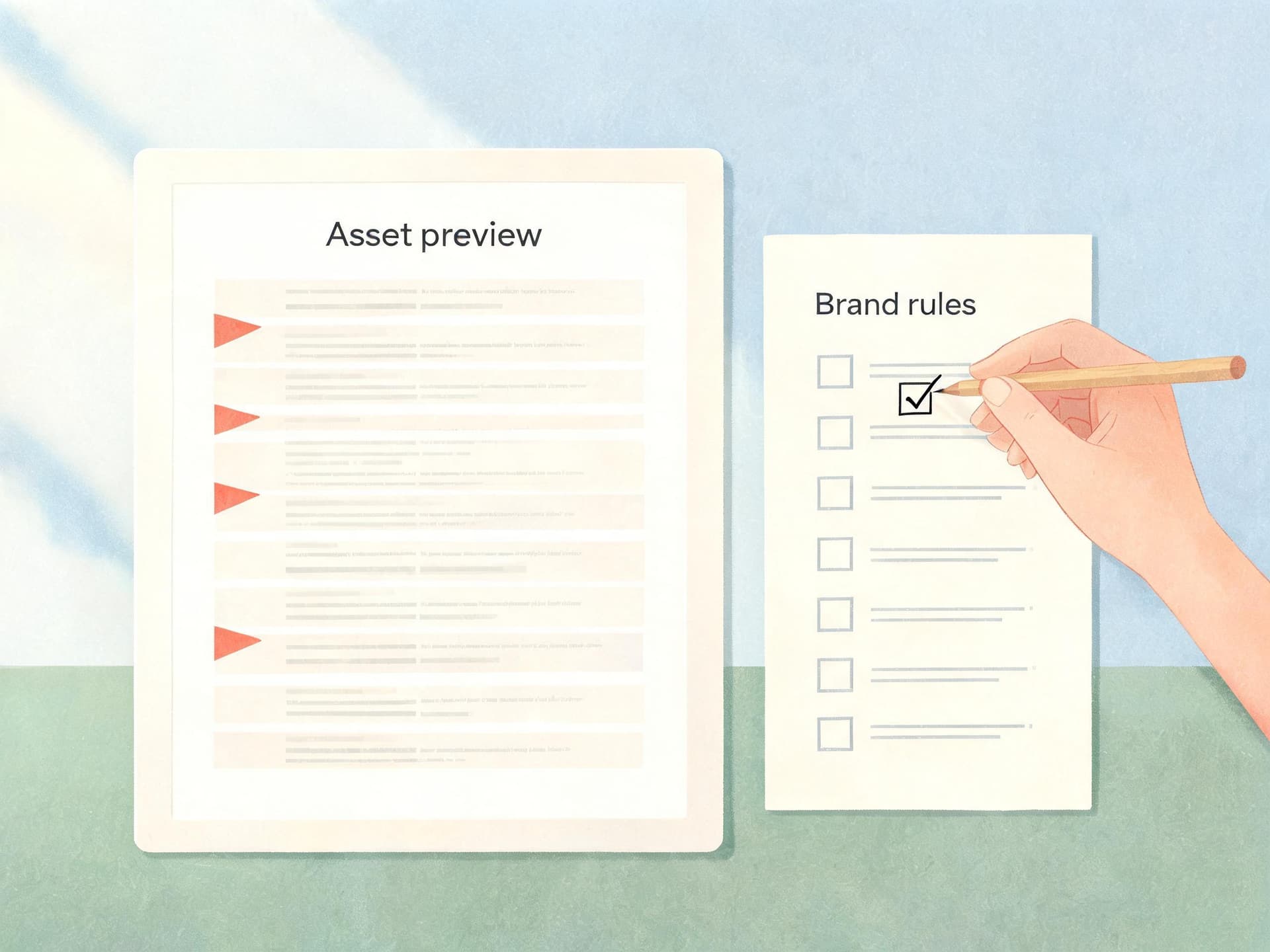
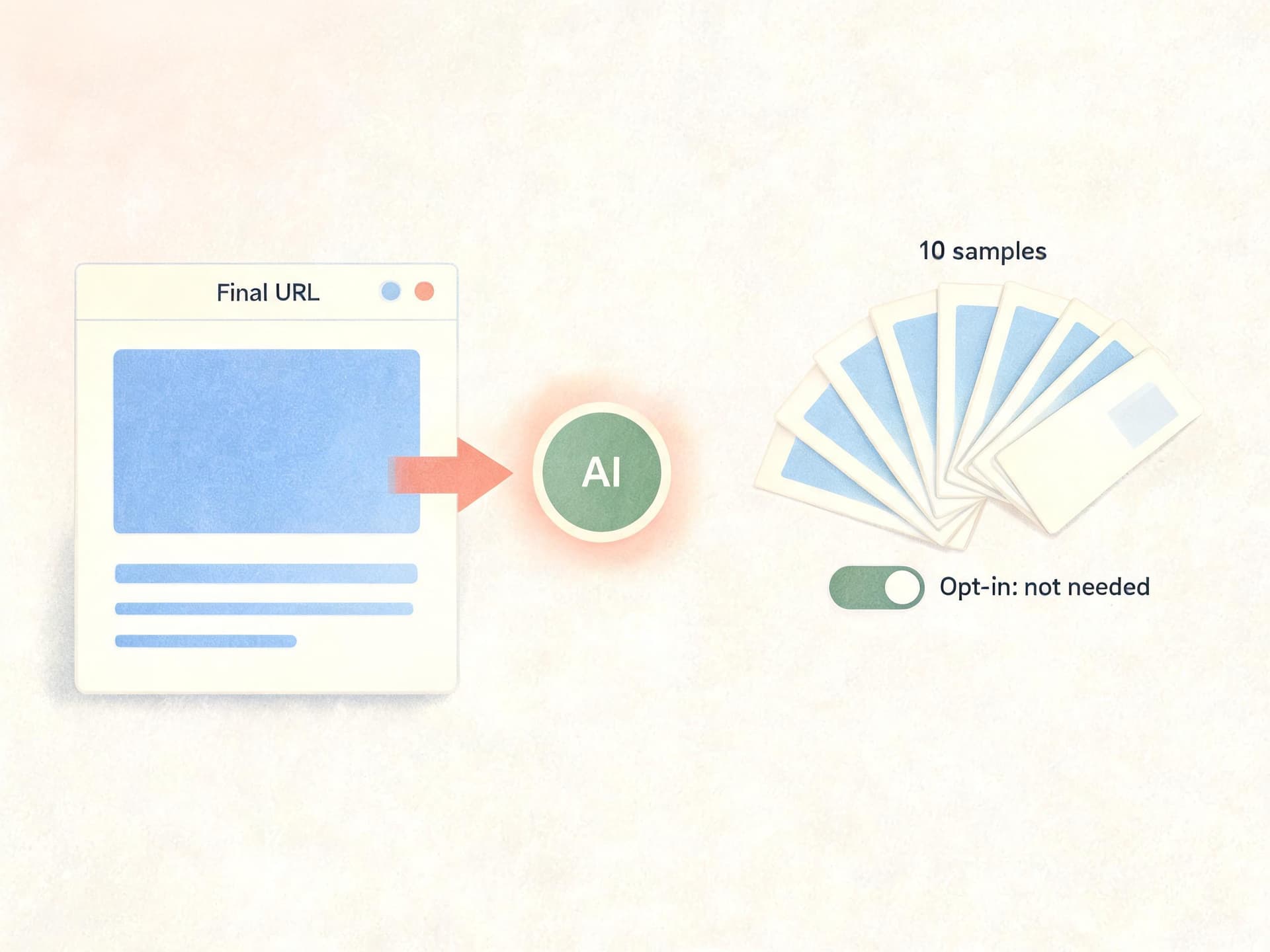
Google Ads now previews up to 10 AI-generated headlines and descriptions for AI Max before you opt in. Here is where to find them, what they show, and how to review them.
If you run Search campaigns and Google keeps telling you that AI Max will write some of your headlines and descriptions, the obvious worry is the one you cannot answer until the ads are already live: what exactly will it say about my business? Until this month, the honest answer was to switch text customization on, wait, and then read the asset reports to find out. On October 9, 2026, Search Engine Roundtable reported that Google has added a "Text customization asset previews" section to its help page, and with it a way to see sample AI-generated headlines and descriptions before you opt in or launch.
This guide explains what the preview shows, where it lives, what Google has and has not documented about it, and how to turn it into a repeatable review routine instead of a one-time curiosity click. It also covers how the preview relates to text guidelines, brand controls, AI Brief, Final URL expansion, and text disclaimers, with illustrative examples of good and risky generated copy for three kinds of businesses. Everything stated as fact below comes from Google's help documentation or from the trade coverage linked in the text, and anything that could not be verified is flagged as such.
TL;DR: What You Need to Know About Text Customization Asset Previews
- What it is: a preview of up to 10 sample headlines and descriptions that Google AI generates for your campaign, based on the final landing page URL you provide.
- Where it appears: in the Asset optimization section for AI Max for Search campaigns, both during campaign creation and when you edit an existing campaign.
- Opt-in: not required. Google's documentation says you can view the examples without turning on text customization.
- Speed: Google says examples are mostly generated in under 30 seconds.
- Guidelines: if you have set text guidelines such as excluded words or themes to avoid, the preview filters its samples to match them. If your rules block every possible asset, you are prompted to adjust or remove some.
- Coverage: available in all languages that text customization supports, for nearly all standard business categories except adult content.
- Big caveat: it is a representative sample, not a promise. Live ads combine assets dynamically, so a clean preview does not approve every future ad. Keep watching your live asset details and reports.
If you also need visuals to sit next to the cleaned-up copy, you can build ad images and short clips in Miraflow's AI image generator and cinematic video generator, covered in a section near the end.
What Changed: The New Section on Google's Help Page
The change is documentation plus product behavior. Google's help page "About text customization in Search campaigns" now includes a section called "Text customization asset previews." Barry Schwartz reported it on Search Engine Roundtable on October 9, 2026, crediting Hana Kobzová of PPC News Feed for spotting it. The help page itself describes the purpose in one sentence: use asset previews to view sample text assets generated by Google AI for your campaign, and check whether the generated text fits your brand and text guidelines before you opt in or launch.
Here is what the documentation and the trade coverage establish, point by point:
- A final URL drives the sample. When you provide a final landing page URL, Google AI automatically generates a representative sample of up to 10 example headlines and descriptions. If no URL is prefilled, you add one and select Preview examples.
- No opt-in is required. You can inspect the examples without enabling text customization. That matters because it turns the preview into a decision tool for the campaigns that have not been upgraded yet.
- The location is Asset optimization. That panel sits inside the AI Max settings for a Search campaign, and the preview is available during campaign creation and when editing existing campaigns.
- Generation is quick. Google states that examples are mostly generated in under 30 seconds.
- Guidelines shape the output. The preview panel filters generated assets against your text guidelines, and prompts you to adjust or remove rules if they block every potential asset.
- Language and category coverage. Previews work in all languages supported by text customization and for nearly all standard business categories, with adult content excluded.
What the sources do not establish matters just as much. None of the coverage I could open documents a way to delete or edit an individual item inside the preview itself, a per-asset approve button, or any claim that previews improve performance. The next section separates what the preview is from what the live controls do.
Where Previews Appear and What They Actually Show
The path to the setting is documented on Google's help page for turning text customization on. For an existing campaign, you open Campaigns, go to the Settings tab, select the campaign, and select AI Max. Under the toggle for optimizing your campaign with AI Max, the Asset optimization panel contains a Text customization checkbox. The preview belongs to that same panel, which is why you will see it during campaign creation (on the Campaign settings page, in the AI Max panel) as well as in edit mode.
I could not verify the exact pixel-level layout of the preview card: whether samples are grouped by headlines and descriptions, how they are labeled, or whether there is a refresh control. Google's screenshot appears in the Search Engine Roundtable article, but the documented text only describes the behavior. If your account looks different from what you read here, trust your own screen and treat this guide as a map of the documented behavior, not a UI recording.
What a preview sample tells you
Think of each sample as a probe of three things at once. First, it shows how Google AI reads your landing page: which products, services, offers and claims it considers central. Second, it shows the voice it defaults to, which is usually more generic and promotional than a brand's own style. Third, it shows how well your guardrails work, because if you have set text guidelines the filtered output is evidence that those rules are being applied before anything runs.
What a preview sample cannot tell you
A preview cannot show how assets combine into a finished responsive search ad, because Google assembles live ads from advertiser-written and Google-generated assets according to predicted performance. It cannot show how the text interacts with a different URL if Final URL expansion later picks another page. And it is generated from a representative sample, so the live account can produce lines the preview never showed. ContentGrip, which covered the update around October 8, makes the same point: the preview is a sample and approving it does not mean every live ad has been approved.

Why It Matters: From "Automatically Created Assets" to AI Max Text Customization
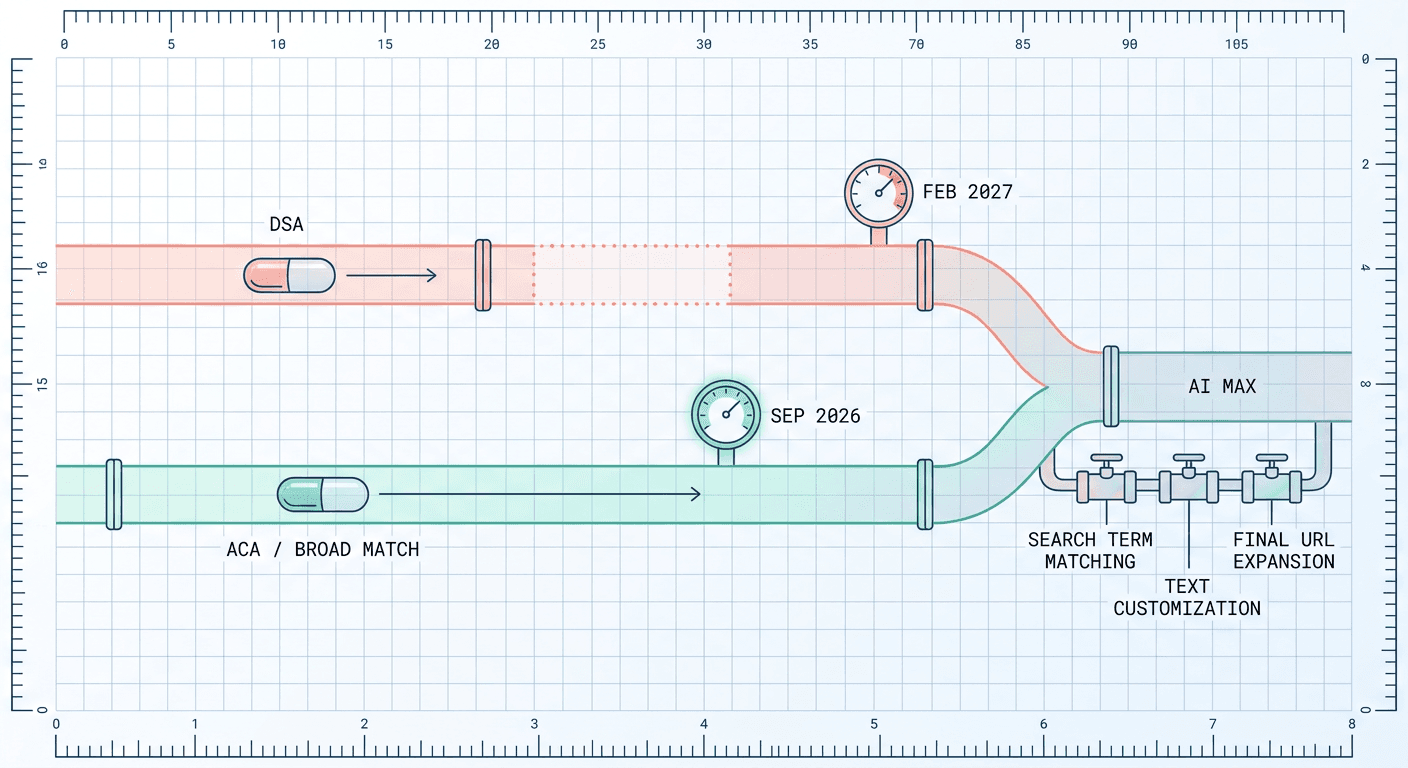
To see why this small help-page section is a bigger deal than it looks, it helps to remember how the feature got here. Google originally let Search advertisers turn on "automatically created assets," a setting that let the system generate extra headlines and descriptions from your landing page and existing ads. Many advertisers enabled it once, often years ago, and rarely looked back. When Google introduced AI Max for Search, the same capability was renamed text customization and moved into the Asset optimization panel, alongside Final URL expansion. Google's help page now states that starting in September 2026, campaigns using text customization (formerly automatically created assets) are being upgraded to AI Max.
If you want the timeline and the full upgrade logic, our walkthrough of the September 2026 AI Max auto-upgrade covers it, and the DSA migration delay to February 2027 explains why some accounts still have time. I will not repeat those arguments here. The point for this article is narrower: the more accounts get moved into AI Max, the more advertisers are about to have generated text running under their brand name without ever having decided to approve it.
The trust gap the preview closes
Before previews, the usual review loop looked like this: enable the setting, wait for impressions, open asset details, find the Google-generated lines, and decide whether to remove any of them. That loop is reactive. Every bad line that gets served before you notice it is a real impression, a real click possibly, and in regulated or premium categories possibly a real compliance incident. A preview moves the first look to before launch, which is the only moment when finding a problem is free.
Why 2026 raises the stakes
AI Max leans harder on landing pages than older Search automation did. Google's own page describes Final URL expansion and text customization as working together, and states that Final URL expansion requires text customization to be on, since a newly selected URL could make your own assets irrelevant. That coupling means the generated text is no longer a side feature. It is part of how traffic gets routed, which is why checking it matters more than it did when automatically created assets only filled in a few gaps.
Step-by-Step: A Review Workflow You Can Repeat for Every Campaign
The preview is only useful if you review it the same way every time. Here is a workflow that fits the documented behavior without assuming any UI that Google has not described.
Step 1: Pick the landing pages worth testing
Start with the final URLs that actually receive spend, not the homepage by default. Because the sample is generated from the URL you supply, a homepage can give a broad brand impression while a product or service page shows the lines you will really face. For a campaign with several ad groups pointing to different pages, run the preview once per distinct page type: one for a category page, one for a service page, one for a pricing or booking page.
Step 2: Open the preview in the Asset optimization panel
Go to the campaign's AI Max settings and open Asset optimization. If a final URL is already filled in, the sample should generate on its own. If not, enter the URL and select Preview examples. Allow roughly 30 seconds per Google's documentation. Because no opt-in is required, you can do this on campaigns where text customization is still off.
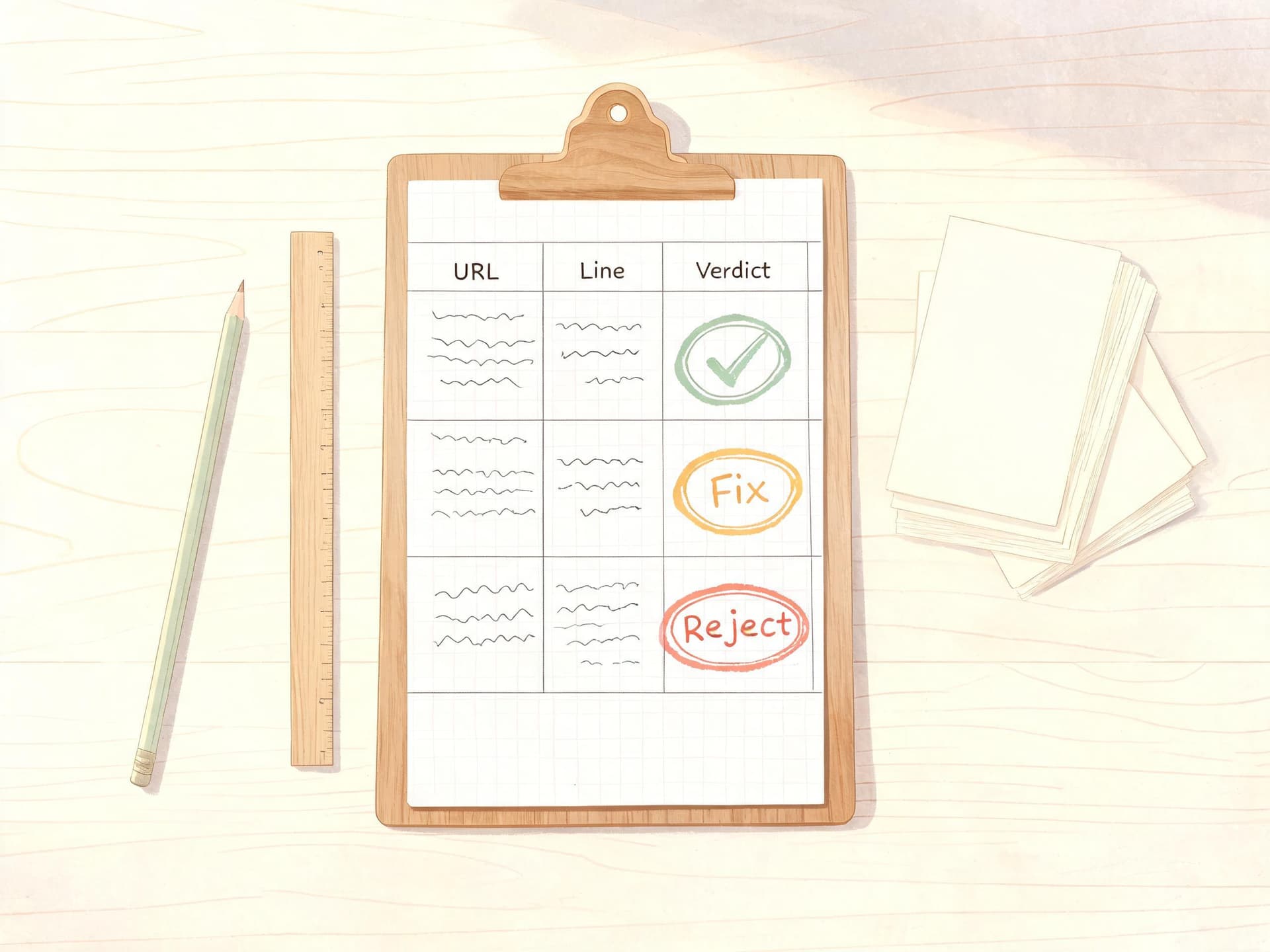
Step 3: Copy every sample into a review sheet
Paste all headlines and descriptions into a spreadsheet with one row per line and columns for the URL, the date, the line type, and a verdict. This takes two minutes and gives you a record you can compare against live asset details later. If you later rerun the preview and the samples change, you will have evidence of how variable the output is for that page, and Google does not document that variability, so your own sheet is the best measure.
Step 4: Score each line against five tests
Use the checklist in the table later in this article. In short: is every claim true and supportable, does it match your voice, does it respect legal and policy limits, does it match the page it came from, and does it avoid promising things you cannot deliver (price, speed, availability, guarantees).
Step 5: Add or tighten text guidelines, then preview again
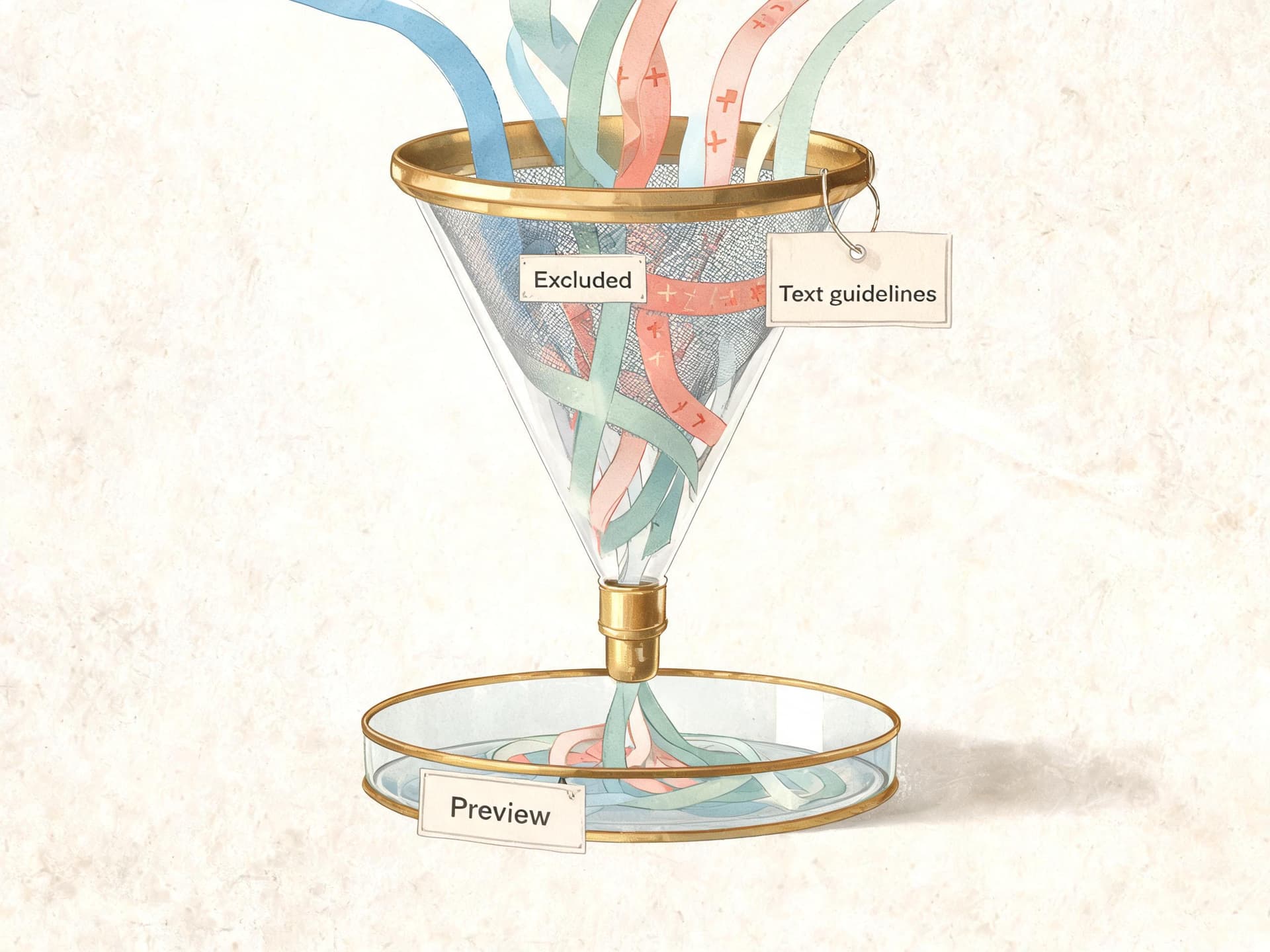
If the first pass shows repeated problems, such as discount language you never offer or a tone that is too casual, add the terms or themes to your text guidelines and run the preview again. Google states that the panel filters the samples to meet your guidelines, so the second run is a direct test of whether the rule worked. If every possible asset ends up blocked, the interface prompts you to loosen or remove rules, which usually means a rule is too broad.
Step 6: Decide opt in, opt out, or opt in with conditions
There are three honest outcomes. If the samples are on brand and accurate, enable text customization and schedule a live review. If they are close but need constraints, enable it with tightened guidelines. If the samples would require heavy rules for a category that cannot tolerate surprises, leave it off for that campaign. Remember that turning text customization off stops its generated assets from serving, and per the help page it also turns off Final URL expansion if that was enabled.
Step 7: Check live assets after launch
After the campaign serves, open Ads, find the responsive search ad, and select View assets details under the ad's name. This is where Google-generated assets show their status, and where individual removal happens, which the next section covers.
Can You Remove Individual Generated Assets?
This is the question most advertisers ask first, and the answer has two parts that are easy to blur. For the preview, I could find no documentation of removing, editing, or approving individual samples. It is a read-only look at examples. For live assets, Google does document a removal path.
According to the help page for text customization, to remove an individual generated asset you go to Ads in the Campaigns menu, find the responsive search ad, select View assets details under the ad's name, hover over the status icon for the asset, and select Remove. Google then asks you to acknowledge that the removal is permanent before you select Confirm. Permanent is the important word: plan to remove only lines you are sure you never want, and use text guidelines for patterns rather than removing lines one at a time forever.
Experiments add a wrinkle. Per the same help page, in custom experiments you remove the assets in the base campaign, and if Sync is enabled the removal carries over to the treatment campaign, but you cannot remove them directly from the treatment campaign. In AI Max experiments you can remove them directly. If you are testing AI Max against a control, our post on Search experiments with multi-campaign budget and ROI testing is useful background for planning that test.
The practical rule
Use the preview to prevent, text guidelines to constrain, and live asset removal to correct. Each does a different job. Relying on removal alone means problems are found in production, and relying on the preview alone means you trust a sample.
How Previews Relate to Text Guidelines and Brand Controls
Google's help page describes text guidelines as a pilot: a feature that lets you exclude specific terms, define your tone of voice, and avoid specific concepts in your ads. The preview section links the two directly, since it says the preview filters generated assets to meet whatever guidelines you set. So the most efficient way to use previews is as the test bench for your guidelines.
A caution on naming. The preview section refers to checking against your "brand and text guidelines." The text guidelines feature is documented in the context of the pilot. How brand-level settings in AI Max map to the preview was not documented in the pages I could open, so I will not claim that every brand control you have set will visibly change the sample. The honest way to find out is empirical: run the preview, change one rule, run it again, and compare. Our earlier post on setting brand controls and text guidelines before the AI Max switch covers why to do this early.
What good guideline writing looks like
Guidelines work best as specific, checkable rules. "Do not use the word cheap" is checkable. "Never mention competitor names" is checkable. "Avoid claims about guaranteed results" is a theme. "Sound professional" is a tone instruction, useful but harder to verify, so confirm it by reading the preview output rather than assuming it worked.
The blocked-everything signal
If your guidelines block every potential asset, Google's documentation says you will be prompted to adjust or remove some. Treat this as information about your page rather than just a nuisance. If the page copy itself leans on words you excluded, then the generator has nothing compliant to draw from, which is a conversation to have with whoever owns the landing page.
How Previews Fit With AI Brief, Final URL Expansion, and Text Disclaimers
The help page section on previews does not discuss AI Brief or text disclaimers; those topics did not appear in the page content I could read. What can be said is how they relate in practice, and I will label which statements come from documentation and which are my reading.
| Feature | What Google documents | How it connects to previews |
|---|---|---|
| Text guidelines (pilot) | Exclude terms, set tone of voice, avoid concepts | The preview filters samples to match them (documented) |
| Final URL expansion | Works with text customization and requires it to be on | The preview is built from the URL you supply, so a different expanded URL would produce different text (my reading) |
| AI Brief | Natural-language guidance for AI Max | Not documented as feeding the preview; test by comparing runs (unverified) |
| Text disclaimers | A fixed legal line that accompanies ads | Not documented as appearing in previews; confirm in live ad assets (unverified) |
For depth on the two features not documented in the preview section, see our guides to writing an AI Brief for AI Max and to text disclaimers with Final URL expansion. The short version of how to combine them is this: let guidelines and your brief set the boundaries, use the preview to test whether those boundaries show up in sample copy, and use a text disclaimer for any legal line that must always be present rather than hoping the generator includes it.
Final URL expansion changes what "the page" means
Because the preview is generated from the URL you supply, it is a faithful test only for that URL. With Final URL expansion on, Google can choose a different landing page for a query, and the text that goes with it is generated for that page. The preview does not simulate that. If you use expansion, preview your most important alternate pages as well, particularly pages that could be selected but that you would rather not advertise from, such as careers pages or old promotions. Fixing those pages or excluding them is a stronger control than fixing the text.
Worked Examples: Good Versus Risky Generated Headlines
The examples below are illustrative. They are invented to show the kinds of lines worth approving or rejecting, and they are not real Google output. Real previews depend on your page, language, and settings.
Example 1: A local plumbing company
Imagine the final URL is a page for emergency drain cleaning in one city, with a phone number and a flat service call fee.
Good illustrative lines: "Drain Cleaning in [City]", "Same-Day Plumbers, Call Now", "Licensed Plumbing Pros", "Upfront Pricing on Every Job". These are grounded in the page, with claims that can be verified if the page lists a license and a flat fee.
Risky illustrative lines: "24/7 Service Guaranteed in 30 Minutes" (a response-time guarantee the business may not meet), "Cheapest Plumber in Town" (an unsupportable superlative), "Free Estimates, No Obligation" (risky if the business charges a diagnostic fee). The pattern: speed, price, and superlatives are where invented specifics creep in.
Example 2: An online skincare shop
Imagine the URL is a product page for a vitamin C serum.
Good illustrative lines: "Vitamin C Serum for Daily Use", "Lightweight Daily Brightening Serum", "Free Shipping Over $50" (if true on the page), "Shop the Full Skincare Range".
Risky illustrative lines: "Erase Wrinkles in 7 Days" (a before-and-after claim that may breach health and cosmetics advertising rules), "Dermatologist Approved" (a certification the page may not support), "Clinically Proven Results" (needs evidence). In health, beauty, and finance categories the preview is a compliance screening tool, and you may decide the safest outcome is to add guidelines that exclude medical claims or leave text customization off.
Example 3: A B2B software company
Imagine the URL is a pricing page for a project management tool with a free trial.
Good illustrative lines: "Project Management Software", "Start Your Free Trial", "Plan Tasks, Teams, and Deadlines", "See Pricing and Plans".
Risky illustrative lines: "Used by Fortune 500 Teams" (a customer claim that has to be true), "Replace Your Entire Stack" (an overreach that hurts credibility), "Free Forever, No Credit Card" (risky if the free plan changed). Here the issue is rarely tone; it is claims about customers, pricing, and plan terms that go out of date.
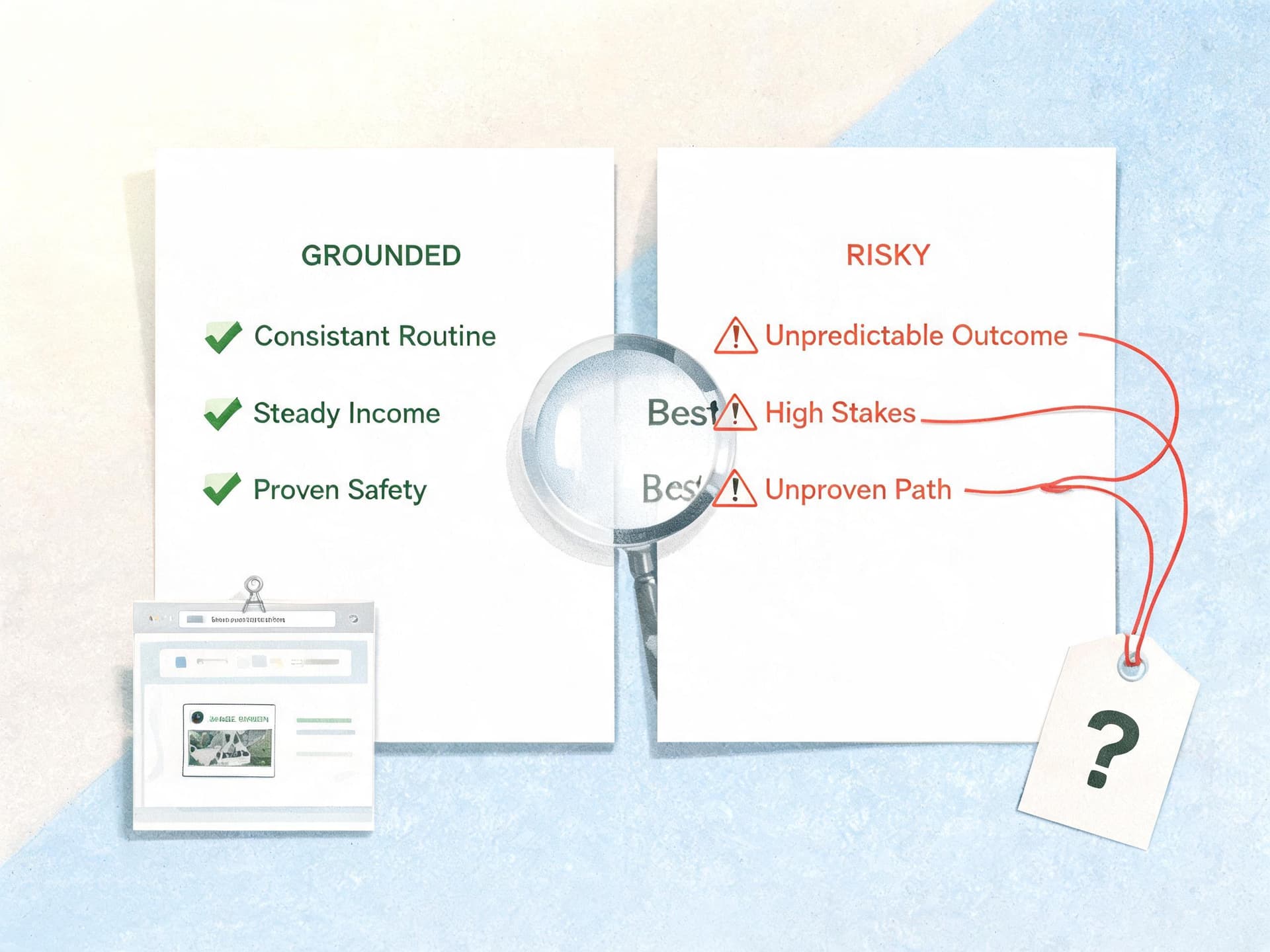
What these examples have in common
Good lines restate things visible on the landing page, in plain wording. Risky lines add a number, a guarantee, a certification, a superlative, or a time promise that the page does not contain. When you review a preview, search for digits, the words guaranteed, best, cheapest, proven, free, and approved, and check each one against the page before you accept it.
The Review Checklist: Questions to Ask About Every Sample
Use this table as a scoring sheet. Mark each sample pass, fix, or reject.
| Check | Question to ask | Pass looks like | Reject or fix when |
|---|---|---|---|
| Accuracy | Is every fact on the landing page? | Offer, product, location and price match the page | A number, guarantee or time promise appears nowhere on the page |
| Superlatives | Does the line claim best, cheapest or number one? | Plain descriptive wording | Any ranking or comparison you cannot prove |
| Regulated claims | Does it imply a health, finance, legal or safety result? | No outcome promises | Cures, guaranteed returns, certifications you do not hold |
| Voice | Does it sound like your brand? | Same terms and tone as your own ads | Generic hype, slang or words on your exclusion list |
| Page match | Does the line fit the URL it came from? | Line names the page's real subject | Line promotes a service or product the page does not offer |
| Freshness | Could it expire? | Evergreen wording | Dates, sale terms or plan details that change |
| Disclosure | Does a legal line need to travel with it? | Required text is handled by a disclaimer asset | You are relying on generated text to carry legal wording |
Account-Size Breakdown: How to Use Previews at Different Scales
Small accounts with one to five Search campaigns
You can review every campaign by hand. Preview each distinct landing page, paste samples into one sheet, and decide campaign by campaign. The biggest benefit for a small business is the ability to see what automation will say before it speaks in your name, since you probably have no one else watching. Start with your top two revenue pages. Keep your rules short, perhaps five to ten, so you can reason about what each one does.

Mid-size accounts with dozens of campaigns
Standardize. Create one review sheet template and one set of guideline language that gets reused across campaigns, then customize only for exceptions. Group campaigns by page type or product line and preview one representative URL per group, then spot check a second URL in each group. Assign a named owner to the checklist so the review happens when new campaigns are created, not only during audits. Pair this with the reporting views in our guide to AI Max reporting changes, so that what you approve in preview can be compared with what is live.
Large accounts and agencies
Previews are a per-campaign, per-URL tool, which means at scale the work is process design rather than clicking. Define categories of risk (regulated claims, pricing, availability, trademarks), assign reviewers per category, and keep a shared log of rejected phrasing so guideline language improves across clients. Agencies should capture a dated preview export for each client sign-off, because it documents what the client saw before approving the setting. For regulated clients, build the review into the launch gate, and treat any change to the landing page as a trigger to preview again.
Seasonal and promotional campaigns
If your pages change often, the sample can go stale. A holiday sale page that ends on a certain date can generate lines with that date, and Final URL expansion can pull in the page after the sale ends. Re-run previews when you change an offer, and make a habit of removing or updating promo pages the day a promotion ends.
A Weekly Routine After Launch
The preview covers the starting line; the rest is monitoring. A light weekly routine looks like this: open View assets details for your top-spending responsive search ads, look at the Google-generated assets and their status, compare them with your launch sheet, remove any line that fails the checklist, and add the pattern to your text guidelines so it does not return. Monthly, rerun the preview for your top pages and compare with the previous sheet. If the lines have drifted, find out whether the page changed or the generator did.
Common Mistakes When Using Asset Previews
- Treating the preview as an approval. It is a sample. Google generates live ads from a mix of your assets and its own, so previewing ten lines does not cover every combination. Keep monitoring live assets.
- Previewing only the homepage. The sample follows the URL you give it. Test the pages that actually receive spend and the pages Final URL expansion could select.
- Adding too many guidelines at once. If you add twenty rules and the output changes, you will not know which rule did what. Change one or two at a time and rerun.
- Writing rules that block everything. Google tells you when guidelines block every potential asset. Respond by loosening, and check whether the landing page copy itself conflicts with your rules.
- Ignoring descriptions. Reviewers often fixate on headlines. Descriptions can carry the riskiest claims, because there is room for guarantees and offers.
- Forgetting that removal is permanent. Per the help page, removing a generated asset requires acknowledging it is permanent. Remove only what you are sure about, and use guidelines for patterns.
- Skipping regulated-category checks. Previews exclude adult content, and nothing in the documentation says they check legal compliance for you. Legal lines belong in a text disclaimer, and legal review belongs to humans.
- Never repeating the preview. Pages change, promos end, and guidelines get edited. A preview from six months ago tells you little about today.
Pair Cleaner Copy With Better Visuals: Where Miraflow Fits
Once the text assets are reviewed, the next weak point is usually everything around them: the images and short videos that appear in Demand Gen, YouTube, Performance Max, and social retargeting that point to the same landing page. Search text and visual creative that tell different stories dilute each other, so it helps to build them from the same approved brief.
On the visual side, Miraflow lets you generate ad images from a plain-language description with the AI image generator, and produce short product and scene clips with the cinematic video generator. A practical workflow: take the three or four lines you approved in the preview, such as "Drain Cleaning in [City]" or "Start Your Free Trial," and write an image brief that shows exactly that promise with no extra claims. If you also run YouTube campaigns, the YouTube Thumbnail Maker helps with cover images, and Text2Shorts can turn a script into a vertical video for Shorts placements. For prompt ideas specific to display creative, see our AI prompts for Google Ads display banners, and for how Google's own tooling handles creative, see Asset Studio prefill in Performance Max.
One caution applies to visuals as much as text. Do not generate images that show claims you cannot support, such as a result, a certification badge, or a before-and-after outcome. Keep the visuals as honest as the approved headlines.
What to Watch Next
Three open questions are worth tracking. First, whether Google extends previews to other formats where it generates text, such as the Shopping and Performance Max surfaces. Our overview of AI Max for Shopping shows how quickly AI Max features spread across campaign types. Second, whether the preview will gain per-sample controls, such as rejecting a line and having that carry into guidelines; today, nothing in the documentation says so. Third, whether text guidelines graduate from pilot to general availability. Treat those as questions, not predictions, and check Google's help page for changes.
Frequently Asked Questions
Do I need to turn on text customization to see the previews?
No. Google's help page says no opt-in is required to view examples. Provide a final URL, or enter one and select Preview examples, and the sample generates in the Asset optimization section.
How many sample assets does the preview show?
Up to 10 example headlines and descriptions, described by Google as a representative sample generated from your final landing page URL. The number of each type was not specified in the sources I could open.
How long does it take to generate?
Google states that examples are mostly generated in under 30 seconds.
Where exactly do I find it?
In the Asset optimization section for AI Max for Search campaigns, both when you create a campaign and when you edit an existing one. The settings path for existing campaigns goes through Campaigns, Settings, your campaign, then AI Max.
Can I delete or edit a sample inside the preview?
Nothing in Google's documentation or the trade coverage describes this. For live ads, you can remove an individual Google-generated asset through View assets details under the responsive search ad, and the removal is permanent.
Do text guidelines change what the preview shows?
Yes, according to Google's help page. The preview panel filters generated assets to meet guidelines such as excluded words and themes to avoid, and prompts you to adjust them if they block every potential asset. Text guidelines are described as a pilot feature.
Does the preview use my AI Brief or brand guidelines?
The preview section only documents text guidelines. Whether AI Brief or other brand-level settings influence the sample is not documented in what I could read, so test it by changing one setting at a time.
Is my text disclaimer shown in the preview?
This is not documented. Verify disclaimers on live ad assets rather than assuming the preview includes them.
Which languages and industries are supported?
All languages that text customization supports, including English, Spanish, and Japanese per the trade reports, and nearly all standard business categories except adult content.
If the preview looks good, can I stop checking live ads?
No. The preview is a sample and live ads combine assets dynamically. Keep reviewing asset details and reports after launch.
Does this affect campaigns that were already upgraded to AI Max?
You can open the preview when editing existing campaigns. It helps you audit what text customization could be generating for a given URL, even if you did not review it before the upgrade.
Conclusion
Text customization asset previews close a real gap: until now, advertisers had to switch on AI-generated text and read the consequences in reports. Now you can supply a landing page, wait about 30 seconds, and read up to 10 sample headlines and descriptions that Google AI would generate for it, filtered through your text guidelines, without opting in. The documented behavior is narrow, and that is a feature of an honest review process: the preview is a sample, it does not remove or approve individual lines, and it does not replace watching live assets.
The best way to use it is as a repeatable routine: choose the landing pages that matter, run the preview, log every sample, score each line against a checklist, tighten text guidelines and rerun, then decide whether to opt in. After launch, review live asset details, remove what fails, and feed those failures back into your guidelines. If you are building matching visuals for the same campaigns, start with an approved line and create the image or clip around it using Miraflow, so every part of the funnel says the same true thing.
For the source material, read Google's About text customization in Search campaigns help page and Search Engine Roundtable's report on the new previews.