Google Ads Lead Form Qualifying Responses Explained: Stop Smart Bidding Chasing Junk Leads (2026)

Written by
Aerin Kim
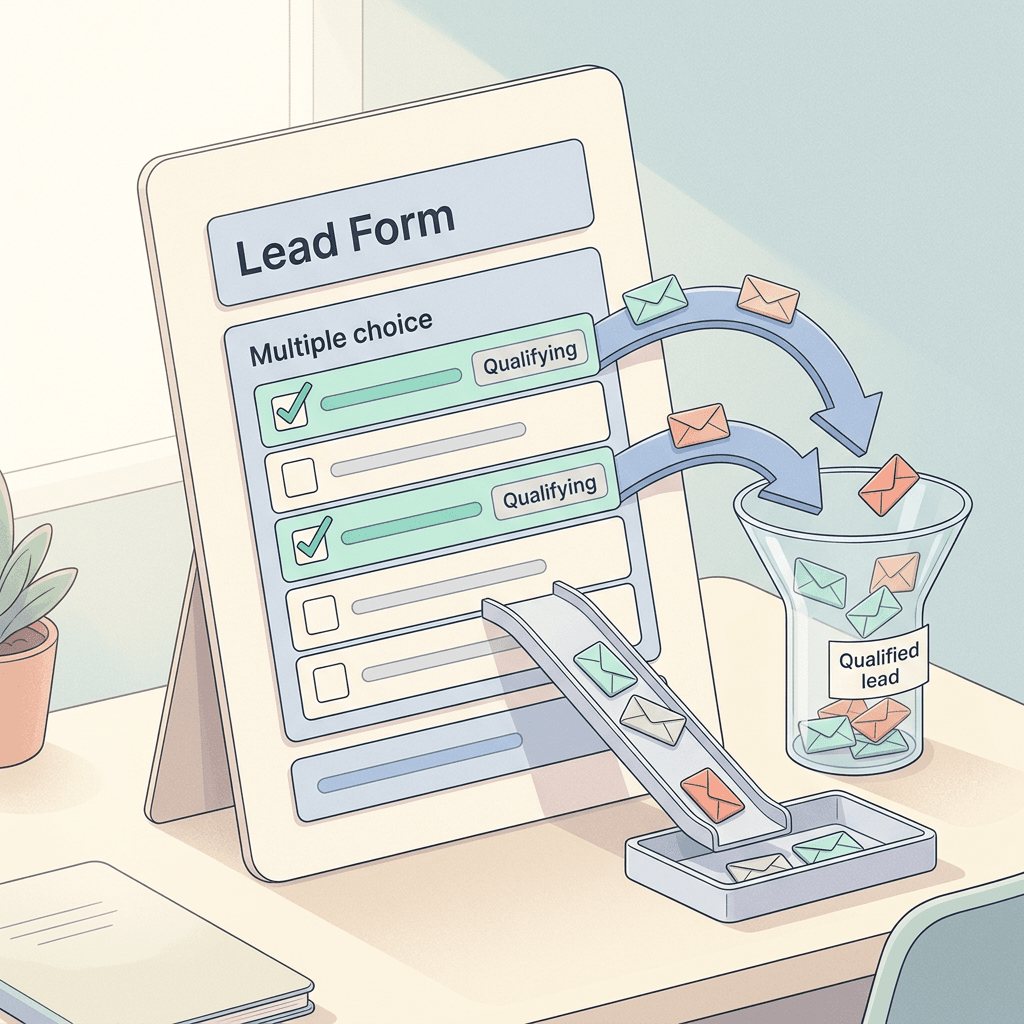
Google Ads lead forms on Search now let you mark answers as Qualifying. Learn how qualified leads reach your conversion goals, how to set it up, and how to test it.
If you run Google Ads lead generation on Search, you have probably had the same Monday morning more than once: the dashboard says 42 leads at a lovely cost per lead, and the sales team says six of them were real. The other 36 were people who wanted a free quote for something you do not sell, a job in the wrong city, a student doing homework, or someone who tapped through a short form because it was easy. Smart Bidding did exactly what you asked, which was to find more people who submit the form, and it found them efficiently.
On October 15, 2026, PPC News Feed reported that Google Ads lead form assets now let advertisers mark specific answers to custom questions as Qualifying, a find credited to Dafne Nazar on LinkedIn. Google's help center has a matching page, "About qualifying responses in lead forms", that explains how those answers become a separate conversion signal. This guide covers what is confirmed, what is still unclear, and how to use the feature so your bidding strategy stops treating every form submission as equally valuable. If you also need fresh creatives for the ads that send people to these forms, Miraflow's AI Image Generator is a quick way to produce them, and I cover that near the end.
TL;DR: Qualifying responses let you tag certain answers on a multiple-choice question as the ones that signal a good lead. Submissions containing a qualifying answer are tagged as qualified leads, and Google adds a conversion action called "Lead form - Response qualified (Google-hosted)" to your Qualified lead goal. The feature is for Search campaigns only, and qualifying questions cannot be optional. The practical play is to keep your form short, make one or two questions do the filtering, and then point bidding at the qualified signal so the algorithm learns from the leads you actually want.
What Changed: The Qualifying Checkbox on Lead Form Answers
Lead form assets have always let you add custom questions to the form, things like "What service do you need?" or "How soon do you want to start?" The answers came back in your lead data, but Google had no idea which answers meant "great lead" and which meant "never going to buy". According to the PPC News Feed report, the path to the new option is Assets > Lead Form > Create Lead Form > Custom Questions. You create a question, add the answer options, and each answer now has a Qualifying checkbox. Tick it on the answers that count.
Here is how I would separate what is confirmed from what is inference, since this feature was spotted live and the documentation is short.
| Item | Status | Source |
|---|---|---|
| Qualifying checkbox on custom question answers, under Assets > Lead Form > Create Lead Form > Custom Questions | Reported as spotted live Oct 15, 2026 | PPC News Feed (credit: Dafne Nazar) |
| Available for Search campaigns only | Confirmed | Google help center |
| Submissions with a qualifying answer are tagged as qualified leads | Confirmed | Google help center |
| Conversion action "Lead form - Response qualified (Google-hosted)" is added to the Qualified lead goal when a qualifying question runs in an active campaign | Confirmed | Google help center |
| Qualifying questions are required and cannot be marked optional | Confirmed | Google help center |
| Each submission carries a Lead stage value in CSV, webhook, and API output | Confirmed | Google help center |
| Numeric caps (number of qualifying questions, answers per question, API limits) | Not stated on the pages I read | Treat as unknown and check in your account |
| How qualified leads show up in conversion reporting and whether this ties into the newer Leads beta section under Conversions | Unclear in the original report | Verify in your own account |
The table matters because several details people will want, such as how many qualifying questions a form can hold, are not on the help page. I would rather tell you that than guess. If your account shows a limit when you build the form, trust the interface over any blog post, this one included.
The feature did not appear out of nowhere. In May 2026 PPC News Feed covered a centralized lead management interface for Google-hosted form leads, with totals for new, qualified, and lost leads and the idea of sending quality signals back to Google's AI. In June it spotted a Leads section in beta under Conversions showing raw, qualified, converted, and lost lead counts. Qualifying responses look like the front-end half of that system: the form itself now produces a quality label at the moment of submission, rather than waiting for a human to mark a lead as good later. That connection is my inference from the timeline, not something Google has said in those words.
Why Qualified Leads Matter More Than Lead Volume
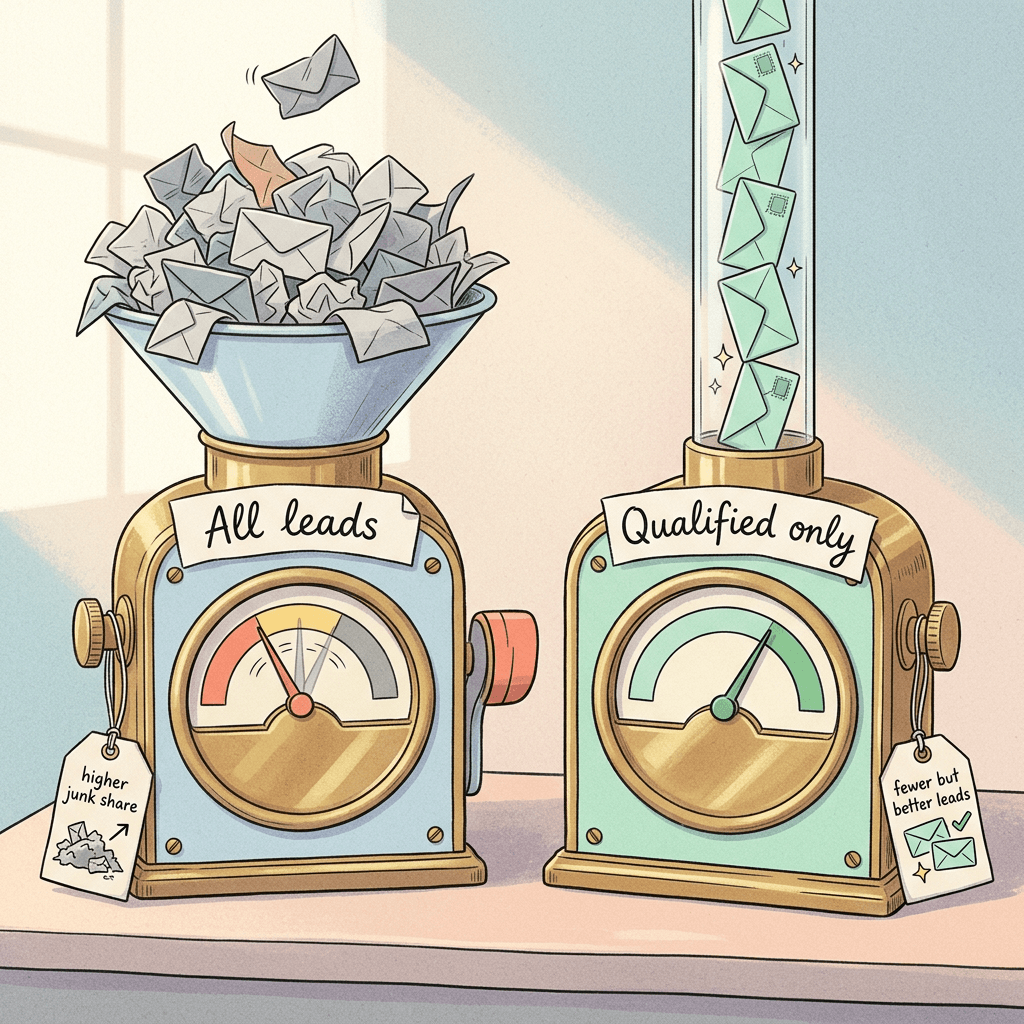
Smart Bidding optimizes toward whatever conversion signal you hand it. If the goal is "Submit lead form (Google hosted)", then a submission from a tire-kicker and a submission from a homeowner with a burst pipe are the same data point. The system will find the cheapest path to more submissions, and cheap submissions are often the least qualified ones, because people with low intent complete short forms more readily.
Google already acknowledges this tradeoff in the lead form type setting. Per the help center, More volume is the default and uses a design with fewer steps, which can produce more leads, some less interested. More qualified uses more steps, which can mean fewer leads that generally show greater interest. Audiences and form fields do not change with either option, you can switch at any time, and the choice may affect cost per lead and lead volume. Qualifying responses add a second, more explicit lever: instead of only adding friction, you tell Google which answers matter.
There are three reasons that second lever is valuable.
First, it creates a quality signal at submission time. Offline conversion import and CRM feedback are the gold standard, but they arrive days or weeks later and only if somebody built the pipeline. A qualifying answer arrives instantly with every lead.
Second, it gives you a cleaner conversion goal to bid on. A goal made only of leads who said "I need this within two weeks and I own the property" is a very different training set from a goal made of everyone.
Third, it makes your sales team's life easier even if you never touch bidding. The Lead stage value in the data output means a CSV, webhook payload, or API pull can already be sorted into qualified and not qualified.
For readers who have followed the other lead-gen changes this year, this fits a pattern. Google's Business Agent for leads qualifies conversations conversationally, pay-per-lead Performance Max with Bookings only charges for valid contacts, and missed-call charges in Local Services shifted what counts as a billable lead. Qualifying responses is the Search lead form version of the same theme, which is Google pushing advertisers to define what a good lead means.

How Qualification Flows Into Conversion Goals and Bidding
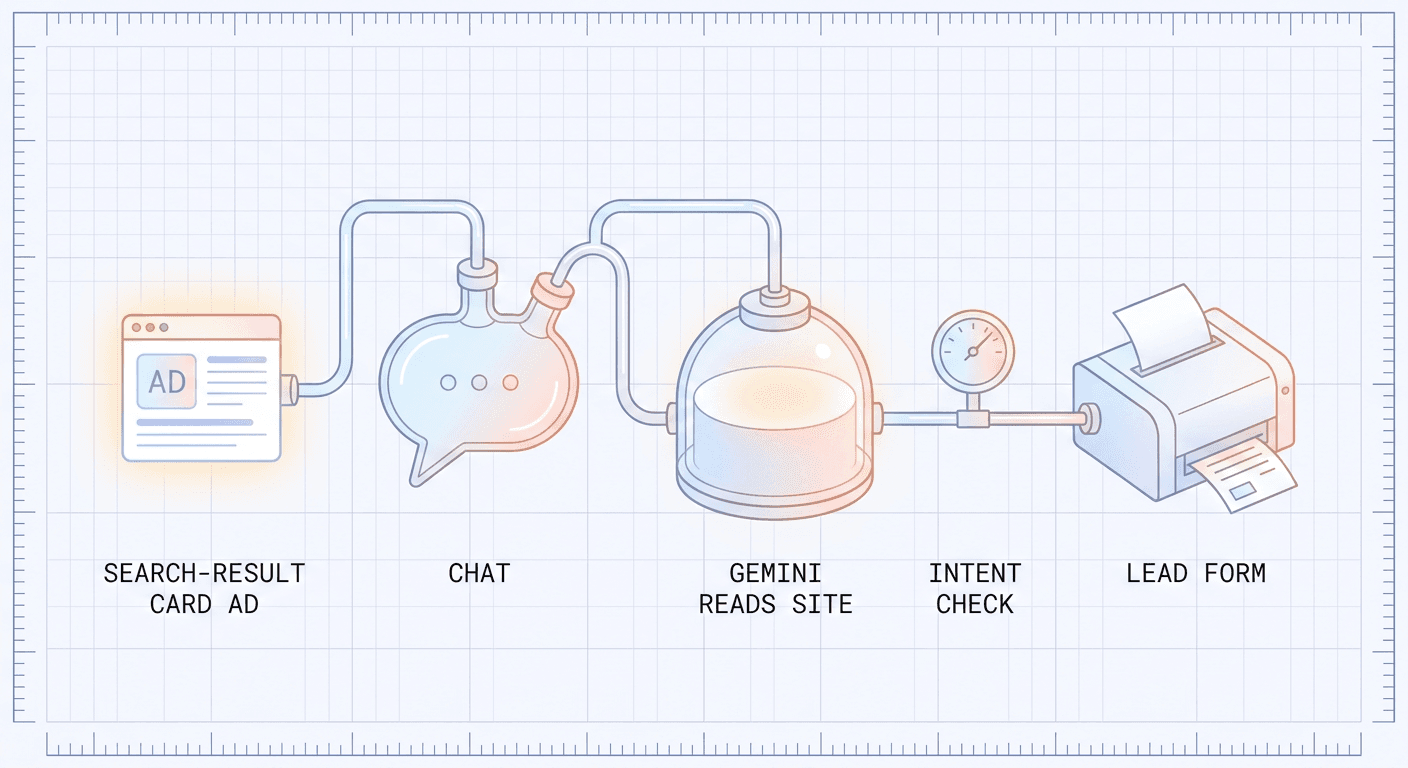
Here is the sequence as Google's documentation describes it, followed by my reading of what it means for bidding.
- A user submits your Google-hosted lead form on a Search campaign.
- If one of their answers to a qualifying question is marked Qualifying, the submission is tagged as a qualified lead.
- While a qualifying question is running in an active campaign, the conversion type "Lead form - Response qualified (Google-hosted)" is added to the Qualified lead goal.
- The Lead stage value travels with the lead in CSV, webhook, and API output, so downstream systems see it too.
Everything above is from Google's help page. What follows is inference, so treat it as a hypothesis to verify in Goals > Summary in your account.
Your original conversion action, "Submit lead form (Google hosted)", most likely keeps counting every submission, and the new action counts only the subset that carried a qualifying answer. That means you will have two related signals living in two goals: a lead-level goal with everything, and a Qualified lead goal with the good ones. Which of these your campaign bids on depends on your goal configuration, either at the account level or through campaign-specific goals. If you leave the account default as is, you may continue optimizing for all leads, with the qualified signal just sitting in reporting. If you want bidding to chase only qualified leads, you need to check that the qualified action is set as a primary action in a goal your campaign actually uses.
| Setup | What Smart Bidding learns from | Likely effect | Best when |
|---|---|---|---|
| Bid on all lead form submissions | Every submission, good or bad | Maximum volume, lowest cost per lead, most junk | You have little traffic or your leads are mostly good already |
| Bid on the qualified lead action only | Only submissions with a qualifying answer | Lower volume, higher cost per lead, better sales fit | You have enough qualified leads per month to feed the model |
| Bid on all leads, report on qualified | Everything, with qualified shown as secondary | No change to bidding, better visibility | You are in the observation phase of a test |
| Qualified as primary, CRM-closed sales imported as a later layer | Instant qualified signal plus delayed revenue truth | Strongest long-term setup, most work | You already have a CRM and a webhook |
One caution on volume. Smart Bidding strategies such as Maximize conversions and target CPA need a reasonable number of conversions to learn from, and Google has historically suggested that conversion volume influences how stable they are. If only 8 percent of your leads qualify and you receive 40 leads a month, you will have roughly three qualified conversions, which is too thin for a target CPA to behave well. In that situation, start by observing, or use Maximize conversions on the qualified goal with a budget you can live with, before moving to a tCPA. The exact threshold varies by account, so I will not quote a magic number.
Also remember the target CPA itself changes meaning when you switch goals. If you were happy paying 40 dollars for any lead and 15 percent of them qualify, then your effective cost per qualified lead was already about 267 dollars. A tCPA of 40 on the qualified goal would starve the campaign. Re-derive the target from the cost per qualified lead you can afford, and read the changes in Google's August 2026 target bid strategy update so you know how target settings behave in the current interface.
Choosing Which Answers Deserve the Qualifying Checkbox
The checkbox is easy. The decision behind it is the hard part, and most of the value of this feature comes from getting that decision right. Here is the framework I would use.
Mark an answer as Qualifying when it describes a person you would be glad to call back within an hour. Not a person you could theoretically sell to, a person you would prioritize. The qualifying set should be smaller than your total sellable set, because the goal is to give the algorithm a sharp signal.
Anchor the question on one of three things: budget or plan fit, timing, or role and authority. Location and service type are important too, but those are usually better handled with targeting and the form's own fields, because a question like "Do you live in our service area?" lets people lie their way into the lead pool. Timing and role questions are harder to answer falsely and carry more intent information.
Do not make every answer qualifying. If all options are ticked, you have built a very elaborate way of tagging everyone as qualified. A good rule of thumb is that between a quarter and a half of the answer options on a question should carry the checkbox, adjusted for how your real audience will answer.
Write answer options in the customer's language. "Within 2 weeks" works. "High urgency" does not, because nobody self-identifies that way.
Because qualifying questions cannot be optional, every person who submits the form must answer them. That is the whole point, but it also means each qualifying question adds a step in front of every lead. Google lets you mark other questions optional to improve submission rates, noting that people still need to provide an email or phone number, but that exemption does not apply to the qualifying one.
Best question types for qualifying
- Timeline: "When do you want to start?" with options like "This week", "This month", "Just researching".
- Budget band: "What is your approximate budget?" with ranges that match your real price points.
- Company size or role (B2B): "How many people on your team?" or "What is your role?"
- Intent type: "Are you looking to buy, rent, or just compare options?"
- Product fit: "Which model are you interested in?" (this is the example Google itself uses in its help text).
Questions to avoid
- Anything personal or sensitive that you do not truly need. Lead form questions are subject to policy review, and Google notes that adding a new custom question may require review during which associated campaigns pause until the updated form is approved.
- Two-sided questions where the "right" answer is obvious ("Do you have a budget?" Yes/No). People will click the answer that looks like it wins.
- Free-text qualifiers. The qualifying feature works on multiple-choice answers.
Worked Examples for Four Business Types
These are illustrative setups, not performance claims. I have not invented any results, and your own numbers will differ. The point is to show the thinking: what the form asks, which answers get the checkbox, and why.
Home services (HVAC, plumbing, roofing)
A local HVAC company runs Search ads for "AC repair near me" and "furnace replacement". Their pain is that repair calls and replacement estimates have very different value, and they get a lot of price-check leads.
| Question | Answer options | Qualifying? |
|---|---|---|
| What do you need help with? | Emergency repair, Scheduled repair, Replace my system, Maintenance plan, Just a quote | Emergency repair, Replace my system |
| When do you need service? | Today, This week, Within a month, Just planning | Today, This week |
Why: the business makes more money on emergency work and full replacements, and people who need it today are the cheapest to convert. Note that two questions are on this form, but I would start with one. Run "When do you need service?" as the first qualifying question and add the second only if lead quality remains an issue after a few weeks. If you want to read more about how the lead pipeline works for local service advertisers, the Performance Max Bookings explainer covers a related pay-per-lead model, and this guide to the Local Services migration into Performance Max shows where the two programs overlap.

B2B SaaS demo request
A project management software company runs Search ads for "construction project management software". Demo requests flow in from students, freelancers, and competitors, along with real buyers.
| Question | Answer options | Qualifying? |
|---|---|---|
| How many people would use this? | Just me, 2 to 10, 11 to 50, 51 to 200, 200+ | 11 to 50, 51 to 200, 200+ |
| Where are you in your search? | Just looking, Comparing tools, Ready to choose in 3 months, Need something now | Comparing tools, Ready to choose in 3 months, Need something now |
Why: team size removes solo users and students, and the stage question removes people who are only exploring. If the product is sold only to teams, "Just me" should never carry the checkbox. A note for B2B advertisers specifically: a qualified answer is a self-reported signal, not a verified one. You should still run your normal scoring after the lead hits your CRM, and consider sending back actual meeting-held or opportunity-created events through offline conversion import, which I cover below.

Dental or medical clinic
A dental practice advertises for "Invisalign near me" and "emergency dentist". Their goal is new-patient consultations, not tooth-whitening price shoppers. Because this is a healthcare-adjacent business, be careful with what you collect and check Google's policies for health-related advertising and personalized data before building the form. The questions below stay on service interest and timing rather than medical history.
| Question | Answer options | Qualifying? |
|---|---|---|
| What would you like to book? | New patient exam, Invisalign consultation, Emergency visit, Cosmetic consultation, Pricing information only | New patient exam, Invisalign consultation, Emergency visit, Cosmetic consultation |
| Do you have dental insurance? | Yes, No, Not sure | Depends on your practice |
I would not use the second question as qualifying unless your practice truly only accepts insured patients, because it can exclude people who would pay out of pocket. The first question does the main work by separating bookable appointments from price research. For visuals on the landing page and ad assets, Miraflow's dental and medical practice image prompts are a good starting point.
Auto dealer
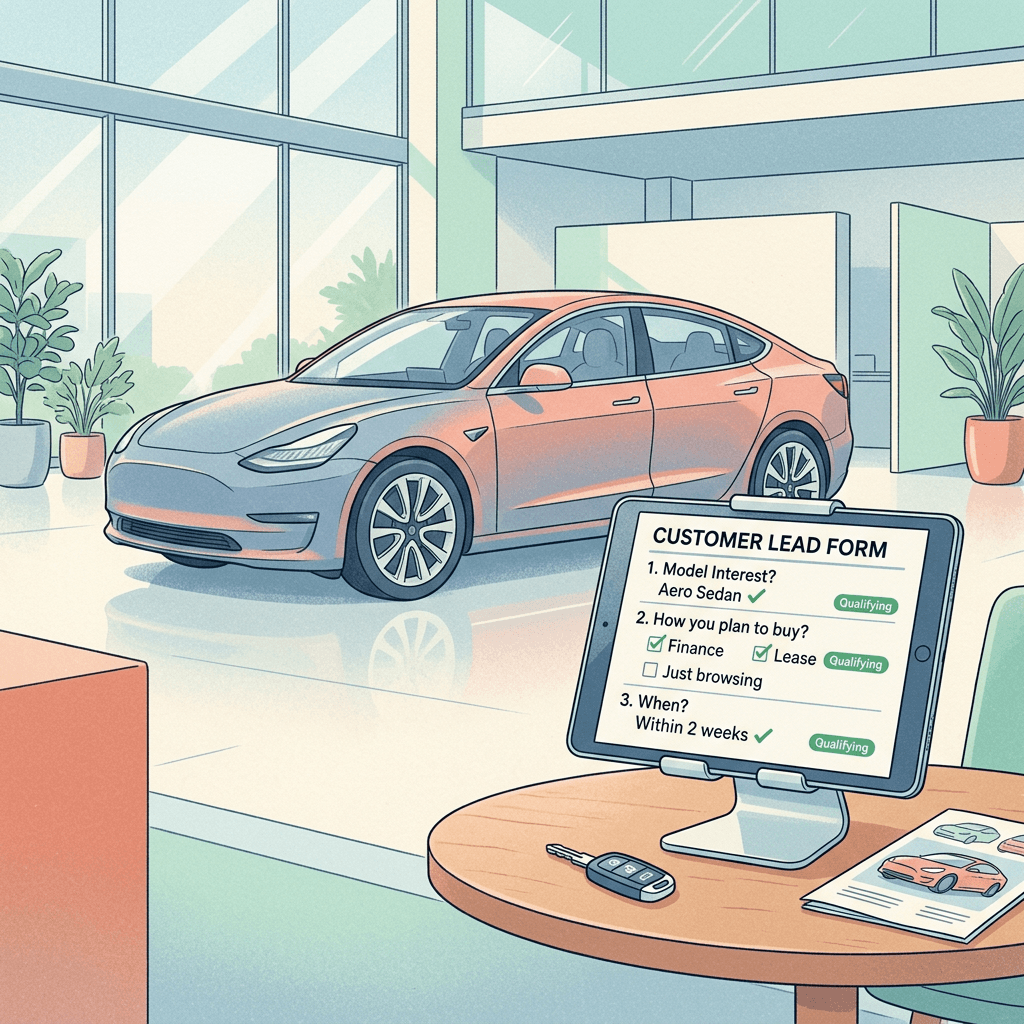
A dealership runs Search ads for a specific model. Google's own help text uses "Which model are you interested in?" as its example of a qualifying question, which suits this case well.
| Question | Answer options | Qualifying? |
|---|---|---|
| Which model are you interested in? | Model A, Model B, Model C, Not sure yet | Model A, Model B, Model C |
| How are you planning to buy? | Finance, Lease, Pay cash, Trade-in only, Just browsing | Finance, Lease, Pay cash |
| When do you plan to buy? | Within 2 weeks, Within 2 months, Later this year | Within 2 weeks, Within 2 months |
Why: someone who named a model and a purchase method has done enough research to be worth a call. "Trade-in only" and "Just browsing" are valid answers that you still want to capture, which is why they exist as options, but they should not feed the qualified goal. Dealerships also have the dealership locator feature on lead forms for Search and Performance Max, per Google's lead form documentation. For creative inspiration, see the automotive dealership marketing prompts.
How Many Questions Before Conversion Rate Drops
There is no published number for this, and anyone who gives you an exact threshold is guessing. What can be said with confidence is the direction. Google's own More qualified versus More volume setting describes the tradeoff: more steps can mean fewer leads that are generally more interested. A qualifying question is effectively a deliberate extra step that every submitter must complete.
My working approach, which you should test rather than trust:
| Questions | Expected effect | When to use |
|---|---|---|
| Contact fields only | Highest volume, no quality signal | Brand awareness or very high-intent keywords |
| Contact plus 1 qualifying question | Small drop in submissions, clear quality signal | Default starting point for nearly everyone |
| Contact plus 2 questions (1 qualifying, 1 optional) | Moderate drop, richer data for the sales team | Higher-ticket services with longer sales cycles |
| Contact plus 3 or more | Likely noticeable drop in submissions | Only when each lead is worth far more than your cost per lead |
Notice how I included an optional question in the third row. Google allows non-qualifying custom questions to be optional, which is a way to gather more context for sales without adding mandatory friction. Put the one question that really separates good leads from bad ones in the qualifying slot, and use the optional slots for details a salesperson would like to know before calling.
The test is simple: compare submission rate, cost per lead, qualified-lead rate, and cost per qualified lead before and after. A form that loses 20 percent of submissions but doubles the qualified share is usually a win, while a form that loses half the volume and barely changes the qualified share is not.

Step-by-Step Setup
- Confirm eligibility. Qualifying responses are available for Search campaigns only. Lead form assets in general work with Search and Performance Max, so if you run Performance Max lead gen, this particular feature does not apply there, per the help page.
- Check the campaign goal. Existing campaigns need "Leads" as their goal to receive a lead form, per Google's Create lead form assets page.
- Open the form builder. Go to Assets > Lead Form > Create Lead Form, then scroll to Custom Questions. If the checkbox does not appear in your account yet, the rollout may not have reached you, which is common for features that are spotted before an announcement.
- Choose or write the question. Google lets you pick from a catalog of multiple-choice questions or suggest your own. Use the catalog when a fit exists, since your own question may need review.
- Add answer options and tick Qualifying. Mark only the answers that describe a lead you would prioritize.
- Do not mark the question optional. Qualifying questions cannot be optional.
- Handle existing forms. Per the help page, if an existing form has no qualifying questions, you must add them, and in some cases that means creating a new form. Remember that removed lead forms cannot be restored and that you can download leads received in the last 30 days from a removed form, so export anything you need before replacing a form.
- Wait for review. Adding a new custom question may require a policy review, and associated campaigns pause until the updated form is approved. Do this at a quiet time, not on a Friday before a big promotion.
- Check the conversion setup. Once the question runs in an active campaign, look in Goals for "Lead form - Response qualified (Google-hosted)" under the Qualified lead goal and confirm how your campaign uses it.
- Set up delivery. Turn on a webhook or email notifications so the Lead stage value reaches your team. Google's lead form documentation lists downloading leads, a webhook to your CRM, and email notification as delivery methods.
Connecting Qualifying Responses to Your CRM, Webhook, and Offline Conversions
A qualifying answer is a prediction. It says "this person told us they are a good fit", which is useful but unproven until someone buys. Treat it as the first of two or three signals rather than the final one.
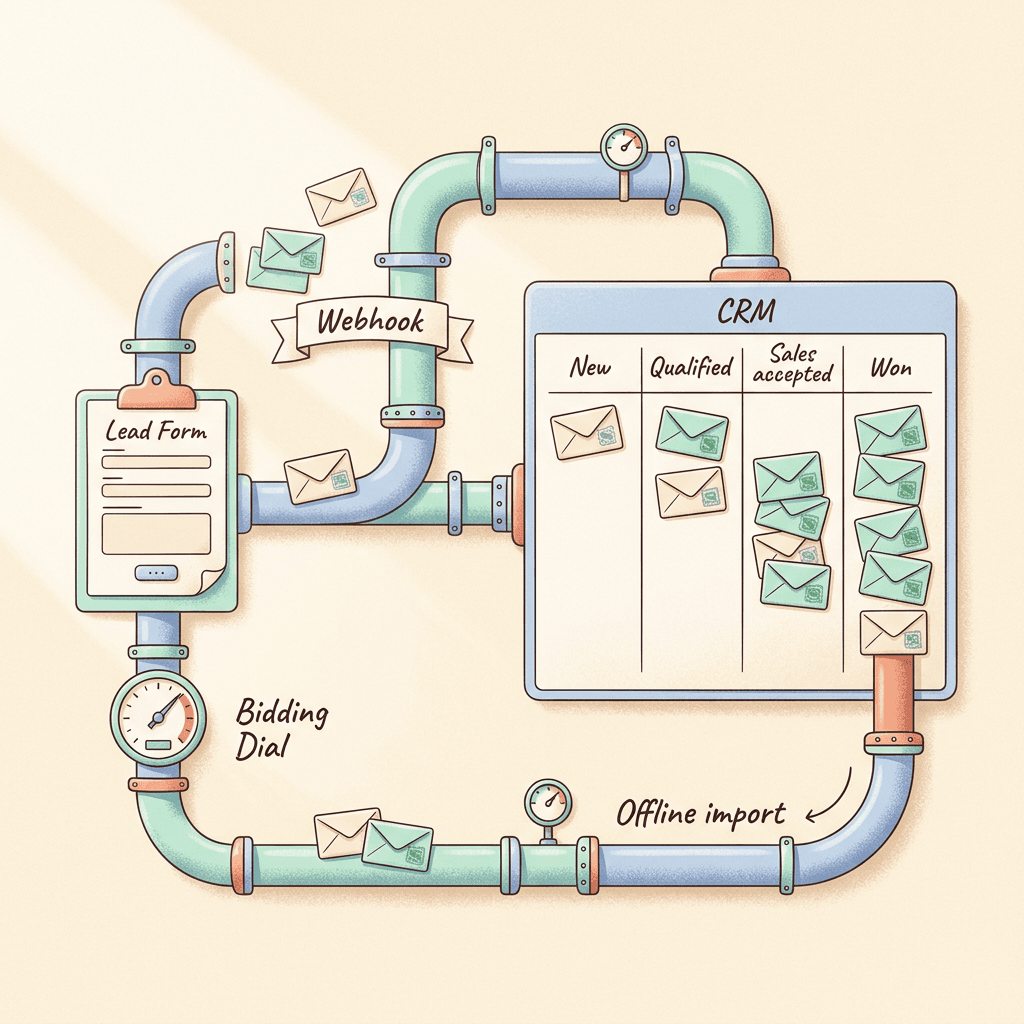
Webhook. Google's documentation confirms that a webhook can send lead data straight to a CRM, and that the Lead stage value is included in CSV, webhook, and API output. In practice that means your CRM can receive the lead with a field showing whether it was qualified, which lets you route it. Qualified leads can go to a live-call queue, and everything else can go into a nurture sequence. I have not verified the exact field names in the payload, so inspect a test lead rather than assuming.
Lead management. Google has been building a Leads area for Google-hosted form leads, reported in May and June 2026 as showing new, qualified, converted, and lost counts. If you have access, you can move leads through those stages by hand as your team works them, which sends additional quality information back to Google's systems according to the May report. Whether qualifying responses and that manual stage tracking feed the same pipeline is something I could not confirm, so test with a few leads and see what appears.
Offline conversion import. This is the layer that tells Google which leads became customers. The common structure is to capture the identifier that comes with a lead, store it in your CRM, and upload a later event such as "meeting held" or "closed won" back to Google Ads. I did not find Google's page for qualifying responses discussing offline import, so how the two interact is not documented in what I read. The sensible design is to treat them as stages in one funnel: qualified at submission, then sales-accepted, then won. Only import what you can attach reliably to a lead, and avoid uploading the same outcome under two different conversion actions, which would double count.
| Funnel stage | Signal | Arrives | Reliability |
|---|---|---|---|
| Lead submitted | Submit lead form (Google hosted) | Instantly | Low on its own |
| Qualified at submission | Lead form - Response qualified (Google-hosted) | Instantly | Medium, self-reported |
| Sales accepted | CRM stage or Lead stage update | Hours to days | Higher |
| Won | Offline conversion import | Days to weeks | Highest |
If you want a shorter path to a similar result, a closely related read is the Data Strength uplift metric explainer, which helps you judge whether the conversion data you send is strong enough to matter. The customer list auto classification post is also worth a look if you plan to upload customer lists derived from closed deals.
A Testing Plan That Gives a Clear Answer
A rushed switch is the easiest way to learn nothing. Here is a plan for a 6 to 8 week test that should tell you whether qualifying responses are paying off.
Weeks 0 to 1: baseline. Record the last 30 days of leads, cost per lead, and, if you have it, the percentage that sales called good. If you do not track that last number, start now by having sales mark every lead, because that percentage is the thing you are trying to improve.
Weeks 1 to 3: observe. Add the qualifying question, leave bidding on all leads, and look at what percentage of submissions are tagged qualified. This phase tells you whether your answer design splits the audience sensibly. If 95 percent of submissions are qualified, the checkbox is on too many answers. If 3 percent are, it may be too tight to bid on.
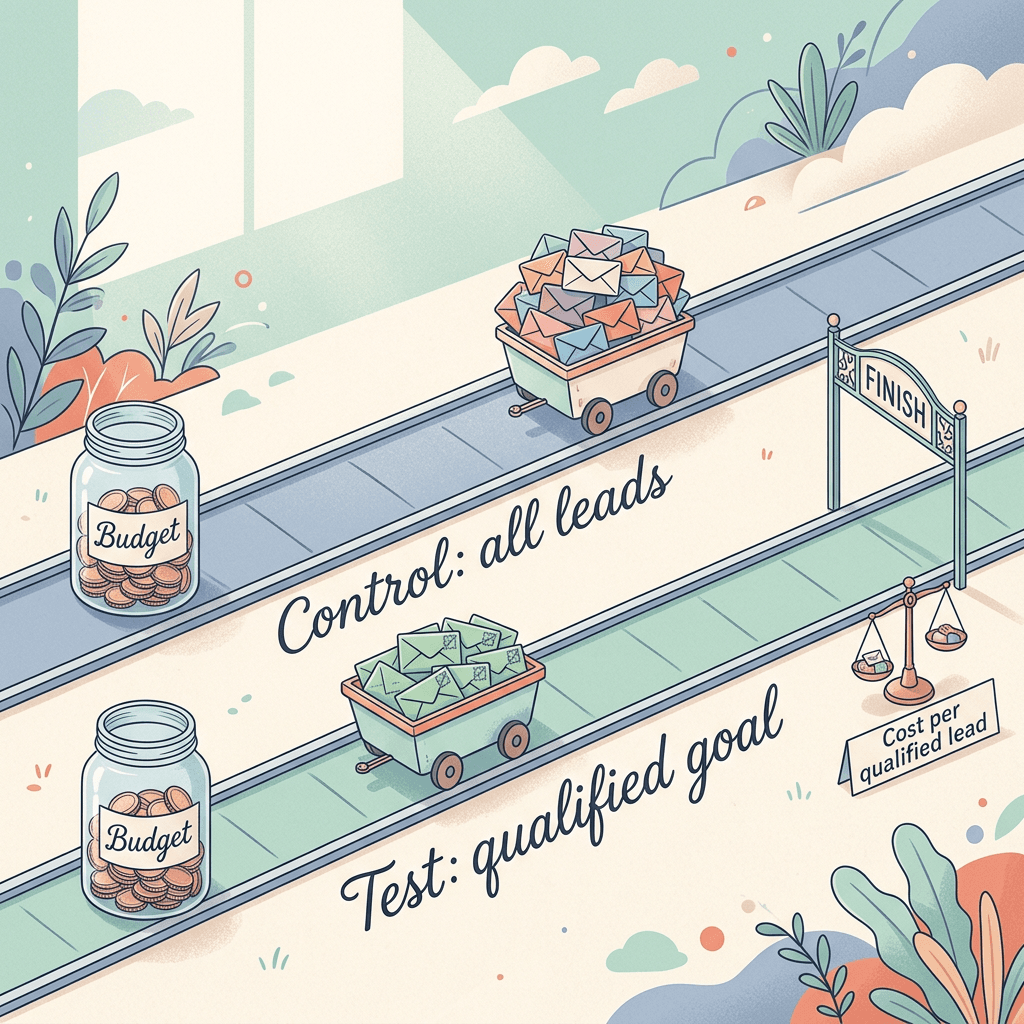
Weeks 3 to 6: split test. Use a campaign experiment, where one arm keeps the all-lead goal and the other bids on the qualified goal. The Search experiments post walks through how to set up and read a clean split. Keep budgets equal and change only the goal.
Weeks 6 to 8: judge on cost per qualified lead and sales outcomes. Cost per lead will almost certainly look worse in the qualified arm, because you are asking for more from each person. The comparison that matters is cost per qualified lead and, as data matures, cost per sale.
| Metric | Why it matters | Watch out for |
|---|---|---|
| Submission rate | Shows friction added by the question | A big drop with no quality gain |
| Qualified share of leads | Tests whether your answers split the audience | Too high or too low |
| Cost per qualified lead | Primary success metric | Compare across the same period |
| Sales-accepted rate | Confirms self-reported answers are honest | Takes days to appear |
| Impression share and spend pacing | Shows whether bidding is now starved | Qualified-only bidding may under-spend |
The AI Max Search auto-upgrade post is relevant here too, because campaign-level changes happening in the same window can contaminate a test. Check what else changed before you credit or blame the form.
Common Mistakes
Ticking too many answers. If nearly everything is qualifying, you have the same signal you started with plus more steps.
Ticking the wrong answers because they feel like the biggest opportunity. The highest-budget answer is not always the best lead. A "Over 100,000 dollars" budget option attracts exaggeration, and a mid-range option may close more often. Check your own closed deals for which answers actually correlate with sales, then mark those.
Switching bidding to the qualified goal on a campaign with too little volume. A tCPA fed by a handful of conversions a month can swing wildly. Observe first.
Forgetting the target must change. A tCPA that suited all leads will strangle a campaign when applied to the qualified subset.
Rebuilding the form without exporting leads. Removed forms cannot be restored. Download what you need first.
Letting the form change mid-flight with no notes. If you change the answers and the ticks every week, you cannot interpret anything. Change one thing at a time and write the date down.
Treating the answer as truth. Self-reported intent is a hint. Keep sales feedback flowing into your CRM and compare it to the qualified tag every month.
Using qualification to hide a bad landing experience. If your ads promise a free quote and your form then asks four hard questions, you will see abandonment regardless. Keep the promise and the form aligned.
Ignoring policy. New custom questions may need review and can pause campaigns until approved, and sensitive categories carry extra rules. Read the policy before you build.
Creating the Ad Creative That Sends the Right People to the Form
A form that screens well still depends on attracting the right people in the first place, and your creative does a lot of that work. If your ads and assets show exactly the service, product, and outcome you want to sell, fewer mismatched people click. A few places Miraflow fits into that workflow, without making it the center of the plan:
- Image assets. Create clean, specific photos of your actual offer, such as a technician at a furnace, a dental chair, or a showroom floor, with Miraflow's AI Image Generator. Matching imagery to the qualifying answer you care about (for example, a replacement system rather than a repair) helps set expectations before the click.
- Video assets. The Cinematic AI Video Generator can produce short clips for video assets that explain the service or show a before and after.
- Short vertical explainers. Text2Shorts turns a topic into a vertical video, which can serve as an explainer for how your process works, answering the questions that otherwise appear as junk leads.
- Template ideas by industry. If you need starting points, see the prompts for cleaning and home service brands, Google Ads display banners, and UGC-style ad content.
You can browse the full toolset from the Miraflow home page.
Frequently Asked Questions
What are qualifying responses in Google Ads lead forms?
They are answers to multiple-choice questions on a lead form that you mark as indicating a strong prospect. Per Google's help center, a submission containing a qualifying answer is tagged as a qualified lead.
Do qualifying responses work for Performance Max?
According to the help page, qualifying responses are available for Search campaigns only. Lead form assets themselves also work with Performance Max, but this feature does not apply there.
Can I make a qualifying question optional?
No. Google states that qualifying questions are required and cannot be marked optional. Other custom questions can be optional.
Which conversion action does Google add?
When a qualifying question runs in an active campaign, the conversion type "Lead form - Response qualified (Google-hosted)" is added to the Qualified lead goal.
Will Smart Bidding automatically optimize for qualified leads?
Not necessarily. My reading is that it depends on which goals and primary actions your campaign uses. Check Goals in your account and set the qualified action as primary in the goal your campaign bids on if that is what you want.
How many qualifying questions can I add?
I could not find a numeric limit on the help pages I read, and I did not verify API caps. Check the form builder in your account, and start with one qualifying question regardless.
What does the Lead stage value do?
Each lead submission gets a Lead stage value in the data output sent to CSV, webhook, and API, so your CRM or spreadsheet can tell qualified leads from others.
Does this replace offline conversion import?
No. A qualifying answer is an instant, self-reported signal. Offline import tells Google which leads became customers days or weeks later. They can complement each other, though Google's qualifying responses page does not describe the interaction.
Should I use More qualified or More volume with this?
They solve related problems in different ways. More qualified adds steps to the form design, while qualifying responses label specific answers. You can combine them, but change one at a time in a test so you can see the effect of each.
Will adding a qualifying question pause my campaign?
It can. Google notes that adding a new custom question may require a policy review, and associated campaigns pause until the updated form is approved.
I cannot see the Qualifying checkbox. Why?
The feature was spotted live and reported on October 15, 2026, so it may not have reached every account. Confirm you are building a form for a Search campaign and check again in a few days.
Where can I read Google's official guidance?
Start with About qualifying responses in lead forms and Create lead form assets.
Conclusion
Qualifying responses give Search lead forms something they were missing: a way for the advertiser to say which answers describe a good lead, at the moment of submission, without waiting for a CRM. The confirmed mechanics are straightforward. Mark answers as Qualifying on a multiple-choice question, Google tags those submissions as qualified leads, passes a Lead stage value into your data output, and adds the "Lead form - Response qualified (Google-hosted)" conversion to the Qualified lead goal.
The strategy is what makes it pay off. Start with one well-chosen question about timing, size, or intent, tick only the answers you would call back first, and observe the share of leads that qualify before changing bidding. Then run a clean experiment that compares bidding on all leads with bidding on qualified leads, judge it on cost per qualified lead, and layer CRM feedback and offline conversions over the top as your data matures. Some details, including numeric caps and exactly how this connects to the Leads beta section, are still unconfirmed, so verify them in your own account.
If you are rebuilding the creative that feeds these forms, Miraflow can help you produce the images, video clips, and short explainers to go with them, and then you can let the qualifying answers do the filtering.
For related reading, see how call-only ads are being retired in favor of call assets, which is another lead-quality shift worth tracking in your account.