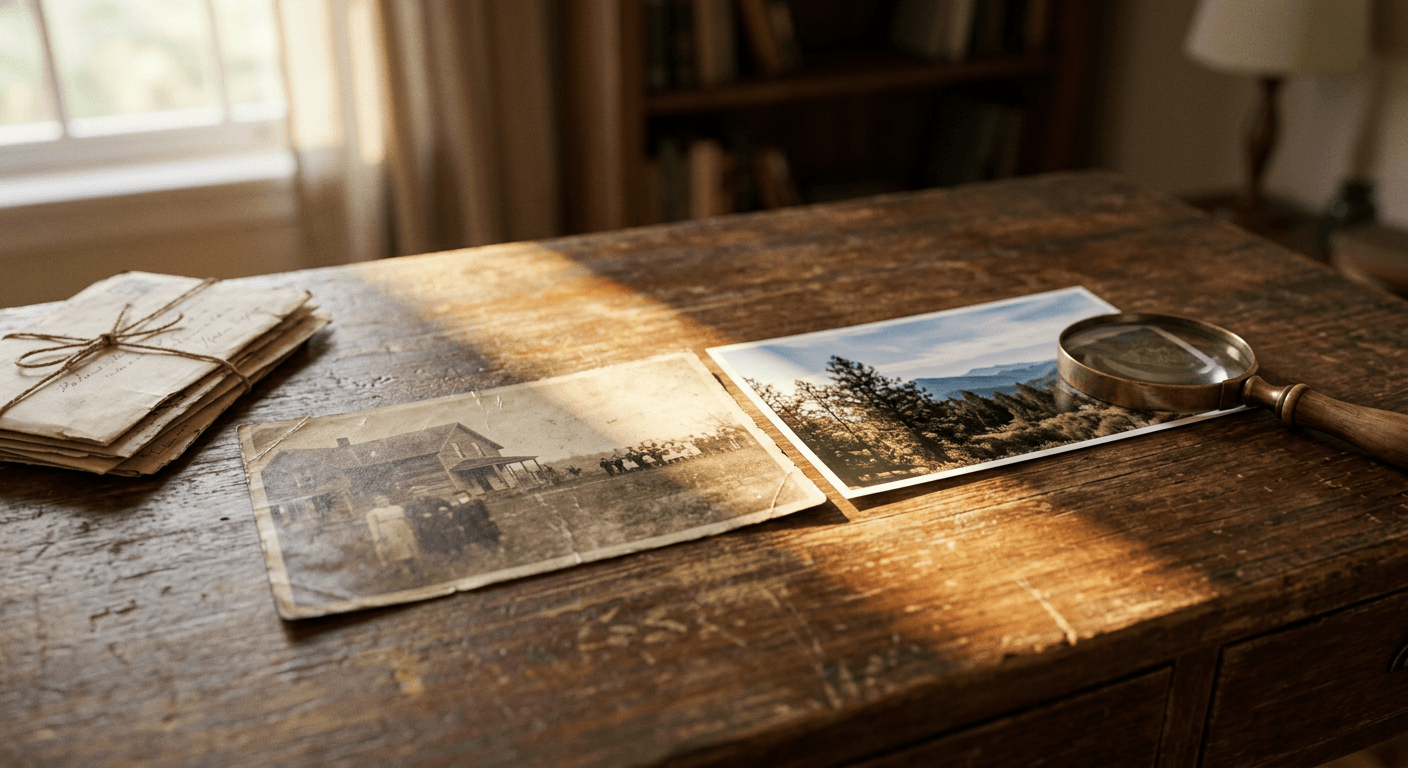
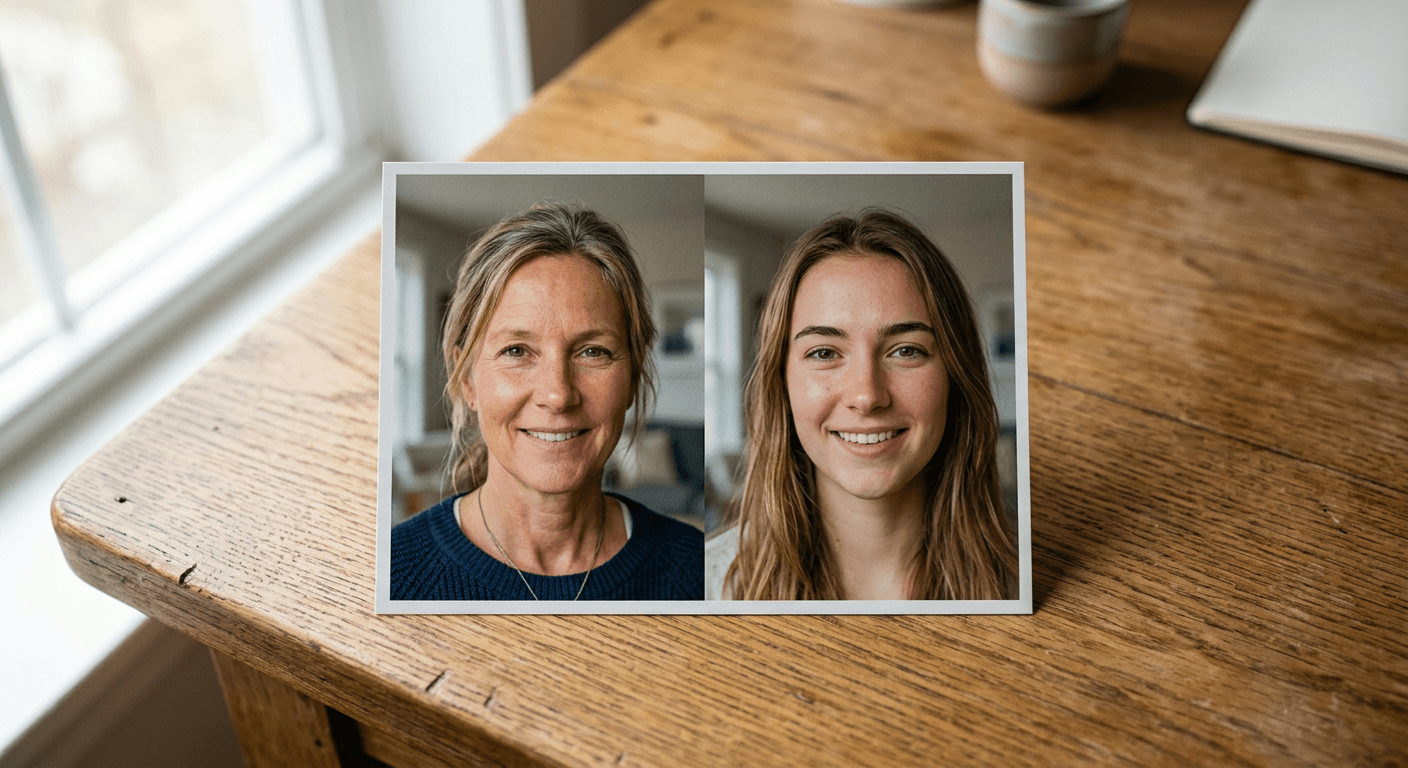
22 AI Photo Restoration Prompts to Fix and Colorize Old Family Photos (2026)

Written by
Aerin Kim
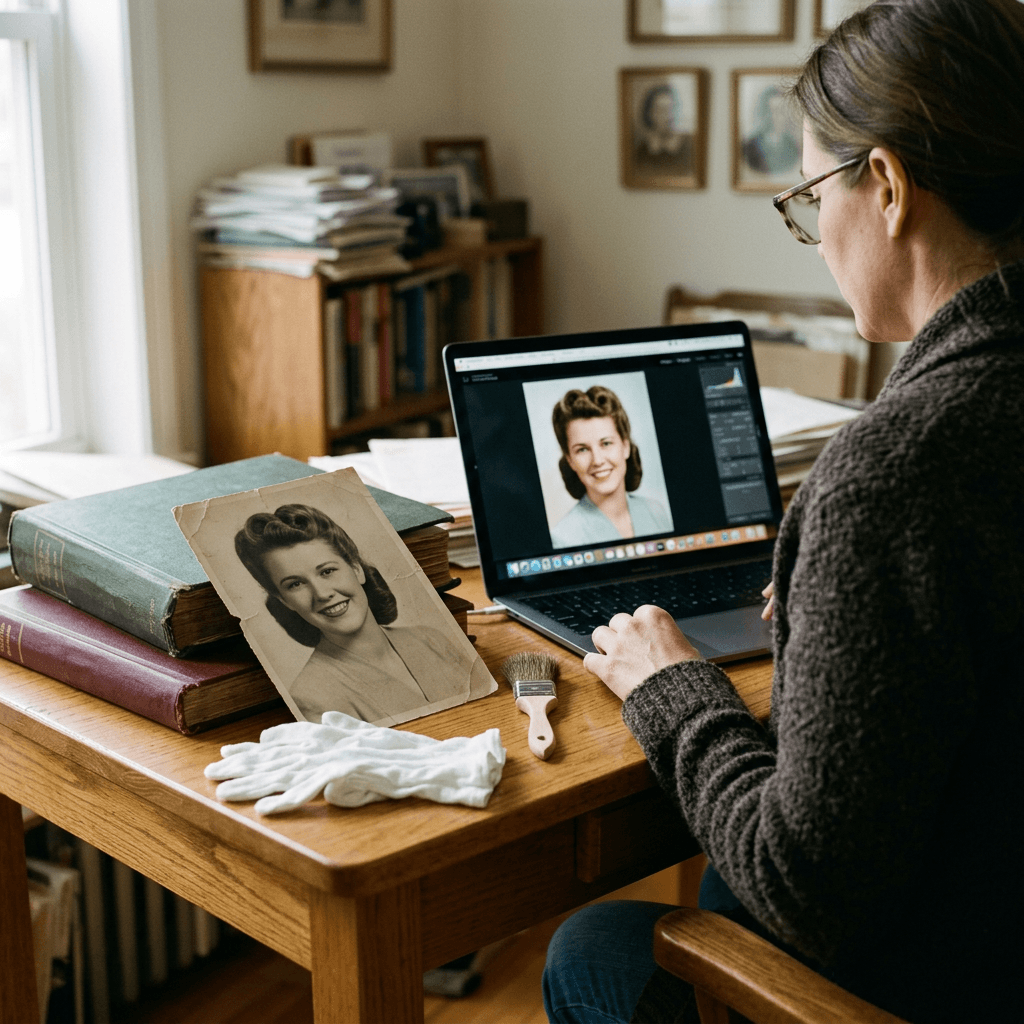
Copy and paste 22 AI photo restoration prompts that repair scratches, tears and fading, colorize black-and-white family photos by era, sharpen faces without changing identity, and gently animate them for the holidays.
If you have ever uploaded a scanned family photo to an AI tool, typed "restore this old photo," and watched your grandmother come back with a different nose and skin like polished plastic, you have met the central problem with AI photo restoration. The scratches disappear, but so does some of the person. This guide gives you 22 copy-and-paste AI photo restoration prompts for 2026 that repair damage, recover faded contrast, colorize black-and-white photos by era, sharpen faces without changing who they are, and gently bring a portrait to life as a short clip.
Restoring old photos is a classic autumn project, because families sort through albums before Thanksgiving and the December holidays and want something meaningful to print, frame or send as a gift. Guides that currently rank for these searches tend to agree on the same points: describe the specific damage, name what must be protected, work in stages, and treat colors as an informed guess. The prompts below are built around that approach, with photography language and identity locks so the result still looks like your relatives.
The prompts are grouped into six categories: damage repair, fading and contrast recovery, colorization by era, face and detail recovery, full-restoration one-pass prompts, and gentle bring-to-life video prompts. After them you will find a section on customizing the prompts, the mistakes that most often ruin a restoration, and a workflow for turning finished photos into gifts, a family-history Short and a shareable video.
TL;DR: How to Restore and Colorize Old Photos With AI
- Scan the print flat at 600 dpi or higher, keep the original file untouched, and work on a copy.
- Use Miraflow's AI image generator in image-to-image mode for the repair, colorization and face passes, then use inpainting and masking to fix only a damaged patch, such as a torn corner or a crease across an eye.
- Work in stages: repair first, faces second, color third, and animation last. One giant prompt that does everything tends to change faces.
- Generate several variations and compare each face against the original scan at 100 percent zoom before you accept one.
- Treat colorization as an educated guess, and label restored copies as restored if you share them with relatives or on a genealogy site.
Before You Start: Scanning, Staging and Era Accuracy
The quality of the scan sets the ceiling for what any editor can do. A flatbed scanner at 600 dpi or higher, saved as an uncompressed TIFF or a high-quality PNG, preserves more grain and edge detail than a quick phone snapshot. If a phone is all you have, photograph the print flat on a table under even daylight beside a window, with the camera directly above and parallel to the print, so you avoid glare, a keystoned angle and the shadow of your own hand. Prompt 20 below handles the case where you already have a tilted photo with reflections, but a clean capture always beats a rescue. Keep the original file exactly as it came off the scanner, and only ever edit a copy, because every later decision depends on being able to go back.
Working in stages matters more than any single phrase in a prompt. When you ask for repair, sharpening, colorization and a style change in one instruction, the model has permission to rewrite everything, and faces are the first thing to drift. Repairing damage first gives you a clean base. A conservative face pass comes next, followed by color, and animation only at the end. Each stage gets its own short prompt with a clear list of what must not change, and you save a copy after each one so you can step back.
Identity drift is the main risk on faces. Models fill missing detail with something plausible, which is not the same as something true, and a face only a few dozen pixels wide gives them very little to work from. After every face pass, put the original on one side and the result on the other at 100 percent zoom and check the distance between the eyes, the shape of the nose and nostrils, the line of the jaw, the hairline and the exact shape of the smile. If a relative who knew the person would hesitate, regenerate with a shorter, more conservative prompt. For more on checking identity, the meet your younger self and family look-alike guides cover how to compare faces side by side.
Era-accurate color deserves its own thought. A 1950s Kodachrome snapshot has saturated reds, deep blues and warm skin, a 1970s Ektachrome print that has faded for fifty years leans orange or magenta with lifted blacks, and an 1890s albumen print is warm brown by nature and looks wrong when it is forced into bright color. Colors in a black-and-white photo are simply not recorded, so a model can only infer a typical shade for a dress or a car. If a relative remembers that the dress was green, put that in the prompt, and otherwise describe a restrained, period-plausible palette. Do not ask the model to invent details that are not there, such as jewelry, medals, signs or text, and when you share a restored copy for genealogy, label it clearly as restored and keep the original alongside it.
Why These Prompts Work (and Why Plain "Restore This Photo" Fails)
A one-line request like "restore this old photo" leaves the model to decide what counts as damage. Sometimes it removes a real freckle or a lace pattern, sometimes it keeps a scratch because it looks like a hair, and often it smooths the whole face into a beauty-filter finish. The prompts in this guide name the exact damage, say where it falls, describe the repair in terms of the surrounding texture, and finish with a short list of things to preserve, such as film grain, window light and genuine skin features. That ordering follows the same logic as the techniques in how to make AI images look like real photos, where specific light, lens and material cues keep output looking photographic.
Every prompt also begins with the same identity sentence and ends with the same failure-mode clause. The opening sentence tells the editor to use the scan as the only reference and to add nothing new. The closing clause rules out plastic skin, changed features and invented objects. Keep both when you customize a prompt, and swap only the middle. Placeholders in square brackets show where your own details go.
1) Damage Repair Prompts: Scratches, Tears, Creases, Stains and Missing Corners
Damage is local. A scratch sits on a coat, a crease crosses a cheek, a stain covers a corner. Describe where the damage is and what lies beneath it, and the editor will continue the surrounding texture instead of redrawing the whole picture. When damage falls on a face, mask that area and use inpainting so the edit stays inside it. Replace the bracketed details with the real ones from your photo, such as [decade], [where the stain sits] or [what lies behind the damage].
1. Dust, Scratches and Scanner Specks on a Studio Portrait
Fine white scratches and dust specks are the easiest damage for an editor to fix, and also the easiest to over-fix. This prompt names the damage type and tells the model to leave film grain alone, so the repair does not turn the print into a smooth, waxy surface.
Use the attached scan as the only reference and keep every face, expression, pose, clothing, hairstyle and background object exactly as photographed, adding no new people, objects or details. Remove only the white dust specks [and any other damage you see, such as lint on the collar], hairline scratches and scanner lint across this black-and-white studio portrait from the 1940s, repairing each mark by continuing the surrounding tone, hair strands and fabric weave. Preserve the original silver-gelatin film grain, the soft studio key light from the left, the painted cloth backdrop and the natural skin texture with visible pores and fine lines. Keep the same crop, contrast and print border. No smoothed plastic skin, no changed facial features, no invented jewelry, text or signs, no modern objects, no watermark.
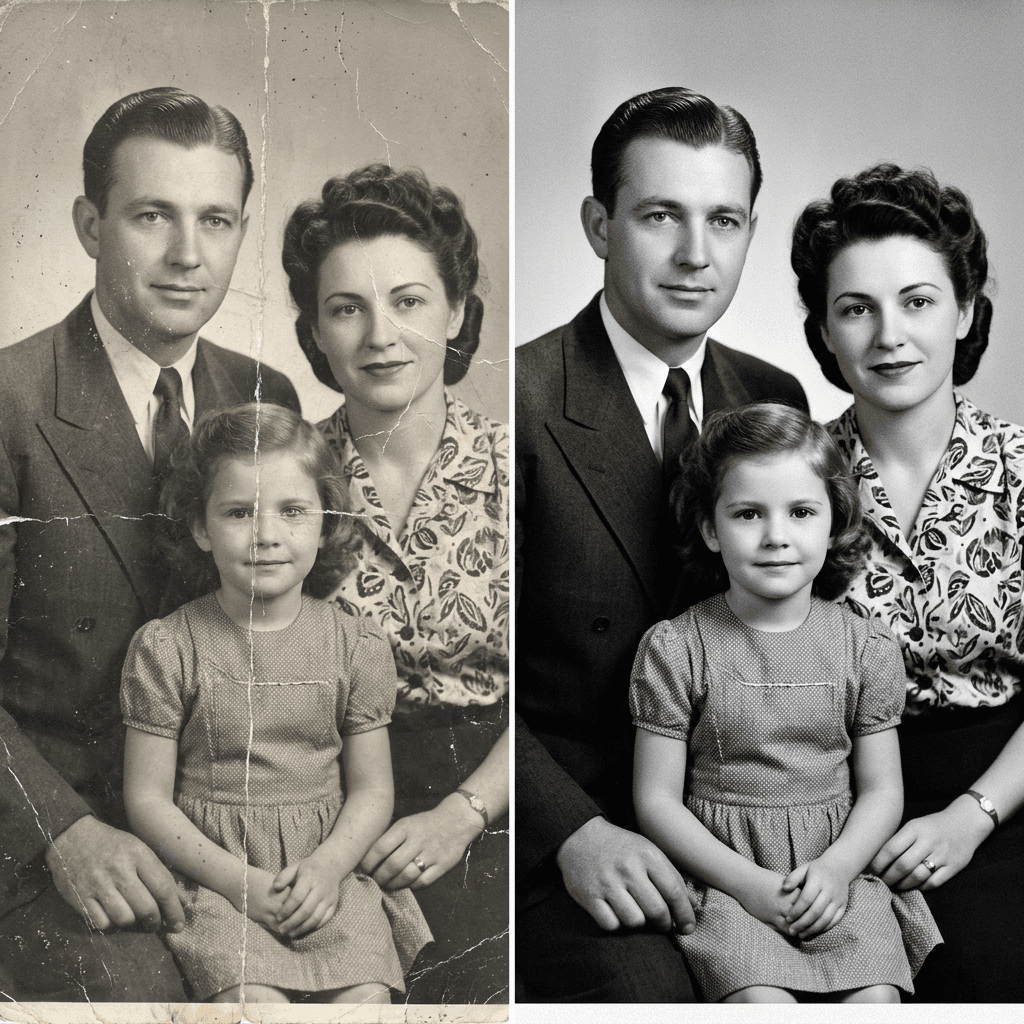
2. Fold Creases and White Crack Lines Through a Family Group
A photo that lived in a wallet or was folded in an album page tends to show pale crack lines crossing faces. The trick is to ask the editor to rebuild the face behind the crease from the symmetrical side, not to redraw it.
Use the attached scan as the only reference and keep every face, expression, pose, clothing, hairstyle and background object exactly as photographed, adding no new people, objects or details. Repair the two vertical fold creases and the pale crack lines that cross this 1940s black-and-white family group portrait, including the lines running through the second person's cheek and the child's shoulder. Rebuild the missing tone by following the direction of the surrounding hair, collar edges and skin shading, and keep every face as photographed, with the same eye shape, nose, mouth and expression. Preserve the soft window light from the right, the film grain and the original gray tonal range, with no sharpening halos around the repaired areas. No smoothed plastic skin, no changed facial features, no invented jewelry, text or signs, no modern objects, no watermark.
3. Torn-in-Half Photo With a Visible Seam
Photos torn and taped back together are common in family boxes. Scan the two halves flat as one image with the seam visible, then use this prompt to hide the join and any tape residue without shifting the alignment of the picture.
Use the attached scan as the only reference and keep every face, expression, pose, clothing, hairstyle and background object exactly as photographed, adding no new people, objects or details. Repair this vintage photograph that was torn across the middle and taped back together, removing the tear line, the yellowed tape residue and the small gaps along the seam, and aligning the two halves so the horizon, doorframe and the standing person's coat continue without a visible join. Fill only the thin missing strip by extending the surrounding grass, brick and fabric texture, and leave faces, hands and posture untouched. Keep the original warm-gray tonal range, soft overcast daylight and film grain. No smoothed plastic skin, no changed facial features, no invented jewelry, text or signs, no modern objects, no watermark.
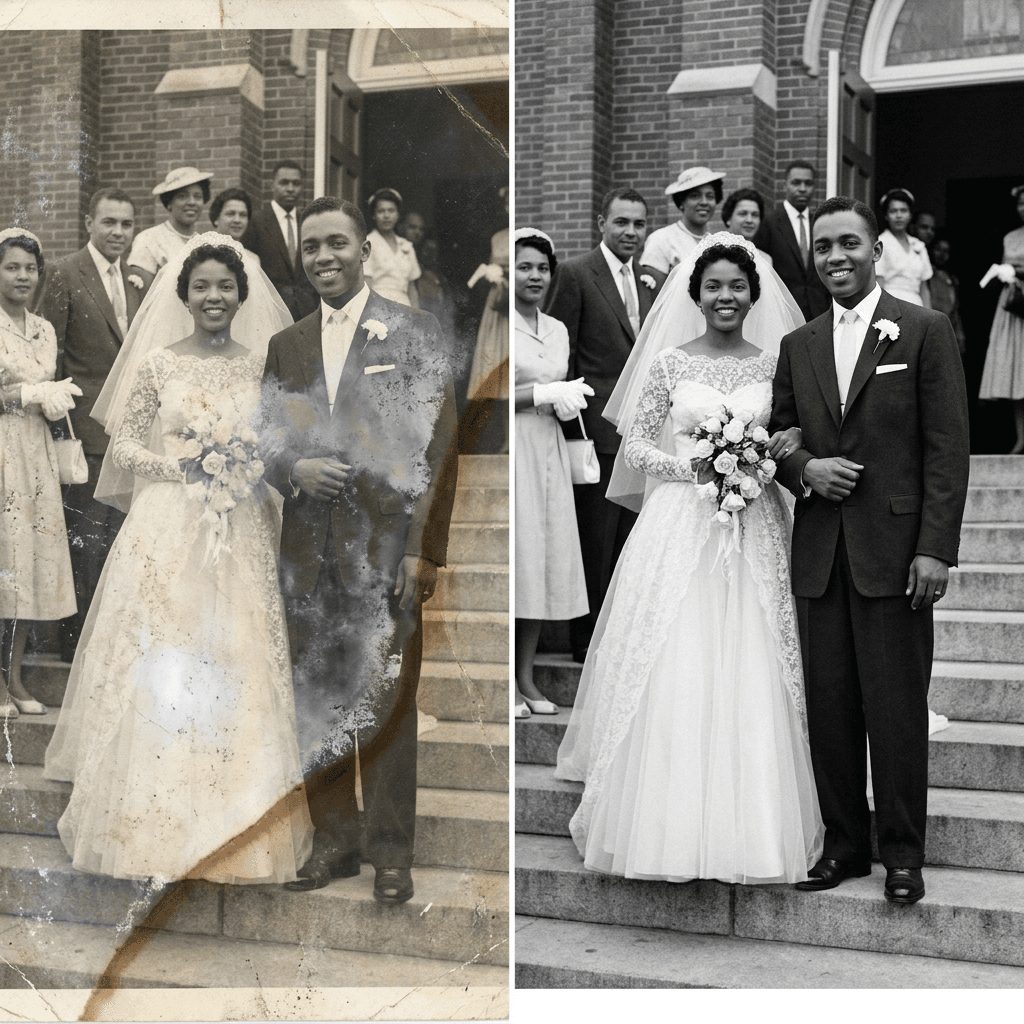
4. Water Damage, Stains and Warped Emulsion
Water leaves tide lines, cloudy patches and sometimes a mottled blur where the emulsion lifted. Describe the stain shape and where it falls, so the model repairs the damage and not the subject standing behind it.
Use the attached scan as the only reference and keep every face, expression, pose, clothing, hairstyle and background object exactly as photographed, adding no new people, objects or details. Repair the brown water stain with a curved tide line across the upper left of this 1950s wedding photograph, the cloudy pale patches over the groom's suit, and the mottled areas where the emulsion has lifted. Rebuild only what is hidden by the stain, using the visible folds of the dress, the church doorway and the texture of the steps, and keep the couple's faces, the bouquet and the guests exactly as photographed. Preserve the neutral black-and-white tonal range, the soft afternoon daylight and the original grain. No smoothed plastic skin, no changed facial features, no invented jewelry, text or signs, no modern objects, no watermark.
5. Mold Spots, Foxing and Dark Blotches
Foxing shows up as rusty brown freckles and mold as fuzzy dark patches. These marks often sit directly on faces, so tell the editor to treat them as surface damage and leave genuine features such as moles and freckles alone.
Use the attached scan as the only reference and keep every face, expression, pose, clothing, hairstyle and background object exactly as photographed, adding no new people, objects or details. Remove the rust-colored foxing freckles, the fuzzy dark mold patches and the pale bloom along the edges of this early 1900s portrait print, repairing each spot with the tone of its immediate neighborhood. Keep genuine skin features such as moles, freckles, wrinkles and scars exactly where they are, and keep the lace collar, the pocket watch chain and the carved chair as photographed. Preserve the soft sepia-gray tonal range, the gentle studio light from the left and the paper fiber texture of the print. No smoothed plastic skin, no changed facial features, no invented jewelry, text or signs, no modern objects, no watermark.
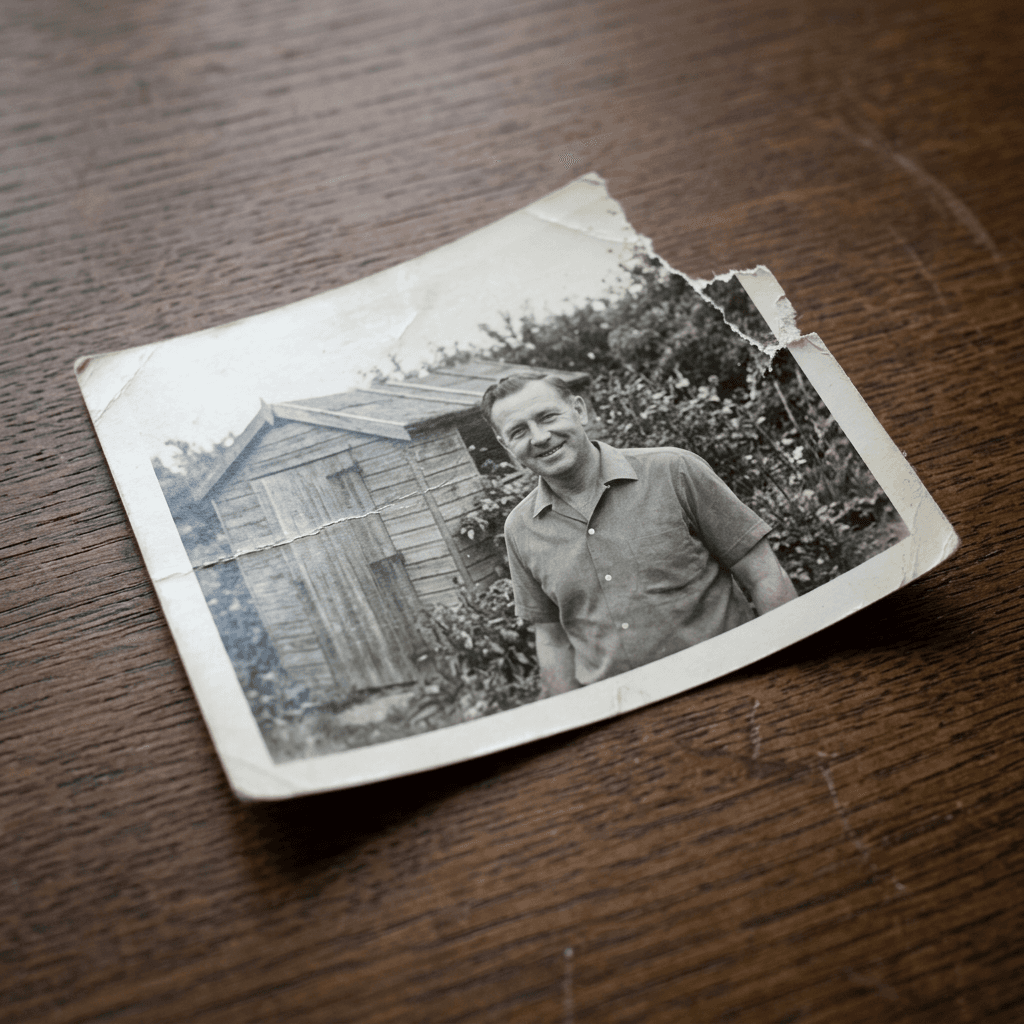
6. Missing Corner and Torn Edge on a Print Lying on a Table
Sometimes the print itself is the subject, a worn photograph photographed on a table with a chewed corner and a ragged edge. This prompt restores the picture area while keeping the physical print recognizable, which is useful for family history posts.
Use the attached scan as the only reference and keep every face, expression, pose, clothing, hairstyle and background object exactly as photographed, adding no new people, objects or details. Using this photograph of a torn 1960s black-and-white snapshot lying on a dark oak table, repair the picture itself by reconstructing the missing upper right corner with the continuation of the sky, the roofline and the tree branches, and mend the ragged edge and small cracks along the white border. Keep the print's natural curl, the subtle paper texture, the soft window light from the left and the shallow shadow it casts on the wood. Do not alter the people in the picture. No smoothed plastic skin, no changed facial features, no invented jewelry, text or signs, no modern objects, no watermark.
2) Fading and Contrast Recovery Prompts
Prints fade unevenly. Silver images go flat and gray, albumen prints yellow, and 1970s color prints drift toward magenta or orange as dyes break down at different rates. Fixing this before colorization or face work gives later passes a cleaner base, and it is often the single change that makes a photo feel alive again. Add the specific shift you see, such as [magenta cast on the left] or [yellow edges], to help the editor aim.
7. Faded Black-and-White Print With Lifted Blacks
Old prints turn gray and flat as the silver fades. Ask for tonal recovery with specific targets, such as pure blacks in the shadows and clean highlights, and tell the model to keep midtones natural so skin does not look burned out.
Use the attached scan as the only reference and keep every face, expression, pose, clothing, hairstyle and background object exactly as photographed, adding no new people, objects or details. Restore the tonal range of this faded gray black-and-white photograph by deepening the shadows to true black, recovering clean highlights without clipping, and rebuilding midtone contrast so faces show their natural modeling. Keep the original light direction from the window on the left, the film grain and the paper tone, avoid heavy HDR or crushed shadows, and keep skin looking like skin with visible pores. No smoothed plastic skin, no changed facial features, no invented jewelry, text or signs, no modern objects, no watermark.
8. Yellowed Sepia and Albumen Prints
Albumen and early studio prints are warm brown by nature, and part of that tone is age. Decide whether you want to keep the sepia character or return to neutral gray, and say so in the prompt.
Use the attached scan as the only reference and keep every face, expression, pose, clothing, hairstyle and background object exactly as photographed, adding no new people, objects or details. Clean this yellowed 1890s cabinet card portrait by removing the uneven yellow-brown staining and the pale spotting, while keeping a gentle warm sepia tone that matches an albumen print. Recover the contrast in the dress folds and the face, preserve the painted backdrop, the studio posing stand and the embossed mount border, and keep the soft north-window studio light and fine paper grain. No smoothed plastic skin, no changed facial features, no invented jewelry, text or signs, no modern objects, no watermark.
9. Faded Color Print With a Magenta or Orange Cast
Color prints from the 1970s and 1980s often shift toward magenta or orange as the dyes fade at different rates. This prompt corrects the cast using neutral reference points inside the picture.
Use the attached scan as the only reference and keep every face, expression, pose, clothing, hairstyle and background object exactly as photographed, adding no new people, objects or details. Correct the heavy magenta-orange color cast in this faded 1970s color print by neutralizing the whites of the shirts and the gray pavement, restoring the blue of the sky and the green of the trees to believable saturation, and keeping skin tones warm and natural. Preserve the soft flat daylight, the slight grain of consumer film and the rounded corners of the print, and avoid oversaturated or neon color. No smoothed plastic skin, no changed facial features, no invented jewelry, text or signs, no modern objects, no watermark.
3) Colorization Prompts by Era
Colorization works best when you restore first and colorize in a separate pass, so the faces are already stable. Anchor each prompt to a decade, list a restrained palette with specific garments and objects, and ask the model to keep the original shadows, highlights and grain so the lighting does not flatten. Where you know the real colors from a relative or a caption, replace the guessed ones, for example [navy dress, green sedan, red barn]. If you are curious how film stocks shaped these looks, the film grain photo prompts and anti-AI film grain prompts guides describe the grain, fade and color shifts in more detail.
10. 1920s to 1940s Black-and-White Street Portrait, Natural Colors
The most common request on the internet is simply to colorize a black-and-white photo. Anchor the palette to the decade, say which colors are guesses, and keep shadows and highlights so the lighting does not go flat.
Use the attached scan as the only reference and keep every face, expression, pose, clothing, hairstyle and background object exactly as photographed, adding no new people, objects or details. Colorize this black-and-white 1940s street portrait of a couple outside a corner shop with a muted, period-accurate palette: a wool coat in charcoal gray-green, a dark maroon scarf, a navy suit with a cream shirt, natural warm skin tones, red brick storefront, painted wood in faded teal, and an overcast soft daylight sky. Preserve the original shadows, highlights and film grain exactly, keep colors slightly desaturated like a real 1940s Kodachrome scan, and add no new objects. If a relative remembers the real colors, use [known colors, such as the dress, car or door] instead of the guessed ones. No smoothed plastic skin, no changed facial features, no invented jewelry, text or signs, no modern objects, no watermark.
11. 1950s Kodachrome Family Snapshot
Kodachrome has a distinct look with rich reds, deep blues and warm skin. When the source is black and white, borrowing that palette gives the colorized version a believable mid-century feel.
Use the attached scan as the only reference and keep every face, expression, pose, clothing, hairstyle and background object exactly as photographed, adding no new people, objects or details. Colorize this black-and-white 1950s family snapshot taken in a suburban backyard using a Kodachrome-style palette: saturated but natural reds and blues in the children's clothing, warm sun-kissed skin tones, a glossy two-tone car in turquoise and cream, green lawn and a bright but slightly hazy blue sky. Keep the original shadows, highlights and fine grain, keep contrast gentle, and keep faces and expressions untouched. If a relative remembers the real colors, use [known colors, such as the dress, car or door] instead of the guessed ones. No smoothed plastic skin, no changed facial features, no invented jewelry, text or signs, no modern objects, no watermark.
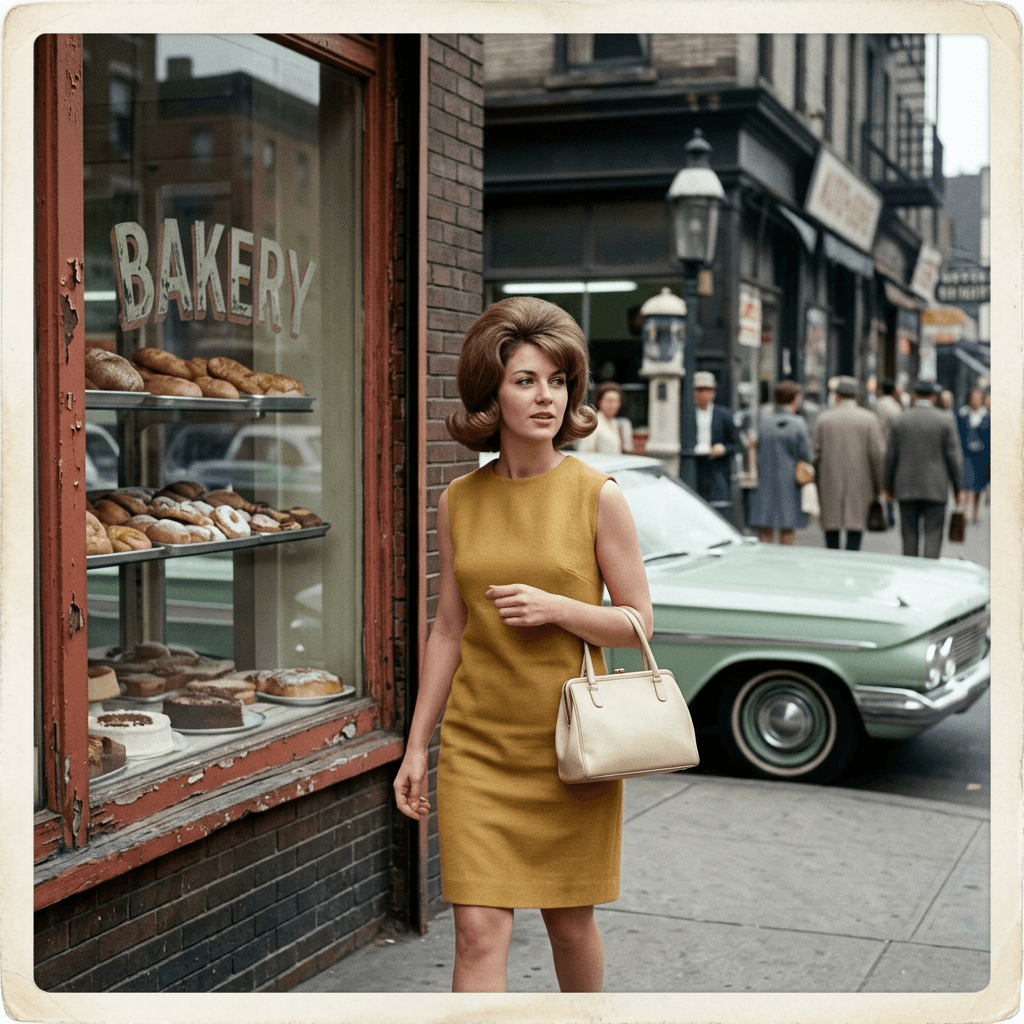
12. 1960s Street Snapshot With Period Fashion
Street scenes carry a lot of small color decisions, from shop signs to cars. Give the editor a restrained palette so it does not add decorative color that was never there.
Use the attached scan as the only reference and keep every face, expression, pose, clothing, hairstyle and background object exactly as photographed, adding no new people, objects or details. Colorize this black-and-white 1960s street snapshot of a woman in a shift dress walking past a bakery window with a parked sedan behind her, using a believable mid-1960s palette: a mustard-yellow shift dress, a cream handbag, a pale mint car body, brick-red storefront trim, cool gray pavement and a light overcast sky. Keep natural skin tones, the original shadows and highlights, the soft grain and the shallow depth of field, and do not add new signs, text or people. If a relative remembers the real colors, use [known colors, such as the dress, car or door] instead of the guessed ones. No smoothed plastic skin, no changed facial features, no invented jewelry, text or signs, no modern objects, no watermark.
13. 1970s Faded Ektachrome Look
If you want the result to feel like a surviving color print from the era, ask for that fade on purpose. Warm color shifts, slightly lifted blacks and soft saturation make a colorized photo read as a family-album original and not a digital paint job.
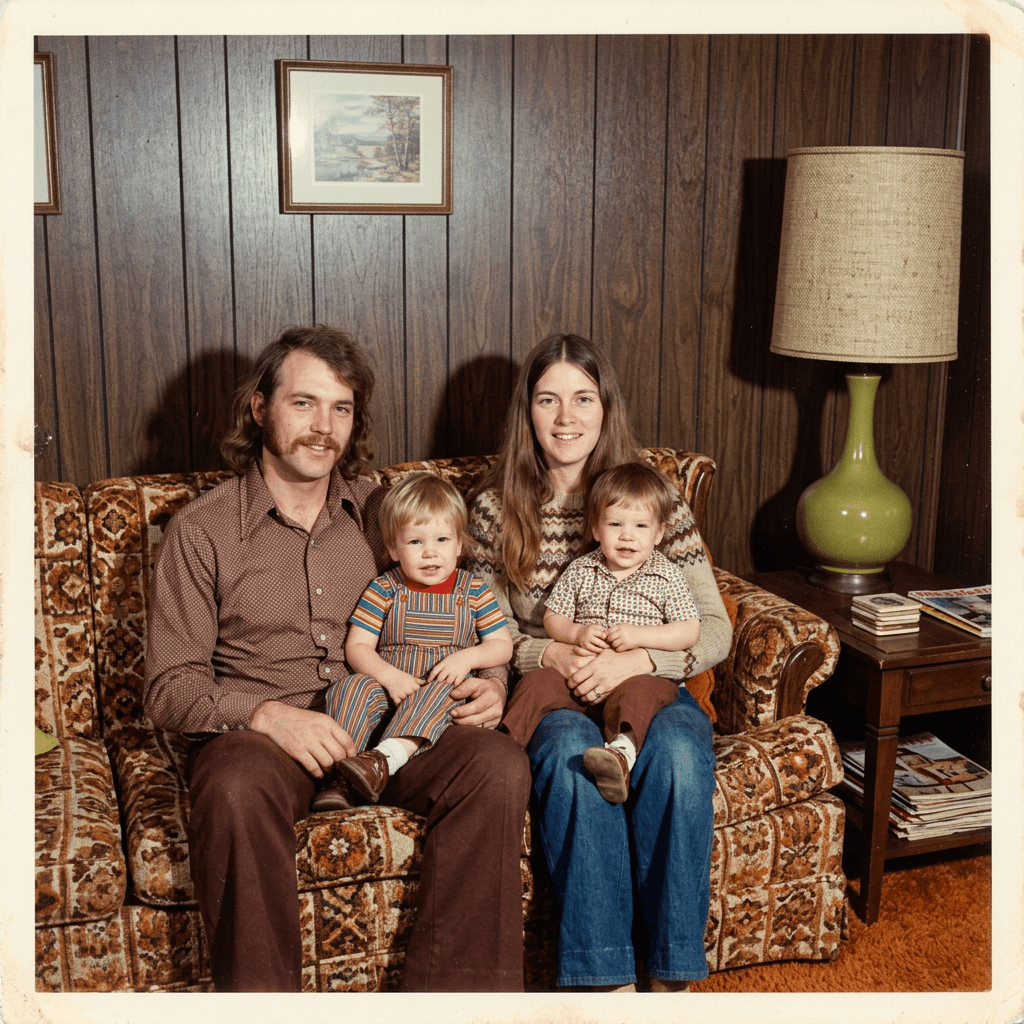
Use the attached scan as the only reference and keep every face, expression, pose, clothing, hairstyle and background object exactly as photographed, adding no new people, objects or details. Colorize this black-and-white 1970s family photo on a living room sofa in the style of faded Ektachrome slide film: warm orange-leaning color cast, slightly lifted blacks, softened saturation, a brown and orange patterned sofa, an avocado green lamp, wood-paneled walls and natural but warm skin tones. Keep the original lighting direction, the grain and every face as photographed, and keep the result looking like a surviving 50-year-old color print. If a relative remembers the real colors, use [known colors, such as the dress, car or door] instead of the guessed ones. No smoothed plastic skin, no changed facial features, no invented jewelry, text or signs, no modern objects, no watermark.
14. Hand-Tinted Look From a Sepia Original
Hand-tinted portraits were an era-specific style, with soft color washes over a sepia base. This prompt keeps the monochrome base visible and adds delicate tints, which suits very old studio portraits better than full-saturation color.
Use the attached scan as the only reference and keep every face, expression, pose, clothing, hairstyle and background object exactly as photographed, adding no new people, objects or details. Add a delicate hand-tinted look to this sepia studio portrait from the 1910s, with soft translucent color washes on the cheeks, lips, a muted blue dress and a pale gold brooch, while the rest of the image stays in warm sepia. Keep the brushed edges of the tint slightly imperfect like real hand coloring, preserve the original studio light, paper grain and posing stand, and keep the face unchanged. No smoothed plastic skin, no changed facial features, no invented jewelry, text or signs, no modern objects, no watermark.
4) Face and Detail Recovery Prompts That Preserve Identity
Face work is where trust is won or lost. Keep the instruction narrow, ask only for sharpness, noise reduction and recovered detail, and list the features that must stay identical. Work on crops when a face is small, run several variations, and compare each against the original scan before accepting one. The 90s yearbook photo prompts guide shows how film-style texture keeps faces from turning plasticky, and the same idea applies here: never ask for flawless skin on a person who had wrinkles.
15. Blurry Portrait Face With an Identity Lock
Face enhancement is where a restoration most often goes wrong, because the model fills gaps with a plausible stranger. Name the features to hold, limit the change to sharpness and noise, and compare against the original afterward.
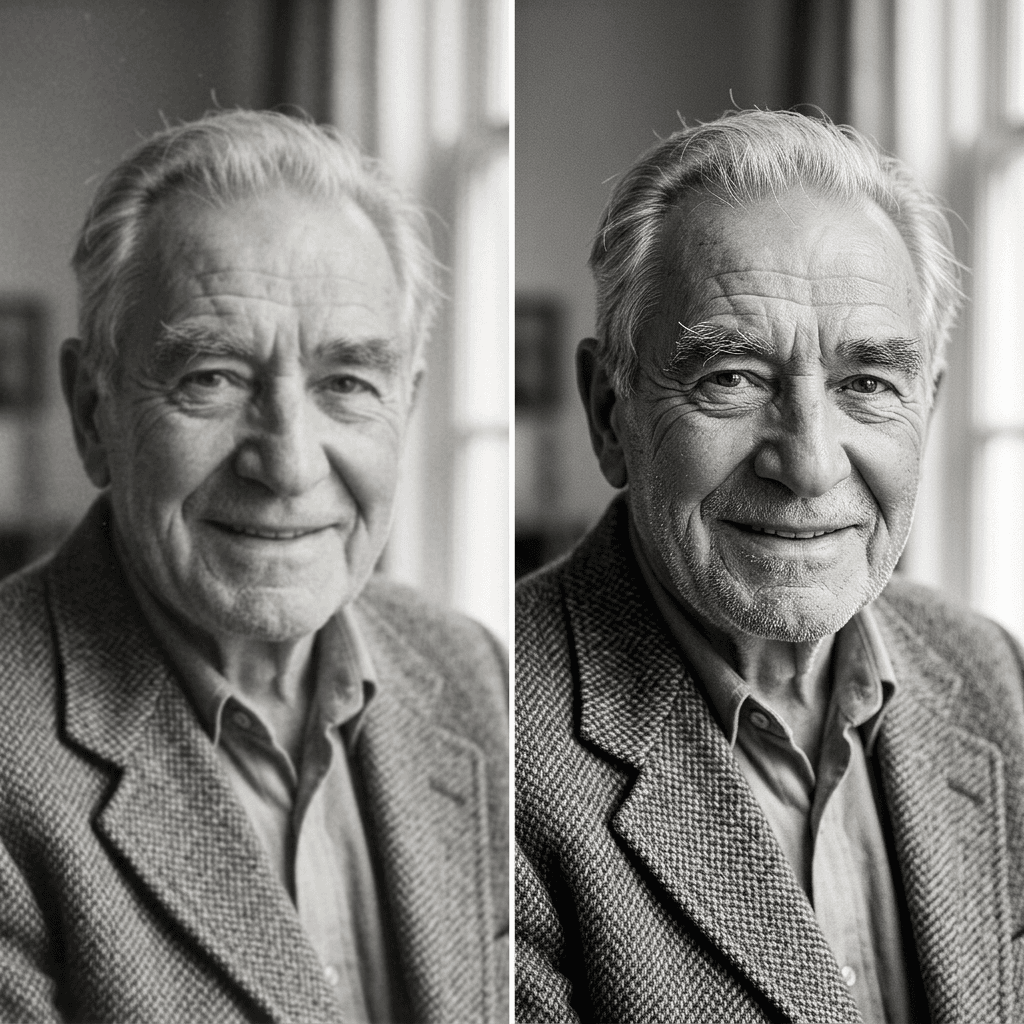
Use the attached scan as the only reference and keep every face, expression, pose, clothing, hairstyle and background object exactly as photographed, adding no new people, objects or details. Sharpen only the slightly out-of-focus face of [the person, for example the elderly man] in this 1950s portrait, recovering fine detail in the eyes, eyebrows, lips and skin texture with visible pores and age lines, while keeping the exact eye shape, nose width, jawline, hairline and expression. Do not make him look younger, do not smooth wrinkles, and keep the film grain, the soft window light and the tweed jacket as photographed. No smoothed plastic skin, no changed facial features, no invented jewelry, text or signs, no modern objects, no watermark.
16. Small Faces in a Wedding or School Group
Faces only a few dozen pixels wide give an editor very little information. Work on crops, one row at a time, and tell the model to stay conservative so every person remains recognizable to the relatives who knew them.
Use the attached scan as the only reference and keep every face, expression, pose, clothing, hairstyle and background object exactly as photographed, adding no new people, objects or details. Gently improve the clarity of the small faces in this cropped section of a 1960s school class photo, restoring crisp eye lines, eyebrows, mouths and hair edges without changing any person's age, face shape or expression, and without making different people look alike. Preserve the uneven film grain, the slightly harsh flash light and the plaid school uniforms, keep the same number of children in the same positions, and leave any region that is too tiny to be certain only lightly enhanced. No smoothed plastic skin, no changed facial features, no invented jewelry, text or signs, no modern objects, no watermark.
17. Damaged Face Region Rebuilt Conservatively
When a crease or stain falls directly across an eye or mouth, the model must infer what is missing. This prompt uses the symmetrical side as the guide and limits the edit to the masked area, which works well with inpainting.
Use the attached scan as the only reference and keep every face, expression, pose, clothing, hairstyle and background object exactly as photographed, adding no new people, objects or details. Inside the masked area only, rebuild the left eye and eyebrow of the young woman that were hidden by a diagonal crease in this 1940s portrait, using her visible right eye as the guide for shape, lid fold, spacing and gaze direction, and matching the skin tone, grain and soft key light from the left. Leave everything outside the mask exactly unchanged and do not alter her expression. No smoothed plastic skin, no changed facial features, no invented jewelry, text or signs, no modern objects, no watermark.
5) Full-Restoration One-Pass Prompts for Quick Jobs
Quick jobs sometimes need a single prompt, such as a preview for a relative or a card that has to be printed tonight. These one-pass prompts combine the stages above and keep the same identity locks, but treat every result as a draft. For the best photo, return to the staged approach afterward.
18. Quick Repair-Only Pass for Any Damaged Black-and-White Photo
If you only have time for a single pass, this is the safest all-rounder. It repairs visible damage and recovers contrast, and it explicitly forbids colorizing or sharpening beyond what the print contained.
Use the attached scan as the only reference and keep every face, expression, pose, clothing, hairstyle and background object exactly as photographed, adding no new people, objects or details. Restore this damaged vintage [decade] black-and-white photograph by removing dust, scratches, creases, stains and spots, repairing any tears or missing edges with texture that matches the surrounding area, recovering natural contrast and tonal depth, and gently reducing scanner noise. Keep the original grain, framing and print border, do not colorize, do not crop and do not sharpen beyond the original focus. No smoothed plastic skin, no changed facial features, no invented jewelry, text or signs, no modern objects, no watermark.
19. Restore and Colorize in One Pass for a Whole Family Group
Splitting the work into stages is better, but a one-pass prompt is useful when you need a quick preview for relatives. Treat the result as a draft and check the faces against the scan.
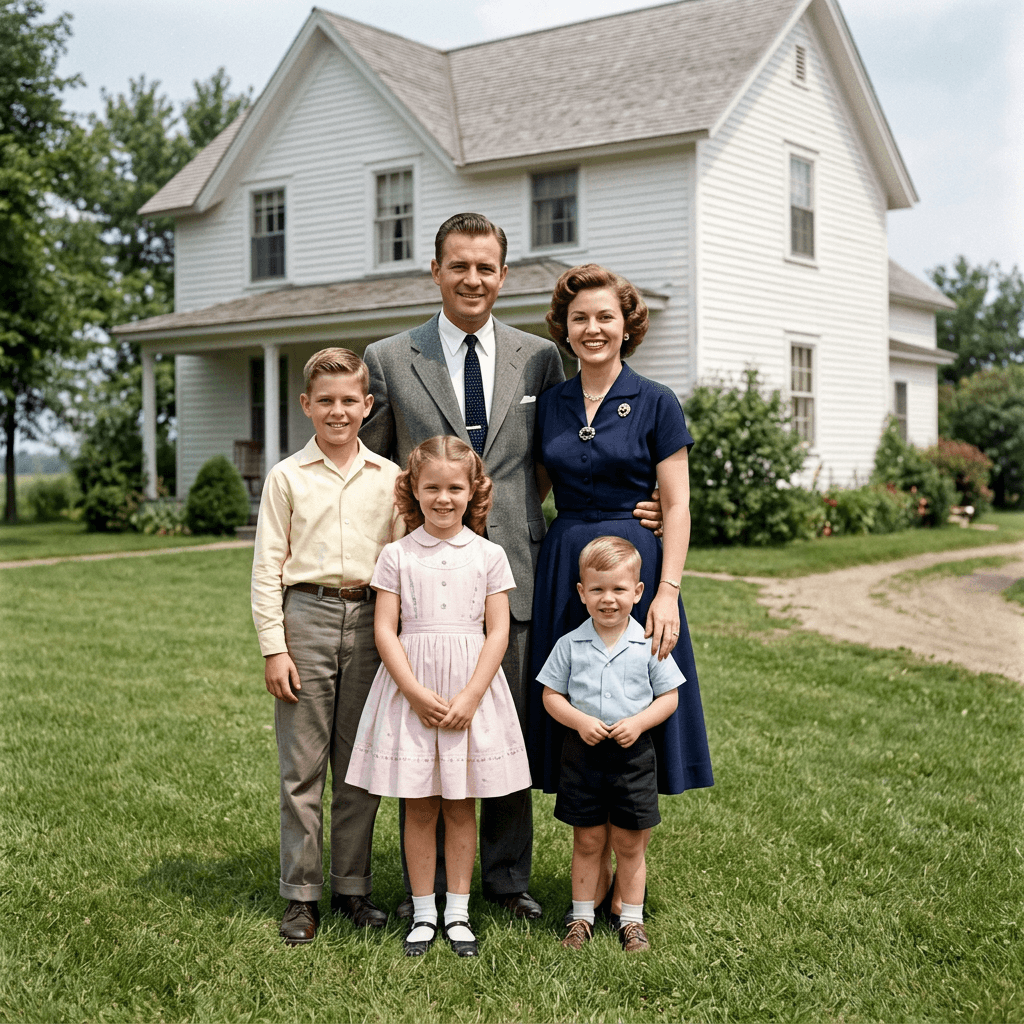
Use the attached scan as the only reference and keep every face, expression, pose, clothing, hairstyle and background object exactly as photographed, adding no new people, objects or details. Restore and colorize this damaged black-and-white 1950s family group portrait of two parents and three children in front of a farmhouse: remove scratches, creases and stains, recover contrast, then add a muted period-accurate palette with a navy dress, a gray flannel suit, soft pastel children's clothing, natural skin tones, a white painted farmhouse and green summer grass. Preserve the original light, grain and every face and expression exactly, with the same number of people in the same positions. No smoothed plastic skin, no changed facial features, no invented jewelry, text or signs, no modern objects, no watermark.
20. Photographed Print With Glare, Angle and Table Background
Many people photograph a framed or loose print with a phone. This prompt straightens the perspective, removes glare and the table edges, and then restores the picture inside.
Use the attached scan as the only reference and keep every face, expression, pose, clothing, hairstyle and background object exactly as photographed, adding no new people, objects or details. Using this phone photograph of a framed 1960s portrait, straighten the perspective so the picture is a flat rectangle, remove the window glare and reflections across the glass, remove the frame, the table and the surrounding background, and restore the picture inside by cleaning dust, fading and small scratches. Keep the face, lighting and grain as photographed in the print, and keep the proportions of the original picture. No smoothed plastic skin, no changed facial features, no invented jewelry, text or signs, no modern objects, no watermark.
6) Bring-to-Life Video Prompts
Animating a restored portrait can be moving, and it can also be unsettling if it goes too far. Keep the motion small and slow, such as a blink, a breath or a slight turn, and animate only after the restoration is final. Use the finished still as the first frame in Miraflow's cinematic video tool. The two prompts below describe the motion and tell the model to keep identity and framing fixed.
21. Subtle Blink, Breath and Soft Smile
Animating a restored portrait works best when the motion is small. A blink, a soft breath and a slight smile feel respectful, while large expressions risk changing who the person looks like.
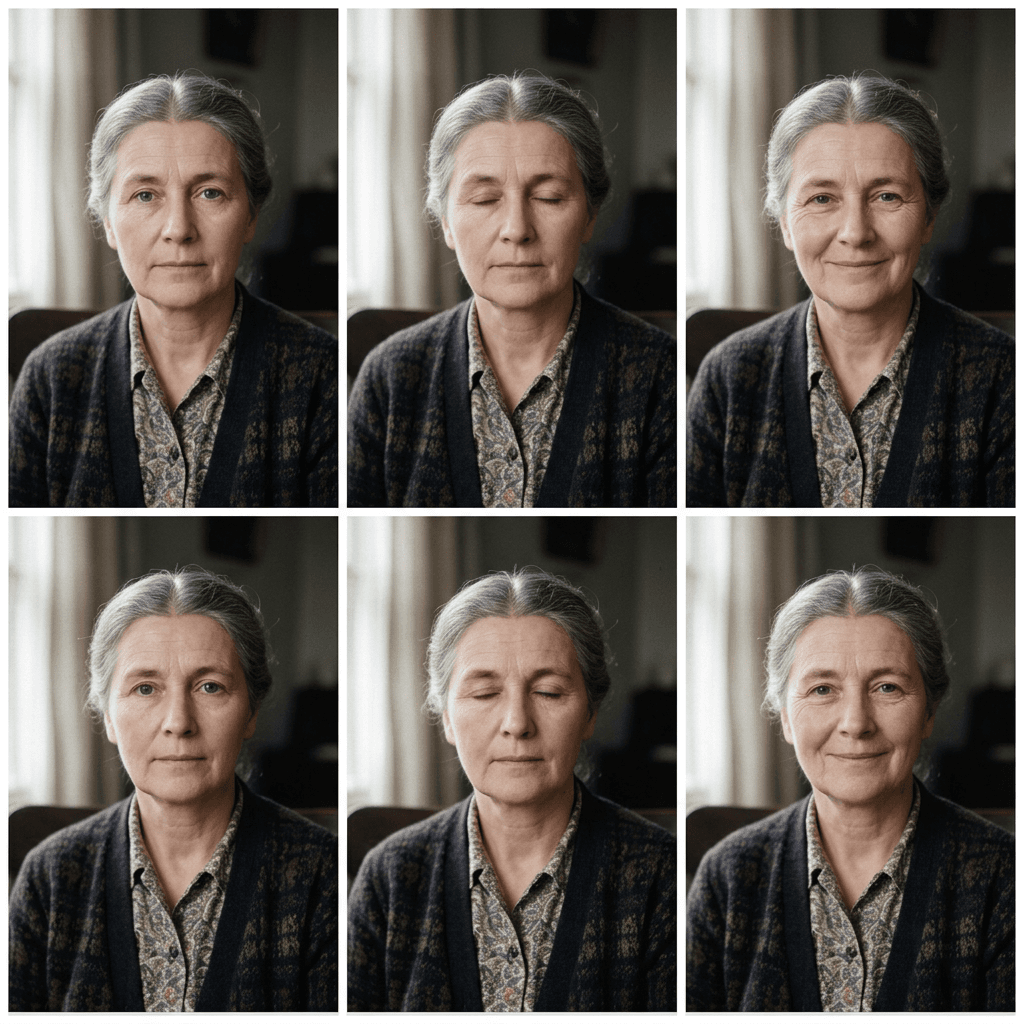
Animate the attached restored portrait of the person as a gentle 5 second clip: a slow natural blink, a soft breath that slightly lifts the shoulders, and a faint warm smile that begins at the eyes and relaxes back to the original expression. Keep the camera locked off at the same framing, keep the face, hair, clothing and background identical to the photo, preserve the film grain and the soft window light, and avoid any jump cuts, morphing, extra movement or changes to the person's identity. No text, no watermark, no flicker.
22. Slow Head Turn and Eye Contact
A slight turn toward the camera makes a still portrait feel like a moment from a film. Keep the movement under about 15 degrees so the model does not need to invent the side of the head.
Animate the attached restored portrait as a slow 6 second clip in which the person turns their head about ten degrees toward the camera and meets the viewer's eyes with a calm expression, with a very slow push-in of the camera. Keep the face, hairstyle, clothing and background faithful to the photo, preserve the grain and the soft light from the left, move only the head, neck and a trace of the shoulders, and avoid any warping, new facial features, teeth showing or changes to the age of the person. No text, no watermark.
A Safe Workflow: Four Passes From Scan to Finished Photo
Here is the order that gives the best result on most photos, with a saved copy after each pass.
- Scan and archive. Scan at 600 dpi or more, save the untouched original, and name every file by person, year and pass, such as grandma-1948-pass1-repair.
- Repair pass. Use one of prompts 1 to 6 for visible damage, then prompt 7, 8 or 9 for tonal recovery. Mask local damage with inpainting and leave the rest alone.
- Face pass. Crop the face, use prompt 15, 16 or 17, and compare against the original at 100 percent zoom. Reject any version a relative would not recognize.
- Color pass. Choose the era prompt from 10 to 14, replace guessed colors with remembered ones, and keep a black-and-white copy as the archive.
- Optional animation. Use prompt 21 or 22 only on a finished still.
A worked example shows how it plays out. A creased 1940s family portrait with a water stain in one corner goes through prompt 2 for the creases, prompt 4 for the stain restricted to the masked corner, prompt 15 on the father's slightly blurred face, and prompt 10 for colors. Four short prompts produce a better result than one long one, and each can be repeated if only one stage disappoints.
Restoring Photos for Thanksgiving and Holiday Gatherings
Families often restore photos for the table, for a framed gift, for a slideshow on the television or for a shared album. Prints for gifts benefit from a repair-only version with a gentle colorized version beside it, so relatives can compare. For slideshows, 16:9 crops of group photos look best on a TV, and restored portraits suit square frames. If you want to turn the finished set into holiday material, the AI Thanksgiving prompts guide covers cards and gathering ideas, the AI Christmas photoshoot prompts guide shows how to use the same identity-first method on new photos, and the AI Christmas card prompts guide helps you design a card around a restored portrait.
Think about who will see the result. Older relatives often prefer the repair-only version because it looks like the photograph they remember, while younger relatives are usually drawn to the colorized one. Offering both avoids debate and keeps the original record intact. Include a short caption with the names, the year and a note such as "restored with AI, colors estimated," which helps future family historians.
How to Customize These AI Photo Restoration Prompts
Keep the identity sentence fixed. The first sentence tells the editor to use the scan as the only reference and to add nothing. If a result drifts, strengthen it with specific features, such as [thick eyebrows], [a gap between the front teeth] or [a scar on the chin].
Name the damage and its location. "Remove the water stain across the upper left" gives a better result than "fix damage." Mention the object behind the damage so the model continues the right texture.
Change one variable at a time. Adjust the palette, then the contrast, then the grain, not all three. When everything changes together, you cannot tell which change caused a problem.
Match the film stock to the era. Kodachrome for the 1950s, faded Ektachrome for the 1970s, sepia for the 1890s, and hand-tinted for the 1910s. The match makes a colorized photo read as a believable family-album original.
Use masks for local fixes. If a crease crosses an eye or a stain covers a hand, mask only that area in the image generator's inpainting tool and describe the fix.
Work on crops for small faces. A face that is tiny in the full frame gets more detail when you enlarge a cropped section, restore it, and then place it back into the group image.
Match the output to the use. Portrait prints suit 4:5 or 3:4, group photos for a TV suit 16:9, and Shorts or Reels suit 9:16 with empty space at the top and bottom.
Common Mistakes When Restoring Old Photos With AI
- Starting from a poor capture. A glare-covered phone photo of a framed print gives the model reflections to fix and less real detail to work with. Rescan or rephotograph flat before blaming the prompt.
- Asking for everything at once. A prompt that repairs, sharpens, colorizes and upscales gives the model permission to redraw faces. Split the stages.
- Using beauty words. Flawless, perfect, ultra sharp and smooth produce plastic skin, and they erase wrinkles that were part of the person.
- Over-sharpening small faces. A face only a few dozen pixels wide cannot support deep detail, and the model will invent it. Enhance lightly or accept some softness.
- Treating guessed colors as fact. A sky-blue dress may have been green. Check with relatives, and note that colors are estimated.
- Colorizing sepia prints at full saturation. Albumen and cabinet cards were warm and muted. Hand-tinted or gently warm results look more believable than vivid color.
- Adding details that were never there. Medals, jewelry, signs and text are the usual inventions. Ask explicitly for none, and inspect uniforms and badges closely.
- Losing the original. Overwriting the scan removes the evidence. Keep the untouched file, and label the restored copy.
- Animating too much. Big smiles, speech and fast head turns change the person. Small blinks and slow movements feel respectful.
- Skipping consent and privacy. Be thoughtful with photos of living relatives and children before posting them publicly.
Restore, Colorize and Share Your Family Photos With Miraflow
You can run every still-image prompt above in Miraflow's AI image generator. Upload your scan for image-to-image generation, paste a prompt, and create a few variations. When a patch needs fixing, such as a torn corner, a crease across an eye or a stained sleeve, use the inpainting tool in the AI image generator to mask just that region and describe the repair, which keeps the rest of the photo exactly as it was. That is far more reliable than regenerating the whole picture and hoping for the best.
Once the still is final, Miraflow's cinematic video tool can animate it into a short, gentle clip with prompts 21 and 22. To tell the story around the photo, Text2Shorts can build a vertical family-history Short from a topic, with a script, scene visuals and voiceover, which is a nice way to share who is in the picture and where it was taken. The From Prompt to Reel walkthrough explains that workflow step by step. For a soundtrack, Miraflow's AI music generator can create a soft piano or acoustic track in under a minute, and the AI music prompts guide has ready-made descriptions. If you want to post the story on YouTube, the YouTube Thumbnail Maker can turn a restored portrait into a clean 16:9 cover, and you can find every tool from the Miraflow home page.
If you plan to reuse restored faces in new scenes, the 50 prompts that look like real photos guide offers photographic wording that keeps results believable, and the identity checks from the Christmas photoshoot guide above apply as well.
Frequently Asked Questions
What is the best AI prompt to restore old photos?
The best prompts name the specific damage, say what must be preserved, and avoid asking for everything at once. Prompt 18 is a good all-rounder for black-and-white prints, and prompt 2 is a better starting point if the main problem is folds and cracks.
How do I colorize a black-and-white photo with AI?
Restore the photo first, then colorize in a separate pass with a restrained palette tied to the decade, such as prompts 10 to 14. Ask the model to keep the original shadows, highlights and grain, and replace guessed colors with remembered ones where you can.
How do I keep faces from changing during restoration?
Start with an identity sentence, work on crops for small faces, ask only for sharpness and noise reduction, and compare the result against the original at 100 percent zoom. Reject any version a relative would not recognize.
What scan resolution should I use for old photos?
Scanning at 600 dpi or higher is a safe default for prints, saved as an uncompressed TIFF or high-quality PNG. If you must use a phone, photograph the print flat under even daylight without glare.
Are AI colorized photos accurate?
Colorization is an informed estimate, because a black-and-white photo does not record color. Skin tones, skies and foliage are usually plausible, while clothing, cars and flowers can be wrong. Check with relatives, use period-appropriate palettes and label colors as estimated.
Is it okay to use restored photos for genealogy?
Yes, as long as you keep the original and label the restored copy. Restoration can recover information that is damaged but still present, while missing areas are reconstructed guesses, so note which you are sharing and avoid presenting reconstructed details as documentation.
Can I animate an old photo?
Yes. Use a finished still and a gentle prompt such as a blink or a slow turn, as in prompts 21 and 22. Keep clips short, avoid speech and large expressions, and let relatives know the motion is generated.
Can I fix just one damaged area?
Yes. Use inpainting to mask only the torn corner, crease or stain and describe the repair. The rest of the photo stays untouched.
Should I restore photos of people who have passed away?
Many families find it meaningful. Consider sharing the result with close relatives first, keep the original, and avoid altering expressions or adding details that were not there.
Conclusion
AI photo restoration works when the prompt protects the person first and repairs the paper second. Scan carefully, keep the original, split the work into repair, face, color and optional animation passes, name the damage precisely, and compare every face with the original before you accept a result. With these 22 prompts you can fix scratches, creases, stains and missing corners, recover faded contrast, colorize by era, sharpen faces conservatively and gently bring a portrait to life.
Start with prompt 18 or prompt 2 in Miraflow's AI image generator, mask any stubborn patches with inpainting, and then share the finished photos with the people who will recognize them most. A restored portrait on the table at a holiday gathering is a gift that starts conversations, and it is worth the extra pass to get it right.