Performance Max Sourced Videos Now On by Default: How to Audit and Opt Out (2026)

Written by
Aerin Kim

Google now pulls videos from your social profiles, landing page and YouTube channel into Performance Max by default. See how to audit what it picked, opt out, and decide when to keep it on.
If you run Performance Max and you post video anywhere else, there is a good chance Google has either started pulling that video into your ads or is about to. In the asset optimization section of Performance Max campaigns, a new toggle labeled "Sourced videos" and described as "Use videos from other channels" now sits next to your other automation settings, and Google's help page says it is enabled by default for all new campaigns. A brand that spent the last year posting behind-the-scenes clips, customer reactions and quick product demos on social media can wake up to find some of those clips eligible to serve as paid ads on YouTube, Discover, Gmail and the rest of Performance Max inventory, without anyone on the team having uploaded a thing.
Barry Schwartz reported the toggle at Search Engine Roundtable on October 23, 2026, crediting Reva Minkoff for spotting it on LinkedIn and Hana Kobzová of PPC News Feed for catching the help documentation change a couple of days earlier. Kobzová's PPC News Feed write-up, dated October 21, says advertisers no longer have to opt in manually and now have to opt out if they do not want videos sourced automatically. I read both articles and Google's own help page, About sourced videos in Performance Max campaigns, which is the primary source for everything below.
This guide covers what the feature does, how Google chooses videos, how to audit what has been pulled into your account, how to turn it off or narrow it, the brand safety and rights questions it raises, how Google's aspect ratio expectations affect which clips get picked, and when keeping it on is the better call for ecommerce, local, B2B and creator-heavy brands. It includes a step-by-step audit checklist and a worked example, and it finishes with the practical fix that works whichever way you decide: giving Google better video material to choose from, which is where Miraflow fits.
TL;DR
- Sourced videos let Performance Max crawl approved places (social media platforms, the campaign's landing page and your linked YouTube channel) and add relevant videos to your asset groups automatically. Google's help page says up to 10 crawled videos can be added per asset group, alongside videos you upload and videos made with Google's generation tools.
- Per Google, the setting is on by default for all new campaigns, and some existing campaigns may have been switched on during a platform update. It works at the campaign level, you approve the sources, and the feature is rolling out in stages, so you may not see it yet.
- To turn it off, open the Asset optimization dropdown in the asset group section of the campaign and uncheck "Sourced videos". To narrow it instead, use Manage sources and remove the URLs you do not want crawled.
- To audit, open Assets for the campaign and review the video list like any other asset, including performance. If a video is removed from its original host, Google says it is removed from Google Ads automatically, so the cleanest way to retire a clip is to take it down at the source.
- Google picks by relevance, performance potential and best practices such as aspect ratio, and refreshes on a recurring basis. Google's video specs recommend landscape (16:9), square (1:1) and vertical (9:16) coverage, so a library that is all one shape gives Google less to choose from.
- Keep it on if your social video is polished, current and fully yours. Turn it off or tighten sources if your feeds mix in reposted user content, licensed trending audio, expired promotions or anything legal has not cleared for paid use.
- Miraflow helps with the other half of the problem, producing on-brand vertical and horizontal videos with Text2Shorts, the Cinematic AI Video Generator and AI Clipping, so the clips Google can choose from are ones you would have approved anyway.
What Google changed, and what the sources say
Performance Max has had a long-running set of automation settings under the asset optimization umbrella, including text customization (formerly called automatically created assets), final URL expansion, image enhancements and the landing page images option. Sourced videos is the newest entry. Google's help page describes it as using "Google AI and automated video crawling" to find relevant videos from your approved sources and add them to Performance Max campaigns, saving you from selecting, formatting and uploading them yourself.
Two framing points from the help page matter before anything else. The first is the scope: it is a campaign-level setting, so one account can have a campaign with the feature on and another with it off. The second is the consent mechanism: Google says you must approve the sources it can use. That sentence is easy to skim past, but it is the control that decides how much risk this feature carries. A toggle that is on by default with an empty source list does very little. A toggle that is on by default with your whole social presence approved can do a lot.
The timeline, as far as the sources let me reconstruct it
PPC News Feed published its report on October 21, 2026 and said the feature had been off by default before and was now opt-out. Search Engine Roundtable followed on October 23 with the screenshot of the toggle, which carries a "New" label. The same Roundtable article notes that the "Landing page images" option carries a "New" label too and links an earlier Roundtable piece from March 2026 about a refresh to the asset optimization layout, so Google has been rebuilding this part of the interface for most of the year.
I could not find a Google announcement post, a date for when existing campaigns were switched, or a count of how many accounts were affected. The help page only says that some existing campaigns "may have been" switched on during a platform update. I also did not find a Search Engine Land article on this change, and that site frequently blocks automated readers, so I have not relied on it. Everything specific in this guide comes from the Google help page, the Roundtable article and the PPC News Feed article.
A discrepancy worth knowing about
Google's Google Ads API documentation on asset automation settings, which I read on October 24, lists the sourced videos automation (named AUTOMATED_VIDEO_CRAWL in the API, available from version 25) with a default of disabled, and describes it as using videos from your landing page, YouTube channel and linked organic social profiles. That conflicts with the help page's statement that the feature is on by default for new campaigns. The most likely explanation (my analysis, not a Google statement) is that the developer documentation lags the interface change. The practical lesson is to never assume the default for a campaign created through a script or a third-party tool, and to read the setting on every campaign directly. Notice also that the API page mentions linked organic social profiles, which is a more specific description than the help page's "social media platforms."
| Automation (Performance Max) | What it does | Default per Google's API documentation | Where to check |
|---|---|---|---|
| Sourced videos (AUTOMATED_VIDEO_CRAWL) | Crawls approved sources for videos, up to 10 per asset group | Disabled in the API docs; help page says enabled for new campaigns | Asset optimization, Manage sources |
| Generated videos (GENERATE_ENHANCED_YOUTUBE_VIDEOS) | Creates enhanced YouTube videos from your assets | Enabled | Campaign asset automation settings |
| Image enhancement | Enhances images you provide | Enabled | Asset optimization |
| Text customization | Customizes copy across the campaign's ads | Enabled for Performance Max | Asset optimization |
| Final URL expansion text automation | Generates text matched to dynamically chosen landing pages | Enabled for Performance Max; cannot be opted out of while expansion is active | Final URL expansion setting |
How sourced videos work, step by step
The mechanics, as documented, run in four stages. Understanding them tells you where to put your controls.
- You approve sources. Sources can include social media platforms, the campaign's landing page and your linked YouTube channel. Search Engine Roundtable quotes the help page as saying advertisers approve sources from their video portfolio. In the interface the control is called Manage sources, where you review and approve URLs.
- Google crawls and shortlists. Google selects videos based on relevance to the campaign, performance potential and best-practice adherence, with aspect ratio named as the example. Google does not publish the weighting between those three.
- Videos are placed on YouTube. The help page says videos must be on a YouTube channel to serve, and that sourced videos are uploaded to a dedicated Google-owned YouTube channel branded with your logo and business name, which directs viewers to your landing page. In other words, a clip that lived only on a social app becomes a YouTube-hosted ad asset under a channel you do not run.
- Refresh and removal. Videos are refreshed on a recurring basis to keep ads current, and a video removed from its original host is automatically removed from Google Ads.
The help page adds two eligibility conditions: the campaign needs a daily budget above $5 USD, and the rollout is staged. Together with the limit of 10 crawled videos per asset group, that gives you the full documented rule set. Anything beyond it, including how often the crawl runs, how long a removal takes, or whether crawled videos count toward the Ad Strength rating, is not documented in the pages I read.

What the 10-video cap means in practice
The cap is per asset group, not per campaign, and it counts crawled videos only. Your own uploads and Google-generated videos sit alongside them. A campaign with four asset groups could therefore carry up to 40 sourced videos in total, which is a large amount of unreviewed creative for a team that used to upload maybe six videos in a quarter.
The cap also tells you something about Google's selection. If your YouTube channel has 300 videos, your landing page embeds three and your social profile has 800 clips, Google is choosing 10 out of well over a thousand candidates. The ranking criteria then matter more than the cap. If the criteria favor relevance to the asset group's theme, then tightly themed asset groups (one product category each) will pull more coherent videos than a catch-all group will. That is my reading of how the criteria interact, and it is consistent with the advice Google gives elsewhere to build asset groups around a single theme.
How this relates to the August AI resizing change
If you read Miraflow's earlier explainer on Google's AI video resizing for Performance Max, the shape of this change will feel familiar. In August, Google began generating missing aspect ratios from uploaded videos. Sourced videos adds a different kind of automation: instead of reshaping what you uploaded, Google goes looking for footage you never uploaded to Google Ads at all. Combined with the existing option to flip horizontal videos into square or vertical versions for Shorts, an asset group can now end up with videos from four origins: your uploads, resized versions of your uploads, Google-generated videos and crawled videos. The Asset Studio pre-fill change and the Gemini Omni video tools in Asset Studio push in the same direction, which is toward asset groups that fill themselves.
Where the toggle lives and how to turn it off
Google's help page gives the following path, and I have kept its wording as close as I can. Menu labels may differ slightly while the rollout is staged.
- Go to Campaigns and select the gear icon next to your Performance Max campaign, or start creating a new campaign.
- In the asset group section, find the option to source videos.
- Open the Asset optimization dropdown.
- Check or uncheck "Sourced videos" to turn the feature on or off.
- Select Manage sources to review and approve URLs.
- Select Apply, then save the campaign or finish creating it.
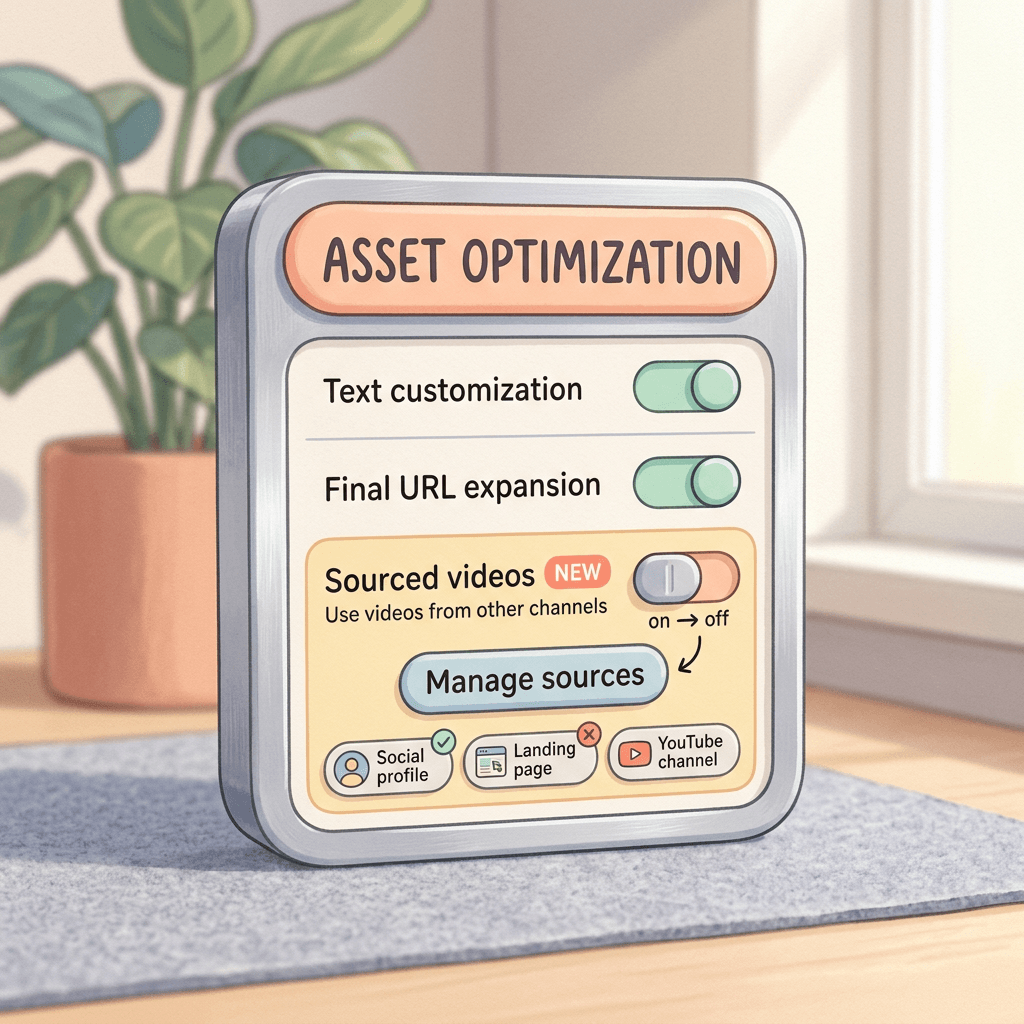
Google says you can change approved sources at any time from campaign settings. That makes two separate levers, and they behave differently. Unchecking the toggle stops the feature for that campaign. Editing the source list narrows what Google may crawl while leaving the feature running. For most accounts I would start with the second lever, because it keeps the upside (fresh, relevant video you did not have time to upload) while removing the riskiest inputs.
What turning it off does and does not do
The help page does not say whether videos that were already added disappear when you uncheck the toggle. I would not assume they do. After switching it off, go back to the Assets view and confirm the sourced videos are gone, and if some remain, remove them at the asset level or take the source video down at its origin. That is a test I recommend running on one low-stakes campaign before you do it everywhere, and I flag it as unverified because Google has not documented the behavior.
Also keep in mind that the other video automations are separate switches. Sourced videos has nothing to do with whether Google may generate a video from your images and text, or flip your horizontal video into a vertical one. Google's help page on video assets says that if you do not add a video to an asset group, one or more may be auto-generated from existing assets, and that Google reviews each resized or flipped video for quality. If your goal is to stop all machine-made video, you need to look at each of those settings, and as of the pages I read there is not a single master switch. Our Performance Max optimization controls guide covers the older controls in the same panel.
Account managers and managed accounts
If an agency or freelancer manages your account, ask them directly which campaigns had the feature on before you looked, whether they approved sources and when. A default-on setting that nobody chose is the classic way for an automation to end up unowned. Put the setting in your account's handover document, next to text customization and final URL expansion, with a name next to it.
How to audit what Google already pulled in
Auditing is the part most teams will skip, so I have written it as a checklist you can run in about an hour. The help page says sourced videos appear in your asset list and can be reviewed like any other asset, including their performance, which is the foundation for all of it.

The step-by-step audit checklist
- List every Performance Max campaign and note the toggle state. Open each one, expand Asset optimization and write down on, off or not shown. Remember that API and script-created campaigns may not match the interface default.
- Open Manage sources on every campaign that has it on. Record each approved URL. Look for anything you do not recognize, such as an old social profile, a regional account or a profile belonging to a former agency.
- Open Assets for each campaign and filter to video. Sort so the sourced videos are grouped together. Count how many sit in each asset group against the cap of 10.
- Watch every sourced video in full, with sound. This is the step teams skip, and it is where problems show up. Check for a customer's face or voice you do not have a release for, a competitor's product in frame, a price or promotion that has expired, a trending audio track, a caption with a typo, or a clip from a different product line than the asset group sells.
- Check the dedicated YouTube channel presentation. Sourced videos are uploaded to a Google-owned channel branded with your logo and business name. Confirm that the logo and business name shown there are the ones you want on every sourced clip, using the guidance in Miraflow's post on business name and logo requirements for YouTube ads.
- Compare performance against your uploaded videos. Look at the same performance indicators you use for other assets. Do not draw conclusions from a few days of data. A clip with low impressions may simply not have been served enough yet.
- Match aspect ratio coverage. For each asset group, count the landscape, square and vertical videos across uploads and sourced clips combined. Google's video specs recommend all three, with at least one vertical video between 10 and 60 seconds for Shorts eligibility.
- Remove or replace. For clips you do not want, delete or unpublish them at the source (for example by setting a social post to private or deleting it) so that they leave Google Ads on the next refresh, and also remove them at the asset level if the interface lets you. Then trim the source list so the same clip does not return.
- Set a review cadence. Because Google refreshes on a recurring basis, a one-time audit goes stale. A monthly check, tied to your content calendar, is a reasonable default (my suggestion, not Google's).
- Document the decision. Record for each campaign why the toggle is on or off, who approved the sources and the date. This is the paper trail that spares you an argument six months later.
A worked example
Take a hypothetical ceramics studio that sells mugs and planters online and runs a Performance Max campaign with three asset groups: Mugs, Planters and Gift Sets. Its budget clears the $5 daily floor with room to spare. The team uploaded two videos per asset group a year ago (one 16:9 and one 9:16), maintains an Instagram and TikTok profile with around 140 clips, has a YouTube channel with 22 videos and embeds one 30-second studio tour on the landing page. The numbers below are invented for illustration.
When the owner audits the campaign after reading about the change, the Mugs asset group has 10 sourced videos, the Planters group has 8 and Gift Sets has 6, so 24 sourced videos are now running next to 6 uploaded ones. Watching all 24 turns up the following.
| Finding in the 24 sourced clips | Clips | Action taken |
|---|---|---|
| Expired spring sale promotion | 3 | Deleted at the source |
| Customer unboxing reposted with permission for organic use only | 1 | Deleted at the source |
| Trending audio not cleared for paid use | 2 | Replaced with versions using licensed music |
| Extra duplicate cuts of the same studio tour | 3 | Removed at the source |
| Clean, on-brand clips | 15 | Kept; four outperformed the studio's own uploads after three weeks. Old test profile also removed from Manage sources |
The audit shows how the problems spread across categories. Two clips had trending audio that was fine for an organic post, one was a customer unboxing the studio had reposted with permission for social but never for paid use, three advertised a spring sale that had ended, and three were extra duplicates of the same studio tour in slightly different cuts. Nine of the 24 videos needed action, which is 37.5%. The other 15 were good, and four of those outperformed the studio's own uploaded videos on the performance column after three weeks, which is the reason the owner kept the feature on.
The fix was to delete the expired sale posts and the reposted unboxing at the source, replace the trending-audio clips with versions using licensed music, remove an old test profile from Manage sources and add a monthly audit to the content calendar. The toggle stayed on. That outcome, narrow the sources and keep the feature, is what I expect most careful advertisers to land on.
Brand safety and rights: what to check before you approve a source
Google's help page describes the feature's benefits and mechanics but does not walk through rights or brand safety, so this section is my analysis of where the risk concentrates. It is not legal advice, and it is worth a conversation with whoever handles contracts at your company.
Reposted and user-generated content
The biggest risk is content on your social channels that is not entirely yours. A repost of a customer's video, a duet or stitch with a creator, a clip from an influencer collaboration, or a testimonial recorded on someone's phone may all be fine for an organic post under whatever permission you collected, and still not cover paid advertising. Paid use often requires a separate usage right, a defined term and sometimes a fee. A feature that quietly turns organic content into ad inventory can create exactly that gap.
If your brand works with creators, check each agreement for paid usage terms before approving a social source that includes their work. Brands with heavy creator programs have the strongest case for either keeping the social source off the list or maintaining a separate, curated brand account that contains only cleared videos. Miraflow's guide to AI UGC-style product ads explains how to produce UGC-style content that is yours to use in paid placements from the start.
Music and audio
Trending sounds on short-video apps are commonly licensed for personal or organic use within the app, and commercial use usually runs through a separate music library with its own terms. I have not verified the current terms of any specific platform for this guide, so check the platform's current commercial music rules directly. The cautious approach is to audit audio as part of step 4 above and to prefer original or properly licensed tracks for any clip you want eligible for paid use.
People, places and claims
Look for faces of customers and staff, children, license plates, other brands' packaging, and health, financial or before-and-after claims that Google's ad policies treat strictly. Organic posts are not reviewed against ad policies in advance, while ads are. I did not find documentation on how policy review applies to sourced videos, so assume they can be disapproved like any other video asset and watch the policy status column. Miraflow has also covered Google's real-time policy reviews, which is the relevant background if a sourced clip gets flagged.
Disclosure and AI-generated footage
If your social account carries AI-generated or heavily edited video, check how it is labeled. Platform labeling rules differ, and a clip that was correctly labeled in its original context may be shown in a different context as an ad. Miraflow's post on YouTube's branded content and AI video disclosure labels is useful background for deciding what belongs in a paid pool.
Staleness
The quietest risk is time. Because videos are refreshed on a recurring basis but are removed only when they disappear from their origin, an old promotion that is still posted on your feed may remain eligible long after the offer ends. Google's mechanism does not know your sale ended. This is an inference from the documented behavior, so check it on your own account, but the defensive habit is cheap: take expired promotional posts down or archive them when a promotion ends. Miraflow's note on automated promotions auto-enrollment describes a related case where an automation can show offers you did not set up.

Aspect ratios and why they decide which clips get picked
Google lists best-practice adherence, with aspect ratio as the example, among the criteria for selecting sourced videos. Google's help page on video assets for Performance Max gives the underlying specs: horizontal (16:9), square (1:1) and vertical (9:16), each at least 10 seconds, HD with 1080p recommended, and a recommendation of one video per orientation, with room for up to 15. To be eligible on YouTube Shorts, include at least one vertical video between 10 and 60 seconds.
| Orientation | Ratio | Best for | Notes from Google's video asset specs |
|---|---|---|---|
| Horizontal | 16:9 | YouTube in-stream and larger screens | Minimum 10 seconds; HD, 1080p recommended |
| Square | 1:1 | Feeds and mixed placements | Minimum 10 seconds |
| Vertical | 9:16 | Shorts and full-screen mobile | Include at least one between 10 and 60 seconds for Shorts eligibility |

The practical consequence is that the shape of your video library skews what Google can choose. A brand that posts only vertical clips on social media offers mostly 9:16 candidates, which suits Shorts and mobile placements but leaves the horizontal in-stream slots to uploads or to the flipped and resized versions Google may generate. A brand whose YouTube channel is all 16:9 long-form has the opposite problem. Neither is wrong, but if you know your sources are lopsided you can fill the gap deliberately with your own uploads, which is cheaper than hoping the selection logic compensates.
Length and format pitfalls
The 10-second minimum comes from Google's video asset specs. I did not find a statement on whether crawled videos must meet it, so I would assume they do and not count on shorter clips being used. Long webinars and 40-minute product walkthroughs are poor candidates for a paid pool regardless of format. If your channel is full of long videos, consider cutting short, self-contained moments from them, which is what AI Clipping is built for, as covered in Miraflow's guide to turning long videos into viral shorts automatically.
The framing and caption check
Vertical crops of horizontal footage can cut off captions, product labels and faces. A crop that works on a social feed with the platform's own UI overlay may leave key text hidden under interface elements on YouTube. During the audit, watch vertical clips on a phone, not just in a browser tab.
When to keep it on and when to turn it off
There is no universal answer, and the case for each side is real. The case for keeping it on is that Performance Max rewards variety, and Google says video can make campaigns eligible for more inventory. Most advertisers have fewer videos in the account than they have in the wild, and a crawler can close that gap without a production budget. The case for turning it off is control: you decide what represents your brand in paid placements, with a defined approval process, and you accept slower creative throughput in exchange.
| Advertiser type | Lean | Sources to approve | Main watch-out |
|---|---|---|---|
| Ecommerce with a current, polished social feed | On, trimmed sources | Brand YouTube channel, landing page, main brand social profile | Expired promotions and mismatched products; keep asset groups tight |
| Local business | On, with a release check | Brand YouTube channel and main social profile | Staff and customers appearing in old clips |
| B2B and lead generation | Off, or curated YouTube source only | A curated YouTube channel with short explainers | Long webinars, customer names, claims and logos |
| Creator and UGC heavy brand | On only if paid-use rights are cleared | Brand-owned account with cleared work | Reposted creator and customer content |
| Regulated categories (health, finance, alcohol, supplements) | Off until reviewed | None at first; add after compliance review | Organic claims that ads policies do not allow |
Ecommerce
Product-led brands with a polished, current social presence have the clearest case for leaving it on with trimmed sources. Product demos, unboxings by the brand itself and styled lifestyle clips are the kind of material Performance Max can use well. Two cautions apply. First, product filters matter: Google warns that auto-generated videos may feature a product different from the one on your landing page and recommends limiting products in asset groups with product filters, and the same logic suggests keeping asset groups tight so that sourced clips match the products being sold. Second, seasonal turnover is high, so pair this feature with the audit cadence above and with any seasonal tools in your Performance Max asset experiments, since you can test whether sourced videos beat your uploads.
Local businesses
Local advertisers often have thin video libraries and the least time to produce more, so sourced videos can be a net positive: a restaurant's short kitchen clips or a clinic's front desk tour can be useful in local campaigns. The risk is people. Staff and customers appear in local content constantly, and departed employees remain in old clips. Add a release check to the audit, and read Miraflow's piece on local customer optimization in Performance Max if store visits are the goal.
B2B and lead generation
B2B channels tend to contain webinars, conference talks, executive interviews and customer case study recordings, which are long and full of claims, names and logos that need approval. Google's crawl on the landing page and the YouTube channel could surface a clip with a customer's name that has not agreed to appear in ads. I would default to off for B2B campaigns, or on with only a curated playlist-style YouTube source, until you have watched what gets pulled. Short product explainers cut from longer content are the likely sweet spot.
Brands built on creators and UGC
This group has the highest upside and the highest risk. The social feed is the brand, so the crawler has strong material, and the same feed is full of third-party content. If your creator contracts include paid usage, keep it on and make the creators' accounts approved sources. If they do not, turn it off or approve only a brand-owned account that holds cleared work. Do not assume that reposting with credit equals advertising rights.
Regulated and sensitive categories
Healthcare, finance, alcohol, supplements and other categories with strict ad policies should treat default-on automation with extra suspicion. Organic posts in these categories routinely say things that ads cannot. Start with the feature off, review what Google would have used by checking a sandbox or low-budget campaign, and enable it only after a compliance review.
Measuring whether sourced videos help
The only honest way to learn whether this feature helps you is to compare it against a control. Performance Max has gained better testing tools this year, and you can use them. Miraflow covered the asset experiments and an earlier asset A/B testing feature, and the same design applies here: run two matched campaigns or an experiment arm, with the toggle on in one and off in the other, hold budgets and targets equal, and give it enough time to leave the learning phase.
A few measurement details deserve attention. Compare conversion value per dollar, not view counts, since video views are cheap and often low-intent. Look at asset-level performance for sourced clips versus your uploads, but remember that the asset report is directional and not a clean causal test. And watch your channel mix: if your account uses channel prioritization controls, new video supply can shift where spend lands, so track the shift as well as the headline return. If your conversion data is thin, Data Strength is a useful gauge for whether Google has enough signal to learn which clips to favor.
Common mistakes
Assuming the default does not apply to you because you did not set it. Google's help page says some existing campaigns may have been switched on during a platform update. Open every campaign and check, including old ones.
Approving every social profile you own. Personal-brand accounts, founder accounts, regional accounts and test accounts all have content with different standards. Approve the minimum set that represents the brand in advertising.
Auditing once. The recurring refresh means a clean audit in October may be out of date by December. Put a recurring review in the calendar.
Treating takedown as optional. Because Google removes a video from Ads when it disappears from the source, deleting at the source is the dependable way to remove a clip. Hiding it in an ad interface while it stays live on social can leave you with a clip that reappears.
Ignoring aspect ratio coverage. If sourced clips are all vertical and you rely on horizontal placements, you have only moved the gap. Count orientations per asset group.
Reposted creator content without paid-use rights. Organic permission and paid permission are different things. Check contracts before approving a source that contains partner footage.
Judging by impressions. A sourced video that gets many impressions at low conversion value is not a win. Judge on value per dollar over a long enough window.
Forgetting the dedicated YouTube channel. Sourced videos live on a Google-owned channel branded with your logo and business name, so a wrong logo or an outdated business name shows up across every sourced clip at once.
Leaving asset groups too broad. A catch-all asset group gives Google a vague relevance target and more room to choose off-topic clips. Tighter groups give the selection logic a sharper job.
Turning off the toggle and assuming the video work is done. If you opt out, the burden of producing enough good video for 16:9, 1:1 and 9:16 falls back on you, and an asset group with no video can still end up with a Google-generated one.
Building better source material with Miraflow
Whichever way you set the toggle, the quality of the video Google can choose from is in your hands. If Google picks 10 clips from your sources, the best defense is making sure that the pool contains clips you are glad to see in ads. That is a production problem, and it is where Miraflow is useful, because it works in the browser and covers vertical and horizontal formats from the same place.
- Vertical clips for Shorts and mobile placements. Text2Shorts turns a topic into a vertical short with a generated script, scene visuals and a voice, which gives you a steady supply of 9:16 clips for the social profiles and YouTube channel that sourced videos will crawl. You can edit the script and the visual prompts before generating, so the clip says only what you have approved.
- Polished horizontal hero clips. The Cinematic AI Video Generator makes short cinematic clips from prompts, suited to a 16:9 hero product shot or a seasonal scene that your phone footage cannot deliver.
- Short, self-contained moments from long videos. AI Clipping analyzes a long video, finds the strongest moments, ranks them and exports vertical clips with captions, which is the right treatment for the webinar and walkthrough archive that makes poor ad material in its original form.
- Thumbnails and stills. The AI Image Generator helps you keep campaign stills consistent with the video look.
A workflow that works for most teams: pick the three products or offers each asset group is built around, write a short approved message for each, generate one vertical and one horizontal clip per message, publish them to the brand-owned YouTube channel that sits among your approved sources, and delete anything that drifts from the plan. That way the sourced pool is filled mostly with clips you made on purpose. Pair it with Miraflow's guide to dubbing and localizing video ads in Asset Studio if you run in more than one language, and with the note on Demand Gen's video-only default if you also run Demand Gen, since both reward a healthy video library.

Frequently Asked Questions
What are sourced videos in Performance Max?
Sourced videos is a Performance Max setting that uses Google AI and automated video crawling to find relevant videos from sources you approve and add them to your campaign. Per Google's help page, sources can include social media platforms, your landing page and your linked YouTube channel, and up to 10 crawled videos can be added to an asset group.
Is the Sourced videos setting on by default?
Google's help page says sourced videos are enabled by default for all new campaigns and that some existing campaigns may have been switched on during a platform update. PPC News Feed describes it as having moved from opt-in to opt-out. Google's API documentation still lists the feature as disabled by default, which most likely reflects documentation lag, so check each campaign directly.
How do I turn off Sourced videos?
Go to Campaigns, open the Performance Max campaign settings, find the option to source videos in the asset group section, open the Asset optimization dropdown, uncheck Sourced videos, select Apply and save. To keep the feature but limit it, use Manage sources and remove the URLs you do not want crawled.
Can I see which videos Google added?
Yes. Google's help page says sourced videos appear in your asset list under Assets for the Performance Max campaign and can be reviewed like any other asset, including their performance.
What happens if I delete a video from my social account or YouTube channel?
According to Google, a video removed from its original hosting platform is automatically removed from Google Ads. Plan on deleting or unpublishing at the source when you want a clip gone, and check the asset list afterward to confirm.
Does Google ask me before using a video?
Google says you must approve the sources it can use, and you can change approved sources at any time. The approval is for sources, not for individual videos, so a source you approve can contribute any video Google selects from it.
Which videos does Google choose?
Google says it selects videos based on relevance, performance potential and best practices such as aspect ratio. It does not publish the weighting or the refresh frequency.
Are there budget or eligibility requirements?
The help page says the campaign needs a daily budget above $5 USD, that videos must be on a YouTube channel to serve, and that the feature is rolling out in stages, so you may not see it yet.
Will sourced videos replace my uploaded videos?
The help page says crawled videos are used alongside your uploaded videos and videos made with Google's generation tools, with up to 10 crawled videos per asset group. It does not say that sourced videos displace uploads.
Which aspect ratios should my videos use?
Google's video asset specs list horizontal 16:9, square 1:1 and vertical 9:16, a minimum of 10 seconds each, HD with 1080p recommended, and at least one vertical video of 10 to 60 seconds for Shorts eligibility. Aim for all three orientations in each asset group.
Is it safe to use customer or creator videos from my social feed?
Only if your permissions cover paid advertising. Organic permission often does not. Check creator agreements and customer releases, and keep uncleared content out of your approved sources. This guide is not legal advice.
Should B2B or regulated advertisers keep it on?
I would start with it off, or with a narrow curated source, for B2B and regulated categories, review what Google would pull in a low-risk campaign, and enable it only after compliance and brand review. This is my recommendation, not Google guidance.
How can I make sure Google has good videos to choose from?
Publish your own on-brand clips in vertical and horizontal formats to the sources you approve. Tools like Miraflow Text2Shorts and AI Clipping make that fast without a production crew.
Conclusion
Sourced videos changes the default relationship between your content and your ad account. Videos that lived on your social profiles, landing page and YouTube channel are now eligible to become Performance Max assets, up to 10 per asset group, unless you turn the setting off or narrow the sources. The feature can save real production time and can surface clips that outperform uploads, as the worked example showed, but it also moves a decision about what represents your brand in paid media away from a person and into a crawler.
The practical response takes an hour and a calendar reminder. Check the toggle on every Performance Max campaign, review Manage sources, watch every sourced video with sound, remove what does not belong at the origin, cover all three aspect ratios in each asset group, and decide per campaign whether the feature earns its place using a matched test. Where Google has not documented behavior, including what happens to existing videos when you switch the setting off and how policy review treats sourced clips, test on one campaign before you roll a decision out everywhere.
The best long-term answer is to fill your sources with video you would have approved anyway. Miraflow helps with that through Text2Shorts, the Cinematic AI Video Generator and AI Clipping, and the Miraflow blog will keep tracking Performance Max changes as they roll out.