Google Ads Channel Prioritization and Budget Allocation Controls Explained (2026)

Written by
Aerin Kim

Google Ads now lets you mark channels High or Low priority and cap Low priority spend by percentage. See how it works per campaign type, setup steps, and what to do before February 2027.
If your Performance Max campaign is spending a surprising share of its budget on Display placements while your best customers clearly come from Search and Shopping, or if your lead gen Search campaign keeps paying for clicks on partner sites that never turn into calls, you have run into the oldest complaint in Google Ads: you could switch a network off completely, but you could not tell Google how much of your budget a lower-value network deserved. On October 14, 2026, Google closed part of that gap with channel prioritization and budget allocation controls, which began rolling out progressively from October 15, 2026, according to Google's help page. Search Engine Roundtable, Search Engine Land, Search Engine Journal and PPC Land all covered the launch, and Google published its own announcement on the Google Ads blog the same day.
The short version is that you can now mark channels as High priority or Low priority and cap the daily spend on Low priority channels as a percentage. The less obvious part, and the one with a deadline attached, is that Google says it will remove the existing Display Expansion spend setup on Search campaigns in February 2027. This guide covers what changed, how the controls work for each campaign type, the exact setup steps, three worked scenarios with hypothetical numbers, how the controls compare to the workarounds you already use, what to do before February 2027, the mistakes that are easy to make, and an FAQ. If you are building Display or Demand Gen creative to go with your channel plan, Miraflow covers the image and video side, and I point to the relevant tools where they fit.
TL;DR
- Channel prioritization lets you label each channel High priority or Low priority. Google funds High priority channels first and sends what remains to Low priority channels. Every channel defaults to High priority.
- Budget allocation is an optional daily percentage cap for a Low priority channel. It is best-effort, applies to your average daily budget, resets daily, and a 0% setting stops spending on that channel.
- It applies to Search, Shopping, Performance Max and Demand Gen, with different channel lists per type, and the help page says budget allocation is not supported for Demand Gen even though Google's blog lists Demand Gen in the rollout.
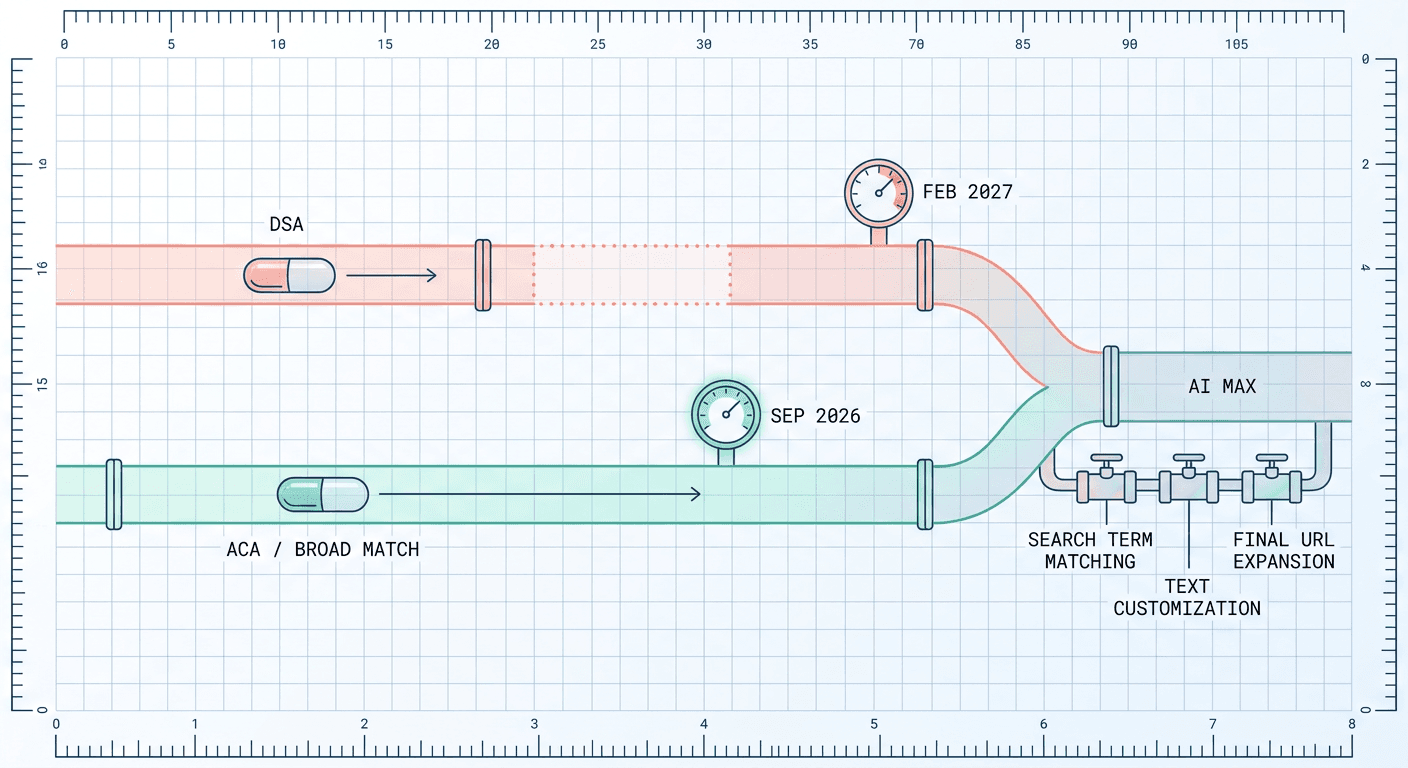
- In February 2027, Search campaigns with Display Expansion enabled migrate automatically. To keep today's behavior, Google says to set the Google Display Network to Low priority with a 50% allocation.
- Rollout is progressive, so you may not see the controls in your account yet. Google Ads API and Google Ads Editor support is listed as coming soon, and manager accounts cannot set it.
What Changed on October 14 and 15, 2026
Until now you had two blunt options for a secondary network: leave it on and accept whatever share of budget the automation chose, or opt out entirely. Google's blog post, written by Tal Akabas, Director of Product Management for Google Ads, frames the new controls as giving marketers more control than all-or-nothing opt-outs. The post also points out that advertisers who previously opted out of Search partners or the Google Display Network can use budget allocation to test those networks with a set limit instead of staying fully opted out.
There are two separate, optional controls, and the second depends on the first.
Channel prioritization is a ranking. You mark a channel High priority or Low priority, and Google's AI spends on the High priority channels first. When a campaign uses Target CPA or Target ROAS, that spend stays within your target. Whatever budget the High priority channels cannot use goes to the Low priority ones.
Budget allocation is a ceiling. For a Low priority channel only, you enter a percentage, and Google aims to keep that channel's daily spend within that share of the campaign's average daily budget. Google's help page gives a concrete example: 5% of a $1,000 average daily budget is about $50 per day. The percentage is calculated against the average daily budget and not against what the campaign actually spends on a given day, and unspent or overspent amounts do not carry over to the next day.
Both controls can be set at the account level, the campaign level, or on a shared budget, and a campaign can override the account default and switch back at any time. The help page notes one subtle consequence: if you change an account-level default allocation, campaigns that were already above that percentage on a Low priority channel can see their spend shift.

Timeline and the details that vary by source
The sources agree on the main facts and differ on a few details, so it is worth knowing which is which.
- Google's blog post is dated October 14, 2026, and Search Engine Roundtable published the same day. The help page says the controls become available progressively starting October 15, 2026, with availability varying by campaign type and account.
- The blog says the features are rolling out to Search, Shopping, Performance Max and Demand Gen "over the next months." Search Engine Roundtable quotes Google as saying the rollout covers Search, Shopping and Performance Max, with Demand Gen coming soon.
- The help page says budget allocation is not supported for Demand Gen, which the blog does not mention. Treat Demand Gen as the least settled of the four until you see the actual card in your account.
- The blog says "daily budget" while the help page specifies "average daily budget." The help page is the more precise definition and the one I use below.
I could not find any published reporting details, such as a column that breaks out spend by priority tier. The help page does not describe one, so plan to verify your split with the channel and placement reporting you already use.
How It Works Per Campaign Type
The available channels differ by campaign type, and that difference decides what the controls can actually do for you. This table follows Google's help page.
| Campaign type | Channels you can set | Notes (per Google) |
|---|---|---|
| Search | Google Search, search partners, Google Display Network | Full controls |
| Shopping | Google Search, search partners | Two channels |
| Performance Max | Google channels, search partners, Display Network | Search, YouTube, Maps, Gmail and Discover grouped as Google channels |
| Demand Gen | Google channels, Display Network | Prioritization; help page says budget allocation not supported |
Two points deserve attention. First, in Performance Max and Demand Gen, Google's own surfaces (Search, YouTube, Maps, Gmail and Discover) are grouped into one bucket called Google channels, and you cannot rank them against each other. The help page says that for more granular control over individual Google channels you should look at Search and Demand Gen campaigns, which support individual opt-outs. Second, Shopping has only two channels in the list, Google Search and search partners, so for a Shopping campaign the control is really a search partners dial.
How bid strategy changes the behavior
The controls behave differently depending on the bidding strategy and on whether the campaign is limited by budget, and this is where most confusion will come from.
| Bid strategy | Limited by budget | Not limited by budget |
|---|---|---|
| Target CPA, Target ROAS, Target CPC | High priority channels spend first within your target; budget shifts to Low priority only when those channels can hit the target | Prioritization does not change spend distribution; allocations still apply |
| Maximize Conversions, Maximize Conversion Value, Maximize Clicks, Manual CPC, Target Impression Share | High priority channels spend first; leftover budget goes to Low priority channels | High priority first, with leftover going to Low priority channels based on settings or eligible traffic |
The practical reading is that prioritization is a budget-pressure tool. If your Target CPA or Target ROAS campaign already has more budget than it can use, ranking channels changes nothing, and the only control that still bites is the percentage cap on a Low priority channel. Search Engine Roundtable made the same point when it said the allocation matters most for Target CPA and Target ROAS campaigns that are not limited by budget. If your campaign runs out of budget every day, ranking channels is where you will see the biggest shift.
The help page lists Target CPC alongside Target CPA and Target ROAS, while the blog names only the latter two. Where the documents differ, I follow the help page and flag the difference.
Limits that will bite
- Campaign total budgets support these controls for Demand Gen only. On other campaign types using a total budget, the settings do not apply.
- Shared budgets require all linked campaigns to be the same campaign type, and the allocation applies to the shared budget as one pool.
- Custom experiments support the controls, but multi-campaign shared budgets are not supported in them, and all channels in those experiments share one priority tier.
- You cannot set it from a manager account. You set it per client account or per campaign.
- The controls exist in Google Ads and Search Ads 360. Google Ads API and Google Ads Editor support is listed as coming soon, so scripted bulk changes are not available yet.
How to Set It Up Step by Step
The labels below come from Google's help page. Because the rollout is progressive, the card may not be in your account today, and a label can shift as it reaches more accounts.
At the account level
- Open Account settings.
- Find the Channel Prioritization card.
- Choose the campaign type: Search, Shopping, Demand Gen or Performance Max.
- Set each channel to High priority or Low priority.
- For any Low priority channel, optionally enter a budget allocation percentage.
- Click Save.
The account setting applies to every campaign of that type unless a campaign overrides it.
At the campaign level
- Go to the Campaigns page and select the campaign.
- Click Settings.
- Expand the Channel Prioritization card.
- Select Use campaign-level settings to override the account default. You can return to the account default at any time.
- Assign priorities and, if you want, allocations.
- Click Save.
On a shared budget
Campaign-level settings on a shared budget apply to every campaign sharing it. The help page gives no separate walkthrough, so open the shared budget and look for the same card. Remember that the percentage then applies to the pool as a whole, so one hungry campaign can consume the Low priority share before its siblings do.

A setup order that avoids surprises
Start at the campaign level on one campaign you can afford to watch, not at the account level. An account-level change can move spend across many campaigns at once, and the help page warns that changing a default allocation can shift campaigns already above that percentage. Write down the pre-change split by channel from your existing reports, apply the setting, wait for at least one full budget cycle of data, and compare. Our guides to Search experiments for multi-campaign budget testing and Performance Max asset experiments cover how to isolate one variable when you want a cleaner read than a before-and-after comparison.
Worked Scenarios
Every number in this section is hypothetical, chosen to make the arithmetic readable. None of it comes from Google or from a real account.
Scenario 1: an ecommerce brand on Performance Max that wants Search and Shopping first
Picture a home goods store running Performance Max with a $400 average daily budget and a Target ROAS strategy. The channel report shows a meaningful share of spend landing on the Display Network, and the buyer's view is that Display mostly produces cheap, low-intent conversions that Search and Shopping would have captured anyway.
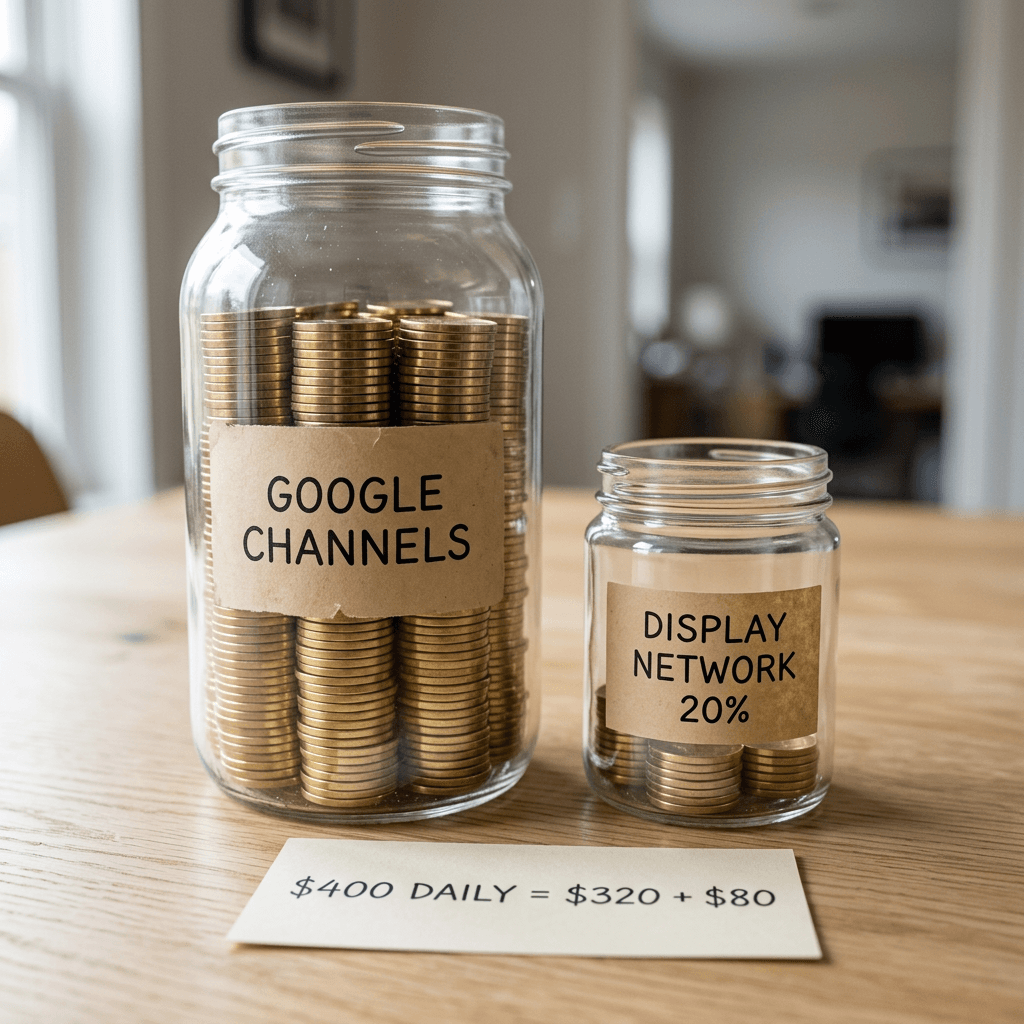
In the new controls the options are Google channels, Google search partners and the Display Network. The first move is to leave Google channels at High priority, because that bucket contains Search and Shopping inventory along with YouTube, Maps, Gmail and Discover, and you cannot split it further. The second move is to set the Display Network to Low priority and give it a cap. A cautious first test is 20%, which on a $400 average daily budget means about $80 per day of ceiling for Display. Search partners can get its own Low priority tier with a smaller number such as 10%, which is about $40.
What should you expect? If the campaign is limited by budget, the High priority Google channels spend first within your ROAS target, and Display receives budget only if it can hit the target. If the campaign is not limited by budget, ranking does nothing, and the percentage caps are the only part that works. That second case matters, because a campaign with a loose ROAS target and a generous budget can still spend a lot on Display, and a 20% ceiling is then the protection.
Do not read this as a way to force Search and Shopping to win. Display and partner inventory can assist conversions that Search then closes, and a hard cap may remove an upper-funnel touchpoint your report did not credit. This is why a 0% setting, which stops spending on a channel, should be a deliberate second step after a capped test, and why our guide to Performance Max optimization controls in 2026 is worth reading alongside this one. If you run product feeds, the same thinking applies to AI Max for Shopping and the local inventory ads default change, since both affect where Shopping inventory shows up.
If Display stays in the mix, give it the best creative you can. The AI image generator on Miraflow can produce clean product-on-surface visuals for Display and Performance Max asset groups, and our e-commerce product image prompts give you copy-paste starting points.
Scenario 2: a lead gen account bleeding on Search partners
Now take a local services firm running a Search campaign with Maximize Conversions and a $150 average daily budget. The search terms and placement reports show a steady drip of partner clicks that rarely produce calls or form fills. In the past the fix was to opt out of Search partners in campaign settings. Google's announcement raises a more flexible option: set Search partners to Low priority with a small cap, so you keep a controlled sample of partner traffic.
With Maximize Conversions, the help page says High priority channels spend first and leftover budget goes to Low priority channels. So if Google Search can use the whole $150, partner inventory gets little. If Google Search saturates, which happens for narrow local keywords, partners are where the leftover budget flows. A 10% allocation caps partner spend at about $15 per day, and a 0% allocation turns it off, which is equivalent in effect to the old opt-out but now sits in the same card as your other channel settings.
The case for keeping a small partner allocation is that the old opt-out gave you no way to learn whether partners ever work for you. The case against is simpler: if your conversion tracking is weak, any partner traffic can look fine on paper because form spam and accidental clicks count as conversions. Fix conversion quality first, using the guidance in our Data Strength uplift metric post, and then decide whether a partner test is worth it.
The same scenario applies to the Display Network on a Search campaign. Lead gen accounts that never wanted Display Expansion can put the Display Network at Low priority with a 0% allocation, which makes the February 2027 migration a non-event for them. Note that Search campaigns can also be affected by the AI Max auto-upgrade and the delayed DSA migration, so check which of your Search campaigns are touched by more than one change.

Scenario 3: a YouTube-heavy creator or brand on Demand Gen
A creator brand selling a course runs Demand Gen with video ads and a $120 daily budget, and most of its conversions come from YouTube. Demand Gen supports prioritization with two channel groups, Google channels and the Display Network. Google channels covers YouTube, Gmail, Discover, Search and Maps as one bucket, so the lever here is simply Google channels High and Display Network Low.
Here the documentation disagrees with itself, and you should verify it in your account. Google's help page says budget allocation is not supported for Demand Gen, while the blog lists Demand Gen in the rollout and Search Engine Roundtable says it is coming soon. That leaves two outcomes: you may be able to rank the Display Network Low but not cap it with a percentage, or a cap may arrive later. Ranking alone is useful because Demand Gen is the one campaign type where the help page says campaign total budgets work with the controls, which suits a time-boxed launch with a fixed flight.
If you need finer control than the bucket gives, the help page says to use Demand Gen's individual channel opt-outs. A creator who wants YouTube specifically can combine the priority card with those opt-outs instead of expecting the priority card to split YouTube from Gmail. For the creative itself, vertical video matters for YouTube Shorts placements, and Text2Shorts, AI Clipping and the YouTube Thumbnail Maker are built for that work. For the view-through side of Demand Gen measurement, read our post on the video-only view-through default.

How It Compares to the Older Workarounds
Most accounts already have a pile of workarounds for the same problem. The new controls replace some of them and sit beside others.
| Method | What it controls | Best used for | Limit |
|---|---|---|---|
| Opt out of Search partners or Display | Network on or off | Removing a network completely | No middle setting |
| Channel priority and allocation | Funding order and a daily percentage cap | Testing a network with a ceiling | Best-effort; varies by campaign type; no API yet |
| PMax channel performance reporting | Visibility into where spend went | Deciding what to change | Does not change spend itself |
| Brand exclusions and negative keywords | Which queries match | Fixing query mix | Does not steer networks |
| Individual channel opt-outs (Search, Demand Gen) | Specific Google surfaces | Switching off one surface inside the Google channels group | All or nothing per surface |
Excluding Search partners. The old opt-out is the 0% allocation in disguise. The difference is that a percentage lets you keep a small, capped sample of partner traffic and gives the same card a place for the Display Network. If you want the network gone, a Low priority channel at 0% does the same job as the opt-out according to the help page.
Performance Max channel performance reporting. The channel report tells you what happened and the new controls let you act on it. Keep reading the report, since the help page does not describe any priority-tier reporting. A sensible routine is to review the channel view first, change a priority or allocation second, and review again after a full cycle.
Brand exclusions and negative keywords. These control which queries you match, and the new controls control which networks the budget flows through. They solve different problems and do not substitute for each other. If a brand-heavy Performance Max account is inflating results, brand exclusions fix the query mix, and channel priority fixes the surface mix.
Campaign-level channel controls and opt-outs. Search and Demand Gen allow individual channel opt-outs, and those remain the right tool when you need to switch off a specific Google surface that the Google channels bucket groups together. Think of opt-outs as the scalpel and priority as the dial.
Splitting campaigns by network. Some accounts built separate Search and Display campaigns to control spend. Google's display retirement is already pushing that structure toward Demand Gen, as covered in our Display to Demand Gen migration guide. If you have campaigns split purely to cap Display spend, test whether one campaign with a Low priority Display Network setting does the job with less overhead.
What to Do Before February 2027
The deadline applies to Search campaigns with Display Expansion enabled, which Google's blog calls campaigns with the Google Display Network turned on. Here is what Google says will happen and what you can verify now.

What Google says. Starting in February 2027, the current spend allocation setup is removed and those Search campaigns automatically move to channel prioritization and budget allocation. Spend may shift between Search, search partners and the Display Network. To keep your current setup, Google recommends setting the Google Display Network to Low priority with a 50% daily budget allocation, best-effort. The help page adds two details: Search campaigns that use Target Impression Share will no longer serve on the Display Network, and the help page does not explain how today's behavior splits spend, so the 50% figure is Google's recommendation and not a documented equivalence.
What happens before then. Search campaigns with the Display Network on that have not set any priorities or allocations keep current Display Expansion behavior until February 2027. If you set priorities earlier, the new settings take effect immediately and replace Display Expansion budget behavior on that campaign. Because every channel defaults to High priority under the new system, a campaign that migrates without anyone changing settings could see its spend move between networks.
A practical checklist
- List every Search campaign with the Display Network enabled. This is your exposure list.
- Pull 30 to 60 days of channel and network data for each so you know today's real split between Search, partners and Display.
- Decide per campaign which of three paths applies: replicate today's setup with Low priority at 50%, tighten it with a lower cap, or remove Display with a 0% allocation.
- Move one or two campaigns early and watch them, since early settings apply immediately and let you learn before the forced change.
- Check bid strategies. Any Search campaign using Target Impression Share loses Display Network serving, so decide whether that campaign should change strategy.
- Prepare Display-ready creative if the network stays in play. Our Display banner prompt templates and the AI image generator shorten that job.
- Document everything with dates, because a spend shift in February is much easier to explain with a written baseline.
Common Mistakes
Setting a percentage without setting Low priority first. The allocation is available only for Low priority channels, so the order matters.
Expecting ranking to work on a campaign with spare budget. On Target CPA, Target ROAS and Target CPC campaigns that are not limited by budget, ranking changes nothing. Only the caps apply.
Treating the percentage as a guarantee. Google calls it best-effort, and the help page notes spend may occasionally exceed it, including on days when the campaign overspends its average daily budget.
Forgetting that the base is the average daily budget. A 20% cap on a $200 average daily budget is $40, even on a day when the campaign is allowed to spend more.
Changing the account default casually. It can move spend on campaigns already above the new percentage. Make the first test at campaign level.
Applying the same numbers to every campaign type. Shopping has two channels, Performance Max and Demand Gen bundle Google surfaces into one bucket, and Demand Gen may not support allocation at all yet.
Dropping a network to 0% on one data point. Display and partner traffic can assist conversions that other channels close. Cap first, review, then decide.
Ignoring shared budgets. The percentage applies to the whole pool, so a single campaign can eat the Low priority share while sibling campaigns get nothing.
Waiting for February. Doing nothing is a decision, because the default flips every channel to High priority and the Display setup you relied on changes.
Assuming you can script it. Google Ads API and Editor support is not available yet, so a bulk change across many accounts means manual work for now, and the manager-account limit makes it slower.
Where Miraflow Fits
Channel controls decide where your budget flows, and creative decides what happens when it arrives. If Display and Demand Gen stay in your plan, you need image sets that work as banners, product tiles and vertical frames. The Miraflow AI image generator handles product visuals and banner backgrounds, Text2Shorts builds vertical videos for YouTube placements, the cinematic video generator produces short ad scenes, and the YouTube Thumbnail Maker helps with the still frames that Demand Gen and YouTube lean on. For UGC-style product creative, try the AI UGC ad prompts. Start from the Miraflow home page to see the full pipeline.
Frequently Asked Questions
What are Google Ads channel prioritization and budget allocation controls?
They are two optional settings. Channel prioritization lets you mark channels as High priority or Low priority so Google funds the High priority ones first. Budget allocation lets you set a daily percentage cap on a Low priority channel.
When do they roll out?
Google's blog is dated October 14, 2026, and the help page says availability begins progressively on October 15, 2026, varying by campaign type and account. The blog describes a rollout over the next months.
Which campaign types support them?
Search, Shopping, Performance Max and Demand Gen. Search covers Google Search, search partners and the Google Display Network, Shopping covers Google Search and search partners, and Performance Max covers Google channels, search partners and the Display Network. Demand Gen covers Google channels and the Display Network.
Does budget allocation work on Demand Gen?
Google's help page says no, while the blog lists Demand Gen in the rollout and Search Engine Roundtable says it is coming soon. Check your account before building a plan around it.
What is the default setting?
All channels default to High priority, so nothing changes until you set a Low priority channel.
Is the percentage a hard cap?
No. Google describes it as best-effort and says it isn't a guarantee. Spend can occasionally exceed it.
What does 0% do?
The help page says that if you set a Low priority channel's allocation to 0%, Google won't spend on that channel.
Can I rank YouTube separately from Search in Performance Max?
No. In Performance Max and Demand Gen, Search, YouTube, Maps, Gmail and Discover are grouped as Google channels. The help page points to Search and Demand Gen individual opt-outs for finer control.
What is happening to Display Expansion?
Google says that starting in February 2027, Search campaigns with the Display Network enabled move automatically to the new system and the current spend allocation setup is removed. To keep the current setup, Google recommends the Display Network at Low priority with a 50% allocation.
What if I do nothing before February 2027?
Until then, campaigns without priorities keep current behavior. After the migration, every channel defaults to High priority, so spend can shift between networks.
Can I set this from a manager account?
No. Set it per client account or per campaign. Google Ads API and Editor support is listed as coming soon.
Does it work with shared budgets?
Yes, with limits. Linked campaigns must share a campaign type, and the allocation applies to the shared budget as one pool.
Where can I read Google's own description?
Google's help page on channel prioritization and budget allocation and its announcement on the Google Ads blog are the primary sources. More Google Ads coverage lives on the Miraflow blog.
Conclusion
Channel prioritization and budget allocation give advertisers a middle setting between leaving a network on and switching it off. The mechanics are simple once you know the two rules: ranking only matters when budget is tight, and the percentage cap is best-effort, measured against the average daily budget, and available only for Low priority channels. The differences by campaign type are where accounts will trip, especially in Performance Max and Demand Gen where Google surfaces share one bucket.
The date to plan around is February 2027, when Search campaigns with Display Expansion enabled move to the new system. Audit those campaigns now, record your channel split, choose between replicating today's setup with the Display Network at Low priority and 50%, tightening it, or removing it, and test one campaign early so the forced change is not your first experience of the new behavior. While you do that, keep your creative ready for whichever channels stay funded, using Miraflow for Display images, vertical video and thumbnails, so the budget you steer toward a channel lands on assets worth showing.