How to Get AI to Spell Text Correctly in Images: 12 Prompt Tricks (2026)

Written by
Aerin Kim
AI images keep misspelling words on thumbnails, posters and labels. Here are 12 prompt tricks with copy-and-paste examples, why each one works, and how to fix a single wrong word with inpainting.
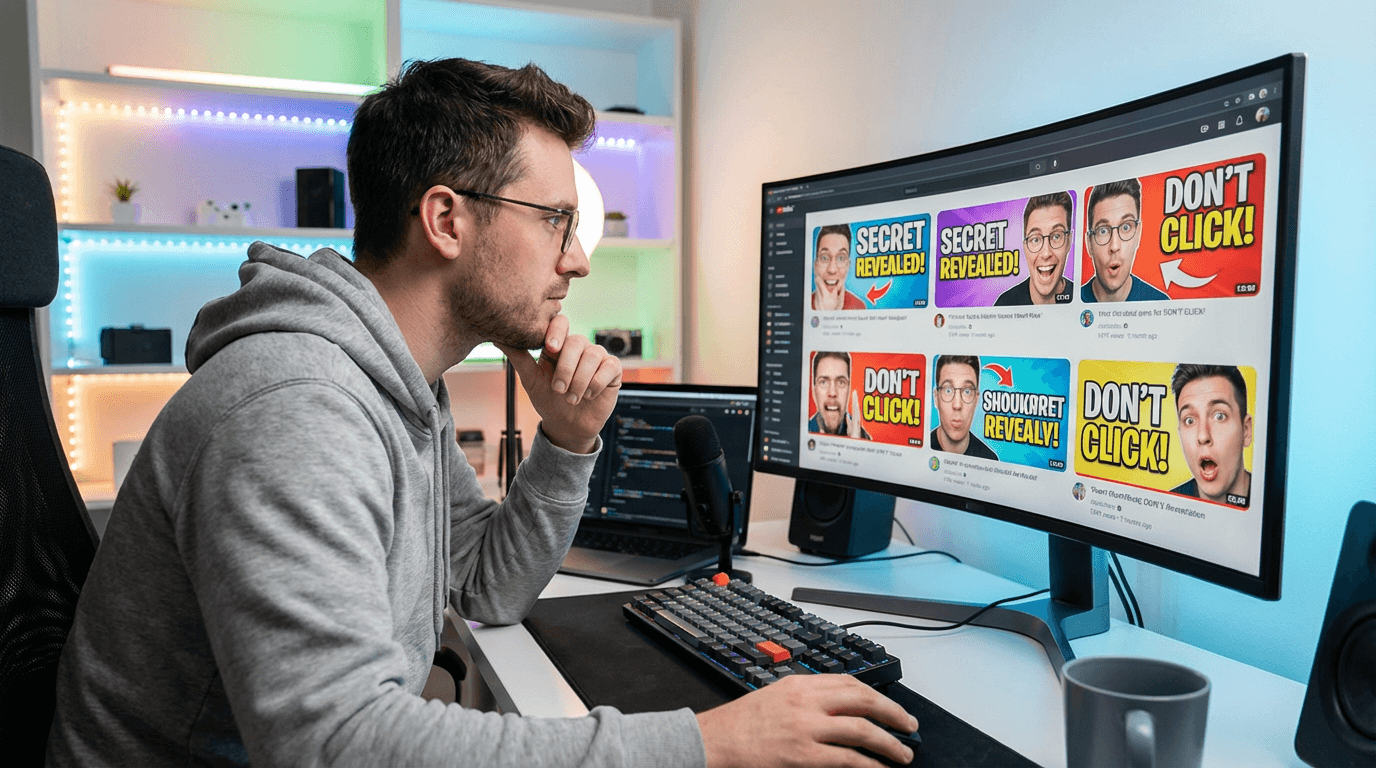
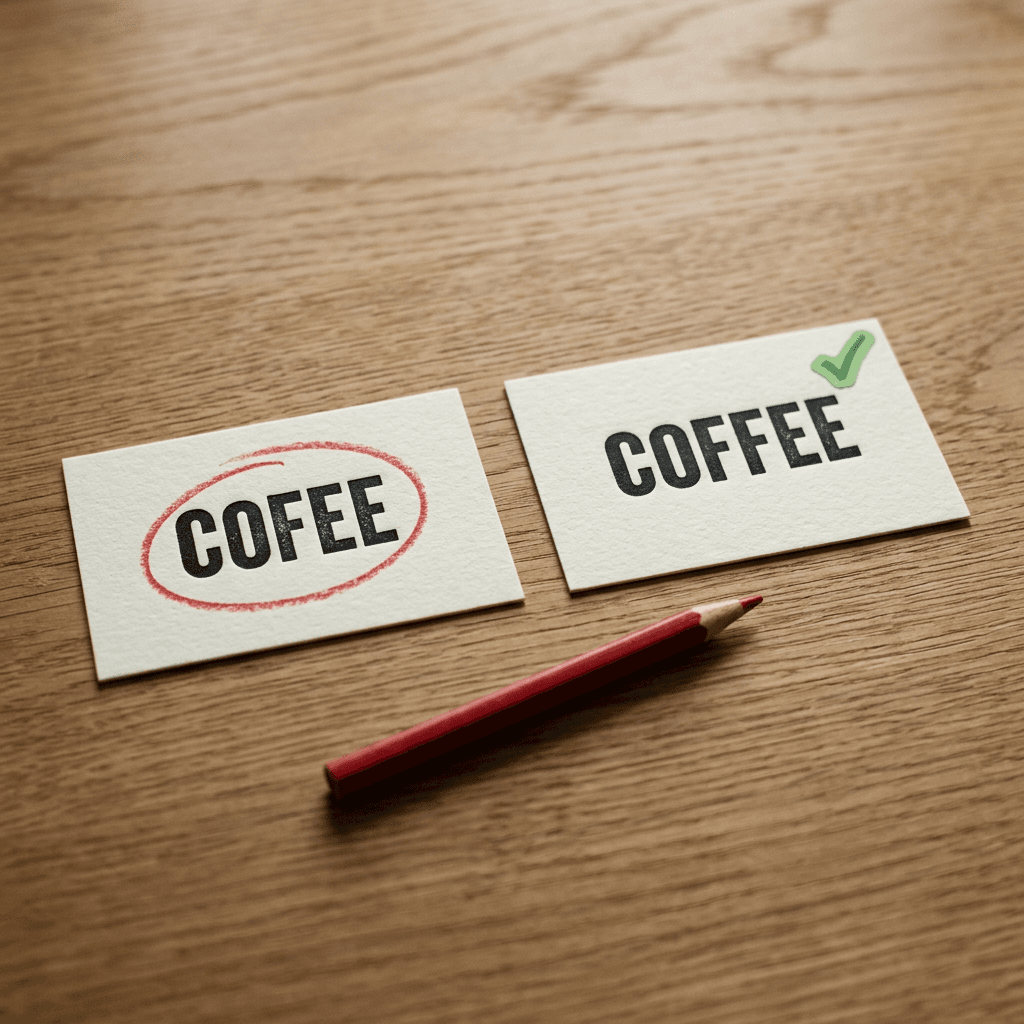
You ask for a sign that says COFFEE and the image comes back reading COFEE, or CAFFEEE, or a neat row of letter-shaped squiggles that pass for text from across the room and fall apart the moment you zoom in. It happens on YouTube thumbnails, event posters, product labels, quote cards, menus and merch mockups, and it usually appears after you have already fallen for everything else in the picture.
Rerolling and hoping is the slow way to deal with it. Most misspellings come from a short list of causes, and each cause has a matching prompt habit: write the text so the model cannot misread it, give it a clean surface and enough room, choose a model and a layout style that favor text, and then check and repair the result instead of regenerating the whole image. This guide covers 12 prompt tricks in those four groups, with the reason each one works and a copy-paste prompt you can adapt.
The timing is right for this topic. The open model MOSS-Image went public on October 16, 2026, and its main selling points are bilingual text rendering and JSON layout control. OpenAI's GPT Image 2 arrived in April 2026 with a focus on readable text inside labels, signs and interface elements, and Ideogram 4.0 and Qwen Image 3.0 Pro were both pitched on text and dense layouts earlier in 2026. Better models raise the ceiling, yet the weak spots stay the same on every one of them: long strings, rare words, small print and crowded layouts. The tricks below target exactly those.
You can run every prompt in Miraflow's AI Image Generator, which also has inpainting for fixing a single wrong word, and thumbnail work fits Miraflow's YouTube Thumbnail Maker, which keeps the thumbnail text in its own field. If you are still deciding what your thumbnail should say, start with these 25 YouTube thumbnail text ideas and come back here to make sure the words print correctly.
TL;DR: The Short Version
- Give the model less to spell. One to four words in quotation marks, in simple bold capitals, is the single biggest improvement you can make on any model.
- Give the letters a fair chance to exist. Name a flat surface, shoot it straight on, make the text large and leave empty margin around it.
- Use tools built for text. Layout-style or JSON prompts on a text-strong model beat a long paragraph prompt on a general one.
- Never accept the first render unchecked. Proofread letter by letter, fix one wrong word with inpainting, and for anything that must be perfect, generate the picture without text and type the words in an editor.
Why AI Image Generators Misspell Text
The most useful thing to know before you tweak a single prompt is that an image generator does not read or write. In a TechCrunch explainer on why AI is so bad at spelling, researchers describe how these systems generally learn what images tend to look like and have no built-in rules of spelling. Writing covers only a tiny share of the pixels in most training images, so the model spends its learning on bigger patterns, and the researchers compare the result to hands: the model gets local pieces right and the overall structure wrong. For text, that means every individual letter can look convincing while the word as a whole is nonsense. You can read the full piece in TechCrunch's report on why AI is so bad at spelling.
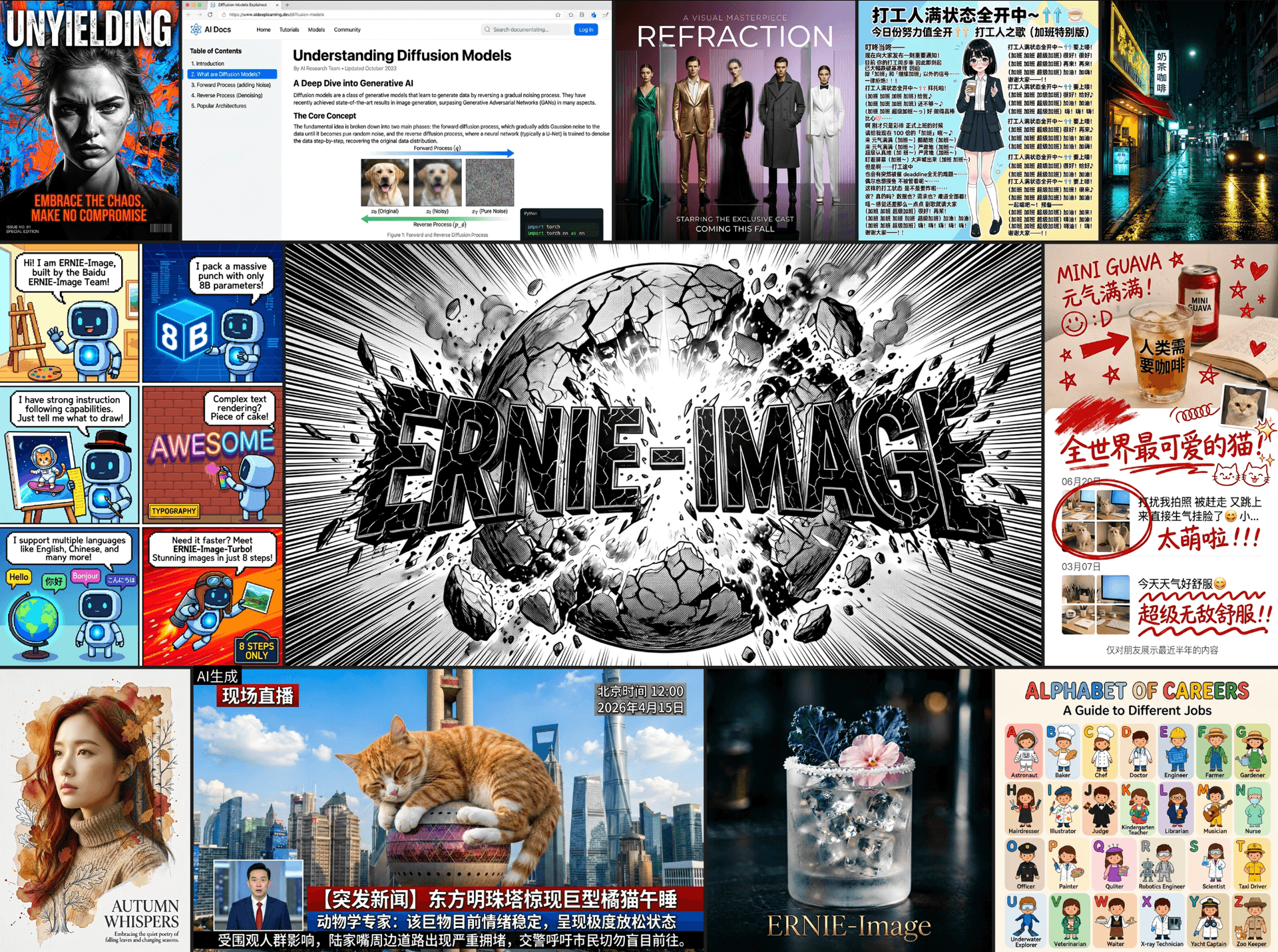
A second cause sits in the text encoder, the part that turns your prompt into numbers. Many encoders split words into sub-word fragments, so a long or unusual word reaches the image model as pieces that carry its meaning but give a weak signal about the exact order of its letters. Miraflow's ERNIE-Image breakdown describes how Baidu's model adds a second, character-aware text encoder next to its semantic one for this very reason, and the same logic explains why spelling a rare word out letter by letter (Trick 6) can help.
A third cause is resolution inside the model. Most modern generators do their denoising in a compressed latent space rather than on full-size pixels. In Stable Diffusion, for example, the autoencoder shrinks the width and height by a factor of 8 according to the Hugging Face Diffusers documentation, so a 512 by 512 image is handled as a 64 by 64 grid while it is being drawn. Newer models use different autoencoders, but the principle carries over: a thin letter stroke on small text has to be represented by very few cells, and anything that thin is easy to smear, merge or drop.
Put together, these causes produce a handful of recognizable symptoms, and each one points at a different fix. The table below is a quick diagnosis chart you can come back to when a generation goes wrong.
| What you see | Likely cause | Best fix |
|---|---|---|
| Letters look right but the word is wrong | The model draws letter-shaped patterns without checking spelling | Shorter text in quotation marks, then inpaint the word (Tricks 1, 2, 11) |
| Extra, missing or swapped letters in a long or unusual word | Rare words reach the model as fragments, so letter order is a weak signal | Spell the word out, swap in a common word, or type it in an editor (Tricks 6, 12) |
| Letters smear or melt at small sizes | Thin strokes are lost when the image is handled on a coarse internal grid | Larger, bolder letters with margin, at the highest resolution (Tricks 3, 7) |
| Words from one text block leak into another | Several strings compete inside one prompt | One text element at a time, or a layout-style prompt (Tricks 4, 8) |
| Letters bend, tilt or grow extra strokes | The surface is curved, wrinkled or seen at a steep angle | A flat surface shot straight on (Trick 5) |
| A word printed twice | The text is mentioned in both the scene and the text instruction | Mention each string once, inside quotation marks (Trick 1) |
Newer models have narrowed the gap through better data, character-aware encoders and layout training. Qwen-Image's technical report, for instance, describes a data pipeline built for text rendering and a curriculum that moves from no text to simple text to paragraph-level text. MOSS-Image's report claims an average text coverage of 96.3 percent on its own LongLongTextBench benchmark, a figure that comes from the team itself and still needs independent confirmation. None of this makes prompt craft obsolete, because a clearer prompt gives a stronger model an easier job and gives a weaker model its best chance.
Group 1: Write the Text So the Model Cannot Misread It
The first four tricks happen entirely in the wording of your prompt. They cost nothing, they work on every model, and they remove the most common causes of misspellings before the first image is drawn.
Trick 1: Put the Exact Text in Quotation Marks
Quotation marks separate the words you want printed from the instructions you want followed. Without them, a model can paraphrase your wording, drop a word it considers filler, or print a piece of your styling instructions as if it were content. With them, the string inside the marks becomes a literal payload. It also helps to say that the text should appear exactly as written, and to mention each string only once, because a word that appears both in your scene description and in your text instruction can lead to a sign with the same word printed twice.
Keep every style instruction outside the quotes. A phrase such as "OPEN in glowing red" placed inside the quotation marks invites the model to print the words glowing red along with it.
Neon sign with one exact word
Photograph of a neon tube sign mounted on a dark red brick wall, the sign shows the exact text "OPEN" in tall uppercase tube lettering, printed exactly as written with no extra words, glowing warm white, viewed straight on, wall lit softly by a street lamp from the left, 50mm lens, sharp focus on the sign.
Minimal quote poster with a literal phrase
A flat cream paper poster hanging on a plain white wall, the only text on it is the exact phrase "KEEP GOING" in bold black uppercase sans-serif letters, centered, printed exactly as written with correct spelling, even soft daylight from a window on the right, straight-on view, no other words anywhere.
Trick 2: Keep the Text Short and Set a Word Budget
Every extra letter is another place for a mistake, and mistakes compound, because one wrong letter spoils the entire word. The most reliable setup on nearly any model is one short line of one to four words. Many general-purpose models start slipping on strings much longer than that, and even text-focused models are most dependable on short lines, which is why the prompting tips summarized in Miraflow's ERNIE-Image breakdown recommend breaking long text into lines of roughly four to eight words each.
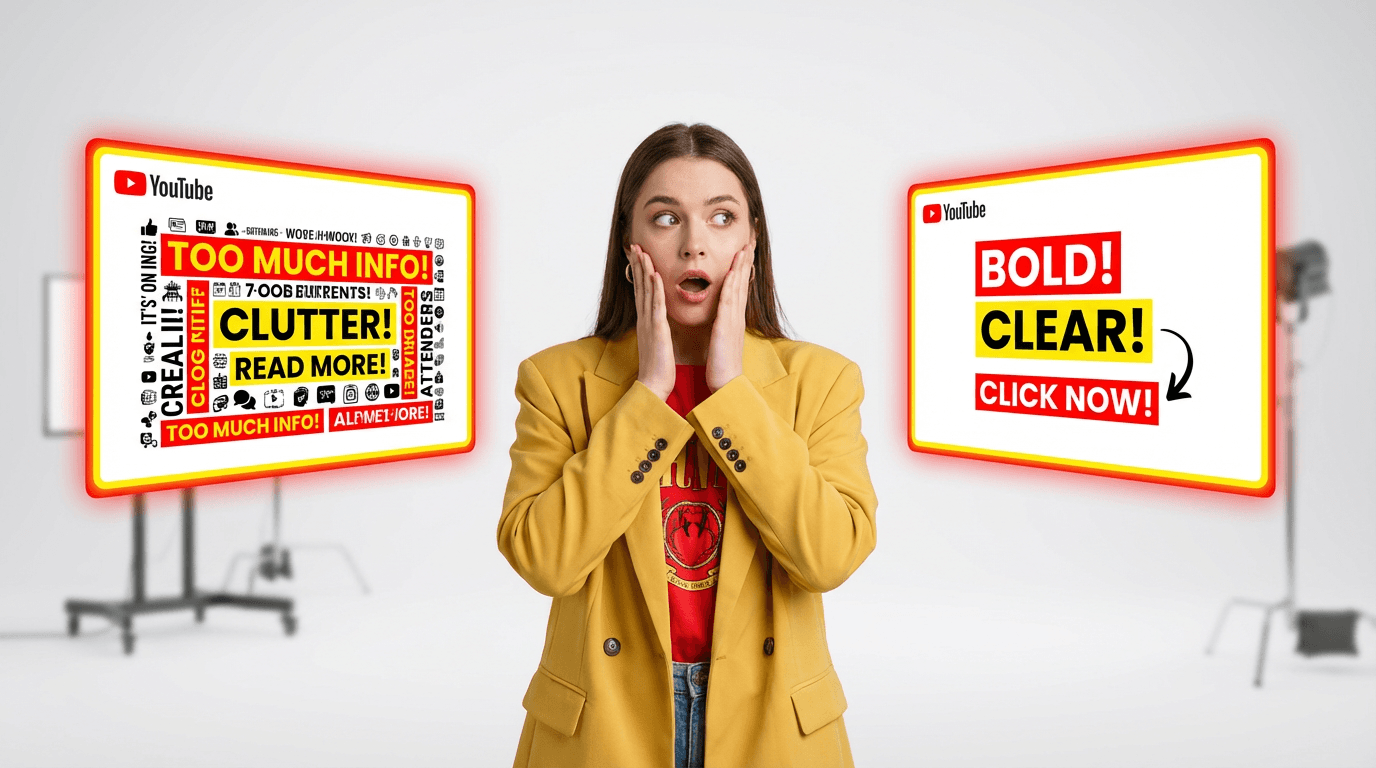
The word budget also lines up with design advice. Miraflow's guide on how many words to put on a YouTube thumbnail lands on two to five words for standard videos and one to three for Shorts, which happens to be the range where AI text is also most accurate. A good thumbnail rule and a good AI rule point in the same direction.
When you do need two lines, break them yourself and say so. A model that decides on its own where to break "GRAND OPENING" may split it as GRAN D OPENING. Naming each line removes that decision.
Two-line headline with the break specified
Wide photo of a bakery shop window with a printed paper banner taped inside the glass, the banner has two lines of bold white uppercase sans-serif text on a deep green background, first line "GRAND" and second line "OPENING", each word on its own line and spelled exactly as written, soft overcast daylight from the front, 35mm lens, sharp focus on the banner.
Trick 3: Specify Case, Font Style and Weight
Letters survive best when they are thick, plain and uniform. Bold sans-serif capitals have simple shapes, even stroke widths and few ambiguous joins, so each letter holds together even when the model represents it with a small number of cells. Script, cursive and decorative display fonts connect letters and vary stroke width, and they give the model many more chances to invent a shape. Mixed case adds ascenders and descenders on top of that, which is why all caps is usually the easier request for the first pass.
Say all of it in the prompt: the case, a category of typeface such as "bold geometric sans-serif" or "slab serif", and the weight. If the design really needs a script font, generate the image with a plain bold word as a stand-in and swap in the fancy font later in an editor (Trick 12).
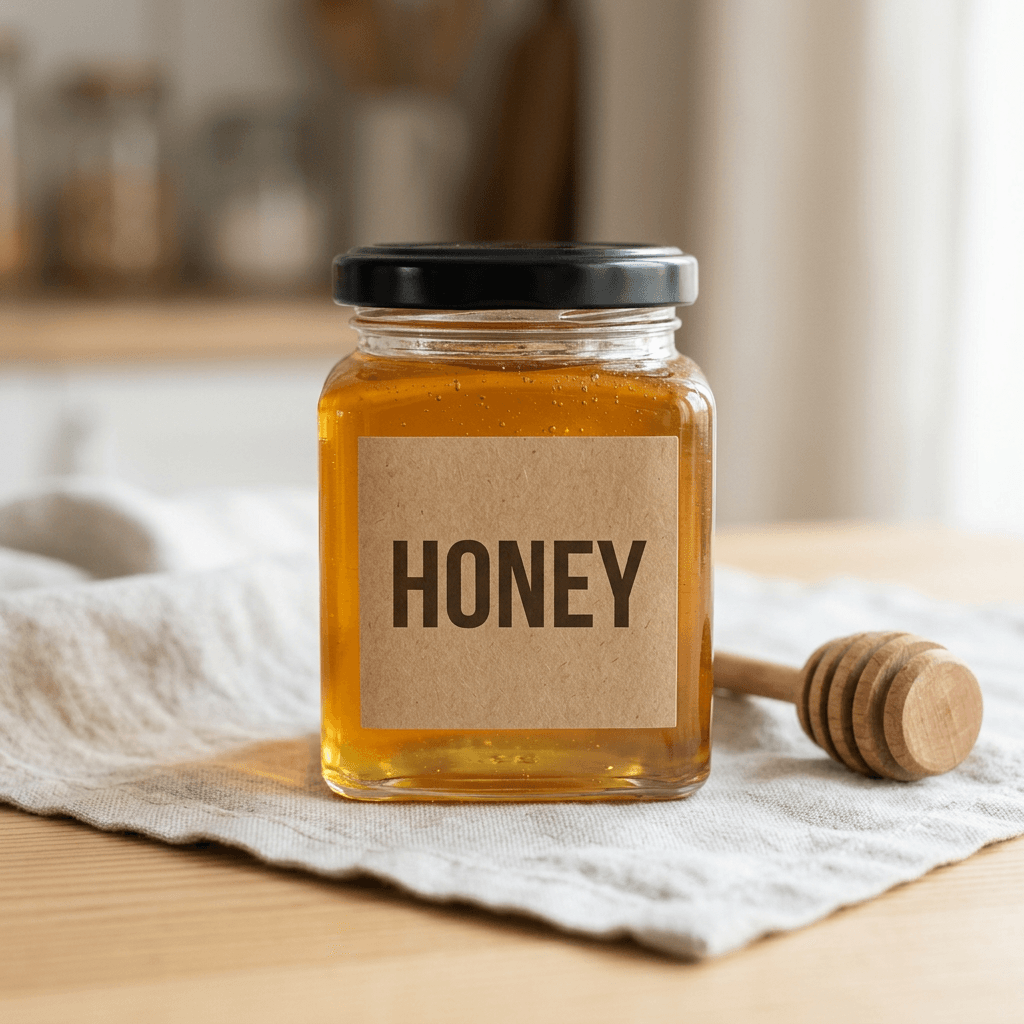
Product label with a single bold word
Straight-on product photo of a small square glass jar of honey with a flat kraft paper label on the front, the label shows the single word "HONEY" in heavy dark brown uppercase sans-serif letters with even stroke width, centered with generous empty margin on all sides, label perfectly flat and facing the camera, soft window light from the right, 50mm lens at f/5.6, a wooden honey dipper resting beside the jar.
Slab serif for a vintage feel
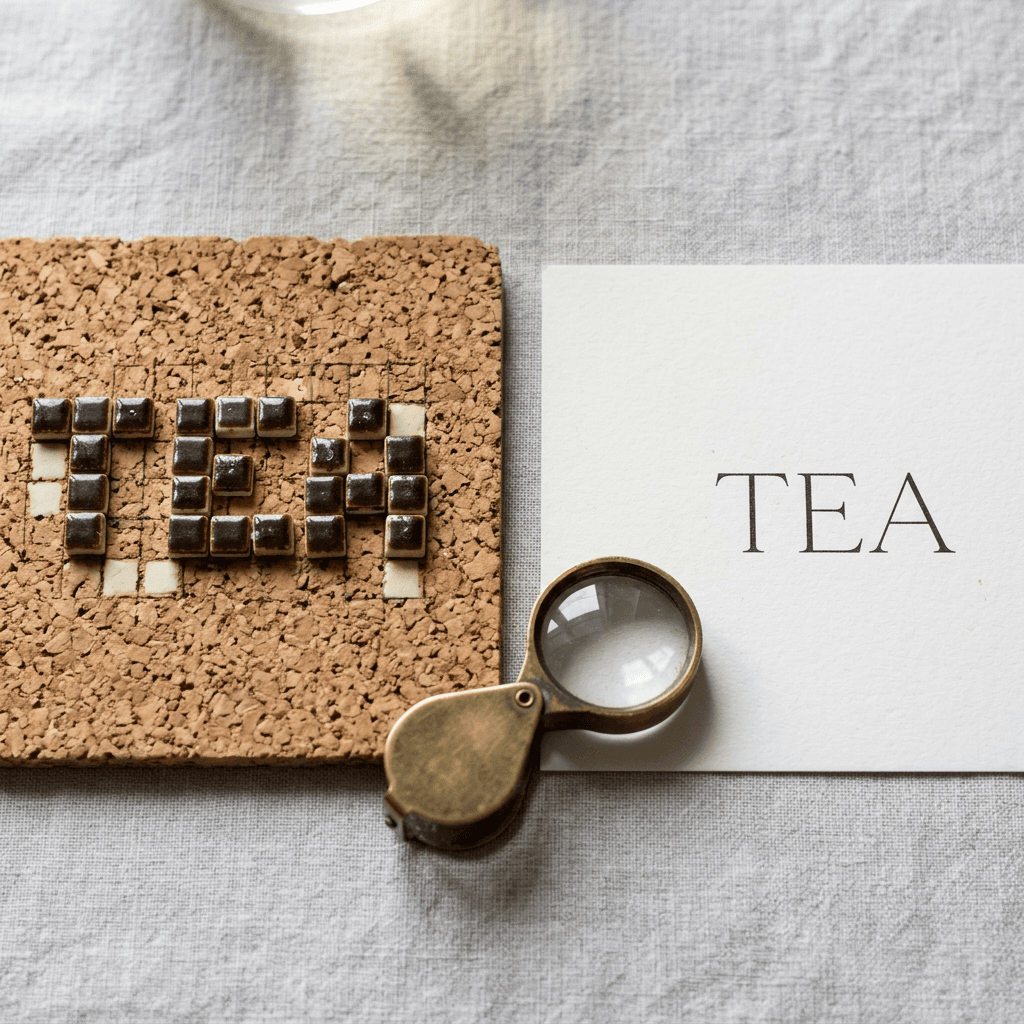
Flat lay photo of a cream cardboard box lid printed with the exact word "TEA" in bold black slab serif capitals, centered, ink slightly pressed into the cardboard, soft overhead light, sharp focus across the whole lid, no other text.
Trick 4: Add One Text Element at a Time
A single prompt that asks for a headline, a subtitle, a date and a button label asks the model to keep four strings separate while it draws everything else, and one common failure is words bleeding from one block into another. Start with only the most important element, get that right, and then add the next element in a follow-up edit or a second pass.
This sequencing also tells you something useful early. If the headline alone will not print correctly after a few tries, a longer layout was never going to work, and you can switch to Trick 12 before spending time on the rest of the design.
First pass with only the headline
Vertical poster for a farmers market on warm cream paper with a simple illustration of a basket of tomatoes in the lower half, the only text is the exact headline "FRESH" in huge bold dark green uppercase sans-serif letters across the upper third, soft even studio light, flat straight-on view, no other words anywhere.
Second pass that adds one small element
Keep the image exactly as it is. Add one new line of text under the headline FRESH, the exact words "SAT 9AM" in small bold dark green uppercase sans-serif letters, centered, with comfortable empty space between the two lines. Do not change the headline, the illustration or the colors.
Group 2: Give the Text a Surface, a Clean Angle and Room
The next three tricks are about the scene around the letters. A model that knows what the text is printed on and has space to draw it will make cleaner letters than one that has to improvise.
Trick 5: Name the Surface and Shoot It Straight On
Tell the model what the words are physically written on: chalk on a slate board, paint on a wooden sign, ink on kraft paper, tube lighting on a brick wall, an enamel plate, a rubber stamp. The surface decides the letter style, the texture and how forgiving the result looks. Hand-lettered chalk on a slate reads as intentional even if a stroke wobbles, while a perfectly typeset corporate label shows every flaw. Signage is also a very common kind of photograph, which gives models familiar patterns to draw on.
Pair the surface with a flat, front-facing camera. Text on a curved bottle, a wrinkled shirt or a sign seen at a steep angle gets bent along with the surface, and bent letters are where models invent extra strokes. Ask for a straight-on view, an evenly lit surface and no glare across the letters, and place the text on the flattest part of the object. Miraflow's coffee shop and café branding prompts are a good source of surface ideas for signage and menus.
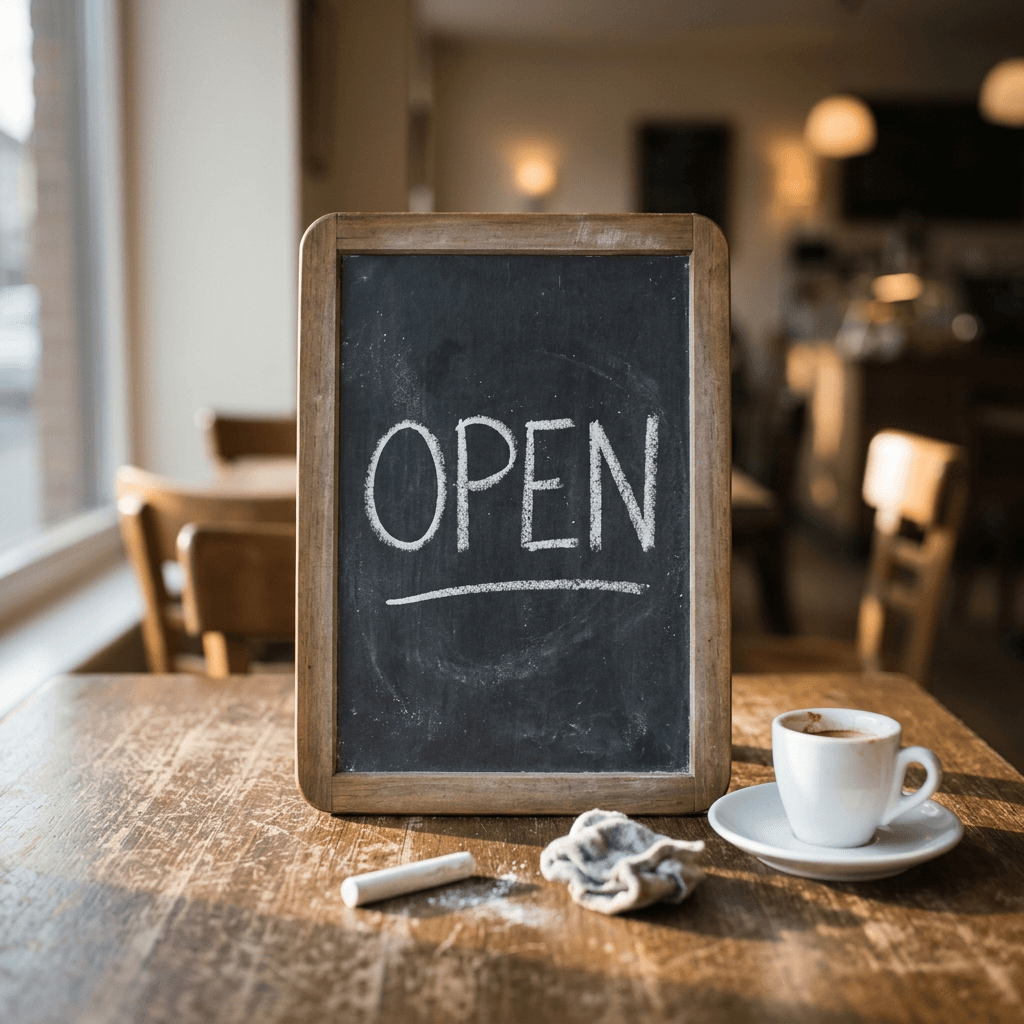
Chalkboard sign
Photo of a small slate chalkboard sign propped on a wooden café table, the single word "OPEN" hand-lettered in thick white chalk capitals with an even stroke and a simple chalk underline, board facing the camera straight on, warm late-afternoon window light from the left, 50mm lens at f/3.5, a ceramic espresso cup beside the board and a softly blurred café interior behind.
Enamel plate on a wall
Straight-on photo of a white enamel sign with a thin blue border mounted flat on a plaster wall, the sign shows the exact word "EXIT" in bold blue uppercase sans-serif letters, even soft daylight from the left, 50mm lens, no reflections across the letters.
Trick 6: Spell Unusual Words Letter by Letter, or Avoid Them
Common words print well because the model has seen them thousands of times and the text encoder usually keeps them whole. Brand names, invented words, surnames and long technical terms are different. They are split into fragments, they have no strong pattern to fall back on, and they are where doubled letters and swapped vowels appear.
You have three options for a rare word. First, spell it out in the prompt: write the word in quotes and follow it with the letters separated by commas, as in "ZYLVO" spelled Z, Y, L, V, O with no extra letters. Second, shorten or simplify the word if the design allows. Third, use a common stand-in word for the first pass and replace it afterward with inpainting (Trick 11) or in an editor. Some models print the commas or hyphens you use to spell the word, so add a clause saying not to print them, and check the result.
Accented characters and non-Latin scripts deserve the same care. Write them exactly with the accents in the quoted string and check each one on the output, because dropped accents are an easy mistake to miss.
Invented brand name spelled out
Studio photo of a matte black rectangular product box standing upright on a pale gray surface, the front shows the invented brand name "ZYLVO" in bold white uppercase sans-serif letters, spelled Z, Y, L, V, O with exactly five letters in that order and no extra letters, the commas not printed, centered with wide margin, soft box light from the upper left, 85mm lens at f/8.
Trick 7: Make the Text Large, Leave Margin and Use High Resolution
Letter size relative to the image matters more than most people expect. The larger the letters, the more cells of the model's internal grid they occupy and the more clearly each stroke survives, which is the same reason the tiny print on a poster is the first thing to go wrong. Ask for a headline that fills a third to two thirds of the image width, and keep the small print out of the AI image altogether if you can.
Margin helps in two ways. Empty space around the word keeps the model from crowding letters against other shapes, and it makes any later inpainting mask easy to draw without touching other details. Ask for generous empty space on all sides of the word.
Choose the canvas to suit the text. A one-line headline sits comfortably on a wide 16:9 image, while a stacked two-line headline suits a tall 9:16 poster. Generate at the highest resolution your tool offers instead of enlarging a small image later, and proofread again after any upscaling, because upscalers that add detail can subtly redraw letters.
Large headline with margin on a wide canvas
Wide 16:9 photo of a plain matte cream paper banner pinned to a pale wall, the single word "SALE" printed in huge bold red uppercase sans-serif letters spanning about two thirds of the banner width, with generous empty margin above, below and on both sides, soft daylight from the left, straight-on view, 50mm lens, no other text.
Group 3: Use Layout-Style Prompts and Models Built for Text
The next two tricks change what you give the model and which model you give it to. They matter most for posters, infographics and thumbnails with a headline and supporting text.
Trick 8: Use JSON or Layout-Style Prompts on Text-Strong Models
A long natural-language paragraph asks the model to work out where each piece of text belongs while it also draws the picture. Layout-style prompts remove that guesswork by splitting the request into separate items, each with its own content, styling and position. Ideogram 4.0 was trained on structured JSON captions, which Miraflow covers in its Ideogram 4.0 JSON prompts for text-heavy designs. MOSS-Image has a JSON layout mode too, where the prompt is a document with a scene summary and a list of items that each carry a label (text, character or object), a caption and a bounding box. Qwen Image 3.0 Pro is aimed at dense layouts with a long prompt allowance, covered in Miraflow's Qwen Image 3.0 Pro prompts for infographics and text layouts.
Each model defines its own schema, so copy the field names from the model's documentation instead of reusing another model's format. For models without a formal layout mode, a plain-language version still helps: describe each element in its own sentence, with its position and style. Miraflow's Nano Banana JSON prompting guide shows how structure improves results on general models as well.
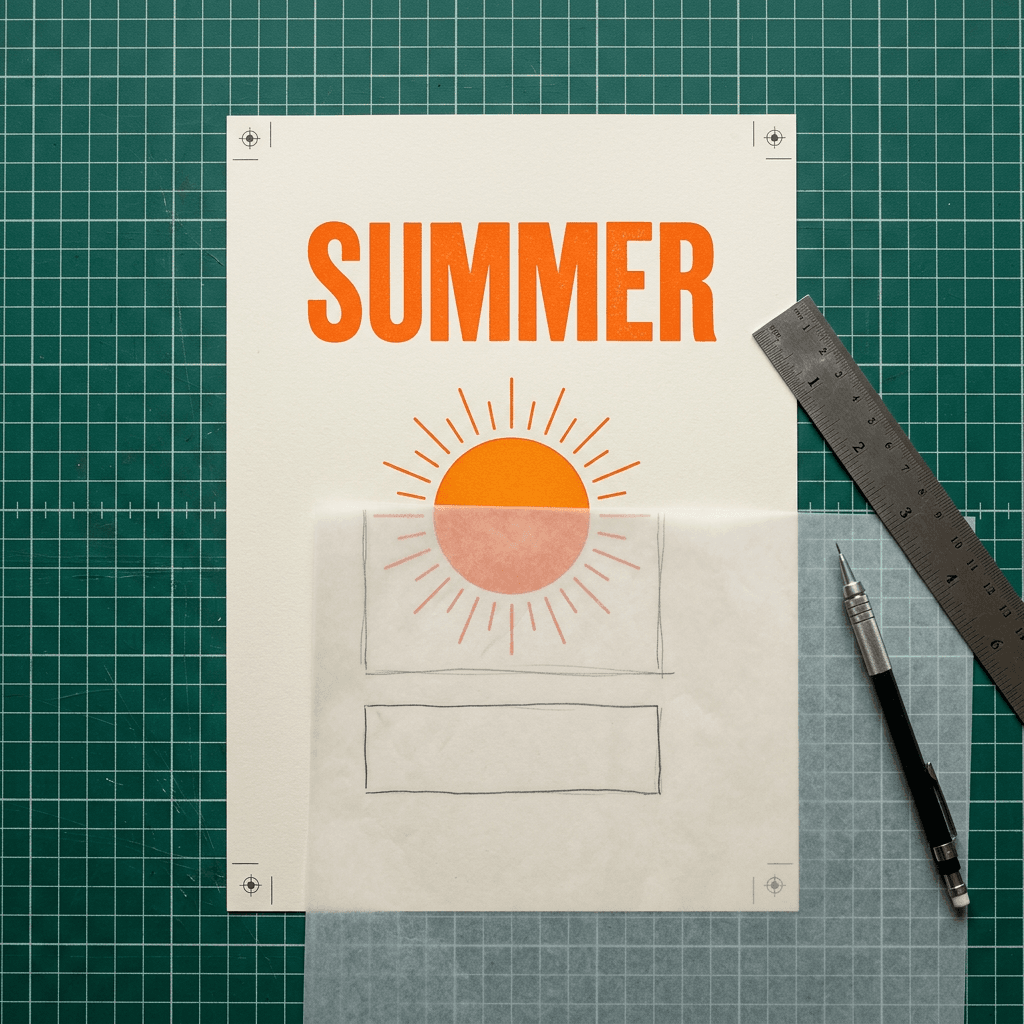
Generic layout-style prompt with one text item
{"summary": "Minimal summer poster on warm cream paper with a round orange sun illustration", "items": [{"label": "text", "text": "SUMMER", "style": "bold uppercase orange sans-serif, even stroke width", "position": "upper third, horizontally centered, spanning two thirds of the width"}, {"label": "object", "caption": "simple round orange sun with thin rays", "position": "center of the lower two thirds"}], "rules": "the only text in the image is SUMMER, spelled exactly as written"}
Plain-language layout for models without a JSON mode
Poster layout, top to bottom. Top third: the single word "SUMMER" in bold uppercase orange sans-serif, centered. Middle and lower area: a simple round orange sun illustration with thin rays on warm cream paper. Nothing else is written anywhere, and the word SUMMER is spelled exactly as written.
Trick 9: Pick the Model That Fits the Job and Add a Negative Prompt
When text is the whole point of the image, use a model that was built or trained for it. Coverage of GPT Image 2's April 2026 launch highlighted its improved readable text in labels, signs and interface elements. Ideogram, Qwen-Image, ERNIE-Image and MOSS-Image all put text rendering at the center of their pitches, although their benchmark numbers come from the teams that built them, so test each one with your own words before you commit to it. When text is a minor detail, almost any current model will do, and the tricks in this guide matter more than the model choice.
Where your tool has a negative prompt field, use it for text failures. Miraflow's YouTube Thumbnail Maker lists negative prompts among its advanced options, and it is a good place for a standard list of the mistakes you keep seeing. A negative prompt is a supporting measure and not a cure, and it works best next to a precise positive prompt.
Reusable negative prompt for text
misspelled words, extra letters, missing letters, duplicated letters, garbled characters, random symbols, unreadable text, extra words, watermark
Group 4: Check the Result and Fix What Is Wrong
Even with every trick above, an occasional render will contain one stubborn error. The last three tricks turn that moment from a reason to regenerate everything into a thirty-second repair.
Trick 10: Proofread Like a Copy Editor
Treat every AI image with text as a draft that needs a proofread. Generate several versions, pick the best composition, and then read the text slowly at full size instead of glancing at it. Letter-shaped squiggles fool a quick look because your brain completes the word you expect to see.
Use a checklist:
- Read the word letter by letter, and then read it backward, which breaks the autopilot reading that hides errors.
- Check doubled letters first. Words like COFFEE, BOOKKEEPER, SUMMER and ACCOMMODATE are common places for a missing or extra repeat.
- Look for swapped neighbors (FORM for FROM), dropped letters and invented extra strokes inside letters.
- Watch for look-alike shapes: capital I against lowercase l and the digit 1, the letter O against the digit 0, and the pair rn against m.
- Check text elsewhere in the image, such as a book spine, a package or a screen in the background. Stray text appears in places you did not ask for.
- Shrink the image to the size viewers will see it, then check again. A phone feed shows a thumbnail far smaller than your editing window, and Miraflow's thumbnail mistakes guide explains why readability at small size is one of the first things to fix.
When the word you need contains doubled letters, say so in the prompt and name the doubles, as in the example below, because repeated letters are a common place for a model to merge two letters into one or add a third.
For a second opinion, copy the text out of the image using your phone's text selection or a free OCR tool and compare it with the words you intended. OCR is not perfect and can mis-read stylized letters, but when it returns gibberish the viewer will probably struggle too.
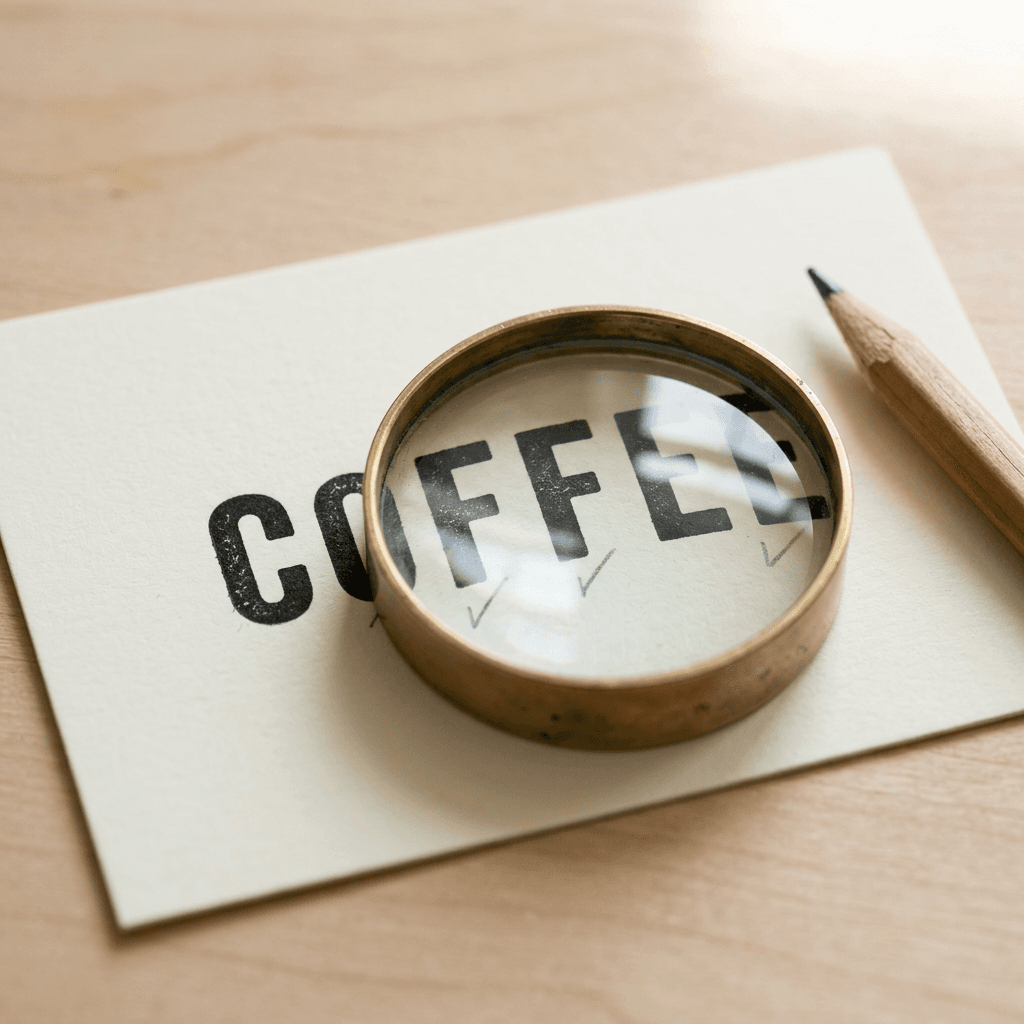
Calling out doubled letters in the prompt
Close-up photo of a cream printed card with the exact word "COFFEE" in bold black uppercase sans-serif letters, spelled C, O, F, F, E, E with a double F and a double E, centered on the card, soft window light from the left, 100mm macro lens at f/4, sharp across the whole word.
Trick 11: Use Inpainting to Fix One Wrong Word
If the composition is right and one word is wrong, do not regenerate the image. Inpainting regenerates only the area you mask and leaves everything else untouched. Mask the whole wrong word with a small margin around it, describe the exact replacement text and its style, and generate a few options. Masking a single letter is tempting, but it often produces a letter that does not match its neighbors in size or style, so replace the entire word.
In Miraflow's AI Image Generator the workflow is short. Upload the image, drag over the word with the mask tool, type the replacement prompt, click Generate AI Image, and then open the My Creations tab to compare and download. Miraflow's inpainting walkthrough shows the same steps with screenshots, and its advice carries over to text: keep the mask tight, keep the prompt short and direct, and reword the prompt slightly if the first result does not blend.
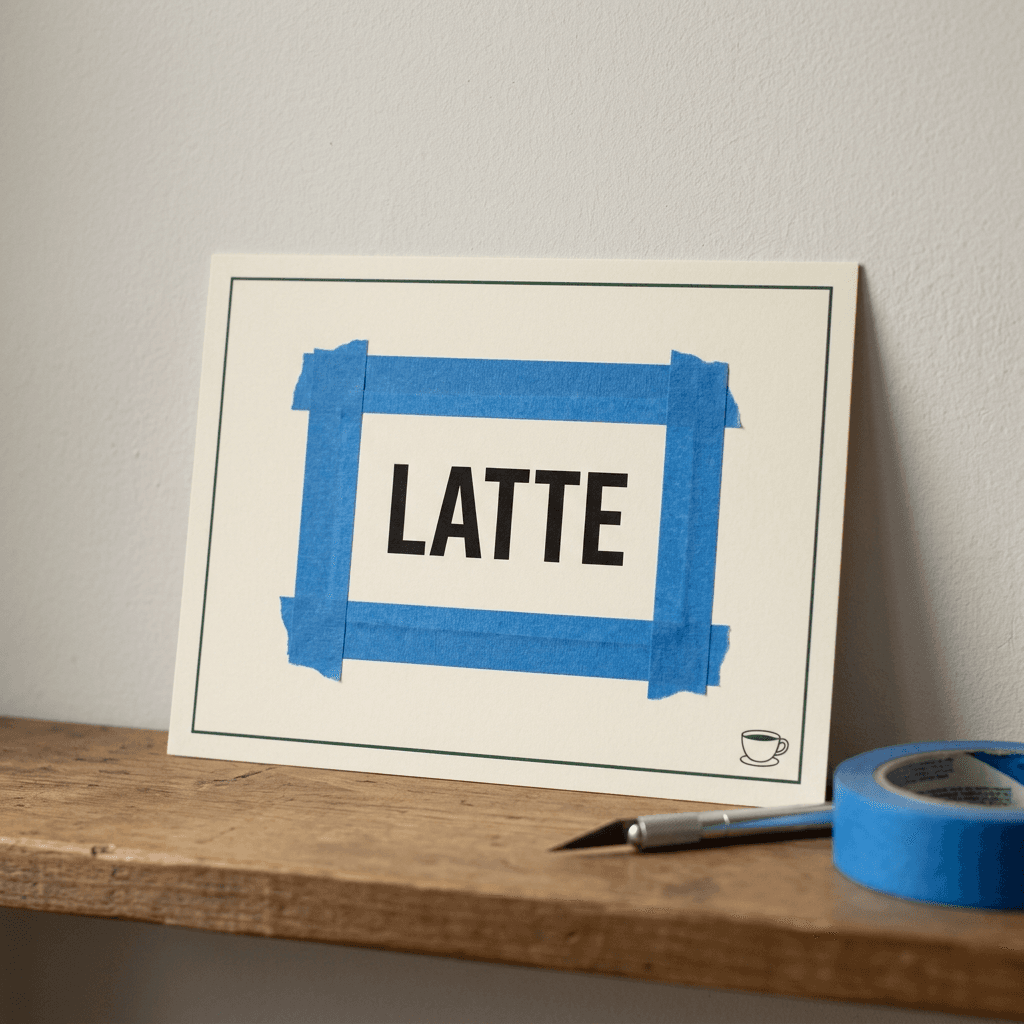
Replacement text for a masked area
Replace only the masked area with the exact word "LATTE" in bold black uppercase sans-serif letters, same height, same ink color and same paper texture as the rest of the card, centered in the masked area, nothing outside the mask changes.
Replacing a stand-in word
Replace only the masked area with the exact brand name "ZYLVO" in bold white uppercase sans-serif letters, spelled Z, Y, L, V, O with exactly five letters, matching the size, color and print texture of the box around it, commas not printed, nothing outside the mask changes.
If three or four attempts still miss, simplify the word, enlarge the mask a little so the model has room to draw, or move to Trick 12 and add the word in an editor.
Trick 12: Generate the Picture Without Text, Then Add the Text in an Editor
The only method that guarantees a spelling is typing the words yourself. A hybrid workflow gives you the strengths of both tools. The AI model makes the image, with a clean empty area designed to hold text, and an editor adds the words in a real font that you can change and correct at any time. For thumbnails, quote cards, posters with small print, price lists, dates and anything legally or commercially sensitive, this is often the most efficient path.
Tell the AI model where to leave space and ask for no text at all. A clean area on the left third, a calm band across the bottom or an empty sky region all work. In Miraflow's YouTube Thumbnail Maker the thumbnail text has its own field, so the picture prompt describes only the image and the headline is typed separately. That keeps the prompt shorter, makes the spelling exactly what you typed and lets you test several headlines on the same background for A/B testing. The thumbnail size and safe-area rules in the YouTube thumbnail size guide tell you where to keep text clear of the duration badge and other overlays.
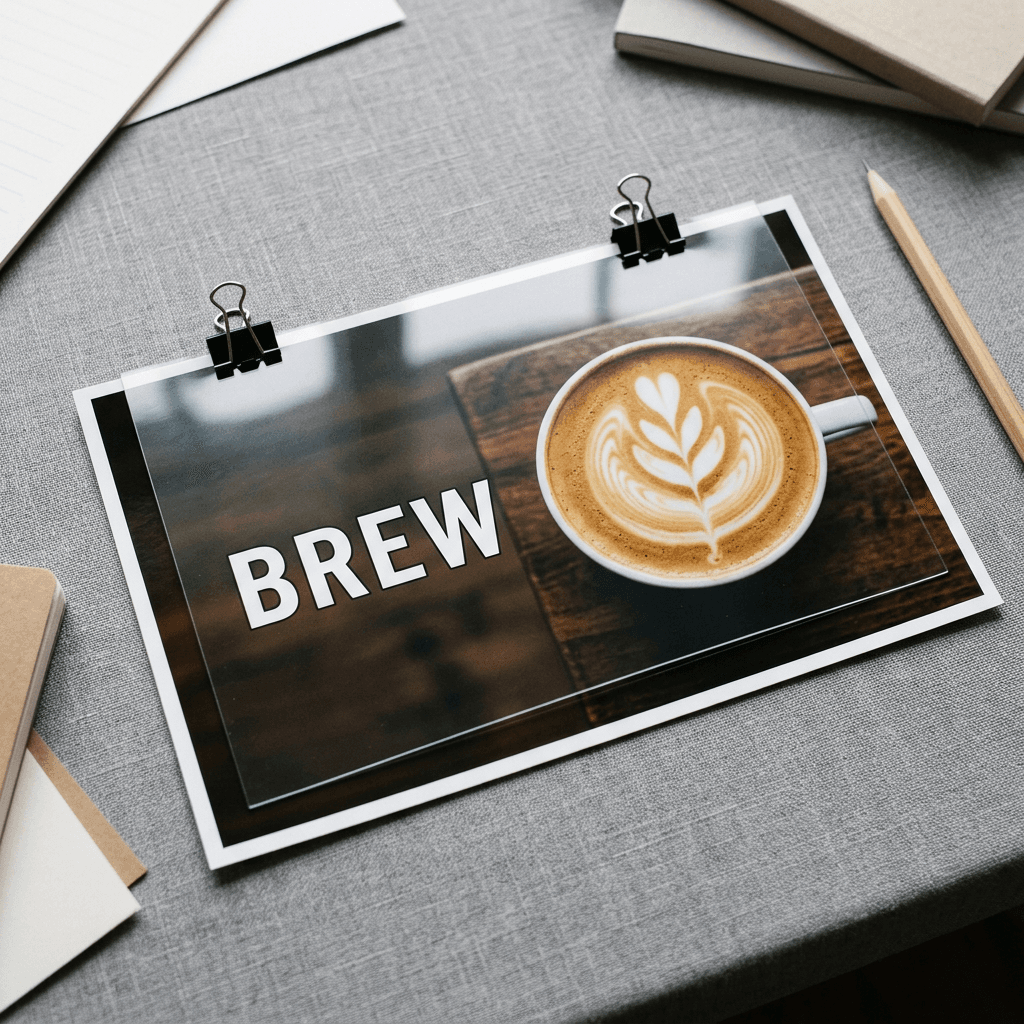
Background with room for text and no text at all
Close-up photograph of a latte with leaf-shaped latte art in a white ceramic cup on a dark wooden table, the cup sits on the right third of the frame, the left third is clean empty dark wood with soft shadow for adding a headline later, warm side light from the left, 85mm lens at f/2.8, wide 16:9 composition, absolutely no text, letters or logos anywhere in the image.
The same approach works for quote cards. Generate a textured paper, watercolor or photo background with a calm center, then set the quote in any design tool using a real font. The words stay editable, and a typo costs ten seconds to fix instead of a fresh batch of generations.
A Worked Example: From a Failing Prompt to a Clean Poster
Imagine a bakery owner who writes a single prompt: a poster for the bakery's grand opening with the text Grand Opening this Saturday at 10am, 123 Baker Street, free croissants for the first 50 customers. The result usually looks like a poster and reads like a ransom note. Here is how the tricks fix it in four passes.
Pass 1: reduce the text to one element. The poster needs one headline in the AI image. The date, address and offer are small print, and small print is the first thing to break. The prompt keeps only "GRAND OPENING", in quotes, in bold capitals, on two named lines (Tricks 1 to 4).
Pass 2: add the surface and the room. The headline sits on a cream poster with a simple croissant illustration below it, front-on and flat, with the letters filling most of the width and clear space around them (Tricks 5 and 7).
Pass 3: proofread and repair. Four versions are generated, the best is chosen, and every letter is read forward and backward. If OPENING shows up as OPENNG, only that word is masked and replaced with inpainting (Tricks 10 and 11).
Pass 4: put the small print in an editor. The date, address and offer are typed in a design tool in a clean readable font and placed under the headline (Trick 12).
The final poster takes a few minutes, and every piece of information on it is spelled exactly as typed. The same four passes work for a podcast cover, a sale banner and a conference title card, with only the words and the surface changing.
Which Trick to Use for Which Project
Different projects need different mixes of the tricks. Use this table to decide where to start.
| Project | Typical text | Best first move | Fallback if a word is wrong |
|---|---|---|---|
| YouTube thumbnail | 1 to 4 words | Generate the image with a clean empty area and type the headline in the thumbnail text field | Pick a shorter headline and re-type it |
| Poster or flyer | A headline plus small print | Headline only in the AI image with a layout-style prompt; set small print in an editor | Inpaint the headline word |
| Product label or packaging mockup | A brand word and a product word | Flat label surface, bold capitals, one or two words, spelled out if the brand is unusual | Inpaint the label, or place the real logo in an editor |
| Quote card | A sentence or two | Generate a calm textured background and set the quote in a design tool | Use a text-strong model for a very short quote |
| Cafe chalkboard or menu sign | 1 to 3 words per line | Name the chalk surface, one line per prompt | Inpaint the line, then add prices in an editor |
| Merch or T-shirt mockup | 1 to 3 words | Flat straight-on print, bold sans-serif capitals | Add the print as a separate layer in an editor |
Special Cases: Numbers, Links, Foreign Scripts and Logos
Some kinds of text deserve their own rules, because models handle them worse than ordinary words.
Prices, dates and phone numbers. Digits are easy to scramble, and a wrong digit in a price or a phone number causes a real-world problem that goes well beyond looks. Add them in an editor, and proofread them against your source twice.
Web addresses and handles. Long strings with punctuation, such as a link or an @ handle, are rare patterns and are among the least dependable text a generator can draw. Keep them in the caption or add them as a separate text layer.
QR codes. Image models draw patterns that look like QR codes and usually do not scan. Generate a real code with a QR generator and place it on the design yourself.
Non-English text. Several current models advertise bilingual or multilingual text, including MOSS-Image for English and Chinese, and coverage of GPT Image 2 mentions scripts such as Hindi, Japanese, Korean and Chinese. Quality varies a lot between languages and between models, so test a short sample with your exact text first and have a fluent reader check it.
Logos and brand marks. A model does not know your logo as a fixed shape, and asking for a real company's logo is not a good idea in any case. Leave a clean space for your own logo and place it in an editor.
Video captions. When the text belongs in a video, add it as a caption layer instead of asking a video model to draw it, so the spelling comes straight from your script. Miraflow's AI Clipping applies auto captions to the Shorts it cuts from a long video, which takes spelling out of the picture entirely.
Common Mistakes That Cause Misspelled Text
- Putting style words inside the quotation marks. The model prints what is inside the quotes. Keep colors, fonts and positions outside.
- Mentioning the text twice. A word that appears in the scene description and again in the text instruction is a frequent cause of doubled words on a sign.
- Asking for sentences, paragraphs or small print. A paragraph on a poster is a request for gibberish on every model. Keep the AI text to a headline and add the rest later.
- Choosing a script or decorative font and expecting accuracy. Thin connected letters are the hardest to hold together. Use bold sans-serif first.
- Putting text over a busy background or across a face. Letters lose contrast and edges against clutter, so ask for a calm area behind the words.
- Rerolling instead of repairing. Each reroll changes the parts you liked along with the part you did not. Inpaint the one wrong word instead.
- Judging at editing size only. A word that looks fine on a big monitor can be unreadable in a phone feed. Shrink the image before you decide.
- Skipping the second proofread after an edit. An edit or an upscale can redraw letters elsewhere in the image, so check all the text again after every change.
- Expecting "correct spelling" to be an instruction. Phrases like "no typos" add little. The exact string in quotation marks does the real work.
How Miraflow Fits Into a Text-Safe Workflow
Two Miraflow tools cover most of the workflows above, and the Miraflow home page links to the rest of the content pipeline when you want to turn a finished image into a Short, a clip or a track.
Fixing a wrong word in the AI Image Generator. Open Miraflow's AI Image Generator, upload the image that has one misspelled word, mask only that word, type the replacement prompt from Trick 11 and generate. The model regenerates only the masked region using your prompt and the surrounding pixels, so the composition you liked is unchanged. Open My Creations to compare versions and download the best one. The same tool does text-to-image for the first pass, image-to-image when you want to restyle a reference, and image editing when you want to change an element without starting over.
Keeping the headline in its own field in the YouTube Thumbnail Maker. In the YouTube Thumbnail Maker on Miraflow, describe the picture in the prompt, optionally upload your face or a product image, type the headline into the thumbnail text field, add your standard text mistakes to the negative prompt under advanced options and generate. If you already have a published thumbnail with a typo or an outdated headline, paste its YouTube link to bring it into the editor and revise it instead of rebuilding it from scratch. For a deeper look at what to say in that field, the guides on YouTube thumbnail text ideas and thumbnail word counts are worth keeping open beside it.
For packaging and print projects, the product packaging before-and-after prompts and the AI movie poster prompts both lean on short, bold text, which makes them good practice material for the tricks above. If your finished image needs to look like a real photo as well as read correctly, the guide to making AI images look like real photos covers the photographic side.
Frequently Asked Questions
Why does AI misspell words in images?
Image generators learn what pictures usually look like and do not follow spelling rules. Text covers a small part of most training images, many text encoders split words into fragments that hide the exact letter order, and small letters have thin strokes that are easy to lose inside the model's compressed internal grid. The result is letters that look right and words that are wrong.
What is the best prompt format for text in AI images?
Put the exact words in quotation marks, say they should appear exactly as written, name the case, font style and weight outside the quotes, and give the text a flat surface and a position. Keep it to one short line first. On models with a layout or JSON mode, give each text element its own item with its own style and position.
How many words can an AI image generator spell correctly?
There is no universal number, and it depends on the model, the words and the layout. As a practical rule, one to four words in a single line is dependable on most current models, and text-focused models stretch further. If a string fails after a few tries, shorten it or add it in an editor.
Which AI image generator is best for text in 2026?
Models built around text and layout, including Ideogram 4.0, Qwen-Image, ERNIE-Image, MOSS-Image and GPT Image 2, are strong candidates, but published benchmark numbers mostly come from the teams that built them. The most reliable test is your own words: run the same short phrase and a longer one through each model you can access and compare.
How do I fix one misspelled word without regenerating the whole image?
Use inpainting. Mask the whole wrong word with a small margin, describe the exact replacement text and style, and generate. In Miraflow's AI Image Generator you upload the image, mask the word, enter the prompt and generate, and only the masked area changes. If the word keeps failing, simplify it or add it in an editor.
Should I put text in the AI image or add it later?
Add it later whenever the words must be perfect or may change. Headlines on thumbnails, quote cards, prices, dates and anything long are safer typed in an editor. Generate the AI image with a clean empty area and no text, then type the words in a real font. Use in-image text when the lettering is part of the scene, such as a chalkboard, a neon sign or a product label.
Does adding "correct spelling" or "no typos" to the prompt help?
It rarely adds much. The model does not check its own spelling, so the instruction is easy to ignore. The exact string in quotation marks, a short word count and a clean surface do much more. Pair them with a negative prompt of misspellings if your tool offers one.
Why does my thumbnail text come out as gibberish?
Thumbnail prompts often ask for several words, a busy background and a stylized font all at once, and thumbnails are viewed small. Shorten the text to a few words, request bold sans-serif capitals, leave a calm area behind them and check the result at phone size. Or type the headline into a separate text field, as in Miraflow's YouTube Thumbnail Maker.
Can AI generate text in other languages correctly?
Some models advertise it, including English and Chinese in MOSS-Image and several scripts in GPT Image 2, but quality varies by language and by model. Write the exact characters, including accents, inside the quotation marks, test a short sample and ask a fluent reader to check it before publishing.
Can AI image generators make QR codes, URLs or phone numbers?
They are unreliable at all three. A QR code drawn by an image model usually does not scan, and long URLs and digit strings are easy to scramble. Add them in an editor, and generate real QR codes with a proper QR tool.
Conclusion
Misspelled text in AI images has a few predictable causes, and each cause has a matching habit. Quotation marks, short lines and bold simple capitals keep the model from misreading the words. A named flat surface, large letters and generous margin give the letters room to exist. Layout-style prompts and text-strong models reduce the guesswork on posters and dense designs. Proofreading, inpainting and a text-free background with typed words give you a way to finish the job when a render is close but not perfect.
Begin with the cheapest changes on your next prompt: quote the exact words, cut them to four or fewer, ask for bold sans-serif capitals, and name the surface. If a word still comes out wrong, mask just that word in Miraflow's AI Image Generator and replace it, and when the words really matter, type them into the text field of Miraflow's YouTube Thumbnail Maker or your favorite design tool. Models will keep getting better at spelling, and the creators who get clean text every time will be the ones who know which of these tools to reach for first.