YouTube Channel Hacked? How the Temporary Feature Pause Works and How to Recover (2026)

Written by
Aerin Kim
YouTube's new Temporary Feature Pause freezes uploads and live streams on suspected hacked channels. Learn what it does, how hijacks happen, and the step-by-step recovery and prevention checklist for 2026.
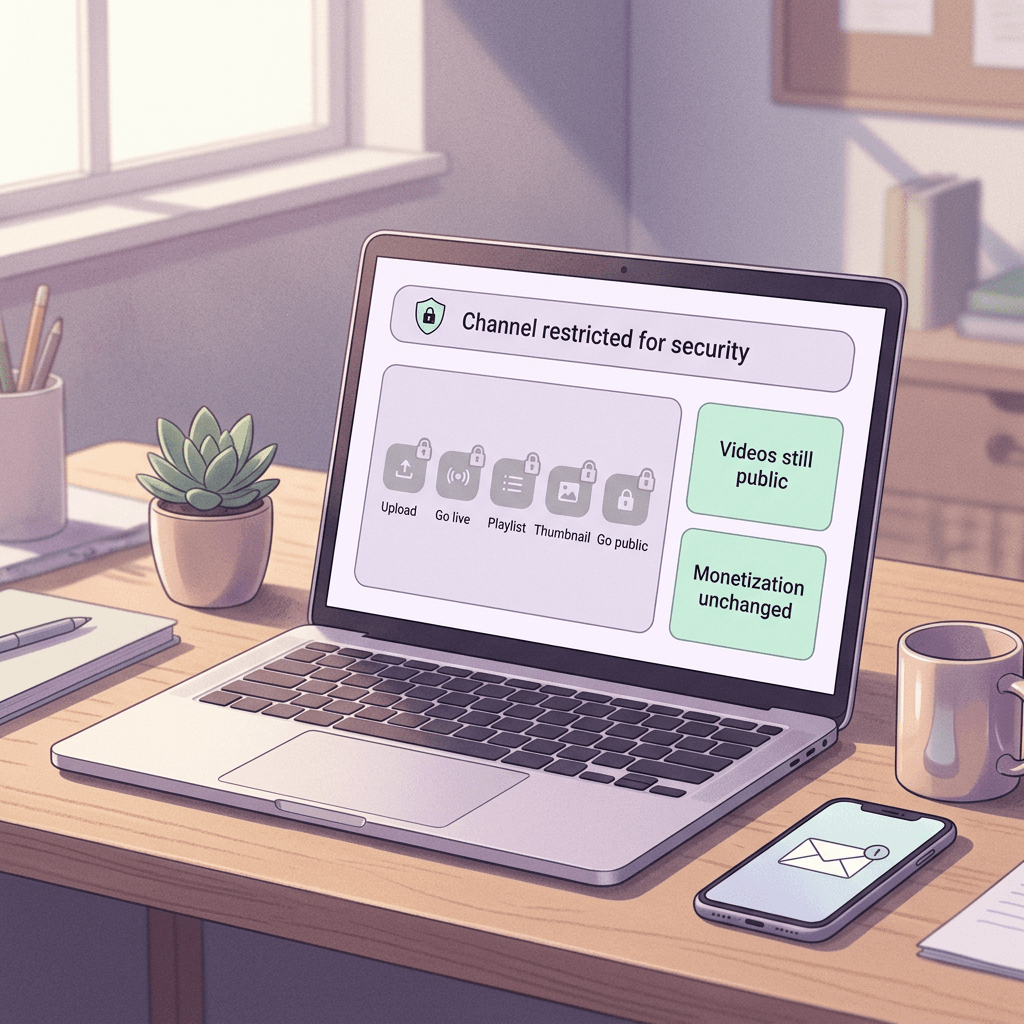
If you open YouTube Studio and find that you cannot upload a video, start a live stream, change a thumbnail or switch a private video to public, and a banner says your channel has been temporarily restricted for security, the first reaction is usually panic. On October 21, 2026, YouTube announced a feature called Temporary Feature Pause in a TeamYouTube post on the YouTube Help Community, and that banner is how it shows up. When YouTube notices unusual activity that might be unauthorized, it can now lock down a short list of channel features while its security team reviews the account, and the lock applies to the real owner and to any intruder alike.
This guide explains exactly what the pause does, what it leaves alone, and which questions YouTube has not answered yet. It then goes well beyond the announcement, because most people who search for "youtube channel hacked" or "how to recover a hacked youtube channel" need the whole playbook: how to tell whether you were really compromised, the order to work in during the first hour, how to use YouTube's cleanup tool, what to do if you are locked out of your Google Account or your channel was terminated, how hijackers actually get in (very often through a fake sponsorship offer), and how to set up your account and your team so that a stolen browser session cannot take your channel. Where I give my own reasoning instead of YouTube's wording, I label it as analysis. Once your channel is back, Miraflow can help you restore your branding and rebuild upload momentum, and I cover that near the end.
TL;DR
- On October 21, 2026, YouTube announced Temporary Feature Pause. When it detects unusual or unauthorized activity on a channel, it can automatically pause uploading or updating videos and Shorts, starting live streams, creating playlists or adding videos to them, uploading custom thumbnails, and switching videos from private to unlisted or public.
- The pause applies to everyone on the channel, including you and your editors, while YouTube's security team reviews the account. YouTube says that review is typically completed within 24 hours and gives no maximum.
- Existing videos stay watchable, and YouTube's Community post says your monetization status will not be impacted. The Help Center article adds that YouTube may set some recent videos to private during the review.
- If the account checks out, full access is restored immediately. If a hijack is confirmed, the limits stay in place and YouTube emails instructions to re-secure the Google Account, clean up unauthorized changes and contact support.
- YouTube has not said what triggers a pause, how often it fires by mistake, or how the rollout is staged, so a missing banner never proves a channel is safe.
- The recovery order that works: clean device first, then the Google Account, then YouTube Studio's cleanup tool, then permissions, branding and payouts, then YouTube support.
- Most hijacks start with malware that steals a logged-in browser session, often delivered through a fake brand deal, which is why 2-Step Verification alone does not protect you from a careless download.
- Give editors channel permissions instead of your password, and keep a restore kit of branding and thumbnails stored outside the account.
- After recovery, Miraflow's YouTube Thumbnail Maker, AI image generator and AI Clipping help you restore your look and restart your upload rhythm.
What YouTube announced: Temporary Feature Pause explained
YouTube introduced the feature on October 21, 2026 in a TeamYouTube post titled "Introducing temporary feature pause for hacked accounts," and published a companion Help Center article called "Understand why some channel features are temporarily paused." I read both pages directly and compared them with coverage from Dexerto, Social Media Today and PPC Land, which describe the feature the same way. The stated reasoning is short. In YouTube's words, "When a channel is hijacked, hackers look to quickly lock account owners out and upload unwanted videos or live streams," and that behavior can "quickly lead to account termination." The pause is designed to remove the tools a hijacker needs before that spiral starts, while keeping your channel online for viewers.
According to the announcement, YouTube will now automatically apply a temporary feature pause if it detects unusual or unauthorized activity on your channel, and while the pause is in place "no one will be able to perform actions" from the list below. The table also shows what YouTube says keeps working, so you can see the shape of the restriction at a glance.
| Feature or area | Status during a Temporary Feature Pause | What to know |
|---|---|---|
| Upload or update videos and Shorts | Paused | Applies to everyone on the channel, including the owner, managers and editors |
| Start a live stream | Paused | YouTube cites hackers uploading unwanted videos or live streams as the reason for the feature |
| Create playlists or add videos to playlists | Paused | Listed in both the Community post and the Help Center article |
| Upload custom thumbnails | Paused | Applies to long-form videos and Shorts thumbnails alike as far as the announcement says |
| Switch videos from private to unlisted or public | Paused | YouTube may also set some recent videos to private during the review |
| Viewers watching your existing videos | Keeps working | Existing videos stay public and viewers can keep interacting with the channel |
| Monetization status | Not impacted | Stated in the Community post, not repeated in the Help Center article |
| Channel name, handle, picture, banner, deleting videos, comment moderation | Not listed | YouTube's lists do not mention them, so check in Studio what you can still do |
Two details in that table deserve a closer look. The first is that "no one" really means no one. YouTube is not trying to tell the owner apart from the intruder during the review, which is why a legitimate creator can get caught by it, and why your editor, your manager and any scheduling tool that publishes on your behalf are all affected. The second is that the Community post introduces its list with the word "including" while the Help Center article presents the five actions as the full list. I would treat those five as the confirmed set and tell support if you hit any other locked feature.
The private-video line is the one most likely to cause real damage to a posting schedule. The Help Center article says YouTube "may also set some of your recent videos to private during the review" to protect viewers. A separate YouTube page, "Why did YouTube change my videos to private?", explains what happens in that situation: YouTube emails you and signs you out of your account, and it asks you to look at the videos before deciding whether to make them public again. If you did not publish those videos, it tells you to delete them in Studio, because even private videos have to follow the Community Guidelines. Since switching videos from private to public is itself on the paused list, it follows logically (this part is my inference) that you may not be able to republish a video that YouTube privatized until the pause is lifted.
What you will see and where
If your channel is paused you will see a banner in YouTube Studio or the YouTube app confirming that channel modifications are restricted, and error messages will appear if anyone tries to use a blocked feature. YouTube also says it will give you a clear explanation of what happened to your account, an estimate of how long the review will take (typically within 24 hours), and direct steps to secure your account and review any unauthorized changes. Social Media Today reports that tapping the banner shows details about the detected activity and a list of recovery steps.
The Help Center article also tells you to check your channel owner's email account for updates, and this is easy to overlook. The owner address is the Google Account that created or owns the channel, which on older channels can be a personal inbox you rarely open or an address that belonged to a former business partner. If the only person who receives YouTube's security email is not watching that inbox, a perfectly fixable review can sit untouched. Open the owner account today, before you need it, and confirm that you can read it.
How the review ends
YouTube says its security teams will review the channel's status, typically within 24 hours, and the Help Center article adds that you do not need to take immediate action while the review is in progress. There are two outcomes. If your account security is verified, YouTube lifts the limits immediately and restores access to all features. If YouTube confirms that your channel was hijacked, the limits remain in place to protect the channel, and YouTube emails specific instructions on how to re-secure your Google Account, clean up unauthorized changes and contact its support team to lift the restrictions.
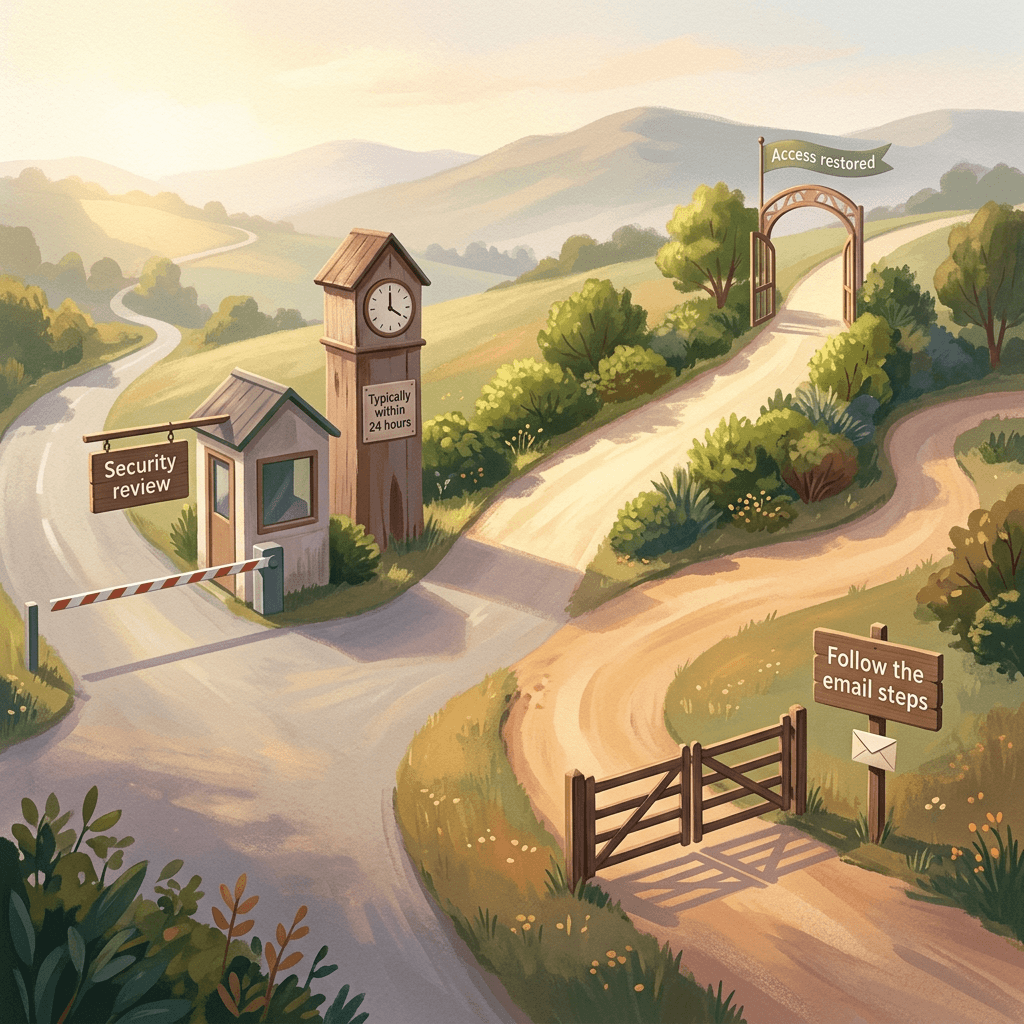
My own advice differs slightly from the "no immediate action" line. The pause locks publishing features on the channel, but it does not by itself remove a malware infection from your computer or kick an intruder out of your Google Account, which also holds your email, Drive files and saved passwords. That is analysis rather than a YouTube statement, and the checks I describe below take about ten minutes and cost nothing, so doing them while you wait is a sensible use of the review window.
Why the pause is shaped this way (analysis)
A hijacker has a narrow window and a short shopping list. YouTube's own cleanup guidance says the most frequent changes hackers make are in uploads, channel permissions and channel info, which includes adding unknown users, changing the channel's name, handle, picture and banner, and altering privacy settings so existing videos are hidden. Every item on the Temporary Feature Pause list is a way of publishing or promoting something to your audience, and the one thing a scammer wants most is a live stream running under a trusted channel name. By freezing those exact actions and leaving viewing and monetization alone, YouTube is trying to cut the scam off from your audience without punishing your viewers or your revenue while it investigates. Think of it as first aid that now sits in front of the Studio cleanup tool and the hacked channel assistant, which are the tools you use after the bleeding stops.
What YouTube has not said (and what that means for you)
A new security feature always leaves gaps, and this one has several that matter to working creators. I would rather list them honestly than guess.
- Trigger criteria. YouTube says it acts on "unusual or unauthorized activity" and does not describe what counts. Dexerto and PPC Land both note the same gap. Do not assume that a missing banner means a clean bill of health, and do not assume that a banner means you did something wrong.
- False positives. YouTube has not published how often legitimate owners get paused. The announcement's answer to a mistaken pause is the review itself: if the account is safe, access returns immediately.
- Rollout. Reporting describes the feature as starting on October 21, but I did not find a statement about whether it reaches every channel at once or in stages. If you have the banner, the feature has reached you; if you do not, that tells you nothing about your risk.
- Scheduled and automated publishing. Uploading, updating and switching a video from private to public are all paused, but YouTube has not said what happens to a video already scheduled to go public during a pause. Check any scheduled premiere or release in Studio before and after, and have a plan in case it does not go out on time.
- Other editing. The lists I read do not mention changing your channel name, handle, profile picture or banner, deleting videos, or moderating comments. Those may still be possible, which is useful if you need to restore branding quickly, and is also a reason to check them for tampering.
- Effects on reach. YouTube has not published anything about how a pause or a hijack affects recommendations. If your views dip afterward, measure it in Studio rather than assuming the cause. My guide to YouTube Studio's Insights redesign shows where to look.
Pause or hack? The first 15 minutes after you see the banner
A pause banner means YouTube saw something unusual, which falls short of proof that an intruder has your channel. The Help Center's hacked channel guidance gives two concrete signs that a Google Account behind a channel may be compromised: changes you did not make, such as a different profile picture, description, email setting, AdSense for YouTube association or sent message, and uploaded videos that are not yours, which may come with emails about penalties or strikes. Use the checklist below to sort your situation into one of three scenarios.
- Check Google Account security events. Open your Google Account, go to Security and sign-in, and review the Recent security events panel. If you see activity you did not do, choose "No, it wasn't me" and follow the prompts.
- Check your devices. In the same area, open Your devices, then Manage all devices, and look for anything you do not recognize. Google notes that sessions can appear separately from devices, and that a new session is created whenever you sign in on a new browser, app or incognito window, so a few entries are normal. Sign out of any session you cannot account for.
- Check who can manage the channel. In YouTube Studio, open Settings, then Permissions, and read the list of people with access. Only owners and managers can see names and emails here, which is another reason to keep the owner account under your control.
- Check Gmail for tampering. Google's guidance for hacked accounts says to remove any labels, filters or forwarding rules you did not set up.
- Check Studio for strikes and surprises. Look at your Dashboard for new Community Guidelines strikes, scan your recent uploads, and confirm the channel name, handle, profile picture and banner are still yours.
Now match the results to a scenario:
- Scenario A: banner, and every check is clean. This is most likely a review you can wait out. Use the time to harden the account (passkey, recovery info, permissions review), tell your team not to try to publish, and keep an eye on the owner inbox for YouTube's decision.
- Scenario B: banner, plus unknown devices, unknown managers, changed settings or uploads you did not make. Treat this as a hijack and start the full recovery checklist below. The pause is protecting your channel, but YouTube says that if it confirms the hijack the limits stay until you finish the steps, so the clock on your recovery has effectively started.
- Scenario C: no banner, but you can see signs of a hijack. Do not wait for YouTube. YouTube has not said what triggers a pause, so its absence proves nothing. If a live stream is running under your name, or your channel was renamed, begin recovery at once.
How YouTube channels actually get hijacked in 2026
Understanding the attack changes which defenses you build. Every YouTube channel is tied to at least one Google Account, and the Help Center states that when a channel is hacked, at least one Google Account associated with the channel has been compromised as well. The interesting question is how attackers get into that account when so many creators already use 2-Step Verification.
The fake sponsorship pattern
Google's Threat Analysis Group (TAG) documented the core pattern in an October 2021 report on cookie theft malware aimed at YouTube creators, which it said it had been disrupting since late 2019. The attackers were financially motivated, hack-for-hire actors recruited on Russian-speaking forums, and they sent forged business emails that impersonated real companies and proposed video advertisement collaborations. The lures were typically demos of antivirus software, VPNs, music players, photo editing tools or online games. After a creator agreed, they received a fake software download page, a PDF on Google Drive or occasionally a Google Doc containing phishing links. TAG also saw attackers move conversations to WhatsApp, Telegram or Discord once Gmail's protections started blocking their links.
The pattern is still current. YouTube's "Secure your YouTube channel" page names a link in "a spam or fake sponsorship or brand deal email" as one of three routes for malware, alongside downloads from untrusted sources and fake software updates, and it warns that malware usually arrives as password protected and zipped files that end in .scr or .exe. Bitdefender's research, first published in December 2024 and updated in October 2025, describes emails with subject lines such as "Partnership (Samsung)" that pointed to a fake brand page offering a password protected .rar archive. The malware inside was wrapped in a packer called Heartcrypt to evade antivirus detection.
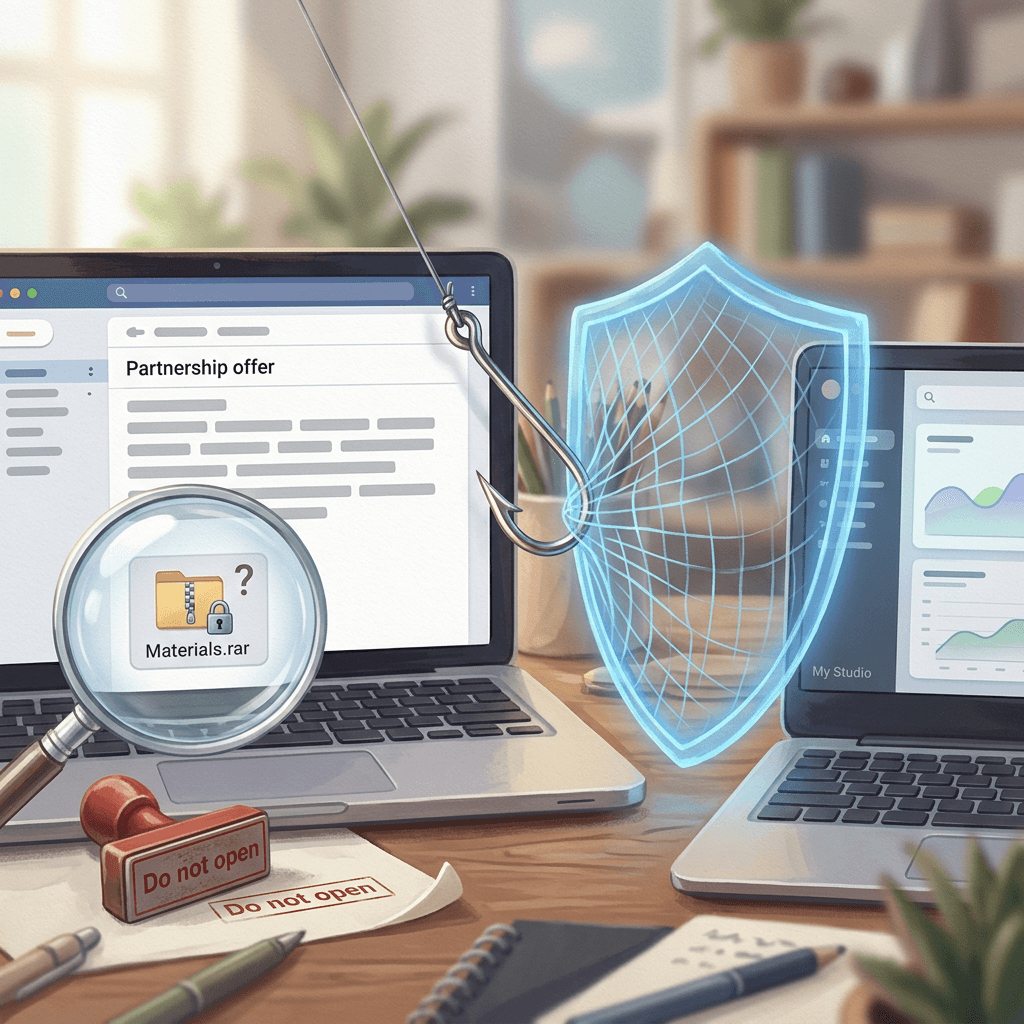
The password on the archive has a purpose. YouTube's own guidance notes that antivirus software may not scan some encrypted files, and TAG warns that encrypted archives often evade scans. A real brand that wants you to review a campaign brief does not need you to unlock a locked folder on the same computer where you stay signed in to Studio, which makes a password protected download from an unsolicited "partnership" one of the clearest red flags you will ever get. If you are weighing how brand deals really work, my guide to YouTube Shorts brand deals walks through the normal flow, and the Creator Partnerships Hub explainer covers deal flows that start inside YouTube instead of in an email attachment.
Why a session cookie beats your password and 2-Step Verification
When you sign in to YouTube, your browser receives a session cookie, a small token that tells the site you already proved who you are. Each later page request carries that token so you do not have to type a password and approve a prompt every time you click. An infostealer copies those cookies, along with saved passwords and other browser data, and uploads them to the attacker. Google TAG calls the follow-up a "pass-the-cookie" attack, a session hijacking technique that skips the sign-in step altogether, and it suggested that the technique's resurgence may be tied to wider adoption of multi-factor authentication, which pushed attackers toward social engineering. Bitdefender's analysis reaches the same conclusion in plain terms: 2FA can be bypassed with infostealer malware.
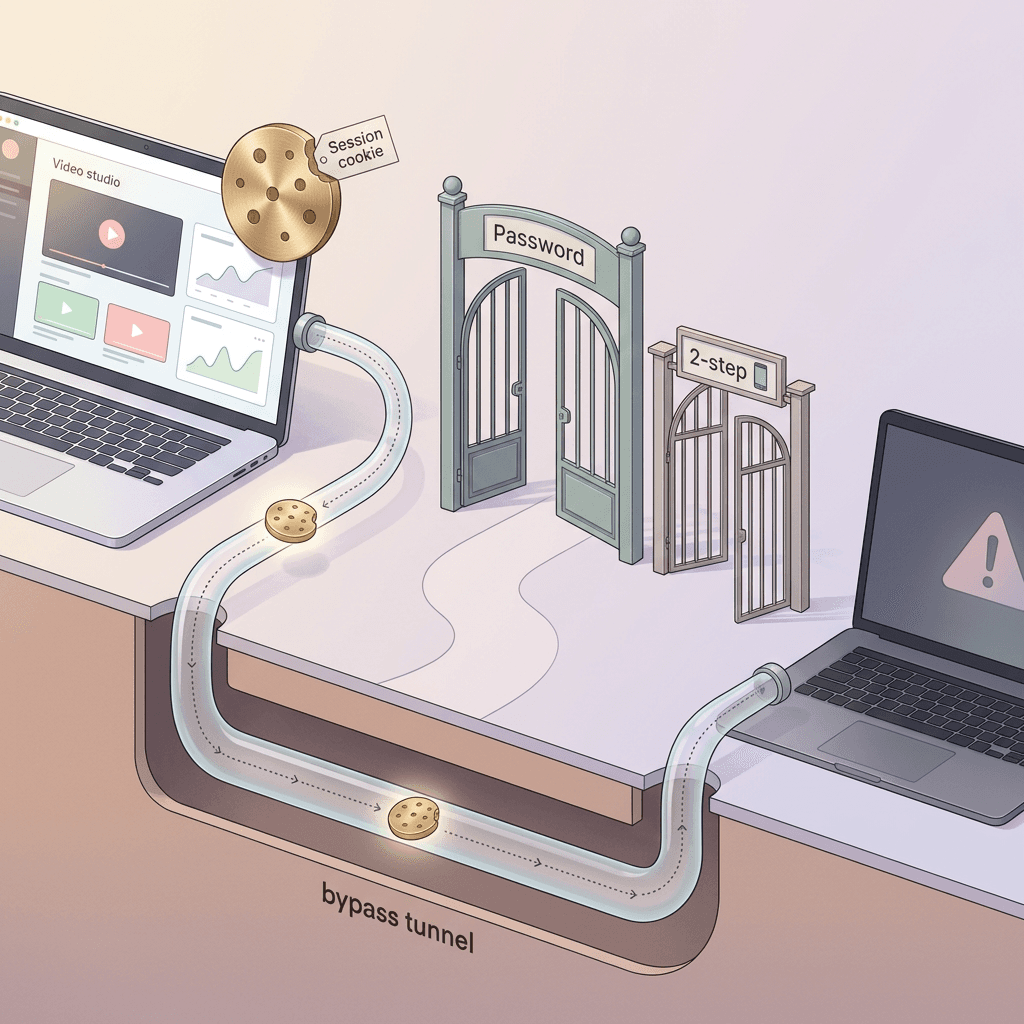
This detail changes how you should rank your defenses. A passkey or security key gives you what Google describes as the strongest protection against phishing, which covers fake login pages. It cannot help if malware already sits on your device and copies a session that was created legitimately. My conclusion, which is analysis and not a YouTube statement, is that you need two layers: strong sign-in (a passkey) to stop credential phishing, and device hygiene (no unsolicited downloads, a browser profile you keep clean) to stop session theft.
A real example: the Linus Tech Tips incident
Linus Media Group's channels were hijacked in March 2023, and the way it happened maps almost perfectly onto the pattern above. Dexerto's coverage of Linus Tech Tips' own explanation says an employee downloaded a file that appeared to be a sponsorship offer and that the email "came from a legitimate-looking source." The file did not open as expected, so it was ignored, but the malware had already copied data from Chrome and Edge, including saved passwords, cookies and browser preferences, in about 30 seconds. Linus said the attackers got an exact copy of the browsers, including session tokens for logged-in websites. The channels' content was removed and scam live streams ran in its place, and all three channels were later restored. He also said recovery took longer than it should have because of how roles were assigned across the channels, a lesson I return to in the team section below.
The video below was published on the Linus Tech Tips channel the day after the takeover and is the team's own response to the March 2023 incident. It is worth watching to see how a company with a full production team talked through the aftermath of a hijack that began with one opened file.
The takeaway for a solo creator is that no step of that attack required skill from the victim, only one file opened on a computer that was logged in to the channel. The same applies to an editor or a manager on a shared project, which is why the team practices later in this guide matter as much as your own settings.
What attackers do with a hijacked channel
TAG found that hijacked channels were either sold on account trading markets, at prices from $3 to $4,000 depending on subscriber count, or used for cryptocurrency scams. In the scam version the channel is rebranded to impersonate a large technology or crypto company and then streams a "giveaway" that asks viewers for an upfront contribution. Bitdefender calls the technique stream-jacking and describes crypto-doubling schemes run through live streams or deepfakes. Existing videos are often made private or deleted along the way, and YouTube's cleanup guidance specifically warns that hackers may change privacy settings so existing videos are hidden.
The price range matters for small creators. At the low end a small channel is cheap, but cheap is still saleable, and a small channel is also less likely to have a security team or a YouTube contact looking out for it. If your audience tells you that your channel is live when you are not, assume a hijack and start recovery. AI deepfakes of a creator's face and voice are a related but separate problem, and YouTube's likeness tools for that are covered in my guide to YouTube's face likeness detection.
How to recover a hacked YouTube channel: the step-by-step checklist
YouTube's recovery guidance is built around three steps: recover and secure the Google Account tied to the channel, revert unwanted changes on the channel immediately to avoid policy problems like Community Guidelines or copyright strikes, and reduce the risk of future access by applying security practices with everyone who has access. The list below expands those three steps into the order I would work in, with the specific menus and limits YouTube documents. Bookmark YouTube's Recover a hacked YouTube channel Help Center page too, because its hacked channel assistant (a chat available in English, Spanish and Portuguese) can walk you through your own case.
Step 1: Capture evidence in the first two minutes
Before you change anything, take screenshots of the banner text, the channel name and handle as they now appear, any videos or streams you did not publish, and the emails you received from YouTube or Google. If a live stream is running, copy its URL. This sounds slow when everything is on fire, but support teams and appeals work better with specifics, and the unauthorized uploads you need to remove are easier to describe when you have a record of their titles. Then delete what YouTube tells you to delete, as covered in steps 6 and 7.
Step 2: Move to a clean device before you sign in anywhere
If malware stole your session, the infection is probably still on that computer, and a freshly created session after you change your password can be copied just as easily. Google's guidance for a compromised account says to remove harmful software, install and run trusted antivirus software, and, if needed, reset the computer to factory settings and reinstall the operating system after backing up the files you need. It also suggests keeping Chrome updated and removing extensions you do not recognize. My practical advice (analysis) is to begin the account work on a different device that has never opened the suspicious file, such as a phone that did not touch the email, and to treat the old computer as untrusted until it has been cleaned.
Step 3: Recover or secure the Google Account
Your channel recovery depends on your Google Account, so this is the step that decides everything else.
If you can still sign in:
- Change your password right away to a strong one you have not used anywhere else. Google also tells you to change the password for any apps and sites that share it, that you reach through your Google Account email address, or where you saved passwords in your Google Account.
- Review Recent security events and mark anything unfamiliar as "No, it wasn't me."
- In Your devices, sign out of any device or session you do not recognize.
- Check your critical security settings for changes you did not make: recovery phone number, recovery email, alternate email, apps with access to your account, 2-Step Verification and its methods.
- Remove Gmail labels, filters and forwarding rules you did not set up.
- If you use Google Ads or AdSense, check for unauthorized charges, and in AdSense confirm that payments are going to the correct bank account.
If you cannot sign in:
- Go to the Google account recovery page and answer the questions as best you can. Google says wrong guesses will not lock you out of the recovery process and there is no limit on attempts.
- Reset your password when prompted, with a strong password you have not used on this account before.
- If you change recovery info, Google says the change can take up to seven days to take effect, so try again after a few days if recovery fails.
- Ask every channel owner and manager to secure their own Google Accounts the same way.
- Do not pay or give any codes to anyone offering to recover the account for you. Google states that you cannot call it for sign-in help, that it works with no service claiming to offer account or password support, and that you should not give out passwords or verification codes.
Step 4: Turn on 2-Step Verification with a passkey
Google ranks the second-step options for you. A passkey (your fingerprint, face scan or phone screen lock) gives the strongest protection against phishing, and a hardware security key also gives strong protection. Google prompts, the phone notifications, are described as more secure than text message codes, while phone verification codes and printed backup codes are both labeled less secure. YouTube's page recommends choosing a passkey as your second method for the strongest protection against phishing. Passkeys work on computers running Windows 10, macOS Ventura or ChromeOS 109 or newer, and on phones running Android 9 or iOS 16 or newer, in Chrome 109, Safari 16, Edge 109 or Firefox 122 and later.
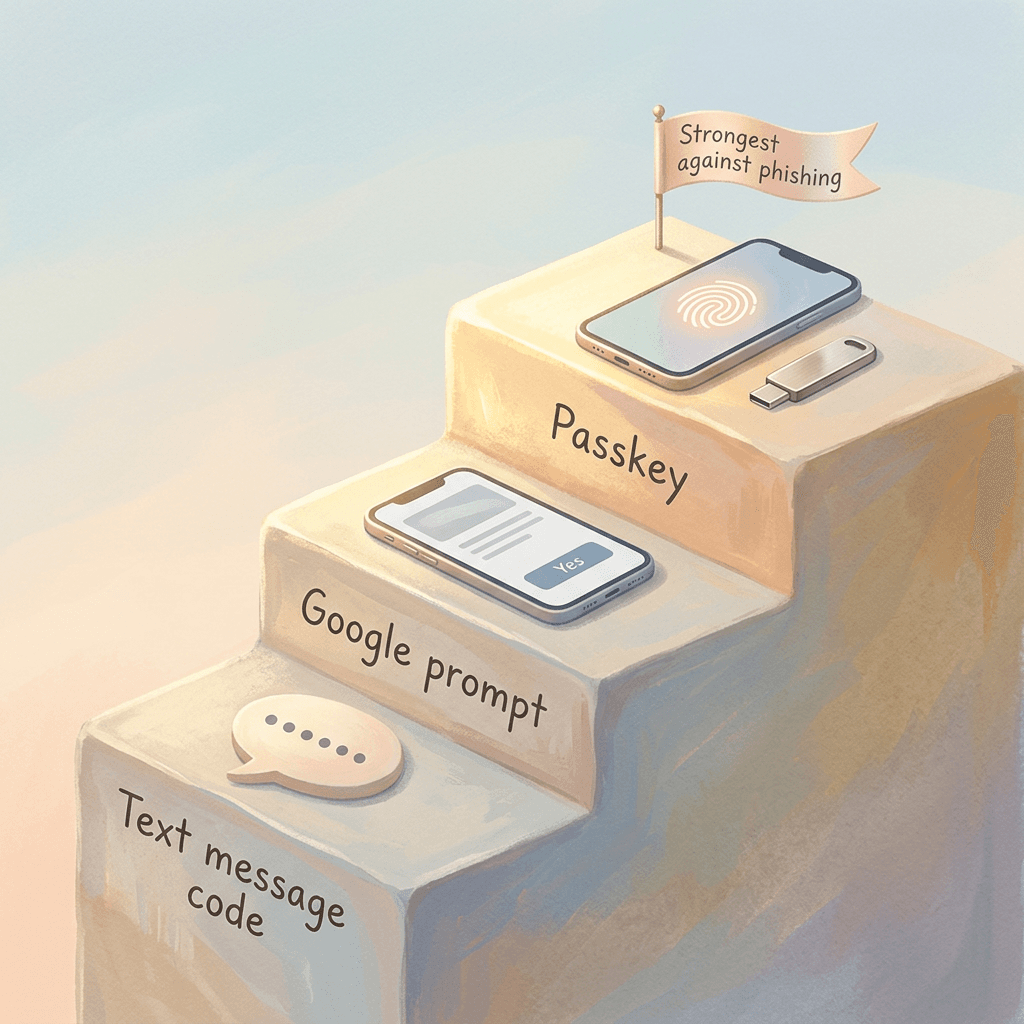
Add recovery options at the same time. Your phone number and email address let Google block someone from using your account, alert you to suspicious activity and help you back in if you are ever locked out. For a channel that earns real money or serves a large audience, consider enrolling in the free Advanced Protection Program, which Google says requires a passkey or security key to sign in, limits third-party app access to your data, puts stronger checks on suspicious downloads and tightens account recovery. Google recommends a primary security key plus at least one backup if you choose keys, and it says to add recovery info and turn on 2-Step Verification before you enroll.
Step 5: Run YouTube Studio's cleanup tool
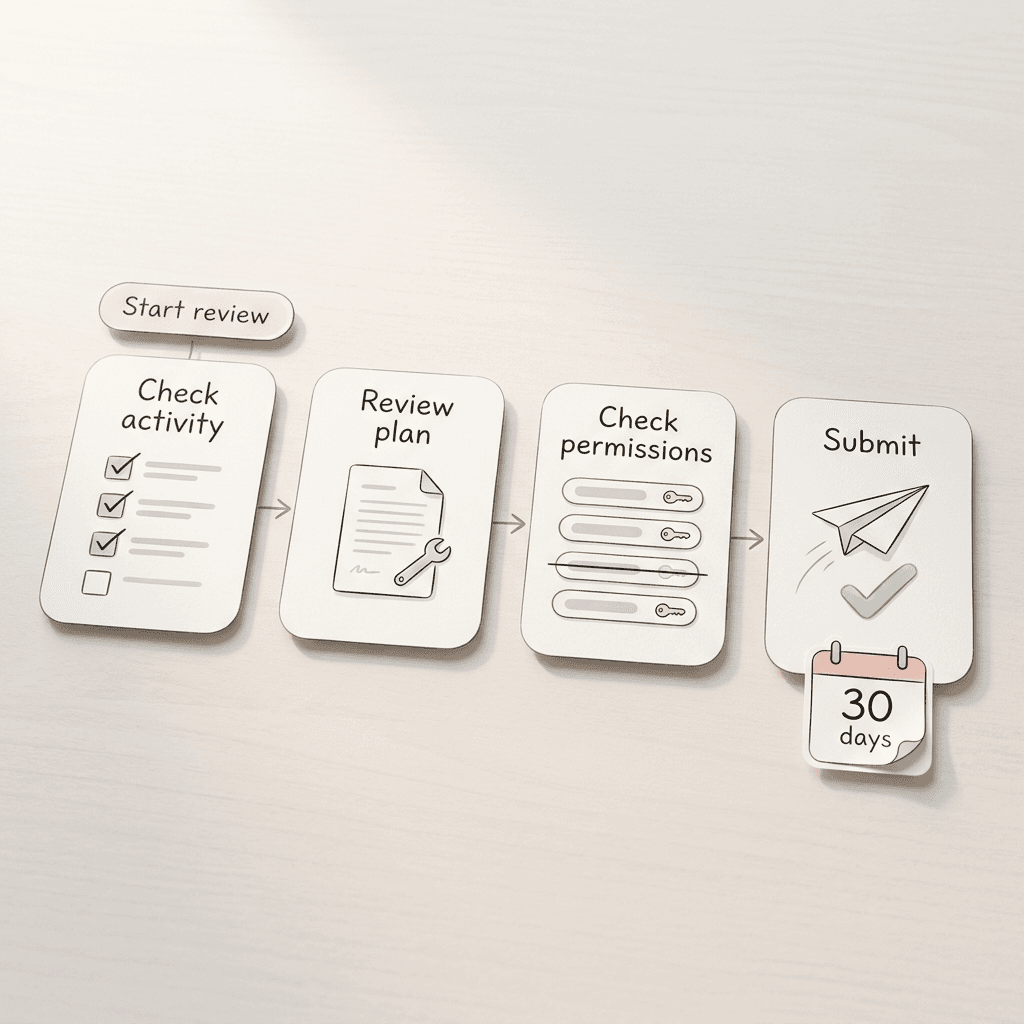
Once you control the Google Account, open YouTube Studio on a computer and use the cleanup tool, which shows a list of unusual activity on your channel so you can review it all at once. Only channel owners and managers can use it, and the Start review prompt appears only when YouTube has detected unusual activity. The flow has four stages:
- Check activity. Tick the changes you actually made. If you made all of them you can choose "I made all changes," but only use that when you are certain.
- Review plan. Read the actions YouTube will take under "How we'll fix this."
- Check permissions. Review who has access and update roles or remove people.
- Submit. Finish the additional steps listed, then submit.
YouTube says it makes the changes you requested as soon as you submit, usually within a few hours, and that you will get an email with a link to track the cleanup request. You can go back and edit your review before the date in that email, usually 30 days after submission, but there is an important asymmetry: you can edit changes you marked as authorized, while you cannot undo changes you marked as unauthorized. Take the extra minute on each line item.
Step 6: Clean up manually where the tool cannot help
If you do not have access to the cleanup tool, or you want a second pass, YouTube's manual process covers the most common hijacker changes.
- Unauthorized uploads. If a video the hacker uploaded has no Community Guidelines strike, copyright strike or copyright claim, delete it. If it does have one, contact YouTube to start an investigation instead of just deleting it.
- Unknown users. In Studio, open Settings, then Permissions, and remove anyone you did not invite. For Brand Accounts, remove users through the Brand Account tools.
- Channel basics. Restore your channel name, handle, profile picture and banner as fast as you can. YouTube warns that leaving an impersonating name or branding in place can get the channel permanently suspended for trademark infringement. If you cannot change the name, check that any translations have been deleted first, since leftover translations can block the update.
- Other changes. Check video privacy settings (hackers may hide existing videos), the latest comments made by your channel, playlists, custom thumbnails and the channels you are subscribed to. If you use AdSense and Content Manager, check their settings too.
If you need replacement branding in a hurry, my collections of YouTube channel banner art prompts and AI profile picture prompts give you ready-to-paste starting points, though you should return to your original files whenever you have them, so your audience recognizes the channel.
Step 7: Check strikes, claims and monetization
Open the Dashboard in YouTube Studio and look for new Community Guidelines strikes. If you find any, contact YouTube to start an investigation, which is the same route for hacker uploads that picked up copyright strikes or claims. Then confirm that your monetization-related settings are intact: the AdSense association, payment details and Content Manager settings (if you use them) should match what you set up. YouTube's Community post states that monetization status is not impacted by the pause itself, but a real hijack can alter linked accounts, so verify them yourself. If you are working toward monetization, my explainer on the Partner Program requirements tells you what you need to stay on track, and the guide on what gets AI content demonetized is worth a skim once you are back, since a hijacker's uploads can drag your channel's standing down if they are not removed quickly.
Step 8: Contact YouTube if limits remain
If YouTube confirmed a hijack, the pause stays on until you contact support. YouTube says eligible creators, such as those in the YouTube Partner Program, who have already recovered their Google Account can get in touch with the YouTube Creator Support team. If you cannot reach Creator Support, it points you to @TeamYouTube on X. One limit is easy to miss: YouTube says support is limited to potential hacking incidents within the past nine months because of its data retention policy, and if your incident is older it may not be able to recover the channel. If you suspect you were hijacked long ago, act now.
Step 9: Appeal if the channel was terminated
A hijacker's content can get a channel terminated for policy violations. YouTube says that once you recover your Google Account you will find an email with details about how to appeal the termination, and you can then use its appeal form. The appeal may not be accepted if the account recovery is incomplete, which is a strong reason to finish steps 2 through 6 before you file. If the hacker uploaded videos that violate the Community Guidelines, delete the ones you did not upload immediately, because all content on YouTube has to comply.
Step 10: Warn your audience and your partners
While you are recovering, your viewers may be watching a scam stream under your name. Post a short warning on your other channels (Instagram, X, Discord, your website or newsletter) saying that your YouTube channel was compromised, that you never run giveaways that ask for money, and that nothing on the channel is official until you confirm the recovery. Email any active sponsors so they hear it from you first. Once your channel is fully restored, a short community post or a pinned comment explaining what happened rebuilds trust faster than silence.
Step 11: Rotate everything the stealer could have copied
Infostealers do not stop at YouTube. Dexerto's coverage of the Linus incident says the attackers got an exact copy of the browsers, including logged-in sessions. After you finish the Google Account work, sign out of every other service on the affected computer, change those passwords from a clean device, and enable passkeys or 2-Step Verification wherever they exist. Prioritize your email accounts, your payment services, your sponsor and affiliate portals, your cloud storage, your social accounts and your ad accounts. If a payment method was saved in the browser, check it with your bank.
The table below condenses the whole sequence into a timeline you can screenshot.
| When | Goal | What to do |
|---|---|---|
| First 15 minutes | Stop the damage and capture evidence | Screenshot the banner and any changes, read the channel owner's email, move to a clean device, check security events and devices in the Google Account |
| First hour | Get control of the Google Account | Change the password, sign out unknown sessions, fix recovery info and 2-Step Verification, remove harmful software |
| First day | Undo the changes | Run the Studio cleanup tool or clean manually, delete unauthorized uploads, review permissions, restore name, handle, picture and banner, check AdSense payment details and Dashboard strikes |
| First week | Close gaps and ask for help | Contact Creator Support or @TeamYouTube if limits remain, appeal a termination, rotate other passwords, warn your audience and sponsors, set up a passkey and consider Advanced Protection |
| First month | Verify and rebuild | Check the cleanup request before its edit window closes (usually 30 days), review your numbers in Studio, restart your upload rhythm, update the restore kit and your incident plan |
The prevention checklist for 2026
Prevention comes down to four jobs: protect the account, protect the browser and device, vet every sponsorship offer, and control who has access. Each job covers a different link in the attack chain, so skipping one leaves a hole the others cannot fill.
Protect the Google Account
- Use a passkey as your second step, and add a second passkey or a backup security key so that losing one phone does not lock you out.
- Add recovery options (phone and email) and keep them current, since these are what let Google block a hijacker and help you back in.
- Use a separate email address for your channel than the one you use across other sites. The Help Center says that if you reuse the same email everywhere and someone gets access to it, they can take over your YouTube and other accounts all at once.
- Run the Security Checkup that YouTube links from its Secure your YouTube channel page, and repeat it every few months.
- Consider Advanced Protection if the channel is your business, since it is free and enforces passkey or security key sign-in.
- Install Password Alert in Chrome, which Google describes as a warning when you type your Google password into a non-Google site pretending to be Google.
Protect the browser and the device
- Turn on Enhanced Safe Browsing in Chrome. YouTube recommends it together with antivirus because antivirus may not scan some encrypted files, whereas Enhanced Safe Browsing scans files downloaded in Chrome.
- Keep Chrome and your operating system updated, and delete extensions you do not use.
- Treat Safe Browsing warnings as real. TAG notes that attackers often try to get users to ignore them.
- Scan files before you run them. TAG recommends checking files with antivirus or VirusTotal first.
- Keep Studio on a clean profile. My suggestion (analysis) is to use a dedicated browser profile, or a dedicated computer, for YouTube Studio and your Google Account, and to open email attachments and brand demos somewhere else. A stolen session is only as valuable as the account it was created for.
Vet every sponsorship offer
Use this as your screening routine whenever an unsolicited "brand deal" lands:
- Do not download software, "campaign materials" or archives from an unsolicited offer, and never open a password protected file from a stranger.
- Be suspicious of a demo request. The campaigns TAG studied used antivirus, VPN, music player, photo editing and game demos as bait.
- Check the sender through a second route. Find the company's official website yourself, look for the partnerships or press contact there, and confirm the request independently rather than replying to the email.
- Hold the conversation on email and video calls and be wary of a stranger who immediately moves you to WhatsApp, Telegram or Discord, which TAG saw attackers do after Gmail started blocking their links.
- Keep deal files in cloud documents you view in the browser instead of downloading executables. A real brief is text, slides or video, not software.
For disclosure and the other side of sponsorships, the guide to YouTube's auto-label system for branded content and AI video covers what to declare once a real deal is signed, and the comparison of memberships, Patreon and sponsorships helps you decide how much of your income should depend on inbound email offers in the first place.
Control access with permissions, not passwords
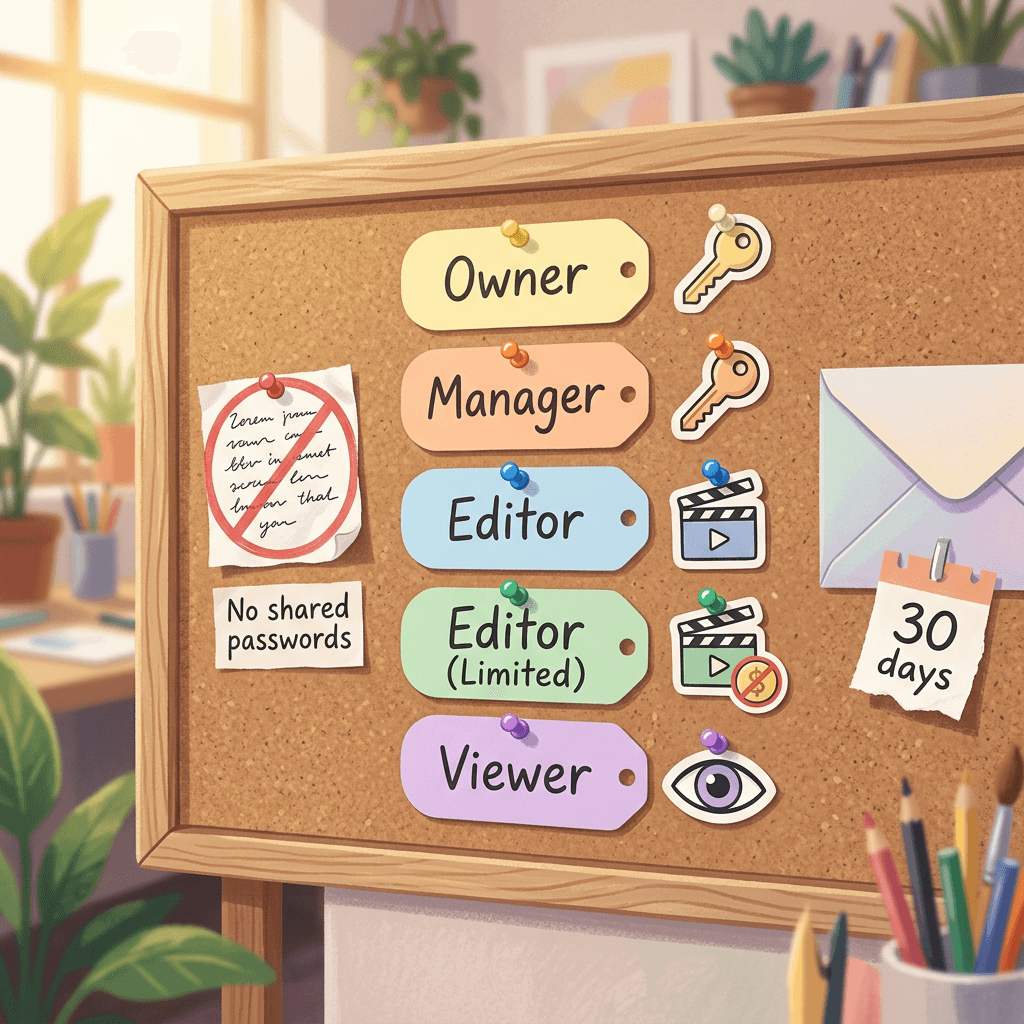
YouTube is blunt on this point: do not share passwords or sign-in info with anyone else, and let access to your channel come only through accounts authorized with channel permissions. Channel permissions let people manage your channel without needing access to your Google Account, which YouTube describes as safer than sharing your password and a way to set each person's access level. In YouTube Studio, open Settings, then Permissions, then Invite, enter the person's email, pick a role and finish. Invites expire after 30 days, and you can change a role or remove access from the same Permissions screen. If you still run a Brand Account, YouTube says to switch to channel permissions and migrate.
Build a restore kit before you need one
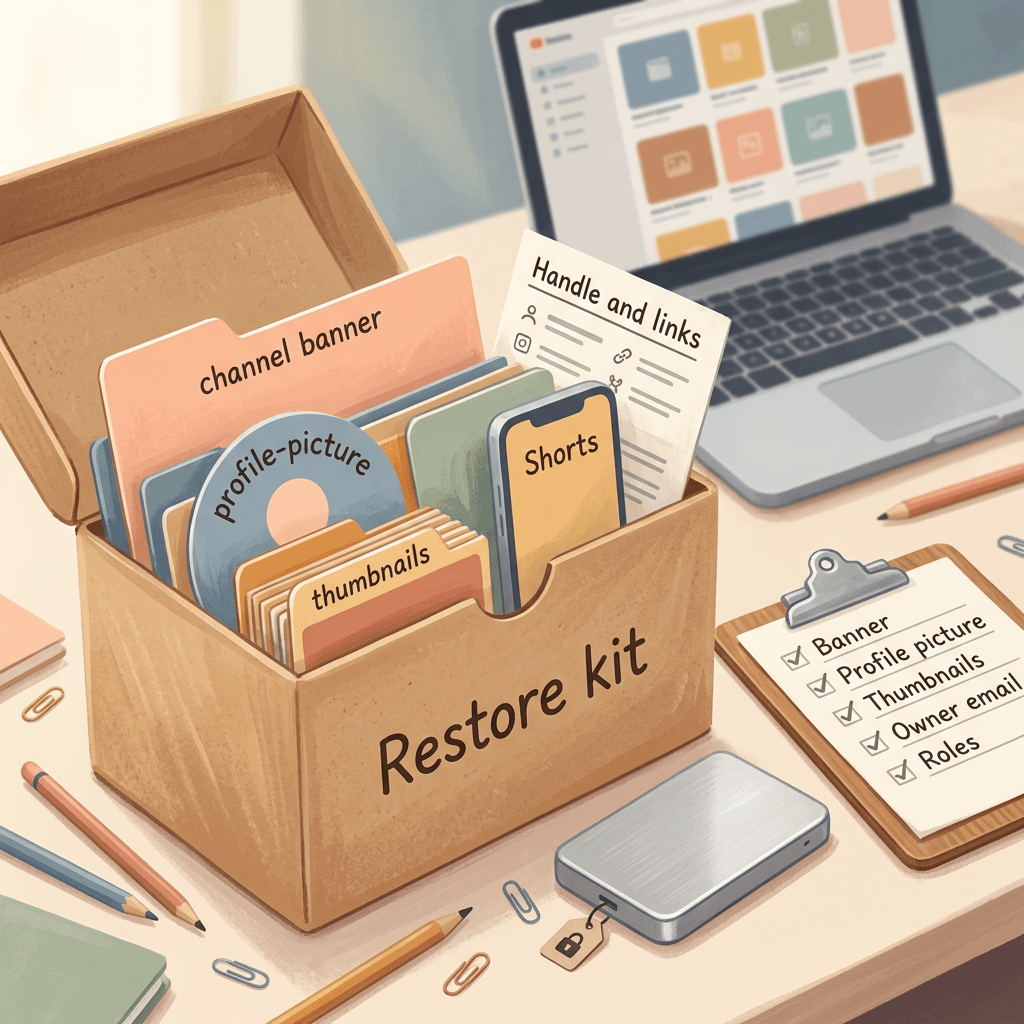
The slowest part of recovering a hacked channel is often rebuilding what the hacker changed. A restore kit makes that a ten-minute job, and it should live somewhere that is not controlled by the Google Account you are trying to protect (an encrypted drive or a different cloud provider):
- Your original banner, profile picture and watermark files, plus your exact channel name, handle and description text.
- Your key thumbnails and a spreadsheet of video titles and URLs, so you can check privacy settings and spot missing videos quickly.
- The links in your About tab and pinned comments.
- Your AdSense payment details and the owner email address for the channel.
- A list of everyone with Studio access and their role.
- A one-page incident plan: who contacts whom, where the recovery links are, and who has the authority to lock things down.
Small channels, large channels and teams: what changes
The recovery steps are the same for everyone, but the risks, the support routes and the weak points differ by size.
Small and new channels
A channel with few subscribers is not too small to be hijacked. TAG's price range of $3 to $4,000 depending on subscriber count shows that there is a market for small channels, and a scammer only needs a handful of trusting viewers for a fake giveaway to work. Small channels are also more likely to be run from one personal Gmail account, with the same email used for the channel and for dozens of other sites, which is the exact setup YouTube warns about.
Support is where small creators have a harder road. YouTube's Creator Support is open to eligible creators, such as those in the Partner Program, so a channel outside the Partner Program may not qualify and may need to rely on the hacked channel assistant, the Help Community, the cleanup tool and @TeamYouTube on X. That makes the self-service steps in this guide even more important, and it makes prevention cheaper than any recovery. If you run a faceless or automation-heavy channel with little personal contact, the guide to starting a faceless channel with AI is worth reading with this security list next to it, and keep your original upload files and the owner email address as proof that the channel is yours.
Established and monetized channels
Larger channels are targeted for both resale value and audience trust, so the lures get better: forged emails from known brands, references to real campaigns, and attachments that look like contracts. The defenses that matter most are the ones that scale: Advanced Protection on every owner and manager account, security keys with a backup, a dedicated machine or browser profile for Studio, and a rule that no one opens "campaign materials" on that machine. Eligible creators can use Creator Support after they recover the Google Account, so keep proof of ownership handy, such as original upload files, the AdSense association and the owner email. If you have a YouTube partner manager through a network or a direct relationship, add that contact to your incident plan.
Monetized channels also have more to check after a hijack. The cleanup guidance specifically lists AdSense and Content Manager settings, and Google's account guidance says to confirm that AdSense payments are going to the right bank account. Make a ritual of reviewing those after any security incident, not just after a confirmed one.
Teams, agencies and channels with editors
Teams add three problems: more devices, more inboxes and unclear roles. Each person with Studio access is a possible entry point, and YouTube makes this explicit in its FAQ about a manager whose account was hacked: make sure you and the people on your team have taken steps to secure your accounts, use the channel permissions tool to ensure that only authorized accounts have access at the right level, and do not share passwords.
The Linus Tech Tips example above shows the second cost of a team: when many people have different roles on many channels, resetting the right access at three in the morning gets confusing. Dexerto reports Linus saying that he did not know how to reset passwords and access controls across the channels in the moment. Write the process down before you need it.
Channel permissions are your main tool. Here is how YouTube's documented roles compare, with my notes on when to use each.
| Role | What YouTube says it can do | Key limits | Good fit |
|---|---|---|---|
| Owner | Everything on all platforms, including deleting the channel, managing permissions and live streams, and linking Google Ads accounts | Cannot transfer ownership to other users | You, on the most tightly secured Google Account |
| Manager | View all channel data, manage permissions in Studio, edit channel details, manage live streams, create, upload, publish and delete content | Cannot delete the channel | A trusted partner or producer, with a passkey on their account |
| Editor | View all channel data, edit everything, upload and publish content, manage live streams, delete drafts | Cannot delete the channel or published content, cannot manage permissions, cannot enter into contracts | Video editors and producers who publish |
| Editor (Limited) | Same as Editor | Same limits, plus no access to revenue data | Freelance editors who should not see earnings |
| Subtitle Editor | Add, edit, publish and delete subtitles on eligible videos | Cannot edit anything else, upload content or manage live streams | Translators and caption vendors |
| Viewer | View (but not edit) all channel details, create YouTube Analytics groups, view revenue data | Cannot edit or manage live streams | Accountants and analysts |
| Viewer (Limited) | Same as Viewer | No access to revenue data | Contractors who only need to see performance |
A few practical rules follow from that table:
- Use the lowest role that fits the job. An editor who uploads and publishes does not need Manager's ability to change permissions. Remember that an Editor can still upload, publish and manage live streams, so a compromised editor account can still run a fake stream. That is why every account with those abilities needs a passkey.
- Hide revenue from people who do not need it by using Editor (Limited) or Viewer (Limited).
- Make the pause a team event. Since the pause blocks everyone, tell your team in advance that a banner means nobody retries uploads, and decide who watches the owner inbox. Because the inbox that matters is the channel owner's, that person needs access to it.
- Offboard fast. When a freelancer leaves, remove their access in Settings, then Permissions the same day, and expect their old invites to expire after 30 days anyway.
- Never share the owner login for convenience. A shared login multiplies the number of devices that can lose a session.
If your team also uses YouTube's Collaborators feature to tag other creators on a video, keep in mind that this is separate from Studio permissions, so anyone who actually edits your channel still needs a role under Settings, then Permissions.
Common Mistakes when a YouTube channel is hacked
These are the errors I would expect to cost creators the most time, each based on something YouTube documents. Several are things a stressed person does without thinking.
- Only changing the YouTube channel and ignoring the Google Account. A hacked channel means a compromised Google Account, so a cleaned-up channel with a still-compromised account gets hijacked again.
- Recovering from the infected computer. If the infostealer is still there, your new session is just as exposed as the old one. Clean the device or switch to a clean one first.
- Hiring or trusting a "recovery service." Google says it does not work with services that claim to provide account or password support and that you should never hand over passwords or verification codes. The same caution applies to anyone who messages you offering to restore a channel for a fee.
- Clicking "I made all changes" in the cleanup tool. You can edit changes you marked as authorized but cannot undo the ones you marked as unauthorized, so the cautious path is to review each item and be sure.
- Leaving the hacker's branding in place. An impersonating name, handle or banner can lead to a permanent suspension for trademark infringement, so restore these first, even before you finish less urgent cleanup.
- Deleting uploads that carry strikes or claims. YouTube says to delete hacker uploads with no strikes or claims, but to contact YouTube about the ones that have them, because an investigation is the route to clearing those.
- Forgetting what sits next to the channel. Payments in AdSense, Content Manager settings, Gmail filters, linked ad accounts and saved passwords in the browser are all places a hijacker can leave a mark.
- Not watching the owner inbox. YouTube's pause instructions go to the channel owner's email. If that is an inbox no one checks, the review outcome can sit unread.
- Tolerating shared passwords with editors. One shared login means one stolen session is enough for everyone's access, and it makes it impossible to tell who did what.
- Trying to get around the pause. Uploading from a second channel, handing credentials to a friend or creating a new channel to publish while you wait only adds more accounts to secure, and YouTube has not said how such workarounds interact with the review. Use the wait to harden things instead.
What to watch next (analysis)
YouTube framed the Temporary Feature Pause as a protective measure, and its Community post invites questions, so expect clarifications over the coming weeks. The items I would watch are how YouTube describes the triggers, whether it publishes review times beyond the "typically 24 hours" figure, how it treats scheduled uploads and Shorts that were queued before a pause, and how smoothly the Studio banner connects to the cleanup tool and Creator Support. I also expect creators to share their experiences, so treat early anecdotes cautiously, since a single creator's pause says little about the average case.
The larger point is that YouTube is adding automation to a recovery process that used to depend on you noticing a problem first. That is good news if the detection is accurate, because a hijacker's most damaging first hours get shorter. It is also a reminder that account security has moved from a one-time setup to a routine: a quarterly permissions review, an updated recovery kit and a habit of treating every attachment from a stranger as hostile.
Rebuilding your channel after a hack with Miraflow
Recovery is not over when YouTube restores your access. Your audience has seen a strange channel name or a scam stream, your upload schedule has a hole in it, and your branding may need reassembling. This is where a content workflow helps, and where Miraflow can fit naturally if you already use it for visuals and clips.
Keep backups of what you make. If you build thumbnails and Shorts in Miraflow, download the files you create and store them outside the Google Account tied to your channel, in the restore kit described above. When a hijacker swaps out your custom thumbnails or banner, you can re-upload the exact versions your audience recognizes instead of recreating them from memory. The YouTube Thumbnail Maker also lets you edit an existing thumbnail by adding the video's YouTube link, which helps when you need to restore the look of a video whose thumbnail was changed. My guide on updating old thumbnails explains how a refreshed thumbnail can revive older videos.
Restore branding quickly. The Miraflow AI image generator can generate replacement banner art and profile pictures, and its image-to-image mode lets you start from a reference of your old design, which is useful if your files were lost with an old laptop. Even then, prefer your original files whenever you have them, since viewers recognize consistency.
Rebuild upload momentum. After a pause or a recovery you may have a backlog of ideas but a week of lost cadence. Miraflow's AI Clipping turns one long video into several captioned vertical clips, each with a viral score, so you can restart your Shorts feed from footage you already have rather than filming from scratch, and my walkthrough on turning long videos into Shorts with AI Clipping shows the workflow. For a content plan that starts again with intent, planning a month of YouTube content in one hour is a quick way to reset, and whether you should post daily Shorts can help you pick a cadence that you can sustain.
A security note on tools. AI Clipping starts from a pasted YouTube link or an uploaded video file, so there is no reason any editing or design tool needs your Google password. If a tool, a "sponsor" or a freelancer asks for your Google login, say no and offer channel permissions instead, which is the whole message of this guide.
Nothing here promises that views will bounce back. YouTube has not published how a pause or hijack affects recommendations, so watch your own numbers in Studio over the following weeks, and the YouTube algorithm explainer is a good primer for interpreting what you see. If your Shorts reach drops sharply, my piece on Shorts shadowbans lays out how to tell the difference between a genuine reach problem and normal variation.
Frequently Asked Questions
What is YouTube's Temporary Feature Pause?
It is a security feature announced on October 21, 2026. When YouTube detects unusual or unauthorized activity on a channel, it can automatically pause uploading or updating videos and Shorts, starting live streams, creating playlists or adding videos to them, uploading custom thumbnails, and switching videos from private to unlisted or public, while its security team reviews the channel.
How long does the pause last?
YouTube says its security teams typically review the channel's status within 24 hours, and it has not given a maximum. If your account security is verified, full access is immediately restored. If YouTube confirms unauthorized activity, the limits stay until you complete the steps in the email YouTube sends and contact support.
Does the pause mean my channel was hacked?
Not necessarily, because the pause starts when YouTube detects unusual activity that might be unauthorized, and the review can find that your account is safe. Use the checks in this guide (security events, devices, permissions, uploads and settings) to see whether anything else points to a real hijack.
Will I lose monetization or my videos during the pause?
YouTube's Community post says existing videos remain viewable and your monetization status will not be impacted. The Help Center article adds that YouTube may set some of your recent videos to private during the review to protect viewers, and if it does, it emails you and asks you to review them before making them public again.
Can my editor or manager still upload during the pause?
No, because YouTube says that while the pause is in place no one will be able to perform the paused actions, which means owners, managers and editors alike are blocked, and so are tools that publish on your behalf.
How do I know if my YouTube channel has been hacked?
YouTube lists two signs: changes you did not make, such as a different profile picture, description, email settings, AdSense association or sent messages, and uploaded videos that are not yours, sometimes with emails about penalties or strikes. Also check unfamiliar devices, unknown people in Studio Permissions and a channel name or live stream you did not set.
How do I recover a hacked YouTube channel?
First recover and secure the Google Account tied to the channel, using the account recovery page if you cannot sign in. Then use the cleanup tool in YouTube Studio or clean up manually by deleting unauthorized uploads, removing unknown users and restoring your name, handle, picture and banner. Finally, harden the account with a passkey and contact Creator Support or @TeamYouTube if limits remain.
What if I cannot sign in to my Google Account at all?
Use Google's account recovery page, answer the questions as best you can, and reset your password when prompted. Google says wrong guesses will not lock you out of the process, and changes to recovery info may take up to seven days to take effect. Do not pay recovery services or give out codes, since Google says it does not offer phone support for sign-in.
Does 2-Step Verification protect me from a channel hijack?
It protects you from stolen passwords, and a passkey gives the strongest protection against phishing. Google's TAG and Bitdefender both document infostealer malware that copies a logged-in browser session and bypasses the sign-in step. The best defense combines a passkey with careful device habits, such as never opening unsolicited downloads from sponsors.
What if my channel was terminated after the hack?
Recover your Google Account first. YouTube then sends an email with details on how to appeal, and you can file the appeal with its form. YouTube warns the appeal may not be accepted if account recovery is incomplete, so finish securing the account and cleaning the channel before you submit.
How long after a hack can YouTube still help me?
YouTube says support is limited to potential hacking incidents within the past nine months, because of its data retention policy. If the incident was older than that, it may not be able to recover the channel, so act as soon as you suspect a hijack.
Should I share my password with an editor or use channel permissions?
Use channel permissions. YouTube says to avoid sharing passwords or sign-in info and describes permissions as safer, with the ability to set each person's access level. Add people in Studio under Settings, then Permissions, choose the lowest role that fits the job, and remove access when the work ends.
Can I use Miraflow to back up my channel's thumbnails and Shorts?
You can download the thumbnails and Shorts you create in Miraflow and keep them in your own storage, outside the Google Account tied to your channel, as part of a restore kit. That makes it easy to re-upload the exact versions you used if a hijacker changes them, and you never need to share your Google password with Miraflow or any other creative tool.
Conclusion
YouTube's Temporary Feature Pause answers a real weakness in how hijacks unfold: the attacker moves in minutes, while a creator needs hours to notice and recover. By freezing uploads, live streams, playlists, custom thumbnails and private-to-public switches when it sees unusual activity, YouTube is trying to stop a scam stream from reaching your audience while it checks whether the account is yours. What YouTube has told us is limited to a typical 24-hour review, the five paused actions, the Studio banner and the two possible outcomes, and there are open questions about triggers, mistaken pauses and scheduled content that only time and more official documentation will settle.
Whatever the pause does or does not catch, the real protection is still in your hands. Treat every sponsorship file as hostile until proven otherwise, keep your Studio sessions on a clean device, use a passkey, give editors channel permissions instead of your password, and keep a restore kit outside your Google Account. If the worst happens, work in order: clean device, Google Account, the Studio cleanup tool, permissions and branding, then support, and keep the nine-month support window in mind. When your access is back and you are ready to rebuild, Miraflow offers the thumbnail, image and clipping tools to restore your look and restart your upload rhythm without ever needing your channel password.